
How to fix Lenovo Docking Station not detecting monitor in Windows?

Prefer to fix it yourself? The manual steps follow.
- 7methods
- 5 to 30 minutes
- Easy
Applies to Windows 11, Windows 10; Lenovo ThinkPad USB-C, Thunderbolt and Universal USB-C docks
7 methods in this guide
Hello. The Lenovo docking station is not detecting my monitor in Windows. How do I fix this?
When a Lenovo or ThinkPad dock does not detect a monitor, the break is almost always in the chain between laptop and screen: dock power, a cable, the monitor input, or the dock driver. Windows itself is rarely the cause. Start with the dock's own power adapter and its status light, then press Win + P.
Plug the dock into its own power adapter and check that the light on its power button turns solid white when the laptop is connected (Fix 1). Then reseat both cables and test the monitor straight on the laptop (Fix 2), and press Win + P and choose Extend (Fix 3). If the dock worked before, press Win + Ctrl + Shift + B (Fix 4). If nothing on the dock works, reinstall the dock driver and update its firmware from Lenovo (Fix 5).
| Error | No error message. The monitor connected to the dock stays black or shows its own No signal notice, and Windows lists only the laptop screen. |
|---|---|
| Where it appears | In Settings > System > Display, where only one display is shown, and on the monitor itself after you dock the laptop or wake it from sleep. |
| Main cause | A break in the chain: the dock is not on its own power, a cable or monitor input is wrong, or the dock driver is missing. Lenovo says the dock always needs its external power adapter. |
| Fastest fix | Power the dock from its adapter, reconnect the laptop and press Win + P to pick Extend (Fix 1 and Fix 3). |
| Also written as | ThinkPad docking station not recognizing monitor, Lenovo dock not detecting monitors, monitor not detected through docking station, dual monitors not working on the dock. |
| Affects | Lenovo and ThinkPad docks on Windows 11 and Windows 10, with Lenovo and with other laptops. The Universal USB-C Dock guide from 2021 lists Windows 10 only. |
| Vendor status | Not a known Windows bug. Microsoft and Lenovo both treat it as a connection, driver or setting problem. Lenovo recommends updating the dock driver and firmware when a new version comes out. |
| Monitor limit | Universal USB-C Dock: up to three displays (two DisplayPort 1.4, one HDMI 2.0); 3840 x 2160 at 60 Hz on one or two, 30 Hz on all three. |
| Time to fix | 5 minutes for power, cables and Win + P. 20 to 30 minutes for a dock driver and firmware update. |
Facts checked on 16 October 2026. Steps written for Windows 11 (25H2 and 26H2) and Windows 10 22H2.
What it means when a Lenovo docking station does not detect the monitor
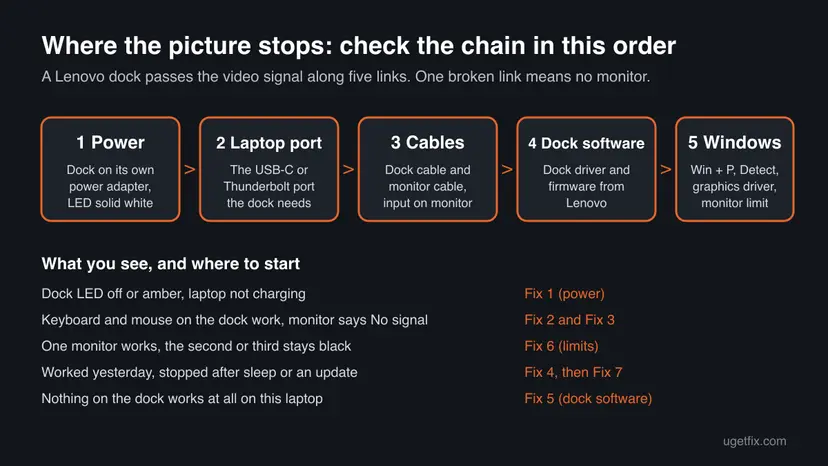
A Lenovo dock takes the video signal from one USB-C or Thunderbolt cable and sends it on to the DisplayPort and HDMI connectors on its back. If the monitor is not detected, Windows never receives word that a second screen exists. Settings > System > Display then shows a single display, and the monitor goes to sleep or shows its own No signal notice.
Windows shows no error message for this. That is why the fixes below begin at the dock and the cables, where Microsoft and Lenovo both start, and only then move into Windows and the graphics driver.
Why a ThinkPad docking station is not recognizing the monitor
Most often the dock is not fully powered or a cable is loose. Less often the laptop is in a mode Windows does not show on the monitor, or the dock driver or firmware is missing or old. Rarely the setup asks for more screens or a higher resolution than the dock and laptop can deliver.
| Cause | How often | How to tell | Fix |
|---|---|---|---|
| Dock runs without its own power adapter, or with a weaker one. | Most often | Light on the dock's power button is off or amber, the laptop does not charge. | Fix 1 |
| Loose or faulty cable, wrong input on the monitor, a splitter. | Often | The same monitor works when plugged straight into the laptop. | Fix 2 |
| Windows is set to show only the laptop screen, or the laptop was in sleep. | Often | Win + P shows PC screen only selected. | Fix 3 |
| Graphics driver stuck after sleep, docking or an update. | Sometimes | The setup worked before and stopped suddenly. | Fix 4, Fix 7 |
| Dock driver missing or firmware out of date. | Sometimes | Nothing on the dock works, or only after a long delay. | Fix 5 |
| Too many screens, too high a resolution, or a laptop port that does not support the dock fully. | Rarely | One monitor works, the second or third stays black. | Fix 6 |
Lenovo's user guide for the Universal USB-C Dock says it plainly: the dock always needs an external power adapter for operation. A dock that only draws from the laptop cable may light up and still not drive a monitor.
What the light on the Lenovo dock tells you
Many people search for a ThinkPad dock with a white or a yellow light. On the ThinkPad Universal USB-C Dock the light on the power button reports two different things, depending on whether a computer is connected. Other Lenovo docks may use other colours, so check the guide of your model.
| Light | Laptop connected? | What it means |
|---|---|---|
| Amber | No | The dock has power and is on. |
| Off | No | The dock is off. Press its power button. |
| Solid white | Yes | The computer is on. The dock should pass video now. |
| Blinking white | Yes | The computer is in sleep mode. External displays stay blank. |
| Blinking orange | Yes | The dock driver is updating. Wait until it turns solid white. |
| Off | Yes | The computer is off or in hibernation. |
How to fix a Lenovo docking station that does not detect the monitor
Fixes 1 to 3 check the hardware chain and the Windows display mode and solve most cases in a few minutes. Fixes 4 and 5 reset the graphics driver and the dock's own software. Fixes 6 and 7 are for multi-monitor limits and a damaged display driver.
| What you see or have | Start with |
|---|---|
| Dock light is off or amber, or the laptop does not charge on the dock. | Fix 1 |
| Keyboard and mouse on the dock work, but the monitor says No signal. | Fix 2, then Fix 3 |
| Worked yesterday, stopped after sleep, undocking or a Windows update. | Fix 4, then Fix 7 |
| Nothing plugged into the dock works on this laptop. | Fix 5 |
| One monitor works, the second or third stays black. | Fix 6 |
| New dock, or a laptop of another brand. | Fix 5, then Fix 6 |
Fix 1. Power the dock from its own adapter and check the light
2 minutesNo riskEvery reader, first. Especially when the dock light is off or amber, or the laptop does not charge.
Lenovo's guide lists the power adapter as the first condition for a working dock. A dock without enough power cannot drive its video outputs, even when USB devices seem to work.
- Connect the dock to a wall outlet with the power adapter and cord that came with it.
- Use the USB-C or Thunderbolt cable that came with the dock to connect it to the laptop.
- Look at the light on the dock's power button. With the laptop connected and on, it should be solid white.
- If the light is off, press the dock's power button once.
- If it blinks white, wake the laptop: press a key or open the lid.
- If it blinks orange, wait for the driver update to finish and the light to turn solid white.
Lenovo's guide says external displays are always blank while the computer is in sleep or hibernation. A closed lid can put the laptop to sleep, depending on its power settings.
It worked if: The light is solid white, the laptop charges and the monitor wakes within a few seconds.
If not: If the light is right but the monitor stays black, go to Fix 2.
Fix 2. Reseat and swap the cables, then test the monitor without the dock
5 minutesNo riskThe dock has power, but the monitor shows No signal or stays dark.
Microsoft lists a loose or faulty cable first for an external monitor that does not work, and tells you to test the monitor on its own. This one test tells you whether the dock or the monitor side is at fault.
- Unplug the dock cable from the laptop and plug it back in firmly. Try the laptop's other USB-C or Thunderbolt port if it has one.
- Unplug and replug the monitor cable at both ends.
- Use the monitor's own menu to select the input you plugged into (HDMI or DisplayPort).
- Connect one monitor only. Remove adapters and splitters between dock and monitor.
- Swap the monitor cable for another one, or try the dock's other video connector.
- Plug the monitor straight into the laptop, without the dock.
- Works straight on the laptop, not on the dock: the dock, its power or its software is the problem. Go to Fix 3, then Fix 5.
- Does not work straight on the laptop either: the monitor or its cable is the problem. Microsoft suggests trying the monitor on another computer.
- A splitter in the chain: Microsoft says a splitter only copies one signal, so it cannot give you two separate extended screens.
It worked if: The monitor shows the desktop or at least the Windows background.
If not: If the monitor works straight on the laptop but not through the dock, go to Fix 3.
Fix 3. Press Win + P, choose Extend and let Windows detect the display
2 minutesNo riskThe dock and cables are fine, but Windows shows only the laptop screen. Same steps on Windows 11 and Windows 10.
Microsoft's first check for an external monitor is the Win + P menu. If Windows is set to PC screen only, a correctly connected monitor gets no picture.
- Press Win + P.
- Select Extend. Use Duplicate if you want the same picture on both screens.
- If the monitor is still dark, press Win + I and open System > Display.
- Expand Multiple displays and select Detect next to Detect other display.
- Select Identify to see which number belongs to which screen, then drag the screens into the order they stand on your desk.
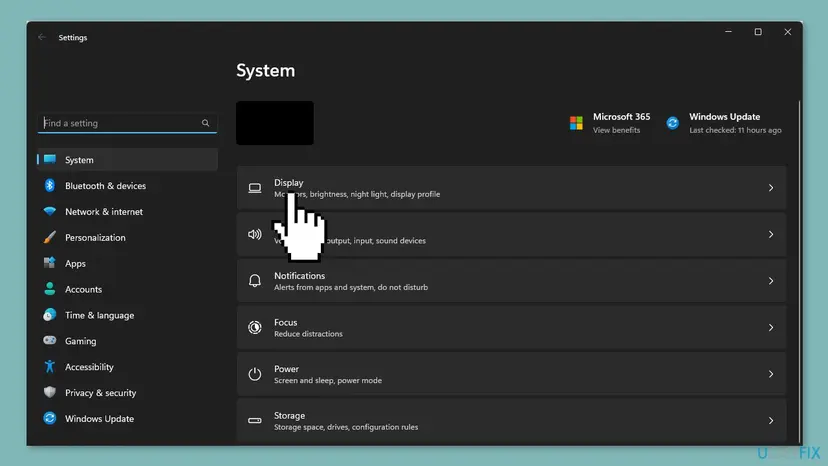
It worked if: The monitor appears as display 2 in Display settings and shows the desktop.
If not: If Detect finds nothing, the signal does not reach Windows. Go to Fix 4.
Fix 4. Reset the graphics driver with Win + Ctrl + Shift + B, then restart
3 minutesNo riskThe dock and monitor worked before and stopped after sleep, undocking or an update.
Microsoft names this key sequence for an existing setup that suddenly stops. It restarts the graphics driver, which can pick up the dock's video outputs again without a full reboot.
- Keep the dock and monitor connected and switched on.
- Press Win + Ctrl + Shift + B at the same time. The screen goes black for a moment.
- If nothing changes, select Start > Power > Restart.
- If a restart does not help, select Start > Power > Shut down, then turn the laptop on again with the dock connected.
A shut down and a restart behave differently when Fast Startup is on. If both fail, turn Fast Startup off for one test: Turn off Fast Startup
It worked if: After the black flash or the restart, the monitor on the dock lights up.
If not: If nothing on the dock reacts, go to Fix 5. If only the screen is missing, go to Fix 7.
Fix 5. Reinstall the dock driver and update the dock firmware from Lenovo
20 to 30 minutesLow riskNothing on the dock works on this laptop, the dock is new, or it is connected to a laptop of another brand.
Lenovo's guide lists the dock driver among the things to check when the external display is blank. Its fix is to disconnect all cables, uninstall the dock driver, reinstall it and reconnect. Lenovo also recommends new firmware whenever it is released.
- Find the dock's name or model on its label underneath.
- Go to lenovo.com/support/docks and select the entry for your dock.
- Download the dock driver and firmware for Windows 11 or Windows 10.
- Disconnect all cables from the dock.
- Uninstall the dock driver: Uninstall a program or app in Windows
- Install the new driver, then run the firmware update while the dock is connected to power and the laptop.
- Wait until the dock light turns solid white, then disconnect and reconnect the laptop. Lenovo says the update takes effect on reconnect.

Lenovo offers Lenovo Dock Manager for silent firmware updates and dock information. Lenovo also keeps an Option Compatibility Matrix of which laptops each dock supports, linked from its accessories guide at support.lenovo.com.
It worked if: After reconnecting, the dock's ports work and the monitor appears in Display settings.
If not: If only some of the screens appear, go to Fix 6.
Fix 6. Check the monitor limit and lower the resolution
10 minutesNo riskOne monitor works on the dock but the second or third stays black, or a 4K monitor gets no picture.
Microsoft says the graphics adapter may not support more than one external monitor. Lenovo says the dock's resolution depends on the laptop's USB-C or Thunderbolt connector, and suggests a lower resolution when the display is blank.
| ThinkPad Universal USB-C Dock | Lenovo's figure |
|---|---|
| Video connectors | Two DisplayPort 1.4, one HDMI 2.0 |
| One or two monitors | Up to 3840 x 2160 at 60 Hz |
| Three monitors | Up to 3840 x 2160 at 30 Hz |
| Depends on | The USB-C or Thunderbolt 3 connector of your computer |
- Connect the monitor that works and open Settings > System > Display.
- Select it and lower Display resolution one step, for example from 3840 x 2160 to 2560 x 1440.
- Connect the next monitor and select Detect again.
- Right-click Start, open Device Manager and expand Display adapters to read the name of your graphics adapter.
- Check with the laptop or graphics maker how many external monitors that adapter supports.
It worked if: Every monitor appears in Display settings, perhaps at a lower resolution or refresh rate.
If not: If the laptop or its port supports fewer screens, no setting will add one. Use the laptop's own video port for one monitor.
Fix 7. Roll back or reinstall the display driver
15 minutesLow riskThe problem started after a graphics driver or Windows update, and Fixes 1 to 5 did not help.
Microsoft's last two steps for an external monitor that stopped working are returning to the previous display driver and, if that is not possible, removing and reinstalling it.
- Open Device Manager. Right-click Start and select Device Manager.
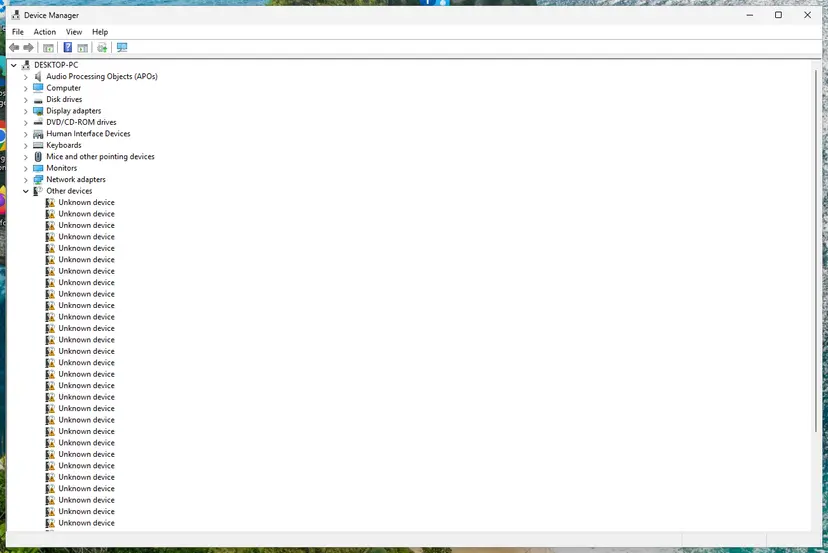
Device Manager lists devices by category; a yellow warning sign marks a device with a problem. Screenshot: Windows 11 26H2. - Open the device's Driver tab. Expand the category (for example Display adapters), right-click the device, select Properties and open the Driver tab. Driver Date and Driver Version show what is installed now.
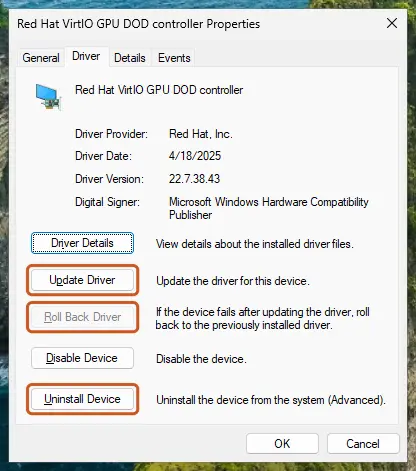
The Driver tab holds all three actions: update, roll back, uninstall. Screenshot: Windows 11 26H2. - Update the driver. Select Update Driver and let Windows search automatically. To use a driver you downloaded from the device maker, select Browse my computer for drivers instead and point to the unpacked folder.
- Or roll back the driver. If the problem started after a driver update, select Roll Back Driver, choose a reason and select Yes. The button is greyed out when Windows has no earlier driver to return to.
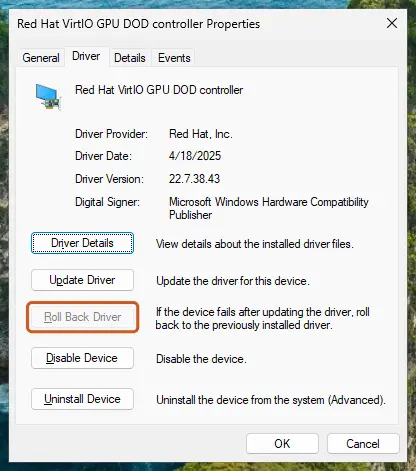
Roll Back Driver is greyed out here because there is no earlier driver. Screenshot: Windows 11 26H2. - Or reinstall the driver. Select Uninstall Device. Tick Attempt to remove the driver for this device only if you want Windows to delete the driver package too, then select Uninstall.
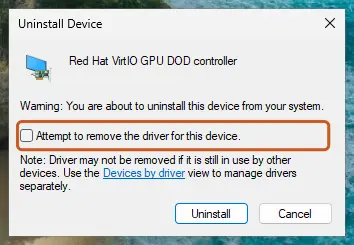
Tick the checkbox only to delete the driver package as well. Screenshot: Windows 11 26H2.
These steps were written for Windows 11 24H2 and later. The full page with the other versions and what each result means: Update, roll back or reinstall a driver
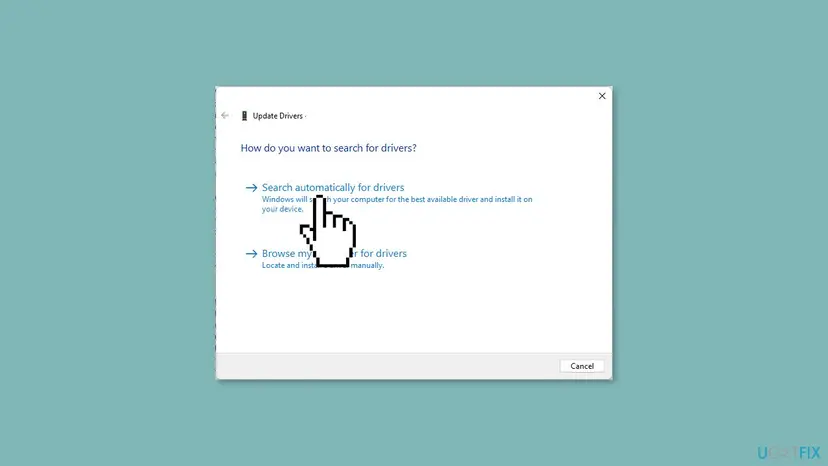
Under Display adapters, choose the graphics adapter, not the monitor. When you uninstall it, tick Attempt to remove the driver for this device, as Microsoft describes. The screen may flicker or drop to a low resolution until the driver is back.
It worked if: After the restart, the display driver loads again and the dock's monitor is detected.
If not: Read the section below on what to check when it is still broken.
If the Lenovo dock still does not detect the monitor
Windows writes no log of its own for a monitor it never saw. The best evidence is what Device Manager shows and what happens without the dock.
- The monitor works straight on the laptop and on another laptop with the dock: the problem is the pairing of this laptop and this dock. Check Lenovo's compatibility matrix and the laptop's port.
- The monitor fails on every laptop with this dock: the dock is likely faulty. Contact Lenovo with the dock's model and serial number.
- The monitor fails even without the dock: the monitor or cable is faulty, not the dock.
- Device Manager shows a yellow warning on a dock device: reinstall the dock driver (Fix 5).
- A work laptop: IT may manage dock firmware and drivers. Ask them before you update.
Microsoft asks people with a display problem its steps cannot solve to file it in the Feedback Hub. Include the laptop model, the dock model, the monitors and what you tried.
How to keep the dock detecting your monitors
- Always use the dock's own power adapter and the cable that came with it.
- Update the dock firmware and driver when Lenovo releases a new version.
- Wake the laptop before you dock it, or dock it before it goes to sleep.
- Keep one monitor per dock connector. Avoid splitters.
- On a three-monitor setup, accept a lower refresh rate or resolution, which Lenovo lists for the Universal USB-C Dock.
Frequently asked questions
Why is my ThinkPad docking station not detecting my monitors?
Most often the dock is not on its own power adapter or a cable is loose. Lenovo says its dock always needs an external power adapter, and Microsoft lists a loose or faulty cable first for an external monitor. Less often Windows is set to show only the laptop screen, the laptop is asleep, or the dock driver is missing. Check the dock's light, reseat the cables, press Win + P and choose Extend. If the dock still shows nothing, reinstall the dock driver and firmware from Lenovo.
Why are my monitors not being detected by the docking station?
A docking station of any brand passes the signal along a chain: power, the laptop port, the cables, the dock software and Windows. One broken link is enough. Test the monitor straight on the laptop. If it works there, the dock side is the problem: its power, driver or firmware. If it does not work there either, the monitor or its cable is the problem. A splitter between dock and monitor can also stop extended screens, because Microsoft says a splitter only copies one signal.
Does the ThinkPad dock not detecting monitors happen more on Windows 11?
We found no Microsoft or Lenovo note of a Windows 11 bug that stops Lenovo docks from detecting monitors. Microsoft's troubleshooting steps are the same for Windows 11 and Windows 10. Lenovo's 2021 guide for the Universal USB-C Dock lists Windows 10 only, so on Windows 11 install the newest dock driver and firmware Lenovo offers for your model. Windows 10 lost Microsoft support on 14 October 2025.
How do I reset a Lenovo ThinkPad docking station?
Lenovo's own reset for a blank external display is to disconnect all cables from the dock, uninstall the dock driver, reinstall it and reconnect all cables. Before that, unplug the dock's power adapter for a short while and plug it back in, then connect the laptop. On the Universal USB-C Dock, the power button turns the dock off and on when no computer is connected. Firmware updates take effect when you reconnect the dock to the laptop.
What does a white or yellow light on a ThinkPad dock mean?
On the ThinkPad Universal USB-C Dock, amber means the dock is on but no computer is connected. Solid white means a connected computer is on. Blinking white means the computer is asleep, so external displays stay blank. Blinking orange means the dock driver is updating. Other Lenovo docks may use different colours, so check the user guide of your model before you read anything into the light.
Why does my laptop not recognize the Lenovo docking station at all?
When no device on the dock works, check power and the connection first: the dock's own adapter, the dock cable, and the laptop port. Try the laptop's other USB-C or Thunderbolt port. Lenovo's guide also asks you to make sure the USB-C connector on your computer works and that the dock driver is installed. Check Lenovo's Option Compatibility Matrix to see whether your laptop is listed for the dock, especially with a laptop of another brand.
Why does only one monitor work on my Lenovo dock?
Usually it is a limit, not a fault. Microsoft says some graphics adapters support only one external monitor. Lenovo says what the dock can show depends on the laptop's USB-C or Thunderbolt connector, and the Universal USB-C Dock drops to 30 Hz at 4K when three screens are connected. Lower the resolution of the first monitor and select Detect again. A splitter will not help, because it copies one signal and cannot extend the desktop.
The dock charges my ThinkPad but the monitor shows nothing. What now?
Charging shows that power and the cable work, so the video side is the suspect. Select the right input on the monitor's own menu, reseat the monitor cable and try the dock's other video connector. Then press Win + P and choose Extend, and select Detect in Display settings. If the monitor works straight on the laptop but not through the dock, reinstall the dock driver and update the firmware from Lenovo.
Should I use a driver updater program for my dock or monitor?
No. Get the dock driver and firmware from Lenovo's dock support page, and the display driver through Device Manager, Windows Update or the maker of your laptop. Microsoft's own steps use Device Manager to roll back, reinstall and update the display driver. The monitor entry in Device Manager rarely matters here: the graphics adapter under Display adapters does the work.
Sources
- Microsoft Support: Troubleshoot external monitor connections in Windows (support.microsoft.com)
- Lenovo: ThinkPad Universal USB-C Dock User Guide (First Edition, March 2021, P/N SP41B88172) (bhphotovideo.com)
Did this fix work?
One click, no account. It tells the next reader which guides are worth their time.
Questions and experiences: fix Lenovo Docking Station not detecting monitor in Windows
Still broken, or found a fix we did not cover? Ask here: members and our editors answer. Reading is open; writing needs a free account.
…