
How to fix LiveKernelEvent Code 1a8 in Windows?

Prefer to fix it yourself? The manual steps follow.
- 7methods
- 15 minutes to read the report and check the cable; a few days of use to confirm the fix
- Intermediate
Applies to Windows 11 and Windows 10 desktops and laptops with NVIDIA, AMD or Intel graphics
7 methods in this guide
Whenever I play games, my screen randomly goes black and I can't see anything. I am then forced to restart Windows and launch the game again. This happens quite often, which is really annoying. I checked Event Viewer and noticed LiveKernelEvent Code 1a8 every time it happens. Please advise on how I can fix this.
LiveKernelEvent 1a8 is the report Windows writes after a black screen: the graphics kernel took a memory snapshot while the picture was gone. The code is a record, not the cause. Read Parameter 1 in Reliability Monitor first, then check the display connection and the graphics driver.
Code 1a8 is Microsoft's VIDEO_DXGKRNL_BLACK_SCREEN_LIVEDUMP: Windows saved a snapshot of a black screen. Open perfmon /rel, select the Hardware error entry and read Parameter 1 (Fix 1). The value 8 means you held the power button, so the real problem came before it. Then reseat the display cable (Fix 2) and do a clean graphics driver install (Fix 3).
| Error | LiveKernelEvent, Code 1a8, shown in Reliability Monitor as Hardware error with the text "A problem with your hardware caused Windows to stop working correctly." |
|---|---|
| Where it appears | In Reliability Monitor (perfmon /rel) under View technical details, after a black screen that you ended with the power button, a keyboard shortcut or a restart. |
| Main cause | A screen that went black while Windows kept running: a lost display link, a graphics driver that stopped responding, or a failed wake from sleep. The 1a8 snapshot itself is only the record. |
| Fastest fix | Reseat or swap the display cable and port (Fix 2), then a clean install of the current graphics driver from NVIDIA, AMD or Intel (Fix 3). |
| Also written as | live kernel event 1a8, LiveKernelEvent code: 1a8, livekernel event 1a8, code 1a8, error code 1a8, hardware error 1a8, 0x1A8, VIDEO_DXGKRNL_BLACK_SCREEN_LIVEDUMP. |
| Microsoft's description | "A user initiated DXGKRNL live dump for black screen scenarios has occurred." Microsoft adds that this code "can never be used for a real bugcheck", so it never causes a blue screen. |
| Often seen with | LiveKernelEvent 1b8 (VIDEO_MINIPORT_BLACK_SCREEN_LIVEDUMP), 141 and 117, all graphics live dump codes on Microsoft's list. |
| Affects | Windows 11 and Windows 10 alike, on desktops and laptops with any graphics maker. Windows 10 left support on 14 October 2025. |
| Where the details are | Reliability Monitor, and the dump files in C:\Windows\LiveKernelReports (full dumps) or its component subfolders (minidumps). |
| Time to fix | 15 minutes for Fixes 1 and 2, 20 minutes for Fix 3. A black screen that comes once a week needs a few days to confirm. |
Facts checked on 15 October 2026. Steps written for Windows 11 (25H2 and 26H2) and Windows 10 22H2.
What LiveKernelEvent Code 1a8 means
A LiveKernelEvent is a report Windows Error Reporting files when the kernel saved a memory snapshot, called a live dump, without crashing. Microsoft says live dumps are for "non-fatal" but high-impact failures, and are used when a subsystem "such as video/display, USB3 or Wi-Fi" can be reset to a known good state. The Code field is the stop code in hexadecimal, without 0x.
Code 1a8 therefore means 0x1A8, VIDEO_DXGKRNL_BLACK_SCREEN_LIVEDUMP. DXGKRNL is the DirectX graphics kernel, the part of Windows that drives every display. Microsoft's reference says the code "indicates that a user initiated DXGKRNL live dump for black screen scenarios has occurred". In plain words: the screen was black, and something asked Windows to record why.
- Problem Event Name
- LiveKernelEvent
- Code
- 1a8 (0x000001A8, VIDEO_DXGKRNL_BLACK_SCREEN_LIVEDUMP)
- Summary in Reliability Monitor
- Hardware error
- Description
- A problem with your hardware caused Windows to stop working correctly.
- Parameter 1
- What triggered the snapshot: 1, 2, 4, 8 or a (see the picture below)
- Parameters 2 to 4
- Reserved. Microsoft gives them no meaning for this code.
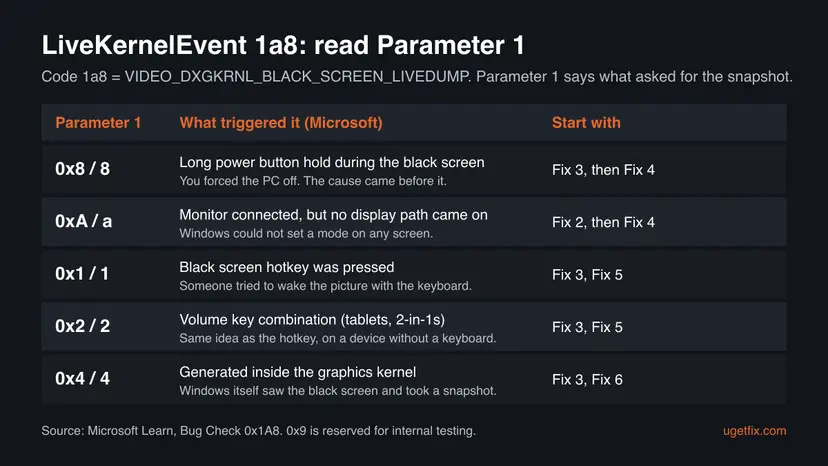
Microsoft lists Long Power Button Hold as one source of 1a8. If your screen went black and you held the power button to restart, Windows took the snapshot at that moment. So a 1a8 with Parameter 1 = 8 does not show what broke. It shows that the picture was gone and you forced the PC off.
The "Hardware error" label is what Reliability Monitor shows for every LiveKernelEvent. For 1a8 it does not prove a broken part. People search for this report as live kernel event 1a8, LiveKernelEvent code: 1a8, code 1a8 and 1a8 error. The full lines in the report read Problem Event Name: LiveKernelEvent and Code: 1a8.
Why the 1a8 error happens: causes ranked
Microsoft documents what triggers the snapshot, not why the screen went black. The table below orders the black screen causes by what we see most in reports of this code, and ties each one to a fix. Microsoft's own example of a live dump case is a display subsystem that can be reset, which is why the graphics path comes first.
| Cause | How often | How to tell | Fix |
|---|---|---|---|
| The display link drops: a loose or damaged cable, an adapter, a dock, a KVM switch, or a monitor port that does not wake. | Most often | Parameter 1 is a. Sound goes on while the screen is black. Another cable or port changes it. | Fix 2 |
| The graphics driver stops responding, often under load in a game. | Often | It happens in games or video. LiveKernelEvent 141, 117 or 1b8 appears in the same minute. | Fix 3 |
| A refresh rate, HDR or variable refresh mode the cable or monitor cannot hold. | Sometimes | It began after you raised the refresh rate, turned on HDR or changed monitor. | Fix 4 |
| The screen stays black after sleep, hibernation or fast startup. | Sometimes | The PC wakes (lights and fans on) but the picture does not come back. | Fix 5 |
| An overclocked or underpowered graphics card, or old firmware. | Less often | A tuning tool is in use, or the card's power cables were moved. Crashes come after some minutes of load. | Fix 6 |
| Damaged Windows files. | Rarely | Other Windows parts fail too. Alone it seldom explains a black screen. | Fix 7 |
| A failing graphics card, monitor or motherboard. | Rarely, but real | It stays after every fix, or the screen goes black on another Windows install too. | Still broken section |
Guides that treat 1a8 as a memory or disk fault send you to tests that cannot find a display problem. A memory test or a disk check is only worth it when other errors point there too, for example blue screens with other stop codes.
LiveKernelEvent 1a8 next to 1b8, 141 and 117
1a8 rarely comes alone. Microsoft's list of kernel live dump codes holds several graphics codes, and the ones beside 1a8 tell you more about the cause than 1a8 itself. Look at every LiveKernelEvent from the same minute.
| Code | Microsoft's name | What it adds |
|---|---|---|
| 1a8 | VIDEO_DXGKRNL_BLACK_SCREEN_LIVEDUMP | The screen was black and a snapshot was asked for. Parameter 1 says by what. |
| 1b8 | VIDEO_MINIPORT_BLACK_SCREEN_LIVEDUMP | The same black screen, recorded from the graphics card driver's side. Points to the driver (Fix 3). |
| 141 | VIDEO_ENGINE_TIMEOUT_DETECTED | A graphics engine stopped responding in time. Points to the driver or the card under load (Fix 3, Fix 6). |
| 117 | VIDEO_TDR_TIMEOUT_DETECTED | Windows reset the graphics driver after a timeout. Same direction as 141. |
| 193 | VIDEO_DXGKRNL_LIVEDUMP | A general graphics kernel snapshot. Read it with the codes around it. |
If 1a8 is the only entry, with Parameter 1 = 8, the screen went black without the driver reporting a timeout. That makes the cable, the monitor and sleep more likely than the driver. If 141, 117 or 1b8 come first, start with the driver.
How to fix LiveKernelEvent Code 1a8
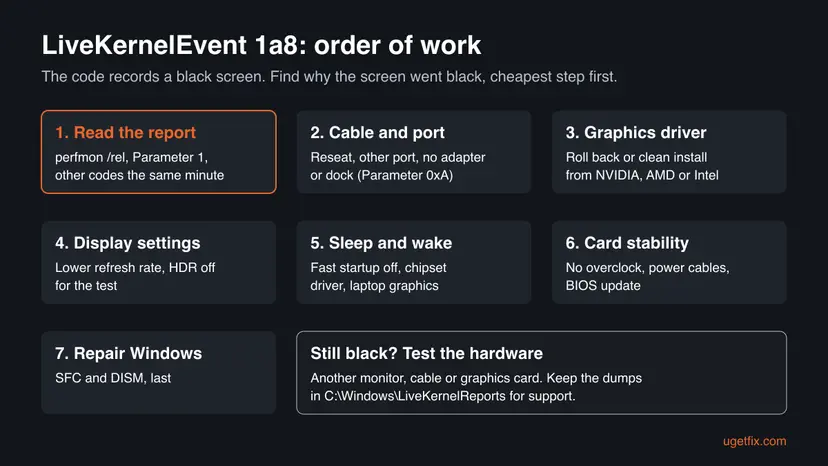
Fix 1 tells you what triggered the report. Fixes 2 and 3 solve most black screens and cost nothing. Fixes 4 to 6 test display settings, sleep and the card. Fix 7 is the Windows repair, last because it rarely matters for a black screen. Change one thing at a time.
| What you see or have | Start with |
|---|---|
| You have not read the report yet. | Fix 1 |
| Parameter 1 is a, or sound keeps playing while the screen is black. | Fix 2 |
| It happens in games, or 141, 117 or 1b8 appear in the same minute. | Fix 3 |
| Parameter 1 is 8 and you held the power button. | Fix 3, then Fix 4 |
| It began after you changed the refresh rate, HDR or monitor. | Fix 4 |
| The screen stays black after sleep or a cold start. | Fix 5 |
| A tuning tool is in use, or you moved the graphics card. | Fix 6 |
Fix 1. Read the LiveKernelEvent 1a8 report: Parameter 1 and the codes beside it
5 minutesNo riskEveryone, before changing anything: it takes five minutes and tells you where to start.
Microsoft's reference says Parameter 1 is the "source which triggered the DXGKRNL black screen live dump". It separates a monitor that never lit up (a) from a black screen you ended with the power button (8).
- Press Win + R, type
perfmon /reland press Enter. You can also search for reliability and open View reliability history. - In the chart, select the day with a red X. Under Critical events, find the line with Hardware error.
- Select View technical details. Check that it shows
Problem Event Name: LiveKernelEventandCode: 1a8. - Write down Parameter 1 and compare it with the picture in the first section of this page.
- Look at the other critical events of the same minute. Write down any LiveKernelEvent 1b8, 141 or 117.
- Open
C:\Windows\LiveKernelReportsin File Explorer and note the dates of the dump files. Do not delete them yet.
| What you read | What it means | Go to |
|---|---|---|
| Parameter 1 = a | A monitor was connected, but Windows could not turn on any display path | Fix 2, Fix 4 |
| Parameter 1 = 8 | You held the power button while the screen was black | Fix 3, then Fix 4 |
| Parameter 1 = 1 or 2 | The black screen hotkey or a volume key combination was used | Fix 3, Fix 5 |
| Parameter 1 = 4 | The graphics kernel took the snapshot itself | Fix 3, Fix 6 |
| 141, 117 or 1b8 in the same minute | The graphics driver stopped responding first | Fix 3 |
Keep a short log: date, what you were doing, Parameter 1, other codes. A black screen that comes once a week makes every change look like it worked unless you write it down.
It worked if: You know Parameter 1 and the other codes of that minute, and you know which fix to start with.
If not: If there is no 1a8 entry, the crash was something else: look for a BlueScreen or another LiveKernelEvent code. If you cannot tell, go on with Fix 2.
Fix 2. Check the display cable, port and any adapter or dock
10 minutesNo riskParameter 1 is a, sound keeps playing while the screen is black, or you use an adapter, dock or KVM switch.
Microsoft says Parameter 1 = a is written when "a physical monitor is connected but the system failed to perform a mode set to enable at least 1 path". The link between card and monitor is the first suspect, and it is the cheapest to test.
- Shut down the PC. Unplug the display cable at both ends and plug it back in firmly.
- On a desktop, check that the cable goes into the graphics card's ports, not the motherboard's ports next to the USB sockets.
- Remove any adapter, dock, hub or KVM switch between the PC and the monitor for the test. Connect the monitor directly.
- Try another port on the card, and another cable of the same type. A DisplayPort cable can fail without visible damage.
- If the monitor has DisplayPort and HDMI, try the other one for a few days.
- In the monitor's own menu, set the input to the port you use instead of automatic input search, and install a monitor firmware update if its maker offers one.
When the screen goes black, press Win + Ctrl + Shift + B first. Windows restarts the graphics driver and the screen should flash back. If it does not, press Win + P and choose PC screen only or Duplicate. Holding the power button is the last resort, and it is what writes Parameter 1 = 8.
It worked if: The black screens stop, or they change pattern after you swap the cable or port, which shows the link was the cause.
If not: If a direct connection with another cable changes nothing, go to Fix 3. If it stopped only with another monitor, see the still broken section.
Fix 3. Roll back or clean install the graphics driver
20 minutesLow riskThe black screens come in games or video, 141, 117 or 1b8 appear too, or it began after a driver update.
1a8 comes from the graphics kernel, and the card's driver is what that kernel waits for. A driver that hangs leaves the screen black even though Windows still runs, so a clean or older driver removes the most common software cause.
Device Manager can roll back to the previous driver or remove the current one. Full steps with screenshots: Update, roll back or reinstall a driver. For this error, do it in this order:
- Download the current driver for your card from NVIDIA, AMD or Intel first, so you have it offline. On a laptop, the PC maker's support page may carry a tested version.
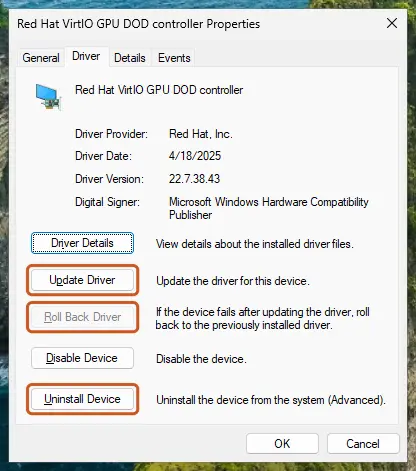
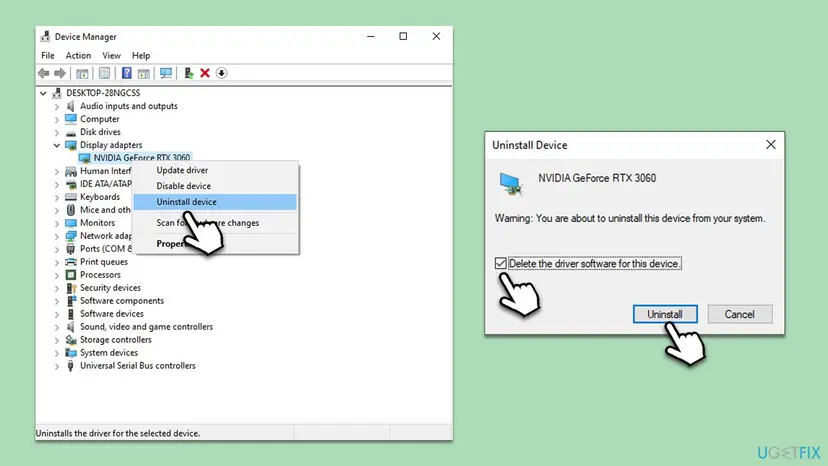
- Right-click Start, select Device Manager and expand Display adapters. Right-click the card, select Properties and open the Driver tab.
- If the black screens started after a driver update, select Roll Back Driver and confirm. Use the PC for a few days.
- If there is nothing to roll back, right-click the card, select Uninstall device, tick Delete the driver software for this device if shown, and select Uninstall.
- Restart. Windows shows the picture with its basic display driver.
- Run the driver installer you downloaded. If it offers a clean installation or a factory reset of settings, choose it.
- On a laptop with two graphics chips, update the Intel or AMD integrated graphics driver as well, since the screen is connected through it.
It worked if: Games and videos run without the screen going black, and no new 1a8, 1b8 or 141 entry appears in the days after.
If not: If a clean driver changed nothing, test the display settings (Fix 4). If the black screens come after sleep, go to Fix 5.
Fix 4. Lower the refresh rate and turn off HDR for a test
10 minutesLow riskIt began after a new monitor, a higher refresh rate, HDR or a long or thin cable.
A mode the cable or monitor cannot hold makes the link drop, and Windows then cannot set any display path, which is the Parameter 1 = a case. A lower mode for a few days shows whether the link is at its limit.
- Open Settings > System > Display and select the monitor at the top.
- On Windows 11, select Advanced display. On Windows 10, select Advanced display settings.
- Under Choose a refresh rate, pick a lower value, for example 60 Hz instead of 144 Hz. Confirm with Keep changes.
- Back in Display, turn Use HDR off if the switch is there.
- In the NVIDIA, AMD or Intel graphics app, turn off G-SYNC, FreeSync or adaptive sync for the test.
- Use the PC as before for a few days and keep your log.
These are tests, not the final settings. If the black screens stop, raise one setting at a time. The one that brings them back is at the limit of your cable or monitor, and a certified cable often lets you keep it.
It worked if: No black screens at the lower refresh rate with HDR off.
If not: Set the values back and go to Fix 5 if the screen stays black after sleep, or Fix 6 if it happens under load.
Fix 5. Fix a black screen after sleep or a cold start
15 minutesLow riskThe PC wakes from sleep or starts, lights and fans run, but the screen stays black.
On wake, the graphics kernel must set the display mode again. If the chipset or graphics firmware does not hand the screen back, the picture stays black, and the reader holds the power button, which writes the 1a8 snapshot.
- Turn off fast startup, which keeps part of the driver state between shutdowns: Turn off Fast Startup.
- Press Win + R, type
msinfo32and press Enter. Note System Manufacturer and System Model (or BaseBoard Product on a desktop). - On that maker's support page, install the newest chipset driver and, on a laptop, its graphics and firmware updates.
- Open Settings > Windows Update > Advanced options > Optional updates and install any display or firmware driver offered for your PC.
- Test sleep and wake three or four times. If the screen stays black, press Win + Ctrl + Shift + B before anything else.
It worked if: The picture comes back every time the PC wakes, and the reports stop.
If not: If it still fails on wake, check for a newer BIOS in Fix 6. If it happens only under load, go to Fix 6 as well.
Fix 6. Remove graphics card overclocks, check its power and update the BIOS
30 minutesRead the warningA tuning tool is in use, the card was moved or rebuilt, or the black screens come after minutes of load.
A card running above its rated clocks, or short of power, can stop answering the graphics kernel, and the screen goes black. Firmware sets how the card and the display link start, so a BIOS update can also change how the display wakes.
A BIOS update that is cut off by a power loss can leave the PC unable to start. Use a laptop on its charger, save your files first with Back up your files (Windows Backup, File History, Time Machine), and follow the maker's instructions exactly. The update resets BIOS settings, so note anything you changed on purpose.
- Open the graphics tuning tool you use, such as the card maker's app or an overclocking utility, and reset it to default clocks and voltage.
- Shut down and unplug the PC. Check that each power cable is fully seated in the graphics card and that the card sits firmly in its slot.
- Clean dust from the card's fans and the case filters. Black screens that come after 10 to 30 minutes of a game often follow heat.
- In
msinfo32, read BIOS Version/Date. Compare it with the newest BIOS on the maker's support page. - If yours is older, install the update as the maker describes. Do not switch the PC off during the update.
- Use the PC as before for a few days and keep the log.
It worked if: No black screens under the load that caused them before, and no new 1a8 entry.
If not: Repair Windows files (Fix 7), then follow the still broken section to test the hardware.
Fix 7. Repair Windows system files
20 minutesNo riskOther parts of Windows misbehave too, or every fix above made no difference.
A damaged display component of Windows can stop the graphics kernel from setting a mode. It is rare for 1a8, so this repair comes last, but it is quick and changes nothing else.
- Open an elevated command window. Right-click Start and select Terminal (Admin), or type cmd in the search box, right-click Command Prompt and select Run as administrator. Select Yes when Windows asks for permission.

Search for cmd and choose Run as administrator. Screenshot: Windows 11 26H2. - Run DISM first. Type the command below and press Enter. DISM downloads clean copies of damaged components from Windows Update, so it can take several minutes. Wait until it says The operation completed successfully.
DISM.exe /Online /Cleanup-Image /RestoreHealth
DISM /RestoreHealth running. Screenshot: Windows 11 26H2. - Run System File Checker. In the same window, type the command below and press Enter. Do not close the window until the verification reaches 100%.
sfc /scannow
sfc /scannow at 100%. Screenshot: Windows 11 26H2. - Read the result and restart. Compare the last message with the table below this guide, then restart the PC so that repaired files are loaded.

The result line tells you what SFC did. Screenshot: Windows 11 26H2.
These steps were written for Windows 11 24H2 and 25H2. The full page with the other versions and what each result means: Run DISM and SFC to repair Windows system files
- Run
sfc /scannowin an administrator Command Prompt, then the DISM restore command, as the steps above show. - Restart and use the PC for a few days with your log.
It worked if: SFC reports that it found no integrity violations or that it repaired them, and the black screens stop.
If not: Go to the still broken section: at this point a display, cable or graphics card fault is more likely than Windows.
If LiveKernelEvent 1a8 keeps coming back: find the failing part
At this point the cable is direct, the driver is clean, the display runs at a modest mode, the firmware is current and Windows is repaired. A black screen that remains is most likely the monitor, the graphics card or the board. Swap tests settle it faster than more software changes.
- Another monitor or a TV. If the black screens stop, the monitor or its port is at fault.
- Another graphics output. On a desktop with integrated graphics, connect the monitor to the motherboard port for a few days. If it is stable there, suspect the card.
- Another graphics card. Borrow one if you can. The part whose swap stops the reports is the faulty one.
- Give support the files. Zip
C:\Windows\LiveKernelReportsand its subfolders, and note Parameter 1 and the codes from Fix 1.
Microsoft's live dump reference says these dumps are analysed with WinDbg and !analyze, and that !analyze -show 0x1A8 prints the code's description. That is a step for a technician. The dump and your log are what a warranty desk can act on.
How to keep the 1a8 black screen from coming back
- Use the cable that came with the monitor, or a certified one for the refresh rate you run.
- Install graphics drivers from NVIDIA, AMD, Intel or your laptop maker, and keep the previous installer.
- Press Win + Ctrl + Shift + B before you reach for the power button.
- Check Reliability Monitor once a month for new LiveKernelEvent entries.
- Keep the BIOS and chipset driver current.
- Do not stack adapters, docks and switches between the card and the monitor.
- Do not raise the refresh rate, HDR and an overclock on the same day.
- Do not delete the LiveKernelReports folder while you still need the evidence.
- Do not reinstall Windows for a 1a8 before you have tried another cable and driver.
Frequently asked questions
What does LiveKernelEvent Code 1a8 mean?
It means Windows recorded live dump code 0x1A8, VIDEO_DXGKRNL_BLACK_SCREEN_LIVEDUMP. Microsoft describes it as a user initiated graphics kernel live dump for black screen scenarios. In short, your screen went black while Windows was still running, and a snapshot of kernel memory was saved. Reliability Monitor lists it as Hardware error, but the code itself does not name a broken part. Parameter 1 tells you what triggered the snapshot, for example 8 for a long press of the power button or a for a monitor that could not be turned on.
Is LiveKernelEvent 1a8 a hardware failure?
Not by itself. Reliability Monitor shows every LiveKernelEvent under Hardware error, but 1a8 only records that the screen was black. The cause is most often the display cable or port, the graphics driver, or a wake from sleep that did not bring the picture back. A faulty graphics card or monitor is possible, but it is the last explanation, after a direct cable, a clean driver and current firmware did not help. Swap tests with another monitor or card settle it.
Why do I get LiveKernelEvent 1a8 on Windows 11?
For the same reasons as on Windows 10: the code belongs to the graphics kernel that both versions share. On Windows 11 it often follows a new graphics driver, a feature update that installed a different display driver, or a high refresh rate or HDR mode. Start with Fix 1 to read Parameter 1, then Fix 2 and Fix 3. The settings paths in Fix 4 are given for both Windows 11 and Windows 10.
What is the 1a8 error code, and is it the same as a blue screen?
The 1a8 error code is the hexadecimal stop code 0x1A8 written into a LiveKernelEvent report. It is not a blue screen. Microsoft says this code can never be used for a real bug check: it is only used to identify live dumps. That is why you see a black screen and then a normal restart, not a blue screen with a stop code. If you also get blue screens, those have their own codes and need their own fixes.
Does LiveKernelEvent 1a8 appear because I held the power button?
Often, yes. Microsoft lists Long Power Button Hold as one of the triggers, shown as Parameter 1 = 8. When the screen goes black and you hold the power button, Windows saves the black screen snapshot before it turns off. The report is then the record of your forced shutdown, and the real cause is whatever made the screen black. Try Win + Ctrl + Shift + B first next time; it restarts the graphics driver.
What is the difference between LiveKernelEvent 1a8 and 1b8?
Both record a black screen. 1a8 is VIDEO_DXGKRNL_BLACK_SCREEN_LIVEDUMP, taken by the DirectX graphics kernel in Windows. 1b8 is VIDEO_MINIPORT_BLACK_SCREEN_LIVEDUMP, the miniport being the graphics card's own driver. When both appear in the same minute, the driver side was involved, so a clean driver install (Fix 3) is the best first step. When 1a8 appears alone with Parameter 1 = a, start with the cable and port.
Can I delete the files in the LiveKernelReports folder?
Yes, once you have solved the problem. The dumps in C:\Windows\LiveKernelReports are only diagnostic copies of memory and Windows does not need them to run. Full dumps can be large, so they can take real disk space. Keep them while you troubleshoot, because a technician or the maker's support may ask for them. Delete them with administrator rights or with Disk Cleanup's system files option after the black screens have stopped.
Why does my screen go black in games with LiveKernelEvent 1a8?
In games the graphics card works hardest, so a driver that hangs, a card that is overclocked or short of power, or a display link at its limit fails there first. Look for LiveKernelEvent 141, 117 or 1b8 in the same minute: they point to the driver or the card under load. Start with a clean driver install (Fix 3), then remove overclocks and check the power cables (Fix 6). Lowering the refresh rate for a test (Fix 4) rules out the link.
Will running SFC, CHKDSK or a memory test fix code 1a8?
Seldom. Code 1a8 is a black screen record from the graphics kernel, so a disk check or a memory test looks in the wrong place unless other errors point there. SFC and DISM repair Windows files and are a fair last software step (Fix 7). Older guides list them first, but the cable, the driver and the display settings solve far more cases, at less cost in time.
Sources
- Microsoft Learn: Bug Check 0x1A8 VIDEO_DXGKRNL_BLACK_SCREEN_LIVEDUMP (learn.microsoft.com)
- Microsoft Learn: Kernel Live Dump Code Reference (learn.microsoft.com)
- Microsoft Learn: Bug Check Code Reference (learn.microsoft.com)
Did this fix work?
One click, no account. It tells the next reader which guides are worth their time.
Questions and experiences: fix LiveKernelEvent Code 1a8 in Windows
Still broken, or found a fix we did not cover? Ask here: members and our editors answer. Reading is open; writing needs a free account.
…