
How to fix mfplat.dll missing or not found in Windows 10 and 11?

Prefer to fix it yourself? The manual steps follow.
- 6methods
- 5 to 30 minutes
- Beginner
Applies to Windows 11 and Windows 10, mostly N and KN editions; Plex, Roblox, Adobe apps, MuseScore, Dragonframe, games and other programs that play or record video
6 methods in this guide
Hello, I have recently encountered an error while trying to use the Plex application. The message says that Mfplat.dll is missing and I should install the Microsoft Media Feature Pack. Can you help me and provide guidelines on how to fix the Mfplat.dll missing error on Windows 10?
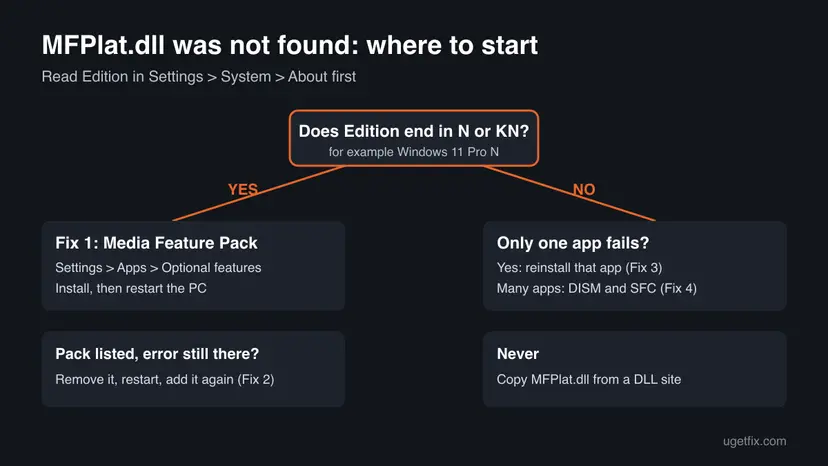
mfplat.dll is the core file of Media Foundation, the part of Windows that plays and records audio and video. When a program says MFPlat.DLL was not found, the PC almost always runs an N or KN edition of Windows, which ships without Media Foundation. Install the Media Feature Pack first.
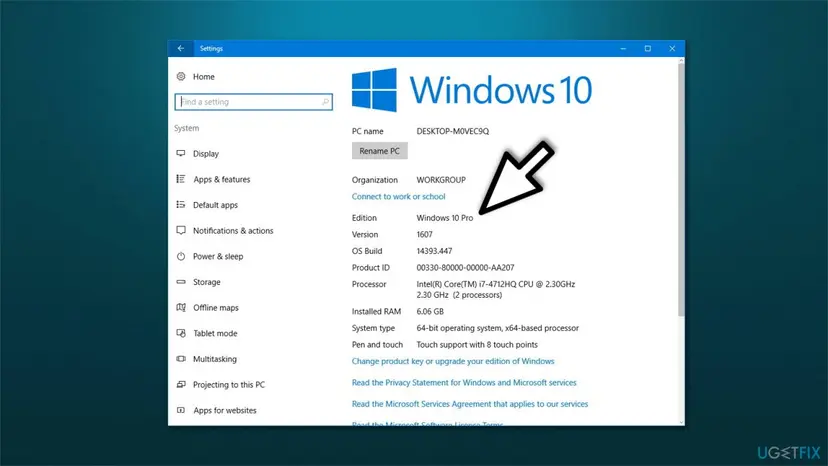
Open Settings > System > About and read Edition. If it ends in N or KN, install the Media Feature Pack from Settings > Apps > Optional features and restart the PC (Fix 1). On a regular edition, reinstall the program that shows the error (Fix 3), then run DISM and SFC (Fix 4). Do not download mfplat.dll from a DLL site.
| Error | "The code execution cannot proceed because MFPlat.DLL was not found", "MFPlat.DLL is missing" or "Failed to load MFPlat.DLL" when a program starts. |
|---|---|
| Where it appears | In a small System Error window, or in the program's own window, the moment an app that plays, streams or records video starts. |
| Main cause | An N or KN edition of Windows without the Media Feature Pack. Microsoft lists Media Foundation among the technologies these editions leave out. |
| Fastest fix | Install the Media Feature Pack from Settings > Apps > Optional features and restart the PC (Fix 1). |
| Also written as | MFPlat.DLL, mfplat dll, mfplatt.dll, mpflat.dll, "mfplat.dll was not found", "mfplat.dll not found". |
| The file | A Windows file. Microsoft's reference names Mfplat.dll as the DLL of MFStartup, the function every app calls to start Media Foundation. |
| Affects | Windows 11 and Windows 10, N and KN editions far more than the others. Users report it in Plex, Roblox, Adobe apps, MuseScore and games. |
| Vendor status | Not a bug. Microsoft ships the media stack for N editions as an optional feature, and app makers such as Dragonframe point N users to it. |
| Do not | Download mfplat.dll from a DLL site or copy one into System32, SysWOW64 or a program folder. |
| Time to fix | About 10 minutes for the Media Feature Pack and a restart. Up to 30 minutes when DISM and SFC run. |
Facts checked on 15 October 2026. Steps written for Windows 11 (25H2 and 26H2) and Windows 10 22H2.
What mfplat.dll is and what the MFPlat.DLL was not found error means
mfplat.dll is the Media Foundation platform file. Media Foundation is the Windows framework that apps use to decode, play, stream and record audio and video. Microsoft's reference page for MFStartup, the function an app must call before it uses Media Foundation, names Mfplat.dll as its DLL.
- Full name
- Media Foundation platform DLL, the base of Windows' modern media stack.
- Who installs it
- Windows itself. On N and KN editions the Media Feature Pack adds the media technologies instead.
- Who uses it
- Plex, Roblox, video editors, music notation and stop motion apps, browsers, video calls, webcams and many games.
- Since
- Windows Vista, according to Microsoft's requirements table for MFStartup.
Windows loads mfplat.dll before the program's own code runs. When the file is not there, Windows stops the program and shows its own message. That is why the error appears at once, before any window of the app opens, and why reinstalling the app alone seldom helps on an N edition.
- Windows 11 and Windows 10:
The code execution cannot proceed because MFPlat.DLL was not found. Reinstalling the program may fix this problem. - Older Windows wording:
The program can't start because MFPlat.DLL is missing from your computer.It means the same thing. - Inside an app: some programs check for the file themselves. Plex, for example, told the reader above that Mfplat.dll is missing and that the Media Feature Pack is needed. Roblox shows
Failed to load librarywith the file name. - Spellings people search: mfplat dll, mfplatt.dll, mpflat.dll, mfplay.dll. Windows ignores upper and lower case, so MFPlat.DLL and mfplat.dll are one file.
What causes mfplat.dll to be missing, from most to least common
Most often the PC runs an N or KN edition and the Media Feature Pack was never installed. Less often the pack is installed but damaged, or was lost after a big Windows update. Rarely, on a regular edition, Windows' own media files or the app's installation are damaged.
| Cause | How often | How to tell | Fix |
|---|---|---|---|
| N or KN edition without the Media Feature Pack. | Most often | Edition in Settings > System > About ends in N or KN. Webcam, video in Photos and Teams calls also fail. | Fix 1 |
| The Media Feature Pack is installed but broken, or out of step after a feature update. | Often on N | The pack is listed under installed optional features, yet the error stays. | Fix 2 |
| The app's own installation is damaged, or it ships a wrong copy of a media file. | Sometimes | A regular edition, and only one program fails. Video plays fine elsewhere. | Fix 3 |
| Damaged Windows system files, including Media Foundation. | Sometimes | Several apps fail to play video on a regular edition. | Fix 4 |
| Pending Windows updates. | Rarely | Windows Update has waiting updates, or has been paused for months. | Fix 5 |
| A file was quarantined, or malware replaced a system file. | Rarely | Windows Security Protection history shows an entry at the time the error began. | Fix 6 |
Microsoft's Media Feature Pack page says Windows 10/11 N has the same functions as other editions except Windows Media Player and related technologies. Media Foundation is on its list of what is left out. Microsoft does not publish a file list, but mfplat.dll is the Media Foundation platform DLL, and that matches what users and app makers report.
mfplat.dll download: why a DLL site is the wrong place for this file
Searches for the file lead first to sites that offer single DLLs. Microsoft does not publish mfplat.dll on its own. It reaches your PC inside Windows or, on N editions, inside the Media Feature Pack, together with dozens of other media files it works with.
- One file does not fill the gap. On an N edition the whole media stack is absent. A copied mfplat.dll usually turns the error into the next one, often
MFReadWrite.dllorevr.dll. - Unknown builder. A DLL from a website was taken from someone else's PC or built by someone else, and it runs inside every app that loads it.
- Wrong build. A file from another Windows version, or a 32-bit file in a 64-bit folder, ends in a new error or a crash.
- The genuine route is free. The Media Feature Pack is an optional feature in Settings, and DISM and SFC repair Windows' own copy on a regular edition.
evr.dll, the video renderer, belongs to the same media stack and fails for the same reason. Our guide to the evr.dll missing or not found error covers the Roblox side of it in more detail.
How to fix mfplat.dll missing or MFPlat.DLL was not found
Fix 1 is for N and KN editions and solves the error for most readers. Fix 2 repairs a Media Feature Pack that is already there. Fixes 3 and 4 are for regular editions: reinstall the program, then repair Windows. Fixes 5 and 6 cover updates and a blocked or replaced file.
| What you see or have | Start with |
|---|---|
| Edition in Settings > System > About ends in N or KN. | Fix 1 |
| The Media Feature Pack is already listed as installed, or the error came back after a big update. | Fix 2 |
| A regular edition, and only one program fails. | Fix 3 |
| A regular edition, and several apps cannot play video. | Fix 4 |
| Windows Update has been paused for a long time. | Fix 5 |
| Windows Security showed an alert around the time the error began. | Fix 6 |
Fix 1. Install the Media Feature Pack on an N or KN edition of Windows
10 minutesNo riskYour Windows edition name ends in N or KN, for example Windows 10 Pro N or Windows 11 Home N.
N and KN editions leave out Media Foundation, the framework mfplat.dll belongs to. The Media Feature Pack is Microsoft's own package that adds it back, so every program that needs mfplat.dll finds it again.
- Press Win + I, select System > About and read Edition under Windows specifications. Go on only if it ends in N or KN.
- On Windows 11 N, select Apps > Optional features, then View features next to Add an optional feature.
- On Windows 10 N, select Apps > Apps and Features > Optional features > Add a feature.
- Find Media Feature Pack in the list, tick it and select Next and Install (on Windows 10, Install).
- Wait until the feature shows as installed. Microsoft says you are not asked to restart, but you must restart to finish.
- Restart the PC and start the program again.
- After installing: Microsoft also suggests Store apps such as VP9 Video Extensions, Web Media Extensions and HEIF Image Extensions for codecs in apps and the browser.
- Not in the list: Microsoft says the pack needs Windows 10 N or Windows 11 N. If you do not see it, your edition is not N, and Fix 3 is the next step.
- Old instructions: pages that send you to a separate download for one Windows 10 version, such as the old KB4475817 page, are out of date. Today the pack comes from Optional features.
It worked if: Media Feature Pack is listed under installed features, and after the restart the program starts without the MFPlat.DLL window.
If not: If the pack is installed and the program still names mfplat.dll, remove and add the pack again with Fix 2.
Fix 2. Remove and add the Media Feature Pack again after a feature update
15 minutesLow riskAn N edition where the Media Feature Pack is already listed as installed, or where the error came back after a big Windows update.
The pack must match the Windows build. A half-finished install, or one that a feature update did not carry over cleanly, leaves the entry in the list without working files. A fresh install writes Media Foundation again for the current build.
- Install every update waiting in Settings > Windows Update and restart, so the pack is added for the build you will keep.
- Open Settings > Apps > Optional features (Windows 10: Apps > Apps and Features > Optional features).
- Select Media Feature Pack in the installed list and choose Uninstall.
- Restart the PC.
- Add Media Feature Pack again as in Fix 1 and restart once more.
While the pack is removed, video, webcam and Windows Hello stop working on an N edition. Microsoft also notes that some features may not work properly even after the pack is installed, such as parts of Teams calls or Store video content.
It worked if: The pack shows as installed again, and the program starts after the second restart.
If not: If the error remains, the program's own install may be the problem: reinstall it with Fix 3.
Fix 3. Reinstall the program that shows the MFPlat.DLL error
10 minutesLow riskA regular Windows edition, or Fix 1 is done, and only one program shows the error.
Some programs bring their own media files or check for Media Foundation in their installer. A damaged install, or a copy of mfplat.dll placed in the program's folder, can make Windows load the wrong file. A clean install removes it.
- Close the program, including any icon near the clock.
- Uninstall it from Settings > Apps > Installed apps: Uninstall a program or app in Windows
- Open the program's folder in C:\Program Files or C:\Program Files (x86). If a leftover
mfplat.dllsits there, delete it. - Restart the PC.
- Download the current version from the program's maker, or from the Microsoft Store, and install it.
If the error comes from a Microsoft Store app, try Repair and Reset in its advanced options first: How to repair or reset an app in Windows
It worked if: The program installs fresh and opens without the MFPlat.DLL window.
If not: If the fresh install shows the same window, Windows' own media files are the likely cause: run Fix 4.
Fix 4. Repair Windows' media files with DISM and SFC
15 to 30 minutesNo riskA regular edition where several apps fail to play video, or an N edition where the pack is installed and the error remains.
On a regular edition mfplat.dll is a protected Windows file, so Windows can rebuild it. DISM repairs the store that holds clean copies, then System File Checker replaces damaged system files, Media Foundation included.
- Open an elevated command window. Right-click Start and select Terminal (Admin), or type cmd in the search box, right-click Command Prompt and select Run as administrator. Select Yes when Windows asks for permission.

Search for cmd and choose Run as administrator. Screenshot: Windows 11 26H2. - Run DISM first. Type the command below and press Enter. DISM downloads clean copies of damaged components from Windows Update, so it can take several minutes. Wait until it says The operation completed successfully.
DISM.exe /Online /Cleanup-Image /RestoreHealth
DISM /RestoreHealth running. Screenshot: Windows 11 26H2. - Run System File Checker. In the same window, type the command below and press Enter. Do not close the window until the verification reaches 100%.
sfc /scannow
sfc /scannow at 100%. Screenshot: Windows 11 26H2. - Read the result and restart. Compare the last message with the table below this guide, then restart the PC so that repaired files are loaded.

The result line tells you what SFC did. Screenshot: Windows 11 26H2.
These steps were written for Windows 11 24H2 and 25H2. The full page with the other versions and what each result means: Run DISM and SFC to repair Windows system files
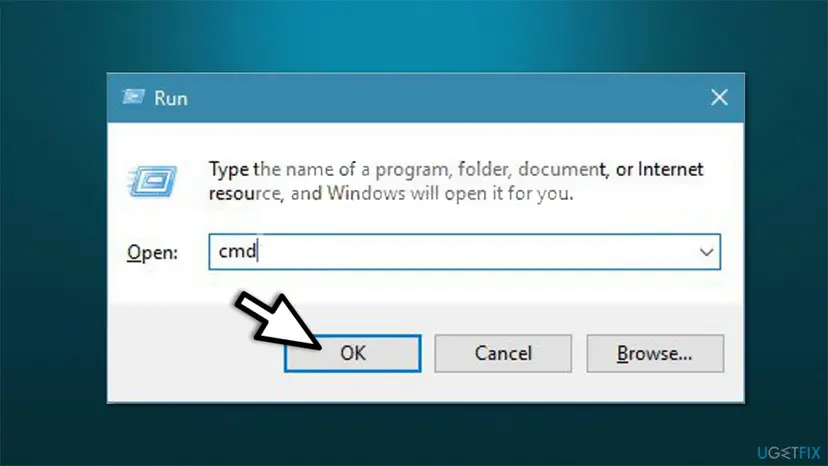
- Press Win + R, type
cmdand select OK. - Check that Windows' copy is back. The command should list one mfplat.dll.
dir C:\Windows\System32\mfplat.dll - Restart the PC and start the program again.
It worked if: SFC reports no integrity violations or a successful repair, the dir command lists mfplat.dll, and the program starts.
If not: If SFC cannot repair some files, run DISM again with the internet on, then SFC once more. If the error stays, go to Fix 5.
Fix 5. Install pending Windows updates
15 to 30 minutesLow riskWindows Update shows waiting updates, or updates have been paused for a long time.
Updates replace Media Foundation files with current ones and give DISM fresh sources. On an N edition, a pack added before a big update and a pending restart can leave the media stack half updated.
- Press Win + I, open Windows Update and select Check for updates.
- Install everything offered, optional quality updates included.
- Restart the PC, even if Windows does not ask.
- On an N edition, check that Media Feature Pack is still listed under Optional features, then start the program.
Windows 10 left support on 14 October 2025. A Windows 10 PC no longer gets regular fixes, so if the error keeps coming back there, check whether the PC can move to Windows 11.
It worked if: Windows Update says you are up to date, and the program starts after the restart.
If not: If nothing changes, check whether a security tool removed or flagged a file with Fix 6.
Fix 6. Check Windows Security for a removed or replaced file
15 to 60 minutesLow riskWindows Security or another antivirus showed an alert around the time the error first appeared, or mfplat.dll sits in an unusual folder.
A DLL from a download site, or malware that uses a system file name, is something security tools remove. Then the program that relied on it reports the file missing. The protection history shows what was removed and from where.
- Open Windows Security > Virus & threat protection > Protection history.
- Look for entries from the day the error began and read the file path of each one.
- If the entry is a mfplat.dll you downloaded, leave it removed and use Fix 1 or Fix 4 instead.
- Run a full scan with Microsoft Defender: How to scan for malware with Microsoft Defender
- Restart and start the program again.
Do not switch protection off to make the window go away. If you must test with protection paused, turn it back on right after the test: Turn off Microsoft Defender protection for a moment
It worked if: The scan finds nothing new, and the program starts after a restart.
If not: If nothing was removed and the error remains, collect the details in the next section and contact the program's maker.
If the mfplat.dll error is still there: what to check and what to send
When the window survives the fixes that fit your PC, stop changing things and collect facts. Support at the program's maker needs the same few details.
- The exact message: the full text, the title bar and every DLL name it shows.
- Your Windows version and edition: from Settings > System > About, including whether it ends in N or KN.
- The pack's state: whether Media Feature Pack is listed under installed optional features.
- The Windows log: open Event Viewer > Windows Logs > Application and look for Application Error or SideBySide entries at the time of the window. The faulting module line names the file.
- A second app: whether video plays in a browser or the Media Player app. If nothing plays video, the cause is Windows, not the program.
This page covers Windows 10 and Windows 11. On Windows Server the media components are a separate server feature, and Windows 7 and 8.1 N had their own packs that are no longer supported. If the media files cannot be repaired at all on Windows 10 or 11, a reinstall that keeps your files is the last step: Reinstall Windows without losing files
How to keep the mfplat.dll error from coming back
- On an N or KN edition, keep the Media Feature Pack installed and check it after each big Windows update.
- Install programs from their maker or the Microsoft Store.
- Install Windows updates and restart when they finish.
- Keep restore points switched on for the Windows drive.
- Do not download mfplat.dll or any other Windows file from a DLL site.
- Do not copy DLL files into System32, SysWOW64 or a program folder by hand.
- Do not copy files from Windows.old into the live Windows folders.
- Do not switch off Windows Security to make a file load.
If you are about to install Windows on a new PC, pick a regular edition unless you need an N edition for a reason. Then Media Foundation, mfplat.dll included, is part of Windows from the start and nothing extra has to stay installed.
Frequently asked questions
What is mfplat.dll?
mfplat.dll is the Media Foundation platform file, a Windows system DLL. Media Foundation is the framework apps use to play, stream and record audio and video. Microsoft's reference names Mfplat.dll as the DLL that holds MFStartup, the function every app calls before it uses Media Foundation, supported since Windows Vista. It comes with Windows, or with the Media Feature Pack on N and KN editions, so it is never a separate download.
How do I fix mfplat.dll was not found on Windows 10?
Open Settings > System > About and read Edition. If it ends in N or KN, go to Settings > Apps > Apps and Features > Optional features > Add a feature, install the Media Feature Pack and restart. On a regular edition, reinstall the program, then run DISM and SFC as in Fix 4. Windows 10 left support on 14 October 2025, so also check whether your PC can move to Windows 11.
How do I fix mfplat.dll missing on Windows 11?
On Windows 11, open Settings > System > About and read Edition. If it ends in N or KN, open Settings > Apps > Optional features, select View features next to Add an optional feature, pick the Media Feature Pack and install it. Restart the PC afterwards, because Microsoft says the install only completes after a restart. If your edition is not N, follow Fix 3 and Fix 4 on this page.
Where can I download mfplat.dll safely?
Nowhere as a single file, because Microsoft does not publish one. mfplat.dll comes with Windows, or with the Media Feature Pack on N and KN editions, which you install from Optional features in Settings. If the file is damaged on a regular edition, DISM and SFC restore it from Windows' own store, as in Fix 4. A copy from a DLL site has an unknown builder, may be the wrong version, and usually leads to the next missing media file.
Can I copy mfplat.dll from Windows.old or another PC?
We do not recommend it. The earlier version of this guide suggested copying mfplat.dll from Windows.old into SysWOW64. A file from an older build may not match the rest of your Media Foundation files, and on an N edition the other media files are still missing. Microsoft does not list copying system files as a fix. Install the Media Feature Pack or run DISM and SFC instead, which put the right version in both system folders.
Does enabling Media Playback with DISM fix mfplat.dll?
We could not confirm that it does. The earlier version of this guide used dism /online /enable-feature /featurename:MediaPlayback. That command turns on the Media Features group in Windows Features, which mainly controls Windows Media Player. Neither Microsoft's Media Feature Pack page nor the app makers we read name it for this error. On an N edition the Media Feature Pack is the fix Microsoft documents, so start with Fix 1.
What is a Windows N or KN edition?
N and KN editions are versions of Windows sold without Windows Media Player and related media technologies. Microsoft says they otherwise include the same functions as other editions. The left-out parts include Media Foundation, Windows Media Format and the standard audio and video codecs. Without the Media Feature Pack, webcams, Windows Hello, video in Photos and parts of Teams also do not work.
Why does Plex, Roblox or an Adobe app say MFPlat.DLL is missing?
Because each of them uses Media Foundation to decode or show video, and Windows cannot find its platform file. Users report the error in Plex, Roblox, Adobe apps, MuseScore and games, almost always on an N edition. Dragonframe, the stop motion software maker, tells its users that the missing MFPlat.dll suggests Windows 10 N without the Media Feature Pack. Install the pack with Fix 1 and restart before you reinstall the app.
Is mfplat.dll a virus?
No, the genuine mfplat.dll is a Windows system file and should not be deleted. Like any DLL name, it can be copied by malware, so a copy in an unusual folder deserves a look. Windows keeps its own copy in the system folder, and you can check it with the dir command in Fix 4. If Windows Security flagged a file called mfplat.dll somewhere else, leave it removed and run a full scan.
I see this error in Arabic or another language. Does this page apply?
Yes. People also search this error in Arabic, French, Vietnamese and other languages, often with words like how to fix. The window text changes with the Windows language, but the file name mfplat.dll stays the same, and so do the causes and fixes. The Settings menus have the same structure in every language, so follow the order of the steps even if the labels read differently.
Sources
- Microsoft Support: Media Feature Pack for Windows N (KB5007124), what N editions leave out and how to install the pack (support.microsoft.com)
- Microsoft Learn: MFStartup function (mfapi.h), DLL Mfplat.dll, Windows Vista and later (learn.microsoft.com)
- Dragonframe: Program won't start on Windows 10, Missing MFPlat.dll (dragonframe.com)
Did this fix work?
One click, no account. It tells the next reader which guides are worth their time.
Questions and experiences: fix mfplat.dll missing or not found in Windows 10 and 11
Still broken, or found a fix we did not cover? Ask here: members and our editors answer. Reading is open; writing needs a free account.
…