
How to fix mic not working in Phone Link on Windows?

Prefer to fix it yourself? The manual steps follow.
- 9methods
- 2 to 20 minutes
- Easy
Applies to Phone Link on Windows 11 and Windows 10 with Calls set up for an Android phone (Link to Windows) or an iPhone
9 methods in this guide
I use Windows 10 Home and wanted to try Phone Link. I can hear the calls and SMS are going through, however, the mic is not working when I'm trying to talk. It has no problem working in other apps such as Discord; it's Phone Link.
When the other person cannot hear you in a Phone Link call, the PC microphone is not reaching the phone. Most often you use a Bluetooth headset, which Phone Link does not support for calls, or Windows hands Phone Link the wrong microphone. Switch to a wired, USB or built-in microphone and select it for Phone Link first.
Phone Link sends your voice from a PC microphone to the phone over Bluetooth. Microsoft says it cannot relay calls to a Bluetooth headset, so use a wired, USB or built-in microphone (Fix 1). Then make that microphone the default input and Phone Link's input in the volume mixer (Fix 2). If it still fails, check microphone privacy (Fix 3) and pair the phone for Calls again (Fix 5).
| Error | No error message. You hear the caller through the PC, but the caller hears nothing, or your voice is very quiet. |
|---|---|
| Where it appears | In the Calls section of Phone Link, during a call made or answered on the PC. |
| Main cause | A Bluetooth headset on the PC, which Phone Link does not support for calls, or the wrong microphone chosen for Phone Link in Windows. |
| Fastest fix | Use a wired, USB or built-in microphone and set it as the input for Phone Link (Fix 1 and Fix 2, 5 minutes). |
| Also written as | phone link mic not working, phone link microphone not working, Phone Link call audio not working, caller can't hear me in Phone Link. |
| Affects | Phone Link on Windows 11 and Windows 10 with Android and iPhone. Windows 10 left support on 14 October 2025. |
| Needs | A PC with Bluetooth, paired with the phone for Calls, per Microsoft. |
| Microsoft's status | Bluetooth headsets for calls are not supported. Microsoft lists Bluetooth re-pairing, battery optimization and conflicting pairing apps as call fixes. |
| Time to fix | 2 to 5 minutes for Fixes 1 to 3. About 10 minutes to unpair and set up Calls again. |
Facts checked on 15 October 2026. Steps written for Windows 11 (25H2 and 26H2) and Windows 10 22H2.
What "Phone Link mic not working" means
Phone Link has no error code for this. The call connects, you hear the other person through the PC speakers, but they hear silence, or your voice so quietly that they cannot follow you. Messages and notifications keep working, which is why the microphone looks like the only broken part.
A Phone Link call is still a call on your phone. The PC connects to the phone over Bluetooth, plays the caller's voice and sends your voice back from a PC microphone. The phone network carries it from there. So the microphone has to pass five links, and one broken link is enough to silence you.
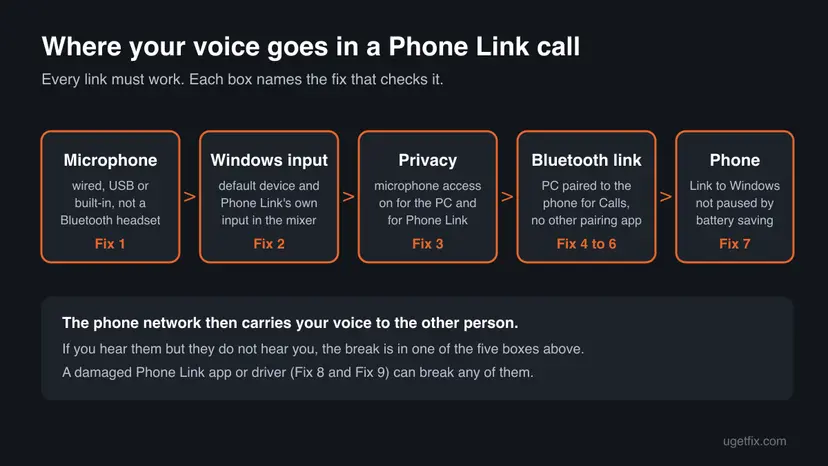
| What you notice | What it usually means |
|---|---|
| You use Bluetooth headphones on the PC and nobody hears you | Not supported by Phone Link for calls (Fix 1). |
| Discord, Teams or Zoom hear you, Phone Link does not | Phone Link uses another microphone than those apps (Fix 2). |
| No app on the PC can use any microphone | A Windows privacy switch is off (Fix 3). |
| Your voice is very quiet until you switch microphones during the call | Phone Link picked up a wrong level or device at call start (Fix 2). |
| Calls do not reach the PC at all, or drop | The Bluetooth link to the phone is broken (Fix 4 to Fix 7). |
Why the microphone does not work in Phone Link calls, most likely first
- Most often: a Bluetooth headset. Microsoft states that Phone Link does not currently support relaying a call from your phone to a headset over Bluetooth, for Android and iPhone alike (Fix 1).
- Often: Windows gives Phone Link another microphone. A PC with a webcam, a laptop microphone and a headset has three inputs, and Phone Link can follow a different one than Discord or Teams (Fix 2).
- Sometimes: a privacy switch. Microphone access is off for the PC, for apps or for Phone Link alone, often after an update or a new setup (Fix 3).
- Sometimes: a broken Bluetooth pairing for Calls. Microsoft's own call fixes are turning Bluetooth off and on, connecting by hand and pairing again (Fix 4 and Fix 5).
- Rarely: another pairing app or battery saving. Microsoft names apps such as Intel Unison and Virtoo by LG, and battery optimization for Link to Windows, as things that break calls (Fix 6 and Fix 7).
- Rarely: a damaged app or driver (Fix 8 and Fix 9).
Open the Sound Recorder app or Settings > System > Sound and speak. If the input meter moves, the microphone works in Windows and the problem sits in Phone Link or the Bluetooth link. If it does not move, start with Fix 2 and Fix 3.
How to fix the microphone in Phone Link calls
Go in order and make a test call after each fix. Fixes 1 to 3 are about the microphone on the PC and solve most cases. Fixes 4 to 7 repair the Bluetooth link to the phone.
| What you see or what your PC has | Start with |
|---|---|
| You talk through Bluetooth headphones or earbuds on the PC | Fix 1 |
| Other apps hear you, Phone Link does not | Fix 2 |
| Your voice is very quiet in Phone Link only | Fix 2 |
| No app can use the microphone | Fix 3 |
| Calls do not ring on the PC, or the link drops | Fix 4, then Fix 5 |
| Intel Unison or a phone maker's PC app is installed | Fix 6 |
| Calls work for a while, then stop | Fix 7 |
| Nothing above helped | Fix 8, then Fix 9 |
Fix 1. Use a wired, USB or built-in microphone instead of a Bluetooth headset
2 minutesNo riskYou use Bluetooth headphones, earbuds or a Bluetooth headset with the PC during Phone Link calls.
Microsoft says Phone Link does not currently relay a phone call to a headset over Bluetooth. The PC's Bluetooth is already busy carrying the call from the phone, so a Bluetooth headset microphone is not passed on.
- Disconnect the Bluetooth headset from the PC, or turn it off.
- Plug in a wired headset or a USB microphone, or use the laptop's built-in microphone.
- Close Phone Link and open it again so it sees the new device.
- Make a test call from Calls in Phone Link and ask the other person if they hear you.
Microsoft suggests a wired headset against a bad echo, and disconnecting a Bluetooth mouse or other Bluetooth accessory for a test if the sound breaks up during calls.
It worked if: The other person hears you through the wired, USB or built-in microphone.
If not: If they still hear nothing, Windows may give Phone Link another microphone: use Fix 2.
Fix 2. Choose the right microphone in Windows and for Phone Link
5 minutesNo riskOther apps hear you but Phone Link does not, or your voice is very quiet in Phone Link calls only.
Windows has a default input and can also give each app its own input. Discord or Teams often pick a microphone by name, while Phone Link follows Windows, so it can end up on a webcam or a silent input.
- Press Win + I and open System > Sound.
- Under Input, select the microphone you want to talk through, speak, and check that the meter moves.
- Select that microphone and check its Input volume. Raise it if it is low.
- Start a call in Phone Link and keep it open, so Phone Link shows in the mixer.
- Back in System > Sound, open Volume mixer, expand Phone Link and set its Input device to your microphone, not Default.
- Windows 10: open System > Sound > App volume and device preferences and set Input for Phone Link there.
- Press Win + R, type
mmsys.cpl, open Recording, right-click the microphone and select Set as Default Device and Set as Default Communication Device.
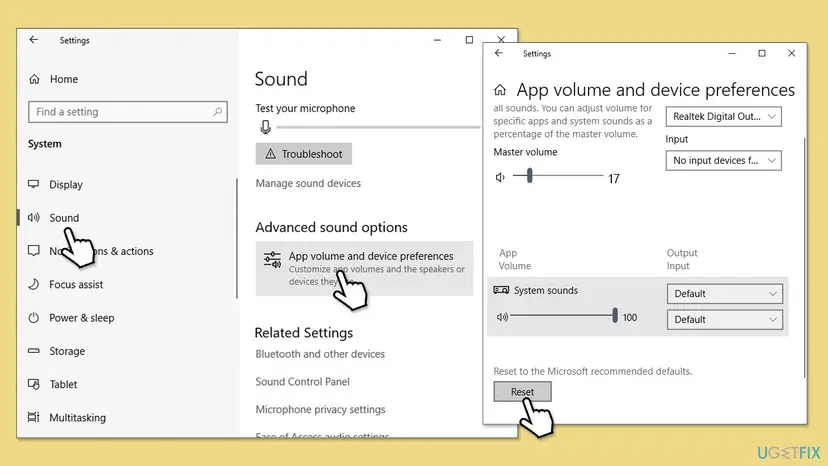
On Microsoft Q&A, a user reported that the webcam microphone was almost silent in every Phone Link call until they switched to another microphone during the call and back again. Other apps used the same microphone normally. Setting the input for Phone Link by name, as above, is the lasting version of that trick.
It worked if: The input meter moves when you speak, and the caller hears you at a normal level.
If not: If no microphone moves the meter in any app, a privacy switch is off: use Fix 3. If the mixer settings are a mess, select Reset at the bottom of the Volume mixer page and set the input again.
Fix 3. Allow microphone access for the PC and for Phone Link
2 minutesNo riskNo app can use the microphone, or Phone Link alone never gets it.
Windows checks its privacy switches before any app may record. Phone Link comes from Microsoft Store, so it has its own switch in the app list, and the old version of this guide named a missing permission as the first thing to check.
- Press Win + I. On Windows 11 open Privacy & security > Microphone; on Windows 10 open Privacy > Microphone.
- Turn on Microphone access (Windows 10: select Change and turn on Microphone access for this device).
- Turn on Let apps access your microphone (Windows 10: Allow apps to access your microphone).
- Find Phone Link in the list of apps and turn its switch on.
- Close Phone Link and open it again, then make a test call.
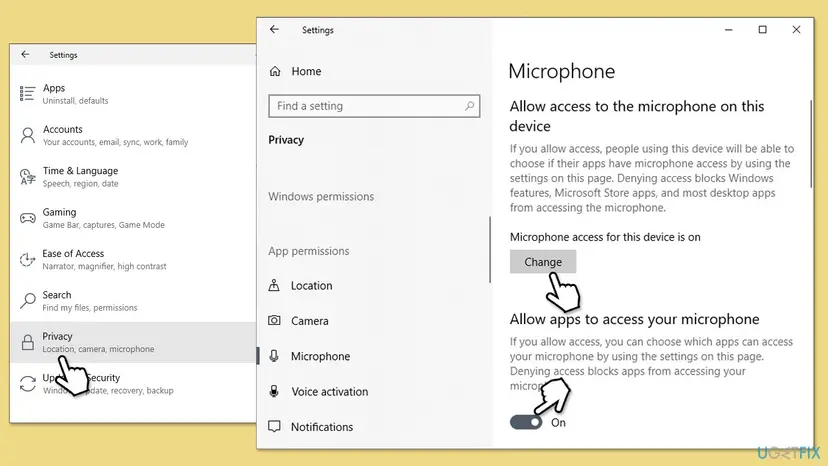
Some security suites have their own microphone protection that blocks apps on top of Windows. If you use one, check that Phone Link is allowed there too, and keep the protection itself on.
It worked if: Phone Link appears in the microphone list with its switch on, and the caller hears you.
If not: If the switches were already on, the problem is on the Bluetooth side: use Fix 4.
Fix 4. Turn Bluetooth off and on and connect the phone by hand
3 minutesNo riskCalls ring late or not at all on the PC, or the call audio stays on the phone.
Calls in Phone Link run over a Bluetooth connection between phone and PC. Microsoft's first call fix is to restart Bluetooth on the phone, and then to connect by hand when the automatic connection failed.
- On the phone, swipe down from the top of the screen to open the notification panel.
- Tap the Bluetooth icon to turn it off, then tap it again to turn it on.
- If calls still fail, touch and hold the Bluetooth icon to see the list of devices.
- Tap the name of your PC in the list.
- Confirm the notifications that appear on the phone and on the PC.
- On the PC, turn Do Not Disturb off in the notification center, close Phone Link and open it again.
It worked if: The phone shows the PC as connected, and a test call plays on the PC with your voice reaching the caller.
If not: If the PC does not connect or the microphone is still silent, unpair both sides with Fix 5.
Fix 5. Unpair the phone on both sides and set up Calls again
10 minutesLow riskFix 4 did not help, the phone was renamed, or there are two entries for the phone in Windows.
Microsoft's next step for calls that still fail is a clean pairing. Windows then creates the Bluetooth call connection again, including the part that carries the PC microphone to the phone.
- Close Phone Link on the PC.
- On Android, open Settings > Connected devices > Connection preferences > Bluetooth, tap the settings icon next to your PC and select Unpair or Forget.
- On the PC, open Settings > Bluetooth & devices (Windows 10: Settings > Devices > Bluetooth & other devices).
- Select the phone, then Remove device, and confirm.
- If the phone is listed a second time, remove that entry too.
- Open Phone Link, go to Calls and follow the setup to pair again.
It worked if: Calls is set up again, a test call rings on the PC, and the caller hears you.
If not: If Calls says other apps interfere, or pairing fails again, use Fix 6.
Fix 6. Remove other phone pairing apps such as Intel Unison
10 minutesLow riskIntel Unison, Virtoo by LG or another phone-to-PC app is installed, or Phone Link says some apps may be interfering with calls.
Microsoft says a third-party app or a phone maker's pre-installed pairing app can conflict with Calls. Two apps cannot both own the call connection, so Phone Link may lose the audio channel.
- Open Settings > Apps > Installed apps (Windows 10: Apps & features).
- Find the other pairing app, select the three dots and select Uninstall. If you want to keep it, sign out of it instead.
- Open Settings > Bluetooth & devices, select the phone and select Remove device.
- Open Phone Link, go to Calls and pair the devices again.
It worked if: Phone Link no longer warns about other apps, and the microphone works in calls.
If not: If calls work for a while and then stop, use Fix 7.
Fix 7. Turn off battery optimization for Link to Windows on the phone
3 minutesNo riskAndroid only: calls work at first and then stop reaching the PC, or the link drops during a call.
Microsoft says battery optimization on some Android phones interrupts the connection. When Link to Windows is paused in the background, the call falls back to the phone and the PC microphone has nowhere to go.
- Open Settings > Apps & notifications > App info > Link to Windows > Advanced > Battery > Manage Battery Usage > Battery optimization.
- Scroll to Link to Windows and select Don't optimize.
- On some phones the path is Settings > Apps > Link to Windows > Service > Battery > Optimize battery usage.
- Select All, find Link to Windows and turn the toggle Off.
- Make a test call from the PC.
It worked if: The link stays up between calls, and each call uses the PC microphone.
If not: If nothing has changed, update and repair Phone Link with Fix 8.
Fix 8. Update, repair or reset Phone Link
10 minutesLow riskFixes 1 to 7 did not help, or the microphone stopped after a Phone Link update.
A damaged app can keep a wrong audio setting or fail to open the microphone. Repair keeps your data. Reset deletes Phone Link's data on this PC, including the link to the phone, so Calls must be set up again.
- Open Microsoft Store > Library > Get updates and update Phone Link.
- Update Link to Windows on the phone from its app store.
- Search for Phone Link, right-click it and select App settings.
- Select Terminate, then Repair, and test a call.
- If that does not help, select Reset, open Phone Link and set up Calls again.
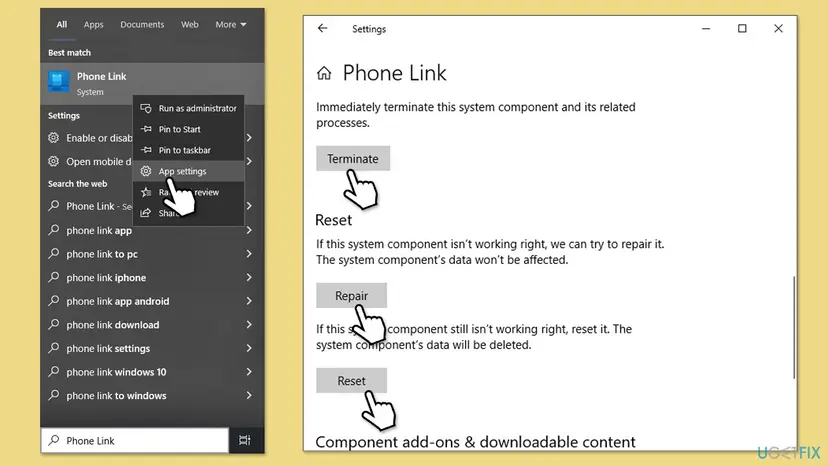
The general steps with Windows 11 screenshots are here: How to repair or reset an app in Windows.
It worked if: Phone Link opens, Calls works after a new pairing, and the caller hears you.
If not: If the microphone still fails in Phone Link only, check the audio and Bluetooth drivers with Fix 9.
Fix 9. Update or roll back the audio and Bluetooth drivers
10 to 15 minutesLow riskThe microphone or calls stopped after a Windows or driver update, or Device Manager shows a warning sign.
The call relies on two drivers at once: the microphone's audio driver and the Bluetooth driver that carries the call to the phone. A bad update to either one can break the voice path while music still plays.
- Right-click Start and select Device Manager.
- Expand Audio inputs and outputs and Bluetooth and look for a yellow warning sign.
- Right-click the microphone or the Bluetooth adapter and select Properties, then the Driver tab.
- If the problem started after an update, select Roll Back Driver. Otherwise select Update Driver.
- Restart the PC and make a test call.
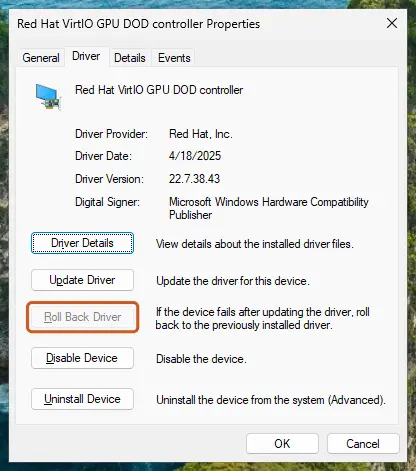
Full steps for updating, rolling back and reinstalling a driver: Update, roll back or reinstall a driver. Get drivers from Windows Update or your PC maker, not from driver updater programs.
It worked if: Device Manager shows no warning sign, and the caller hears you after the restart.
If not: Read the next section to tell a Phone Link problem from a hardware or support limit.
Phone Link microphone still not working: what to check
| Test | Result | What it means |
|---|---|---|
| Record in Sound Recorder with the same microphone | Nothing is recorded | The microphone, its driver or privacy is the problem (Fix 2, Fix 3, Fix 9). |
| Make a Discord or Teams call with the same microphone | It works there | Phone Link uses another input or the Bluetooth link fails (Fix 2, Fix 5). |
| Make a normal call on the phone itself | The caller cannot hear you either | The phone, the network or the SIM is the problem, not Windows. |
| Try with a wired headset instead of Bluetooth | It works | That is the expected limit: Bluetooth headsets are not supported for calls. |
- Dual SIM phones: Microsoft says Phone Link always uses the primary SIM, so a call on the second SIM may not behave as you expect.
- Report it: open Feedback Hub and give the Phone Link version from its Settings > About, the phone model, the microphone you use and which fixes you tried.
How to keep the microphone working in Phone Link calls
- Use a wired or USB headset for Phone Link calls.
- Set the microphone for Phone Link by name in the Volume mixer.
- Keep Link to Windows out of battery optimization on Android.
- Make a short test call after a big Windows or driver update.
- Do not expect Bluetooth earbuds to work as the microphone in Phone Link calls.
- Do not run two phone pairing apps on the same PC.
- Do not install driver updater tools; use Windows Update or your PC maker.
Frequently asked questions
Why can't people hear me on Phone Link calls?
Usually because your voice never reaches the phone. The most common reason is a Bluetooth headset on the PC: Microsoft says Phone Link does not relay calls to a headset over Bluetooth. The next most common is that Windows gives Phone Link another microphone than the one you speak into. Use a wired, USB or built-in microphone (Fix 1), then set it as the input for Phone Link in the Volume mixer (Fix 2).
Can I use Bluetooth headphones for Phone Link calls?
Not for the call audio, according to Microsoft. Its troubleshooting page says Phone Link does not currently support relaying a phone call from your Android device, or from an iPhone, to a headset over Bluetooth. The PC's Bluetooth already carries the call from the phone. Use a wired headset, a USB headset or the PC's own microphone and speakers instead. Bluetooth headphones still work for music and other apps on the same PC.
Why does the microphone work in Discord but not in Phone Link?
Because each app can use a different input. Discord, Teams and Zoom usually let you pick a microphone by name, while Phone Link follows the Windows input or the app input set in the Volume mixer. If that points to a webcam or a disconnected headset, Phone Link records silence. Set the right input in Settings > System > Sound, then choose it for Phone Link in Volume mixer during a call (Fix 2).
Where are the microphone settings for Phone Link?
Phone Link has no microphone list of its own that we could confirm. It uses the Windows settings: the default input under Settings > System > Sound, the per-app input under Volume mixer (Windows 10: App volume and device preferences), and the microphone switch under Privacy & security > Microphone. Phone Link appears in the mixer only while it is open, so start a test call before you look for it there.
Why is my voice so quiet in Phone Link calls?
Check the Input volume of your microphone in Settings > System > Sound first. On Microsoft Q&A, a user with a webcam microphone reported that the voice was almost silent in every Phone Link call until they switched microphones during the call and back. Other apps were fine. Setting Phone Link's input to that microphone by name in the Volume mixer is worth trying (Fix 2). We could not confirm a fix from Microsoft for this report.
Does the Phone Link microphone work with an iPhone?
Yes, calls work with an iPhone too, and the same PC side applies. Microsoft's call troubleshooting page has a separate iPhone section and the same limit: no relay to a Bluetooth headset. Fixes 1 to 3 and Fix 8 are the same for an iPhone. The Android steps, such as battery optimization for Link to Windows, do not apply. Unpair and pair again from the iPhone's Bluetooth settings instead.
Why does Phone Link say some apps may be interfering with calls?
Microsoft says this appears when the phone was paired to the PC through another app, such as Intel Unison or Virtoo by LG, or a phone maker's pre-installed app. Those apps can take over the call connection. Uninstall the other app, or sign out of it, then remove the phone from Bluetooth & devices and set up Calls in Phone Link again (Fix 6). After that, the microphone usually works again.
Is my microphone broken if it does not work in Phone Link?
Rarely. Record a few words in Sound Recorder, or join a Teams or Discord call with the same microphone. If those work, the microphone is fine and the problem is in Phone Link or its Bluetooth link to the phone. If no app can record, check the privacy switches (Fix 3) and the driver (Fix 9). Only if a wired microphone fails on another PC too is the hardware itself at fault.
What does "no me escuchan" mean on Phone Link?
It is Spanish for "they cannot hear me", which is exactly the problem on this page. Phone Link behaves the same in every language; only the menu names are translated. Use a wired or built-in microphone instead of a Bluetooth headset (Fix 1), set it as Phone Link's input in the Volume mixer (Fix 2) and check that microphone access is on for Phone Link (Fix 3).
Sources
Did this fix work?
One click, no account. It tells the next reader which guides are worth their time.
Questions and experiences: fix mic not working in Phone Link on Windows
Still broken, or found a fix we did not cover? Ask here: members and our editors answer. Reading is open; writing needs a free account.
…