
How to fix Microsoft 365 activation error "Trusted Platform Module has malfunctioned"?

Prefer to fix it yourself? The manual steps follow.
- 8methods
- 5 to 45 minutes
- Intermediate
Applies to Microsoft 365 apps and Office for Windows (Outlook, Teams, Word, Excel, PowerPoint) signed in with a work or school account, on Windows 11 and Windows 10
8 methods in this guide
My Microsoft Office keeps prompting me to enter my password whenever I attempt to use my Office 365 account. When I do, I receive an error: "Your computer's Trusted Platform Module has malfunctioned. If this error persists, contact your system administrator with the error code 80090030." How do I fix this?
Office 365 shows Your computer's Trusted Platform Module has malfunctioned when Windows cannot use the key that protects your work or school sign-in. The chip is rarely broken: the key is usually lost or stale. Remove the saved Office credentials and the old work account link first, and clear the TPM only as the last step.
The message means Windows could not use the TPM-protected key behind your Office sign-in, so the token is refused. Open Credential Manager, remove every MicrosoftOffice16 entry, disconnect the Office account under Access work or school if it is not your Windows account, restart and sign in again (Fix 1). If it returns, empty the TokenBroker account folders (Fix 2). Clear the TPM only last (Fix 8).
| Error | Something went wrong with the line Your computer's Trusted Platform Module has malfunctioned. If this error persists, contact your system administrator with the error code 80090030. Other codes: C0090030, 80090016, C0090016, 80284001. |
|---|---|
| Where it appears | In the Microsoft sign-in window of Outlook, Teams, Word or Excel, at activation or each time the app asks for your password again. |
| Main cause | The key that Windows keeps in the TPM chip for your work or school sign-in is lost or unusable, often after the TPM was cleared, reset or updated, or a motherboard was replaced. |
| Fastest fix | Remove the MicrosoftOffice16 credentials and the extra work account, restart, sign in (Fix 1). Then delete the TokenBroker accounts (Fix 2). |
| Also written as | Device TPM problem, There's a problem with your device's Trusted Platform Module, TPM problem Office 365, error code 80090030, C0090030, Outlook TPM error. |
| Affects | Microsoft 365 apps on Windows 11 and Windows 10, mostly with work or school accounts in Microsoft Entra ID (formerly Azure AD). |
| Microsoft's status | A known activation error with its own Microsoft Learn article, now in the archived section (last updated February 2025). No Office update fixes it, because the fault is in the device key. |
| Time to fix | About 5 minutes for Fix 1. Up to 45 minutes when the device must be registered again or the BIOS updated. |
Facts checked on 15 October 2026. Steps written for Microsoft 365 apps on Windows 11 (25H2 and 26H2) and Windows 10 22H2, read against Microsoft's own article on this error and Microsoft's sign-in troubleshooting documentation.
What "Your computer's Trusted Platform Module has malfunctioned" means
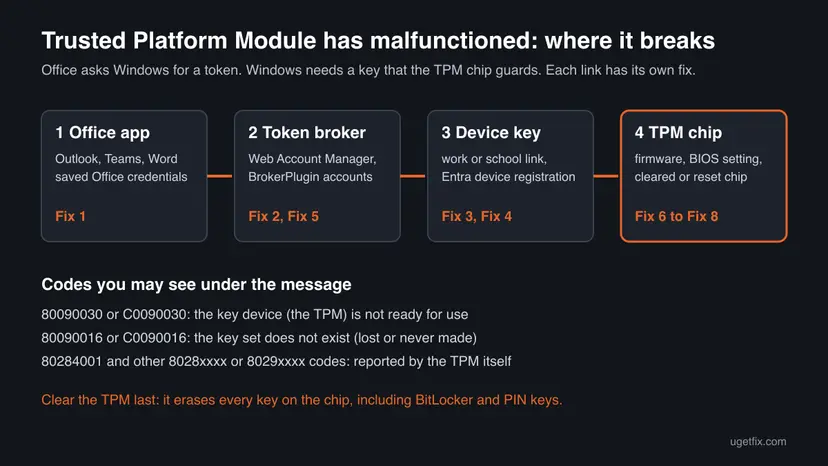
The Trusted Platform Module (TPM) is a security chip, or a firmware part of the processor, that holds keys Windows must not lose. When you sign in to Office 365 with a work or school account, Windows ties that sign-in to a device key the TPM guards. Office never talks to the chip itself: it asks Windows for a token, and Windows needs the key to get one.
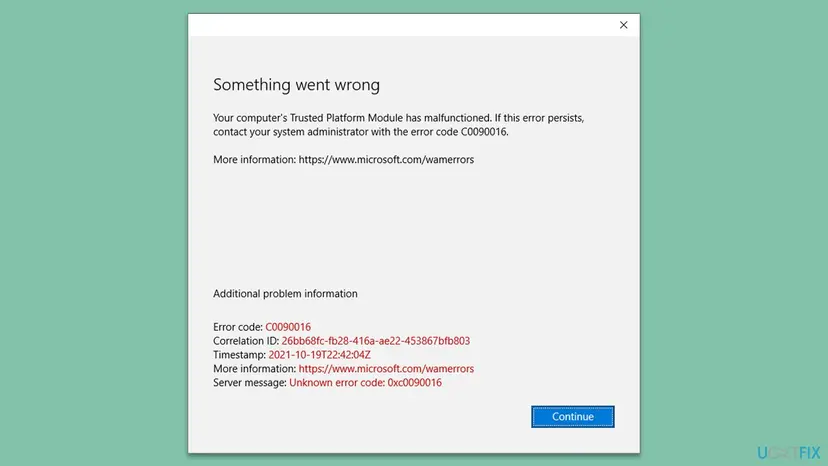
When that step fails, Office shows a window titled Something went wrong with the sentence Your computer's Trusted Platform Module has malfunctioned. and a code. Under it you may see More information: https://www.microsoft.com/wamerrors, which names Web Account Manager (WAM), the part of Windows that handles the sign-in.
| Code in the window | What it means | Start with |
|---|---|---|
| 80090030 or C0090030 | 0x80090030 is NTE_DEVICE_NOT_READY: "The device that is required by this cryptographic provider is not ready for use." The TPM did not answer when the key was needed. | Fix 1, then Fix 3 |
| 80090016 or C0090016 | 0x80090016 is NTE_BAD_KEYSET, "Keyset does not exist": the key Windows looked for is gone. | Fix 1, Fix 2, then Fix 3 |
| 80284001 and other 8028xxxx or 8029xxxx codes | Codes from the TPM range. Microsoft names the patterns 0x?028????, 0x?029???? and 0x?009???? as the marks of a TPM problem. | Fix 6 to Fix 8 |
| -2146893813 or -2146893802 in newer windows | The same codes in decimal: 0x8009000B (key not valid in this state) and 0x80090016. | Fix 1, Fix 2 |
Newer Office builds can show a shorter heading. People search for Device TPM problem and There's a problem with your device's Trusted Platform Module, often from Outlook or Teams. We treat these as the same failure, because they come with the same codes and need the same fixes.
What causes the TPM malfunction error in Office 365, from the most common
Microsoft writes that Windows uses the TPM to protect your credentials, and that the chip may become corrupted or reset in some conditions. Dell describes the most common chain: the TPM was cleared, the protected data was lost, and Azure AD authentication fails. The order below is our reading of Microsoft's and Dell's articles, not a statistic.
| How often | Cause | Typical sign | Fix |
|---|---|---|---|
| Most often | Saved Office credentials or a second work account still point at the old key | Office keeps asking for the password, then shows the error | Fix 1 |
| Often | Stale accounts in the Web Account Manager plug-in, or security software that blocks it | Every Office app fails, office.com works in the browser | Fix 2 |
| Often | The device key was lost after the TPM was cleared, reset by a BIOS update, or the board was replaced | The error began right after BIOS, firmware or hardware work | Fix 3 |
| Less often | Windows data protection cannot use the TPM-backed key | Fix 1 to Fix 3 hold for a day, then the error returns | Fix 4 |
| Less often | Leftover Office licence data from an older sign-in | It began after a licence change or reinstall | Fix 5 |
| Rarely | TPM firmware fault, TPM switched off or set wrong in the BIOS | Windows Security reports a TPM problem too | Fix 6, Fix 7, Fix 8 |
| Not on this PC | The administrator disabled or deleted the device in Microsoft Entra ID | AADSTS135011 or AADSTS50155 in the AAD log | The administrator |
The old version of this page said the PC Health Check app could trigger the error. We found no Microsoft source for that, so we left it out. A TPM that is truly broken is rare, and Fix 6 and Fix 7 show how to tell.
Work PC or your own PC: who should run which fix
Microsoft's article notes that some of its fixes can only be done by a Microsoft 365 admin. On a PC your employer or school manages, Fix 1 and Fix 2 are safe for you. Fix 3, Fix 4 and Fix 8 change how the PC is joined to the organisation or touch the chip, so ask IT first.
To see how your PC is joined, open Command Prompt and run dsregcmd /status. Microsoft reads the result like this:
- AzureAdJoined : YES and DomainJoined : YES: a hybrid joined company PC. Recovery belongs to IT.
- AzureAdJoined : YES and DomainJoined : NO: joined to Microsoft Entra ID only. Recovery needs a second local administrator account.
- WorkplaceJoined : YES under User State: a work account added to your own PC. Every fix here is yours to run.
How to fix "Trusted Platform Module has malfunctioned" in Office 365
The fixes are ordered from the cheapest and safest to the ones that touch the chip. Fix 1 and Fix 2 come straight from Microsoft's article on this error and clear what most often holds the old key. After each fix, open the Office app and sign in: when your name stays at the top after a restart, you are done.
| What you see | Start with | Then |
|---|---|---|
| Office keeps asking for your password, then shows the error | Fix 1 | Fix 2 |
| It started after a BIOS update, a TPM clear or a new motherboard | Fix 3 | Fix 1, Fix 2 |
| Code 80090030 or C0090030 | Fix 1 | Fix 3, Fix 4 |
| Code 80090016 or C0090016 | Fix 1 | Fix 2, Fix 3 |
| A code starting 8028 or 8029, or Windows Security warns about the TPM | Fix 6 | Fix 7, Fix 8 |
| PC managed by an employer or school | Fix 1 | Fix 2, then send the details to IT |
Fix 1. Remove the saved Office credentials and the extra work or school account
5 minutesLow riskEveryone, first. Above all when Office keeps asking for your password before the error appears.
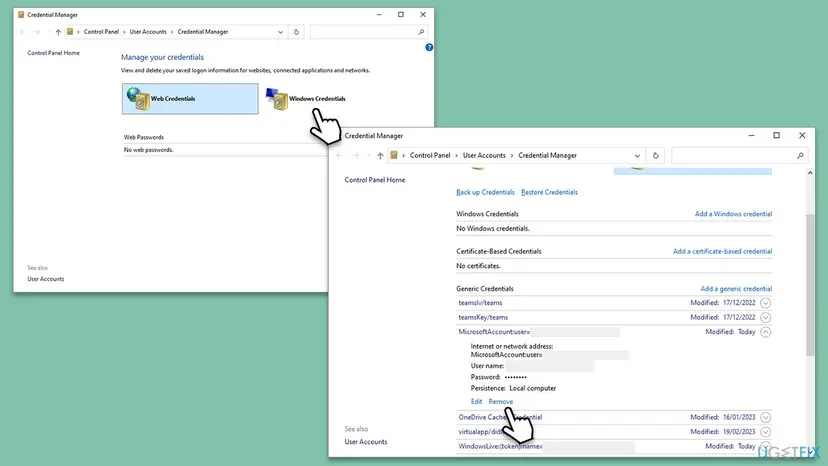
Office saves its sign-in in Credential Manager under MicrosoftOffice16, and a work account added in Settings keeps its own link to the device key. If either was made with a key the TPM no longer holds, Office keeps presenting it. Microsoft lists this as one of the first fixes for this error.
- Close Outlook, Teams, Word and every other Office app.
- Select Start, type
credential managerand open Credential Manager. - Select Windows Credentials.
- For each entry named MicrosoftOffice16, select the arrow next to it and select Remove, then confirm with Yes.
- Open Settings > Accounts > Access work or school.
- If the account you use for office.com is listed there and it is not the account you sign in to Windows with, select it and select Disconnect.
- Restart the PC, open an Office app and sign in.
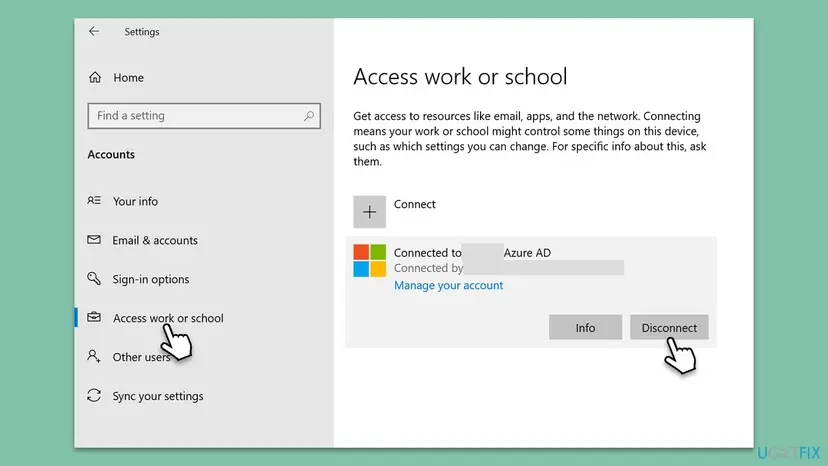
If the entry under Access work or school says it is connected to your organisation's Azure AD and that is how you sign in to Windows, leave it. Disconnecting it can take the PC out of the organisation. That case is Fix 3, done with IT.
It worked if: Office asks for a full sign-in with your password and approval, then shows your name and activates.
If not: If the error returns, the old accounts are still held by Web Account Manager. Go to Fix 2.
Fix 2. Delete the TokenBroker account data and run the sign-in troubleshooter
10 minutesLow riskFix 1 did not hold, or every Office app shows the error while office.com works in the browser.
The plug-in Microsoft.AAD.BrokerPlugin keeps its own copies of your accounts and the tokens made with the device key. Microsoft's article for this error deletes them so Windows builds new ones, and notes that antivirus, proxy or firewall software can block the plug-in.
- Close all Office apps and Teams.
- Open File Explorer and paste this location into the address bar, then press Enter:
%LOCALAPPDATA%\Packages\Microsoft.AAD.BrokerPlugin_cw5n1h2txyewy\AC\TokenBroker\Accounts - Press Ctrl + A, right-click the selected files and choose Delete.
- Do the same in the second location:
%LOCALAPPDATA%\Packages\Microsoft.Windows.CloudExperienceHost_cw5n1h2txyewy\AC\TokenBroker\Accounts - Restart the PC.
- Run the Microsoft 365 sign-in troubleshooter that Microsoft links from its article (aka.ms/SaRA-OfficeSignIn-sarahome), then sign in to Office.
The address bar opens these folders even though AppData is hidden, so you do not need to show hidden items. The files are rebuilt at the next sign-in. Only saved sign-ins go: no mail, no documents.
Microsoft says antivirus, proxy or firewall software can block Microsoft.AAD.BrokerPlugin_cw5n1h2txyewy, and a VPN can get in the way of activation. Disconnect the VPN for one try. To test the antivirus, pause it for one sign-in and turn it back on at once: Turn off Microsoft Defender protection for a moment. If that was it, ask the vendor or IT to allow the plug-in.
It worked if: Office asks for a complete sign-in and stays signed in after the next restart.
If not: If the error returns, the device key itself is the problem. Go to Fix 3.
Fix 3. Register the device again: disconnect and reconnect the work or school account
15 minutesRead the warningThe error began after the TPM was cleared, a BIOS or firmware update, or a motherboard repair. Code 80090030 or 80090016 that survives Fix 1 and Fix 2.
When the TPM is cleared, the device key is gone and Microsoft Entra ID can no longer accept tokens from this PC. Dell's fix for C0090030 is to disconnect from the Azure domain and connect again. Microsoft's article describes the same, which creates a new key in the TPM.
Disconnecting a joined PC can remove your access to work resources and, on an Entra joined PC, to your Windows profile until you reconnect. Back up your files first: Back up your files (Windows Backup, File History, Time Machine). Make sure you know your work password and have your phone for approval. On a company PC let IT do this.
Run dsregcmd /status first and follow the line that matches your PC. These are Microsoft's recovery steps for a TPM failure.
| dsregcmd shows | Recovery |
|---|---|
| WorkplaceJoined : YES (work account added to your own PC) | Remove the work account in Settings > Accounts > Access work or school, restart, and add it again with Connect. |
| AzureAdJoined : YES, DomainJoined : NO | Back up data, create a new local administrator, disconnect the account under Access work or school, sign in with the local administrator and reconnect to Microsoft Entra ID. |
| AzureAdJoined : YES, DomainJoined : YES (hybrid) | Run dsregcmd /leave in an elevated Command Prompt and restart. The PC registers again by itself. IT should do this. |
- For a work account on your own PC, open Settings > Accounts > Access work or school.
- Select the work or school connection and select Disconnect, then confirm.
- Restart the PC and return to Access work or school.
- Select Connect. On a PC that the organisation should manage, choose Join this device to Microsoft Entra ID (older builds say Azure Active Directory).
- Enter your work account and password, approve the sign-in, and select Let my organization manage my device if it is offered.
- Restart and open Office.
It worked if: dsregcmd /status shows the join state again, and Office signs in without asking twice.
If not: If the error comes back after a day or two, Windows data protection may still fail on the key. Go to Fix 4.
Fix 4. Turn on the Office protection policy in the registry
10 minutesRead the warningYour own PC, when Fix 1 to Fix 3 work for a while and then the error returns.
Microsoft's article for this error adds a value named ProtectionPolicy under the Windows data protection provider key. It changes how Windows protects the master keys used for your saved credentials, so they no longer depend on the step that fails.
A wrong change in the registry can stop Windows or Office from working. Export the key before you add the value: Back up the registry before editing it. On a company PC leave this to IT, because it changes a machine-wide security setting.
- Open Word, select your name at the top and select Sign out, then close Word.
- In Settings > Accounts > Access work or school, select the account you use for office.com and select Disconnect (only if it is not your Windows sign-in, as in Fix 1).
- Press Win + R, type
regeditand press Enter. - Go to this key:
HKEY_LOCAL_MACHINE\Software\Microsoft\Cryptography\Protect\Providers\df9d8cd0-1501-11d1-8c7a-00c04fc297eb - Right-click an empty area on the right, select New > DWORD (32-bit) Value and name it
ProtectionPolicy. - Double-click ProtectionPolicy, set Value data to
1and select OK. - Restart the PC and sign in to Office again.
To undo it, delete the ProtectionPolicy value and restart. Microsoft gives no more detail on this setting in the article, so use it only when the error keeps coming back.
It worked if: Office signs in and stays signed in after several restarts.
If not: If Office still fails, clear the old licence data with Fix 5.
Fix 5. Reset the Microsoft 365 activation state
15 minutesRead the warningThe error began after a licence change, a reinstall, or a move from one organisation to another.
Office keeps licences and cached identities outside the credential stores, and those can still name the old sign-in. Microsoft's article for this error points to its reset activation state guide, which removes them so Office starts as if never activated.
Office forgets every licence and account on this Windows profile. Have the licensed account at hand. The manual route edits the registry, so back it up first: Back up the registry before editing it.
- Sign out of every account in File > Account and close all Office apps.
- Open Microsoft's article Reset activation state for Microsoft 365 Apps for enterprise and download the cleanup scripts it offers, OLicenseCleanup.zip and signoutofwamaccounts.zip.
- Run OLicenseCleanup.vbs as administrator, then signoutofwamaccounts.ps1 in Windows PowerShell opened as administrator.
- Restart the PC, open Word and sign in with the licensed account.
Our guide to error tag 4vt9f walks through both scripts and the manual route, including what to do when Smart App Control blocks the script.
It worked if: Office opens with an activation prompt, accepts the account and shows the product under File > Account.
If not: If the error is still there, the chip side needs a look. Go to Fix 6.
Fix 6. Turn on Memory integrity
5 minutesLow riskWindows Security shows Memory integrity as off, and the fixes above did not hold.
Microsoft lists this switch in its article for this error. It turns on a Windows security feature rather than off, so it is safe to keep. If an old driver blocks it, Windows names that driver.
- Select Start, type
Windows Securityand open it. - Select Device security.
- Under Core isolation, select Core isolation details.
- Turn Memory integrity on.
- Restart the PC and sign in to Office.
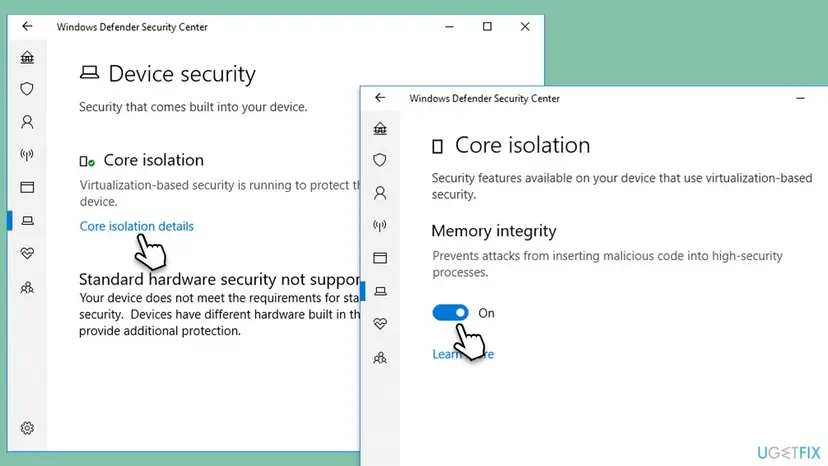
It worked if: Memory integrity stays On after the restart, and Office signs in.
If not: If Windows refuses to turn it on because of a driver, update or remove that driver later. For the TPM error go on to Fix 7.
Fix 7. Update the BIOS and check that the TPM is active
15 to 30 minutesRead the warningA code that starts with 8028 or 8029, a TPM warning in Windows Security, or the error on several accounts of the same PC.
Microsoft recommends updating the TPM firmware to keep this error from coming back, and the firmware arrives with the BIOS or UEFI update of the PC maker. Microsoft also says to check that the TPM is set to active in the BIOS.
Plug in the laptop and do not switch it off during the update. If the drive uses BitLocker, have the recovery key ready, because a firmware update can ask for it. Use only the update from your PC maker's support page.
- Press Win + R, type
tpm.mscand press Enter. Under Status, Windows should say The TPM is ready for use. - Note the Specification Version under TPM Manufacturer Information. Microsoft recommends TPM 2.0.
- Open your PC maker's support page (Dell, HP, Lenovo, Microsoft Surface and others) and install the newest BIOS or UEFI update for your model.
- If tpm.msc says no compatible TPM is found, restart into the BIOS setup and check the Security tab. Microsoft's example presses F1 before Windows loads; your PC maker may use another key. If TPM 1.2 is selected there, the Security Chip must be set to Active.
- Save, restart and sign in to Office.
It worked if: tpm.msc reports The TPM is ready for use, and Office signs in without the error.
If not: If the TPM still reports a problem, clearing it is the last resort. Go to Fix 8.
Fix 8. Clear the TPM (last resort)
15 minutes plus setupRead the warningOnly your own PC, only after Fix 1 to Fix 7, and only when Windows Security or tpm.msc reports a TPM fault.
Clearing resets the chip to its default state and Windows prepares it again. Microsoft lists it in its article for this error. It also deletes every key the chip holds, which is why it comes last.
All keys made with the TPM go, together with what they protect: your Windows Hello PIN, a virtual smart card, and the TPM protector of BitLocker. Save your BitLocker recovery key before you start. Never do this on a work or school PC without IT, and clear it from Windows, not from the BIOS.
- Open Windows Security and select Device security.
- Under Security processor, select Security processor details.
- Select Security processor troubleshooting.
- Select Clear TPM, then Clear and restart.
- If the PC asks you to press a key during the restart, do so to confirm.
- After Windows starts, set up your PIN again, then run Fix 3 so the work account gets a new device key, and sign in to Office.
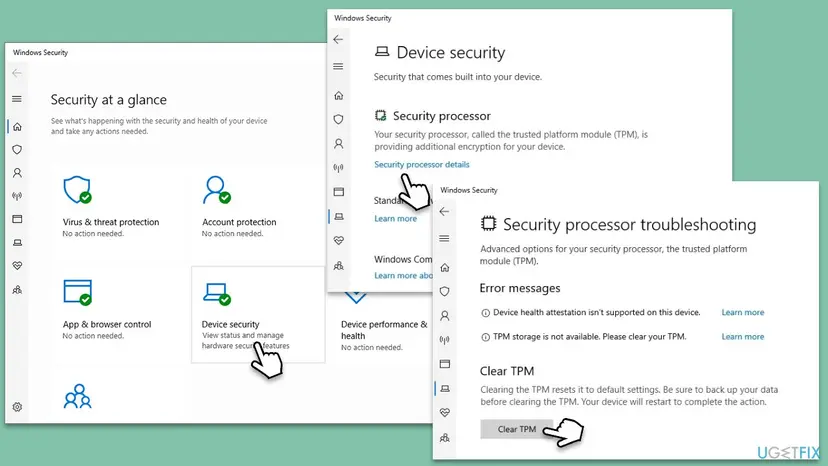
Clearing alone is not the cure: it is what usually starts this error in the first place. The account must be registered again afterwards, which is why Dell's fix for the same message is to reconnect the work account.
It worked if: Windows Security shows no TPM warning, and after Fix 3 Office signs in.
If not: If TPM errors come back after a clear and a firmware update, the chip or the board may be failing. See the next section.
If the TPM error is still there: the log, the test account and what to send
Stop changing things and look at where Windows writes the real reason. Microsoft points to one log for TPM sign-in failures.
- Press Win + R, type
eventvwr.mscand press Enter. - Go to Applications and Services Logs > Microsoft > Windows > AAD > Operational.
- Look for errors at the time of your sign-in with codes like
0x?028????,0x?029????or0x?009????. Microsoft names these as TPM problems. - Look for AADSTS135011: Device used during the authentication is disabled or AADSTS50155: Device is not authenticated. Those mean the administrator disabled or deleted the device, and only they can fix it.
| Test | Result | What it means |
|---|---|---|
| Sign in at office.com in a browser | Refused | The account or licence. Nothing on the PC will help. |
| Sign in to Office from a new Windows user account | Works | Your profile holds the bad key. Microsoft's last fix in its article is a new user account. |
| The same new account | Fails too | The PC: the TPM, its firmware or the device registration. |
- Create the test account: Create a new user account to test a problem. Microsoft suggests a clean boot first: How to perform a clean boot in Windows.
- Send to IT or Microsoft support: the error code, the Correlation ID and Timestamp from the window, the output of
dsregcmd /status, and the AAD log entries. - When it is hardware: TPM errors that return after a clear and a BIOS update point to the chip or the motherboard. Contact the PC maker and use the web apps meanwhile.
How to keep the TPM error from coming back
The error returns when the TPM loses its keys while Windows still expects them. Most prevention is about knowing when that happens.
- Never clear the TPM casually. Do it only as Fix 8 describes, and reconnect the work account straight after.
- After a BIOS update or board repair, expect to sign in again and reconnect the work account. Do Fix 1 and Fix 3 at once if Office complains.
- Keep the BIOS and TPM firmware current. Microsoft recommends it to avoid this exact failure.
- Add a work account to your own PC as "this app only" when Office offers it. Fewer device links mean fewer keys to lose.
- Keep Windows updated. Windows 10 left support on 14 October 2025, so a Windows 10 PC no longer gets security fixes for this layer.
Frequently asked questions
What is a device TPM problem in Office 365?
It is the same failure as "Your computer's Trusted Platform Module has malfunctioned": Office asked Windows for a sign-in token, and Windows could not use the key in the TPM chip that protects your work or school sign-in. The chip is rarely broken. Usually the key is lost or stale after a TPM clear, a BIOS update or a board change. Remove the saved Office credentials and the extra work account first (Fix 1).
What does error code 80090030 mean?
80090030 is the Windows code NTE_DEVICE_NOT_READY: "The device that is required by this cryptographic provider is not ready for use." In the Office window it means the TPM did not answer when Windows needed the key for your sign-in. Office sometimes shows it as C0090030. Start with Fix 1 and Fix 2. If it started after BIOS or TPM work, register the device again with Fix 3.
What is error C0090030 or C0090016?
These are the same codes as 80090030 and 80090016 with a different first digit, as Office shows them in the Something went wrong window. C0090030 points to a TPM that is not ready, and C0090016 to a key that no longer exists. Dell documents C0090030 on its laptops after the TPM was cleared, and fixes it by reconnecting the work account. That is Fix 3 here.
Why does Outlook show the TPM error and keep asking for my password?
Microsoft describes this exact pattern: Outlook prompts for credentials, you enter them, and it prompts again, because the TPM chip or firmware is malfunctioning. Outlook signs in through the same Windows layer as the other Office apps, so the fixes are the same. Remove the saved credentials (Fix 1), clear the TokenBroker data (Fix 2), and look in the AAD log for TPM codes if it continues.
Is it safe to clear the TPM to fix the Office error?
It is safe for Windows, but it deletes every key the chip holds: your Windows Hello PIN, virtual smart cards and the BitLocker TPM protector. Save the BitLocker recovery key first, and never clear it on a work or school PC without IT. Clearing also does not fix Office alone: you must reconnect the work account afterwards. That is why it is Fix 8, the last one.
Can I fix the TPM error without admin rights?
Partly. Fix 1 and Fix 2 only touch your own user profile, and Microsoft's sign-in troubleshooter runs for a normal user. Registering the device again, the registry setting, a BIOS update and clearing the TPM need administrator rights, and on a company PC they belong to IT. Microsoft's article says some of its fixes can only be done by a Microsoft 365 admin.
Does the TPM error mean my computer's chip is broken?
Rarely. Most cases are a lost or stale key, not a dead chip. Signs of real hardware trouble are a TPM warning in Windows Security, tpm.msc not reporting The TPM is ready for use, and TPM errors that return after a firmware update and a clear. Then contact the PC maker. Meanwhile, office.com and Outlook on the web work in the browser, because they do not use the TPM.
Will reinstalling Office fix Trusted Platform Module has malfunctioned?
Usually not. The key that fails lives in Windows and the TPM, not in the Office program files, so a reinstall leaves it where it was. Clear the saved credentials and token data first (Fix 1 and Fix 2), and reset the activation state (Fix 5) if a licence change is involved. Microsoft's last step is a new Windows user account with a fresh Office install, not a reinstall in the old profile.
Does this error also appear in Teams?
Yes. Teams signs in through the same Web Account Manager and device key, so it shows the same device TPM problem with the same codes. The fixes on this page apply unchanged. After Fix 1 and Fix 2, quit Teams from the taskbar corner and start it again so it asks for a fresh sign-in.
Sources
- Microsoft Learn: Microsoft 365 Apps activation error "Trusted Platform Module malfunctioned" (archived, last updated February 2025) (learn.microsoft.com)
- Microsoft Learn: Connection issues when signing in after updating Office (TPM failure, AAD log patterns, manual recovery) (learn.microsoft.com)
- Dell Support: Microsoft Office Sign-in Error C0090030 (article 000198902) (dell.com)
Did this fix work?
One click, no account. It tells the next reader which guides are worth their time.
Questions and experiences: fix Microsoft 365 activation error "Trusted Platform Module has malfunctioned"
Still broken, or found a fix we did not cover? Ask here: members and our editors answer. Reading is open; writing needs a free account.
…