
How to fix Microsoft Bookings not working?

Prefer to fix it yourself? The manual steps follow.
- 7methods
- 5 minutes to a few hours
- Easy to Medium
Applies to Microsoft Bookings (Shared Bookings pages and Personal Bookings, also called Bookings with me) in Microsoft 365 business, enterprise and education tenants
7 methods in this guide
Hello. Today, for some reason, Microsoft Bookings is not working and I receive an error message. I tried reloading the page and re-opening the browser, but nothing works. What could be the issue?
When Microsoft Bookings is not working, the cause is usually a stale browser session for one person, or a licence or admin setting that blocks the account. A real Microsoft outage is the rarer case. First reload the page in a private window; if Bookings still fails or is missing, check the licence and the organisation's Bookings switch.
If only you see the error, open Bookings in a private window or another browser, then clear the cache and cookies (Fix 1). If Bookings is missing or refuses access, an admin must check that Microsoft Bookings is ticked in your licence (Fix 2) and that Allow your organization to use Bookings is on in Settings > Org settings (Fix 3). Bookings with me also depends on a mailbox policy (Fix 5).
| Error | No single code. Users report Something went wrong. We couldn't book that appointment. Please reload the page and try again., a blank or endless loading page, Bookings missing from the app list, or no access to Bookings with me. |
|---|---|
| Where it appears | Bookings on the web (outlook.office.com/bookings or the app list), the public booking page your customers open, Bookings in Teams, and Bookings with me in Outlook. |
| Main cause | For one person: an old browser session or cookies. For a whole account or team: Bookings not in the licence, turned off for the organisation, or limited by an Outlook on the web mailbox policy. |
| Fastest fix | A private window or another browser, then clearing the cache and cookies (Fix 1). Admin side: the licence check (Fix 2) and the organisation switch (Fix 3). |
| Also written as | Microsoft Bookings something went wrong, Microsoft Bookings error message, Bookings not loading, you do not have access to Bookings with me. |
| Affects | Work and school Microsoft 365 accounts. The admin controls are not available for Microsoft 365 operated by 21Vianet (China), says Microsoft. |
| Who can change it | Fix 1 any user. Fixes 2 to 5 need a Microsoft 365 admin; turning Bookings on for the organisation needs a global admin. |
| Vendor status | Not a known bug. Microsoft documents Bookings as a service the admin turns on or off for the whole organisation or for single users. |
| Time to fix | Minutes in the browser. Admin changes can take hours to reach users; a Microsoft Q&A answer gives about 4 hours for organisation settings. |
Facts checked on 15 October 2026. Steps written for Microsoft Bookings on the web (Microsoft 365 work and school tenants), Microsoft Edge and Google Chrome on Windows 11 (25H2 and 26H2) and Windows 10 22H2.
What "Microsoft Bookings not working" and its error messages mean
Microsoft Bookings is the scheduling service of Microsoft 365. It has two parts: Shared Bookings, the booking pages a business or team publishes for customers, and Personal Bookings (shown in Outlook as Bookings with me), one person's own booking page. Both run in the browser and in Teams, so there is no program on the PC to repair.
The message users report most often appears on the booking page when an appointment cannot be saved: Something went wrong. We couldn't book that appointment. Please reload the page and try again. Microsoft's admin pages say that users kept out of page creation by a policy receive an error message when they try, and that turning Bookings off for the organisation disables all access to the service.
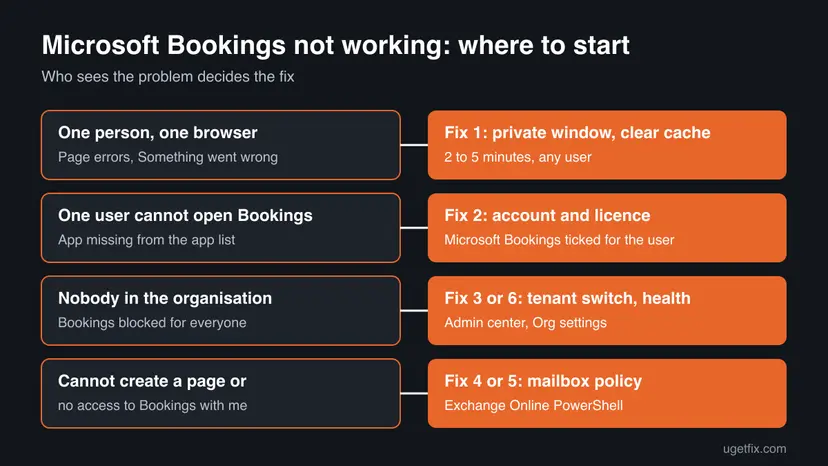
| What you see | What it usually means |
|---|---|
| Something went wrong on the booking page, other people book fine | A session or cache problem in that one browser |
| Bookings is missing from the app list for one user | The Microsoft Bookings app is off in that user's licence |
| Bookings is gone for everyone | Bookings turned off for the organisation, or a service incident |
| You can open Bookings but not create a new booking page | An Outlook on the web mailbox policy limits page creation |
| No access to Bookings with me in Outlook | Personal Bookings disabled by a mailbox policy, or Bookings off for the user |
Why Microsoft Bookings stops working: causes ranked
The ranking follows the controls Microsoft documents for Bookings and the reports on Microsoft Q&A, where most cases turn out to be a licence or tenant setting rather than a fault in the service.
| How often | Cause | Typical sign | Fix |
|---|---|---|---|
| Most often | Old cookies or a broken session in one browser | Works in a private window or another browser | Fix 1 |
| Often | Signed in with the wrong account, or Microsoft Bookings off in the user's licence | Bookings missing for one person only | Fix 2 |
| Often after changes | Shared Bookings turned off for the organisation | Missing for everyone, including licensed users | Fix 3 |
| Less often | A mailbox policy blocks creating booking pages | Error only when creating a new page | Fix 4 |
| Less often | Personal Bookings disabled by policy | Bookings with me does not open | Fix 5 |
| Rarely | A Microsoft 365 service incident | Many tenants report it at once | Fix 6 |
Microsoft's Bookings admin pages are written for work and school tenants. The old version of this guide sent readers to the consumer Services & subscriptions page; a home subscription there says nothing about Bookings. Check the work or school licence instead (Fix 2).
How to fix Microsoft Bookings not working
Fix 1 is for anyone and takes minutes. Fixes 2 to 5 are admin checks, ordered from the most common block to the rarest. Fix 6 rules out an outage, and Fix 7 is the support route when every setting is right.
| What you see or have | Start with |
|---|---|
| Only you see the error, colleagues or customers book fine | Fix 1 |
| Bookings is missing for one user | Fix 2 |
| Bookings is missing or blocked for everyone | Fix 3, then Fix 6 |
| You cannot create a new shared booking page | Fix 4 |
| Bookings with me does not open or says you have no access | Fix 5 |
| Every setting is right and it still fails | Fix 7 |
Fix 1. Open Bookings in a private window, then clear the browser cache and cookies
5 minutesLow riskYou, or one customer, get Something went wrong or a blank page, while other people can use the same booking page.
Bookings runs entirely in the browser and keeps your Microsoft 365 sign-in in cookies. An old session or a damaged cached script breaks the page for one browser only, and a fresh session loads everything again.
- Copy the Bookings address from the address bar.
- Open a private window: Ctrl + Shift + N in Edge and Chrome.
- Paste the address, sign in with your work or school account and try the same action again.
- If it works there, close the private window and press Ctrl + Shift + Delete in your normal browser.
- Tick Cookies and other site data and Cached images and files, choose All time and clear.
- Sign in to Bookings again and repeat the booking.
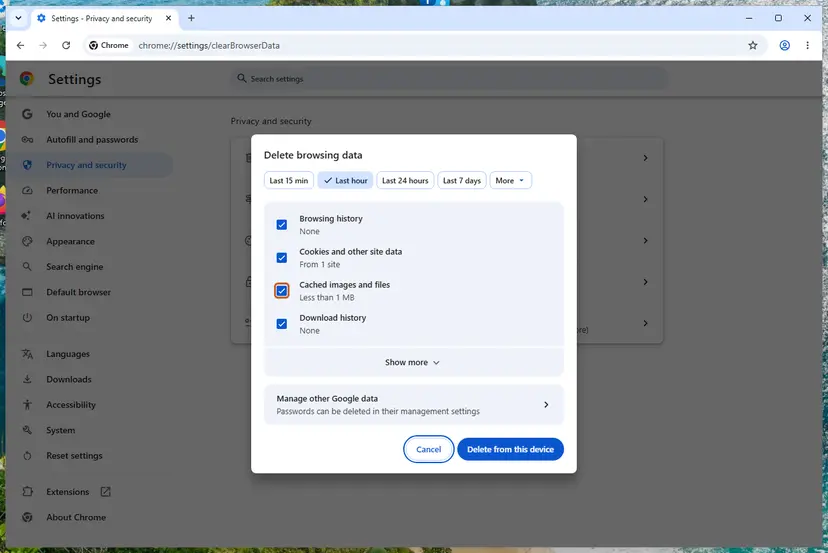
Full steps for Chrome, Edge and Firefox: Clear the browser cache and cookies. Clearing cookies signs you out of most websites, so know your passwords first. If a customer reports the error, ask them to try another browser or a private window before you change anything in the tenant.
It worked if: The booking page loads, and the appointment is saved without Something went wrong.
If not: If the private window fails too, the problem is not the browser. Check the account and licence in Fix 2.
Fix 2. Check the account and the Microsoft Bookings app in the user's licence
5 minutes, plus time for the change to reach the userLow riskBookings is missing from the app list, or refuses access, for one person while others can use it.
Microsoft turns Shared Bookings off for a single user by clearing the Microsoft Bookings app in that user's licence. A user with a licence but with that app cleared cannot use Bookings at all.
- User: in the browser, check that you are signed in with the work or school account that has Bookings, not a personal Microsoft account.
- Admin: open the Microsoft 365 admin center and go to Users > Active users.
- Select the user, then select Licenses and Apps.
- Check that the user has a licence assigned at all.
- Expand Apps and make sure the checkbox for Microsoft Bookings is ticked.
- Save, then ask the user to sign out of Microsoft 365 and sign in again later.
An answer on Microsoft Q&A notes that people added as staff to an existing Bookings calendar can reach Bookings even when page creation is limited. If the user only needs one team's page, ask that page's administrator to add them as staff.
It worked if: Bookings appears in the user's app list and opens without an access message.
If not: If the box is ticked and Bookings is still missing for this user, check the organisation switch in Fix 3 and the mailbox policy in Fix 4.
Fix 3. Turn Shared Bookings on for the organisation in the Microsoft 365 admin center
5 minutes, plus propagationLow riskBookings is missing or blocked for everyone, including users whose licence includes it.
Microsoft says that turning off Shared Bookings for the organisation disables all access to the service, including creating and managing booking pages. One checkbox decides it, and licensed users cannot get past it.
- Sign in to the Microsoft 365 admin center as a global admin.
- Go to Settings > Org settings.
- Select Shared Bookings.
- Tick Allow your organization to use Bookings.
- Select Save Changes.
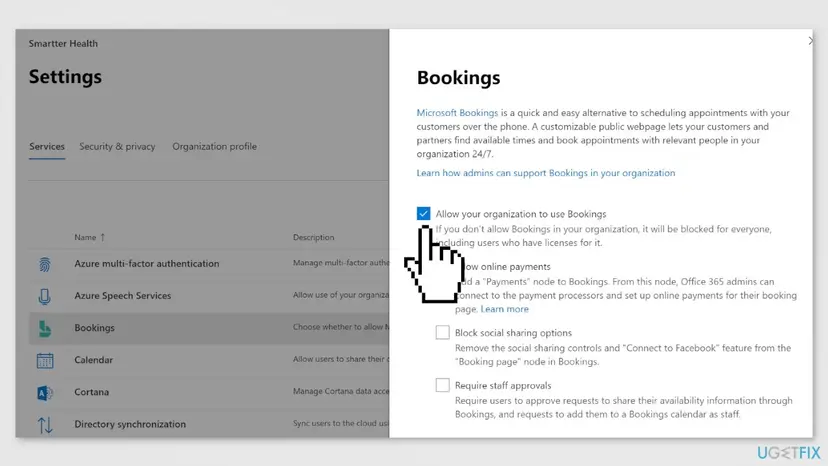
The same switch in Exchange Online PowerShell, after you connect with Connect-ExchangeOnline. Microsoft shows $false to turn it off; $true turns it back on:
Exchange Online PowerShell
Set-OrganizationConfig -BookingsEnabled $true
Get-OrganizationConfig | Select-Object BookingsEnabled
It worked if: After the change reaches users, Bookings is back in the app list for licensed users.
If not: If the box was already ticked, a policy may limit who can create pages (Fix 4), or Microsoft may have an incident (Fix 6).
Fix 4. Check the Outlook on the web mailbox policy that limits who creates booking pages
15 minutesRead the warningUsers can open Bookings but get an error when they create a new shared booking page.
Microsoft lets admins allow page creation only for users in a chosen Outlook on the web mailbox policy. Users outside that policy keep their licence but receive an error message when they try to create a page.
Changing the default mailbox policy affects every user assigned to it, not just the one with the problem. Note the current values first with the Get command below, so you can put them back.
- Connect to Exchange Online PowerShell as an admin.
- List the policies and whether each one allows page creation:
Get-OwaMailboxPolicy | Select-Object Name, BookingsMailboxCreationEnabled - See which policy the user has:
Get-CASMailbox -Identity [email protected] | Select-Object OwaMailboxPolicy - If page creation is meant to be limited, move the user to the policy that allows it (Microsoft's example name):
Set-CASMailbox -Identity [email protected] -OwaMailboxPolicy "BookingsCreators" - If the limit was set by mistake, set BookingsMailboxCreationEnabled back to
$trueon the policy that was changed.
It worked if: The user can create a new shared booking page without an error.
If not: If the problem is Bookings with me rather than shared pages, go to Fix 5.
Fix 5. Turn Personal Bookings (Bookings with me) back on
15 minutesRead the warningOutlook says you have no access to Bookings with me, or the Personal Bookings page does not open.
Microsoft says the Bookings app must be enabled for a user to have Personal Bookings, and that access is now controlled by the PersonalBookingsDisabled setting of the Outlook on the web mailbox policy, not by the old organisation settings.
OwaMailboxPolicy-Default usually covers the whole organisation. Changing it turns Personal Bookings on or off for everyone on it. Write down the current value first, and use a separate policy when only some users should get it.
- Make sure the user passes Fix 2: Bookings must be on for them.
- Read the value on the user's policy (here the default one):
Get-OwaMailboxPolicy -Identity "OwaMailboxPolicy-Default" | Select PersonalBookingsDisabled - If it says True and Personal Bookings should be allowed, turn it back on:
Set-OwaMailboxPolicy -Identity "OwaMailboxPolicy-Default" -PersonalBookingsDisabled $false - Check the Exchange Web Services settings Microsoft lists for Bookings with me:
Get-OrganizationConfig | Select-Object EwsEnabled, EwsApplicationAccessPolicy, EwsBlockList, EwsAllowList - Compare the result with the two enabled states shown on Microsoft's Turn off Personal Bookings page; any other result means Bookings with me is disabled.
An answer on Microsoft Q&A adds that when EwsApplicationAccessPolicy is EnforceAllowList, the allow list must contain MicrosoftOWSPersonalBookings. We could not confirm that name on Microsoft's documentation page, so check it with your Exchange admin before you change the list.
It worked if: Bookings with me opens in Outlook and the user can share their personal booking link.
If not: If the settings are right and it still fails after a few hours, check service health (Fix 6) and then open a request (Fix 7).
Fix 6. Check Microsoft 365 service health for a Bookings incident
2 minutesNo riskBookings stopped for many users at the same time, and nobody changed any setting.
Bookings is a cloud service. During an incident no browser or tenant setting helps, and the service health page tells admins whether Microsoft is already working on it.
- Admin: in the Microsoft 365 admin center, open Health > Service health.
- Look for an open incident or advisory that names Bookings or Exchange Online.
- Users without admin rights: ask your admin, or check the public Microsoft 365 status channels.
- If there is an incident, wait for Microsoft's update instead of changing settings.
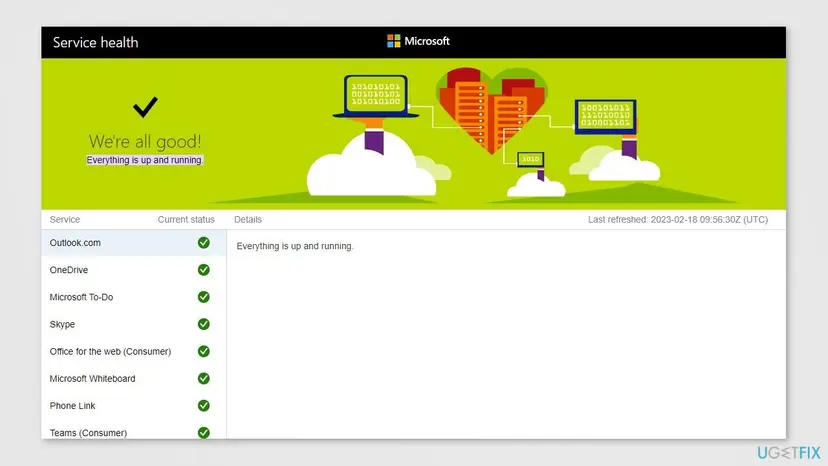
It worked if: You either find a named incident and wait, or rule out an outage and go back to the settings.
If not: No incident and every setting checked: open a service request (Fix 7).
Fix 7. Open a service request from the Microsoft 365 admin center
15 minutes, plus waitingNo riskFixes 1 to 6 show nothing wrong, but Bookings still fails for licensed users.
Some Bookings faults sit in the tenant's back end, where only Microsoft can read the logs. A request with the exact user, time and message lets support find it without repeating your checks.
- Sign in to the Microsoft 365 admin center as an admin.
- Go to Support > New service request.
- Describe what fails, for which users, since when, and the exact message.
- List what you checked: licence, Org settings, mailbox policies, service health.
- Attach screenshots of the message, with personal data removed.
It worked if: Support confirms a tenant issue and fixes it, or names the setting that still blocks Bookings.
If not: If support asks for more data, reproduce the error and send the new time and screenshot.
Microsoft Bookings still not working: what to collect
Bookings writes no log on your PC, so the facts that help sit in the admin center and in what the user saw. Collect them before you contact your admin or Microsoft.
- The exact message, word for word, and a screenshot of it.
- Which part fails: a shared booking page, Bookings with me, Bookings in Teams, or the customer side.
- The account, the time it failed and whether a private window or another browser behaves the same.
- The values from Fix 2 to Fix 5: licence app, Allow your organization to use Bookings, the mailbox policy and PersonalBookingsDisabled.
- Whether the change was made recently: settings can take hours to reach users.
If the admin turned Bookings off on purpose, or the licence does not include it, no browser step will bring it back. Then the answer is a licence or a decision by the organisation, not a repair.
How to keep Microsoft Bookings working
- Admins: before you remove licences or change apps in a licence, check who runs a booking page.
- Keep a note of who belongs to the mailbox policy that may create booking pages.
- Give each booking page at least two staff with the Administrator role, so one person leaving does not lock it.
- Test the public booking page in a private window after any change in the admin center.
- Users: sign in to Bookings only with the work or school account, not a personal one.
These habits do not prevent a Microsoft incident, but they stop the most common cause on the admin side: a setting changed for one reason that quietly blocks Bookings for someone else.
Frequently asked questions
What does Microsoft Bookings "Something went wrong" mean?
It means the booking page could not finish a request. Users report the full text as Something went wrong. We couldn't book that appointment. Please reload the page and try again. If other people can book on the same page, the cause is almost always that one browser: an old session or cached files. Open the page in a private window, then clear cookies and cache (Fix 1). If it fails for everyone, check service health and the admin settings (Fixes 3 and 6).
Why is Microsoft Bookings not working for me but working for colleagues?
Then the problem is your account or your browser, not the service. First try a private window or another browser (Fix 1). If Bookings is missing from your app list, ask your admin to open Users, Active users, your account, Licenses and Apps, and check that Microsoft Bookings is ticked (Fix 2). Microsoft turns Bookings off for single users exactly that way, so a cleared checkbox is a common reason.
Why does it say I do not have access to Bookings with me?
Bookings with me is Personal Bookings. Microsoft says the Bookings app must be enabled for you before Personal Bookings works, and admins switch Personal Bookings off with the PersonalBookingsDisabled setting of the Outlook on the web mailbox policy. So either Bookings is off in your licence or for the organisation, or your mailbox policy disables Personal Bookings. Only an admin can change either one; send them Fix 2 and Fix 5.
Where are the Microsoft Bookings settings in the admin center?
The organisation switch is in the Microsoft 365 admin center under Settings, Org settings, Shared Bookings, with the checkbox Allow your organization to use Bookings. Microsoft says a global admin makes this change. The per-user switch is under Users, Active users, the user, Licenses and Apps, Apps, Microsoft Bookings. The limits on creating pages and on Personal Bookings are set in Exchange Online PowerShell with mailbox policies (Fixes 4 and 5).
I turned Bookings on, but it still does not show. How long does it take?
Changes are not instant. An answer on Microsoft Q&A says organisation settings can take up to about 4 hours to reach users. Wait, then ask the user to sign out of Microsoft 365, close the browser and sign in again, or test in a private window. If Bookings is still missing the next day, check that the user's licence includes the Microsoft Bookings app (Fix 2) and that no mailbox policy limits it (Fix 4).
Can I use Microsoft Bookings with a personal Microsoft account?
Microsoft's Bookings admin pages cover work and school tenants: Bookings is turned on by an organisation's admin and assigned through the organisation's licences. The old version of this guide told readers to check Services & subscriptions on a personal account; a home Office or Microsoft 365 subscription there does not show Bookings, and we could not confirm that any home plan includes it. Sign in with your work or school account.
Why can I open Bookings but not create a new booking page?
Your organisation probably limits page creation. Microsoft lets admins allow only users in a chosen Outlook on the web mailbox policy to create shared booking pages. Everyone else keeps the licence, can still be added as staff on existing pages, but receives an error message when creating a new one. Ask your admin which policy you are on and whether it has BookingsMailboxCreationEnabled set to True (Fix 4).
Does reinstalling Office or Teams fix Microsoft Bookings?
No. Bookings runs on Microsoft's servers and opens in the browser, Outlook on the web or the Teams app, so nothing installed on the PC holds its settings. A reinstall takes time and changes nothing about licences, the organisation switch or mailbox policies. Spend the time on a private window and clearing cookies (Fix 1), or on the admin checks in Fixes 2 to 5.
Sources
- Microsoft Learn: Turn on or off Shared Bookings for organization (admin center, PowerShell, per-user licence, page creation policy) (learn.microsoft.com)
- Microsoft Learn: Turn off Personal Bookings (PersonalBookingsDisabled, EWS checks, Bookings app required) (learn.microsoft.com)
- Microsoft Q&A: Microsoft Bookings not working even though tenant settings and all checks are green (learn.microsoft.com)
Did this fix work?
One click, no account. It tells the next reader which guides are worth their time.
Questions and experiences: fix Microsoft Bookings not working
Still broken, or found a fix we did not cover? Ask here: members and our editors answer. Reading is open; writing needs a free account.
…