
How to fix Microsoft Designer keyboard not connecting or pairing in Windows 11 and 10

Prefer to fix it yourself? The manual steps follow.
- 6methods
- 2 to 30 minutes
- Easy
Applies to Microsoft Designer Compact Keyboard and the keyboard of the Microsoft Designer Bluetooth Desktop on Windows 11 and Windows 10
6 methods in this guide
Hello, I am unable to pair the Microsoft Designer keyboard. While the devices are in pairing mode, Bluetooth simply "circles around" without establishing any pairing or connection. Any advice would be appreciated.
A Microsoft Designer keyboard that will not pair is usually not in pairing mode, or is still tied to another PC. On the Designer Compact Keyboard, a Bluetooth key that sends F1 because Fn Lock is off is a common trap. Watch the keyboard's light first: it tells you which fix you need.
Turn the keyboard on and hold the pair key (on the Compact model, the Bluetooth key at the top left, which is also F1) for 5 seconds until the light flashes. Then pick Microsoft Designer Compact Keyboard in Settings > Bluetooth & devices > Add device > Bluetooth (Fix 1). If the light only blinks three times, press Fn together with the Bluetooth key (Fix 2).
| Error | No message: Windows keeps searching ("circles around"), never lists the keyboard, or the pairing never finishes. |
|---|---|
| Where it appears | The Add a device window in Windows 11 and Windows 10, and the keyboard's own LED, which flashes, blinks three times or stays dark. |
| Main cause | The keyboard is not in pairing mode, or its slot is still paired to another PC in range. On the Compact model, the Bluetooth key sends F1 when Fn Lock is off. |
| Fastest fix | Hold the pair key for 5 seconds until the light flashes, then add it in Bluetooth settings (Fix 1). Three blinks: Fn + Bluetooth key (Fix 2). |
| Also written as | "Designer keyboard not connecting", "Microsoft Designer compact keyboard not connecting", "Microsoft Designer keyboard pairing", "how to connect Microsoft Designer keyboard". |
| Affects | Designer Compact Keyboard (pairs with up to three devices) and the Designer Bluetooth Desktop keyboard, on Windows 11 and Windows 10. |
| Requirements | Microsoft lists Windows 11 or Windows 10 with Bluetooth 4.0 or later for the Compact model. It supports Swift Pair. |
| Driver | Microsoft's setup page asks for no driver. Mouse and Keyboard Center is an optional app for settings, not for pairing. |
| Time to fix | 2 minutes when it is pairing mode or the Fn key; up to 30 minutes when the PC's Bluetooth adapter is at fault. |
Facts checked on 15 October 2026. Steps written for Windows 11 25H2 and 26H2 and Windows 10 22H2, Settings > Bluetooth & devices.
What "Microsoft Designer keyboard not pairing" means, and what the light tells you
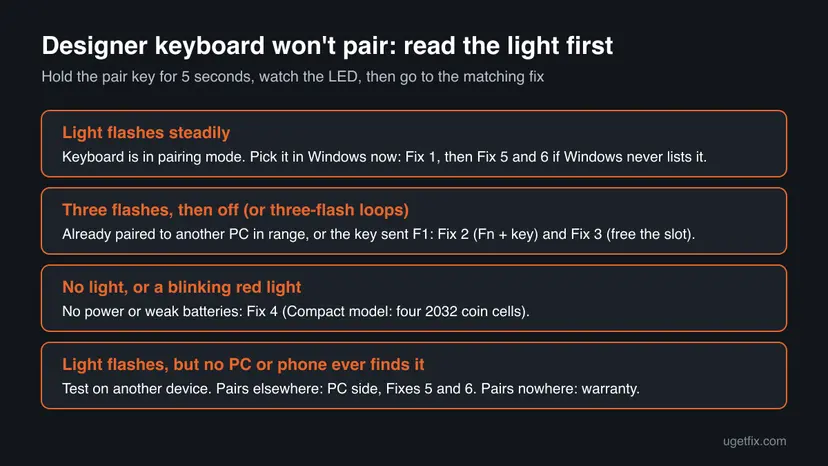
There is no error code for this problem. Windows simply keeps searching in the Add a device window, the keyboard never shows up in the list, or it shows up and the pairing does not finish. The keyboard's LED is the only real signal, and Microsoft documents what each light means.
| What the light does | What it means | Go to |
|---|---|---|
| Flashes steadily after you hold the pair key | The keyboard is in pairing mode and can be found. | Fix 1 |
| Flashes three times, then turns off | The keyboard is already paired to another PC that is within range. | Fixes 2 and 3 |
| No light, or a blinking red light | No power or weak batteries. | Fix 4 |
| Flashes, but no PC or phone finds it | The keyboard or the PC's Bluetooth is at fault. | Fixes 5 and 6 |
- Two different keyboards carry the name. The Microsoft Designer Compact Keyboard is a small keyboard with coin-cell batteries, a power switch on the bottom and three pairing slots. The older Microsoft Designer Bluetooth Desktop is a keyboard and mouse set. Both pair over Bluetooth only, with no USB receiver.
- Windows shows "Try connecting your device again"? Then Windows found the keyboard and the connection broke later. That message has its own page: the "Try connecting your device again" guide.
Why the Designer keyboard will not connect: causes from most to least common
Most often the keyboard is simply not in pairing mode when Windows looks for it, or it left pairing mode before you picked it. Next comes a slot that is still paired to an old PC nearby, so the keyboard tries to reconnect there instead. Less often the batteries are weak, and rarely the PC's Bluetooth adapter is too old, off or stuck.
| How often | Cause | Sign | Fix |
|---|---|---|---|
| Most often | Keyboard not in pairing mode, or it timed out. | Light is off or steady when you search. | Fix 1 |
| Often (Compact model) | Fn Lock is off, so the Bluetooth key sends F1. | Pressing the Bluetooth key changes nothing; three-blink pattern loops. | Fix 2 |
| Often | Slot still paired to another PC in range. | Light flashes three times, then turns off. | Fix 3 |
| Less often | Weak or badly seated batteries. | No light, a red light, or it works only for a moment. | Fix 4 |
| Less often | PC's Bluetooth off, stuck or busy with other devices. | Other Bluetooth devices also act up. | Fix 5 |
| Rarely | Adapter older than Bluetooth 4.0, or a wrong driver. | Old PC, or no Bluetooth device pairs at all. | Fix 6 |
Try to pair the keyboard with a phone or a second PC. If it pairs there, the keyboard is fine and the PC side needs Fixes 5 and 6. If it pairs nowhere and the light behaves oddly, start with Fixes 2 to 4.
How to fix a Microsoft Designer keyboard that is not connecting, from the most common cause
Fixes 1 to 4 deal with the keyboard itself and take a few minutes each. Fixes 5 and 6 deal with the PC's Bluetooth. Try to pair after each fix. Paths are given for Windows 11 and for Windows 10 22H2, which left support on 14 October 2025.
| What you see | Start with |
|---|---|
| The light is off or steady when Windows searches. | Fix 1. |
| Compact keyboard: pressing the Bluetooth key does nothing, or it blinks in threes. | Fix 2. |
| The keyboard was used with another PC, laptop or tablet before. | Fix 3. |
| No light at all, or a red light. | Fix 4. |
| The keyboard pairs with a phone, but not with this PC. | Fixes 5 and 6. |
Fix 1. Put the keyboard in pairing mode and add it in Bluetooth settings
2 minutesNo riskAnyone whose keyboard never shows up in the Add a device list.
Windows only lists the keyboard while its light is flashing. Microsoft's setup page says the Compact model enters pairing mode when switched on, and otherwise needs the pair button held for 5 seconds.
- Slide the switch on the bottom of the keyboard to turn it on. On the Compact model the LED should start to flash by itself.
- If it does not flash, press and hold the pair button for 5 seconds until the light flashes. On the Compact model it is the Bluetooth key at the top left. On other Microsoft keyboards Microsoft says to hold it for 5 to 7 seconds.
- If a Connect notification appears on the PC (Swift Pair), select Connect and wait for setup to finish.
- No notification on Windows 11: select Start > Settings > Bluetooth & devices > Add device > Bluetooth.
- No notification on Windows 10: select Start > Settings > Devices > Bluetooth & other devices > Add Bluetooth or other device > Bluetooth.
- Select Microsoft Designer Compact Keyboard (or your Designer keyboard) in the list while the light still flashes.
- If Windows shows a code, type it on the Designer keyboard and press Enter on that keyboard. Then select Done.
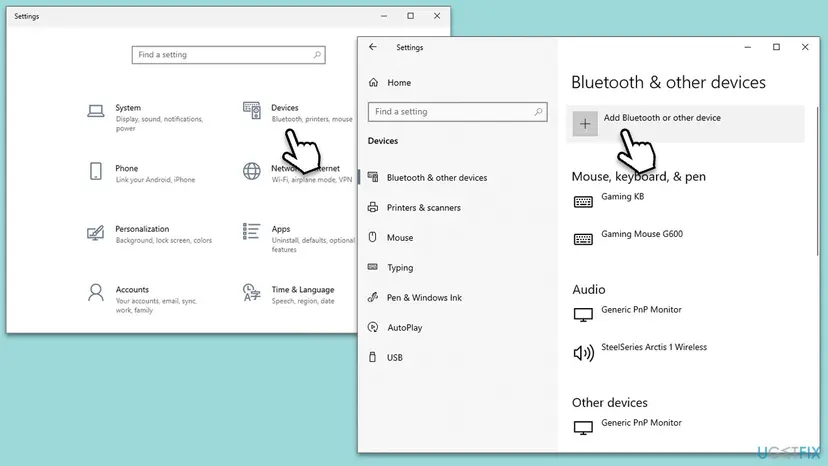
It worked if: The keyboard shows as Connected under Bluetooth & devices and typing works at once.
If not: If the light blinks three times and stops, or the Bluetooth key does nothing, go to Fix 2.
Fix 2. Designer Compact Keyboard: press Fn together with the Bluetooth key
2 minutesNo riskDesigner Compact Keyboard owners whose Bluetooth key does nothing, or whose light loops in groups of three blinks.
The Bluetooth key on the Compact model is also the F1 key. Users on Microsoft Q&A report that with Fn Lock off, the key sends F1 to the last paired PC instead of switching slots, so the keyboard never enters pairing mode for the new PC.
- Turn the keyboard on with the switch on the bottom.
- Find the Bluetooth key at the top left. It shows a Bluetooth sign, the numbers 1, 2 and 3 for the slots, and F1.
- Hold Fn and press the Bluetooth key. The light moves to the next slot.
- If the light does not flash fast, hold Fn and the Bluetooth key together for about 8 seconds. Some users report this resets the slot for pairing.
- When the light flashes, add the keyboard in Windows as in Fix 1.
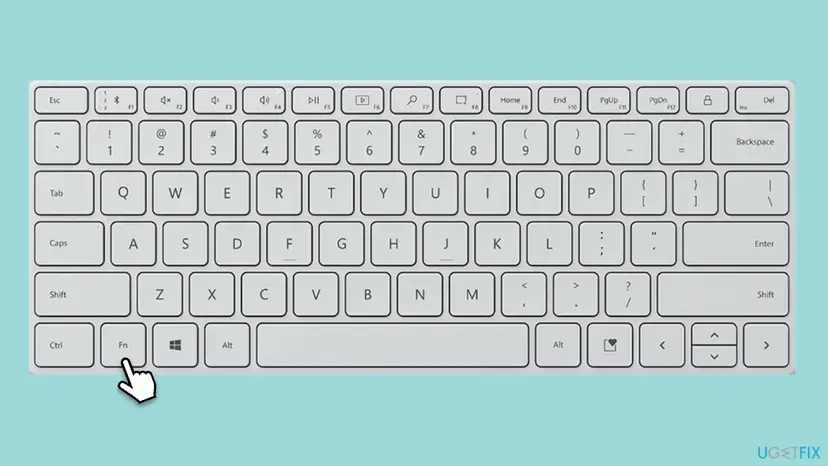
Microsoft's own pages do not say how Fn Lock is switched on this keyboard. The Fn + Bluetooth key press is a user report from Microsoft Q&A with more than 300 helpful votes, not an official step.
It worked if: The slot light flashes fast and the keyboard appears in Windows' Add a device list.
If not: If the light still blinks three times and goes off, the slot is paired to another PC nearby: Fix 3.
Fix 3. Free the pairing slot: remove the keyboard from the old PC and from this one
5 minutesLow riskThe keyboard was paired with another PC, laptop or tablet before, or it is already listed on this PC.
Microsoft says three flashes followed by no light mean the keyboard is already paired to another PC within range. It keeps reconnecting there, and an old record on this PC can also block a fresh pairing.
- On the PC the keyboard was used with before, open the Bluetooth settings and remove the Designer keyboard. On Windows 11 select More options (...) next to it and choose Remove device.
- If you cannot reach that PC, turn off its Bluetooth or move the keyboard out of its range.
- On this PC, open Settings > Bluetooth & devices > Devices (Windows 10: Settings > Devices > Bluetooth & other devices).
- If the Designer keyboard is listed, remove it the same way.
- Restart this PC.
- On the Compact model, press the pair key (or Fn + pair key) to move to a free slot. It holds up to three devices.
- Pair the keyboard again as in Fix 1.
The Compact model remembers three devices, one per slot. Pressing the pair key moves to the next slot and starts pairing. If you pair a fourth device, one of the old slots is reused.
It worked if: The light flashes steadily instead of three times, and Windows finds the keyboard.
If not: If the light is weak, red or missing, go to Fix 4.
Fix 4. Check or replace the batteries
5 minutesNo riskThe light does not come on, blinks red, or the keyboard drops out soon after pairing.
Bluetooth pairing needs steady power. Microsoft's troubleshooting page says no light or a red blinking light points to low batteries, and that holding the pair key is a quick power test.
- Hold the pair key for 5 to 7 seconds. If the light blinks, the keyboard has power. If not, go on.
- Compact model: turn the keyboard over and push a pin into the small hole.
- Keep holding the pin and slide the battery door away from the keyboard.
- Put in four fresh 2032 coin-cell batteries, positive side up.
- Slide the battery door back, turn the keyboard on and pair it as in Fix 1.
- Other Designer keyboards: open the battery compartment, check that the batteries sit the right way round, then replace them.
Once the keyboard is paired, Windows shows its battery level next to it in Settings > Bluetooth & devices.
It worked if: The light comes on white and flashes when you hold the pair key.
If not: If the light works but this PC still does not find the keyboard, go to Fix 5.
Fix 5. Reset the PC's Bluetooth: Airplane mode, other devices and the Bluetooth service
5 minutesLow riskThe keyboard flashes and pairs with a phone, but this PC never finds it or never finishes.
Microsoft suggests Airplane mode on for 10 to 15 seconds and fewer connected devices, because too many Bluetooth links can interfere. A stuck Bluetooth Support Service also breaks the search for every device.
- Turn Airplane mode on from the Network icon on the taskbar, wait 10 to 15 seconds and turn it off.
- Turn off other Bluetooth devices connected to the PC, such as headsets and speakers, for the test.
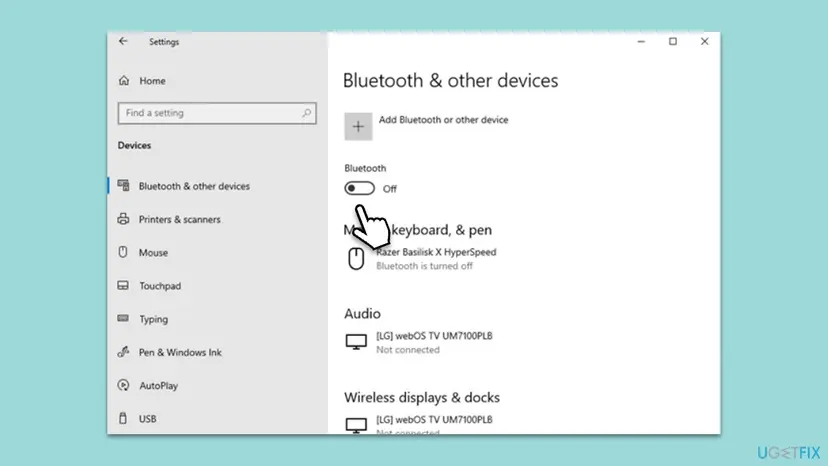
- Open Settings > Bluetooth & devices (Windows 10: Settings > Devices > Bluetooth & other devices), turn Bluetooth off, wait 10 seconds and turn it on.
- Press Win + R, type
services.mscand press Enter. - Right-click Bluetooth Support Service and select Restart. Leave its startup type as it is.
- Pair the keyboard again as in Fix 1.
Restarting a service in Services, step by step with screenshots: Check and restart Windows services.
It worked if: The keyboard appears in the list within a few seconds of the search starting.
If not: If no Bluetooth device pairs with this PC, go to Fix 6.
Fix 6. Check the PC's Bluetooth version and adapter driver, or use a USB adapter
15 to 30 minutesLow riskAn older PC, a fresh Windows install, or a PC where no Bluetooth device will pair.
Microsoft lists Bluetooth 4.0 or later for the Designer Compact Keyboard. An older adapter cannot see it at all, and a generic or broken adapter driver can search without finding it.
- Right-click Start and select Device Manager.
- Expand Bluetooth and double-click the adapter itself (its name usually names Intel, Realtek, MediaTek or Qualcomm).
- Open the Advanced tab and read the Firmware line. An LMP number of 6 or higher means Bluetooth 4.0 or later.
- If the number is lower, or there is no Bluetooth entry, the PC cannot pair this keyboard: use a USB Bluetooth adapter of version 4.0 or later.
- If the version is fine, install the Bluetooth driver from your PC or motherboard maker, or update the driver in Device Manager.
- Restart the PC and pair the keyboard as in Fix 1.

Updating, rolling back or reinstalling a driver, step by step: Update, roll back or reinstall a driver.
It worked if: The adapter shows no warning sign, and the keyboard pairs after the restart.
If not: If the keyboard pairs with nothing, not even a phone, read the section below.
If the Designer keyboard still will not connect
When all six fixes fail, the pairing test with a second device tells you where the fault is. Microsoft's own advice is the same: if the keyboard works with another PC, the problem is likely on your PC.
| Result | What it means | Next step |
|---|---|---|
| Pairs with a phone or another PC, not with this PC. | This PC's Bluetooth is at fault. | PC maker's driver, or a USB Bluetooth 4.0 adapter. |
| Pairs with nothing, light flashes normally. | The keyboard's radio may be faulty. | Contact Microsoft support; check the accessory warranty. |
| No light even with fresh batteries. | Power fault in the keyboard. | Contact Microsoft support or the seller. |
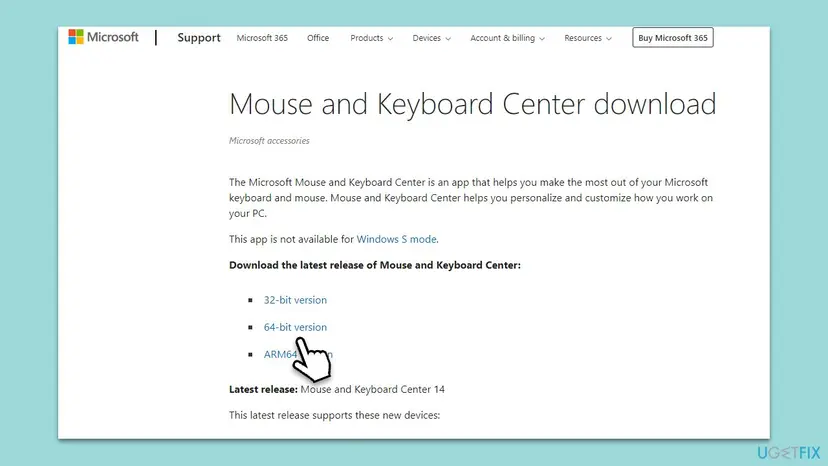
- Mouse and Keyboard Center will not fix pairing. Microsoft describes it as an app to personalize Microsoft keyboards and mice. A Q&A user notes it detected the paired mouse but not the unpaired keyboard.
- What to send to support: the keyboard model, what the light does, your Windows version (Win + R,
winver), the Bluetooth adapter name from Device Manager, and whether the keyboard pairs with a phone. - The Designer Bluetooth Desktop keyboard on a non-Windows system? This page covers Windows only.
How to stop the Designer keyboard from losing its pairing
- Give each PC or tablet its own slot on the Compact model and switch with the pair key, instead of removing and pairing again.
- Before you give away or return an old PC, remove the keyboard from its Bluetooth list.
- Remember that on the Compact model the Bluetooth key is also F1: use Fn + Bluetooth key when Fn Lock is off.
- Replace all four coin cells at once when the battery level in Bluetooth settings drops low.
- Keep only the Bluetooth devices you use connected at the same time.
- After a clean Windows install, install the Bluetooth driver from the PC maker before pairing.
- A short delay after 8 to 10 minutes without typing is normal: Microsoft says Bluetooth devices sleep to save battery.
Frequently asked questions
Why is my Microsoft Designer keyboard not connecting?
Most often the keyboard is not in pairing mode when Windows searches, or its slot is still paired to another PC nearby. On the Designer Compact Keyboard, the Bluetooth key is also F1, so with Fn Lock off it sends F1 instead of switching slots. Watch the light: steady flashing means pairing mode, three flashes then off means another PC holds it, and no light means power. Start with Fix 1, then Fixes 2 and 3.
How do I pair a Microsoft Designer keyboard?
Turn the keyboard on with the switch on the bottom. The Compact model enters pairing mode by itself; if the light does not flash, hold the pair key for 5 seconds. Select Connect if a Swift Pair notification appears. Otherwise open Settings > Bluetooth & devices > Add device > Bluetooth on Windows 11 and pick the keyboard while the light flashes. On Windows 10 the path is Settings > Devices > Bluetooth & other devices > Add Bluetooth or other device.
Where is the pairing button on the Designer Compact Keyboard?
It is the Bluetooth key at the top left of the keyboard, next to Esc. The same key is F1, and it shows the slot numbers 1, 2 and 3 with small lights. Microsoft's setup page says to hold it for 5 seconds, or until the LED starts to flash. Each press moves to the next slot and starts pairing there. If pressing it changes nothing, hold Fn while you press it (Fix 2).
Does the Microsoft Designer keyboard need a driver?
Microsoft's setup page for the Designer Compact Keyboard lists no driver to install. It asks only for Windows 11 or Windows 10 with Bluetooth 4.0 or later. Windows uses its built-in Bluetooth support for the keyboard. Microsoft Mouse and Keyboard Center is an optional app for settings, and it does not help a keyboard that has not paired yet. The driver that matters is the one for the PC's Bluetooth adapter (Fix 6).
Why does the Designer keyboard light blink three times and turn off?
Microsoft says this means the keyboard is already paired to another PC within range. It tries to reconnect to that PC instead of pairing with yours. Remove the keyboard from the other PC's Bluetooth list, or turn that PC's Bluetooth off. On the Compact model you can also move to a free slot with the pair key, using Fn + the key if Fn Lock is off. Then pair it again (Fix 3).
How many devices can the Designer Compact Keyboard pair with?
Microsoft says it pairs with up to three devices, one per slot. Pressing the pair key moves the light to the next slot and puts the keyboard in pairing mode. When the Connect notification appears on several PCs, select it only on the PC you want. If all three slots are used by old PCs, pairing a new one replaces the slot you are on, so pick the slot of the PC you no longer use.
Can I pair the Designer keyboard with Windows 10?
Yes. Microsoft lists Windows 10 and Windows 11 with Bluetooth 4.0 or later. Only the Expressive (emoji) key needs Windows 11. The pairing path on Windows 10 is Settings > Devices > Bluetooth & other devices > Add Bluetooth or other device > Bluetooth. Keep in mind that Windows 10 left support on 14 October 2025, so Bluetooth fixes from Microsoft now arrive for Windows 11 first.
Which batteries does the Designer Compact Keyboard use?
It uses four coin-cell batteries of size 2032. Microsoft's page explains how to open it: turn the keyboard over, push a pin into the small hole, keep holding it and slide the battery door away. Place the batteries with the positive side up and slide the door back. Weak batteries show as no light or a red blinking light, and they can make pairing fail or drop out (Fix 4).
The keyboard pairs with my phone but not with my PC. What now?
Then the keyboard works and the PC's Bluetooth is the problem. Turn Airplane mode on for 10 to 15 seconds and off, switch off other Bluetooth devices, and restart the Bluetooth Support Service (Fix 5). Then check that the adapter is Bluetooth 4.0 or later and has the PC maker's driver (Fix 6). An older adapter cannot see this keyboard; a USB Bluetooth 4.0 adapter solves that.
I searched in Japanese, Italian or Hebrew. Does this page apply?
Yes, if your Microsoft Designer keyboard is not recognized, does not appear in the Bluetooth list or nothing happens when you pair it. Searches such as "キーボードを認識しない" (keyboard not recognized), "表示されません" (not shown), "non funziona" (does not work) and "לא קורה כלום" (nothing happens) describe the same problem. The steps are the same in every Windows language; only the menu names are translated. Start with Fix 1.
Sources
- Microsoft Support: Use Microsoft Designer Compact Keyboard (support.microsoft.com)
- Microsoft Support: Troubleshoot problems with your Surface mouse or keyboard (support.microsoft.com)
- Microsoft Q&A: Unable to pair Microsoft Designer Compact Keyboard (user reports) (learn.microsoft.com)
Did this fix work?
One click, no account. It tells the next reader which guides are worth their time.
Questions and experiences: fix Microsoft Designer keyboard not connecting or pairing in Windows 11 and 10
Still broken, or found a fix we did not cover? Ask here: members and our editors answer. Reading is open; writing needs a free account.
…