
How to fix Microsoft Office installation error 0-2034?

Prefer to fix it yourself? The manual steps follow.
- 6methods
- 5 to 45 minutes
- Easy
Applies to Microsoft 365, Office 2024, Office 2021 and Office 2019 Click-to-Run setups on Windows 11 and Windows 10, above all when installed with the Office Deployment Tool
6 methods in this guide
I am trying to reinstall Microsoft Office and I keep getting the error code 0-2034 every time. I tried several times, and I still get this. Can you advise what I should do?
Error Code: 0-2034 (0) is Office setup saying Couldn't install, and on Microsoft's forum it is tied to the Office Deployment Tool. Most often its setup.exe was opened with a double-click instead of from Command Prompt with an XML file. A home user should use the installer from the Microsoft account instead; an administrator should run setup.exe /configure with the configuration file.
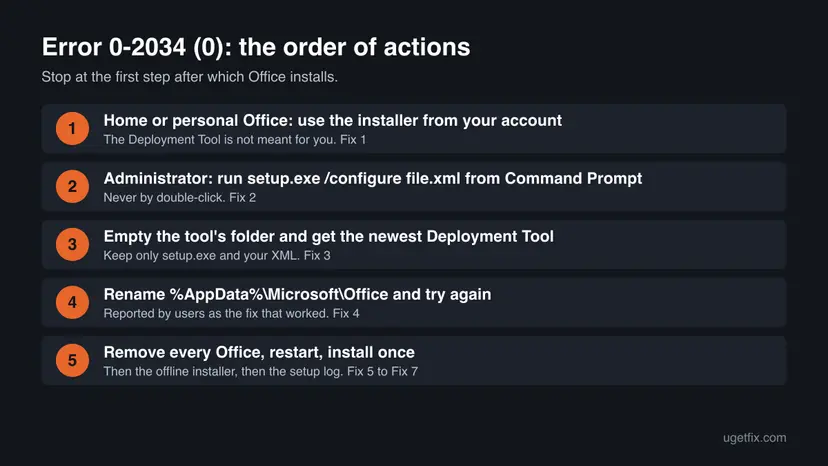
0-2034 (0) usually means the setup.exe of the Office Deployment Tool was started without its instructions, often by a double-click. If you own a home or personal Office, do not use that tool: sign in to your Microsoft account and run its installer (Fix 1). If you are an administrator, run setup.exe /configure with your XML file from Command Prompt (Fix 2).
| Error | Couldn't install with We're sorry, we had a problem installing your Office program(s). and Error Code: 0-2034 (0) at the bottom. |
|---|---|
| Where it appears | A few seconds after you start an Office setup.exe, most often the one from the Office Deployment Tool. Nothing is installed when it appears. |
| Main cause | The Deployment Tool's setup.exe was started by a double-click or without a mode such as /configure and an XML file. It is a command-line tool. |
| Fastest fix | Home users: install from the Microsoft account instead (Fix 1). Administrators: run setup.exe /configure yourfile.xml in an elevated Command Prompt (Fix 2). |
| Also written as | 0-2034, 0-2034 (0), 0 2034 0, Office 2034, error code 0-2034. Same error in every language. |
| Affects | Click-to-Run setups of Microsoft 365 Apps and Office on Windows 11 and Windows 10. The Microsoft Q&A thread on it was opened on Windows 10 Pro. |
| Microsoft's status | No Microsoft support article for 0-2034. The Microsoft Q&A thread has more than 200 people marking the same question. |
| Not the cause | In the Q&A report, free disk space, the internet connection, the administrator account and the built-in Defender firewall were all fine. |
| Where the cause is logged | In the %temp% folder. Microsoft's Deployment Tool page says to review the log files there. |
| Time to fix | 5 minutes when the right installer or command is enough. 30 to 45 minutes when Office has to be removed first. |
Facts checked on 15 October 2026. Steps written for Microsoft 365 Apps and Office installed with the Office Deployment Tool or the account installer on Windows 11 (25H2 and 26H2) and Windows 10 22H2, read against Microsoft's documentation.
What Office error code 0-2034 (0) means and where you see it
The window has the Microsoft logo and the orange heading Couldn't install. It asks whether your internet connection works and whether you have enough free space on your main hard drive, then asks you to try again. Below the link Go online for additional help. sits Error Code: 0-2034 (0).
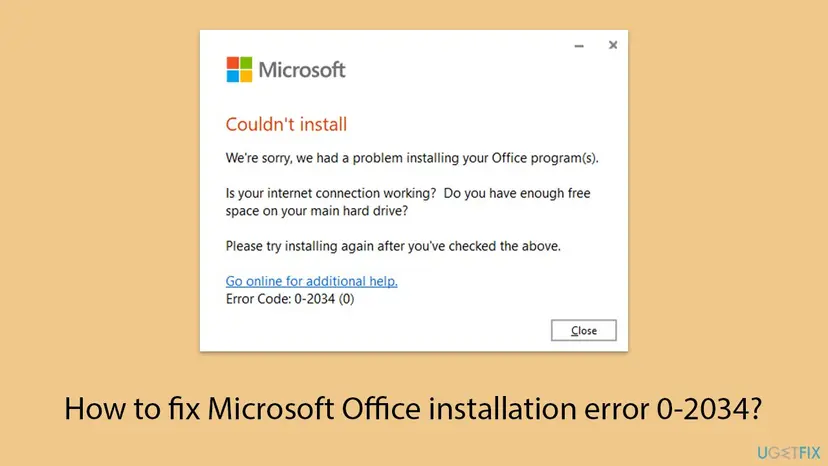
Those two questions are a template, not a diagnosis. The person who opened the Microsoft Q&A thread about 0-2034 had plenty of disk space, a working connection, an administrator account and only Windows Defender and the default firewall. The setup still stopped every time.
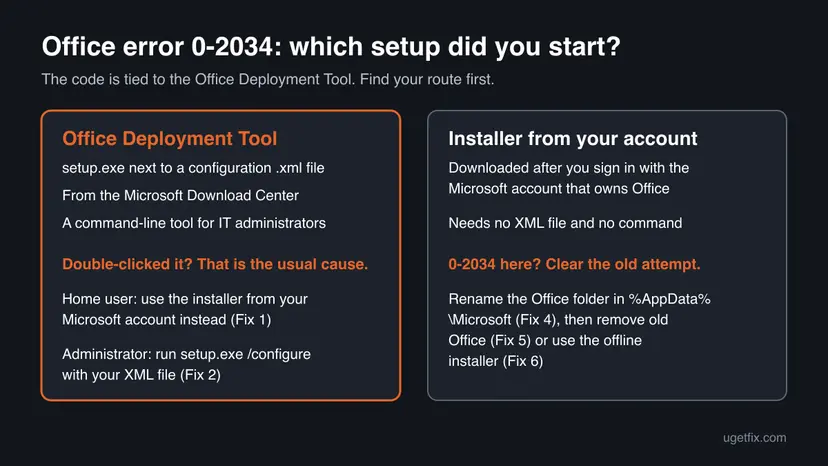
The Q&A thread is titled Microsoft ODT won't install on computer Error 0-2034. ODT is the Office Deployment Tool. Microsoft describes it as a command-line tool of two files, setup.exe and a configuration XML file. If the setup.exe you ran sits next to an XML file, you are on that route.
- Spellings. 0-2034, 0-2034 (0), 0 2034 0 and "office 2034" are the same error.
- Neighbours. 0-2035 (0) says Office is already being installed, and 0-2054 (0) is a general setup failure. They have the same window style but other causes.
- Not this page. "Error 1334 the file cannot be installed" is a Windows Installer message from MSI setups, not a Click-to-Run code. This page is about 0-2034 (0) only.
What causes Office error 0-2034, from the most common to the rare
Microsoft publishes no list of causes for 0-2034. The order below is our reading of Microsoft's Deployment Tool page and of the answers in the Microsoft Q&A thread, where many people had the same problem. It is an order of likelihood, not a statistic.
| How often | Cause | Typical sign | Fix |
|---|---|---|---|
| Most often | A home user downloaded the Office Deployment Tool, thinking it is the Office installer | You bought Microsoft 365 or Office for home, and the folder has setup.exe plus .xml files | Fix 1 |
| Most often | The Deployment Tool's setup.exe was started by a double-click, from Run, or without /configure and an XML file | Nothing happens for a moment, then Couldn't install with 0-2034 (0) | Fix 2 |
| Often | Files left by an earlier attempt, or an old version of the tool | A half-filled Office folder sits next to setup.exe | Fix 3 |
| Less often | Old Office settings in the user profile, %AppData%\Microsoft\Office | The right command still fails on one Windows account | Fix 4 |
| Less often | An older or different Office, or its saved sign-in, stays on the PC | You change from 64-bit to 32-bit, or from a work Office to a home one | Fix 5 |
| Rarely | The online download itself fails | The command works on another network but not on this one | Fix 6 |
Other websites blame damaged Windows Update components, the firewall or background programs for 0-2034. No Microsoft page ties any of them to this code, and the Q&A reporter had a default firewall. We left those methods out.
How to fix Office installation error 0-2034 (0) on Windows 11 and Windows 10
Fix 1 and Fix 2 match the two routes that lead to 0-2034. Fix 3 and Fix 4 clear what earlier attempts left behind. Fix 5 and Fix 6 are for a PC where setup still refuses. Pick your start in the table.
| What you see or have | Start with |
|---|---|
Microsoft 365 or Office for home, personal or a single PC, and a folder with setup.exe and .xml files | Fix 1 |
| You are an administrator, or a reseller gave you the Deployment Tool and an XML file | Fix 2 |
| You ran the right command and it still fails | Fix 3, then Fix 4 |
| You are changing between 32-bit and 64-bit, or from another Office | Fix 5 |
| The installer from your account fails with 0-2034 too | Fix 4, then Fix 6 |
Fix 1. Install a home or personal Office with the installer from your Microsoft account
15 to 30 minutesNo riskYou bought Microsoft 365 or Office for home or a small business and are not deploying it to many PCs.
Microsoft's Deployment Tool page says that if you are not an enterprise administrator, you should use the normal download and install page instead. That installer needs no XML file and no command, so the cause of 0-2034 is gone.
- Close the error window with Close.
- Leave the Deployment Tool folder alone for now. You do not need
setup.exeor the XML files from it. - Sign in at
m365.cloud.microsoft/appswith the Microsoft account that owns Office. For a product key, redeem it on Microsoft's setup page first. - Select Install apps and save the installer.
- Open the downloaded installer once. If User Account Control asks to allow changes, select Yes.
- Keep the PC on and connected until setup says Office is installed, then open Word and sign in.
Search results for Office downloads often lead to the Microsoft Download Center page of the Office Deployment Tool. It is a real Microsoft file, but it is made for IT departments. The old question on this page, about a plain reinstall, fits this case.
It worked if: Setup shows its progress window, ends with a message that Office is installed, and Word and Excel appear in Start.
If not: If the installer from your account also stops with 0-2034, clear the old settings in Fix 4 and then try Fix 6.
Fix 2. Run the Deployment Tool's setup.exe from Command Prompt with /configure and the XML file
10 to 30 minutesNo riskYou are an administrator, or you have a volume licence such as Office LTSC that must be installed with the Deployment Tool.
Microsoft describes the Deployment Tool as a command-line tool: you give setup.exe a mode and the configuration file. A double-click gives it neither. On Microsoft Q&A this double-click is named as the common mistake behind 0-2034.
- Put
setup.exeand your XML file in one short local folder, for exampleC:\ODT. - Press Win + S, type
cmd, right-click Command Prompt and select Run as administrator. Microsoft says you need local administrator permissions. - Type
cd /d C:\ODTand press Enter. - Type
dirand press Enter. Check the exact name of your XML file in the list. - Type
setup.exe /configure configuration.xmlwith your file's real name and press Enter. - Wait. Unless the XML hides it, the Office installation window appears.
Install Office with the Deployment Tool
cd /d C:\ODT
setup.exe /configure configuration.xml| Mode | What it does |
|---|---|
/download | Downloads the Office files named in the XML file to the folder it names. |
/configure | Installs, removes or updates Office as the XML file says. |
/customize | Applies app preferences to an Office that is already installed. |
/help | Shows the tool's command-line help. |
It worked if: When the installation is done, Command Prompt says Products configured successfully. and Office appears in Start.
If not: If the same window appears even with the command, empty the folder and get the newest tool in Fix 3.
Fix 3. Empty the Deployment Tool folder, get the newest tool and rebuild the XML
15 minutesLow riskYou ran the command correctly and still get 0-2034, or you used the tool before in the same folder.
A forum responder who had the same error fixed it by deleting the Office folder and the other files in the tool's folder and starting again. Microsoft also says to make sure you have the newest version of the tool when you run into problems.
- Open
C:\ODT(or your own folder) in File Explorer. - Delete the Office subfolder that an earlier run created, and any old XML files you do not use.
- Download the Office Deployment Tool again from the Microsoft Download Center link on Microsoft's Overview of the Office Deployment Tool.
- Run the downloaded self-extracting file and extract it into the empty folder. You get
setup.exeand sample configuration files. - Build a new XML file in the Office Customization Tool at config.office.com, which Microsoft recommends over editing XML by hand, and export it to the same folder.
- Run the command of Fix 2 again.
If the install still fails half way, run it in two parts: setup.exe /download first, then setup.exe /configure with the same file. Our guide to Office error 0-2054 walks through that split and the product IDs in the XML.
It worked if: The new tool reads the new XML file, the installation window appears, and the command ends with Products configured successfully.
If not: If the code returns with a fresh tool and a fresh XML file, the cause is in your Windows profile. Go to Fix 4.
Fix 4. Rename the Office folder in %AppData%\Microsoft and run setup again
5 minutesLow riskThe correct command or the account installer still fails with 0-2034 on this Windows account.
In the Microsoft Q&A thread on 0-2034, the answer most people marked helpful was to remove the Office folder under %AppData%\Microsoft and run the tool again. This is a user report, not a Microsoft instruction, so we rename the folder instead of deleting it.
- Close every Office app, including Outlook and Teams.
- Press Win + R, type
%AppData%\Microsoftand press Enter. - Find the folder named Office, right-click it and select Rename.
- Rename it to
Office.oldand press Enter. - Run the installer again: the command of Fix 2, or the installer from your account in Fix 1.
This folder holds per-user Office data such as recent file lists. Your documents are not in it. With the folder renamed, Office creates a new one. If nothing changes, you can rename Office.old back.
It worked if: The setup runs past the point where it stopped before and installs Office.
If not: If the error stays, an older Office on the PC may be in the way. Go to Fix 5.
Fix 5. Remove every Office and its saved sign-in, restart, then install once
20 to 40 minutesRead the warningAn older Office, a trial, a work Office or another bitness is on the PC, or Fix 1 to Fix 4 did not help.
The forum responder in the Q&A thread first asked whether another Office version was installed and advised Microsoft's uninstall tool. The reporter got past 0-2034 by removing Office, restarting and clearing Office entries in Credential Manager.
Removing Office removes the apps, not your documents. You lose the way back if you do not know which account or key owns Office: note it first. Outlook data stored only on this PC, templates and signatures are worth a copy: Back up your files (Windows Backup, File History, Time Machine).
- Uninstall every Microsoft 365, Office, Project and Visio entry in Settings > Apps > Installed apps (Windows 10: Apps & features). Every screen: Uninstall a program or app in Windows.
- If an entry will not go, use Microsoft's uninstall troubleshooter from the page Uninstall Microsoft 365 or Office from a PC.
- Restart the PC with Restart, not Shut down.
- Press Win + S, type
Credential Managerand open it. Select Windows Credentials. - Remove the entries whose names mention Office or Microsoft 365, one by one with Remove.
- Install Office once: from your account (Fix 1) or with the Deployment Tool command (Fix 2).

Removing the saved sign-ins means Office asks you to sign in again once it is installed. Use the account that owns the licence.
It worked if: No Office entry is left in Installed apps, and the new installation runs through without the Couldn't install window.
If not: If a home installation still fails, try the offline installer in Fix 6. If the Deployment Tool fails, read its log as described below.
Fix 6. Install a home or account Office with Microsoft's offline installer
20 to 40 minutesLow riskYou install Office from your Microsoft account and the online installer keeps failing.
The offline installer downloads all of Office first as one image file, so setup no longer depends on the connection while it installs. It is the route for account products that do not need the Deployment Tool.
- Open Microsoft's page Use the Office offline installer and follow the steps for your product.
- In the install window of your account, choose the offline installer and your language, then download the image file.
- Double-click the image file in Downloads. Windows opens it as a new drive.
- Open the Office folder on that drive.
- Run
Setup64.exefor 64-bit Office orSetup32.exefor 32-bit Office, once.
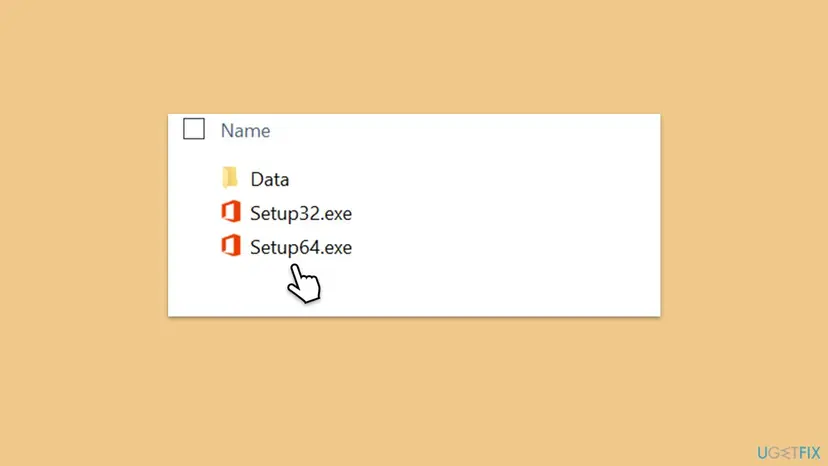
It worked if: The setup runs from the mounted drive and ends with Office installed, with no 0-2034 window.
If not: If the offline setup shows the same code, read the setup log as described below and contact Microsoft support with it.
Still getting error 0-2034? Read the setup log and ask the right people
Microsoft's Deployment Tool page says to troubleshoot by reviewing the log files in the %temp% folder. The installer from your account writes its logs there as well.
- Run the setup once more so that a fresh log is written.
- Press Win + R, type
%temp%and press Enter. - Sort by Date modified and open the newest
.logfile that starts with your PC's name. - Press Ctrl + F and search for
2034, then forerror. The lines just before the first hit say what setup was doing.
| Your situation | Who can help | What to send |
|---|---|---|
| Microsoft 365 or Office for home bought from Microsoft | Microsoft support | The error text, the product, your Windows version and the newest log |
| Office from your company or school | Your IT department | The same, plus the XML file or the download link you used |
| Office key and Deployment Tool from a reseller | The reseller first | The order number, the error text and the XML file they gave you |
No source ties 0-2034 to hardware. If every step fails on one PC and works on another with the same account and files, the cause is that PC's Windows profile or an Office left on it, not your licence.
How to avoid error 0-2034 the next time you install Office
- Install a home or personal Office from your Microsoft account.
- Run the Deployment Tool only from Command Prompt, with a mode and an XML file.
- Build the XML file in the Office Customization Tool.
- Keep a working
C:\ODTfolder with the newest tool and your file.
- Double-click the Deployment Tool's
setup.exein File Explorer. - Reuse an old folder full of files from a failed attempt.
- Install a second Office over an older one without removing it.
- Use an XML file from a seller you do not know without reading it.
Microsoft ended support for Office 2016 and Office 2019 on 14 October 2025, and Windows 10 left support on the same day. If you reinstall one of them, expect no setup fixes from Microsoft.
Frequently asked questions
What does error code 0-2034 (0) mean in Office?
It means Office setup stopped before it installed anything and showed the general Couldn't install window. Microsoft has no support article for this code. On Microsoft Q&A it appears with the Office Deployment Tool, and the most common cause given there is that its setup.exe was started by a double-click. That tool needs a command such as setup.exe /configure with an XML file. Home users should use the installer from their Microsoft account instead.
How do I fix this problem if I just want to reinstall Office at home?
Sign in at m365.cloud.microsoft/apps with the Microsoft account that owns Office and select Install apps. Run that installer once. Do not use the setup.exe and XML files of the Office Deployment Tool: Microsoft says that tool is for enterprise administrators. If the account installer also fails, rename the Office folder in %AppData%\Microsoft, remove any old Office and try again, or use the offline installer in Fix 6.
Why does double-clicking setup.exe give error 0-2034?
Because the setup.exe of the Office Deployment Tool is a command-line program. Microsoft says you edit the configuration file and run setup.exe from the command line with a mode, such as /download or /configure. A double-click starts it with no mode and no file, so it has nothing to install. On Microsoft Q&A, this double-click is named as the common mistake behind 0-2034. Open Command Prompt as administrator and use the command in Fix 2.
What should Command Prompt show when the Deployment Tool works?
Microsoft says that after the installation is complete, the command prompt displays Products configured successfully. While it works, the Office installation window appears unless the XML file sets the display level to None. If you run /download, nothing is installed: the Office files are saved to the folder named in the XML file, and you run /configure after that. If you see Couldn't install with 0-2034 (0) again, go to Fix 3.
Is it safe to delete the Office folder in %AppData%\Microsoft?
It holds per-user Office data, not your documents, but we suggest renaming it to Office.old rather than deleting it. Users in the Microsoft Q&A thread on 0-2034 report that removing this folder let the Deployment Tool run. That is a report, not a Microsoft instruction. Close all Office apps first. If renaming does not help, rename the folder back so that your recent file lists and settings return.
Is error 0-2034 the same as 0-2035 or 0-2054?
No. They come from the same Office setup and look alike, but they point to different problems. Error 0-2035 (0) says Office is already being installed, so another setup or update is running. Error 0-2054 (0) is a general failure that often appears when the Deployment Tool runs but fails part of the way. Error 0-2034 (0) is tied to starting the Deployment Tool the wrong way. Check the exact numbers before you follow a guide.
Do I need to turn off my firewall or reset Windows Update to fix 0-2034?
No Microsoft page ties 0-2034 to the firewall or to Windows Update, and the person who reported it on Microsoft Q&A had only the default firewall. Start with the steps that match the error: the right installer, the right command and a clean folder. Turning the firewall off leaves the PC open and is not a fix. If you suspect the network, try the offline installer, which downloads Office first and installs from a local file.
I changed Office from 64-bit to 32-bit and got 0-2034. What now?
In the Microsoft Q&A thread, an administrator who tried to move PCs to another architecture with the Deployment Tool got 0-2034. The workaround he reported was to remove Office with Microsoft's removal tool, restart, delete the Office 365 entries in Credential Manager, and install the 32-bit version from the portal. Fix 5 follows those steps. On many PCs, a script that does the same on each machine saves time.
I searched in Spanish or Vietnamese. Is this the same error?
Yes. No puedo instalar office means I cannot install Office, and lỗi gì đây and cach khac phuc ask what this error is and how to fix it. The code 0-2034 (0) and the fixes are the same in every language of Windows and Office, and the window keeps the same layout with the code on the last line. This page is in English; the steps and commands work the same on a Spanish or Vietnamese Windows.
Sources
Did this fix work?
One click, no account. It tells the next reader which guides are worth their time.
Questions and experiences: fix Microsoft Office installation error 0-2034
Still broken, or found a fix we did not cover? Ask here: members and our editors answer. Reading is open; writing needs a free account.
…