
How to fix Microsoft Office error 0-2054 in Windows?

Prefer to fix it yourself? The manual steps follow.
- 8methods
- 10 to 45 minutes
- Easy to medium
Applies to Microsoft 365, Office 2024, Office 2021 and Office 2019, both the installer from a Microsoft account and the Office Deployment Tool, on Windows 11 and Windows 10
8 methods in this guide
Hello. I need some help with a problem I have. I tried to run Office repair because it kept crashing, and it gave me error 0-2054 (0). How can I fix this? I'm running out of options.
Error Code: 0-2054 (0) is a general Office setup failure: the installer stopped before Office was on the PC and does not say why. It is reported most with Office 2021 and 2024, often when setup.exe runs with an XML file. Delete what the failed attempt left behind and run a fresh installer as administrator first.
0-2054 (0) means Office setup gave up before installing anything. Close the window, delete the files of the failed attempt, restart and run a freshly downloaded installer as administrator (Fix 1). If you use the Office Deployment Tool and see The configuration file wasn't specified, run setup.exe /configure configuration.xml (Fix 2). A home or account product that keeps failing installs best from Microsoft's offline installer (Fix 5).
| Error | Couldn't install, then We're sorry, we had a problem installing your Office program(s). and Is your internet connection working? Do you have enough free space on your main hard drive? At the bottom: Error Code: 0-2054 (0). |
|---|---|
| Where it appears | In the white Microsoft setup window while Office installs, updates or is repaired, and in the Office Deployment Tool (setup.exe with an XML file) used for Office LTSC 2024 and 2021. |
| Main cause | Setup cannot finish its own job: a broken or half-downloaded setup folder, a command without its configuration file, an XML file for the wrong product, or a blocked download. |
| Fastest fix | Delete the leftovers of the failed attempt, restart and run a fresh installer as administrator (Fix 1). |
| Also written as | error code 0-2054 (0), Error Code: 0-2054 (0), 0-2054(0), error 0 2054, error 02054, error code 2054 office. The code is the same in setup windows of every language. |
| Affects | Click-to-Run Office: Office 2024 and LTSC 2024, Office 2021 and LTSC 2021, Office 2019 and Microsoft 365, on Windows 11 and Windows 10. Reports come mostly from Office 2021 and 2024. |
| Microsoft's status | No Microsoft page defines this code, and it is not a known bug with a patch (checked 15 October 2026). Microsoft forum staff answer it with setup steps, not with an update. |
| Not the cause | Windows Update. Setup fails before Office exists on the PC, so resetting Windows Update components does not touch it. |
| Time to fix | 10 minutes for a clean retry. 30 to 45 minutes when you build a new XML file or download the offline installer. |
Facts checked on 15 October 2026. Steps written for Windows 11 (25H2 and 26H2) and Windows 10 22H2, read against Microsoft Q&A threads for this code and a solved administrator's report.
What error code 0-2054 (0) means when Office says Couldn't install
The window has the Microsoft logo and the orange heading Couldn't install. It asks whether your internet connection works and whether you have enough free space on your main hard drive, then suggests trying again. Under the link Go online for additional help. sits Error Code: 0-2054 (0), and the only button is Close.
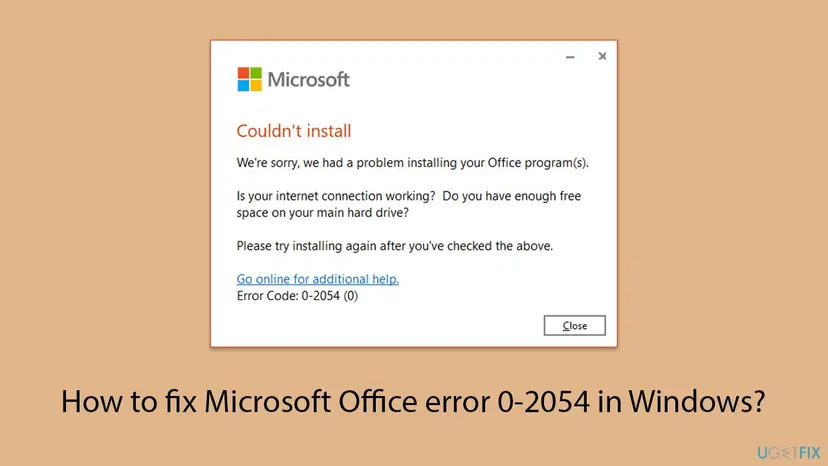
Those two questions appear on many Office setup codes, so they are a template, not a diagnosis. An administrator who hit 0-2054 while installing Office LTSC Standard 2021 called it a general purpose error and found nothing useful in the logs. People with plenty of space and a working connection get it too.
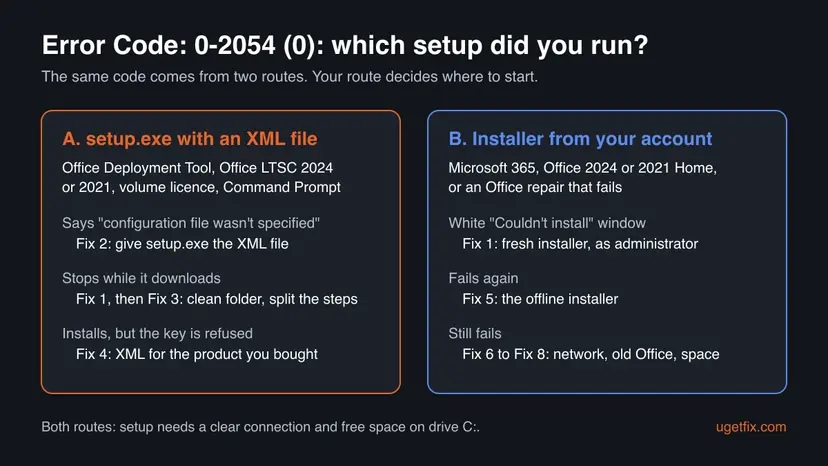
Office is installed by one program, setup.exe, which reads an XML file that names the product. The installer from your Microsoft account prepares both for you. With the Office Deployment Tool you supply them yourself in Command Prompt. If 0-2054 (0) came with The configuration file wasn't specified, you are on that second route and the fix is in the command.
Error 0-2054 is not the same as its neighbours. Error 0-2060 (0) shows the same window but points to a download that Microsoft's servers never delivered; it has its own guide, Office installation error 0-2060. Error 0-2048 (0) is the Deployment Tool's message that it cannot find the XML file you named.
What causes Office error 0-2054, from the most common to the rare
Microsoft publishes no list of causes for this code. The order below follows the advice of Microsoft forum staff for 0-2054, the questions they ask people with Office 2021, and an administrator's solved case. It is an order of likelihood, not a statistic.
| How often | Cause | Typical sign | Fix |
|---|---|---|---|
| Most often | Files left behind by an earlier, failed attempt, such as a half-filled Office folder next to setup.exe | You already tried once or twice, or the first try was cut off. | Fix 1 |
| Often | setup.exe started without the name of its XML file | Command Prompt or the window says The configuration file wasn't specified. | Fix 2 |
| Often | The download breaks inside the combined install | Setup runs for a while, then stops with the code. | Fix 3 |
| Less often | An XML file for the wrong product or edition | Office installs, but your key says the product is not installed. | Fix 4 |
| Less often | The online installer from your account cannot finish | Home or Microsoft 365 product, the window comes back every time. | Fix 5 |
| Less often | A proxy, VPN, firewall or antivirus filters setup | Work network, VPN app at startup, or a security suite with web protection. | Fix 6 |
| Rarely | Another Office version on the PC | A trial, an older Office or a Store edition is in Installed apps. | Fix 7 |
| Rarely | Too little free space on drive C: | The drive bar in File Explorer is red. | Fix 8 |
Many pages tell you to reset Windows Update or run a Windows update for this code. No Microsoft answer and no solved report that we read links 0-2054 to Windows Update, so this guide leaves those steps out.
How to fix error code 0-2054 (0) when installing Office
Fix 1 helps on both routes and costs the least. Fix 2 to Fix 4 are for the Office Deployment Tool, Fix 5 for products from your Microsoft account. Fix 6 to Fix 8 cover the rarer causes. Use the table to pick your start.
| What you see or have | Start with |
|---|---|
| You already tried to install, and the code came back | Fix 1 |
| Command Prompt or the window says The configuration file wasn't specified | Fix 2 |
| The Deployment Tool starts, downloads for a while and then fails | Fix 3 |
| Office installs but refuses your volume licence key | Fix 4 |
| Office Home, Microsoft 365 or Office 2024 from your account fails again and again | Fix 5 |
| The PC is on a work network or uses a VPN | Fix 6 |
| Another Office, a trial or a Store edition is on the PC | Fix 7 |
Fix 1. Clear the failed attempt and run a fresh installer as administrator
10 minutesLow riskEveryone first, above all if setup already ran once and was stopped or failed.
Microsoft forum staff answer 0-2054 first by telling you to delete the Office folder and the other files in the setup folder and start the process again. A half-downloaded folder makes every new attempt reuse broken files.
- Close the error window with Close, and close any Office app that is open.
- Deployment Tool: open the folder that holds
setup.exe, for exampleC:\ODT, and delete the Office subfolder that the failed run created. Keepsetup.exeand your XML file. - Installer from your account: delete the old installer from Downloads and download a new one from your Microsoft account.
- Restart the PC with Restart, not Shut down.
- Right-click the new installer, or open Command Prompt, and choose Run as administrator. Select Yes in the permission prompt.
- Keep the PC awake and on the same network until setup says it is done.
If 0-2054 (0) came from Online Repair, the repair runs the same setup. Uninstall Office from Installed apps, restart, and install it again with a fresh installer. Your documents are not part of Office and stay where they are.
It worked if: Setup shows its progress bar, ends with a message that Office is installed, and Word or Excel appears in the Start menu.
If not: On the Deployment Tool, check the exact message and go to Fix 2 or Fix 3. With a product from your account, go to Fix 5.
Fix 2. Give setup.exe its configuration file in the Office Deployment Tool
5 minutesNo riskYou install Office LTSC 2024, LTSC 2021 or another volume product with the Office Deployment Tool, and the message says The configuration file wasn't specified.
setup.exe does nothing on its own: each mode, /download or /configure, needs the name of an XML file after it. Started by a double-click or with the mode alone, it has no product to install and stops.
- Put
setup.exeand your XML file in one short local folder, such asC:\ODT. - Press Win + S, type
cmd, right-click Command Prompt and choose Run as administrator. - Type
cd /d C:\ODTand press Enter. - Type
dirand press Enter. Check that bothsetup.exeand your XML file are listed with their real names. - Type
setup.exe /configure configuration.xmlwith the real name of your file and press Enter.
cd /d C:\ODT
setup.exe /configure configuration.xml
Do not double-click setup.exe in File Explorer. If dir shows configuration.xml.txt, the file is a text file with a hidden extension; rename it. Our guide to Office error 0-2048 walks through every way the tool can miss its file.
It worked if: Command Prompt shows no message for a while, network activity rises in Task Manager, and Office appears in the Start menu when it ends.
If not: If the command runs but fails with 0-2054 again during the download, split the job in Fix 3.
Fix 3. Download Office first, then install it from the local copy
20 to 40 minutesNo riskThe Deployment Tool starts but fails part of the way, or your connection is slow or unstable.
In the solved administrator's case, splitting the job into /download and /configure got Office installed after the one-step setup kept failing with 0-2054. It also shows you which half fails: the download or the installation.
- Open Command Prompt as administrator and type
cd /d C:\ODT. - Type
setup.exe /download configuration.xmland press Enter. - Wait. The window shows no progress; a new Office folder grows in
C:\ODTuntil the command returns. - Type
setup.exe /configure configuration.xmland press Enter. - When the command ends, open Word or Excel and enter or check the licence.
setup.exe /download configuration.xml
setup.exe /configure configuration.xmlThe finished C:\ODT folder, with setup.exe, the XML file and the downloaded Office folder, works like an installation disc. Copy it somewhere safe and you can reinstall later without the long download.
It worked if: The download step ends without an error and fills the Office folder, then /configure installs from it and Office appears in the Start menu.
If not: If /download fails, the network is the problem: go to Fix 6. If /configure fails or the key is refused, go to Fix 4.
Fix 4. Build a new XML file for the exact product you bought
15 minutesLow riskOffice installs but refuses your volume key, or the XML came with the download and was never checked.
In the administrator's case the XML file in the LTSC Standard 2021 download installed Professional Plus, so the Standard key was refused. A file built for the right product ID ended the problem.
- Open the Office Customization Tool at config.office.com/deploymentsettings.
- Pick the architecture (64-bit unless an old add-in needs 32-bit) and the product you own, for example Office LTSC Standard 2021 rather than Professional Plus.
- Choose the language and, if you wish, enter your key and turn on the removal of older versions.
- Select Export, accept the terms and save the file as
configuration.xmlinC:\ODT. - Download the newest Office Deployment Tool from the link on the same page and extract it into
C:\ODT. - Delete the old Office folder in
C:\ODT, then run the two commands of Fix 3 again.
| Product you bought | Product ID in the XML |
|---|---|
| Office LTSC Standard 2021 | Standard2021Volume |
| Office LTSC Professional Plus 2021 | ProPlus2021Volume |
For any other edition, look up the ID on Microsoft's page Product IDs supported by the Office Deployment Tool instead of guessing it.
It worked if: Setup installs the edition named on your licence, and Word accepts the key without saying the product is not installed.
If not: If the new file still fails during the download, test the network in Fix 6.
Fix 5. Install a home or account product with Microsoft's offline installer
20 to 40 minutesNo riskYou install Microsoft 365, Office 2024 or Office 2021 for home or business from your Microsoft account, and Fix 1 did not help.
The administrator's write-up points home users to this installer as the way around a failing online setup. It downloads all Office files as one image first, so setup no longer depends on the servers while it installs.
- Open Microsoft's page Use the Office offline installer and choose the tab for your product.
- Sign in with the Microsoft account that owns Office and select Install.
- In Choose a version, select Offline installer, pick your language and select Install.
- Open Downloads and double-click the image file. Windows opens it as a new virtual drive.
- Open the Office folder on that drive and double-click
Setup64.exe(orSetup32.exefor 32-bit Office). - When setup ends, connect to the internet and open Word to activate Office.
It worked if: The virtual drive opens, Setup64.exe installs Office without the online download, and Office appears in the Start menu.
If not: If the image will not download either, the block is in the network: go to Fix 6.
Fix 6. Rule out the proxy, VPN, firewall and antivirus
10 minutesLow riskThe PC is on a work, school or hotel network, a VPN runs at startup, or a security suite with web protection is installed.
Microsoft forum staff list the proxy and the firewall as their second step for 0-2054, and the window itself asks about the connection. Both routes fetch Office from Microsoft's servers, so a filtered path breaks them.
- Disconnect your VPN app.
- Press Win + I, open Network & internet > Proxy and set Use a proxy server to Off if it is on. Write the old values down first.
- If you can, connect the PC to another network, such as a phone hotspot.
- Pause the real-time and web protection of your security program for one test only: Turn off Microsoft Defender protection for a moment.
- Run setup again, then turn the protection back on straight away, whatever the result.
Never leave protection off to make an installer work. If setup succeeds only during the pause, add the installer to the security program's exclusions. If the proxy switch is greyed out, the PC is managed and only its administrator can change the setting.
It worked if: Setup completes on the other network or during the short pause, and protection shows as on again afterwards.
If not: If nothing changes, check for another Office version in Fix 7.
Fix 7. Remove other Office versions, then install again
15 to 30 minutesRead the warningA preinstalled trial, an older Office, a Microsoft Store edition or a half-removed Office is on the PC.
Microsoft's forum asks everyone with 0-2054 on Office 2021 whether older Office versions are installed. Two Office installations of different types or bit versions cannot sit side by side, and setup stops instead.
Uninstalling Office removes the apps, not your documents. You can lose the way back to the old version, so write down its product key or the account it belongs to. Save open files and close every Office app first.
- Windows 11: open Settings > Apps > Installed apps. Windows 10: open Settings > Apps > Apps & features.
- Type
Officein the search box of the list. - Uninstall every Microsoft 365, Microsoft Office or Office Home entry that is not the version you want: Uninstall a program or app in Windows.
- Restart the PC with Restart.
- Run Fix 1 or Fix 3 again.

On the Deployment Tool route, the line <Remove All="TRUE" /> in the XML file removes other Click-to-Run Office products during setup. The Office Customization Tool adds it when you choose to remove older versions.
It worked if: Installed apps lists no other Office, and the new setup runs to the end after the restart.
If not: If no other Office was installed, check the free space in Fix 8.
Fix 8. Free up space on the system drive
5 to 15 minutesLow riskDrive C: is nearly full, or the PC has a small SSD.
The window asks about free space for a reason: Office always installs on the system drive, and Office LTSC 2024 needs 4 GB of available space. The Deployment Tool's downloaded Office folder needs room on top of that.
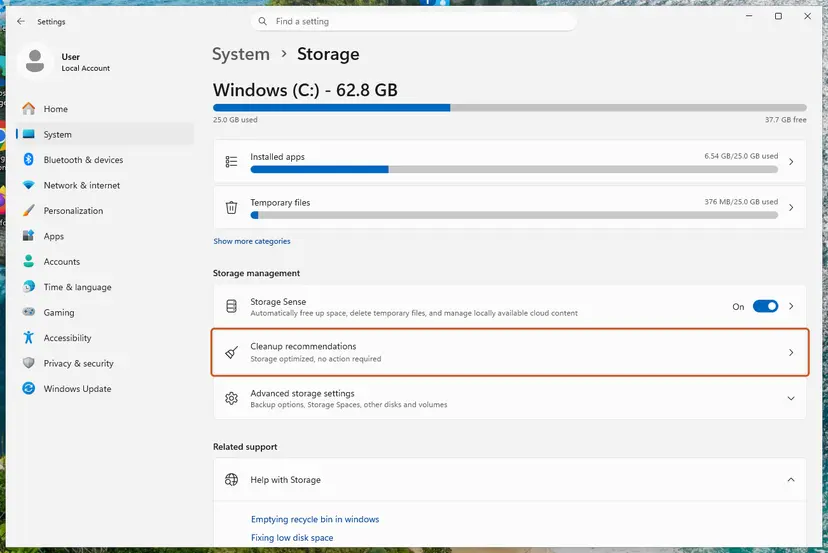
- Press Win + I and open System > Storage.
- Read the free space on drive C:.
- If less than about 10 GB is free, clear Temporary files and the Recycle Bin: Free up disk space and delete temporary files.
- Run setup again.
It worked if: Storage shows several gigabytes free on drive C:, and setup no longer stops with 0-2054.
If not: If space was never short, read the setup log as described in the next section.
Still getting error 0-2054? Read the setup log and ask the right people
Office setup writes log files into two temporary folders. The newest file is usually from your failed attempt, though the administrator in our source found nothing helpful in his, so treat the log as a clue, not a promise.
| Folder | How to open it | What is in it |
|---|---|---|
%temp% | Press Win + R, type %temp% and press Enter. | The log of the installer you started. |
%windir%\Temp | Press Win + R, type %windir%\Temp and confirm the prompt. | Logs of the part of setup that runs as the system account. |
- Run setup once more and note the time it fails.
- Open
%temp%, switch to Details and sort by Date modified, newest first. - Open the newest
.logfile whose name begins with your PC's name. - Press Ctrl + F and search for
error,failandconfiguration. Read the last lines of the file. - Repeat in
%windir%\Temp.
- What to send to Microsoft support: the code, the exact product and edition, whether you used the Deployment Tool and your XML file, the newest logs and your Windows version from Settings > System > About.
- A volume licence belongs to an organisation. If the XML is right and setup still fails, the reseller or your licensing administrator can check the product and key.
- A managed work PC can block installers by policy. Then only the IT department can install Office.
Microsoft does not document which log line belongs to 0-2054, so we do not quote one. In 2021 Microsoft forum staff sent a Windows 11 Insider user with this code to the Feedback Hub, which suggests preview builds of Windows can also be involved.
How to avoid error 0-2054 the next time you install Office
Most cases come from setup files that are incomplete, misnamed or meant for another product. A tidy setup folder and a checked XML file prevent them.
- Keep the Deployment Tool and its XML file in one short local folder, such as
C:\ODT. - Build the XML file with the Office Customization Tool for the exact edition on your licence.
- Run
/downloadfirst and keep the finished folder as your installation copy. - Run setup from an elevated Command Prompt or with Run as administrator.
- Keep at least 10 GB free on drive C:.
- Double-click
setup.exeof the Deployment Tool. - Start setup again while an earlier attempt is still running.
- Reuse an Office folder from a failed download.
- Mix 32-bit and 64-bit Office on one PC.
- Turn your antivirus off for good to make setup work.
Frequently asked questions
What does error code 0-2054 (0) mean?
It means Office setup stopped before Office was installed, and it does not say why. The window asks about your internet connection and free disk space, but those questions appear on many setup codes. In the reports we read, the real causes were a broken setup folder, a Deployment Tool command without its XML file, an XML file for the wrong product, or a blocked download. Start with a clean retry as administrator (Fix 1).
How do I fix error 0-2054 when installing Office 2024?
Check which Office 2024 you have. Office Home 2024 or Home & Business 2024 come from your Microsoft account: use a fresh installer as administrator (Fix 1) and, if it fails again, the offline installer (Fix 5). Office LTSC 2024 is a volume product installed with the Office Deployment Tool: run setup.exe /configure configuration.xml in an elevated Command Prompt (Fix 2), or download first and install second (Fix 3). Office LTSC 2024 needs 4 GB of free space on drive C:.
What does The configuration file wasn't specified with error code 0-2054 (0) mean?
It means setup.exe of the Office Deployment Tool was started without the name of its XML file. That happens when you double-click setup.exe, or type /configure or /download without a file name after it. Open Command Prompt as administrator, go to the folder with cd /d C:\ODT and type setup.exe /configure configuration.xml with your file's real name. Fix 2 has the steps.
I got 0-2054 while repairing Office. What now?
An Online Repair runs Office setup again, so it can fail with a setup code too. Uninstall Office from Installed apps, restart the PC and install it again with a freshly downloaded installer, run as administrator. If the online installer fails, use the offline installer. Uninstalling Office does not delete your documents. Keep your product key or the Microsoft account that owns Office at hand before you uninstall.
Is error 0-2054 (0) the same as 0-2060 (0) or 0-2048 (0)?
No, though all three appear in Office setup and start with 0. Error 0-2060 (0) is reported when the online installer cannot download Office through a proxy, VPN or firewall. Error 0-2048 (0) is the Deployment Tool saying it cannot find the XML file you named. Error 0-2054 (0) is a more general setup failure that also shows up when no XML file was named at all. Each code has its own guide on uGetFix.
Do I need to reset Windows Update to fix 0-2054?
Very unlikely. Office setup from your account and the Deployment Tool both download Office from Microsoft's Office servers, not through Windows Update. No Microsoft answer and no solved report that we read credits a Windows Update reset for this code. Keeping Windows up to date is still good practice, but it is not a fix for 0-2054.
Should I turn off my firewall or antivirus to install Office?
Only for one short test, and only after the first fixes. Pause real-time and web protection, run setup once, and turn protection back on straight away. Microsoft forum staff suggest this test for 0-2054, but nobody should keep protection off. If setup succeeds only during the pause, add the installer to the exclusions of the security program instead.
Office installed, but my volume key is refused. Is that related?
Often, yes. The XML file decides which edition setup installs. In one administrator's case, the file in the Office LTSC Standard 2021 download installed Professional Plus, so the Standard key was refused. Build a new file with the Office Customization Tool and the product ID Standard2021Volume, or the ID for your edition, then run setup again (Fix 4).
I see this error in another language. Is it the same?
Yes. Searches in Arabic, Spanish, Korean or Portuguese about this code, such as error 0-2054 al instalar office, describe the same setup failure. The window is translated, but the code 0-2054 (0) and the fixes stay the same in every language of Office and Windows. Start with Fix 1, and with Fix 2 if you use the Office Deployment Tool.
Sources
- Microsoft Q&A: Getting error 0-2054 (0) when using the Office Deployment Tool (answers by Microsoft forum staff) (learn.microsoft.com)
- Microsoft Q&A: Unable to install Office 2021 showing error 0-2054 (learn.microsoft.com)
- Unix Server Tech Knowledge Base: Installation of Microsoft Office Fails (an administrator's solved 0-2054 case with Office LTSC Standard 2021) (kb.unixservertech.com)
Did this fix work?
One click, no account. It tells the next reader which guides are worth their time.
Questions and experiences: fix Microsoft Office error 0-2054 in Windows
Still broken, or found a fix we did not cover? Ask here: members and our editors answer. Reading is open; writing needs a free account.
…