
How to fix Microsoft Office installation error 30182-39 in Windows?

Prefer to fix it yourself? The manual steps follow.
- 7methods
- 10 to 45 minutes
- Intermediate
Applies to Microsoft 365, Office 2024, 2021, 2019 and 2016, and Visio and Project of the same years, installed with Click-to-Run, Windows Installer (MSI) or the Office Deployment Tool on Windows 11 and Windows 10
7 methods in this guide
I recently reset my Windows due to unrelated problems and now I can't install Microsoft Office. Every time I try to install it, I keep getting error 30182-39. Can you help me with this?
Error code 30182-39 appears in a window called System restart required when Office, Visio or Project setup stops before it installs anything. A restart alone rarely clears it. In most reports another Office product on the PC cannot sit next to the one you install, so find that product first and remove or match it.
Restart once and run setup again (Fix 1). If 30182-39 returns, open Installed apps and find the Office, Visio, Project or Microsoft 365 that is already there (Fix 2). Uninstall the one you do not need and install again (Fix 3). If you want to keep both, for example Visio next to Microsoft 365, install it with the Office Deployment Tool in the same bitness and update channel (Fix 6).
| Error | System restart required. Sorry, we ran into a problem. Please try again after restarting your computer. Error Code: 30182-39 (2). |
|---|---|
| Where it appears | In the small Microsoft setup window, a few seconds after you start installing Office, Visio or Project, before any app is installed. |
| Main cause | Another Office product on the PC that Microsoft does not allow next to the new one: a different installation technology with the same version 16.0, a different bitness or a different update channel. |
| Fastest fix | Restart once (Fix 1). If it comes back, find the Office already installed (Fix 2) and uninstall it (Fix 3). |
| Also written as | 30182-39 (2), 30182-39(2), 30182-392, error 30182 office, error code 30182 office. Related codes of the same family: 30182-44, 30182-4, 30182-1, 30182-1011, 30182-2016. |
| Affects | Microsoft 365, Office 2016 to 2024, Visio and Project 2016 to 2024 on Windows 11 and Windows 10. Most reports involve Visio or Project added to an existing Office. |
| Microsoft's status | No Microsoft page explains 30182-39 itself (checked 15 October 2026). Microsoft documents which Office, Visio and Project combinations cannot be installed together, and that is the cause in the reports we read. |
| Office 2016 and 2019 | Support ended on 14 October 2025. They still install and run, but get no more security updates. |
| Time to fix | 10 minutes to find and remove the conflicting product, 30 to 45 minutes with the Office Deployment Tool. |
Facts checked on 15 October 2026. Steps written for Click-to-Run versions of Microsoft 365, Office, Visio and Project 2016 to 2024 on Windows 11 (25H2 and 26H2) and Windows 10 22H2, read against Microsoft's documentation.
What Office error code 30182-39 means and how the message reads
Every current desktop Office, Visio and Project is installed by Click-to-Run, except volume licensed Office 2016, which still uses Windows Installer (MSI). Before Click-to-Run copies anything, it checks what is already on the PC. Error 30182-39 is what you see when that check stops the installation.
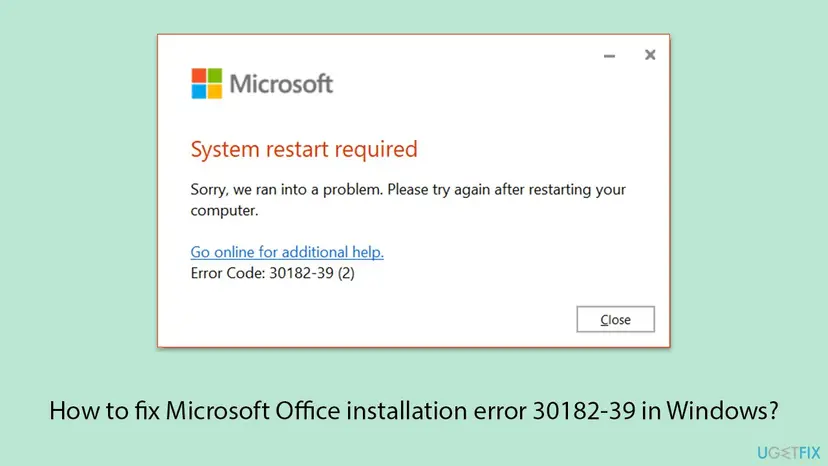
System restart required. Sorry, we ran into a problem. Please try again after restarting your computer. Go online for additional help. Error Code: 30182-39 (2)
- 30182 is the family: setup could not get or use something it needs. The same first number appears in other Office errors with other causes.
- 39 is the step that failed. Users report it at the very start of a new installation, mostly when Visio, Project or a second Office edition is added.
- (2) matches Windows system error 2, The system cannot find the file specified. Here it means setup did not find what it expected for the product it tried to add.
The words System restart required mislead. A user on Microsoft Q&A who added Visio Professional 2016 to Office Professional 2016 got 30182-39 (2) and wrote that restarting did not help. Bloggers who installed Office 2019 from an image next to Microsoft 365 got the same code and solved it only by changing how they installed.
Error 30182-1011 shows Couldn't install and says setup was not able to download a required file. That one is a download or source problem, and we explain it in our guide to Office installation error 30182-1011. This page is about 30182-39.
Why error 30182 39 appears when you install Office, Visio or Project
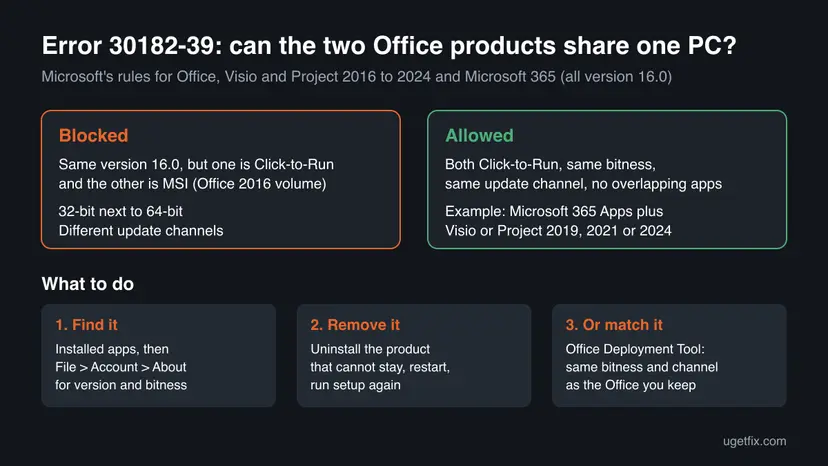
Microsoft says two things decide whether two Office products can share a PC: the version and the installation technology. Microsoft 365, Office 2016, 2019, 2021 and 2024 all have version 16.0, so the version alone tells setup nothing. The technology, the bitness and the update channel do.
| Cause | How often | Fix |
|---|---|---|
| An Office product with the same version but the other technology, for example Visio 2016 volume (MSI) next to Click-to-Run Office | Most often | Fix 2, Fix 3, Fix 6 |
| 32-bit Visio or Project next to 64-bit Office, or the other way round | Often | Fix 2, Fix 6 |
| A second suite next to Microsoft 365, such as Office 2019 from an image, or different update channels | Often | Fix 3, Fix 6 |
| A Microsoft 365 trial or a Store version of Office that came back after a Windows reset | Sometimes | Fix 3, Fix 5 |
| Leftovers of an old Office that the uninstall did not remove | Sometimes | Fix 4 |
| A pending restart, an update still running, or damaged system files | Rarely | Fix 1, Fix 7 |
Microsoft's own rules: you can't install two products with the same version but different installation technologies, and you can't install two products of different versions if both use Click-to-Run and have overlapping apps. All installed products must also match in bitness and use the same update channel.
How to fix error code 30182-39 when you install Office
Fix 1 costs one restart. Fix 2 to Fix 4 find and remove the product that blocks setup, which solves most cases. Fix 5 is for PCs that were reset or came with Office. Fix 6 keeps both products. Fix 7 is the generic system repair, last.
| What you see or have | Start with |
|---|---|
| First time you see the error, nothing else installed recently | Fix 1 |
| You add Visio or Project to an Office that is already installed | Fix 2, then Fix 6 |
| You install a new Office over an older or different edition | Fix 2, then Fix 3 |
| You reset Windows or the PC came with Office preinstalled | Fix 3, then Fix 5 |
| Installed apps shows no Office, but setup still stops | Fix 4 |
| Nothing above helped | Fix 7, then the log under If it is still there |
Fix 1. Restart once, let running Office updates finish, then run setup again
5 minutesLow riskYou see the error for the first time, or Office or Windows was updating when you started setup.
The window asks for a restart because setup found something it could not finish. If that is only a pending update or a locked file, one restart clears it. If the code returns after a restart, stop restarting: the cause is another product.
- Close the setup window with Close.
- Close Word, Excel, Outlook, Teams and any other Office app.
- Look at the notification area next to the clock. If an Office icon shows progress, wait until it is done.
- Restart with Start > Power > Restart. Do not use Shut down, which can keep Windows in a half-sleep state with fast startup.
- Run the same setup file again, right-click it and select Run as administrator.
It worked if: Setup shows We're getting things ready and then a progress bar instead of the error.
If not: If System restart required returns with 30182-39, go to Fix 2.
Fix 2. Find which Office, Visio or Project is already on the PC, with its bitness and channel
5 minutesLow riskThe error returned after a restart, or you add Visio or Project to an existing Office.
Error 30182-39 is a conflict between two products, so you need to know the one already there. Microsoft says the installation technology shows under File > Account: if Update Options is there, it is Click-to-Run; if not, it is Windows Installer (MSI).
- Windows 11: right-click Start and select Installed apps. Windows 10: select Apps and Features.
- Type
office, thenvisio, thenprojectin the search box. Note every entry, for example Microsoft 365 Apps for business - en-us or Microsoft Office Professional Plus 2016. - Open Word or Excel and select File > Account.
- Under Product Information, check for the Update Options button. With it, the installation is Click-to-Run. Without it, it is MSI.
- Select About Word. The first line shows the version, the build and 32-bit or 64-bit.
- Next to About Word on the Account page, note the channel, for example Current Channel.

| What you find | What it means for 30182-39 |
|---|---|
| Office 2016 without Update Options (MSI), and you add Visio or Project 2016 to 2024 from Click-to-Run | Blocked. Same version 16.0, different technology. Fix 3 or Fix 6. |
| 64-bit Office, and your Visio or Project download is 32-bit (or the reverse) | Blocked. Bitness must match. Fix 6. |
| Microsoft 365, and you install a full Office 2019, 2021 or 2024 suite | Overlapping apps. Keep one suite. Fix 3. |
| Microsoft 365, and you add Visio or Project 2019, 2021 or 2024 | Allowed by Microsoft if Microsoft 365 is new enough and the channel matches. Fix 6. |
It worked if: You have a list: product, Click-to-Run or MSI, 32-bit or 64-bit, and channel. The table shows which fix to use.
If not: If Installed apps shows no Office at all, go to Fix 4. If Word does not open, uninstall it with Fix 3.
Fix 3. Uninstall the Office product that cannot stay, restart and install again
15 to 30 minutesRead the warningFix 2 found a product you do not need, such as an old Office 2016, a second suite or a Microsoft 365 trial from the PC maker.
Microsoft says two products with the same version but different technologies cannot be installed together. Removing one of them removes the conflict that setup reports as 30182-39.
Uninstalling removes the Office apps, not your documents. You need the Microsoft account or product key of the product you remove if you want it back. Copy custom templates and Outlook signatures first if you use them: Back up your files (Windows Backup, File History, Time Machine).
- Open Installed apps as in Fix 2.
- Select the three dots next to the product that has to go, then Uninstall, and confirm.
- Wait until the Click-to-Run removal window closes.
- Repeat for every other product of the same kind you do not need, for example a Microsoft 365 trial in another language.
- Restart the PC.
- Install Office again: go to
m365.cloud.microsoft/apps, sign in with the account that owns it and select Install apps.
Step by step with screenshots: Uninstall a program or app in Windows. Keep the product you paid for and remove the other one. When both are needed, use Fix 6 instead.
It worked if: Setup runs to You're all set and the new app opens.
If not: If the uninstall fails or 30182-39 returns although Installed apps looks clean, go to Fix 4.
Fix 4. Remove Office leftovers with Microsoft's uninstall troubleshooter
20 to 40 minutesRead the warningAn earlier uninstall stopped halfway, Installed apps shows no Office but setup still finds one, or Fix 3 failed.
A half removed Office can leave Click-to-Run registrations behind. Setup still sees them as an installed product and stops with the same conflict.
Choose only the products you want gone, or be ready to install all Office apps again. Your documents stay. Check that you can sign in to m365.cloud.microsoft/apps before you start.
- Sign in to Windows with an administrator account.
- Open Microsoft's page Uninstall Microsoft 365 or Office from a PC and select the Uninstall button of the uninstall troubleshooter.
- When the browser shows This site is trying to open Get Help, select Open.
- Follow the prompts and choose the products to remove.
- Restart the PC when you are prompted.
- Search Installed apps for
office,visioandprojectagain, then run setup.
The old Microsoft Support and Recovery Assistant (SetupProd_OffScrub.exe) that many guides still show has been replaced by this troubleshooter in the Get Help app. It needs Windows 10 or later, and it does not remove Office 2024; use Installed apps for that.
It worked if: Installed apps lists no Office, Visio or Project, and setup gets past the first screen.
If not: If the PC was reset or came with Office, go to Fix 5. If you need two products side by side, go to Fix 6.
Fix 5. Remove the old Microsoft Store version of Office with PowerShell
5 minutesLow riskThe PC came with Office, was reset to factory settings, or once had Office from the Microsoft Store.
Older PCs shipped Office as a Store app package named Microsoft.Office.Desktop. It does not always appear in the normal uninstall list, and a Windows reset can bring back what the PC maker installed. The command below checks for it first and removes it only if it is there.
- Right-click Start and select Terminal (Admin) (Windows 10: Windows PowerShell (Admin)). Select Yes.
- List the Store Office packages:
Get-AppxPackage -Name "Microsoft.Office.Desktop*" | Select-Object Name, Version - If the list is empty, this fix is not for you. Close the window.
- If packages are listed, remove them:
Get-AppxPackage -Name "Microsoft.Office.Desktop*" | Remove-AppxPackage - Restart the PC and run Office setup again.
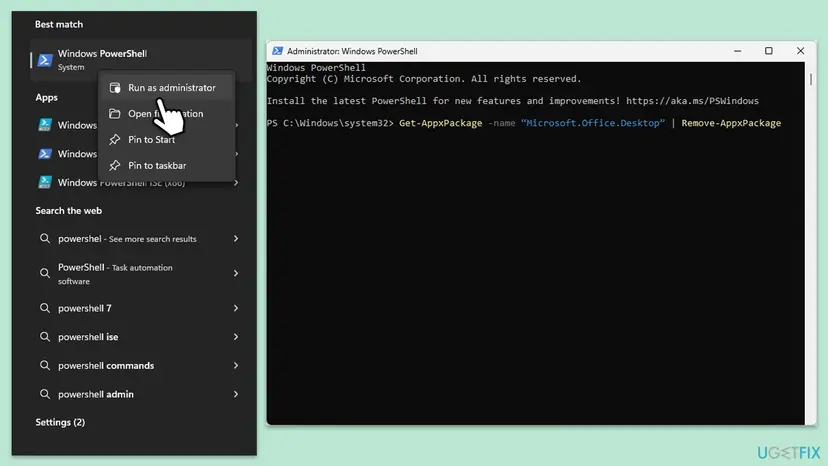
It worked if: The second run of the first command lists nothing, and setup no longer stops with 30182-39.
If not: Go to Fix 6 if you need two products, or Fix 7.
Fix 6. Install Visio or Project next to Office with the Office Deployment Tool
30 to 45 minutesLow riskYou want to keep your Office and add Visio, Project or a second product, and Fix 2 showed a different bitness or channel, or the normal setup keeps failing.
Microsoft says Microsoft 365 Apps and Visio or Project 2019, 2021 and 2024 can share a PC when both are Click-to-Run, the same bitness and on the same update channel. The Office Deployment Tool lets you set all three, which the normal setup does not.
- Download the Office Deployment Tool from Microsoft (download ID 49117) and run it. Extract it to a new folder, for example
C:\ODT. - Delete the sample XML files and create
configuration.xmlin Notepad with the content below. - Set OfficeClientEdition to the bitness from Fix 2:
64or32. - Set Channel to the channel of the Office you keep, for example
Current. - Set Product ID to your product, for example
VisioPro2021RetailorProjectPro2021Volume, and the language you need. - Open Command Prompt as administrator and run:
cd C:\ODT setup.exe /configure configuration.xml - Open Visio or Project and activate it with your account or key.
configuration.xml for Visio next to 64-bit Microsoft 365 on Current Channel
<Configuration>
  <Add OfficeClientEdition="64" Channel="Current">
    <Product ID="VisioPro2021Retail">
      <Language ID="en-us" />
    </Product>
  </Add>
  <Display Level="Full" AcceptEULA="TRUE" />
</Configuration>| Your situation | What Microsoft says |
|---|---|
| Visio or Project 2024 next to Microsoft 365 | Needs Microsoft 365 Apps Version 2408 or later. |
| Visio or Project 2021 next to Microsoft 365 | Needs Version 2108 or later. |
| Visio or Project 2019 next to Microsoft 365 | Needs Version 1808 or later. |
| Visio or Project 2016 volume (MSI) next to Click-to-Run Office | Not supported as MSI. Microsoft has a separate page: use the Office Deployment Tool to install volume licensed Project 2016 and Visio 2016. |
If your Microsoft 365 is older than the version in the table, open Word, select File > Account > Update Options > Update Now, then run the tool again.
It worked if: The tool shows the Office installation progress window and Visio or Project appears in Start next to your other Office apps.
If not: If the tool stops with 30182-39 too, the existing Office is MSI or a different suite. Remove it with Fix 3, or keep it and ask the seller for a matching edition.
Fix 7. Repair Windows system files and try again
20 to 30 minutesLow riskFix 1 to Fix 6 did not help, or other installers fail on the same PC too.
Click-to-Run relies on Windows Installer and system components. If those are damaged, setup can stop at the same early step. This is a rare cause of 30182-39, so it comes last.
System File Checker and DISM check and repair Windows files. Step by step: Run DISM and SFC to repair Windows system files.
- Open an elevated command window. Right-click Start and select Terminal (Admin), or type cmd in the search box, right-click Command Prompt and select Run as administrator. Select Yes when Windows asks for permission.

Search for cmd and choose Run as administrator. Screenshot: Windows 11 26H2. - Run DISM first. Type the command below and press Enter. DISM downloads clean copies of damaged components from Windows Update, so it can take several minutes. Wait until it says The operation completed successfully.
DISM.exe /Online /Cleanup-Image /RestoreHealth
DISM /RestoreHealth running. Screenshot: Windows 11 26H2. - Run System File Checker. In the same window, type the command below and press Enter. Do not close the window until the verification reaches 100%.
sfc /scannow
sfc /scannow at 100%. Screenshot: Windows 11 26H2.
These steps were written for Windows 11 24H2 and 25H2. The full page with the other versions and what each result means: Run DISM and SFC to repair Windows system files
It worked if: SFC reports that it found and repaired files, or found no integrity violations. Setup runs after a restart.
If not: Read the setup log as described under If it is still there.
If error 30182-39 is still there: read the setup log
The window gives one line. Click-to-Run writes the reason to log files in the temporary folder of the account that ran setup, with the name of the PC and a date in the file name.
- Run setup once more and note the time it fails.
- Press Win + R, type
%temp%and press Enter. - Sort by Date modified, newest first, and open the newest
.logfile that starts with the name of your PC. - Press Ctrl + F and search for
30182, then forconflict,PlatformandCulture. Read the lines just before. - Look for a product name,
x86orx64, or a channel name. That is the product setup refused to install next to.
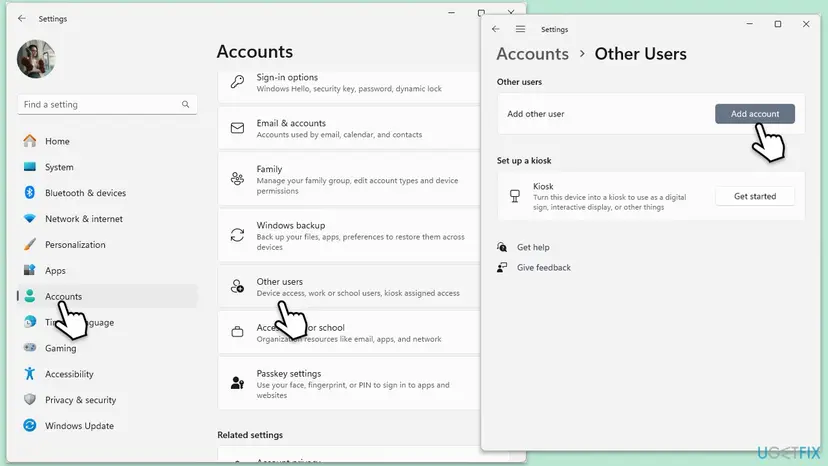
- Test with a new administrator account when the log shows access errors: Create a new user account to test a problem.
- What to send to Microsoft support or your IT department: the full code with (2), the product you install and the one already there, 32-bit or 64-bit, the Windows version and the newest log.
- When it is not a problem on your PC: some products are sold only as one bitness or one licence type, and a work PC may block installations by policy. Those are questions for the seller or the administrator.
How to avoid error 30182-39 the next time you add an Office product
Error 30182-39 is a planning problem more than a broken PC. Check what you already have before you buy or install another Office product.
- Check bitness, channel and Click-to-Run or MSI under File > Account before you install Visio or Project.
- Buy Visio and Project of 2019 or later when you run Microsoft 365, so that both use Click-to-Run.
- Remove trials and preinstalled Office right after a Windows reset, before you install your own.
- Keep one Office suite per PC and add only Visio or Project to it.
- Mix 32-bit and 64-bit Office products.
- Install a second full Office suite over Microsoft 365.
- Delete Office folders by hand before Microsoft's uninstall tools have run.
- Use activation tools or unofficial images; they bring their own errors and risks.
Frequently asked questions
What does error code 30182-39 mean in Office?
It means Office setup stopped at its first check because something on the PC does not fit the product you install. The window says System restart required and asks you to restart, but in most reports a restart does not help. The usual cause is another Office, Visio or Project already installed with a different installation technology, bitness or update channel. The (2) at the end matches the Windows error The system cannot find the file specified. Find the installed product (Fix 2), then remove it or match it.
Why does Office keep asking me to restart with 30182-39?
Setup uses the same System restart required window for several early failures, so the text is generic. If a pending update or a locked file was the reason, one restart clears it and setup runs. If the same code returns after a restart, restarting again will not change anything. Microsoft's compatibility rules then block the installation, and you need to remove or match the other Office product as in Fix 2 to Fix 6.
Can I install Visio or Project next to Microsoft 365?
Yes, in most cases. Microsoft supports Microsoft 365 Apps together with Visio or Project 2019, 2021 and 2024, both retail and volume licensed, as long as both use Click-to-Run, the same bitness and the same update channel. Microsoft 365 must be new enough: Version 1808 for 2019 products, 2108 for 2021 and 2408 for 2024. Volume licensed Visio 2016 and Project 2016 use MSI and are not supported next to Microsoft 365 that way; Microsoft has a separate Office Deployment Tool method for them.
I reset Windows and now Office will not install with 30182-39. Why?
A reset that restores the factory image can bring back what the PC maker installed, often a Microsoft 365 trial or an older Store version of Office. Your own Office then conflicts with it. Open Installed apps and search for office (Fix 2). Uninstall the trial or the edition you do not use (Fix 3), and run the PowerShell check for the Store version (Fix 5). Then install your Office from your Microsoft account page.
How do I know if my Office is 32-bit or 64-bit?
Open Word, select File, then Account, then About Word. The first line of the window shows the version and build and ends with 32-bit or 64-bit. All Office products on one PC must match, Microsoft says, so a 32-bit Visio cannot be installed next to 64-bit Office. If they differ, install the other product in the same bitness with the Office Deployment Tool (Fix 6), or remove Office and reinstall everything in one bitness.
What is the difference between Click-to-Run and MSI Office?
They are two ways Microsoft installs Office. Click-to-Run streams Office from Microsoft and updates it in the background; Microsoft 365 and Office 2019, 2021 and 2024 use it. Windows Installer (MSI) is the older method, still used by volume licensed Office 2016. Both have version 16.0, and Microsoft does not allow two products of the same version with different technologies on one PC. To check, open File and Account: an Update Options button means Click-to-Run.
Is 30182-39 the same as 30182-44, 30182-4 or 30182-1?
No. They share the first number, which shows setup could not get or use something, but the second number marks a different step. Users report 30182-44 during a repair, 30182-4 and 30182-2016 during setup, and Microsoft documents 30182-1 (2) during an update caused by a custom source location. Those are mostly download or source problems. 30182-39 comes before any download and points to a product conflict. For the download type, see our guide to error 30182-1011.
Can I install Office 2019 next to Microsoft 365?
Not as a second full suite. Both are version 16.0 and Click-to-Run, and their apps overlap, so Microsoft does not support them together. Bloggers who mounted an Office 2019 image on a PC with Microsoft 365 got exactly 30182-39 (2). Keep one suite. Office 2019 also left support on 14 October 2025, so it gets no more security updates. Visio or Project 2019 alone can be added to Microsoft 365 with matching bitness and channel.
Does turning off my antivirus fix error 30182-39?
We found no report where security software caused 30182-39. The error comes from setup's own check of the installed Office products, before any file is downloaded. Keep your protection on and use Fix 2 to Fix 6. If you want to rule it out, pause real-time protection for one attempt and turn it back on straight away: Turn off Microsoft Defender protection for a moment.
I searched for 30182 with other words or in another language. Is this the right page?
This page is about Microsoft Office setup error 30182-39 on Windows. Searches such as youtube30182 or tencent30182 do not point to any YouTube or Tencent error we know; they usually come from people who saw 30182 in Office setup. Readers who searched in Vietnamese, Thai, Arabic or Indonesian asking what the error is or how to fix it are in the right place: start with the short answer at the top. If your code is 30182-1011, use our guide to that error.
Sources
- Microsoft Learn: Supported scenarios for installing different versions of Office, Project, and Visio on the same computer (learn.microsoft.com)
- Microsoft Q&A: How to settle this trouble? error code: 30182-39(2) (Visio 2016 next to Office 2016) (learn.microsoft.com)
- CSDN: Office 2019 installation conflict, ErrorCode 30182-39 (2), solved with the Office Deployment Tool (blog.csdn.net)
Did this fix work?
One click, no account. It tells the next reader which guides are worth their time.
Questions and experiences: fix Microsoft Office installation error 30182-39 in Windows
Still broken, or found a fix we did not cover? Ask here: members and our editors answer. Reading is open; writing needs a free account.
…