
How to fix Microsoft Office installation error 30182-1011 in Windows?

Prefer to fix it yourself? The manual steps follow.
- 7methods
- 10 to 45 minutes
- Intermediate
Applies to Microsoft 365, Office 2024, Office 2021, Office 2019 and Office 2016 installed with Click-to-Run or the Office Deployment Tool on Windows 11 and Windows 10
7 methods in this guide
Hello, I can't install Office 2019 because I keep getting the error code 30182-1011 (53). Any idea what I can do to fix this?
Error code 30182-1011 means that Office setup could not get one of its files, either from Microsoft's servers or from a folder an administrator set as the source. It is a download and source problem, not a licence problem. Restart, free some disk space and run setup again on a wired or different connection.
Restart the PC, free a few gigabytes on drive C: and run setup again on a cable or another network (Fix 1). If the code returns, remove every old Office with Microsoft's uninstall troubleshooter and install again (Fix 2), or install from the offline installer (Fix 3). If you install with the Office Deployment Tool, check the SourcePath in your XML first (Fix 6).
| Error | Error Code: 30182-1011 with a number in brackets, such as (2), (3), (5) or (53), under the heading Couldn't install. |
|---|---|
| Where it appears | In the small Office setup window, during installation, after setup has already started. The same 30182 family appears during updates (30182-1) and repairs (30182-44). |
| Main cause | Setup could not reach or read a file it needs: a cut or filtered connection to Microsoft's servers, a wrong or unreachable source folder, or files that block it. |
| Fastest fix | Restart and retry on a stable connection (Fix 1), then remove the old Office with the uninstall troubleshooter (Fix 2). |
| Also written as | 30182-1011 (3), 30182-1011(2), error code 30182 office, error 30182-4 office, 30182-44, 30182-1 (2), 30182-2016 (3). |
| Affects | Microsoft 365, Office 2024, 2021, 2019 and 2016 on Windows 11 and Windows 10, both home installs and installs with the Office Deployment Tool. |
| Microsoft's status | Microsoft documents only 30182-1 (2) when updating Office, caused by a custom source location. The same message with 30183-1011 has a Microsoft page with a fix order. No page for 30182-1011 (checked 15 October 2026). |
| Office 2016 and 2019 | Support for both ended on 14 October 2025. They still install and run, but get no more security updates. |
| Where the cause is logged | %temp% and %windir%\Temp, in files named MachineName-Date-time.log, or the folder in the ODT Logging element. |
| Time to fix | 10 minutes for a restart and retry. 30 to 45 minutes for a full removal and a new installation. |
Facts checked on 15 October 2026. Steps written for Click-to-Run versions of Microsoft 365 and Office on Windows 11 (25H2 and 26H2) and Windows 10 22H2, read against Microsoft's documentation.
What Office error code 30182-1011 means and how the message reads
Every current desktop Office, from Microsoft 365 to Office 2024, is installed by Click-to-Run. Setup first fetches its files, either from Microsoft's content delivery network or from a folder that an administrator named as the source. Error code 30182 means that this fetch failed for at least one file.
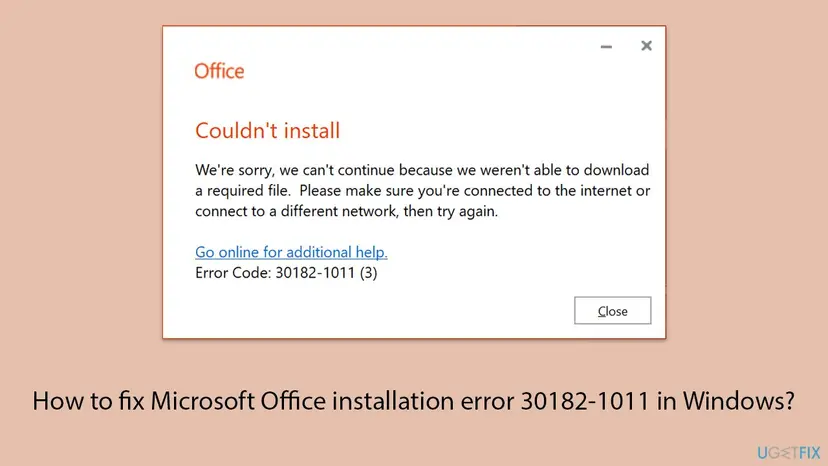
Couldn't install. We're sorry, we can't continue because we weren't able to download a required file. Please make sure you're connected to the internet or connect to a different network, then try again. Go online for additional help. Error Code: 30182-1011 (3)
The message talks about the internet, but that is only half of the story. Setup shows the same words when the files are on a local disk or a network share it cannot find. A user of the Office Deployment Tool found that a wrong SourcePath gave exactly Error Code: 30182-1011 (3), while a broken XML file gave a different code.
- The first number, 30182, names the failure: a required file could not be obtained.
- The second number changes with the job. Users report 1011 during installation, 44 during a repair, 4 and 2016 during setup, and 27 during an update. Microsoft's own page covers 30182-1 during an update.
- The number in brackets matches a Windows system error. It tells you where the file went missing, as the next section shows.
The number in brackets after 30182-1011: (2), (3), (5) and (53)
Small numbers in brackets are plain Windows system error codes. Microsoft does not document this link for Office setup, so treat the table as a strong hint, not as a diagnosis. The reports we read fit it well.
| Brackets | Windows error | Windows' own text | What it points to |
|---|---|---|---|
(2) | ERROR_FILE_NOT_FOUND | The system cannot find the file specified. | The source folder exists, but a file in it is missing. Microsoft's 30182-1 (2) page ties it to a custom update source. |
(3) | ERROR_PATH_NOT_FOUND | The system cannot find the path specified. | Setup looks in a folder that does not exist, often a SourcePath that ends in \Office. |
(5) | ERROR_ACCESS_DENIED | Access is denied. | Security software, a proxy or folder permissions stop setup from reading or writing the file. |
(53) | ERROR_BAD_NETPATH | The network path was not found. | Setup tries a network path such as \\server\share that this PC cannot reach. |
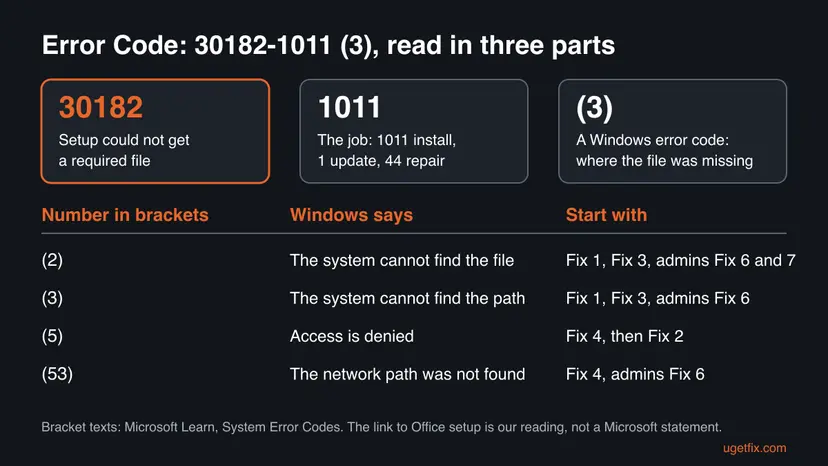
The reader who asked this question saw (53) while installing Office 2019. On a home PC, a network path usually comes from a VPN, a mapped drive or a proxy that redirects setup. We could not confirm the exact trigger for a home install, so Fix 1 to Fix 4 cover all of them.
What causes error 30182 in Office setup, from the most common to the rare
Microsoft publishes no list of causes for 30182-1011. For the same message with the codes 0-1011, 30088-1015 and 30183-1011, Microsoft names network connection issues and a hard drive running out of space. The ranking below adds the deployment cases from the reports and is an order of likelihood, not a statistic.
| How often | Cause | Typical sign | Fix |
|---|---|---|---|
| Most often | The download from Microsoft's servers was cut or slowed: Wi-Fi drops, a busy connection, too little free disk space | Setup sits at a low percentage, then fails. Brackets (2) or (3). | Fix 1 |
| Often | An older or half-installed Office on the PC that setup trips over | You upgraded from another edition, or an earlier setup or repair failed. | Fix 2 |
| Often | A proxy, VPN, firewall or security program that blocks or rewrites the download | Fails on a work, school or VPN connection, works elsewhere. Brackets (5) or (53). | Fix 3, Fix 4 |
| Less often | An installed Office whose repair or update needs to download again and cannot | 30182-44 on repair, or 30182-1 or 30182-27 on update. | Fix 5 |
| In companies | A wrong SourcePath or an unreachable share in the Office Deployment Tool XML | setup.exe /configure fails at once with (3) or (53). | Fix 6 |
| In companies | A custom update source that lacks a language pack or a version | 30182-1 (2) during updates on managed PCs. | Fix 7 |
Many websites add damaged Windows system files, the Windows Installer service or old Windows updates as causes. No Microsoft page ties them to 30182. Current Office versions use Click-to-Run, not Windows Installer, so this guide leaves those repairs out.
How to fix error code 30182-1011 when you install Office
Fix 1 to Fix 4 solve home installations and follow the order Microsoft uses for the same message. Fix 5 is for an Office that is already installed. Fix 6 and Fix 7 are for administrators who use the Office Deployment Tool or a custom update source.
| What you see or have | Start with |
|---|---|
| A home or personal PC, installing from your Microsoft account, on Wi-Fi | Fix 1, then Fix 3 |
| Another edition of Office was on the PC, or an earlier setup failed | Fix 2 |
| A work, school, hotel or VPN connection, or (5) or (53) in the brackets | Fix 4, then Fix 3 |
| Office is installed and Repair or Update Now shows 30182 | Fix 5 |
You run setup.exe /configure with an XML file and get (3) or (53) | Fix 6 |
| Managed PCs show 30182-1 (2) when Office updates | Fix 7 |
Fix 1. Restart, free disk space and run setup again on a stable connection
10 to 20 minutesNo riskEveryone, first, and above all on Wi-Fi or a slow connection.
The 30182 message is about a file that did not arrive. Microsoft's page for the same message tells you to free up drive space first, and lists a wired connection or another location as a fix. A restart also ends a stuck setup process.
- Close the setup window. Look at the notification area next to the clock. If an Office icon shows progress, wait until it is done.
- Restart the PC with Start > Power > Restart.
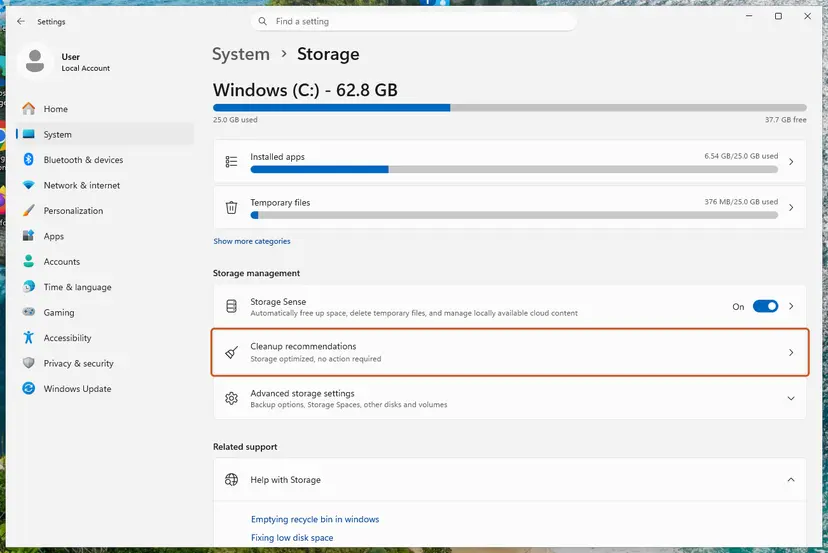
- Open Settings > System > Storage and check the free space on drive C:. Free a few gigabytes if it is low: Free up disk space and delete temporary files.
- Connect the PC with a network cable if you can. If not, move close to the router or use another network, such as a phone hotspot.
- Go to
m365.cloud.microsoft/apps, sign in with the account that owns Office and select Install apps. Office 2019 and 2021 bought with a key install from the same account page. - Run the downloaded setup file and keep the PC online and awake until you see You're all set.
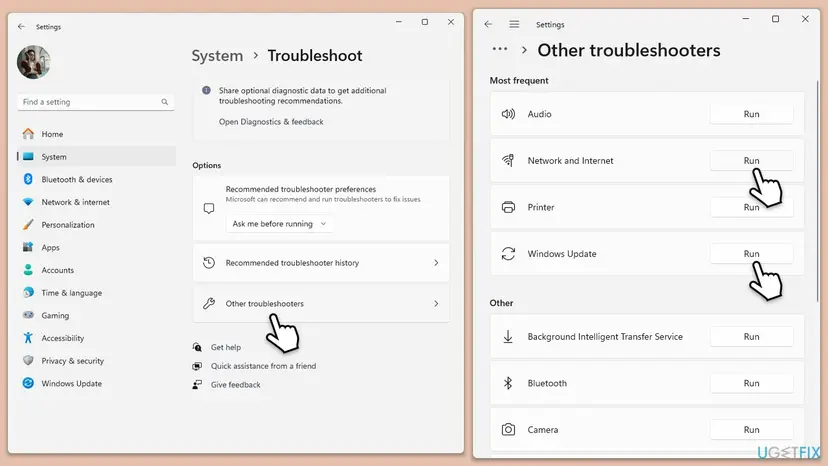
If the network itself is unreliable, run a quick check first: How to check your internet connection in Windows. Windows 11 also has a Network and Internet troubleshooter under Settings > System > Troubleshoot > Other troubleshooters.
It worked if: Setup passes the point where it stopped and ends with You're all set.
If not: If the same code returns, remove what is left of Office with Fix 2.
Fix 2. Remove every old Office with Microsoft's uninstall troubleshooter, then install again
20 to 40 minutesRead the warningAnother edition of Office was installed before, a previous setup or repair failed, or Fix 1 did not help.
Microsoft lists uninstalling and reinstalling first for the same message with 0-1011, 30088-1015 and 30183-1011. A community answer on Microsoft Q&A to 30182-44 on repair says the same: remove all versions, restart, install again.
Uninstalling removes the Office apps, not your documents. You need the Microsoft account or product key to install again, so check that you can sign in to m365.cloud.microsoft/apps first. Copy custom templates and Outlook signatures if you need them: Back up your files (Windows Backup, File History, Time Machine).
- Sign in to Windows with an administrator account.
- Open Microsoft's page Uninstall Microsoft 365 or Office from a PC and select the Uninstall button of the uninstall troubleshooter.
- When the browser shows This site is trying to open Get Help, select Open.
- Follow the prompts. When it asks which products to remove, choose all versions.
- Restart the PC when you are prompted.
- Open Settings > Apps > Installed apps (Windows 10: Apps & features) and type
office. No Microsoft 365 or Office entry should be left. - Install Office again as in Fix 1.

| Limit | What Microsoft says |
|---|---|
| Office 2024 | The uninstall troubleshooter currently can't uninstall Office 2024. Use Installed apps instead. |
| Windows | You need Windows 10 or higher, and the troubleshooter must run on the PC with the Office you remove. |
| If it stops halfway | Microsoft points to its page Manually uninstall Office. |
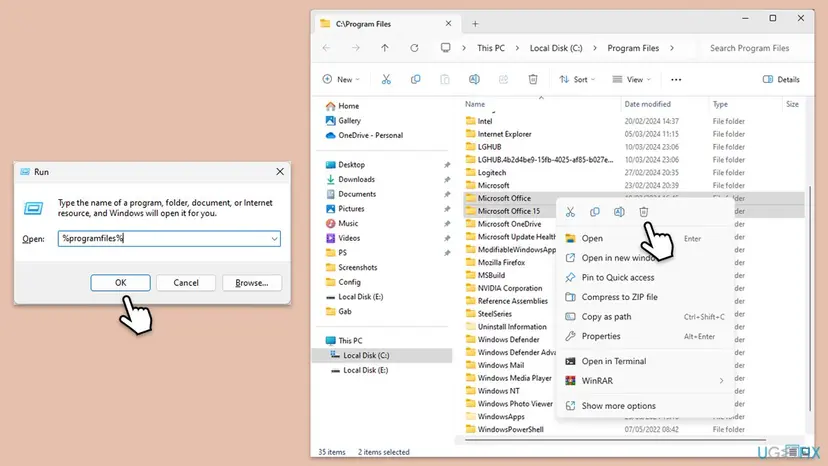
The manual removal deletes services, scheduled tasks and registry keys in a fixed order. We describe it step by step in our guide to error code 30015-25, Fix 8.
It worked if: Installed apps lists no Office, and the new setup runs through to You're all set.
If not: If the new setup fails with 30182 again, the download is the problem. Go to Fix 3.
Fix 3. Install Office with Microsoft's offline installer
20 to 40 minutesNo riskSetup keeps failing on your connection, or you cannot use a cable or another network.
Normal setup downloads files while it installs, and 30182 means one did not arrive. The offline installer downloads one image file first. Microsoft says it may help bypass proxy, firewall, antivirus or Internet connection issues.
- Open Microsoft's page Use the Office offline installer and choose the tab for Office for home.
- Select the download button and sign in with the account that owns Office.
- In the Install window, select Offline installer in the Choose a version list.
- Pick the language and select Install. Save the file.
- Open the Downloads folder and double-click the image file. For Microsoft 365 Family and Personal it is
O365HomePremRetail.img. - A virtual drive opens. If not, find the new drive, for example (D:), in File Explorer.
- Open the Office folder and run
Setup64.exefor 64-bit Office orSetup32.exefor 32-bit. - When setup is done, connect to the internet, open Word and activate.
Download the image on another network or another PC and copy it on a USB drive. The installation from the image runs without a connection.
It worked if: Setup started from the image ends with You're all set, and the Office apps appear in the Start menu.
If not: If the offline setup ends with 30182 as well, something on the PC blocks setup. Go to Fix 4.
Fix 4. Test without proxy, VPN and security software, and on another network
10 to 20 minutesLow riskA work, school or VPN connection, or (5) or (53) in the brackets.
Microsoft's fix order for this message continues with turning off proxy settings, antivirus and firewall for the test, and installing from home. Access denied (5) and network path not found (53) both fit something between setup and its files.
- Disconnect any VPN and disconnect mapped network drives you do not need.
- Open Settings > Network & internet > Proxy. Under Manual proxy setup, note the setting, switch the proxy off and select Save.
- Pause the real-time protection of your security program for one attempt: Turn off Microsoft Defender protection for a moment.
- Run Office setup again.
- Turn the protection and the proxy setting back on straight away, whatever the result.
- If it still fails, try at home or on a phone hotspot. Office installed there works the same at work afterwards, Microsoft says.
If Office installs only with the protection paused, do not leave it off. Use the offline installer from Fix 3, or ask the maker of the security program why it blocks a Microsoft installer.
Microsoft points to its list of Microsoft 365 URLs and IP address ranges. The setup log in a Super User case shows the files coming from officecdn.microsoft.com and a detected proxy failure. Allow that address through the proxy.
If network settings themselves are damaged after a VPN or proxy program, a network reset restores them: Reset the network and flush DNS.
It worked if: Setup passes the first few percent and finishes on the other network or with the proxy off.
If not: Turn everything back on. If the network made no difference and you use an XML file, go to Fix 6.
Fix 5. Repair an installed Office with Quick Repair when Online Repair or an update shows 30182
5 to 10 minutesLow riskOffice is installed, and Online Repair ends with 30182-44, or Update Now ends with 30182.
Online Repair downloads the Office files again, which is exactly the step that fails with 30182. Microsoft describes Quick Repair as fixing most issues without the need for an internet connection.
- Close all Office apps, including Outlook and Teams.
- Windows 11: right-click Start and select Installed apps. Windows 10: select Apps and Features.
- Find your Microsoft 365 or Office product, select the three dots or the entry, then Modify.
- In How would you like to repair your Office programs? select Quick Repair, then Repair.
- Restart the PC and open Word to test.
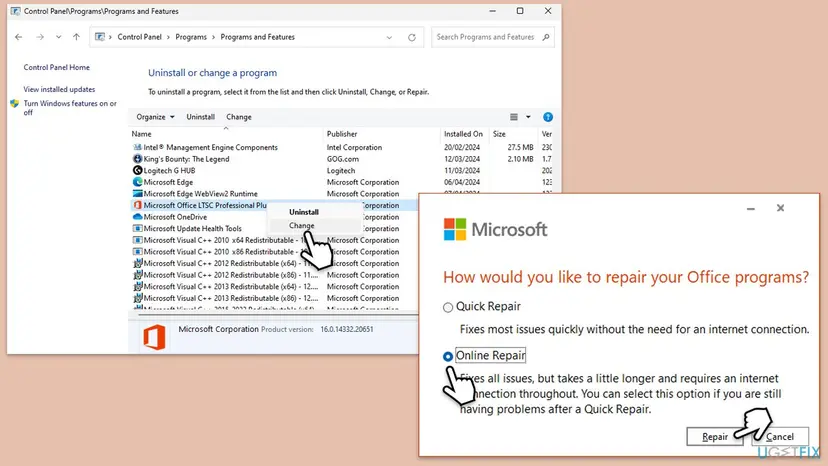
All screens and the Control Panel route are in the library procedure: How to repair Microsoft 365 or Office. If Quick Repair fixes the apps but updates still fail with 30182, the update source is the problem: on a managed PC that is Fix 7, at home it is Fix 1 or Fix 4.
It worked if: The repair finishes without an error and the apps open normally.
If not: If Quick Repair also fails, remove Office completely with Fix 2.
Fix 6. Fix the SourcePath in the Office Deployment Tool XML
10 to 30 minutesLow riskYou install with setup.exe /configure and an XML file, for example volume licensed Office 2019 or 2021, and get (3) or (53).
When the Office Deployment Tool cannot find its files at the source, it tries to download them and shows the 30182 message. A Super User case reproduced 30182-1011 (3) with a SourcePath that ended in Office.
- Put
setup.exeand your XML file in one folder, for exampleC:\ODT. - Download the files first, in an elevated Command Prompt:
cd C:\ODT setup.exe /download configuration.xml - Check that
C:\ODT\Office\Datanow exists. That Office folder is created by the tool. - Open the XML file. Set SourcePath to the folder that contains Office, not to the Office folder itself:
SourcePath="C:\ODT". - For a network share, open the path in File Explorer from the target PC with the account that runs setup. If Windows says the network path was not found, that is (53).
- Run the installation with the same XML file:
setup.exe /configure configuration.xml
Example for Office LTSC Professional Plus 2021. Copy the product ID and channel from your own XML.
<Configuration>
  <Add SourcePath="C:\ODT" OfficeClientEdition="64" Channel="PerpetualVL2021">
    <Product ID="ProPlus2021Volume">
      <Language ID="en-us" />
    </Product>
  </Add>
  <Logging Level="Standard" Path="C:\ODT\log" />
</Configuration>The SourcePath value shouldn't include the /Office part or the name of the folder on which Office Data is downloaded. If SourcePath is missing, the tool looks next to itself and then on the content delivery network.
- Check the cab file name in the log. One Super User answer found setup looking for
v32.cabwhile the downloaded file carried a version number in its name. - Use the current Office Deployment Tool. A Super User answer reports that an old build ignored local sources when no SourcePath was set.
It worked if: setup.exe /configure installs from the local files without trying to download them.
If not: Open the log in the Logging path and search for the source path. If updates fail later, go to Fix 7.
Fix 7. Let managed PCs fall back to Microsoft's servers for updates
15 minutesRead the warningPCs in an organisation show 30182-1 (2) when Office updates, and an administrator set a custom update or install source.
Microsoft's page for 30182-1 (2) says the error can occur when an administrator used a custom source location for Office updates. Allowing the content delivery network as a fallback lets setup fetch what the custom source lacks.
If you are not responsible for the PCs, contact your IT or Help Desk department, as Microsoft advises. Option 2 changes the registry: export the key first, Back up the registry before editing it. Microsoft warns that serious problems might occur if you modify the registry incorrectly.
Option 1, in the Office Deployment Tool: add AllowCdnFallback="True" to the Add element of the configuration file and run it again.
Microsoft's example from the 30182-1 (2) page
<Configuration>
  <Add OfficeClientEdition="32" AllowCdnFallback="True">
    <Product ID="LanguagePack">
      <Language ID="ja-jp" />
    </Product>
  </Add>
</Configuration>
Option 2, on each PC: add the registry value that Microsoft names, under HKEY_LOCAL_MACHINE\SOFTWARE\Microsoft\Office\ClickToRun\Configuration.
Run in an elevated Command Prompt
reg add HKLM\SOFTWARE\Microsoft\Office\ClickToRun\Configuration /v AllowCdnFallback /t REG_SZ /d TrueMicrosoft documents the fallback for language packs: the tool first searches the SourcePath, and uses the CDN only if a language pack is not there. Check that your update share holds the version and all languages your PCs use.
It worked if: Update Now in File > Account finishes, and the update no longer stops with 30182-1 (2).
If not: Read the setup log as described below and compare the version it asks for with the folders on your share.
If 30182-1011 is still there: read the setup log
The setup window gives one line. Click-to-Run writes the full story to its log files. Microsoft says the logs for installation or patching issues are in the %temp% folder, with names in the MachineName-Date-time.log format.
- Run setup once more and note the time it fails.
- Press Win + R, type
%temp%and press Enter. Use the account that ran setup. - Switch to the Details view and sort by Date modified, newest first.
- Open the newest file that starts with the name of your PC and ends in
.log. - Press Ctrl + F and search for
30182, then fordownloadandfail. Read the lines just before. - Look for a file path or a web address. A path points to the source folder, an address to the network.
- Repeat it in
%windir%\Temp. With the Office Deployment Tool, also read the folder named in its Logging element.
If the log is too short, Microsoft's enterprise logging turns on verbose logs with two registry values. Restart the Microsoft Office Click-to-Run service afterwards so that they apply.
Turn verbose setup logging on, in an elevated Command Prompt
reg add HKLM\SOFTWARE\Microsoft\ClickToRun\OverRide /v LogLevel /t REG_DWORD /d 3
reg add HKLM\SOFTWARE\Microsoft\ClickToRun\OverRide /v PipelineLogging /t REG_DWORD /d 1Export the key first: Back up the registry before editing it. Remove the two values again with reg delete when you have the log, because verbose logs grow large.
- Test with a new administrator account when the log shows access errors: Create a new user account to test a problem.
- What to send to Microsoft support or your administrator: the full code with the brackets, the moment it appears, the product, 32-bit or 64-bit, the Windows version and the newest log.
- When it is not a problem on your PC: a managed work PC may block installations by policy, and your account may show no product to install. Those are questions for the administrator or the seller.
How to avoid error 30182 the next time you install or update Office
Almost every 30182 report starts with a file that could not be fetched. Give setup a stable connection, room on the disk and a source it can reach.
- Install on a cable or a stable home network, with a few gigabytes free on drive C:.
- Remove the old Office with Microsoft's tools before you install another edition.
- Keep the offline installer image on a USB drive if your connection is slow or filtered.
- In companies, run
setup.exe /downloadfirst and point SourcePath at the folder that holds Office. - Keep update shares complete, with every language and version your PCs use.
- Close the lid or let the PC sleep while setup or an update runs.
- Start a second installation while an Office icon still shows progress.
- Leave a proxy or VPN on during setup if it has caused trouble before.
- Leave security software paused after a test.
- Set a SourcePath that ends in
\Office.
Frequently asked questions
What does error code 30182 mean in Office?
It means that Office setup could not get a file it needs to continue. The window says it was not able to download a required file and asks you to check the internet connection. The file can come from Microsoft's servers or from a source folder an administrator set, so the cause is either the connection or that folder. The number after the dash shows the job, such as 1011 for installation, and the number in brackets is a Windows error that tells you where the file went missing.
How do I fix error 30182-1011 (3) or (2)?
On a home PC, restart, free some disk space and run setup again on a cable or another network. If that fails, remove every old Office with Microsoft's uninstall troubleshooter and install again, or use the offline installer. The brackets (3) and (2) mean a path or a file was not found. With the Office Deployment Tool that usually means a wrong SourcePath: Microsoft says the value must not include the Office folder itself. Fix 6 shows the correct XML.
What is error 30182-4 or 30182-44 in Office?
They belong to the same family as 30182-1011: a file could not be fetched. Users report 30182-4 during setup and 30182-44 during a repair of an installed Microsoft 365. Microsoft has no page for either. For 30182-44 on repair, try Quick Repair, which works without the internet (Fix 5). A community answer on Microsoft Q&A advised a full removal with the uninstall tool and a new installation in that case (Fix 2).
What is error code 30182-1 when Office updates?
Microsoft documents it as error 30182-1 (2) when updating Office. It can occur when an administrator used a custom source location for Office updates, and the update cannot find what it needs there. If you are not the administrator, Microsoft tells you to contact your IT or Help Desk department. Administrators can allow a fallback to Microsoft's content delivery network with AllowCdnFallback in the Office Deployment Tool or in the registry, as Fix 7 shows.
Why does Office say it was not able to download a required file when my internet works?
Because the browser and Office setup do not use the connection in the same way. A proxy, a VPN, a firewall or security software can let web pages through and still block or rewrite the Office download. Setup also shows this message when the files should come from a local folder or a network share that it cannot find. Test without proxy, VPN and paused protection (Fix 4), or use the offline installer, which needs only one download (Fix 3).
What does (53) after 30182-1011 mean?
The number 53 matches the Windows system error ERROR_BAD_NETPATH, whose text is: The network path was not found. That reading is ours, Microsoft does not document the brackets for Office setup. It fits an installation that points at a network share, such as a SourcePath of the Office Deployment Tool, which the PC cannot reach. On a home PC, disconnect VPNs and mapped drives and turn off a manual proxy, then run setup again from your account.
Can I still install Office 2019 if I get error 30182-1011?
Yes. Office 2019 still installs and runs, and the fixes on this page work for it. Volume licensed Office 2019 is installed with the Office Deployment Tool, so check its SourcePath first. Keep in mind that Microsoft ended support for Office 2016 and Office 2019 on 14 October 2025, with no extension. They get no more security updates. A newer Office or Microsoft 365 is the safer choice if you are buying now.
Will I lose my files if I uninstall Office to fix this error?
No. Uninstalling Office removes the applications, not the documents, workbooks and presentations you created. Mail in a Microsoft 365, Exchange or Outlook.com account stays on the server. Before you remove Office, make sure you know the Microsoft account or the product key, because you need it to install and activate again. Copy custom templates and Outlook signatures if you would miss them.
I searched for 30182 in another language or with tencent or youtube. Is this the right page?
This page is about Microsoft Office error 30182 on Windows. The code and the fixes are the same in every language of Office, so the steps here also answer searches such as solucion, how to fix in Russian or solution in Hindi. Searches like tencent30182 or youtube30182 most likely have nothing to do with Office. If your 30182 appears in a game or another program, this guide does not apply.
Sources
- Microsoft Support: Error code 30182-1 (2) when updating Office (support.microsoft.com)
- Microsoft Support: Error code 0-1011, 30088-1015, or 30183-1011 when installing Office (support.microsoft.com)
- Microsoft Support: Troubleshoot installing Office (list of installation error codes) (support.microsoft.com)
Did this fix work?
One click, no account. It tells the next reader which guides are worth their time.
Questions and experiences: fix Microsoft Office installation error 30182-1011 in Windows
Still broken, or found a fix we did not cover? Ask here: members and our editors answer. Reading is open; writing needs a free account.
…