
How to fix Microsoft Store error 0x8A150049?

Prefer to fix it yourself? The manual steps follow.
- 7methods
- 5 to 30 minutes
- Easy
Applies to Windows 11 and Windows 10; Microsoft Store and winget (App Installer) when they install desktop apps that use an MSI installer, such as Epic Games Launcher
7 methods in this guide
I can't install any apps from the Microsoft Store as of recently. I am not sure what happened; it started randomly. I am running Windows 11 version 23H2, and my computer is relatively new, as I bought it last year.
Error 0x8A150049 is not a Store fault in most cases. It is a WinGet code that means the app maker's MSI installer failed while the Store or winget ran it. Install the app with its maker's own installer first, which also shows the real reason.
0x8A150049 means "Running MSI install failed": the Store or winget started the app maker's MSI installer and it stopped with an error. Download the app from its maker's website and run that installer (Fix 1). For Epic Games Launcher, install from a Windows account with no space in its user name (Fix 2). If every app fails, reset Microsoft Store (Fix 5).
| Error | 0x8A150049. WinGet name: APPINSTALLER_CLI_ERROR_MSI_INSTALL_FAILED, described by Microsoft as "Running MSI install failed". |
|---|---|
| Where it appears | Microsoft Store when you install or update a desktop app, often with "Something went wrong". Also in Terminal as winget returned an error: 0x8a150049. |
| Main cause | The app's own MSI installer failed. Most reports name Epic Games Launcher, which fails when the Windows user name has a space. |
| Fastest fix | Run the app maker's own installer (Fix 1). For Epic, use an account without a space in its name (Fix 2). |
| Also written as | 0x8a150049, 8A150049, decimal -1978335159, Running MSI install failed. |
| Affects | Windows 11 and Windows 10 with App Installer. Windows 10 left Microsoft support on 14 October 2025; the fixes still apply to it. |
| Microsoft's status | A documented WinGet return code, not a known Store bug. The fix sits in the failing app's installer, not in Windows. |
| Neighbour codes | 0x8A15004A (invalid msiexec arguments), 0x8A15004B (a source could not be opened), 0x8A15005E (certificate did not match). |
| Time to fix | 5 minutes for Fix 1. Up to 30 minutes when you need a second Windows account or pending updates. |
Facts checked on 15 October 2026. Steps written for Windows 11 (25H2 and 26H2) and Windows 10 22H2.
What error 0x8A150049 means in Microsoft Store and winget
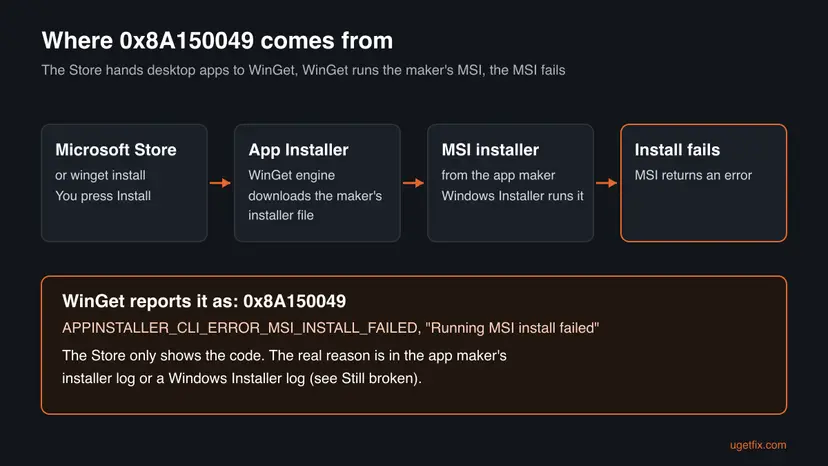
Codes that start with 0x8A15 belong to the Windows Package Manager, WinGet, which ships as App Installer. Microsoft's list of WinGet return codes gives 0x8A150049 the name APPINSTALLER_CLI_ERROR_MSI_INSTALL_FAILED and one line of meaning: "Running MSI install failed".
So the download worked. WinGet found the installer file, started it with Windows Installer, and that installer ended with an error. The code tells you which step failed, not why. The reason is inside the installer's own log.
- Why the Store shows a WinGet code
- Desktop apps in Microsoft Store, such as Epic Games Launcher, are not app packages. Our reading is that the Store hands them to the same installer engine as winget, so the WinGet code comes through. Microsoft does not document this link on a help page.
- What users see
- Users report a Store message "Something went wrong" with the code, on install or on update. In Terminal it reads
winget returned an error: 0x8a150049or similar. - What it is not
- Not a network error and not a broken Store cache in most cases. A Store app package (MSIX) cannot fail with an MSI error.
Why 0x8A150049 appears: the causes, ranked
Most often one app's MSI installer cannot finish on your PC, and Epic Games Launcher is the app most reports name. Less often an older or broken copy of the same app is in the way, or Windows has an install or restart waiting. Rarely the Store itself or Windows system files are damaged.
| Cause | How often | How to tell | Fix |
|---|---|---|---|
| The app's MSI installer fails on this PC, for a reason only its log shows. | Most often | One desktop app fails; other Store apps install. | Fix 1 |
| Epic Games Launcher and a Windows user name with a space, such as "Anna Smith". | Often | The direct installer says "Epic Games Launcher Wizard ended prematurely because of an error." | Fix 2 |
| An older or half-installed copy of the app blocks the new one. | Sometimes | The app is in Installed apps but does not start. | Fix 3 |
| Windows updates or another setup are still running, or a restart is pending. | Sometimes | Windows Update asks for a restart. | Fix 4 |
| The Store or App Installer itself is stuck or out of date. | Rarely | Every app fails, including small Store apps. | Fix 5 |
| Damaged Windows system files used by Windows Installer. | Rarely | Other setups fail with errors too. | Fix 6 |
| Third-party security software blocks the installer. | Rarely | The installer file is quarantined or vanishes. | Fix 7 |
How to fix error 0x8A150049 in Microsoft Store and winget
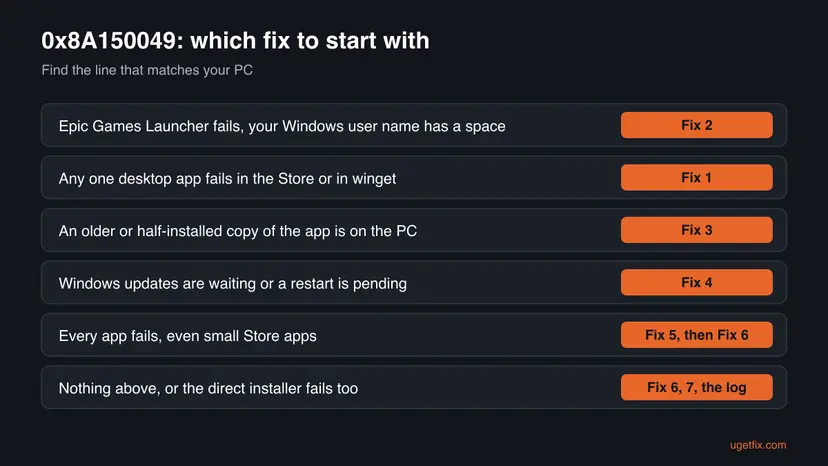
Fix 1 works for most readers because it removes the Store from the chain and shows the installer's own message. Fix 2 is the known cause for Epic Games Launcher. Fixes 3 and 4 clear what blocks a new install. Fixes 5 to 7 are for a Store or a Windows that is broken itself.
| What you see or have | Start with |
|---|---|
| One desktop app, for example a launcher or a tool, fails in the Store or in winget. | Fix 1 |
| Epic Games Launcher fails, and your Windows user name has a space in it. | Fix 2 |
| An older or half-installed copy of the app is still on the PC. | Fix 3 |
| Windows updates are waiting, or Windows asks for a restart. | Fix 4 |
| Every app fails, even small Store apps, as in the question above. | Fix 5, then Fix 6 |
| The maker's own installer fails too, and nothing above fits. | Fix 6, Fix 7, then the logs in the next section |
Fix 1. Install the app with its maker's own installer
5 minutesLow riskEveryone, first, when one desktop app fails with 0x8A150049.
The code says the MSI installer failed, so the Store adds nothing but a hidden error. Run the same installer yourself and it either works or shows its own message, which names the real problem.
- Close Microsoft Store.
- Open the app maker's official website in your browser, for example the Epic Games site for Epic Games Launcher. Do not use a download mirror.
- Download the Windows installer. It usually ends in
.msior.exe. - Double-click the file and follow the setup. Choose Yes when User Account Control asks.
- Read the last page of the setup before you close it. Write down any message word for word.
If you install with winget, add --verbose-logs to the same command once. The extra detail goes into the WinGet log folder described in the Still broken section.
It worked if: The setup ends without an error and the app opens from the Start menu. Store updates for it may still fail; the app's own updater then takes over.
If not: If the setup ends with "Wizard ended prematurely" or another error, that message is the real cause. For Epic Games Launcher go to Fix 2; otherwise try Fix 3.
Fix 2. Epic Games Launcher: install from an account without a space in the user name
15 minutesLow riskEpic Games Launcher fails with 0x8A150049 in the Store, or with "Wizard ended prematurely" from its own installer.
A developer who hit both errors found in the Epic installer log that it could not create a temporary folder when the user name had a space. An account without a space let the launcher install, and it stayed installed afterwards.
First check your user name: open File Explorer, go to C:\Users, and look at your folder's name. If it has a space, such as C:\Users\Anna Smith, this fix is for you. A Microsoft account name with a first and last name often gives such a folder.
Make a second, local account whose name has no space, for example installer. Step by step: Create a new user account to test a problem
- Press Win + I and open Accounts > Other users (Windows 10: Accounts > Family & other users).
- Select the new account, then Change account type, choose Administrator and select OK.
- Sign out, sign in to the new account and install Epic Games Launcher with the installer from the Epic Games website.
- Sign out and sign back in to your own account. Open Epic Games Launcher from the Start menu.
- If the launcher works, remove the temporary account in Accounts > Other users > Remove.
It worked if: The setup ends normally in the temporary account, and the launcher opens from your own account too.
If not: If it also fails in the new account, the user name was not the cause. Remove old Epic files with Fix 3.
Fix 3. Remove the old or half-installed copy of the app, then install again
10 minutesLow riskThe app is listed in Installed apps but does not start, or an older version was never removed.
An MSI installer checks for earlier versions of its own product. A broken or older entry can make the new setup stop, and WinGet then reports it as an MSI failure.
Uninstall the app from Settings > Apps > Installed apps (Windows 10: Apps & features). Step by step: Uninstall a program or app in Windows
- Restart the PC after the uninstall.
- Open File Explorer and check
C:\Program FilesandC:\Program Files (x86)for a folder of the app. Delete it only if the uninstall is finished and the folder is still there. - Install the app again with the maker's installer, as in Fix 1.
For a game launcher, uninstalling it can also remove installed games in its folder. Move the game folders out first, or check that your saves are in the cloud.
It worked if: The app is no longer in Installed apps after the uninstall, and the new setup ends without an error.
If not: If the app cannot be uninstalled or the new setup still fails, finish pending updates with Fix 4.
Fix 4. Finish pending updates, restart, then update App Installer
10 to 30 minutesNo riskWindows Update asks for a restart, or the PC has not been restarted for days.
Windows Installer runs one setup at a time. A Windows update or another program that is still installing can make the new MSI stop, and an old App Installer may handle the installer badly.
- Press Win + I, open Windows Update (Windows 10: Update & Security > Windows Update) and select Check for updates.
- Install what is offered and choose Restart now when asked.
- Open Microsoft Store, select Library (Windows 10: See more > My Library), then Get updates. This also updates App Installer, which holds WinGet.
- Restart once more and try the install again.
It worked if: Windows Update shows "You're up to date", App Installer is updated, and the Store install completes.
If not: If every Store app still fails, reset the Store with Fix 5.
Fix 5. Repair or reset Microsoft Store
5 minutesLow riskEvery app fails with 0x8A150049, even small Store apps, as in the reader's question.
If all installs fail, the Store and App Installer pair is the common factor. Clearing the cache and resetting the Store gives it a fresh start; purchases stay in your Microsoft account.
- Clear the Store cache. Press Windows + R, type wsreset.exe and select OK. A blank Command Prompt window opens; after a short while it closes and Microsoft Store opens by itself.

After wsreset, the Store opens and loads again. Screenshot: Windows 11 26H2. - Open System components. If the problem stays, select Start > Settings > System > System components. Next to Microsoft Store, select the three dots and Advanced options. If Microsoft Store is not listed there, look for it in Settings > Apps > Installed apps.
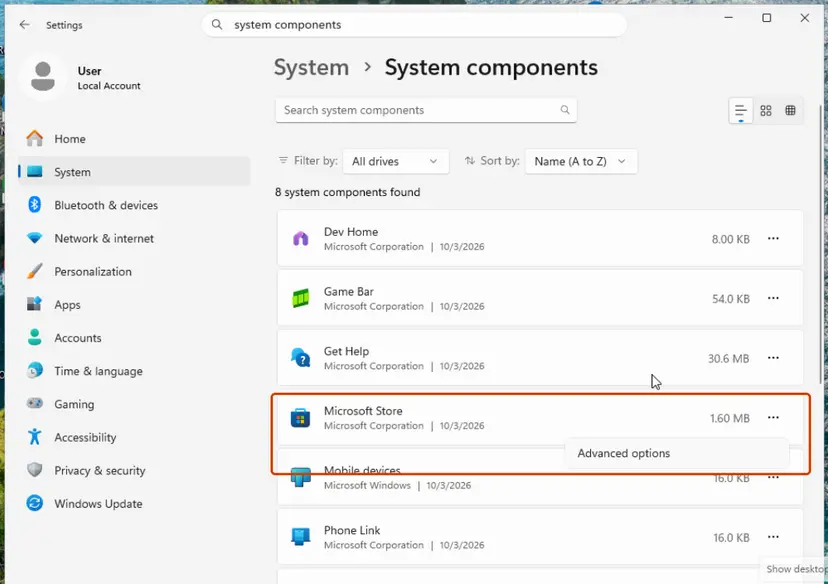
Microsoft Store is listed under System components. Screenshot: Windows 11 26H2. - Repair first. Scroll to Reset and select Repair. Repair keeps the app's data. Open the Store and check whether it works.
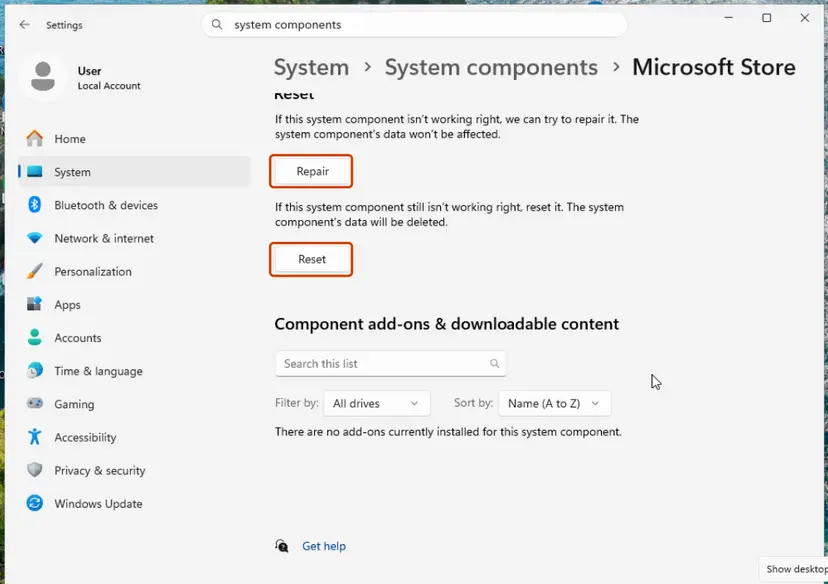
Repair keeps the app's data; Reset deletes it. Screenshot: Windows 11 26H2. - Reset if Repair did not help. Select Reset and confirm. This deletes the Store app's data on this PC; your purchases stay in your Microsoft account. Open the Store and sign in again.
These steps were written for Windows 11 26H2 (build 26300). The full page with the other versions and what each result means: Reset the Microsoft Store
Then repeat the same reset for App Installer in Settings > Apps > Installed apps > App Installer > Advanced options. Choose Repair first and Reset only if Repair does not help.
It worked if: The Store opens on the home page after wsreset, and a small free app installs without an error.
If not: If small apps install but one desktop app still fails, go back to Fix 1. If nothing installs, run Fix 6.
Fix 6. Repair Windows system files with DISM and SFC
15 to 30 minutesLow riskSeveral setups fail, inside and outside the Store.
Windows Installer and the Store depend on Windows system files. If those are damaged, every MSI setup can fail, and DISM and SFC replace them with good copies.
- Open an elevated command window. Right-click Start and select Terminal (Admin), or type cmd in the search box, right-click Command Prompt and select Run as administrator. Select Yes when Windows asks for permission.

Search for cmd and choose Run as administrator. Screenshot: Windows 11 26H2. - Run DISM first. Type the command below and press Enter. DISM downloads clean copies of damaged components from Windows Update, so it can take several minutes. Wait until it says The operation completed successfully.
DISM.exe /Online /Cleanup-Image /RestoreHealth
DISM /RestoreHealth running. Screenshot: Windows 11 26H2. - Run System File Checker. In the same window, type the command below and press Enter. Do not close the window until the verification reaches 100%.
sfc /scannow
sfc /scannow at 100%. Screenshot: Windows 11 26H2. - Read the result and restart. Compare the last message with the table below this guide, then restart the PC so that repaired files are loaded.

The result line tells you what SFC did. Screenshot: Windows 11 26H2.
These steps were written for Windows 11 24H2 and 25H2. The full page with the other versions and what each result means: Run DISM and SFC to repair Windows system files
It worked if: SFC says it found and repaired files, or found no integrity violations. Restart and try the install again.
If not: If SFC cannot repair files or the install still fails, run the last test in Fix 7 and read the logs.
Fix 7. Pause third-party antivirus for one test
5 minutesRead the warningLast, when the installer file disappears or the setup stops at once, and you use security software other than Microsoft Defender.
Security software can block an installer from writing files or starting services, and the MSI then fails. One test with protection paused shows whether it is involved.
Pause protection for one install only, with the installer from the maker's official site. Turn protection back on right after the test, whether it worked or not. Never leave it off as a fix.
- Download the installer again from the maker's official site.
- Open your security software and choose its pause or disable option for a short time, such as 10 minutes. For Microsoft Defender: Turn off Microsoft Defender protection for a moment
- Run the installer once.
- Turn protection back on right away, whether the install worked or not.
It worked if: The install works with protection paused. Add the app's folder as an exception in your security software and turn protection back on.
If not: If it still fails, turn protection on again and read the logs in the next section.
If 0x8A150049 is still there: read the installer log
The code only says the MSI failed. If none of the fixes worked, the reason is written in one of three logs. Read them from the most specific one.
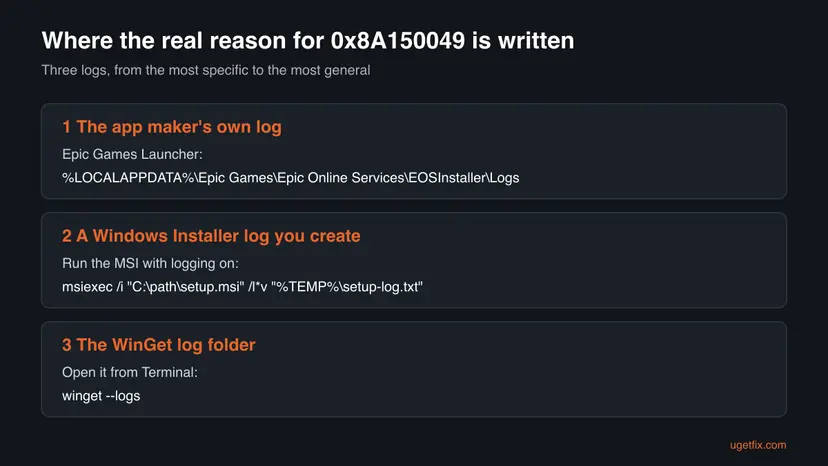
- The app maker's log. Epic Games Launcher writes
EOSInstaller-DATE-TIME.login%LOCALAPPDATA%\Epic Games\Epic Online Services\EOSInstaller\Logs. Look for lines with "Could not" or "Failed". - A Windows Installer log. Run the downloaded MSI from Command Prompt with logging on, then open the text file and search for "Return value 3". The lines just above it name the failing step.
- The WinGet log folder. Type
winget --logsin Terminal to open it, and open the newest file.
Command Prompt: run an MSI with a full log (change the path to your file)
msiexec /i "C:\Users\you\Downloads\setup.msi" /l*v "%TEMP%\setup-log.txt"- What to send to the app's support: the app name and version, the log lines around the failure, your Windows version from Settings > System > About, and the fixes you tried.
- It did not work ("no sirvió"): if all seven fixes fail and the log points to the app, only its maker can fix the installer. Ask them with the log.
- When it is not your PC: a work or school PC can block installs by policy. Ask the administrator before you change anything.
How to keep 0x8A150049 from coming back
The error comes from installers, so prevention is about giving them a clean start. These habits cover the common cases, including the user name bug.
- Install desktop apps from their maker's official site when the Store fails.
- Restart after Windows updates before you install new programs.
- Keep App Installer and Microsoft Store updated through Library.
- Uninstall an app fully before you install it again.
- Rename your user folder by hand to remove a space; it can break your profile.
- Remove Microsoft Store with PowerShell to "reinstall" it.
- Leave antivirus off after a test.
- Download installers from mirror sites.
Frequently asked questions
What does error 0x8A150049 mean?
It means an MSI installer run by WinGet failed. Microsoft's list of WinGet return codes names it APPINSTALLER_CLI_ERROR_MSI_INSTALL_FAILED and describes it as "Running MSI install failed". The Store shows it when a desktop app's installer stops with an error. The code does not say why; the installer's own log does. Start with the maker's installer from its official site (Fix 1), because its message names the real cause.
Why does winget return error 0x8a150049?
When winget install or winget upgrade says it returned 0x8a150049, the package's MSI installer ran and ended with an error. WinGet itself worked: it found and downloaded the installer. Run the command again with --verbose-logs, then type winget --logs to open the log folder. You can also download the installer by hand and run it, as in Fix 1. If the installer fails outside winget too, the problem is in the app's setup, not in winget.
How do I fix 0x8A150049 for Epic Games Launcher?
Check whether your Windows user folder has a space in its name, such as C:\Users\Anna Smith. A developer found that the Epic installer could not create a temporary folder in that case. It failed in the Store with 0x8A150049 and in its own setup with "Wizard ended prematurely". Install the launcher from a second administrator account with no space in its name (Fix 2). The launcher then works from your own account too.
Is error 0x8A150049 a problem with my internet or DNS?
Usually not. The code is raised after the installer was downloaded, when it runs. Changing DNS servers or TLS settings, as older guides suggest, does not touch an MSI failure. Those steps belong to other Store errors, such as 0x80131500, which a Microsoft forum answer linked to this code. If small Store apps also fail to download, check the connection, but start with Fix 1 for a single desktop app.
Every app in Microsoft Store fails with 0x8A150049. What should I do?
If even small Store apps fail, the Store or App Installer is the common factor. Install pending updates and restart (Fix 4), then repair and reset Microsoft Store and App Installer (Fix 5). Your purchases stay in your Microsoft account. If installs still fail outside the Store too, repair system files with DISM and SFC (Fix 6). The reader's case above, with all apps failing on a new PC, fits this path.
Can I just reinstall Microsoft Store to fix 0x8A150049?
We do not advise removing Microsoft Store with PowerShell. Removing it for all users can leave you without a Store, and the error is in the app's installer anyway. Repair and Reset in Settings do the same job safely (Fix 5). Re-registering the Store is a different step, for a Store that does not open at all; it does not help an MSI failure.
Does 0x8A150049 happen on Windows 10?
Yes. The code comes from App Installer, which runs on Windows 10 and Windows 11 alike, and the fixes are the same. The menu names differ slightly, and each fix gives both. Windows 10 left Microsoft support on 14 October 2025, so it gets no more security updates. The Store and App Installer may still update for a while, but plan the move to Windows 11.
Is 0x8A150049 related to 0x8A15004A or 0x8A15005E?
They come from the same WinGet list but mean different things. The code 0x8A15004A means the arguments for msiexec are invalid, usually a fault in the package's manifest. The code 0x8A15004B means one or more sources could not be opened. The code 0x8A15005E means the server certificate did not match the expected values, a network or proxy problem. Only 0x8A150049 means the MSI itself ran and failed.
¿Cómo desinstalo Microsoft Store de Windows X-Lite?
This page is about error 0x8A150049, not about removing the Store. Windows X-Lite is an unofficial, modified build of Windows made by a third party, not by Microsoft, and it may already lack parts that the Store and App Installer need. We do not advise removing Microsoft Store to fix this error: the cause is the app's installer. If the error appears on such a build, a clean official Windows install is the reliable base.
I have the same problem and nothing worked. What now?
Read the installer log described in the Still broken section. It names the step that failed, such as a folder that could not be created or a file that is in use. Send those lines, the app name and your Windows version to the app's support: only its maker can fix a broken installer. Users of the Epic launcher report the user name fix as the one that worked.
Sources
- Microsoft, winget-cli documentation: WinGet return codes (0x8A150049 APPINSTALLER_CLI_ERROR_MSI_INSTALL_FAILED) (github.com)
- Microsoft Q&A: Microsoft Store unable to install apps? Error 0x8A150049 (user reports) (learn.microsoft.com)
- Adam Sawicki: Solution to Epic Games Launcher Wizard Ended Prematurely (asawicki.info)
Did this fix work?
One click, no account. It tells the next reader which guides are worth their time.
Questions and experiences: fix Microsoft Store error 0x8A150049
Still broken, or found a fix we did not cover? Ask here: members and our editors answer. Reading is open; writing needs a free account.
…