How to fix
Microsoft Store error 0xC002001B
on Windows
Resolve Microsoft Store error 0xC002001B on Windows 10 or 11 with our expert-tested solutions. Get back to downloading apps in minutes!

What causes How to fix Microsoft Store error 0xC002001B?
- Corrupted system files
- Bugged Windows Store cache
- Inconsistent internet connection
- Issues with the Microsoft Store app
Repairs Windows system files, removes malware, and restores a clean OS state — without reinstalling.
Hello, I can't download or update any apps from Microsoft Store - I get an error code 0xC002001B every time I try. Also, I tried downloading some apps through the browser and it worked sometimes, even though I did receive the same error a few times as well. Any tips on this?
Microsoft Store is an official Windows app that allows users to download and update approved applications, removing the necessity of visiting third-party marketplaces. First introduced in 2012,[ref en-3] the Store was met by users positively overall, and since then, became one of the integral Windows parts most people don't imagine a modern operating system without.
Just like any other component, this one might also malfunction sometimes. Whenever some users attempt to download or update an app via Microsoft Store, they receive the 0xC002001B error, which automatically stops the process. Store App download errors are not uncommon, as we previously talked about 0x8007064a, 0x800B010FI, 0x80073D01, and others.
In this case, users receive the error after initiating a download, which then returns a generic message asking to try again later. Trying to download the app or its update later does not yield any positive results, and users are still stuck with the same issue after a while. It is also worth noting that the error code might be shown within the Windows Script Host pop-up window when trying to activate Windows.[ref en-1]
There could be several reasons for the 0xC002001B error code to show up. For example, corrupted system files, bugged[ref en-2] Windows Store cache, inconsistent internet connection, and similar issues could all be causing it. Sometimes, it is difficult to determine what is causing the error to show up, so we recommend trying the [d1] PC repair utility, which can often save hours of troubleshooting time and automatically resolve computer problems. Alternatively, proceed with the manual solutions below.
Fix 1. Reset Windows Store cache
Bugged app cache might prevent you from downloading new data from the Store thus you should try resetting it:
- In Windows search, type wsreset.exe and press Enter
- Wait till a black window shows up – do not close it
- Once it's gone, Microsoft Store should restart
- Try using the Store again.
Fix 2. Reset or repair the app
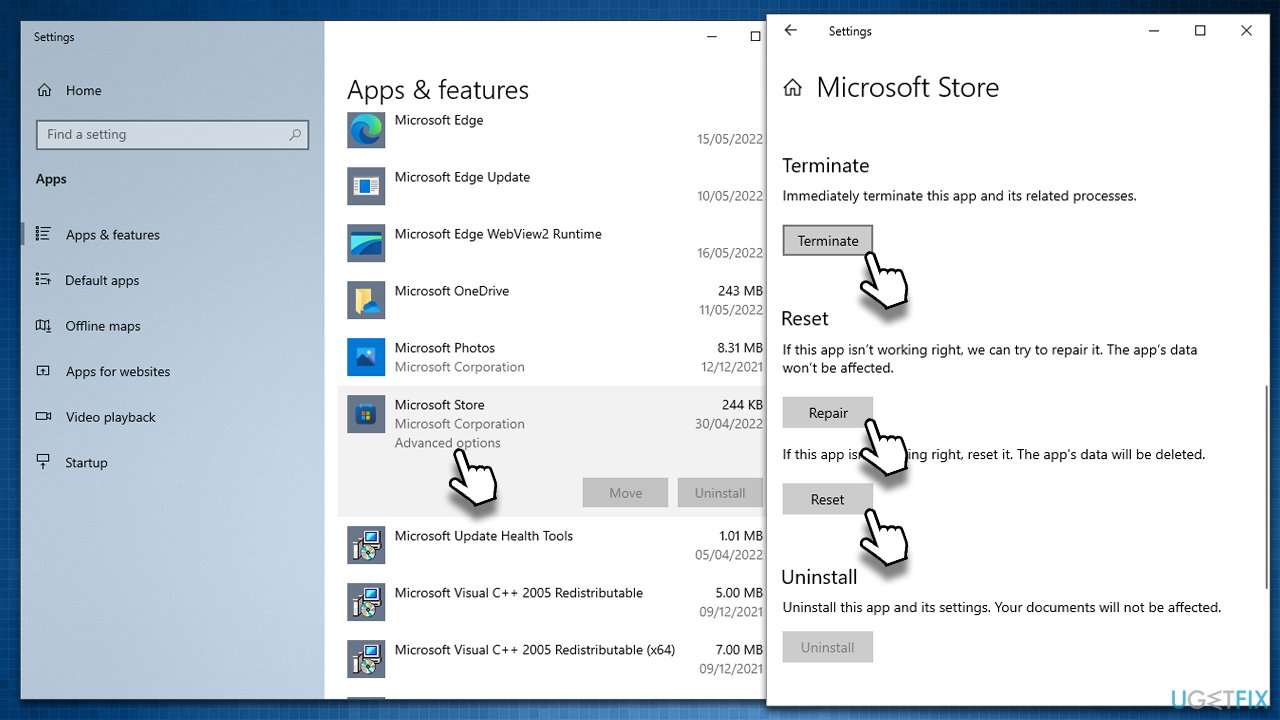
A more thorough reset or repair can be performed via the app's Advanced options.
- Right-click on Start and pick Apps & Features
- Scroll down to locate Microsoft Store and click Advanced options
- Click Terminate and Repair
- If that has no effect, select Reset.
How to fix microsoft store error 0xc002001b in windows reset repair
Fix 3. Run the troubleshooter
Troubleshooters are extremely convenient tools that come pre-installed with the operating system. They can be useful when diagnosing certain Windows problems and sometimes even solving them automatically.
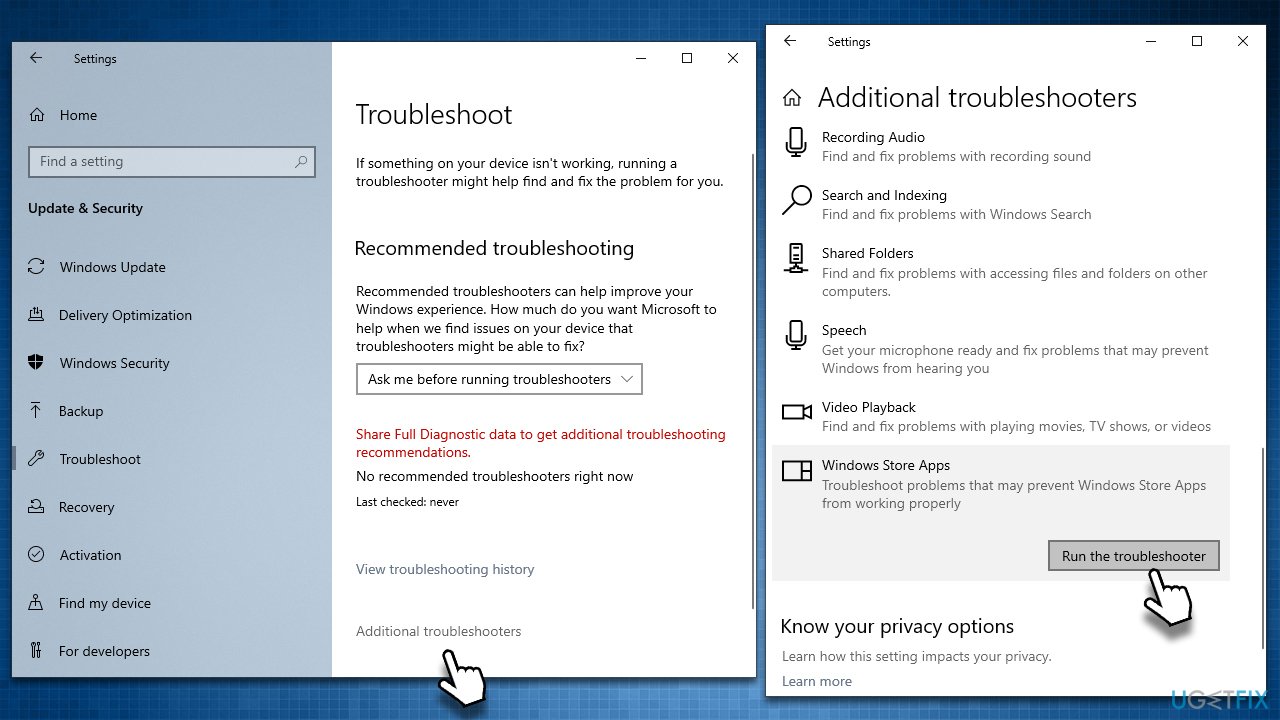
- Type Troubleshoot in Windows search and hit Enter
- In the new window, on the right side, click Additional troubleshooters
- Scroll down to find the Windows Store Apps entry
- Select it and click Run the troubleshooter
How to fix microsoft store error 0xc002001b in windows run troubleshooter - Apply the suggested fixes.
Fix 4. Repair corrupted system files
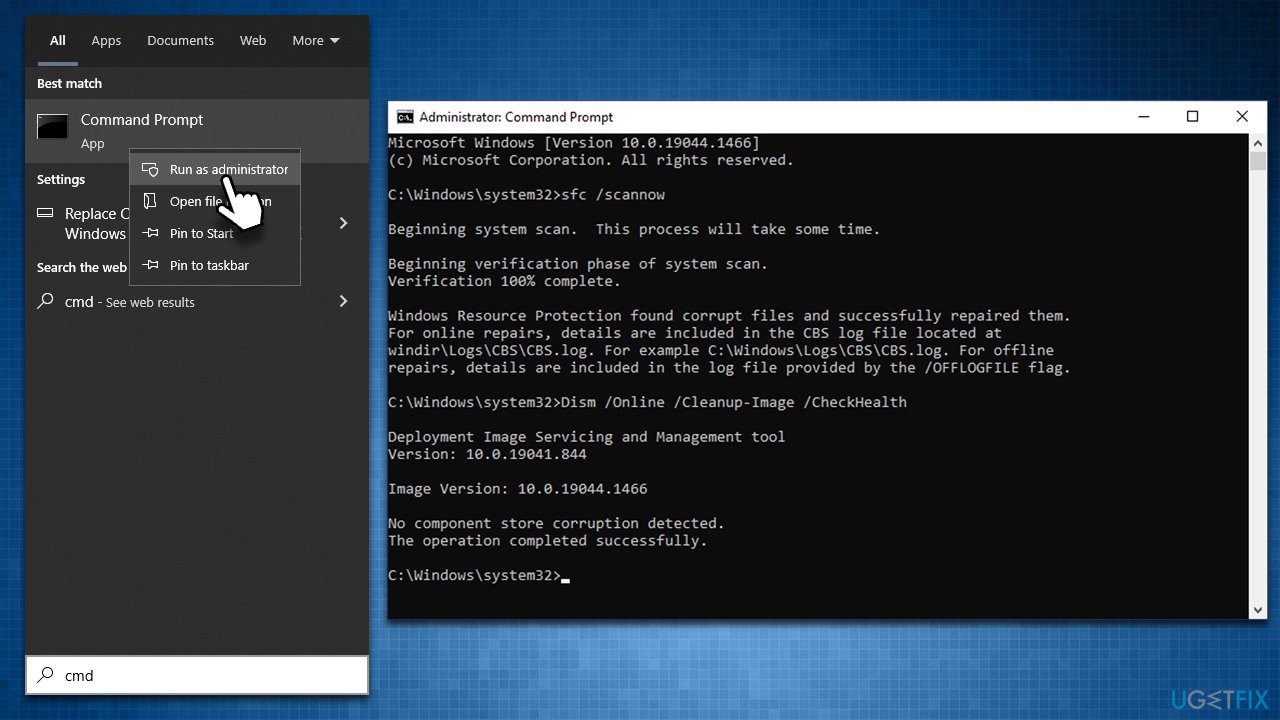
You can attempt to restore damaged system components with the help of SFC and DISM scans.
- Type in cmd in Windows search
- Right-click on Command Prompt and pick Run as administrator
- When the User Account Control window shows up, click Yes
- In the new window, type in sfc /scannow and press Enter
- Wait till the scan is finished and follow up with these commands, pressing Enter after each:
Dism /Online /Cleanup-Image /CheckHealth
Dism /Online /Cleanup-Image /ScanHealth
Dism /Online /Cleanup-Image /RestoreHealth - Restart your PC.
How to fix microsoft store error 0xc002001b in windows run sfc dism
Fix 5. Reset your internet connection
- Open Command Prompt as administrator as explained above
- Copy and paste each of the following commands, pressing Enter every time:
ipconfig /flushdns
ipconfig /registerdns
ipconfig /release
ipconfig /renew
netsh winsock reset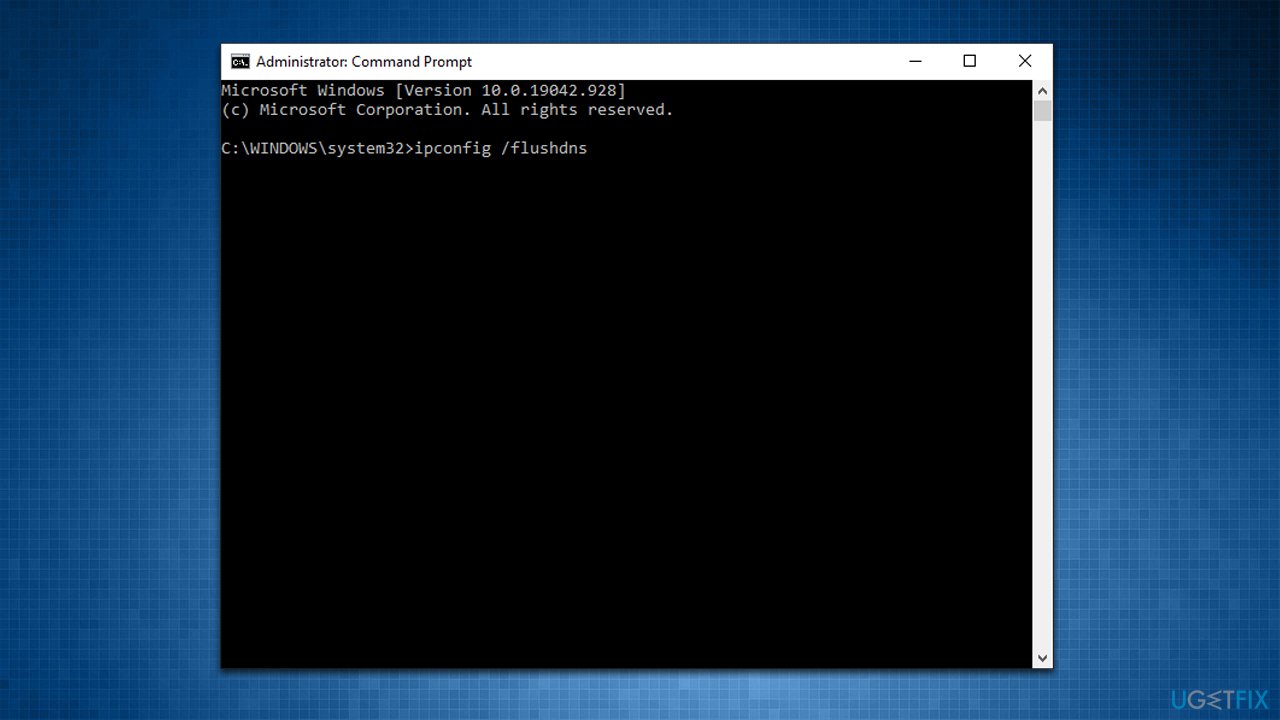
How to fix microsoft store error 0xc002001b in windows reset internet - Restart the computer and see if that helped.
Fix 6. Reset your PC
Before proceeding with this step, please backup your personal files as a precautionary measure (you will be given the option to keep them, however). Also, disconnect all the unnecessary peripherals, such as printers or cameras.
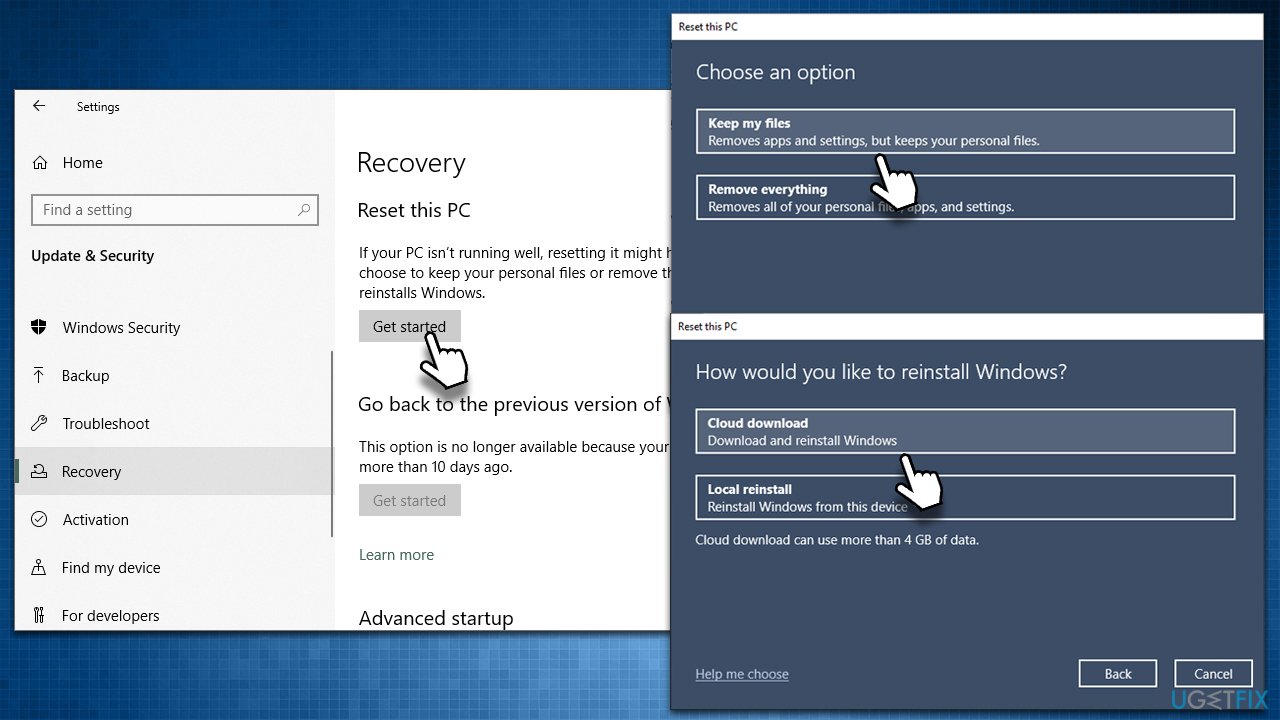
- Right-click on Start and pick Settings
- Go to the Update & Security section and select Recovery
- Under Reset this PC, click on Get Started
- Select Keep my files and Cloud download
- Click Next in the following prompt
- Click Reset.
How to fix microsoft store error 0xc002001b in windows reset windows
Fix 7. Reinstall Microsoft Store via PowerShell
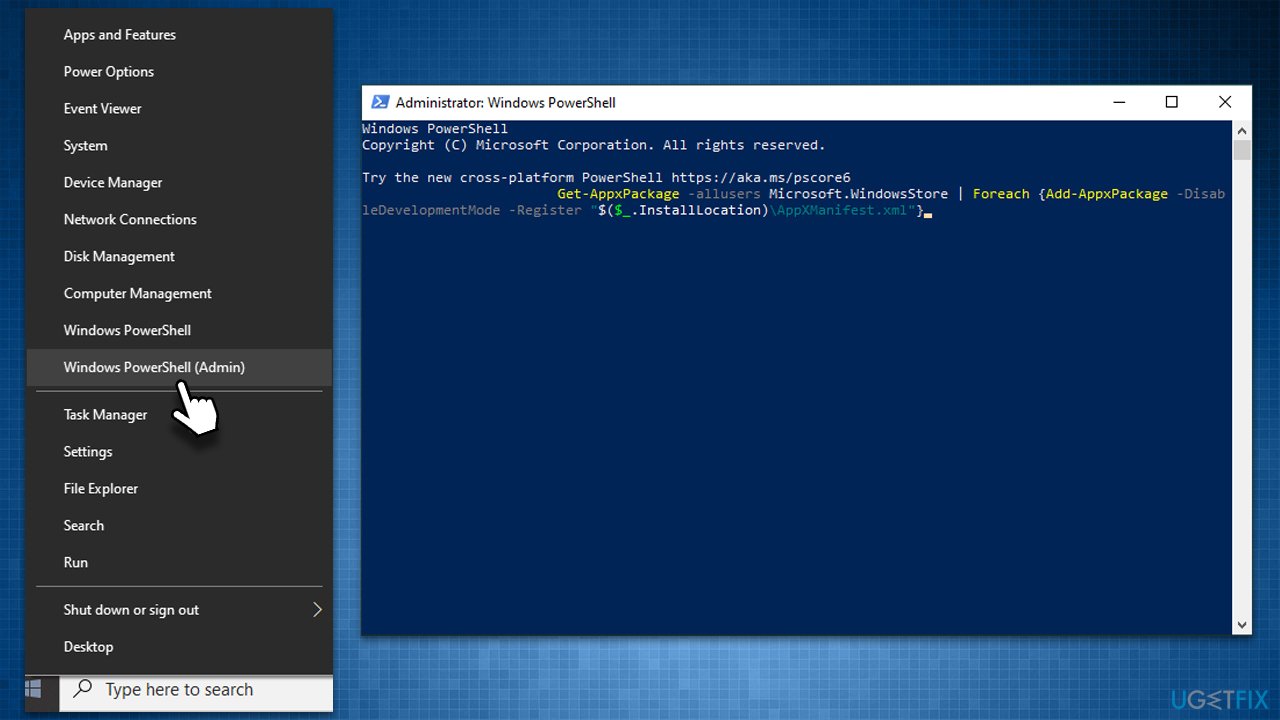
- Right-click on Start and pick PowerShell (Admin)
- When UAC shows up, click Yes
- In the new window, paste in the following command and hit Enter:
Get-AppxPackage -allusers Microsoft.WindowsStore | Foreach {Add-AppxPackage -DisableDevelopmentMode -Register “$($_.InstallLocation)\\AppXManifest.xml”} - Restart the PC.
How to fix microsoft store error 0xc002001b in windows reinstall store
Fix 8. Use Media Creation Tool
If none of the above methods helped you, you should perform an in-place Windows upgrade. For that, you need to download Media Creation Tool. Once again, make sure you backup all your personal files first.
- Visit the official Microsoft website and download Windows 10 installation media (Windows 11 version)
- Double-click the installer and select Yes when UAC shows up
- Agree to terms
- Pick Create installation media (USB flash drive, DVD or ISO file) for another PC option and click Next
- Select the Use Recommended options for this PC checkbox and click Next
- Choose the ISO file and click Next
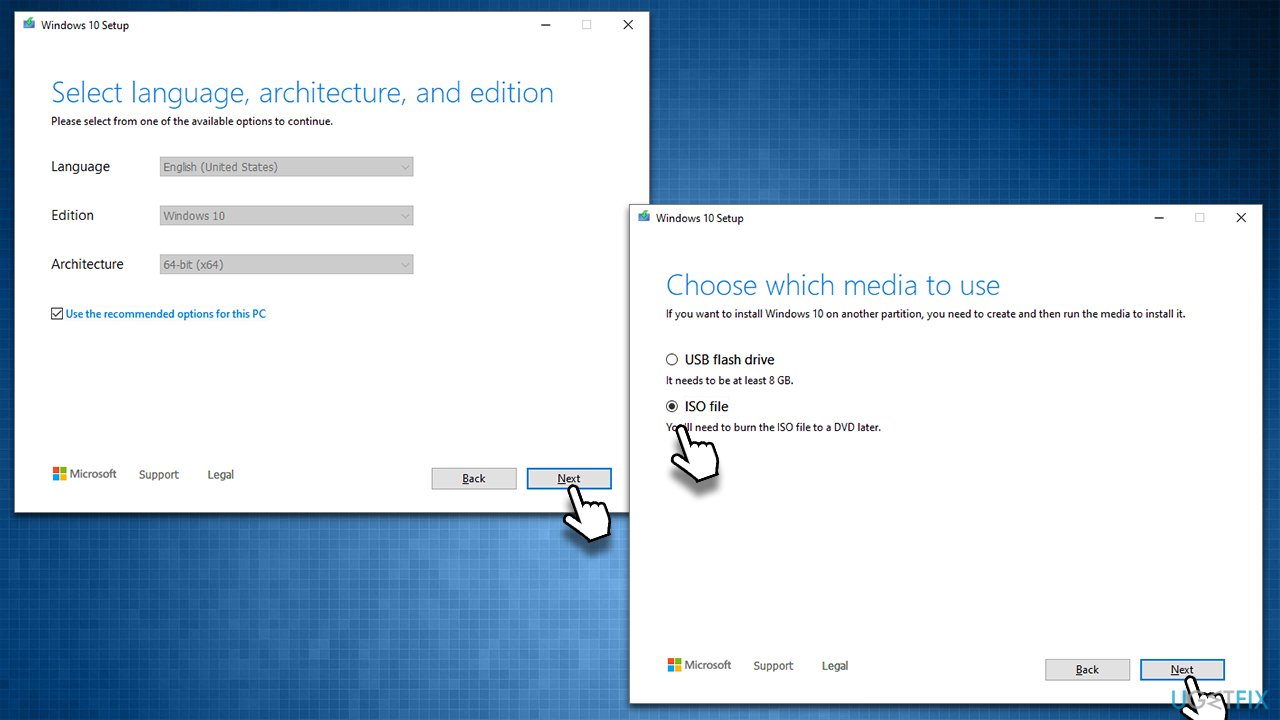
How to fix microsoft store error 0xc002001b in windows reinstall windows - Once you have prepared the ISO, put it into the malfunctioning PC
- Restart your machine and rapidly press F8, F10, F12, Del, or another button that would let you load into BIOS
- Here, go to the Boot section and set the boot priority to Flash drive
- Restart your system, and then proceed with on-screen instructions to reinstall Windows.
More ways to fix 0xC002001B
In some cases, the issue lies within simple things one could not think of. Below you will find several tips that you might have already tried; if not, we recommend you try them.
- Perform a full system scan with anti-malware software to ensure it is not infected.
- If you are using a third-party security app, uninstall it and see if the problem is resolved. This also applies to everything that could interfere with the network - it includes VPN software, third-party firewalls, etc.
- Make sure your time and date are correct. Right-click the time on your taskbar and select Adjust date/time. Make sure the Set time automatically option is ticked, and then click Sync now below.
- Restart your computer if you haven't already.
- Try to log out of your account in the Microsoft Store, reboot the system, and then log back in.
- Install all pending updates for Microsoft Store and Windows.
Bottom line
To resolve the 0xC002001B error, you can try resetting the Windows Store cache by using the wsreset.exe command. If the issue persists, consider using a PC repair utility or exploring additional manual solutions. If none of these methods work, further troubleshooting may be necessary.
Frequently asked questions
This error typically occurs due to issues with the Microsoft Store cache, problems with your Microsoft account, or corrupted system files in Windows 10 or Windows 11.
You can clear the Microsoft Store cache by pressing Win + R, typing 'wsreset.exe', and hitting Enter; this will reset the cache without affecting your installed apps.
Yes, you can repair the Microsoft Store by going to Settings > Apps > Apps & features, selecting Microsoft Store, and clicking on 'Advanced options' to find the repair option.




Report an issue
What's wrong with this guide? We review every report and update or remove content.
Report received — thank you. We'll review and fix it.
You need a free account to submit a report.
Be the first to comment