
How to fix Microsoft Teams error CAA50024 in Windows?

Prefer to fix it yourself? The manual steps follow.
- 6methods
- 5 minutes on the PC, longer when IT must change a setting
- Easy
Applies to Work and school accounts (Microsoft Entra ID) in Microsoft Teams, Outlook, the other Microsoft 365 apps and the Intune Company Portal on Windows 11 and Windows 10
6 methods in this guide
Hello. I tried to log into my Teams work account at home, but I received the CAA50024 error. How do I fix this?
CAA50024 appears when you add a work or school account in Teams or Windows and the organisation's automatic Intune enrollment fails at the MDM terms of use page. Your password is fine. On your own PC, sign in to the app only; when the device has to be managed, only IT can fix the licence or settings.
CAA50024 means your organisation tried to enroll this PC in Microsoft Intune as you signed in, and the enrollment failed, usually because your account has no Intune licence. On your own PC, sign in again and choose No, sign in to this app only (Fix 1). If you must use a managed device or the Company Portal, ask IT to assign the licence or fix the enrollment settings.
| Error | Something went wrong with Error code: CAA50024 and Server message: Error response came from MDM terms of use page. |
|---|---|
| Where it appears | In the Microsoft sign-in window when you add a work or school account to Teams, Outlook, the Company Portal or Settings > Accounts > Access work or school, often on a personal PC. |
| Main cause | Your account is in the organisation's MDM user scope for automatic enrollment, but has no Intune licence to complete it. |
| Fastest fix | On your own PC: sign in again, untick Allow my organization to manage my device and select No, sign in to this app only (Fix 1). |
| Also written as | CAA50024, caa50024, 0xCAA50024, decimal 3399811108, signed -895156188, and the text Error response came from MDM terms of use page. |
| Affects | Organisations with Microsoft Intune automatic enrollment, on Windows 11 and Windows 10 22H2. Windows 10 left support on 14 October 2025. |
| Microsoft's status | A configuration error, not a bug. Microsoft lists no known issues with automatic Windows enrollment, and no update will change it. |
| Who can fix it | You, for the app-only sign-in on a personal PC. An Intune administrator, for the licence, the user scope and the terms of use URL. |
Facts checked on 15 October 2026. Steps written for The new Microsoft Teams work or school sign-in, Settings > Accounts > Access work or school and Credential Manager on Windows 11 (25H2 and 26H2) and Windows 10 22H2, read against Microsoft's Intune documentation and Microsoft Q&A answers.
What Microsoft Teams error CAA50024 means
You enter your work or school address in Teams, approve the sign-in, and instead of your chats a window opens. It may say Something went wrong. We weren't able to register your device and add your account to Windows. Your access to org resources may be limited. Or it says We couldn't sign you in. If this error persists, contact your system administrator and provide the error code CAA50024.
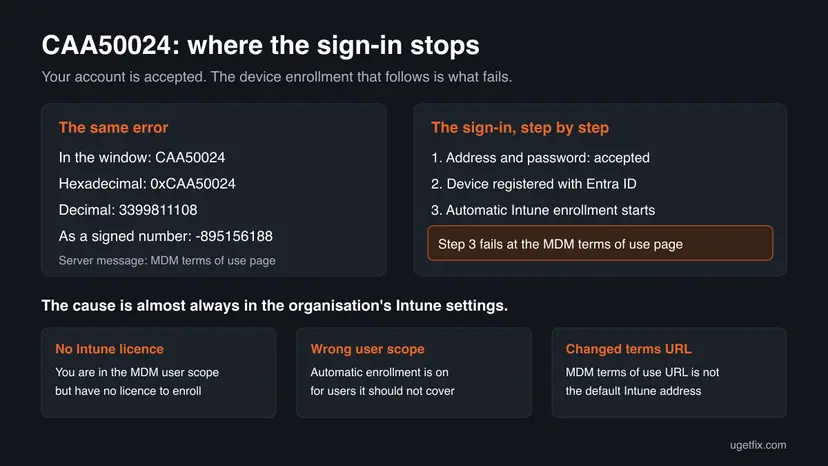
Under Additional problem information you find Error code: CAA50024 and Server message: Error response came from MDM terms of use page. That server line is the key. MDM means mobile device management, which for Windows is Microsoft Intune. The terms of use page is the step where Intune shows the organisation's rules before it takes over management of the PC.
| Line in the window | What it tells you |
|---|---|
| Error code: CAA50024 | The Windows account broker's result. Hexadecimal 0xCAA50024, decimal 3399811108. Logs and Microsoft Q&A posts also show it as -895156188. |
| Error response came from MDM terms of use page. | Your account was accepted. The automatic enrollment of this PC in Intune failed at its first page. |
| Your access to org resources may be limited | The account may still work in apps that do not need a managed device. |
| contact your system administrator | Here this is real advice: the licence and the enrollment settings live in the organisation's tenant. |
Microsoft's Intune documentation says automatic enrollment starts when a user adds a work or school account to a personal device. CAA50024 is that enrollment failing. Clearing caches or reinstalling Teams does not touch the cause.
What causes error CAA50024, ranked
Microsoft does not publish a page for this code. The order below follows Microsoft's description of automatic enrollment and the answers on Microsoft Q&A. It is our reading, not a statistic.
| How often | Cause | Typical sign | Fix |
|---|---|---|---|
| Most often | You are in the MDM user scope but your account has no Intune licence | Personal PC, the account works in a browser, colleagues with a licence are fine. | Fix 1 now, Fix 4 by IT |
| Often | You ticked Allow my organization to manage my device on a PC that should not be managed | Home PC, the error came the first time you added the account. | Fix 1, Fix 2 |
| Less often | The MDM user scope is set to All or to a group that is too wide | Many users on personal PCs get CAA50024 at once. | Fix 5 by IT |
| Rarely | The MDM terms of use URL was changed from the default | Every enrollment in the organisation fails, licensed users too. | Fix 6 by IT |
| Rarely | A third-party management tool changed the enrollment settings | Started after the organisation added or changed a device management product. | Fix 5 and Fix 6 by IT |
Generic pages tell you to clear the Teams cache, run SFC or update drivers. None of these changes the organisation's enrollment settings, and Microsoft's own enrollment page lists no Windows bug behind this error.
How to fix Microsoft Teams error CAA50024 in Windows
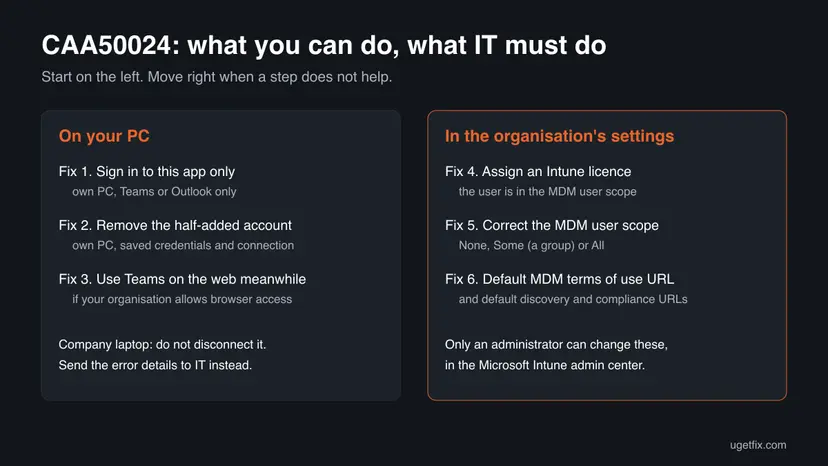
Fix 1 to Fix 3 are for you, on a PC you own. Fix 4 to Fix 6 are for your IT administrator: read them to know what to ask for. Success looks the same every time: Teams accepts your work or school address and opens your chats.
| Your case | Start with | Then |
|---|---|---|
| Your own PC, you only need Teams, Outlook or Office | Fix 1 | Fix 2 |
| Fix 1 shows no app-only option, or the error keeps coming back | Fix 2 | Fix 3 |
| You need to work right now and IT has not answered | Fix 3 | Fix 4 |
| You must use the Company Portal or the PC must be managed | Fix 4 | Fix 5 |
| A laptop from your employer or school | IT | Fix 4 to Fix 6 |
| You are the administrator and many users see CAA50024 | Fix 5 | Fix 6 |
Fix 1. Sign in to the app only, without device management
5 minutesLow riskYour own PC, and you need Teams, Outlook or Office, not the Company Portal.
The sign-in window offers to register and manage the whole PC. Answering No, sign in to this app only signs in Teams without starting the Intune enrollment that fails with CAA50024. A Microsoft Q&A advisor gives this as the answer for Office apps.
- In Teams, select your profile picture and select Sign out, or close the error window. Quit Teams from the taskbar corner.
- Open Teams again and enter your work or school address and password.
- When the window Stay signed in to all your apps appears, untick Allow my organization to manage my device.
- Select No, sign in to this app only. It is a text link at the bottom left of the window.
- Finish the sign-in. Teams opens with your organisation's chats.
Some organisations require a managed device for Teams or company files. Then the app-only sign-in is refused or you get a message that the device must be managed. Do not try to get around that: ask IT to enroll the PC properly (Fix 4) or use a device they provide.
It worked if: Teams opens without the CAA50024 window, and Settings > Accounts > Access work or school does not show the PC as managed by your organisation.
If not: If the window does not offer the app-only link or the error repeats at once, remove the half-added account with Fix 2.
Fix 2. Remove the half-added work account and its saved credentials
10 minutesRead the warningYour own PC, Fix 1 did not offer the app-only option, or CAA50024 returns each time you open Teams or Outlook.
When the first attempt ticked Allow my organization to manage my device, Windows keeps a work or school connection and saved Office credentials that start the failed enrollment again at every sign-in. Removing them lets Fix 1 start clean.
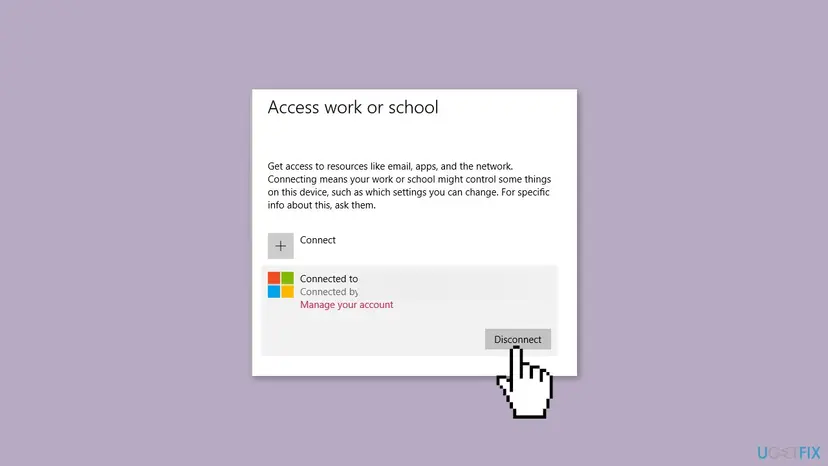
Disconnect removes the organisation's access, settings and apps from the PC. On a laptop from your employer or school, do not disconnect: send IT the error code instead. On your own PC, make sure you know your work address and password, and stay signed in to Windows with your own account, not the work one. If the work account is the only one on the PC, add a local administrator account first: Create a new user account to test a problem.
- Quit Teams, Outlook and the other Office apps.
- Select Start, type
credential managerand open Credential Manager. Select Windows Credentials. - For each entry that starts with MicrosoftOffice16, select the arrow next to it and select Remove.
- Press Win + I and open Accounts > Access work or school.
- Select the work or school account and select Disconnect. Confirm with Yes and again with Disconnect.
- Restart the PC when Windows asks.
- Open Teams, sign in and follow Fix 1: untick Allow my organization to manage my device and select No, sign in to this app only.
It worked if: Access work or school no longer lists the account, and the new sign-in in Teams finishes without CAA50024.
If not: If Teams still shows the error, keep working in the browser with Fix 3 and ask IT for Fix 4.
Fix 3. Keep working in Teams on the web while IT fixes the account
2 minutesLow riskYou need Teams now and Fix 1 and Fix 2 did not help, or the PC is not yours.
Signing in at the Teams website does not add an account to Windows, so it does not start the Intune enrollment that fails. It is not a fix, but it keeps you working while the licence is sorted out.
- Open Microsoft Edge or Chrome and go to
https://teams.microsoft.com. - Sign in with your work or school address.
- If the browser asks to stay signed in, choose No on a shared PC.
- Note whether the web sign-in works. Tell IT: it shows that your account is fine and only the enrollment fails.
Your organisation decides whether browser access is allowed from unmanaged devices. If the web sign-in is refused, that is a policy, not a fault: the only way forward is through IT.
It worked if: Teams opens in the browser with your chats, meetings and files.
If not: If the browser sign-in fails too, the problem is the account itself. Send IT the details listed under the methods.
Fix 4. Ask IT to assign you an Intune licence
5 minutes to ask, then IT's timeLow riskYou need the Company Portal, the organisation wants your PC managed, or IT asks why your enrollment fails.
Microsoft lists a Microsoft Intune subscription and Microsoft Entra ID P1 or P2 as requirements for automatic enrollment. A Microsoft Q&A advisor explains CAA50024 as a user in the MDM user scope without an Intune licence.
Send IT a short message they can act on at once. For example:
I get error CAA50024 (Error response came from MDM terms of use page) when I sign in to Teams on Windows.
My account seems to be in the MDM user scope for automatic enrollment, but I may have no Intune licence.
Could you assign me an Intune licence or exclude me from automatic enrollment?
Correlation ID and timestamp from the error window: ...- Copy the Correlation ID and Timestamp from the error window, if shown, before you close it.
- After IT assigns the licence, wait a few minutes, then sign in to Teams again and allow the device to be managed, if that is what IT wants.
It worked if: With a licence, the sign-in passes the terms of use page and the PC appears as enrolled under Access work or school.
If not: If you have a licence and still get the error, IT should check the user scope (Fix 5) and the URLs (Fix 6).
Fix 5. For administrators: correct the MDM user scope
10 minutesLow riskUsers who should not enroll get CAA50024, or many personal PCs fail at once.
The MDM user scope decides whose devices Intune tries to enroll automatically when they join or register in Microsoft Entra ID. A user in the scope without the needed licence is sent to an enrollment that cannot finish.
- Sign in to the Microsoft Intune admin center with a Global Administrator account.
- Go to Devices, expand Device onboarding and select Enrollment.
- Open the Windows tab and select Automatic Enrollment.
- Check MDM user scope: None turns automatic enrollment off, Some limits it to the groups you select, All applies it to every user.
- If not every user is licensed, choose Some and select a group of licensed users only.
- Check that no user is in both the MDM user scope and the WIP user scope, then select Save.
Microsoft also documents a preview setting, Disable MDM enrollment when adding work or school account. It removes the enrollment offer when users add the account in an app such as Teams, but not when they add it in Windows Settings.
It worked if: Users outside the scope sign in to Teams without an enrollment attempt, and users in the scope enroll without CAA50024.
If not: If licensed users in the scope still fail, check the URLs in Fix 6.
Fix 6. For administrators: restore the default MDM terms of use URL
5 minutesLow riskEvery enrollment fails with CAA50024, including users with a licence.
The server message names the MDM terms of use page. Microsoft's setup steps for automatic enrollment say to use the default values for the MDM terms of use, discovery and compliance URLs.
- In the Microsoft Intune admin center, open Devices > Device onboarding > Enrollment > Windows > Automatic Enrollment.
- Look at MDM terms of use URL, MDM discovery URL and MDM compliance URL.
- If any of them was edited, set it back to the default value that Intune filled in.
- Select Save and ask one affected user to sign in again.
It worked if: The enrollment passes the terms of use page and the device appears in the Intune admin center.
If not: If it still fails, read the enrollment events listed under the methods and open a case with Microsoft support.
If CAA50024 is still there: what to collect and who can fix it
When Fix 1 to Fix 3 do not help on your PC, the cause is in the organisation's tenant. Collect these details before you contact IT, so they do not need to ask twice.
- From the error window: the error code, the server message, and the Correlation ID and Timestamp if shown.
- Which app and which step: Teams, Outlook, the Company Portal or Access work or school, and whether you ticked Allow my organization to manage my device.
- Windows' own logs: right-click Start, open Event Viewer and look under Applications and Services Logs > Microsoft > Windows > AAD > Operational for errors at the time of the sign-in.
- Whether the web works: a successful sign-in at teams.microsoft.com shows the account itself is fine.
| What you see | Likely reason | Who can fix it |
|---|---|---|
| Personal PC, app-only sign-in works | No licence, you are in the user scope | Nobody needs to, unless you need the Company Portal |
| App-only sign-in refused, a message asks for a managed device | The organisation requires managed devices | IT, by enrolling the PC with a licence or giving you a device |
| Licensed users fail too | Changed MDM URLs or a broken enrollment setup | The Intune administrator |
How to keep CAA50024 from coming back
For users, the error returns whenever an app offers to manage the PC and the offer is accepted without a licence behind it. For administrators, it returns when licences and the user scope drift apart.
- Read the sign-in prompt on a personal PC. Tick Allow my organization to manage my device only when your organisation asked you to enroll it.
- Keep one work account under Access work or school and remove ones you no longer use, after asking IT on a managed PC.
- Administrators: tie the MDM user scope to a licensed group, not to All, when not every user has Intune.
- Administrators: leave the MDM URLs at their defaults, as Microsoft's setup steps say.
- Keep Windows and Teams updated, so the sign-in window and its app-only option match Microsoft's current flow.
Frequently asked questions
What does CAA50024 mean?
It means the sign-in to your work or school account worked, but the automatic enrollment of your PC in Microsoft Intune failed at the MDM terms of use page. The window shows Server message: Error response came from MDM terms of use page. The usual reason is that your account is set up for automatic enrollment but has no Intune licence. Readers who search que significa, what does it mean in Portuguese or Spanish, get the same answer: it is an account setting, not a PC fault.
What does Error response came from MDM terms of use page mean?
It is the server message that comes with CAA50024. MDM stands for mobile device management, which for Windows PCs is Microsoft Intune. Before Intune manages a device, it opens a terms of use page with the organisation's rules. When that step answers with an error, Windows stops the enrollment and shows this line. It points to the organisation's licence or enrollment settings, not to your password or to Teams.
Can I fix CAA50024 myself?
Partly. On your own PC you can sign in to Teams, Outlook or Office without device management by selecting No, sign in to this app only (Fix 1), and remove a half-added account first if needed (Fix 2). Whether that is allowed is your organisation's choice. You cannot fix the licence, the MDM user scope or the terms of use URL: those settings are in the organisation's Intune admin center and only an administrator can change them.
Is it safe to disconnect my work or school account?
On a PC you own, yes, as long as you know your work address and password. Disconnecting removes the organisation's access, policies and apps, and you sign in again afterwards. On a laptop from your employer or school, do not disconnect it yourself. It can cut you off from company files, Wi-Fi and apps, and only IT can connect it again correctly.
Why does CAA50024 appear only on my home PC?
Because adding a work or school account to a personal Windows PC is one of the events that starts automatic Intune enrollment, as Microsoft's documentation describes. Your office laptop was probably enrolled by IT already, so the step never runs there. On the home PC, the sign-in tries to enroll it, and if your account has no Intune licence, the enrollment fails with CAA50024.
Will reinstalling Teams or clearing its cache fix CAA50024?
No. The error comes from the enrollment in your organisation's Intune service, which Teams only hands over to Windows. A clean Teams installation or a reset of the app (How to repair or reset an app in Windows) asks the same question and gets the same answer. Use Fix 1 on a personal PC, or ask IT for a licence or a change of the enrollment settings. Cache clearing helps with other Teams sign-in errors, not this one.
Why does Outlook or the Company Portal show the same error?
All Microsoft 365 apps use the same Windows sign-in, and each can offer to register and manage the device. The Company Portal is a special case: its job is to enroll the PC, so the app-only sign-in does not help there. A Microsoft Q&A advisor confirms that for the Company Portal only IT can fix CAA50024, by assigning an Intune licence or excluding the user from the MDM user scope.
What should IT change to fix CAA50024?
Three settings, in this order. Assign the user an Intune licence, together with Microsoft Entra ID P1 or P2, which Microsoft lists as requirements. Check the MDM user scope under Devices, Enrollment, Windows, Automatic Enrollment: set it to Some with a licensed group when not everyone is licensed. Make sure the MDM terms of use, discovery and compliance URLs are at their defaults, as Microsoft's setup steps say.
Does CAA50024 mean my organisation can see my personal files?
No, the error means enrollment did not happen. Had it worked, Intune would manage the PC according to the organisation's policies, which is why the window asks before it starts. If you choose No, sign in to this app only, the PC is not enrolled. You can check under Settings, Accounts, Access work or school, which lists every work or school connection on the PC.
Is this page about other languages or other errors?
This page is about CAA50024 in Teams and the other Microsoft 365 apps on Windows. Searches in other languages, such as não or que significa, point to the same error and the same fixes. Close codes from the same Windows sign-in, such as CAA20008 or CAA90063, have other causes and their own guides, for example our guide to Teams error CAA20008.
Sources
- Microsoft Learn: Set up automatic enrollment for Windows devices (Intune licence requirements, MDM user scope, default MDM terms of use URL) (learn.microsoft.com)
- Microsoft Q&A: Error message logging into Intune (CAA50024, -895156188, licence and MDM user scope, sign in to this app only) (learn.microsoft.com)
Did this fix work?
One click, no account. It tells the next reader which guides are worth their time.
Questions and experiences: fix Microsoft Teams error CAA50024 in Windows
Still broken, or found a fix we did not cover? Ask here: members and our editors answer. Reading is open; writing needs a free account.
…