
How to fix Microsoft Teams error CAA20008 in Windows?

Prefer to fix it yourself? The manual steps follow.
- 6methods
- 5 to 45 minutes
- Intermediate
Applies to Work and school accounts (Microsoft Entra ID) in Microsoft Teams, Outlook, OneDrive and the other Microsoft 365 apps on Windows 11 and Windows 10
6 methods in this guide
Hey, I'd like to get some help. I have a problem where I can't log in to Microsoft Teams due to error CAA20008. This is a real problem for me, as I use Teams for my work quite a lot. Please advise if this is fixable.
CAA20008 is a sign-in error of the Windows account broker: Teams, Outlook or OneDrive asked it for a token for your work or school account and did not get one. The password is usually fine. Empty the broker's token store and restart first, then reconnect the account.
Yes, it is usually fixable on the PC. CAA20008 means the Windows account broker could not get a token for your work or school account, most often because its stored account data is stale. Quit Teams, empty the TokenBroker Accounts folder and restart (Fix 1). If it returns, reconnect the account (Fix 2) and check TLS 1.2 (Fix 4).
| Error | Something went wrong with the text: We couldn't sign you in. If this error persists, contact your system administrator and provide the error code CAA20008. |
|---|---|
| Where it appears | In the Microsoft sign-in window that Teams, Outlook, OneDrive or Word opens when you sign in with a work or school account, often right after you signed out and in again. |
| Main cause | The broker's stored data for the account no longer matches the account. An old TLS setting and, in federated organisations, an expired token-signing certificate come next. |
| Fastest fix | Quit Teams, empty %LOCALAPPDATA%\Packages\Microsoft.AAD.BrokerPlugin_cw5n1h2txyewy\AC\TokenBroker\Accounts and restart the PC (Fix 1). |
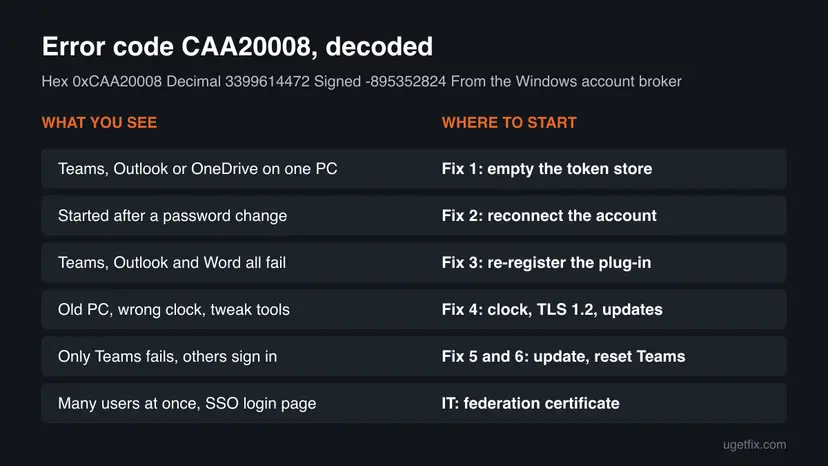
| Also written as | CAA20008, caa20008, 0xCAA20008, decimal 3399614472, signed -895352824. |
| Affects | Work and school accounts in the Microsoft 365 apps on Windows 11 and Windows 10 22H2. One Microsoft Q&A report names Macs in the same organisation too. |
| Microsoft's status | Not in Microsoft's table of Teams sign-in codes. A Microsoft Community moderator points to TLS settings and, for organisations with AD FS, an expired token-signing certificate. No fix in an update is announced. |
| Time to fix | 5 minutes for Fix 1. Up to 45 minutes if you need Fix 2 to Fix 6. Nothing to download. |
Facts checked on 15 October 2026. Steps written for The new Microsoft Teams, Outlook and OneDrive sign-in, the Access work or school settings and Internet Options on Windows 11 (25H2 and 26H2) and Windows 10 22H2, read against Microsoft's documentation and Microsoft Q&A answers.
What Microsoft Teams error CAA20008 means
You open Teams, or sign out and back in, and a small window appears instead of your chats. Its heading is Something went wrong. Under Additional problem information it shows Error code: CAA20008.
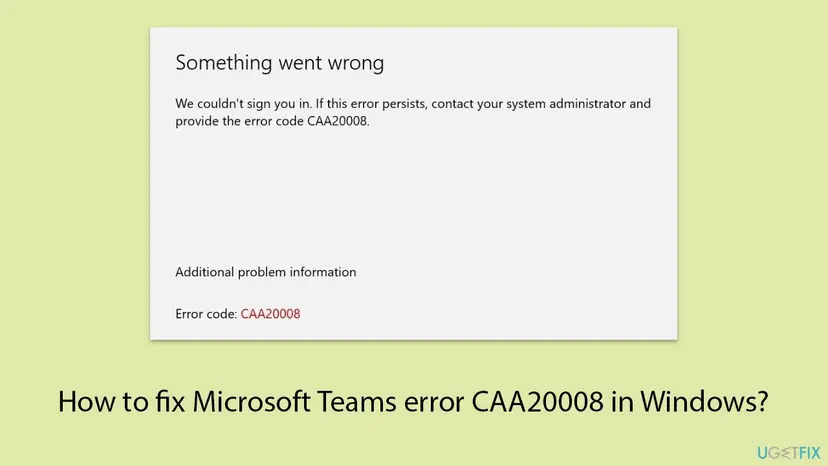
Teams does not draw this window. It comes from the Web Account Manager, the part of Windows that keeps work, school and personal accounts for apps. Every code that starts with CAA comes from it, which is why Outlook, OneDrive and Word can show the same CAA20008 on the same PC.
| Line in the window | What it tells you |
|---|---|
| Error code: CAA20008 | The broker's result. Hexadecimal 0xCAA20008, decimal 3399614472. Sign-in logs can show it as -895352824. |
| We couldn't sign you in | Windows did not get a token for the account. It does not say that the password is wrong. |
| contact your system administrator | A standard line of every broker error. For a school account on a home PC, the administrator is the school's IT. |
CAA2000C, CAA2000B and CAA20003 come from the same broker and show the same window. Fixes overlap, but Microsoft has not published what each one means. CAA2000C has its own guide.
What causes error CAA20008, ranked
Microsoft has not published a cause for CAA20008. The order below is our reading of the Microsoft Q&A answers and of what fixes this family of broker errors. It is not a statistic.
| How often | Cause | Typical sign | Fix |
|---|---|---|---|
| Most often | Stale or damaged account data in the broker's token store | Started suddenly, the account works at office.com in a browser. | Fix 1 |
| Often | The work or school connection in Windows is broken, or old saved Office credentials remain | After a password change, a new school year or a sign-out and sign-in. | Fix 2 |
| Less often | The broker plug-in package is missing or not registered | Teams, Outlook and Word all fail with CAA codes. | Fix 3 |
| Less often | TLS 1.2 turned off, a wrong clock or Windows far behind on updates | Old PC, PC that was off for weeks, or a tool changed network settings. | Fix 4 |
| Rarely | An old Teams version or the app's own stored state | Only Teams fails, Outlook and OneDrive sign in. | Fix 5, Fix 6 |
| Organisation side | An expired AD FS token-signing certificate, Conditional Access or device rules | Several colleagues at once, or a company sign-in page appears before the error. | IT, see below |
Many pages, including the old version of this one, tell you to empty %LOCALAPPDATA%\Microsoft\Teams. On a PC with classic Teams that folder holds the program itself, not a cache, and the new Teams keeps its cache elsewhere. Fix 1 empties only the broker's account folder, which is what this error is about.
How to fix Microsoft Teams error CAA20008 in Windows
Follow the fixes in order and try to sign in after each one. Fix 1 takes five minutes and clears the most common cause. Success looks the same every time: Teams asks for your work or school address, accepts it and opens your chats.
| Your case | Start with | Then |
|---|---|---|
| Teams, Outlook or OneDrive shows CAA20008 on one PC | Fix 1 | Fix 2 |
| It started after a password change or after you signed out | Fix 2 | Fix 1 |
| Teams, Outlook and Word all fail with CAA codes | Fix 3 | Fix 1 |
| Old PC, PC that was off for weeks, or the time is wrong | Fix 4 | Fix 1 |
| Only Teams fails, the other apps sign in | Fix 5 | Fix 6 |
| Several colleagues get CAA20008 at the same time | IT | Federation certificate |
Fix 1. Empty the Windows token store for work and school accounts
5 minutesLow riskEveryone first, and especially when the error started suddenly and the account works in a browser.
CAA20008 comes from the broker that stores your account's tokens. Deleting its cached account files makes Windows fetch fresh ones at the next sign-in, the same step that clears the sister codes CAA2000C and CAA90063.
- Right-click the Teams icon in the corner of the taskbar and select Quit. Close Outlook, Word, Excel and OneDrive.
- Open File Explorer, paste this path into the address bar and press Enter:
%LOCALAPPDATA%\Packages\Microsoft.AAD.BrokerPlugin_cw5n1h2txyewy\AC\TokenBroker\Accounts - Press Ctrl + A to select all files, right-click the selection and select Delete.
- If Windows says a file is in use, restart the PC and delete the files before you open any app.
- Restart the PC.
- Open Teams and sign in with your work or school address.
The files hold the broker's cached account data, not your chats, mail or documents. Windows rebuilds them at the next sign-in, so every Microsoft 365 app asks for your account once. If the Accounts folder is empty or missing, nothing is cached there: go to Fix 2.
It worked if: After the restart Teams asks for your account, accepts it and opens without the CAA20008 window.
If not: If the same window returns, remove the saved credentials and reconnect the account with Fix 2.
Fix 2. Remove saved Office credentials and reconnect the work or school account
10 minutesRead the warningThe error began after a password change or a sign-out, or Fix 1 helped only until the next restart.
In the Microsoft Q&A report, CAA20008 appeared on several devices right after users signed out and in again with their institution's login. A fresh connection replaces the saved account data that the broker can no longer use.
Disconnect can remove the organisation's settings, apps and access to company files from the PC. On a laptop from your employer or school, do only steps 1 to 4 and ask IT before you disconnect. On your own PC, note your work address and password first.
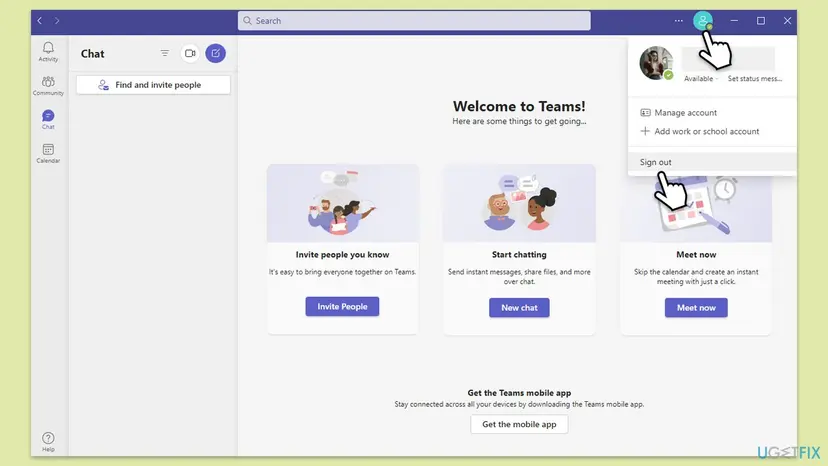
- In Teams, select your profile picture and select Sign out. Quit Teams and close Outlook, Word and OneDrive.
- Select Start, type
credential managerand open Credential Manager. Select Windows Credentials. - For every entry that starts with MicrosoftOffice16, select the arrow next to it and select Remove.
- Restart the PC, open Teams and sign in. If CAA20008 is gone, stop here.
- Press Win + I and open Accounts > Access work or school.
- Select your work or school account and select Disconnect. Confirm, then restart the PC.
- Go back to Access work or school, select Connect, sign in with your work or school address and open Teams again.
It worked if: Access work or school lists the account as connected, and Teams signs in without asking twice.
If not: If several Microsoft 365 apps still fail, register the broker plug-in again with Fix 3.
Fix 3. Register the Windows sign-in plug-in again
5 minutesLow riskTeams, Outlook and Word all fail to sign in with CAA codes, or the token store in Fix 1 was missing.
The broker for work and school accounts is a Windows package, Microsoft.AAD.BrokerPlugin. Microsoft's command registers it again when it is missing, which restores the part of Windows that returns CAA20008.
- Stay signed in to Windows as the person who gets the error.
- Right-click Start and open Terminal (Admin) or Windows PowerShell (Admin). Select Yes in the User Account Control prompt.
- Run this command:
if (-not (Get-AppxPackage Microsoft.AAD.BrokerPlugin)) { Add-AppxPackage -Register "$env:windir\SystemApps\Microsoft.AAD.BrokerPlugin_cw5n1h2txyewy\Appxmanifest.xml" -DisableDevelopmentMode -ForceApplicationShutdown } Get-AppxPackage Microsoft.AAD.BrokerPlugin - Check the result: a block of package details means the plug-in is present. Red text means it did not work; copy it for IT.
- Restart the PC and sign in to Teams again.
The command registers the package only when it is missing and then prints its details, so on a healthy PC it changes nothing. The same check is explained for another Teams code in our guide to Teams error CAA90063.
It worked if: PowerShell prints the package details without red text, and Teams signs in after the restart.
If not: If the package is fine, check the clock, TLS 1.2 and Windows updates with Fix 4.
Fix 4. Check the clock, TLS 1.2 and Windows updates
15 to 30 minutesLow riskThe PC is old, was off for a long time, shows the wrong time, or a tweak tool or security program changed network settings.
A Microsoft Community moderator answered a CAA20008 report by sending the user to Internet Options: turn on TLS 1.2 and 1.3, turn off SSL 3.0, TLS 1.0 and 1.1, and restore the advanced settings. A clock that is far off breaks the secure exchange too.
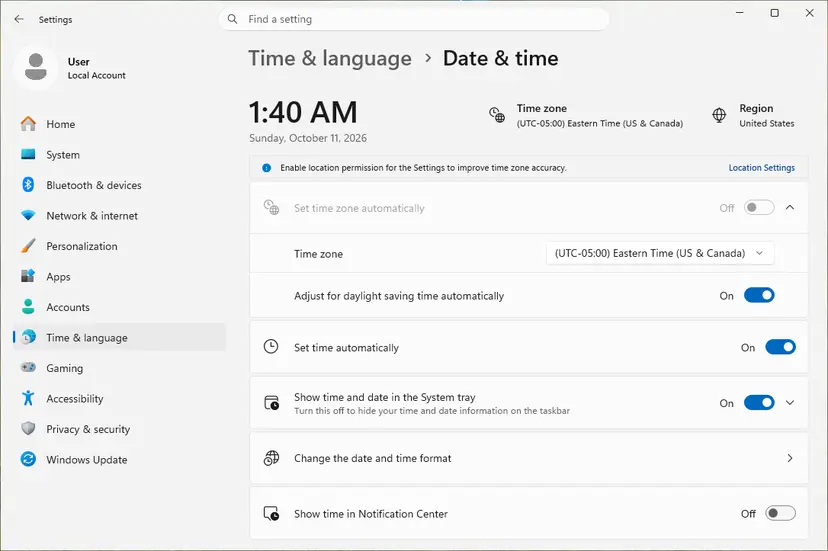
- Check the date, time and time zone in the corner of the taskbar. If they are wrong, turn on automatic time: How to fix the date and time in Windows.
- Press Win + R, type
inetcpl.cpland press Enter. Open the Advanced tab. - Scroll to Security. Tick Use TLS 1.2 and, where it is listed, Use TLS 1.3. Untick Use SSL 3.0, Use TLS 1.0 and Use TLS 1.1.
- Select Restore advanced settings, check that Use TLS 1.2 is still ticked and select OK.
- Select Start, type
check for updatesand open Check for updates. - Select Check for updates, install everything offered, including optional quality updates, and restart.
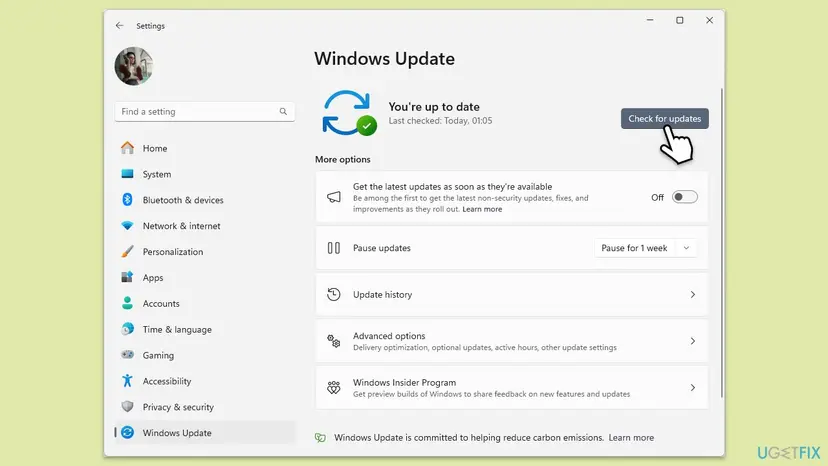
On Windows 10 and 11, TLS 1.2 is on by default, so this step matters mainly when a policy or a tool turned it off. Windows 10 left support on 14 October 2025: without Extended Security Updates, its sign-in parts get no more fixes.
It worked if: The clock is right, TLS 1.2 is ticked, Windows reports that it is up to date, and Teams signs in.
If not: If only Teams still fails, update it with Fix 5.
Fix 5. Update Teams and sign in again
5 minutesLow riskOnly Teams shows CAA20008 while Outlook and OneDrive sign in, or Teams has not updated for a long time.
Microsoft's own steps for every Teams sign-in error start with the latest Teams update. An old client can keep asking the broker for a token in a way the service no longer accepts.
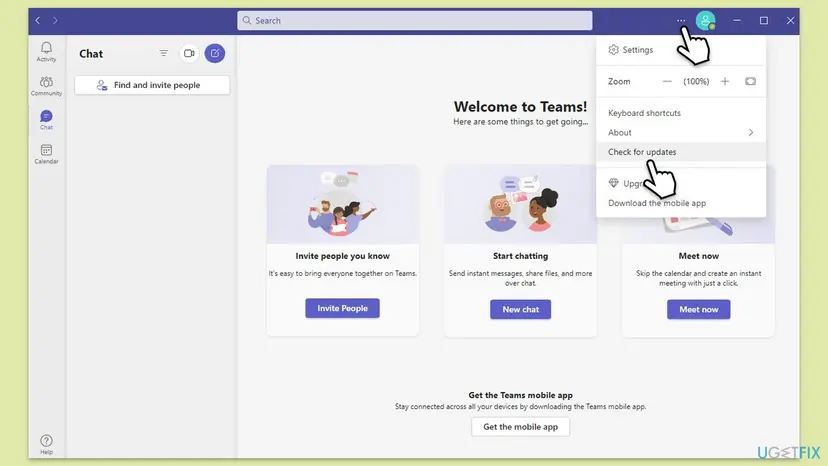
- If Teams opens past the error, select Settings and more (the three dots) next to your profile picture at the top right.
- Select Check for updates and wait until Teams says it is up to date or asks to restart.
- Restart Teams, select your profile picture, select Sign out, then sign in again.
- If Teams does not open at all, skip to Fix 6: a reset gives you a current copy too.
It worked if: Teams installs the update, restarts and accepts your account after you sign in again.
If not: If the error comes back after the sign-in, reset Teams with Fix 6.
Fix 6. Repair or reset Teams, then reinstall as a last step
10 minutesLow riskOnly Teams shows CAA20008 and Fix 1 to Fix 5 did not help.
A reset clears the app's own stored sign-in state and cache in one step. Microsoft's steps for Teams sign-in errors end with a clean reinstall, and on the new Teams a reset does most of that without a download.
- Right-click the Teams icon in the taskbar corner and select Quit.
- Open Settings > Apps > Installed apps and find Microsoft Teams.
- Select the three dots next to it and select Advanced options.
- Select Repair first and try to sign in.
- If the error stays, go back and select Reset. Teams loses its local settings, while chats and files stay in the cloud.
- If it still fails, select Uninstall, restart, and install Teams again from Microsoft's Teams download page.
Every screen, with the Windows 10 path: How to repair or reset an app in Windows. The new Teams keeps its cache in %LOCALAPPDATA%\Packages\MSTeams_8wekyb3d8bbwe\LocalCache\Microsoft\MSTeams, which a reset empties. Classic Teams, if it is still on the PC, keeps its data in %appdata%\Microsoft\Teams, the folder Microsoft says to delete after an uninstall.
It worked if: Teams starts like a fresh install, asks for your account and opens your chats.
If not: If the error survives a reset and a reinstall, the cause is outside Teams. Collect the details in the next section for IT.
If CAA20008 is still there: what to collect and who can fix it
When the PC side is clean and the error stays, the cause is usually in the organisation's settings for your account or device. Collect these details before you contact anyone.
- From the error window: the error code and, if shown, the Correlation ID and Timestamp.
- Windows' own log: right-click Start, open Event Viewer and go to Applications and Services Logs > Microsoft > Windows > AAD > Operational. Note the errors at the time of your sign-in.
- Microsoft's Teams sign-in test: open
https://testconnectivity.microsoft.com/tests/TeamsSignin/input, sign in with the affected account, enter the code and select Verify. It checks that the account meets the requirements to sign in to Teams. - Teams debug logs for a support request: Microsoft asks for them together with the error code shown on the sign-in screen.
| What you see | Likely reason | Who can fix it |
|---|---|---|
| The account works on the web and the phone, the desktop fails on every network | Device data or the device record of this PC | IT, with the correlation ID |
| Several colleagues get CAA20008 at once, on Windows and Mac | An expired AD FS token-signing certificate or a Conditional Access policy | IT, in the organisation's identity settings |
| The account fails in a browser too | The account itself, its licence or a Microsoft outage | IT |
The old version of this page told you to run dsregcmd /leave and dsregcmd /join. On a PC joined to Microsoft Entra ID, leaving removes the device from the organisation and can lock you out of company resources, and /join does not reliably bring it back. Leave device registration to IT.
For administrators: what to check for CAA20008
CAA20008 is not in Microsoft's table of Teams sign-in codes, so start with the tools Microsoft names for all Teams sign-in errors, then the organisation's federation.
- Teams Sign-in diagnostic in the Microsoft 365 admin center (
https://aka.ms/TeamsSignInDiag): enter the user's address and select Run Tests. It needs an administrator account. - AD FS: a Microsoft Community moderator asks organisations with AD FS to check whether the token-signing certificate expired and to follow Microsoft's steps to renew federation certificates for Microsoft 365. That fits reports of many users and devices failing at once.
- Sign-in logs in Microsoft Entra ID: search by the user, the time and the correlation ID.
- Conditional Access: Microsoft ties the neighbour code 0xCAA20004 to Conditional Access. Check the policies that apply to the user and device.
- Device state: run
dsregcmd /statuson the PC and check the join and token fields before you change the registration.
How to keep CAA20008 from coming back
Once the broker has clean data for your account, the error does not return on its own. It comes back when that data and the account drift apart.
- After a password change, lock and unlock Windows with the new password while online, before you open Teams or Outlook.
- Remove accounts you no longer use under Access work or school, after asking IT on a managed PC.
- Keep automatic time on and leave Use TLS 1.2 ticked.
- Keep Windows and Teams updated. Fixes for the broker arrive through Windows updates.
- Do not use registry tweak tools that turn off protocols or Windows components to speed up the PC.
Frequently asked questions
What does error code CAA20008 mean in Teams?
It means the Windows Web Account Manager, the broker that keeps work and school accounts for apps, could not get a token for your account. The window says Something went wrong and We couldn't sign you in, and asks you to contact your administrator. Microsoft does not list the code in its public table of Teams sign-in errors. Clearing the broker's stored account data in Fix 1 is the first step.
Is CAA20008 a problem with my account or my PC?
Usually the PC. If you can sign in with the same account at office.com or teams.microsoft.com in a browser, the account and password are fine and the stored copy on Windows is the problem. Work through Fix 1 to Fix 4. If the browser fails too, or colleagues get the same code at the same time, the cause is the account or the organisation's settings, and only IT can change those.
Why does OneDrive or Outlook show CAA20008 too?
Because the error does not come from Teams. OneDrive, Outlook, Word and Teams all ask the same Windows broker for the work or school account, so one damaged entry breaks all of them. In a Microsoft Q&A thread from a OneDrive user, more than 300 people marked the same question. The fixes are the same: Fix 1 and Fix 2 repair the shared account data for every app at once.
Does turning on TLS 1.2 fix CAA20008?
Sometimes. A Microsoft Community moderator answered a CAA20008 report by asking the user to turn on TLS 1.2 and 1.3 and turn off SSL 3.0, TLS 1.0 and 1.1 in Internet Options, then restore the advanced settings. On Windows 10 22H2 and Windows 11, TLS 1.2 is on by default. If it is already ticked, the stored account data in Fix 1 and Fix 2 is the likelier cause.
Why did CAA20008 start after I signed out and back in?
Signing out drops the token the broker had, so the next sign-in needs a new one. If the stored account data is stale, or the organisation's sign-in service refuses to issue a token, the new request fails with CAA20008. One Microsoft Q&A report describes exactly this on several devices of an organisation with institutional single sign-on. Start with Fix 1 on one PC; if many users are hit, IT should check the federation certificate.
Is CAA20008 the same as CAA2000C?
No, but they are close relatives. Both come from the Windows account broker, show the same Something went wrong window and respond to the same first fixes: the token store, the work or school connection and TLS 1.2. Microsoft has not published what separates them. If your window says CAA2000C, our guide to sign in error CAA2000C covers that code and the Microsoft Store case.
Is it safe to delete the files in the TokenBroker folder?
Yes, for the Accounts folder that Fix 1 empties. It holds the broker's cached account data, not chats, mail or documents, and Windows builds it again at the next sign-in. The cost is that Teams, Outlook and the other Microsoft 365 apps ask for your account once more. Do not delete the whole Packages folder: it holds the data of every Store app on the PC.
Will reinstalling Teams fix CAA20008?
Rarely on its own. The error comes from the Windows broker, not from Teams, and the same code appears in Outlook and OneDrive. Microsoft's steps for Teams sign-in errors do end with a clean reinstall, which is why Fix 6 resets and then reinstalls Teams. Start with Fix 1 and Fix 2, which change the account data that the error is about.
Should I run dsregcmd /leave and dsregcmd /join?
No, not on your own. On a PC joined to Microsoft Entra ID, dsregcmd /leave removes the device from the organisation, which can cut you off from company apps, files and Wi-Fi. The /join switch does not reliably register it again from a user's command line. If IT suspects the device registration, they can check it with dsregcmd /status and re-register the PC in a controlled way.
Can I see CAA20008 on a Mac?
The code itself comes from the Windows broker, so the fixes on this page are for Windows. In one Microsoft Q&A report, an organisation saw sign-in failures on Windows PCs and Macs at the same time after users signed out and in. When both systems fail together, the cause is almost always on the organisation's side, such as an expired federation certificate, and IT should check it first.
Sources
- Microsoft Learn: Resolve sign-in errors in Teams (error code table, diagnostics, Teams Sign-in test, reinstall steps) (learn.microsoft.com)
- Microsoft Q&A: Login Office 365 fails with error code CAA20008 (moderator answer on TLS and AD FS certificates) (learn.microsoft.com)
- Microsoft Q&A: Error Code: CAA20008 (OneDrive sign-in, 300+ same question) (learn.microsoft.com)
Did this fix work?
One click, no account. It tells the next reader which guides are worth their time.
Questions and experiences: fix Microsoft Teams error CAA20008 in Windows
Still broken, or found a fix we did not cover? Ask here: members and our editors answer. Reading is open; writing needs a free account.
…