
How to fix Microsoft Teams error CAA90063 in Windows?

Prefer to fix it yourself? The manual steps follow.
- 8methods
- 5 to 40 minutes
- Intermediate
Applies to Microsoft Teams (new and classic), Outlook and the Microsoft 365 apps for Windows on Windows 11 and Windows 10, mainly with work or school accounts that use multi-factor authentication
8 methods in this guide
- What the error means
- Causes, ranked
- The fixes
- 1. Empty the token store
- 2. Clear stored accounts
- 3. Re-register the plug-in
- 4. Run Microsoft's troubleshooter
- 5. Clock and updates
- 6. Work laptop: company network
- 7. Reset Teams
- 8. Test without VPN or filters
- Still there: what to send
- For administrators
- Prevent it
- FAQ
I keep getting the error CAA90063 when trying to launch Microsoft Teams on my Windows PC. I've tried restarting, but the issue persists. What is this error and how can I fix it?
CAA90063 appears in the Microsoft sign-in window of Teams or Outlook after your password and Authenticator approval were accepted: We couldn't sign you in. The account itself usually works, and Teams on the web opens. Empty the Windows token store and restart first, then clear the stored accounts and register the sign-in plug-in again.
CAA90063 means Windows could not finish the Teams sign-in after Microsoft accepted your password and approval. It is tied to the sign-in data that Windows stores on this PC, not to Teams itself. Quit Teams, delete the files in the TokenBroker Accounts folder of the Microsoft.AAD.BrokerPlugin package and restart (Fix 1). If it returns, remove the stored Office credentials (Fix 2) and register the plug-in again (Fix 3).
| Error | Something went wrong. We couldn't sign you in. If this error persists, contact your system administrator and provide the error code CAA90063. |
|---|---|
| Where it appears | In the Microsoft sign-in window that Teams, Outlook or another Microsoft 365 app opens, usually right after you approve the sign-in in Microsoft Authenticator. |
| Main cause | The Windows sign-in broker cannot finish the token exchange with the data it has stored for the account on this PC. Device and policy problems on managed laptops come second. |
| Fastest fix | Quit Teams, empty %LOCALAPPDATA%\Packages\Microsoft.AAD.BrokerPlugin_cw5n1h2txyewy\AC\TokenBroker\Accounts and restart the PC (Fix 1). |
| Also written as | CAA90063, caa90063, 0xCAA90063, decimal 3400073315. The search typo tencent90063 means the same code. |
| Server message | Under Additional problem information the window can show: The server response is encryted, but not key in pipeline. |
| Affects | New and classic Teams and classic Outlook on Windows 11 and Windows 10, mostly work and school accounts with multi-factor authentication. |
| Microsoft's status | Not listed in Microsoft's public table of Teams sign-in codes. No fix in a Teams or Windows update is announced. Microsoft staff on Q&A tie it to multi-factor authentication. |
| Time to fix | 5 minutes for Fix 1. Up to 40 minutes if you need Fix 2 to Fix 8. Nothing to download. |
Facts checked on 15 October 2026. Steps written for the new Microsoft Teams, classic Outlook and the Microsoft 365 apps on Windows 11 (25H2 and 26H2) and Windows 10 22H2, read against Microsoft's documentation and Microsoft Q&A reports.
What CAA90063 means in Microsoft Teams
You open Teams, type your work address and password, and approve the number in Microsoft Authenticator. Instead of your chats, a small window opens with the heading Something went wrong and the text We couldn't sign you in. It tells you to contact your system administrator and to give them the code CAA90063.
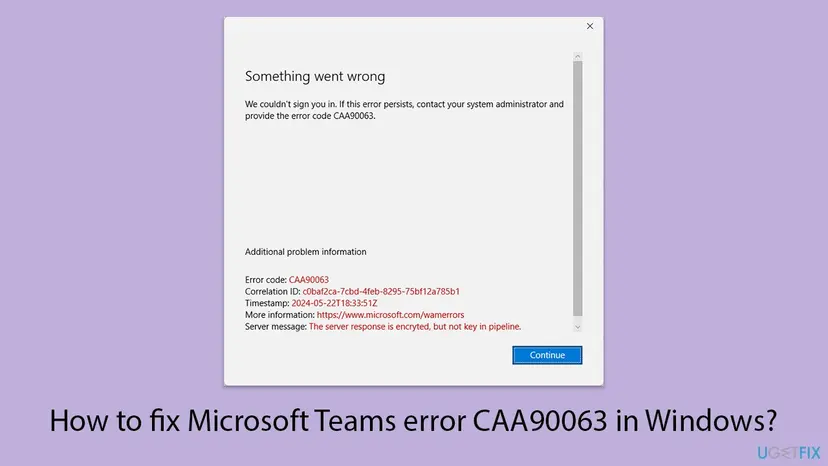
That window is not drawn by Teams. It comes from the Web Account Manager, the Windows broker that keeps work and personal accounts for apps. Teams, Outlook and the Office apps all ask it for a sign-in token, which is why one user on Microsoft Q&A saw the same code in both Teams and Outlook.
| Line in the window | What it tells you |
|---|---|
| Error code: CAA90063 | The broker's result. Hexadecimal 0xCAA90063, decimal 3400073315. |
| Correlation ID and Timestamp | The two values an administrator needs to find the attempt in the organisation's sign-in logs. Copy them before you close the window. |
| Server message: The server response is encryted, but not key in pipeline. | Microsoft's reply came back encrypted and the broker had no key to read it. That is our reading of the text: Microsoft does not document it. |
| More information link | Microsoft's general address for Web Account Manager errors, https://www.microsoft.com/wamerrors. It does not describe this code. |
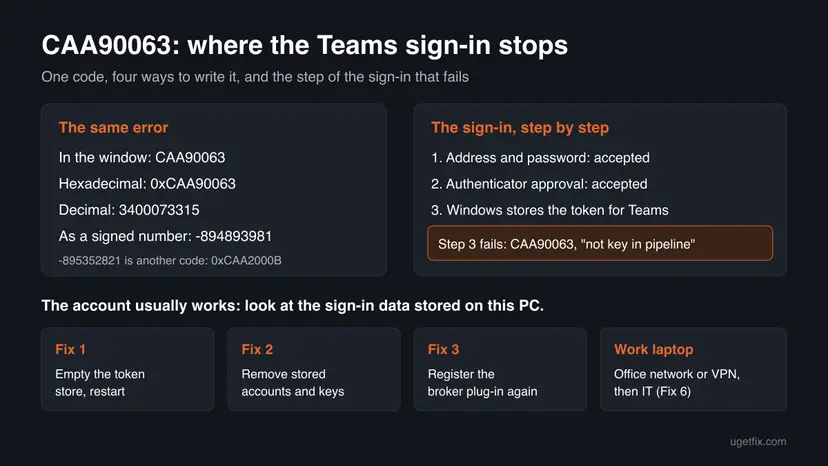
In the reports we read, the same account opened Teams in the browser while the desktop app failed. Resetting multi-factor authentication, clearing the Teams cache and reinstalling Teams did not help. That points at the sign-in data that Windows keeps for the account, which is where the fixes below start.
What causes error CAA90063, ranked by how often it is reported
Microsoft has not published a cause for CAA90063. The order below is our reading of the Microsoft Q&A reports and of Microsoft's own steps for broken broker sign-ins. It is not a statistic.
| How often | Cause | Typical sign | Fix |
|---|---|---|---|
| Most often | Damaged or stale account data in the broker's token store | Error right after the Authenticator approval, Teams on the web works. | Fix 1 |
| Often | Old Office credentials or a second work account on the PC | Started after a password change, a new account or a move between organisations. | Fix 2 |
| Less often | The broker plug-in package is missing or broken | Outlook, Word and Teams all fail, Outlook asks for a password again and again. | Fix 3, Fix 4 |
| Less often | Wrong clock, or Windows and Teams far behind on updates | A PC that was off for weeks or never updates. | Fix 5 |
| On managed laptops | The device cannot reach the company domain, or a Conditional Access rule or duplicate device record blocks it | Laptop away from the office, or several colleagues hit the same error. | Fix 6, then IT |
| Rarely | Teams' own stored state, or a VPN or security program in the way | Only Teams fails, Outlook signs in. | Fix 7, Fix 8 |
Clearing %appdata%\Microsoft\Teams and reinstalling Teams are the most common tips for this code. That folder belonged to classic Teams, and in the Q&A report both steps had already been tried without success. The account data sits in Windows, not in Teams.
How to fix error CAA90063 in Teams on Windows
Follow the fixes in order and start Teams after each one. Fix 1 takes five minutes and is the one users report as working most often. Success looks the same every time: Teams asks for your account, accepts the Authenticator approval and opens your chats.
| Your case | Start with | Then |
|---|---|---|
| The error appears right after the Authenticator approval | Fix 1 | Fix 2 |
| It began after a password change or a new work account | Fix 2 | Fix 1 |
| Outlook, Word and Teams all fail or keep asking for a password | Fix 3 | Fix 4 |
| The PC was off for a long time or shows the wrong time | Fix 5 | Fix 1 |
| Laptop from your employer or school, away from the office | Fix 6 | Send the correlation ID to IT |
| Only Teams fails, Outlook signs in fine | Fix 7 | Fix 8 |
Fix 1. Empty the Windows token store for work accounts
5 minutesLow riskEveryone first, and especially when the error comes right after you approve the sign-in in Authenticator.
CAA90063 comes from the broker that stores your account's tokens. On Microsoft Q&A, deleting the files in its TokenBroker account folder and restarting fixed the error in Teams and Outlook, and other users confirmed it.
- Right-click the Teams icon in the corner of the taskbar and select Quit. Close Outlook, Word, Excel and OneDrive too.
- Open File Explorer, paste this path into the address bar and press Enter:
%LOCALAPPDATA%\Packages\Microsoft.AAD.BrokerPlugin_cw5n1h2txyewy\AC\TokenBroker\Accounts - Press Ctrl + A to select all files, right-click the selection and select Delete.
- If Windows says a file is in use, restart the PC and delete the files before you open any app.
- Restart the PC.
- Start Teams, enter your work address and approve the sign-in in Authenticator.
The Q&A answer names the folder Account. On the PCs Microsoft describes, it is Accounts. Open the TokenBroker folder and use the one you see. If the folder is empty or missing, nothing is stored there: go to Fix 2.
The files hold the broker's cached account data, not your mail, chats or files. Windows and the apps rebuild them at the next sign-in, so every Microsoft 365 app on this PC asks for your account once.
It worked if: After the restart Teams asks for your account, accepts the approval and opens without the CAA90063 window.
If not: If the same window returns, remove the stored Office credentials and extra work accounts with Fix 2.
Fix 2. Remove stored Office credentials and sign in again
10 minutesLow riskThe error began after a password change, after adding a second work account, or after a move to another organisation.
Microsoft staff on Q&A advise signing out of all Microsoft accounts on the device and adding the account again. Old Office credentials and a stale work account give the broker data that no longer matches your account.
Disconnecting an account under Access work or school can remove the organisation's setup from the PC. On a managed laptop, do only the Credential Manager part and leave Disconnect to IT.
- Quit Teams from the taskbar corner and close Outlook, Word, Excel and OneDrive.
- Select Start, type
credential managerand open Credential Manager. Select Windows Credentials. - For every entry that starts with MicrosoftOffice16, select the arrow next to it and select Remove.
- Open Settings > Accounts > Access work or school. If an old work account is listed that you no longer use, select it and select Disconnect.
- Restart the PC.
- Start Teams and sign in with your work address, not a personal Outlook.com or Hotmail address. Approve the sign-in in Authenticator.
If Outlook shows the error too, remove the account in Outlook and add it again, as Microsoft staff suggested to a user who saw CAA90063 in both apps. The same steps, with pictures, are in our guide to Teams error tag 7ita9, another broker sign-in error.
It worked if: Teams asks for the account as on a new PC, takes the password and the approval, and keeps you signed in after a restart.
If not: If several Microsoft 365 apps still fail, register the broker plug-in again with Fix 3.
Fix 3. Register the Windows sign-in plug-in again
5 minutesLow riskOutlook, Word and Teams all fail to sign in, or Outlook keeps asking for a password without a reason.
Microsoft's article on failing Microsoft 365 authentication says missing package information of the broker plug-in breaks the sign-in. Its fix registers the plug-in package again with one PowerShell command.
- Stay signed in to Windows as the person who gets the error.
- Right-click Start and open Terminal (Admin) or Windows PowerShell (Admin). Select Yes in the User Account Control prompt.
- For a work or school account, run Microsoft's command:
if (-not (Get-AppxPackage Microsoft.AAD.BrokerPlugin)) { Add-AppxPackage -Register "$env:windir\SystemApps\Microsoft.AAD.BrokerPlugin_cw5n1h2txyewy\Appxmanifest.xml" -DisableDevelopmentMode -ForceApplicationShutdown } Get-AppxPackage Microsoft.AAD.BrokerPlugin - For a personal Microsoft account, run the second one:
if (-not (Get-AppxPackage Microsoft.Windows.CloudExperienceHost)) { Add-AppxPackage -Register "$env:windir\SystemApps\Microsoft.Windows.CloudExperienceHost_cw5n1h2txyewy\Appxmanifest.xml" -DisableDevelopmentMode -ForceApplicationShutdown } Get-AppxPackage Microsoft.Windows.CloudExperienceHost - Check the result: a short progress bar or a block of package details means it worked. Red text means it did not.
- Restart the PC and sign in to Teams.
Each command checks whether the package is present, registers it only when it is missing, and then prints its details. If you see red text, copy it for IT or Microsoft support.
It worked if: PowerShell prints the package details without errors, and Teams signs in after the restart.
If not: If the command reports no problem and Teams still fails, let Microsoft's sign-in troubleshooter check the PC with Fix 4.
Fix 4. Run the Microsoft 365 sign-in troubleshooter
10 minutesLow riskYou want Microsoft's own tool to check the sign-in before you change more by hand, or Fix 1 to Fix 3 did not help.
Microsoft staff answered a CAA90063 report by pointing to this troubleshooter, and Microsoft's broker article recommends it to diagnose and fix common Microsoft 365 sign-in issues automatically.
- Quit Teams and close the Office apps.
- Open
https://aka.ms/SaRA-OfficeSignIn-sarahomein your browser. The link opens the Microsoft 365 sign-in troubleshooter in the Get Help app. - Allow Get Help to open if Windows asks, and answer its questions about the app and the account.
- Apply the fixes it offers and restart the PC when it asks.
- Start Teams and sign in.
It worked if: The troubleshooter reports a problem it fixed, and Teams signs in after the restart.
If not: If it finds nothing, check the clock and the updates with Fix 5.
Fix 5. Check the date and time, then update Windows and Teams
15 to 30 minutesLow riskThe PC was off for a long time, shows the wrong time, or has not installed updates for weeks.
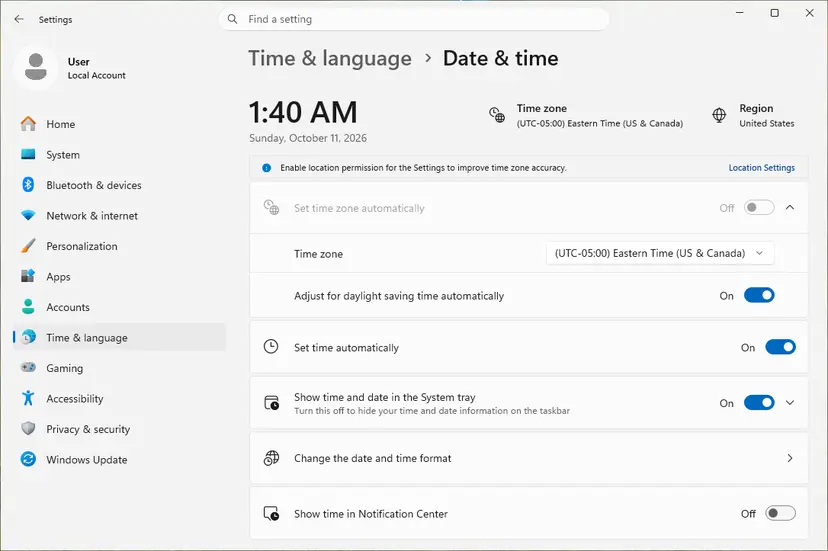
Microsoft staff on Q&A list a correct, automatic clock and current versions of Windows and Teams first for CAA90063. A clock that is far off breaks the secure token exchange, and the broker is updated through Windows.
- Check the date, time and time zone in the corner of the taskbar. If they are wrong, turn on automatic time: How to fix the date and time in Windows.
- Select Start, type
check for updatesand open Check for updates. - Select Check for updates, install everything offered and restart.
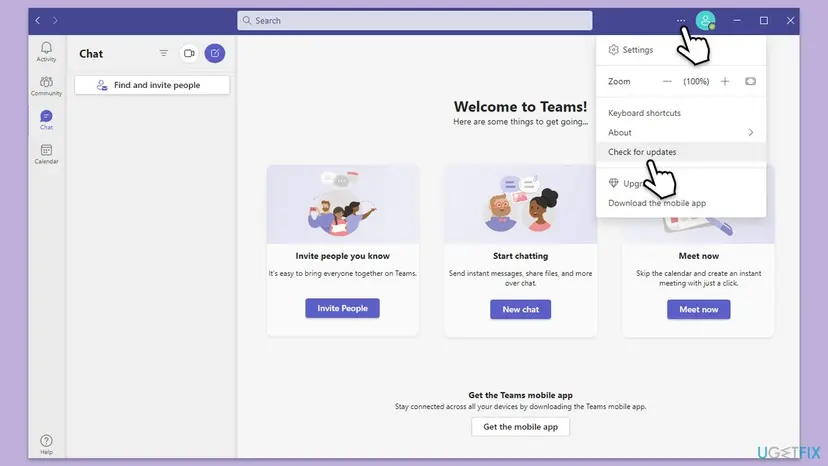
- Start Teams. If it opens, select Settings and more, the three dots next to your picture, and select Check for updates.
Windows 10 left support on 14 October 2025. A Windows 10 PC without Extended Security Updates no longer gets fixes for its sign-in components, so a move to Windows 11 is the lasting answer there.
It worked if: The clock is right, Windows and Teams report that they are up to date, and the sign-in finishes.
If not: On a work laptop, connect it to the company network with Fix 6. Otherwise reset Teams with Fix 7.
Fix 6. Connect a work laptop to the company network and refresh its policies
10 minutesLow riskThe laptop belongs to your employer or school and you work away from the office.
Users on Reddit report that their helpdesk solved CAA90063 after multi-factor sign-in by putting the device on the VPN to the office network and running gpupdate. A domain-joined laptop that cannot reach its domain can fail the device part of the sign-in.
- Connect the company VPN, or bring the laptop into the office network.
- Lock the PC with Win + L and unlock it with your current password while it is connected.
- Select Start, type
cmd, open Command Prompt and run:gpupdate - Wait until it reports that the policy update has completed, then restart the PC while still connected.
- Start Teams and sign in.
If it still fails, stop here and send IT the correlation ID and timestamp from the error window. Microsoft staff name two causes only an administrator can check: a Conditional Access policy that blocks the device, and duplicate records of the device in Microsoft Entra ID.
It worked if: With the laptop on the company network, Teams signs in and keeps working when you leave it.
If not: If the laptop is yours and not managed, reset Teams with Fix 7.
Fix 7. Reset the Teams app
5 minutesLow riskOnly Teams fails while Outlook and the Office apps sign in, or Fix 1 to Fix 5 did not help.
A reset clears Teams' own stored sign-in state in one step. It replaces the old advice to delete the classic Teams folder and to reinstall, which did not help in the Q&A report.
- Right-click the Teams icon in the taskbar corner and select Quit.
- Open Settings > Apps > Installed apps and type
Microsoft Teamsin the search box. - Select the three dots next to Microsoft Teams and select Advanced options.
- Under Reset, select Reset. Teams loses its local settings, while chats and files stay in the cloud.
- Start Teams and sign in.
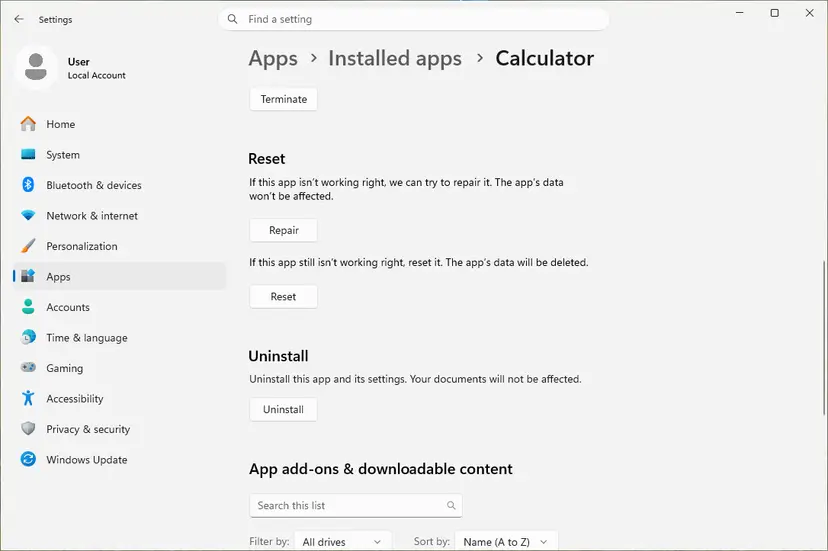
Every screen of the reset, with the Windows 10 path: How to repair or reset an app in Windows.
It worked if: Teams starts like a fresh install, asks for your account and opens your chats after the approval.
If not: If the same window returns, test without VPN and security software with Fix 8.
Fix 8. Test without a VPN, proxy or third-party security software
10 minutesLow riskA personal VPN, a proxy or a web filter runs on the PC, or the error began after one was installed.
Microsoft staff ask to rule out firewall settings, antivirus software and network restrictions that block the authentication, and to try a different network. A filter that rewrites encrypted traffic can break the token exchange.
- Disconnect a personal VPN, or connect the PC to a phone hotspot, and try the Teams sign-in.
- Open Settings > Network & internet > Proxy. If a manual proxy is on and you did not set it, switch it off for one test.
- Pause the antivirus for one attempt. For Microsoft Defender: Turn off Microsoft Defender protection for a moment.
- Try the sign-in, then switch the protection, the proxy and the VPN back on, whatever the result.
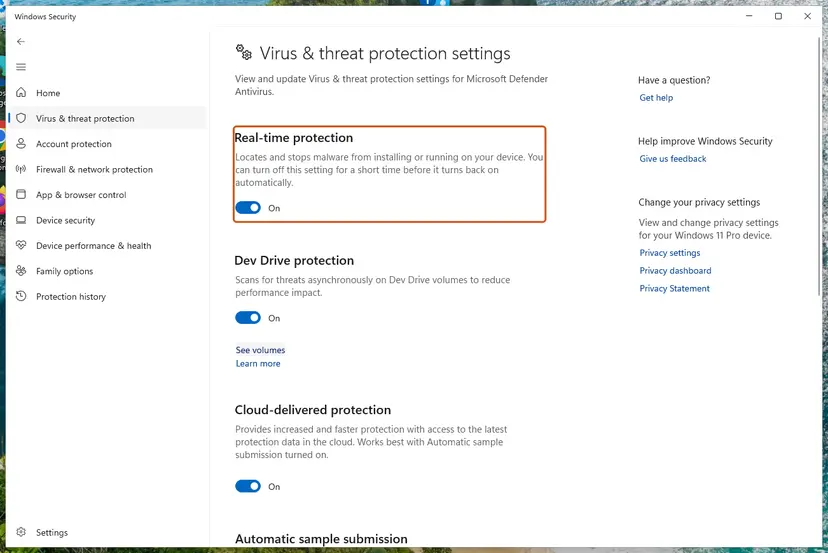
If the sign-in works while one program is paused, keep the program and ask its maker or your IT department to allow Microsoft.AAD.BrokerPlugin.exe. A paused antivirus is a test, not a fix.
It worked if: The sign-in works with one program paused, which names the blocker, and keeps working once it has an exception.
If not: If nothing changed, turn everything back on and collect the details in the next section for IT or Microsoft support.
If CAA90063 is still there: what to collect and who can fix it
When the PC side is clean and the error stays, the cause is usually in the organisation's settings for your account or device. Collect these details before you contact anyone, so that they can find the failed attempt.
- From the error window: the error code, the Correlation ID, the Timestamp and the server message under Additional problem information.
- Windows' own log: right-click Start, open Event Viewer and go to Applications and Services Logs > Microsoft > Windows > AAD > Operational. Note the errors at the time of your sign-in.
- Teams logs: press Ctrl + Alt + Shift + 1 in Teams if it opens, or right-click the Teams icon in the taskbar corner and select Collect support files.
- A second account test: Microsoft staff suggest signing in with another account on the same PC. If that works, the problem is tied to your account, not to the device.
| What you see | Likely reason | Who can fix it |
|---|---|---|
| Teams on the web and the phone app work, the desktop fails on every network | Device data or device record of this PC | IT, with the correlation ID |
| Several colleagues get CAA90063 at the same time | A Conditional Access policy or a service problem | IT, in the Microsoft 365 admin center |
| Another account signs in on the same PC | Your account's sign-in rules or multi-factor setup | IT |
| Teams on the web fails too | The account itself, or a Microsoft outage | IT, or wait and check the service status |
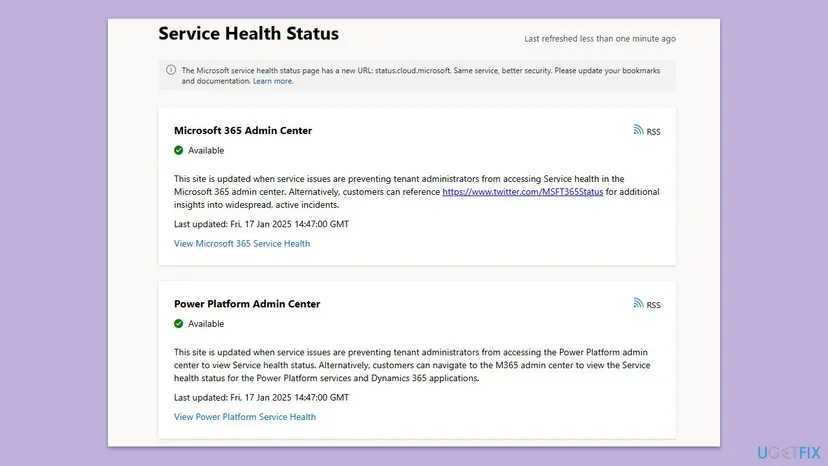
For administrators: what to check in Microsoft Entra ID
Microsoft staff on Q&A list three checks for CAA90063 that only an administrator can do. Start with the correlation ID and timestamp from the user's window, which identify the attempt in the sign-in logs.
- Conditional Access. Review the policies that apply to the user and the device. A rule that requires a compliant or joined device can stop the desktop sign-in while the browser works.
- Duplicate device records. Look for more than one record of the user's device in Microsoft Entra ID and remove the duplicates.
- Device policy and domain. For a domain-joined laptop, make sure it reaches the domain over the VPN and has refreshed its policies, as in Fix 6.
- Unsupported workarounds. Old threads turn off WAM or ADAL in the Office registry keys. Microsoft says disabling ADAL or WAM is not supported to fix Microsoft 365 sign-in problems.
How to keep CAA90063 from coming back
Once the broker has clean data for your account, the error does not return on its own. It comes back when that data and your account drift apart. These habits keep them in step.
- After a password change, lock and unlock Windows with the new password while online, before you open Teams.
- Remove accounts you no longer use under Access work or school and in the Office apps, after asking IT on a managed PC.
- Keep automatic time on. A clock that is far off breaks secure sign-ins.
- Keep Windows and Teams updated. Fixes for the broker arrive through Windows updates.
- Connect a work laptop to the company network now and then, so that its device policies stay current.
- Give security tools an exception, not a pause, if one of them blocked the broker in Fix 8.
Frequently asked questions
What is error code CAA90063 in Teams?
It is a sign-in error of the Windows account broker that Teams uses. Microsoft accepted your password and your Authenticator approval, but Windows could not finish storing the token for Teams. The window says Something went wrong and We couldn't sign you in, and often adds a server message about a key that is not in the pipeline. Microsoft does not list the code in its public Teams table. Staff on Q&A tie it to multi-factor authentication, and users fixed it by clearing the broker's stored account data (Fix 1).
Why do I get CAA90063 after approving the sign-in in Authenticator?
Because the approval is not the last step. After it, Microsoft sends the token back to Windows, and the broker on your PC has to read and store it. In the window we show, the server message says the response was encrypted but the key was not in the pipeline. That fits a broker whose stored data for the account no longer matches. Resetting multi-factor authentication did not help in the Q&A report, while clearing the token store did in another one.
Will reinstalling Teams fix CAA90063?
Usually not. In the Microsoft Q&A report the user had already cleared the Teams cache, reinstalled new Teams and switched to classic Teams, and CAA90063 stayed in both. The sign-in data sits in Windows, not in Teams, and the same code also appears in Outlook. A Teams reset is part of this guide as Fix 7, for the case where only Teams fails. Start with the token store in Fix 1, which is where users report success.
Can I use Teams while CAA90063 is not fixed?
Yes. Teams on the web at https://teams.microsoft.com and the Teams phone app use other sign-in paths, and in the reports they kept working while the desktop app failed. That also tells you the account is fine. Use the web version for meetings and chats while you work through the fixes, and note that the desktop app keeps the error until the stored account data on this PC is cleared or rebuilt.
Is CAA90063 a Microsoft outage?
Rarely. The code comes from the broker on your PC, and in the reports the same account worked in a browser at the same time. During a real outage, Teams on the web fails as well, and colleagues on other networks see problems too. If several people in your organisation get CAA90063 at once, the administrator can check service health and the sign-in logs in the Microsoft 365 admin center. Microsoft's public status page covers only the admin portals.
Why does Outlook show CAA90063 too?
Outlook asks the same Windows broker for your work account, so a broken token store shows up there as well. One user on Microsoft Q&A got the code in both Teams and Outlook, and Microsoft staff suggested the Microsoft 365 sign-in troubleshooter and removing and adding the account in Outlook again. The fix that user later confirmed was deleting the files in the TokenBroker account folder and restarting, which is Fix 1 here.
What is tencent90063?
Most likely a typo of CAA90063 that search engines receive now and then. We found no Tencent product or error with that code. If you saw 90063 in the Microsoft window with Something went wrong and We couldn't sign you in, it is the error this page is about, and the fixes apply unchanged. If the code came from a Tencent app or game, it is a different problem, and this page does not cover it.
What is Teams error code -895352821?
It is a different code from CAA90063. Written as an unsigned hexadecimal number, -895352821 is 0xCAA2000B, while CAA90063 as a signed number is -894893981. Both belong to the 0xCAA family of Microsoft 365 sign-in codes, and Microsoft's public table lists its neighbour 0xCAA20003 as an authorization problem. Some fixes overlap, such as the clock in Fix 5 and the stored accounts in Fix 2, but we could not confirm the exact meaning of 0xCAA2000B.
Is it safe to delete the files in the TokenBroker folder?
Yes, for the Accounts folder that Fix 1 empties. It holds the broker's cached account data, not mail, chats or documents, and Windows builds it again at the next sign-in. The cost is that Teams, Outlook and the other Microsoft 365 apps ask for your account once more. Quit the apps first so that no file is in use. Do not delete the whole Microsoft.AAD.BrokerPlugin_cw5n1h2txyewy package folder, and on a managed laptop tell IT what you did.
Should I turn off multi-factor authentication to stop CAA90063?
No. Multi-factor authentication is not what breaks; it is the step after it. Turning it off would weaken the account and, on a work account, is not your decision to make. In the Q&A report, an administrator reset the user's multi-factor setup and the error stayed. Fix the stored data on the PC with Fix 1 to Fix 3, and if the organisation's rules are the cause, IT can check them with the correlation ID.
Sources
- Microsoft Learn: Authentication automatically fails in Microsoft 365 services (BrokerPlugin and CloudExperienceHost commands) (learn.microsoft.com)
- Microsoft Q&A: Error Message When Authenticating in Teams (CAA90063 after MFA, staff answer) (learn.microsoft.com)
- Microsoft Q&A: Error code CAA90063 when I attempt to login my Microsoft Outlook (TokenBroker folder fix, user report) (learn.microsoft.com)
Did this fix work?
One click, no account. It tells the next reader which guides are worth their time.
Questions and experiences: fix Microsoft Teams error CAA90063 in Windows
Still broken, or found a fix we did not cover? Ask here: members and our editors answer. Reading is open; writing needs a free account.
…