
How to fix Microsoft Teams Error tag 7ita9 in Windows?

Prefer to fix it yourself? The manual steps follow.
- 8methods
- 5 to 30 minutes
- Intermediate
Applies to Microsoft Teams (new Teams), classic and new Outlook, OneDrive and the Microsoft 365 apps for Windows on Windows 11 and Windows 10, with work, school or personal Microsoft accounts
8 methods in this guide
- What the tag means
- Decode Code 3399811147
- Teams, Outlook, OneDrive
- Causes, ranked
- After a password change
- Home or managed PC
- The fixes
- 1. Re-sign in, right account
- 2. Disconnect and clear
- 3. Clear identity cache
- 4. Clear plug-in tokens
- 5. Re-register plug-ins
- 6. Reset Teams
- 7. Clear Office identity keys
- 8. VPN, proxy, antivirus
- Still there: next steps
- For administrators
- Prevent it
- FAQ
So I partly started working from home, so I tried to log in to Teams as requested, but I couldn't because I kept getting Error tag 7ita9 every time. The message said "Error - something went wrong". I am running Windows 11 24H2.
Tag 7ita9 marks a desktop sign-in that Windows could not complete for Teams, Outlook or OneDrive: the Microsoft window shows Something went wrong. [7ita9] and, under it, Code: 3399811147. Most reports follow a password change or a mix of personal and work accounts. Sign out, sign in to Windows and Teams with the current password and the right account, then clear the stored account if the tag returns.
7ita9 with Code 3399811147 means Windows handed Teams an account it could not use: an old password, the wrong account type or a leftover account. First sign in at teams.microsoft.com in a browser. If that works, sign out of Teams and Office, sign in to Windows again with your current password, and sign in to Teams with your work address (Fix 1). If the tag returns, disconnect the account and clear the saved credentials (Fix 2).
| Error | Something went wrong. [7ita9] in a Microsoft sign-in window. The details read Correlation Id, Timestamp, DPTI, Message ("An unexpected error occurred."), Tag: 7ita9 and Code: 3399811147. |
|---|---|
| Where it appears | When the Teams desktop app, Outlook, OneDrive or Word asks Windows for your account: at start, after you type the password and approve the sign-in, or when an app wants the account again. |
| Main cause | The account data that Windows keeps for the apps no longer matches the account: a password that was changed or reset, a personal account where a work account is needed, or several work accounts on one PC. |
| Fastest fix | Test teams.microsoft.com in a browser, then sign out of Teams and Office, sign in to Windows with the current password and sign in to Teams again (Fix 1). |
| What the Code means | 3399811147 is 0xCAA5004B. The 0xCAA codes belong to the Teams and Microsoft 365 sign-in. Microsoft does not publish a meaning for this one. In Teams logs it appears as an error of the Windows account provider. |
| Also written as | 7ita9 error, error 7ita9, [7ita9], Tag: 7ita9, 7ITA9, "Oops, something went wrong." in Outlook, "Ocorreu um erro. [7ita9]", "Se ha producido un error. [7ita9]". Older Teams printed the same code as caa5004b. |
| Affects | New Teams, classic and new Outlook, OneDrive, Word, Excel and PowerPoint on Windows 11 and Windows 10. Work and school accounts in most reports, education accounts too. |
| Microsoft's status | Undocumented: on 14 October 2026 neither Microsoft Learn nor Microsoft Support had a page for 7ita9 or for 0xCAA5004B. Microsoft documents the stores behind the sign-in and how to reset them. |
| Time to fix | 5 minutes for Fix 1. Up to 30 minutes if you need Fix 2 to Fix 5. Nothing to download. |
Facts checked on 14 October 2026. Steps written for the new Microsoft Teams, Outlook and the Microsoft 365 apps on Windows 11 (25H2 and 26H2) and Windows 10 22H2, read against Microsoft's documentation.
What Something went wrong [7ita9] means in Microsoft Teams
You open Teams, type your work address, perhaps your password and the code from your phone, and then a small window with the Microsoft logo says Error and, in red, Something went wrong. [7ita9]. Below it there may be a link to show more details and a button to close the window.
![Microsoft sign-in window with the Microsoft logo, the heading Error and the red line Something went wrong. [7ita9] on a plain white background](/pic/w828q75/uploads/wp/articles/askit/how-to-fix-microsoft-teams-error-tag-7ita9-in-windows-copy_en.jpg.webp)
The window comes from the Windows sign-in component that Teams and the Microsoft 365 apps share, not from Teams itself. The bracketed tag marks the place where that component stopped. Microsoft publishes no list of such tags, so 7ita9 alone does not say what failed. The useful part is hidden under the details link.
| Line in the details | What it is | What to do with it |
|---|---|---|
| Correlation Id | The number of this one sign-in attempt. | Copy it for your administrator or Microsoft support. |
| Timestamp | The time of the attempt in UTC. | Send it with the Correlation Id. |
| DPTI | A long string that Microsoft does not explain. | Give it to support only. Moderators on Microsoft Q&A remove it from public posts as personal information. |
| Message | "An unexpected error occurred." in every report we read. | Nothing. It repeats the red line. |
| Tag | 7ita9. | It brought you here. It does not name a cause. |
| Code | 3399811147 in every report that quotes it. | Decode it in the next section. It separates 7ita9 from look-alike tags. |
7ita9 error, error 7ita9, [7ita9], Tag: 7ita9 and 7ITA9 are one error. Outlook may start the window with "Oops, something went wrong." Other tags in the same window have other codes and causes: tag 48v35 reports a missing file, tag 7q6ch mostly service or TPM codes.
Code 3399811147 under tag 7ita9: decoding 0xCAA5004B
Every 7ita9 report that quotes the Code line shows 3399811147, from Teams, from Outlook and from OneDrive alike. It is a result code printed as a decimal number. In hexadecimal, the form that logs and Microsoft's tables use, it reads 0xCAA5004B.
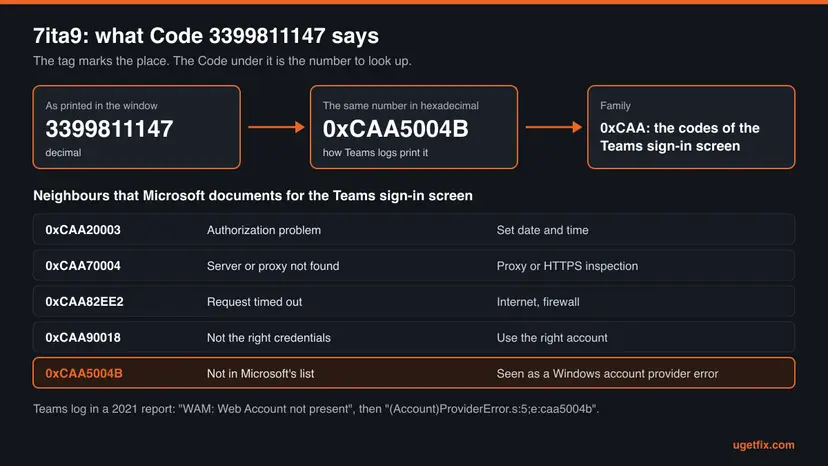
The 0xCAA start places the code among the Teams sign-in errors. Microsoft's page Why am I having trouble signing in to Microsoft Teams? lists several of them, and its Teams troubleshooting article lists more. 0xCAA5004B is in neither.
| Code | Microsoft's description | What it tells you about 7ita9 |
|---|---|---|
0xCAA20003 | You ran into an authorization problem. Check date and time. | A neighbour. If you see this code instead, fix the clock: How to fix the date and time in Windows. |
0xCAA20004 | The request needs approval by a resource owner or authorization server. | Tied to Conditional Access. Only an administrator can change it. |
0xCAA70004, 0xCAA70007 | Server or proxy not found, or the download was interrupted. | Network codes. See Fix 8. |
0xCAA82EE2, 0xCAA82EE7 | The request timed out, or the server name could not be resolved. | Network codes. See Fix 8. |
0xCAA90018 | You're not using the right credentials. The Windows credentials differ from the Microsoft 365 credentials. | The closest documented relative: also a wrong or mismatched account. |
0xCAA5004B | Not documented by Microsoft. | The code behind 7ita9. Read the evidence below. |
- Classic Teams printed the same code. In 2021 to 2022 users posted a Teams screen with "Error code - caa5004b" and a Restart button. That is 0xCAA5004B written in lower case.
- The Teams log names the Windows account provider. One posted log shows "WAM: Web Account not present. Starting RequestTokenForWindowAsync." and then "(Account)ProviderError.s:5;e:caa5004b". WAM is Web Account Manager, the part of Windows that keeps your accounts for apps.
- Staff answers point at the account. A Microsoft community support specialist wrote that 0xCAA5004B means the password is incorrect, authentication failed, or the account is restricted. An independent advisor called it an unexpected issue that stopped the login.
Put together, the code means that Windows asked its account provider for a Teams token and got an error back instead. That is why the fixes on this page renew or remove the stored account. We could not confirm the exact internal meaning of 0xCAA5004B from a Microsoft document.
7ita9 in Teams, Outlook, OneDrive and Office: one shared account
Teams, Outlook, OneDrive and the Office apps all ask the same Windows component for your work or school account. When that stored account is wrong, the tag can appear in each of them on the same day. One French report names OneDrive, Teams, Word, Excel, PowerPoint and Outlook at once.
| App | What users report with 7ita9 | What still works |
|---|---|---|
| Teams (new Teams) | The window appears after the password and the second factor are accepted. Reinstalling Teams did not help. The old address still shows under recent accounts. | Teams at teams.microsoft.com and the Teams phone app. |
| Classic Outlook | "Oops, something went wrong." with Tag 7ita9, at random after weeks of normal use. A new mail profile could not be created. | Outlook on the web. |
| New Outlook | Sign-in from one laptop fails with the tag, while the phone and another computer sign in fine. | Outlook on the web, other devices. |
| OneDrive, Word, Excel, PowerPoint | Files from OneDrive will not open in the desktop apps, for weeks. Office 2021 with a work account shows the tag after the wrong account type was used. | The Office web apps. |
Sign in at teams.microsoft.com with the same address. If the browser works, the account is fine and the stored copy on this PC is the problem: follow the fixes in order. If the browser fails too, the account itself is refused, and the section after the fixes explains who can help.
What causes error 7ita9, ranked by how often it is reported
Microsoft has not named a cause. The order below is our reading of the reports with this tag and of what Microsoft documents about the sign-in data on a Windows PC. It is not a statistic.
| How often | Cause | Typical sign | Fix |
|---|---|---|---|
| Most often | The password was changed or reset, and Windows still holds a token issued with the old one | The tag started the day of the change. Two reports name a reset in on-premises Active Directory, one a reset on the device. | Fix 1, Fix 2 |
| Often | The wrong account type: a personal Microsoft account where the work or school account is needed | Office or Windows is signed in with a personal account. A Microsoft staff answer resolved one case by signing in again with the work account. | Fix 1, Fix 2 |
| Often | Leftover accounts in the Office identity cache and the account plug-in | The password and the second factor are accepted, then 7ita9 again. The old account still appears in Teams. | Fix 3, Fix 4, Fix 7 |
| Less often | Accounts of several organisations on one Windows profile | Guests in other tenants, or a consultant's laptop. Disconnect in Teams does nothing. | Fix 2, Fix 4 |
| Less often | The Windows account plug-in is missing or damaged | The sign-in window is blank, hangs or closes. Several apps fail, not only Teams. | Fix 5 |
| Rarely | A VPN, proxy or security program that blocks the plug-in | Sign-in works on another network or with the program paused. | Fix 8 |
The old version of this page blamed outdated Teams versions and suggested compatibility mode. We found no report and no Microsoft document that ties 7ita9 to either. Two users reinstalled Teams or Office without effect, because the account data lives in the Windows profile, not in the app.
Why 7ita9 follows a password change, and what renews the token
On a PC that is joined to Microsoft Entra ID, or hybrid joined with a company domain, Windows keeps a Primary Refresh Token. Teams and Office use it for single sign-on. Microsoft's documentation of this token explains what a password change does to it.
- If the token was obtained with your password, Microsoft Entra ID invalidates it when the password changes.
- If you then sign in to Windows with the new password, Windows discards the old token and requests a new one.
- If you are still signed in with the old password, apps keep using the old token and you should get a prompt to sign in again.
- Without an internet connection the new password cannot be checked, and Windows may ask for the old one.
- Windows renews the token about every 4 hours during Windows sign-in, and only when the PC is online.
So the cheapest repair after a password change is not inside Teams at all. Sign out of Windows completely, connect to the internet and sign in again with the new password. On a company laptop at home that may also mean connecting the company VPN first, if your IT department says so.
Home PC or managed laptop: who is allowed to fix 7ita9
Some fixes remove the work account from Windows. On your own PC that is what you want. On a laptop that an employer or school manages, the same step can remove the organisation's setup, so leave it to IT. One command tells you which case you have.
Type this in Command Prompt, opened the normal way. Look at the Device State block at the top.
dsregcmd /status| Line in the output | What it means | Your route |
|---|---|---|
| AzureAdJoined : YES or DomainJoined : YES | The PC is joined to the organisation. | A managed PC. Run Fix 1, Fix 3 and Fix 6, then contact IT before anything else. |
| WorkplaceJoined : YES | A work or school account was added to your own Windows profile. | Your own PC with a work account. All fixes, Fix 2 fits best. |
| All three NO | No organisation registration. | A private PC. All fixes. |
| AzureAdPrt : NO on a joined PC | No Primary Refresh Token for the signed-in user. | Single sign-on has nothing to use. Sign in to Windows again online (Fix 1), then tell IT. |
- Sign out of Windows and in again with your current password while online.
- Copy the details of the error window and send them to IT with the time.
- Tell IT whether the browser and your phone sign in.
- Select Disconnect under Access work or school for an account the organisation added. That is IT's job.
- Delete registry keys from forum threads.
- Reset your password again and again. Each change creates a new mismatch until the PC catches up.
How to fix error 7ita9 in Teams on Windows
Do the browser test first, then go through the fixes in order and try to sign in to Teams after each one. Fix 1 is safe everywhere. Fix 2 to Fix 7 remove stored account data, so they suit your own PC, or a managed laptop only with IT's consent. Success looks the same each time: no red line, and Teams loads your chats.
| Your case | Start with | Then |
|---|---|---|
| The browser at teams.microsoft.com fails too | The account section after the fixes | Password reset or IT |
| Your password was changed or reset recently | Fix 1 | Fix 2, Fix 3 |
| A personal Microsoft account is signed in to Windows or Office | Fix 1 | Fix 2 |
| Password and phone approval accepted, then 7ita9 again | Fix 3 | Fix 4, Fix 7 |
| Accounts of several organisations on this PC | Fix 2 | Fix 4 |
| Sign-in window blank, hangs or closes at once | Fix 5 | Fix 8 |
| Laptop managed by an employer or school | Fix 1 | Fix 3, Fix 6, then IT |
Fix 1. Sign in again with the right account and your current password
5 minutesNo riskEveryone, first. Above all after a password change, or when a personal account is signed in to Windows or Office.
Microsoft's token documentation says that signing in to Windows with the new password makes Windows drop the old token and request a new one. In one 7ita9 thread a Microsoft support specialist ended the error by having the user sign out of Office and sign in with the work account.
- Open
https://teams.microsoft.comin a browser and sign in with your work or school address. Continue only if that works. - In Teams, if it opens, select your profile picture and select Sign out.
- Open Word or Excel, go to File > Account and select Sign out. In classic Outlook it is File > Office Account.
- Right-click the Teams icon in the corner of the taskbar and select Quit.
- Make sure the PC is online. Select Start, your account picture and Sign out to leave Windows completely.
- Sign in to Windows with your current password. If Windows asks for the old one, enter it once, then lock the PC with Win + L and unlock it with the new one.
- Start Teams and sign in with your work or school address, not with a personal Outlook.com or Hotmail address.
If you sign in to Windows with a personal Microsoft account, Teams may offer that account first. Choose Use another account and type the work address. The same applies in Word or Outlook: the account at the top of File > Account must be the work one.
It worked if: Teams asks for the password or the phone approval once and opens your chats, with no red line.
If not: If 7ita9 appears again with the right account and the current password, remove the stored account with Fix 2.
Fix 2. Disconnect the work account and remove the saved Office credentials
10 minutesLow riskYour own PC, when Fix 1 did not help, or when accounts of several organisations are on it.
Windows keeps the work account in two places outside the apps: the list under Access work or school and Credential Manager. Microsoft's activation article clears both, and staff on Microsoft Q&A gave this as the first answer in three 7ita9 threads.
Disconnecting an account that the organisation added can remove its device setup. On a managed laptop do the Credential Manager part only and ask IT about Access work or school.
- Quit Teams from the taskbar corner and close Outlook, Word, Excel and OneDrive.
- Open Settings > Accounts > Access work or school.
- If the account you use for Teams is listed and it is not the account you sign in to Windows with, select it and select Disconnect. Do the same for old accounts of other organisations.
- Select Start, type
credential managerand open Credential Manager. - Select Windows Credentials.
- For every entry that starts with MicrosoftOffice16, select the arrow next to it and select Remove.
- Restart the PC, start Teams and sign in with the work address. Accept when Windows offers to remember the account.
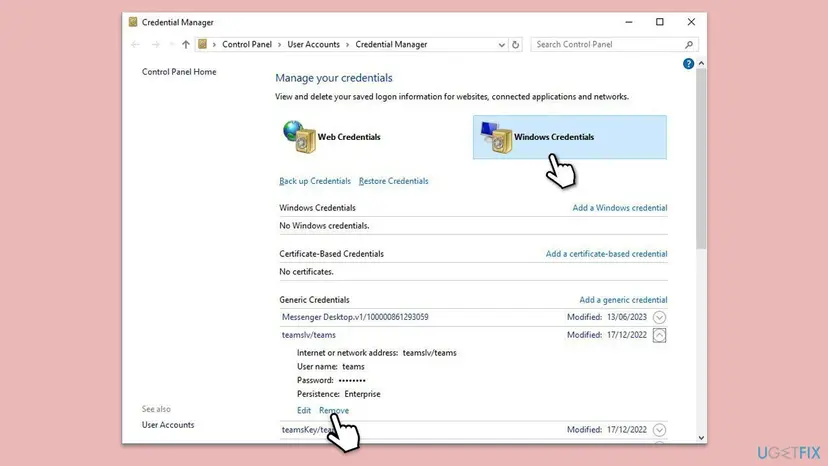
It worked if: Windows treats the account as new, asks for the password and the second factor, and Teams opens.
If not: If the password and the approval are accepted and 7ita9 comes back, clear the identity cache with Fix 3.
Fix 3. Delete the OneAuth and IdentityCache folders
5 minutesLow riskThe password and the phone approval are accepted and 7ita9 appears again, or the old account still shows in Teams.
These folders hold the accounts and tokens that the Microsoft 365 apps share. Microsoft tells users to remove them when Office signs in with the wrong account. In the most detailed 7ita9 thread, clearing them was the step that brought the sign-in prompt back.
- Quit Teams and close every Office app and OneDrive.
- Press Win + R, paste this path and press Enter:
%localappdata%\Microsoft - Open the OneAuth folder, select everything with Ctrl + A and delete it.
- Go back and do the same inside IdentityCache.
- If Windows says a file is in use, restart the PC and delete the files before you open any app.
- Restart the PC and sign in to Teams.
Expect an honest result. In that thread the prompt came back, the password and the second factor were accepted, and then the sign-in stopped at the same point. The next step there, Fix 4, finished the job.
It worked if: Teams asks for the account as on a new PC and signs in after the approval.
If not: If it stops again after the approval, empty the token store of the account plug-in with Fix 4.
Fix 4. Empty the token store of the Windows account plug-in
5 minutesLow riskFix 3 brought the prompt back but the sign-in still ends in 7ita9. Your own PC.
Work accounts are signed in by the Windows package Microsoft.AAD.BrokerPlugin, and it keeps its own token files. In the 7ita9 thread above, clearing that package's data was the last step before the user wrote that the issue was resolved. Microsoft documents a narrower version that deletes only the stored accounts.
- Quit Teams and close the Office apps.
- Open File Explorer, paste this path into the address bar and press Enter:
%LOCALAPPDATA%\Packages\Microsoft.AAD.BrokerPlugin_cw5n1h2txyewy\AC\TokenBroker\Accounts - Press Ctrl + A, right-click the selection and select Delete.
- Do the same in the folder of the plug-in for personal accounts:
%LOCALAPPDATA%\Packages\Microsoft.Windows.CloudExperienceHost_cw5n1h2txyewy\AC\TokenBroker\Accounts - Restart the PC and sign in to Teams.
The Q&A answer told the user to empty the whole Microsoft.AAD.BrokerPlugin_cw5n1h2txyewy folder. Microsoft's own article deletes only the Accounts folder inside it. Start with Microsoft's step. If a folder does not exist, skip it: nothing is stored there.
It worked if: After the approval Teams loads instead of showing the tag, and Outlook and OneDrive accept the account too.
If not: If the sign-in window is now blank or closes at once, register the plug-ins again with Fix 5.
Fix 5. Register the Windows account plug-ins again
10 minutesLow riskThe sign-in window is blank, hangs or closes, or several Microsoft 365 apps fail together.
Microsoft's article on failed authentication in Microsoft 365 apps says the cause can be missing package information for the work account plug-in or the Live ID plug-in, and gives PowerShell commands that register them again. Advisors on Microsoft Q&A gave the same commands for 7ita9.
- Stay signed in to Windows as the person who gets the error.
- Right-click Start and open Terminal (Admin) or Windows PowerShell (Admin). Select Yes in the User Account Control prompt.
- For a work or school account, run Microsoft's command:
if (-not (Get-AppxPackage Microsoft.AAD.BrokerPlugin)) { Add-AppxPackage -Register "$env:windir\SystemApps\Microsoft.AAD.BrokerPlugin_cw5n1h2txyewy\Appxmanifest.xml" -DisableDevelopmentMode -ForceApplicationShutdown } Get-AppxPackage Microsoft.AAD.BrokerPlugin - For a personal Microsoft account, run the second one:
if (-not (Get-AppxPackage Microsoft.Windows.CloudExperienceHost)) { Add-AppxPackage -Register "$env:windir\SystemApps\Microsoft.Windows.CloudExperienceHost_cw5n1h2txyewy\Appxmanifest.xml" -DisableDevelopmentMode -ForceApplicationShutdown } Get-AppxPackage Microsoft.Windows.CloudExperienceHost - Check the result: a short progress bar and a block of package details mean it worked. Red text means it did not.
- Restart the PC and sign in to Teams.
Each command first checks whether the package is present and registers it only when it is missing, then prints its details. If you get red text, copy it for IT or Microsoft support.
It worked if: The command prints the package details, and the next Teams sign-in shows a normal password window.
If not: If the package was present and nothing changed, reset the Teams app itself with Fix 6.
Fix 6. Reset Teams and check for a Teams update
5 minutesLow riskOnly Teams shows the tag while Outlook and OneDrive sign in. Safe on a managed laptop too.
New Teams keeps its own copy of settings and sign-in state in its app folder. Microsoft's cache article offers the Reset button and a manual deletion, and the staff answer in a 7ita9 thread puts clearing the Teams cache before anything else.
Microsoft says a reset deletes the app data, including the personal settings you configured in Teams. Chats and files stay in the cloud. If you plan to ask Microsoft support for help, press Ctrl + Alt + Shift + 1 in Teams first to save the logs.
- Right-click the Teams icon in the taskbar corner and select Quit.
- Open Settings > Apps > Installed apps and type
Microsoft Teamsin the search box. - Select the three dots next to Microsoft Teams and select Advanced options.
- In the Reset section select Reset, then start Teams and sign in.
- Once Teams opens, select Settings and more (the three dots next to your picture) and Check for updates.

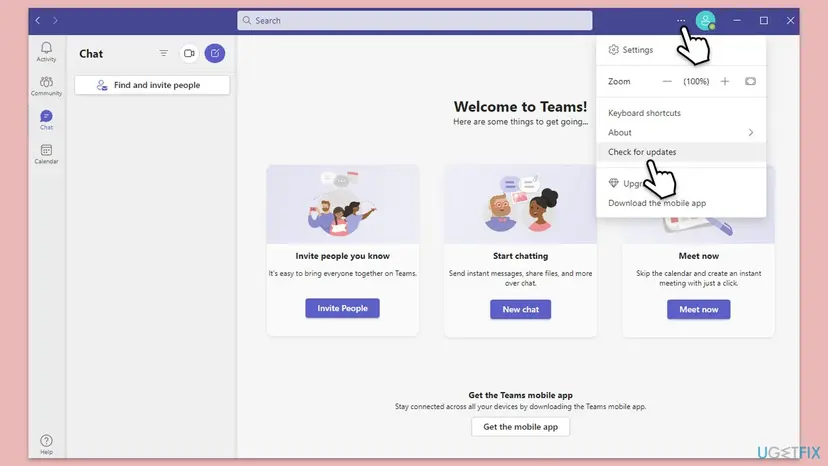
Every screen of the reset, with the Windows 10 path: How to repair or reset an app in Windows. If Advanced options is missing, quit Teams, press Win + R, open %userprofile%\appdata\local\Packages\MSTeams_8wekyb3d8bbwe\LocalCache\Microsoft\MSTeams and delete everything inside. That is Microsoft's second method.
It worked if: Teams starts like on a new PC, takes longer to open once and signs in without the tag.
If not: If Outlook or Office also still fail, clear the Office identity keys with Fix 7.
Fix 7. Remove the Office identity keys from the registry
10 minutesRead the warningYour own PC, when Fix 2 to Fix 6 did not help and Outlook or Office fail together with Teams.
Office keeps its list of signed-in identities in the registry under HKEY_CURRENT_USER. Microsoft's article on resetting the Microsoft 365 activation state clears this Identity key. In a Spiceworks thread about 7ita9 in Outlook, removing these keys was the step that finally worked.
A wrong deletion in the registry can break Office sign-in for every account on this Windows profile. Export the Identity key before you change it, so that you can import it back: Back up the registry before editing it. Office will ask you to sign in and may ask to activate again.
- Close all Office apps, OneDrive and Teams.
- Press Win + R, type
regeditand select OK. Select Yes in the permission prompt. - Paste this path into the address bar of Registry Editor and press Enter:
HKEY_CURRENT_USER\Software\Microsoft\Office\16.0\Common\Identity - Select File > Export, keep Selected branch and save the file.
- Expand Identity. Right-click the Identities subkey and select Delete, and do the same for Profiles if it exists.
- Close Registry Editor, restart the PC and sign in to Outlook or Word, then to Teams.

It worked if: Office asks for the work account as if it were the first time, and Teams then signs in with it.
If not: If 7ita9 stays, import the saved file to undo the change and test the network with Fix 8.
Fix 8. Test without VPN, proxy and third-party security software
10 minutesLow riskThe tag appears on one network and not on another, or began after a VPN or security program was installed.
Microsoft's activation article warns that some antivirus, proxy or firewall software can block the Microsoft.AAD.BrokerPlugin process that signs in work accounts. When the plug-in is blocked, the apps get an error back instead of a token.
- Disconnect the VPN, or connect the PC to a phone hotspot, and try the Teams sign-in.
- Open Settings > Network & internet > Proxy. If a manual proxy is on and you did not set it, switch it off for one test.
- Pause the antivirus for one attempt. For Microsoft Defender: Turn off Microsoft Defender protection for a moment.
- Try the sign-in, then switch the protection, the proxy and the VPN back on, whatever the result.
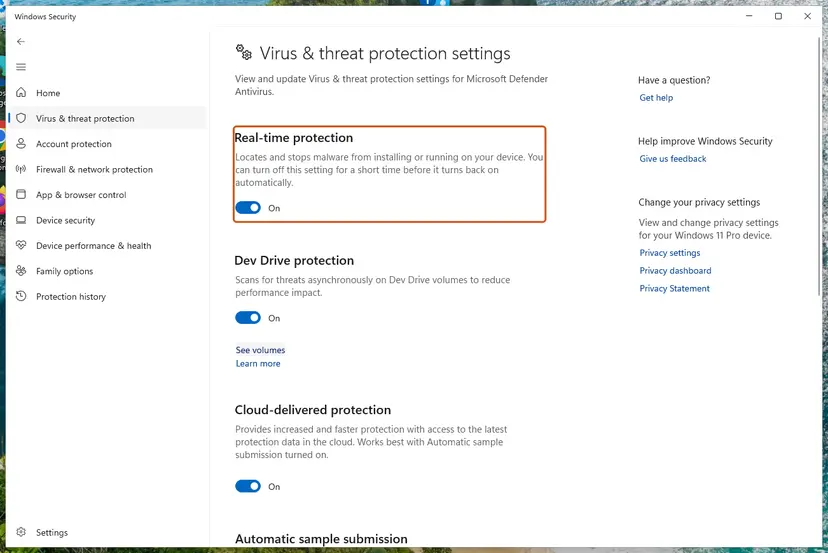
If the sign-in works while one program is paused, keep the program and ask its maker or your IT department to allow the process Microsoft.AAD.BrokerPlugin_cw5n1h2txyewy. A paused antivirus is a test, not a fix.
It worked if: Teams signs in on the other network or with the program paused, which names the blocker.
If not: If nothing changes, switch everything back on and collect the logs described in the next section.
If 7ita9 is still there: when the account itself is refused
If the browser test fails as well, no fix on the PC can help, because the service refuses the account. If the browser works but every fix above failed, collect what support needs and stop changing the PC.
| What you see | Likely reason | Who can fix it |
|---|---|---|
| The browser also refuses the password | The password is wrong, expired or not yet synchronised after a change in the company directory. | You with a password reset, or IT. |
| The browser says the account is locked or blocked | The organisation or Microsoft blocked sign-in. | IT only. |
| The browser signs in but says you have no Teams | No Teams licence is assigned. | IT, in the Microsoft 365 admin center. |
| Teams shows status code 0xCAA20004 | A Conditional Access policy rejects this device. | IT only. |
| Only this PC fails after every fix | Damaged Windows profile or a device registration problem. | Try another Windows account on the PC, then IT. |
- For IT or Microsoft support: the lines behind the details link (Correlation Id, Timestamp, Tag, Code), the app and when it started, whether the browser and the phone work, and whether your password changed.
- Teams logs: press Ctrl + Alt + Shift + 1 in Teams, or right-click the Teams icon in the taskbar corner and select Collect support files. The files go to the Downloads folder.
- Device state: the output of
dsregcmd /statusas the affected user, with the SSO State block that shows AzureAdPrt. - Microsoft's own checks: the Teams Sign-in diagnostic in the Microsoft 365 admin center and the Microsoft 365 sign-in troubleshooter in the Get Help app.
For administrators: 7ita9 after password resets and in multi-tenant setups
Two administrator reports describe 7ita9 right after a password change in on-premises Active Directory: the user could not enter the new password in any Microsoft 365 app, and a restart did not help. Check the cloud side before you touch the PC.
- Confirm that the new password works in a browser. If not, check that password hash synchronisation or the federation path has processed the change.
- Run the Teams Sign-in diagnostic from Microsoft's article Resolve sign-in errors in Teams with the user's address.
- Look up the failed attempt in the Microsoft Entra sign-in logs at the Timestamp from the window. It shows whether the service refused the account or never saw the request.
- On hybrid joined laptops, have the user sign in to Windows with the new password while connected to the company network or VPN, so that Windows can request a new Primary Refresh Token.
- Check
dsregcmd /statusfor AzureAdPrt : YES after that sign-in.
Some threads about sign-in tags suggest the registry values DisableAADWAM, DisableADALatopWAMOverride or EnableADAL. Microsoft has an article against this: disabling ADAL or WAM is not supported to fix Microsoft 365 sign-in, and it leaves Office in a legacy state.
How to keep 7ita9 from coming back
Once Windows holds a token issued with your current password for the right account, the tag does not come back on its own. These habits keep it that way.
- After a password change, sign out of Windows and in again while online. Microsoft's token documentation shows that this is what replaces the old token.
- Keep one work account per Windows profile where you can. Remove accounts of former employers or schools under Access work or school.
- Sign in to Office with the work account, not a personal one, when the licence comes from work or school.
- Do not copy AppData from an old PC or a backup into a new profile. The account folders must be created on the PC that uses them.
- Give security software an exception for
Microsoft.AAD.BrokerPlugin_cw5n1h2txyewyinstead of pausing it, if Fix 8 named it. - Keep Windows and Teams updated. Windows 10 left support on 14 October 2025, so a Windows 10 PC no longer gets security fixes for its sign-in components.
Frequently asked questions
What does error tag 7ita9 mean?
It means that a Microsoft 365 desktop app, most often Teams or Outlook, could not finish signing you in through Windows. The tag only marks where the sign-in stopped, and Microsoft publishes no definition of it. The Code line below it is more useful: 3399811147, which is 0xCAA5004B, a Teams sign-in code that Teams logs show coming back from the Windows account provider. In practice the stored account is stale or the wrong one. Signing in to Windows with the current password and to Teams with the work account is the first fix.
What is Code 3399811147?
It is the decimal form of 0xCAA5004B. Codes that start with 0xCAA appear on the Teams sign-in screen, and Microsoft documents several of them, such as 0xCAA20003 for an authorization problem and 0xCAA90018 for wrong credentials. 0xCAA5004B is not in Microsoft's public lists. Older Teams versions printed it as caa5004b. A Microsoft community support specialist described it as an incorrect password, a failed authentication or a restricted account. We could not confirm the exact meaning from a Microsoft document.
Why did 7ita9 start right after I changed or reset my password?
Because Windows still holds a sign-in token that was issued with the old password. Microsoft explains that a password change invalidates that token, and that signing in to Windows with the new password makes Windows request a new one. If you stayed signed in, or the PC was offline, the apps keep presenting the old token. Sign out of Windows completely, connect to the internet, sign in with the new password and then open Teams. On a company laptop, connect the company VPN first if IT requires it.
Why does Teams work in the browser and on my phone but not in the desktop app?
The browser and the phone app keep their own sign-in, separate from the account data that Windows stores for desktop apps. If they work, your account, password and licence are fine, and the fault is in the stored copy on this PC. That is the most common 7ita9 situation in the reports. Work through Fix 1 to Fix 4 in order: sign in again, disconnect the account, clear the identity cache and empty the token store of the account plug-in.
Why do I see 7ita9 in Outlook or OneDrive as well?
Outlook, OneDrive, Word, Excel and Teams ask the same Windows component for your work account. When that stored account is broken, each app gets the same error, sometimes on the same morning. Classic Outlook may open the window with "Oops, something went wrong." and new Outlook with the plain red line. The fixes are the same for every app. In Outlook, the registry step in Fix 7 is the one an administrator reported as finally working.
Will reinstalling Teams or Office fix 7ita9?
Usually not. One Teams user reinstalled the app and still had the error, and the old address still appeared under recent accounts. The account data lives in the Windows profile: Credential Manager, the OneAuth and IdentityCache folders, the token store of the account plug-in and the Office Identity registry key. An uninstall leaves all of them in place. Use Fix 2 to Fix 7 instead. Reset Teams in Fix 6 if only Teams fails.
Is 7ita9 the same as error 48v35 or 7q6ch?
No. All three tags appear in the same Microsoft sign-in window, but the Code line differs. With 48v35 the reports show 2147942402, a Windows file not found error, often on remote desktops. With 7q6ch the codes point to stopped services or the TPM. With 7ita9 it is 3399811147, a Teams sign-in code linked to the stored account. Many fixes overlap, but the first fix differs. For 7ita9 it is signing in again with the right account and the current password.
Does 7ita9 mean my account is blocked?
Not by itself. The browser test tells you. If you can sign in at teams.microsoft.com with the same address, the account is active and the problem is on the PC. If the browser also refuses you, the cause may be a wrong or expired password, a blocked account, a missing licence or a sign-in policy of your organisation. Only your IT department can change those. Students and employees who left an organisation often lose access this way.
Is "Ocorreu um erro. [7ita9]" or "Se ha producido un error. [7ita9]" the same error?
Yes. Portuguese, Spanish and other language versions translate only the sentence and keep the tag, so "erro 7ita9" and "error 7ita9" are the same problem. The detail lines stay in English, including "An unexpected error occurred." and Code 3399811147. The fixes work in any language. Folder paths, PowerShell commands and registry paths are identical, and only menu names such as Access work or school appear in your language.
Sources
- Microsoft Support: Why am I having trouble signing in to Microsoft Teams? (0xCAA status codes) (support.microsoft.com)
- Microsoft Learn: Fix Teams sign-in errors (diagnostics and error codes) (learn.microsoft.com)
- Microsoft Learn: Understanding Primary Refresh Token (PRT) in Microsoft Entra ID (password change and renewal) (learn.microsoft.com)
Did this fix work?
One click, no account. It tells the next reader which guides are worth their time.
Questions and experiences: fix Microsoft Teams Error tag 7ita9 in Windows
Still broken, or found a fix we did not cover? Ask here: members and our editors answer. Reading is open; writing needs a free account.
…