
How to fix Teams error tag 48v35 in Windows?

Prefer to fix it yourself? The manual steps follow.
- 8methods
- 5 to 30 minutes
- Intermediate
Applies to Microsoft Teams (new Teams), Outlook and the Microsoft 365 apps for Windows on Windows 11 and Windows 10, including remote desktop servers and virtual desktops
8 methods in this guide
- What the tag means
- Decode Code 2147942402
- Teams, Outlook, Office
- Causes, ranked
- Whose computer is it
- The fixes
- 1. Sign out, quit, restart
- 2. Reset Teams
- 3. Clear identity cache
- 4. Reconnect the account
- 5. Re-register plug-ins
- 6. VPN, proxy, antivirus
- 7. Try a new profile
- 8. Update and reinstall Teams
- Still there: read the logs
- For administrators
- Prevent it
- FAQ
When I try to log in to Teams through a work or school account, it always fails with the 1001 error code, and the error tag is 48v35. I need this to be working as soon as possible, and I need help, please.
The 48v35 tag marks a failed sign-in in Microsoft Teams, Outlook and the other Microsoft 365 apps on Windows: a small Microsoft window shows Something went wrong. [48v35] where the password box should be. In the reports the Code under the tag is 2147942402, the Windows error for a file that cannot be found. Sign out of Teams and Office, quit them, restart the PC and sign in again.
Windows keeps your Teams sign-in in files under your profile, and 48v35 appears when that stored sign-in can no longer be read. Sign out of Teams and of one Office app, quit Teams from the taskbar corner, restart the PC and sign in again (Fix 1). If the tag returns, reset Teams (Fix 2) and clear the Office identity cache (Fix 3). On a remote desktop or a virtual desktop the tag keeps coming back until the administrator changes how profiles are stored.
| Error | Something went wrong. [48v35] in a Microsoft sign-in window. The details under it read Correlation Id, Timestamp, DPTI, Message ("An unexpected error occurred."), Tag: 48v35 and Code: 2147942402. |
|---|---|
| Where it appears | In the window titled Enter Password to Microsoft Teams, and in the same window of Outlook, Word and Excel: at start, during work when the app asks for the account again, or when new Outlook opens a message. |
| Main cause | The sign-in data that Windows stores for your account is missing, half copied or out of date. That happens most on remote desktop servers and virtual desktops, where profiles move between machines. |
| Fastest fix | Sign out of Teams and Office, quit Teams, restart, sign in (Fix 1). Then Settings > Apps > Installed apps > Microsoft Teams > Advanced options > Reset (Fix 2). |
| What the Code means | 2147942402 is 0x80070002, Windows error 2, ERROR_FILE_NOT_FOUND: "The system cannot find the file specified." |
| Also written as | 48v35 error, error 48v35, error code 48v35, Error Tag: 48v35, [48v35], 48V35, "Ocorreu um erro. [48v35]", "Se ha producido un error. [48v35]", "Nous avons rencontré un problème. [48v35]". Some users see [1001] in the red line and 48v35 only in the details. |
| Affects | New Teams, classic and new Outlook, Word and Excel on Windows 11, Windows 10 and Windows Server with Remote Desktop Services, Azure Virtual Desktop or Citrix. Work, school and education accounts in nearly all reports. |
| Microsoft's status | Undocumented: on 14 October 2026 neither Microsoft Learn nor Microsoft Support had a page for 48v35. What Microsoft does describe is the related error [1001], the rules for sign-in data on virtual desktops, and one fixed Windows 10 bug on Azure Virtual Desktop. |
| Time to fix | About 5 minutes for Fix 1 and Fix 2 on one PC. On shared servers the lasting fix is an administrator's change, not a user's. |
| Where the cause is logged | Event Viewer: Windows Logs > Application, source AppModel-State, events that name Microsoft.AAD.BrokerPlugin. Teams itself: Collect support files (Ctrl + Alt + Shift + 1). |
Facts checked on 14 October 2026. Steps written for the new Microsoft Teams and Microsoft 365 apps on Windows 11 (25H2 and 26H2) and Windows 10 22H2, read against Microsoft's documentation.
What Something went wrong [48v35] means in Teams
You start Teams, or Teams asks for your account in the middle of the day, and a small window with the Microsoft logo opens. Its title is Enter Password to Microsoft Teams, but there is no password box. It says Error and, in red, Something went wrong. [48v35]. The only button is Close.
The window is drawn by the Windows sign-in component that Teams calls, not by Teams itself. Teams, Outlook and the other Microsoft 365 apps ask the same Windows component for your account, so the same window and the same tag can appear in each of them. The characters in brackets mark the step where that component stopped. There is no public Microsoft reference for such tags, and our search of Microsoft Learn and Microsoft Support found nothing that explains 48v35.
![Window titled Enter Password to Microsoft Teams with Error, the red line Something went wrong. [48v35], a Close button and Troubleshooting details: Correlation Id, Timestamp, DPTI, Error Tag 48v35, Error Code 2147942402](/pic/w828q75/uploads/wp/articles/askit/how-to-fix-teams-error-tag-48v35-in-windows-copy_en.jpg.webp)
| Line under Troubleshooting details | What it is | What to do with it |
|---|---|---|
| Correlation Id | The number of this single sign-in attempt. | Select Copy info to clipboard and keep it. Support and administrators search by it. |
| Timestamp | The time of the attempt in UTC, not in your local time. | Send it with the Correlation Id. Say how many hours your clock differs from UTC. |
| DPTI | A long string that Microsoft does not document. | Give it to support only. Moderators on Microsoft's forum delete it from public posts as personal information. |
| Message | "An unexpected error occurred." in the reports we read. | Nothing. It says no more than the red line. |
| Tag or Error Tag | 48v35: where the sign-in component gave up. | Use it to find this page. It does not name a cause. |
| Code or Error Code | 2147942402 in the reports that quote a code. | Read the next section: this number has a documented meaning. |
48v35 error, error 48v35, error code 48v35, Error Tag: 48v35 and [48v35] are one thing, and 48V35 in capitals too. Some windows show Something went wrong. [1001] in red and 48v35 only as the tag in the details. A different tag from the same window, with other codes behind it, has its own page: error tag 7q6ch.
Code 2147942402 under tag 48v35: the file that Windows cannot find
Every report of 48v35 that quotes the Code line gives the same number: 2147942402. We saw it with Teams for Education, with classic Outlook, with Word during activation and in the window pictured above. It is a Windows result code printed as a decimal number. Converted to hexadecimal it reads 0x80070002, and that form can be looked up.
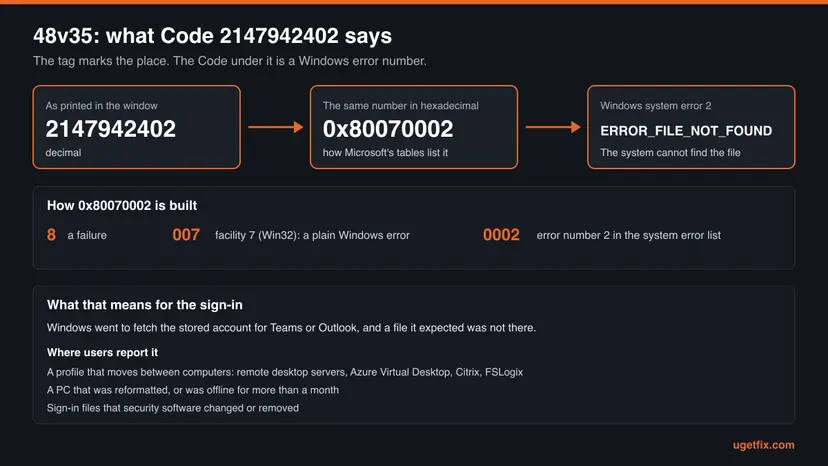
| Part of 0x80070002 | Meaning in Microsoft's documentation |
|---|---|
8 at the front | The severity bit is set: the result is a failure. |
007 | Facility 7, FACILITY_WIN32. Microsoft reserves it to carry ordinary Windows error numbers inside a result code. |
0002 | System error 2, ERROR_FILE_NOT_FOUND: "The system cannot find the file specified." |
So the tag is not a password problem and not a server outage. A part of the sign-in went to open something stored on this computer and it was not there. Microsoft does not say which file is meant, and we could not confirm it either. The reports point in one direction, though: profiles that are copied between machines, a reformatted PC, a PC that was offline for weeks.
Microsoft's bulletin KB5048864 about failed single sign-on in Outlook and Teams on Azure Virtual Desktop names an event with the code -2147024893. That number is 0x80070003, system error 3, ERROR_PATH_NOT_FOUND: "The system cannot find the path specified." It is the next entry in the same table. Microsoft does not mention tag 48v35 in that bulletin. The link between the two is our reading and that of administrators on Microsoft's forum.
Then the cause may differ from what this page describes. The Windows Calculator in Programmer mode converts a decimal number to hexadecimal, the form in which Microsoft's error tables are written. Send the number to your administrator together with the other lines.
48v35 in Teams, Outlook and Office: where and when it shows up
Microsoft's Teams documentation says that Windows keeps user accounts in Web Account Manager, and that this is what gives single sign-on to Teams and other Microsoft applications. The Microsoft 365 apps use the same manager through its plug-ins. One broken store therefore hits several apps, often on the same morning.
| App | How users describe it | What still works |
|---|---|---|
| Teams (new Teams) | Sign-in fails for days with the tag. On shared servers it comes and goes: signing out and in helps for an unknown time. | Teams in a browser at teams.microsoft.com, and the phone app. |
| Classic Outlook | Outlook is signed in, shows the tag again and again and keeps asking to sign in. Sometimes it stops responding. | Outlook on the web. One user confirmed that it worked while the desktop app failed. |
| New Outlook | The tag appears now and then when a message is opened. Signing out and in clears it for a while. | Outlook on the web. |
| Word, Excel | The tag appears when you sign in to activate the licence, for example after the PC was reformatted. On a remote desktop server it was reported in Excel. | The Office web apps. |
Teams also has error numbers of its own. They are printed as a status code in the bottom left corner of the Teams sign-in screen, they start with 0xCAA and Microsoft explains them. If you see one of these, follow that code first.
| Teams status code | Microsoft's description | What Microsoft tells you to do |
|---|---|---|
0xCAA20003 | You ran into an authorization problem. | Set the date and time correctly: How to fix the date and time in Windows. |
0xCAA20004 | The request needs approval by a resource owner or authorization server. | Contact the IT admin. Microsoft ties this code to Conditional Access. |
0xCAA70004 | The server or proxy was not found. | A proxy is set wrongly, or a traffic inspection program is running. See Fix 6. |
0xCAA82EE2, 0xCAA82EE7 | The request timed out, or the server name could not be resolved. | Check the internet connection, then the firewall with the admin. |
0xCAA90018 | You are not using the right credentials. | The Windows account differs from the Microsoft 365 account. Sign in with the right address. |
What causes error 48v35, ranked by how often it is reported
Microsoft has not named a cause for this tag. The order below is our reading of two things: where users and administrators meet the tag, and what Microsoft documents about the files behind the sign-in. It is not a statistic.
| How often | Cause | Typical sign | Fix |
|---|---|---|---|
| Most often | Sign-in data travels with the profile on remote desktop servers, Azure Virtual Desktop or Citrix, with or without FSLogix | You work on a remote desktop. The tag returns every few days, for some users only. Signing out and in helps for a while. | Fix 1 for today. The administrator for good: see the section for administrators. |
| Often | Stale or half-removed sign-in data on one PC | A PC that was offline for more than a month, an account or password that changed, a cleaning tool that was run. | Fix 1, Fix 2, Fix 3 |
| Often | A damaged Windows profile, or a work account left over from an earlier setup | The PC was reformatted or restored. A second Windows account on the same PC signs in without the error. | Fix 4, Fix 7 |
| Less often | The Windows account plug-in is broken, blocked or removed by security software | The sign-in window is blank or hangs. Event Viewer lists AppModel-State errors for Microsoft.AAD.BrokerPlugin. | Fix 5, Fix 6 |
| Rarely now | A Windows 10 bug on Azure Virtual Desktop, from updates of July to October 2024 | Windows 10 22H2 multi-session hosts, a black screen of 10 to 30 minutes after logon, Outlook and Teams without single sign-on. | Fixed by Microsoft: see the section for administrators. |
| Rarely | An outdated Teams client | Teams shows a notice about its version, or was not updated for months. | Fix 8 |
Some pages name a wrong system clock, a full disk or a damaged Teams installation as the cause of 48v35. We found no Microsoft document and no user report that supports any of them for this tag. Reinstalling Microsoft 365 did not remove it for the users who tried.
Your own PC, a managed laptop or a remote desktop: who can fix it
Before you delete anything, find out which of three situations you are in. On your own PC all fixes are yours to run. On a laptop that belongs to an employer or a school, some of them remove the organisation's setup. On a remote or virtual desktop the stored sign-in is rebuilt or lost by the server at every logon, so a user's repair lasts until the next session at best.
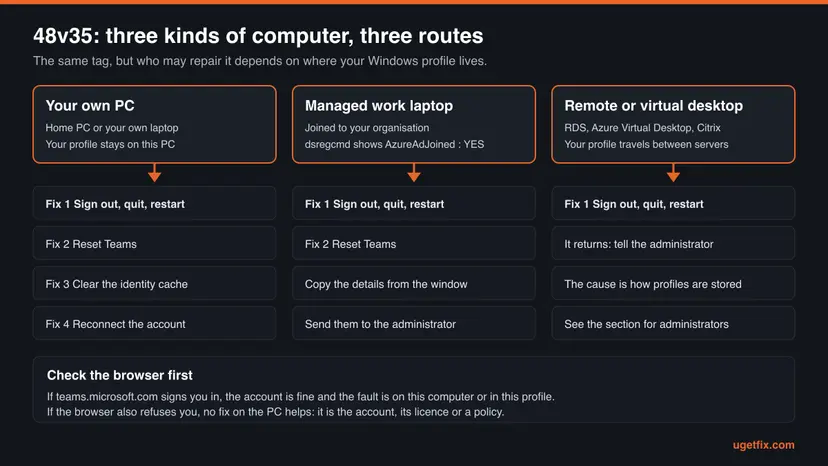
Run this in Command Prompt, opened the normal way and not as administrator. Microsoft notes that the command must run in the user's own context.
dsregcmd /status| Line in the output | What Microsoft says it means | Your situation |
|---|---|---|
| AzureAdJoined : YES | The device is joined to Microsoft Entra ID. | A managed computer. Run Fix 1 and Fix 2, then write to the administrator. |
| DomainJoined : YES | The device is joined to an Active Directory domain. | A managed computer or a company server. The same rule. |
| WorkplaceJoined : YES | A Microsoft Entra registered account was added to the device for this Windows user. | Usually your own PC with a work or school account added. All fixes, and Fix 4 fits best. |
| All three say NO | No device registration. | A private PC. All fixes. |
| AzureAdPrt : NO on a joined device | No Primary Refresh Token is present for the signed-in user. | Single sign-on has nothing to work with. The diagnostics lines below it show the failed attempt: send them to the administrator. |
- Run Fix 1. Signing out and back in is what users report as working, at least for a time.
- Select Copy info to clipboard in the error window and paste the lines into your message to IT.
- Say whether Teams in the browser works and whether colleagues on the same server see the tag too.
- Disconnect the account under Access work or school. Microsoft's Teams help says that removing a work account completely is a matter for your IT admin.
- Import registry files from forum threads that change how Office signs in. Microsoft does not support those settings.
- Delete folders inside a profile that the server manages. The server may bring them back, or remove them again, at the next logon.
How to fix error 48v35 in Teams and Outlook on Windows
The fixes go from the one that users report most to the ones that change more. Fix 1 and Fix 2 are safe on every computer. Fix 3 to Fix 8 change more, so keep them for your own PC or leave them to an administrator. Test after every fix by starting Teams. Success looks the same each time: the red line is gone and Teams asks for your password or for an approval on your phone.
| Your case | Start with | Then |
|---|---|---|
| Your own PC, the tag appeared out of nowhere | Fix 1 | Fix 2, Fix 3 |
| The PC was offline for weeks, or your password or address changed | Fix 1 | Fix 3, Fix 4 |
| The PC was reformatted, restored or set up again | Fix 4 | Fix 3, Fix 7 |
| Teams and Outlook both show the tag | Fix 1 | Fix 3, Fix 5 |
| The sign-in window is blank, hangs or closes at once | Fix 5 | Fix 6 |
| It began after a new antivirus, firewall or VPN | Fix 6 | Fix 5 |
| Laptop managed by an employer or school | Fix 1 | Fix 2, then the administrator |
| Remote desktop, Azure Virtual Desktop or Citrix session | Fix 1 | The administrator: see the section for administrators |
Fix 1. Sign out of Teams and Office, quit Teams and restart Windows
5 minutesNo riskEveryone, first. It is the fix that users with this tag report as working.
A full sign-out makes the apps drop the stored account, and the next sign-in writes it again from scratch. An IT professional who met [1001] with tag 48v35 on a PC that had been offline for more than a month describes exactly this as the cure. Microsoft's page for [1001] adds that a reboot often helps.
- If Teams still opens, select your profile picture at the top of the Teams window and select Sign out.
- Open Word, Excel or classic Outlook. Go to File > Account (Office Account in Outlook) and select Sign out.
- Close every Microsoft 365 app.
- Right-click the Teams icon in the corner of the taskbar and select Quit. Closing the window is not enough: Teams keeps running there.
- Restart the PC. On a remote desktop, sign out of the Windows session. Closing the remote window alone leaves the session running.
- Start Teams and sign in with your work or school address.
- Open the Office app and sign in there too.
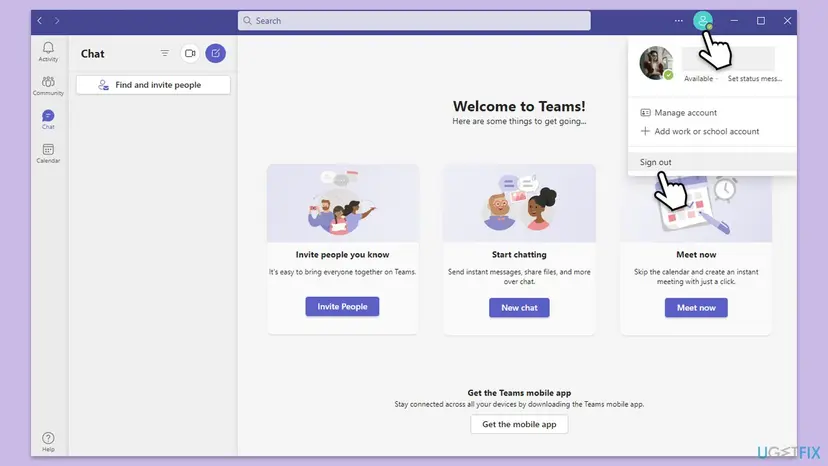
After a full sign-out the Office apps ask you to activate again, and OneDrive asks for the account once more. The IT professional mentioned above saw the same and everything worked when it was done. Have your phone ready for the second factor.
It worked if: The red line does not come back: Teams asks for the password or the approval on your phone and then loads your chats.
If not: If the tag is back at once, or returns within days on your own PC, go on with Fix 2. On a remote desktop, report it to the administrator now.
Fix 2. Reset the Teams app, or delete its cache folder
5 minutesLow riskTeams alone shows the tag, or Fix 1 helped only for a short time. Safe on a managed laptop too.
New Teams keeps its settings, configuration and caches in one folder of your profile. Microsoft lists two ways to empty it: the Reset button of Windows and a manual deletion. A moderator on Microsoft's forum gave a Teams for Education user with tag 48v35 and code 2147942402 this as the step after quitting Teams.
Microsoft warns that clearing the Teams cache deletes the diagnostic logs that are needed to find a cause. If you plan to open a support request, press Ctrl + Alt + Shift + 1 in Teams first and keep the files it saves. A reset deletes the app data on this PC. Microsoft names the personal settings you configured in Teams as part of it.
- Right-click the Teams icon in the taskbar corner and select Quit.
- Open Settings > Apps > Installed apps and type
Microsoft Teamsin the search box. - Select the three dots next to Microsoft Teams and select Advanced options.
- Scroll to the Reset section and select Reset.
- Start Teams and sign in.
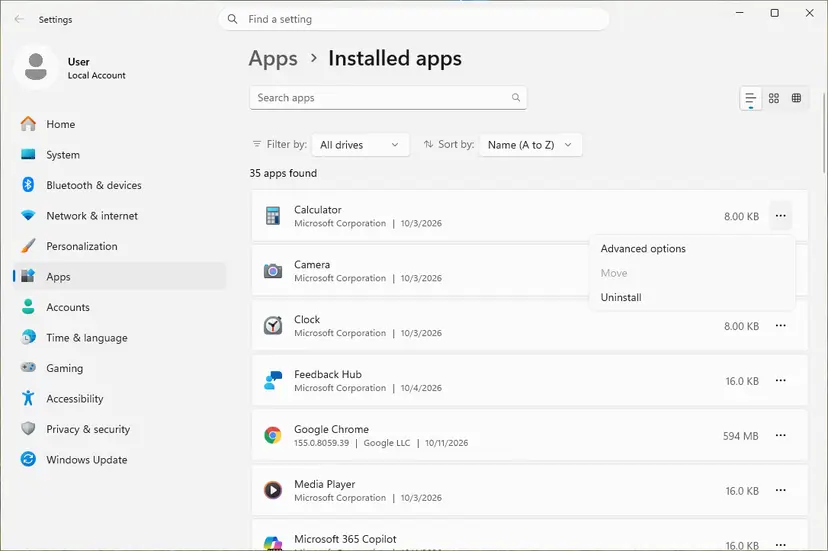
The page for both Windows versions, with the Windows 10 path: How to repair or reset an app in Windows. If Advanced options is missing, or the reset changes nothing, empty the folder by hand. This is Microsoft's second method.
- Quit Teams from the taskbar corner again.
- Press Win + R, paste this path and select OK:
%userprofile%\appdata\local\Packages\MSTeams_8wekyb3d8bbwe\LocalCache\Microsoft\MSTeams - Press Ctrl + A and delete all files and folders in it.
- Start Teams. The first start takes longer than usual, because the cache is rebuilt.
The old guide on this page listed eight folders under %appdata%\Microsoft\Teams. That is the folder of classic Teams. If a PC still runs the classic client, Microsoft's instruction is simpler: quit Teams and delete everything inside %appdata%\Microsoft\Teams.
It worked if: Teams opens as on a new PC, asks for your address and password and loads your chats after a longer first start.
If not: If the red line is still there, the fault is outside the Teams folder. Go to Fix 3, or on a managed laptop to the administrator.
Fix 3. Delete the OneAuth and IdentityCache folders
5 minutesLow riskYour own PC. Teams and Outlook both fail, or the tag came back after Fix 1 and Fix 2.
These two folders hold the accounts and tokens that the Microsoft 365 apps share on one PC. Microsoft lists both as identity data that must never be copied from another computer. The most supported answer in Microsoft's forum thread about 48v35, and the answers given in three other threads, is to delete them and restart.
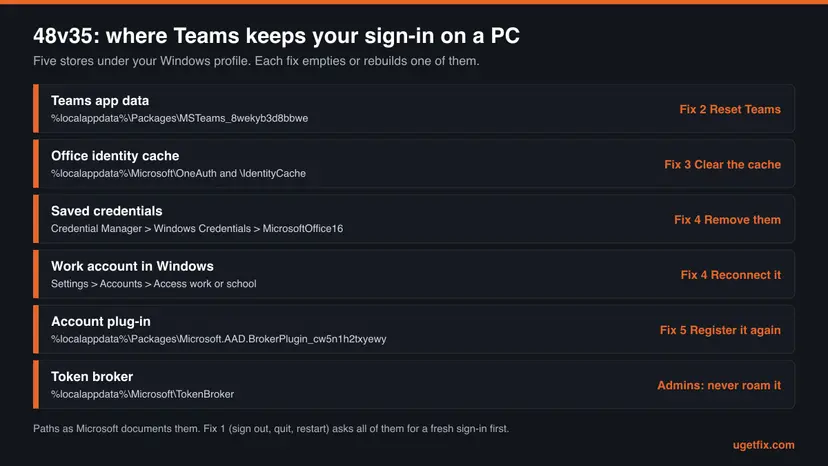
- Close Outlook, Word, Excel and OneDrive, and quit Teams from the taskbar corner.
- Press Win + R, paste this path and press Enter:
%localappdata%\Microsoft - Look for the folders OneAuth and IdentityCache.
- Delete both. If Windows says a file is in use, an Office app is still running: restart the PC and delete them before you open anything.
- Restart the PC.
- Start Teams and sign in, then the Office apps.
An administrator of a remote desktop server wrote in the same thread that neither folder existed for his users. That fits the code: something expected is missing. In that case skip this fix. On your own PC go to Fix 4 and Fix 5. On a server the profile settings decide, and those belong to the administrator.
Be ready for an honest limit. Several administrators confirm that this ends 48v35, and a forum advisor adds that the result can be temporary in some environments. One Outlook user who cleared the folders and re-registered the plug-in was signed out and then saw another tag, 5fcl8 with code 1067. If a new tag replaces the old one, go straight to Fix 4.
It worked if: Teams and Office behave as if they had never been signed in on this PC, and accept your account at the first try.
If not: If the tag returns after the restart, remove the stored credentials and the work account connection with Fix 4.
Fix 4. Remove the saved Office credentials and reconnect the work account
10 minutesLow riskYour own PC with a work, school or education account, above all after Windows was reinstalled or the account moved to another organisation.
Outside the app folders Windows remembers a work account in two more places: Credential Manager and the list under Access work or school. Microsoft's activation article clears both. On remote desktop servers an administrator reports that clearing the credentials is the only thing that works for his users so far.
Microsoft's Teams help warns that removing an account can affect the device and other apps, because Windows shares the account between them. On your own PC that shared copy is what you want to renew. On a managed laptop leave Access work or school alone and ask the administrator.
- Close the Office apps and quit Teams.
- Select Start, type
credential managerand open Credential Manager. - Select Windows Credentials.
- For every entry that begins with MicrosoftOffice16, select the arrow next to it and select Remove.
- Open Settings > Accounts > Access work or school.
- If the account you use for Teams is listed and it is not the account you sign in to Windows with, select it and select Disconnect.
- Restart the PC.
- Start Teams and sign in with the work or school account.
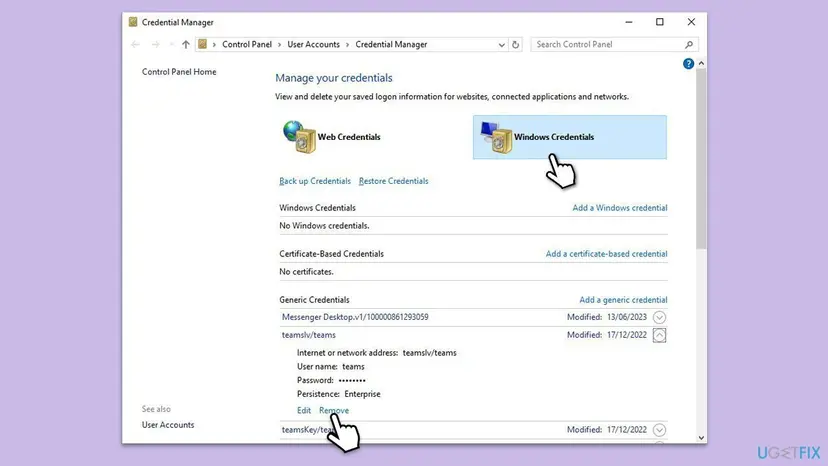
During the new sign-in Windows may offer to remember the account for all apps on the device. Saying yes adds the account to Access work or school again, now with fresh data. That is fine on your own PC.
It worked if: Windows treats the account as new: password, second factor, then Teams and Outlook open and are still signed in after the next restart.
If not: If the sign-in window stays blank or hangs, or the tag is unchanged, register the account plug-ins again with Fix 5.
Fix 5. Register the Windows account plug-ins again
10 minutesLow riskThe sign-in window is blank, hangs or closes at once, or the Application log shows AppModel-State errors that name Microsoft.AAD.BrokerPlugin.
Work and school accounts are signed in by the package Microsoft.AAD.BrokerPlugin, personal accounts by Microsoft.Windows.CloudExperienceHost. Both are installed per user. Microsoft's page for [1001] gives two PowerShell commands that register them again, and its bulletin for failed single sign-on on Azure Virtual Desktop uses the same command as a logon script.
Microsoft's wording is to run the commands in user mode PowerShell, and it stresses that the plug-ins live in the user's profile. One user on a PC can be broken while another is fine. So stay signed in to Windows as the affected person and open PowerShell the normal way.
- Restart the PC first. Microsoft notes that a reboot alone often helps.
- Press Win + R, type
powershelland press Enter. - Check that both packages exist. Each line should print the details of one package:
Get-AppxPackage Microsoft.AAD.BrokerPlugin Get-AppxPackage Microsoft.Windows.CloudExperienceHost - Register the plug-in for work and school accounts:
Add-AppxPackage -Register "$env:windir\SystemApps\Microsoft.AAD.BrokerPlugin_cw5n1h2txyewy\Appxmanifest.xml" -DisableDevelopmentMode -ForceApplicationShutdown - Register the plug-in for personal Microsoft accounts:
Add-AppxPackage -Register "$env:windir\SystemApps\Microsoft.Windows.CloudExperienceHost_cw5n1h2txyewy\Appxmanifest.xml" -DisableDevelopmentMode -ForceApplicationShutdown - Test them in Command Prompt. A Work or school account window and a Microsoft account window should open:
explorer.exe shell:appsFolder\Microsoft.AAD.BrokerPlugin_cw5n1h2txyewy!App explorer.exe shell:appsFolder\Microsoft.Windows.CloudExperienceHost_cw5n1h2txyewy!App - Close the test windows, start Teams and sign in.
A short progress bar and no red text mean that a command worked. Microsoft's advice is to watch the PC for 48 hours afterwards. If the plug-ins break again within that time, something on the PC keeps damaging them, and Fix 6 is the place to look.
It worked if: The two test windows appear, and Teams gets as far as asking for your password.
If not: If a command ends in red error text, copy that text for the administrator or Microsoft support. If the commands work but the tag stays, test the network and the security software with Fix 6.
Fix 6. Test without VPN, proxy and third-party security software
10 minutesLow riskThe tag began after an antivirus, firewall or VPN was installed or updated, or it appears on one network and not on another.
Microsoft names security software that affects the account plug-in as the first scenario behind [1001], and says such software can block the plug-ins or remove them as a side effect. Its Teams page adds that antivirus and data loss prevention tools can make the Teams app itself fail. One test without them shows whether they are involved.
- Open
https://teams.microsoft.comin a browser and sign in. If that fails too, the fault is the network or the account, not the Teams app. - Disconnect the VPN, or connect the PC to another network such as a phone hotspot. Try the Teams sign-in.
- Open Settings > Network & internet > Proxy. Under Manual proxy setup, next to Use a proxy server, select Set up to open the Edit proxy server dialog.
- If a proxy is on and you did not set it yourself, switch it Off for the test, select Save and try the sign-in.
- Pause the antivirus for one attempt. For Microsoft Defender: Turn off Microsoft Defender protection for a moment.
- Switch the protection, the proxy and the VPN back on after the test, whatever the result.
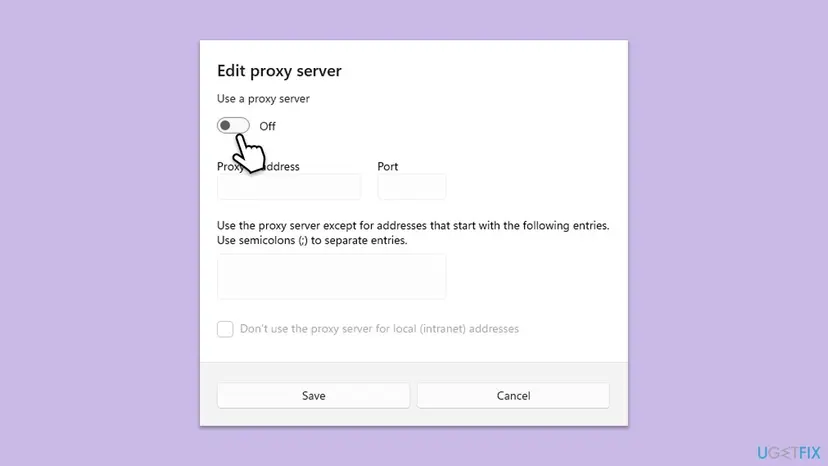
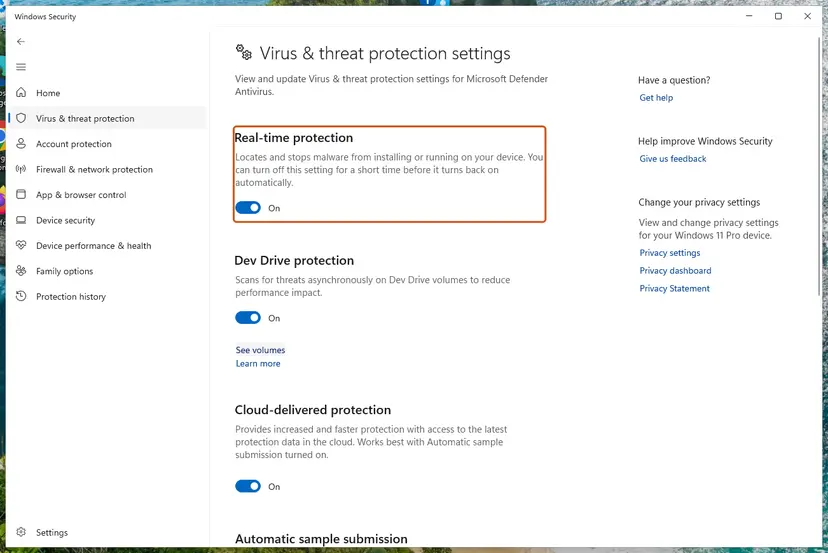
If the sign-in works while a program is paused, keep the program and change its settings. Ask its maker or your administrator to exclude what Microsoft lists for Teams and for the Windows sign-in.
- Teams processes:
ms-teams.exe,ms-teamsupdate.exe,msteams_autostarter.exeandmsedgewebview2.exe - Sign-in packages:
Microsoft.AAD.BrokerPlugin_cw5n1h2txyewyandMicrosoft.Windows.CloudExperienceHost_cw5n1h2txyewy - Sign-in folders:
%localappdata%\Microsoft\TokenBroker,%localappdata%\Microsoft\OneAuthand%localappdata%\Microsoft\IdentityCache - Addresses a firewall or proxy must let through, among others:
login.microsoftonline.com,login.microsoft.com,login.windows.netandaadcdn.msauth.net
It worked if: Teams signs in on the other network, without the proxy or with one program paused. Whatever you changed last is the blocker.
If not: If nothing changes, switch everything back on and test whether the fault sits in your Windows profile with Fix 7.
Fix 7. Sign in from a second Windows account
15 minutesLow riskYour own PC, when the fixes above did not help. It shows whether the damage is in your profile or in Windows itself.
The plug-ins and caches behind the sign-in are stored per Windows user. A student who got tag 48v35 with code 2147942402 after reformatting the PC found that the same Office signed in without the error from another Windows account. A new profile has none of the old sign-in files, so nothing can be missing from it.
- Open Settings > Accounts > Other users.
- Next to Add other user select Add account.
- Select I don't have this person's sign-in information, then Add a user without a Microsoft account.
- Type a name and a password for the test account and finish.
- Sign out of Windows and sign in to the new account. The first sign-in takes a few minutes.
- Start Teams there and sign in with your work or school address.
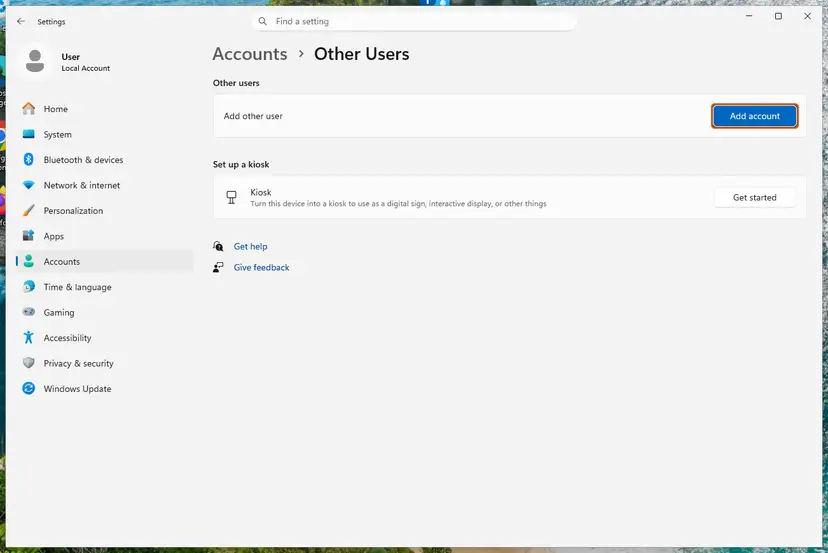
Every screen, and the Windows 10 path: Create a new user account to test a problem. The result of the test decides what comes next.
| In the new account | What it tells you | Next |
|---|---|---|
| Teams signs in | Windows and Teams are sound. Your old profile holds the fault. | Repeat Fix 3 and Fix 4 in the old profile. If it stays broken, move your files to the new account and keep using it. |
| The same tag | The fault is not in one profile: the network, security software or Windows itself. | Fix 6 once more, then Fix 8. |
It worked if: Teams signs in from the new account, which proves that the PC and the work account are fine.
If not: If the new account shows the same tag, the profile is not the cause. Update Teams and Windows with Fix 8 and read the logs described after the fixes.
Fix 8. Update Teams and Windows, then reinstall Teams
15 to 30 minutesLow riskNothing above helped, Teams has not been updated for months, or the PC still runs Windows 10 with updates missing.
Microsoft's own order for Teams sign-in errors is to check that the client has the latest update before anything else, and to reinstall Teams as the last manual step. The one bug that Microsoft confirmed for failed single sign-on in Outlook and Teams was repaired by a Windows update.
- In Teams, select the Settings and more menu next to your profile picture and select Check for updates. If Teams does not open far enough to show the menu, go to step 3.
- If a notice at the top of the window offers an update, select Update, then Update and restart Teams.
- Open Settings > Windows Update and select Check for updates. Install what is offered and restart.
- Try the sign-in.
If the tag is still there, reinstall Teams. Remove it under Settings > Apps > Installed apps with the three dots and Uninstall: Uninstall a program or app in Windows. Then get the installer from Microsoft's Teams download page and sign in. Microsoft's instruction for classic Teams adds one step in between: delete the Teams folder under %appdata%\Microsoft.
The old guide on this page told readers to delete the Teams folder inside C:\Program Files\WindowsApps. Do not do that. Microsoft explains that new Teams is installed there on purpose, because users cannot write to that folder, and the folder name changes with every version. The data behind 48v35 lives in your profile, and a reinstall does not touch it.
It worked if: Teams is on the current version, or freshly installed, and signs in after the restart.
If not: Stop changing the PC. The next section shows which logs to collect and who should get them.
If 48v35 is still there: the logs that show the real cause
The error window says that something is missing and not what. Windows and Teams write more than that. Three places are worth a look, and all three produce something you can attach to a support request.
| Where | How to get it | What to look for |
|---|---|---|
| Windows Application log | Event Viewer: Windows Logs > Application. Sort by Source and find AppModel-State. | "Failure to load the application settings for package Microsoft.AAD.BrokerPlugin_cw5n1h2txyewy" and similar repair messages, ending in a code that starts with -2147. Microsoft reads them as broken or tampered plug-ins. |
| Teams support files | In Teams press Ctrl + Alt + Shift + 1, or select the Teams icon in the taskbar corner and Collect support files. | The files land in the Downloads folder. The web logs are plain text. Times are in UTC, as in the error window. |
| Device and token state | dsregcmd /status in Command Prompt, as the affected user. | AzureAdPrt and, when a refresh failed, the diagnostics block with Attempt Status, Correlation ID and Server Error Description. |
- What to send to the administrator: the text behind Copy info to clipboard, the app and its version, the time it started, whether
teams.microsoft.comworks, and whether the computer is yours, a managed laptop or a remote desktop. - For a Microsoft support ticket: Microsoft asks tenant admins to open the ticket in the Microsoft 365 admin center and to attach MSOAID logs. The tool records Office and Windows sign-in logs while you repeat the error: Use MSOAID for authentication issues.
- On a virtual desktop: Teams limits the size of its logs there. Microsoft says to turn on extended logging in the Teams privacy settings before you repeat the error.
Test the browser. If teams.microsoft.com also refuses you, the cause is the account. Microsoft states that Teams needs a Microsoft 365 licence, and a school or employer closes accounts when people leave. A sign-in policy of the organisation can also reject the device: the Teams status code 0xCAA20004 points there. Only an administrator can change any of these.
For administrators: 48v35 on RDS, Azure Virtual Desktop, Citrix and FSLogix
Most long threads about this tag are written by administrators of multi-user servers, and their users share one pattern: random users, every few days, cured for a while by signing out. A forum advisor wrote in June 2026 that there is no permanent fix that all sides accept yet. What Microsoft does document is below, cheapest check first.
- Run the Teams Sign-in diagnostic in the Microsoft 365 admin center with the user's address. Microsoft's article Resolve sign-in errors in Teams links to it and to the Teams Sign in test of the Remote Connectivity Analyzer.
- On the session host, open the Application log and filter for source Microsoft-Windows-AppModel-State, Event ID 10. The text "Failure to load the application settings for package Microsoft.AAD.BrokerPlugin_cw5n1h2txyewy" with code -2147024893 is the signature in Microsoft's bulletin KB5048864.
- Compare your profile solution with Microsoft's list of identity data that must never leave a device. The list is in the next block.
- With FSLogix, check RoamIdentity. The default and recommended value is 0. Microsoft says not to enable it on devices that are Microsoft Entra joined or managed with Intune.
- Update FSLogix. Its known issues page lists a bug, marked fixed, in which identity registry locations that must not roam were not removed at sign-out. It affects version 25.09 and earlier.
- Check the platform against Microsoft's requirements for new Teams on virtual desktops, including the FSLogix and Citrix Profile Management versions named there.
- Folders that must not roam:
%localappdata%\Packages\Microsoft.AAD.BrokerPlugin_cw5n1h2txyewy,%localappdata%\Packages\Microsoft.Windows.CloudExperienceHost_cw5n1h2txyewy,%localappdata%\Packages\<any app package>\AC\TokenBroker,%localappdata%\Microsoft\TokenBroker,%localappdata%\Microsoft\OneAuth,%localappdata%\Microsoft\IdentityCache - Registry keys that must not roam:
HKEY_CURRENT_USER\SOFTWARE\Microsoft\IdentityCRL,HKEY_CURRENT_USER\SOFTWARE\Microsoft\Windows\CurrentVersion\AAD,HKEY_CURRENT_USER\SOFTWARE\Microsoft\Windows NT\CurrentVersion\WorkplaceJoinandHKEY_CURRENT_USER\SOFTWARE\Microsoft\Windows NT\CurrentVersion\TokenBroker - Also not supported: roaming the work account's device certificate, issued by MS-Organization-Access
- What must roam for new Teams: the folders under
AppData\Local\Packages\MSTeams_8wekyb3d8bbwe, as real directories. Folder Redirection and Roaming User Profiles alone cannot do that.
On Azure Virtual Desktop multi-session hosts with Windows 10 22H2, the updates from 23 July 2024 (KB5040525) to 8 October 2024 (KB5044273) could deadlock the account broker with the app deployment service. Outlook and Teams lost single sign-on, and logon hung at a black screen for 10 to 30 minutes. Microsoft says FSLogix profile containers make it more likely. The fix needs both parts: the update of 22 October 2024 (KB5045594) or later, and a new image or a logon script that registers the BrokerPlugin package again.
One administrator reports a stable Citrix farm after roaming OneAuth, IdentityCache and TokenBroker with the profile and setting DisableAADWAM and DisableADALatopWAMOverride. It is a single report, and it contradicts Microsoft's documentation twice: those folders are on the never roam list, and disabling WAM puts Office into a legacy state that Microsoft does not support. Raise a support case before you copy it.
How to stop 48v35 from coming back
On a single PC the tag is rare once the sign-in stores have been rebuilt. It comes back when files go missing from them again, and a few habits prevent that.
- Start a PC that sat unused before the day you need it. Sign in to Windows and to Teams while online, so that the stored sign-in is renewed. The one detailed home-office report of this tag came from a PC that had been offline for more than a month.
- Do not copy AppData from an old PC or a backup into a new profile. Microsoft's rule for administrators applies at home too: the sign-in folders under
%localappdata%must never come from another device. Copy documents, not AppData. - Keep cleaning tools away from the sign-in folders. A tool that empties
%localappdata%\Microsoftor removes built-in app packages can take the account plug-ins with it. - Give security software its exclusions. If Fix 6 named a blocker, the exclusions listed there are the lasting answer, not a paused antivirus.
- Let Teams and Windows update. Teams updates itself when the app is idle. Windows 10 left support on 14 October 2025, and the one confirmed bug behind failed single sign-on was a Windows 10 bug.
- On a remote desktop, sign out at the end of the day. FSLogix removes the data that must not roam when the user signs out, not when a session is merely disconnected. This is our advice from how profile containers work, not a Microsoft statement about this tag.
Frequently asked questions
What does error tag 48v35 mean?
It means that a Microsoft 365 app on Windows, most often Teams or Outlook, could not finish signing you in. The tag only marks the step where the Windows sign-in component stopped, and Microsoft publishes no definition of it. The useful line is the Code under it. In the reports it is 2147942402, the Windows error "The system cannot find the file specified". In practice the stored sign-in on that computer is missing or incomplete. Signing out, quitting Teams, restarting and signing in again rebuilds it.
What is Code 2147942402 under tag 48v35?
It is a Windows result code written as a decimal number. In hexadecimal it is 0x80070002. The 8 marks a failure, 007 is the facility that Microsoft reserves for ordinary Windows errors, and 0002 is system error 2, ERROR_FILE_NOT_FOUND. Its text is "The system cannot find the file specified". Microsoft's bulletin about failed single sign-on on Azure Virtual Desktop names the neighbouring code -2147024893, which is 0x80070003, path not found. Microsoft does not say which file is missing in the 48v35 case, and we could not confirm it.
Why do I get 48v35 in Outlook when Teams or webmail still works?
Because each app asks Windows for its own token, and one request can fail while another succeeds. Users report the tag in classic Outlook that keeps asking for the account, in new Outlook when a message is opened, and in Word and Excel during activation. Webmail runs in the browser and never touches the sign-in files that Windows stores for desktop apps. Working webmail proves that the account itself is in order, and the fixes on this page apply to Outlook as they do to Teams.
Why does 48v35 keep coming back on a remote desktop, Citrix or Azure Virtual Desktop?
Because on those systems your profile is stored away at sign-out and brought back at the next logon, often on another server. Microsoft states that the sign-in folders and registry keys must never leave a device, and FSLogix deletes them from the profile at sign-out by default. When a profile tool handles only part of that data, the sign-in finds pieces missing. Signing out and in helps for a while. The lasting change is in the profile configuration, which only the administrator can make.
Is error 1001 the same as 48v35?
They often arrive together, but they are two labels. Something went wrong [1001] is the message Microsoft documents: a sign-in failure in the Microsoft 365 desktop apps, caused in its two named scenarios by security software or by roamed profile data. Tag 48v35 can appear in the details under a 1001 message, as in the question at the top of this page, or in the red line itself. An IT professional saw 1001 on one PC with tag 48v35 at some times and tag 58tm1 at others. The same fixes apply.
Will reinstalling Teams or Microsoft 365 fix 48v35?
Rarely. One Outlook user with this tag removed Microsoft 365 completely, installed it again and had the same error. The reason is where the data lives: the stored sign-in is in your Windows profile, in Credential Manager and in the Windows account plug-ins, and an uninstall leaves all of that in place. A reset of the Teams app is different, because it empties the Teams folder in your profile. Use the reset in Fix 2 and the cleanups in Fix 3 and Fix 4 before any reinstall.
Do the registry values DisableAADWAM or EnableADAL from forum threads get rid of 48v35?
Do not use them. DisableAADWAM, DisableADALatopWAMOverride and EnableADAL switch the Microsoft 365 apps back to an older sign-in method. Microsoft has a whole article against this: it calls the result an unsupported legacy configuration and warns of side effects for the environment. Newer security features exist only in Web Account Manager, and Teams relies on that same manager for single sign-on. One administrator in a 48v35 thread still runs these values on a Citrix farm, which shows how persistent the advice is. Repairing the manager with Fix 5 is the supported way.
Is "Ocorreu um erro. [48v35]", "Se ha producido un error. [48v35]" or "Nous avons rencontré un problème. [48v35]" the same error?
Yes. Only the sentence is translated and the tag is left as it is, so Portuguese, Spanish, French, German and Korean users all see 48v35 after their own wording. The German window says "Da ist etwas schiefgelaufen". The detail lines stay in English in every language, including "An unexpected error occurred." and the Code. Follow the fixes above in any language: folder paths, commands and the code are identical, and only menu and button names appear in your language.
Sources
- Microsoft Learn: Clear the Teams client cache (learn.microsoft.com)
- Microsoft Learn: Resolve sign-in errors in Teams (learn.microsoft.com)
- Microsoft Support: Why am I having trouble signing in to Microsoft Teams? (support.microsoft.com)
Did this fix work?
One click, no account. It tells the next reader which guides are worth their time.
Questions and experiences: fix Teams error tag 48v35 in Windows
Still broken, or found a fix we did not cover? Ask here: members and our editors answer. Reading is open; writing needs a free account.
…