
How to fix "Something went wrong" error tag 7q6ch in Microsoft Office?

Prefer to fix it yourself? The manual steps follow.
- 9methods
- 5 to 30 minutes
- Intermediate
Applies to Microsoft 365 apps and Office for Windows (Outlook, Teams, Word, Excel, OneDrive) on Windows 11 and Windows 10
9 methods in this guide
- What the tag means
- Decode the Code line
- Outlook, Teams, OneDrive
- Causes, ranked
- Home or work PC
- The fixes
- 1. Sign out and restart
- 2. Re-add the account
- 3. Clear OneAuth cache
- 4. Repair account plug-ins
- 5. Reset WAM accounts
- 6. Check sign-in services
- 7. Fix the TPM device key
- 8. Antivirus, VPN, proxy
- 9. Update and repair Office
- Still there: read the logs
- For administrators
- Prevent it
- FAQ
Hi, I keep getting this "Something went wrong" error tag 7q6ch when I try to sign in to Microsoft Office apps on my PC.
The 7q6ch tag marks a failed sign-in in the Microsoft 365 desktop apps on Windows: the account window opens, then shows Something went wrong. [7q6ch] in place of the password box. Your account usually still works in a browser, so the fault sits on this PC. Sign out of Office, restart Windows, then remove and re-add the account that fails.
The tag is not the cause. It marks the place where Windows sign-in for Office gave up, and the Code printed under it says why. Start with File > Account > Sign out, close every Office app and restart the PC (Fix 1). If the error returns, remove the account under Settings > Accounts > Access work or school and add it again (Fix 2). On a PC that your employer or school manages, send the Correlation Id, Timestamp and Code to the administrator before you delete anything.
| Error | Something went wrong. [7q6ch], often followed by the lines Correlation Id, Timestamp, DPTI, Message ("An unexpected error occurred."), Tag: 7q6ch and a Code, which can also be 0. |
|---|---|
| Where it appears | In the Microsoft sign-in window of Outlook, Teams, Word, Excel and OneDrive on Windows: when the app starts, when it asks to activate, or right after you type your e-mail address. |
| Main cause | Sign-in data stored on this PC no longer fits the account or the device: old tokens, a broken work account connection, a damaged Windows account plug-in, or a device key that the TPM chip cannot use. |
| Fastest fix | Sign out in File > Account, close all Office apps, restart, sign in again (Fix 1). Then remove and re-add the work or school account (Fix 2). |
| Also written as | 7q6ch error, error tag 7q6ch, error code 7q6ch, Tag: 7q6ch, [7q6ch], "Se ha producido un error. [7q6ch]". The tags 7q6cd, 7q6ck, 7q6cl and 7q6ca are different ones. |
| Affects | Microsoft 365 apps and Office on Windows 11 and Windows 10, in the reports mostly with work and school accounts. The same account in a browser usually signs in without trouble. |
| Microsoft's status | No Microsoft Learn or Microsoft Support article defines the tag (checked 14 October 2026). Microsoft documents the parts behind it: Web Account Manager, its plug-ins, the TPM and device registration. |
| Time to fix | About 5 minutes for Fix 1 and Fix 2. Up to 30 minutes if the account plug-ins or the TPM are involved. |
| Where the cause is logged | Event Viewer: Applications and Services Logs > Microsoft > Windows > AAD > Operational. The device state: dsregcmd /status. |
Facts checked on 14 October 2026. Steps written for Microsoft 365 apps and Office on Windows 11 (25H2 and 26H2) and Windows 10 22H2, read against Microsoft's documentation.
What the error tag 7q6ch means in Microsoft 365 and Office
You open Outlook, Teams, Word or OneDrive, and a small Microsoft window appears where the sign-in page should be. It says Error, then Something went wrong. [7q6ch]. In most reports the address was typed correctly, and the password box never came.
The five characters in brackets are a tag. Microsoft publishes no list of these tags, and we found no Microsoft Learn or Microsoft Support article that defines 7q6ch. What the reports on Microsoft's own forums show is that the same tag arrives with very different codes. So the tag tells you where sign-in stopped, and the code tells you why.
![Microsoft sign-in window with the heading Error and the red line Something went wrong. [7q6ch] under the Microsoft logo](/pic/w828q75/uploads/wp/articles/askit/how-to-fix-something-went-wrong-error-tag-7q6ch-in-windows-copy_en.jpg.webp)
| Line in the window | What it is | What to do with it |
|---|---|---|
| Correlation Id | The identifier of this one sign-in attempt. | Copy it. An administrator can filter the Microsoft Entra sign-in logs by Correlation ID and find the attempt. |
| Timestamp | The time of the attempt, in UTC. | Copy it together with the Correlation Id. It narrows the search in the logs. |
| DPTI | A long string of letters and digits. Microsoft does not document this field. | Keep it for support. Do not post it in public: Microsoft's forum moderators remove it as personal information. |
| Tag (or Error Tag) | 7q6ch: the point where the sign-in gave up. | Use it to recognise the error, not to diagnose it. |
| Code (or Error Code) | A number such as 2150105345 or -2147023838. | Decode it with the table in the next section. This is the useful line. |
7q6ch error, error tag 7q6ch, error code 7q6ch, Tag: 7q6ch and [7q6ch] are the same thing. In other languages only the sentence changes, for example "Se ha producido un error. [7q6ch]". The tags 7q6cd, 7q6ck, 7q6cl and 7q6ca are different tags from the same sign-in layer. The FAQ says what is known about them.
Read the Code under the tag: it names the real fault
The Code line is a Windows result code written as a decimal number. Microsoft does the same in its own article about a sign-in failure, where 80070520, -2147023584 and 2147943712 are listed as one error in three forms. Written in hexadecimal, the codes that users report with 7q6ch match entries in Microsoft's public error tables.
| Code in the window | In hexadecimal | Microsoft's description | Start with |
|---|---|---|---|
| 2150105345 | 0x80280101 | TPM_20_E_FAILURE: "TPM 2.0: Commands not being accepted because of a TPM failure." | Fix 7 |
| 2150105250 | 0x802800A2 | TPM_20_E_BAD_AUTH: "TPM 2.0: Authorization failure without DA implications." | Fix 7 |
| -2147023838 | 0x80070422 | ERROR_SERVICE_DISABLED (1058): "The service cannot be started, either because it is disabled or because it has no enabled devices associated with it." | Fix 6 |
| 2147500037 | 0x80004005 | E_FAIL: "Unspecified error". The code adds nothing. | Fix 1 to Fix 5, in order |
| -2147023584 or 2147943712 | 0x80070520 | The logon session does not exist. Microsoft names two causes: Office started with Run as administrator or as another user, and mismatched tokens on shared or roaming profiles. | Start Office the normal way, then Fix 1 |
| 3399745538 | 0xCAA40002 | Not in Microsoft's public tables. We could not confirm its meaning. It was reported with a school account. | Fix 1, then the school's IT department |
Then give the administrator or Microsoft support the full set of lines and go through the fixes in order. Codes that begin with 0x8028 or 0x8029 in hexadecimal belong to the TPM. Microsoft's own check for this case is in Fix 7.
7q6ch in Outlook, Teams and OneDrive: one shared sign-in
Outlook, Teams, Word, Excel and OneDrive do not each keep their own sign-in. On Windows they hand the job to Web Account Manager (WAM), a part of Windows. Microsoft states that the WAM plug-ins are used by Microsoft 365 apps for establishing and renewing sign-in sessions. That is why the tag can show up in all of these apps at once.
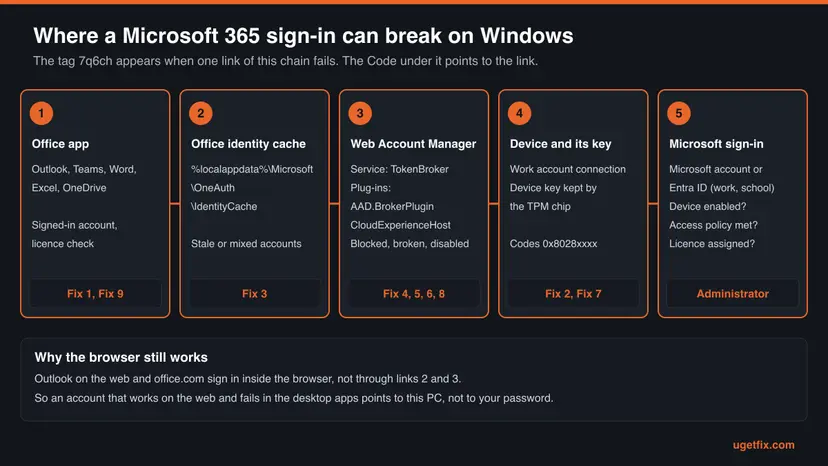
- Outlook: the tag appears when the app starts or when it asks for the password again. Mail stops syncing until the sign-in succeeds.
- Teams: the sign-in window shows the tag. Users report that it fails on the same day as Outlook.
- Word, Excel, PowerPoint: the tag appears in the activation window, so the apps stay unlicensed.
- OneDrive: the sync app shows the same lines after you enter the address. A Microsoft moderator handled such a case as a problem of saved sign-in data on that one laptop.
For the related error Something went wrong [1001], Microsoft's workaround is to use Outlook on the web, the Office web apps or the mobile apps. The same works here. If the browser also refuses your account, the problem is the account, its password or its licence, and not this PC.
What causes 7q6ch, from the most common to the rare
Microsoft has not published a cause for this tag. The ranking below comes from two things: the codes and stories that users post on Microsoft's forums, and the causes Microsoft documents for sign-in failures in the same Windows layer. Treat the order as our reading of those reports, not as a statistic.
| How often | Cause | Typical sign | Fix |
|---|---|---|---|
| Most often | Old or mixed sign-in data: tokens of a changed password, two accounts in one Office, a work account added to a home PC | It started overnight or after a password change. The browser signs in fine. | Fix 1, Fix 2, Fix 3 |
| Often | The work account connection of this device is broken, or the device was disabled or deleted by the organisation | A work or school account. Access work or school lists the account, or its page will not load. | Fix 2, then the administrator |
| Often | The Windows account plug-ins are damaged, missing or blocked by security software | The sign-in window is blank, closes at once, or hangs. Event Viewer shows AppModel-State errors. | Fix 4, Fix 5, Fix 8 |
| Less often | The TPM cannot use the device key | Code 2150105345 or 2150105250. Often after a firmware update, a motherboard change or a BitLocker recovery. | Fix 7 |
| Less often | A sign-in service is disabled | Code -2147023838. | Fix 6 |
| Rarely | A faulty Office build or damaged Office files | Several users on the same build report it at the same time. | Fix 9 |
| Only in organisations | Roamed profile data on virtual desktops and remote desktop servers, a sign-in policy that this device does not meet, Office started as another user | Shared computers, VDI, RDS. Or one policy change and many users affected. | The administrator, see the section for administrators |
Several websites tie 7q6ch to one cause, such as a wrong clock or a damaged system file. No Microsoft document supports a single cause.
Home PC or managed PC: check who is allowed to fix it
The same error has two very different owners. On your own PC every fix below is yours to run. On a PC that an organisation manages, some fixes undo its setup, and the cause may sit on the server. One command tells you which case you are in.
In Command Prompt, opened the normal way (not as administrator)
dsregcmd /status| What the output says | What it means | What you may do |
|---|---|---|
| AzureAdJoined : NO, DomainJoined : NO, WorkplaceJoined : NO | A private PC. Office signs in for the app only. | All fixes. |
| WorkplaceJoined : YES (under User State) | Your own PC with a work or school account added to Windows. Microsoft calls this Workplace Joined or Microsoft Entra registered. | All fixes. Fix 2 is made for this case. |
| AzureAdJoined : YES, DomainJoined : NO | Microsoft Entra joined: the PC belongs to the organisation. | Fix 1 only. Then the administrator. |
| AzureAdJoined : YES, DomainJoined : YES | Microsoft Entra hybrid joined. | Fix 1 only. Then the administrator. |
| AzureAdJoined : NO, DomainJoined : YES | Joined to a local domain only. | Fix 1 only. Then the administrator. |
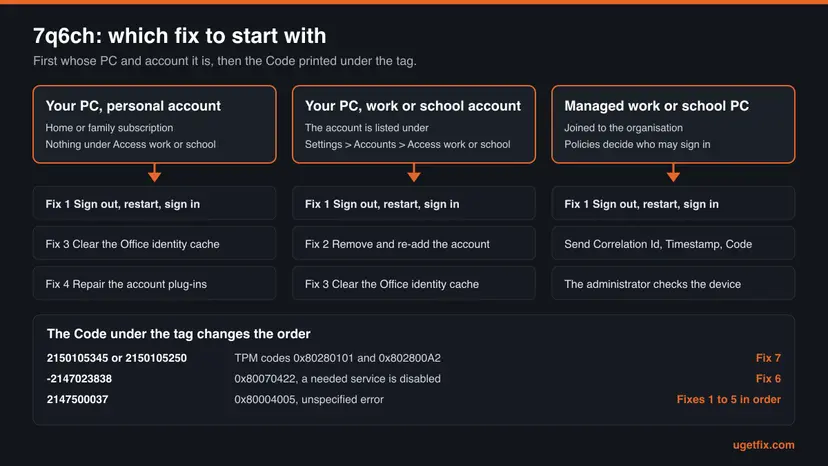
- Run Fix 1: sign out, restart, sign in.
- Copy the Correlation Id, Timestamp, DPTI, Tag and Code from the window.
- Tell the administrator when it started and whether the browser signs in. If you do not know who that is, Microsoft explains how to find your Microsoft 365 admin.
- Disconnect the account under Access work or school. Microsoft warns that the device is then unenrolled from management.
- Clear the TPM. Microsoft says not to do that on a work or school PC without the administrator's instruction.
- Add registry values that switch off modern sign-in. Microsoft does not support them.
How to fix the 7q6ch error in Outlook, Teams and Office
The fixes are ordered by how often they end the error and how little they change. Fix 1 is safe on every PC. Fix 2 to Fix 9 are for a PC you own, or for an administrator. After each fix open the app that failed and sign in: when the password box or the approval request appears where the tag was, you are done.
| Your case | Start with | Then |
|---|---|---|
| Home PC, personal Microsoft account | Fix 1 | Fix 3, Fix 4, Fix 5 |
| Your own PC, work or school account | Fix 1 | Fix 2, Fix 3 |
| PC managed by an employer or school | Fix 1 | Send the details to the administrator (see the section for administrators) |
| Code 2150105345 or 2150105250 | Fix 7 | Fix 2 |
| Code -2147023838 | Fix 6 | Fix 4 |
| The sign-in window is blank, closes at once or hangs | Fix 4 | Fix 8, Fix 5 |
| It began after you installed or updated an antivirus, a VPN or a firewall | Fix 8 | Fix 4 |
| Several colleagues got it on the same day | Nothing on your PC | The administrator, and Fix 9 for the Office build |
Fix 1. Sign out of Office, restart Windows and sign in again
5 minutesNo riskEveryone, first. It is the only fix that is safe on a managed work PC.
Microsoft's first advice for sign-in errors in Office is to sign out of all accounts in the app, restart it and sign in again, and its support page for the related 1001 error adds that a reboot often clears the fault. A fresh sign-in replaces tokens that no longer match your password or your device.
- Open Word or any other Office app that still starts.
- Go to File > Account (Office Account in classic Outlook) and select Sign out. If two accounts are listed, sign out of both.
- Close every Microsoft 365 app: Outlook, Teams, Word, Excel, PowerPoint and OneNote.
- Restart the PC and sign in to Windows again.
- Open the app that failed and select Sign in.
- Type the address that holds the licence. For a business subscription that is the work or school account, not your personal Microsoft account.
After the password Windows may ask whether to sign in to all apps, websites and services on this device. On a PC you own, a university IT department advises its users to select No, this app only. Agreeing adds the work account to Windows, which is the setup that Fix 2 undoes when it breaks.
It worked if: The window asks for your password or sends an approval request to your phone, and your name appears at the top of the app.
If not: If no app opens far enough to reach File > Account, restart anyway and try to sign in. If the tag returns, go to Fix 2 on your own PC, or contact the administrator on a managed one.
Fix 2. Remove the work or school account from Windows and add it again
10 minutesLow riskYour own PC with a work or school account, above all when dsregcmd shows WorkplaceJoined : YES.
Windows keeps a work account in two places outside Office: Credential Manager and the list under Access work or school. Microsoft's activation articles clear both, and its recovery procedure for a device with an added work account is to remove the account and restore it.
Microsoft describes what Disconnect does: every app in the current Windows session loses its single sign-on, and the device is unenrolled from management tools and unregistered from the cloud. On a home PC that is the point of this fix. On a PC that the organisation owns it removes the organisation's setup, so leave it to the administrator.
- Close all Office apps and Teams.
- Select Start, type
credential managerand open Credential Manager. - Select Windows Credentials.
- If there are entries for MicrosoftOffice16, select the arrow next to each one and select Remove.
- Open Settings > Accounts > Access work or school.
- If the account you use for Microsoft 365 is listed, and it is not the account you sign in to Windows with, select it and select Disconnect.
- Restart the PC.
- Open an Office app and sign in with the work or school account.
The path is the same on Windows 11 and Windows 10. One user with this tag reported that the Access work or school page never finished loading. In that case go on with Fix 4 and Fix 5.
It worked if: The sign-in window asks for the password and the second factor, and the app activates. The account may appear under Access work or school again, now with a fresh registration.
If not: If the account is not listed at all, or the tag returns after the restart, clear the Office identity cache with Fix 3.
Fix 3. Clear the Office identity cache (OneAuth and IdentityCache)
5 minutesLow riskYour own PC, when Fix 1 and Fix 2 did not help, or after a password change, a new address or a move to another organisation.
Office keeps cached accounts and tokens in two folders of your profile. Microsoft's own instructions for a OneDrive sign-in that fails with cached identities are to sign out and remove the folders in these two locations. Office then starts with no memory of the old accounts.
- Sign out of OneDrive and close it. Close Outlook, Teams and every other Office app.
- Press Win + R, paste this path and press Enter:
%localappdata%\Microsoft\OneAuth - Select everything inside the folder with Ctrl + A and delete it.
- Press Win + R again, paste the second path and press Enter:
%localappdata%\Microsoft\IdentityCache - Delete everything inside this folder as well.
- Restart the PC, open the app and sign in.

If the tag is still there, Microsoft's next step in the same articles is the cached identity in the registry. It belongs to your user account only.
A wrong deletion in the registry can break Office or Windows. Export the key first, so that you can put it back: Back up the registry before editing it. After the deletion Office has no cached accounts, and you sign in again.
- Press Win + R, type
regeditand press Enter. - Go to this key:
HKEY_CURRENT_USER\Software\Microsoft\Office\16.0\Common\Identity - Export it as a backup, then right-click Identity and select Delete.
- Restart the PC and sign in to Office.
It worked if: Office opens as if it had never been signed in, shows the normal Microsoft sign-in page and accepts your account.
If not: If the sign-in window still shows the tag, or stays blank, the Windows side is at fault. Go to Fix 4.
Fix 4. Run Microsoft's sign-in troubleshooter and repair the account plug-ins
10 minutesLow riskThe sign-in window is blank, closes at once or hangs, or Fix 1 to Fix 3 changed nothing.
Office signs in through two Windows packages: Microsoft.AAD.BrokerPlugin for work and school accounts and Microsoft.Windows.CloudExperienceHost for personal accounts. Microsoft says they can be missing, broken or removed as a side effect of security software, and gives the commands that register them again.
Microsoft's automatic route comes first. The article Fix authentication issues in Microsoft 365 apps opens with a link to the Microsoft 365 Sign-in troubleshooter, which diagnoses and fixes several common sign-in issues by itself. Let it finish, then test the sign-in. The manual route below does the same repair by hand.
The plug-ins are installed per user. Microsoft stresses that the check and the repair must run in the profile of the person who gets the error. So stay signed in to Windows as that person, and do not elevate PowerShell with another account's password.
- Press Win + R, type
powershelland press Enter. - Check whether both packages exist. Each command should print the details of one package:
Get-AppxPackage Microsoft.AAD.BrokerPlugin Get-AppxPackage Microsoft.Windows.CloudExperienceHost - If both exist, test whether they start. Run each line in Command Prompt. A Work or school account window and a Microsoft account window should open:
explorer.exe shell:appsFolder\Microsoft.AAD.BrokerPlugin_cw5n1h2txyewy!App explorer.exe shell:appsFolder\Microsoft.Windows.CloudExperienceHost_cw5n1h2txyewy!App - If a package is missing or its window does not open, register the work and school plug-in again in PowerShell:
Add-AppxPackage -Register "$env:windir\SystemApps\Microsoft.AAD.BrokerPlugin_cw5n1h2txyewy\Appxmanifest.xml" -DisableDevelopmentMode -ForceApplicationShutdown - Then register the plug-in for personal accounts:
Add-AppxPackage -Register "$env:windir\SystemApps\Microsoft.Windows.CloudExperienceHost_cw5n1h2txyewy\Appxmanifest.xml" -DisableDevelopmentMode -ForceApplicationShutdown - Restart the PC and sign in to the Office app.
A quick progress indicator or a status result, with no error, means the command worked. Microsoft advises watching the PC for 48 hours afterwards. If the plug-ins break again, something keeps damaging them: see Fix 8.
It worked if: Both test windows open, and the Office sign-in window shows the Microsoft page with a password box where the tag was.
If not: If the packages are present and start, but the tag stays, their stored account data is the next suspect. Go to Fix 5.
Fix 5. Reset the stored accounts of Web Account Manager
10 minutesLow riskYour own PC, when the plug-ins exist and start but the tag keeps coming back, also after a reboot.
Web Account Manager keeps its own copies of your accounts, apart from the Office cache of Fix 3. Microsoft's activation articles reset them in two ways: by deleting the account files of both plug-ins, and with a small Microsoft script that clears the WAM accounts associated with Office.
- Close all Office apps and Teams.
- Open File Explorer and put this location in the address bar:
%LOCALAPPDATA%\Packages\Microsoft.AAD.BrokerPlugin_cw5n1h2txyewy\AC\TokenBroker\Accounts - Press Ctrl + A, right-click the selected files and choose Delete.
- Put the second location in the address bar, select all files and delete them:
%LOCALAPPDATA%\Packages\Microsoft.Windows.CloudExperienceHost_cw5n1h2txyewy\AC\TokenBroker\Accounts - Restart the PC.
- Run the Microsoft 365 Sign-in troubleshooter from Fix 4 once more, then sign in to Office.
If that is not enough, use Microsoft's script. The article Reset activation state for Microsoft 365 Apps for enterprise offers the download signoutofwamaccounts.zip under the heading about automated scripts.
- Download signoutofwamaccounts.zip from that Microsoft article and extract it.
- Run signoutofwamaccounts.ps1 in Windows PowerShell with administrator rights, as the article says.
- The script prints nothing when it is done. Open Outlook or Word and sign in.
Microsoft writes that the script removes the tokens and accounts associated with Office, is safe to run and needs Windows 10 version 1803 or later. The author of one technical blog describes how this script alone ended a 7q6ch error that kept returning in Outlook. That is a single report.
It worked if: Office asks you to sign in from scratch, with password and second factor, and stays signed in after the next restart.
If not: Look at the Code line again. A TPM code leads to Fix 7 and a service code to Fix 6. With any other code, test for interference with Fix 8.
Fix 6. Turn the Windows sign-in services back on (code -2147023838)
5 minutesLow riskThe Code under the tag is -2147023838, or the PC was trimmed with a tool that disables Windows services.
The code -2147023838 is 0x80070422, which Microsoft's error table describes as a service that cannot be started because it is disabled. Two services carry the sign-in: Web Account Manager, which provides single sign-on to apps, and Microsoft Account Sign-in Assistant, which signs in Microsoft accounts.
- Press Win + R, type
services.mscand press Enter. - Find Web Account Manager in the list and look at the Startup Type column.
- If it says Disabled, right-click the service and select Properties.
- Set Startup type to Manual and select Apply, then OK.
- Do the same for Microsoft Account Sign-in Assistant.
- Restart the PC and sign in to Office.

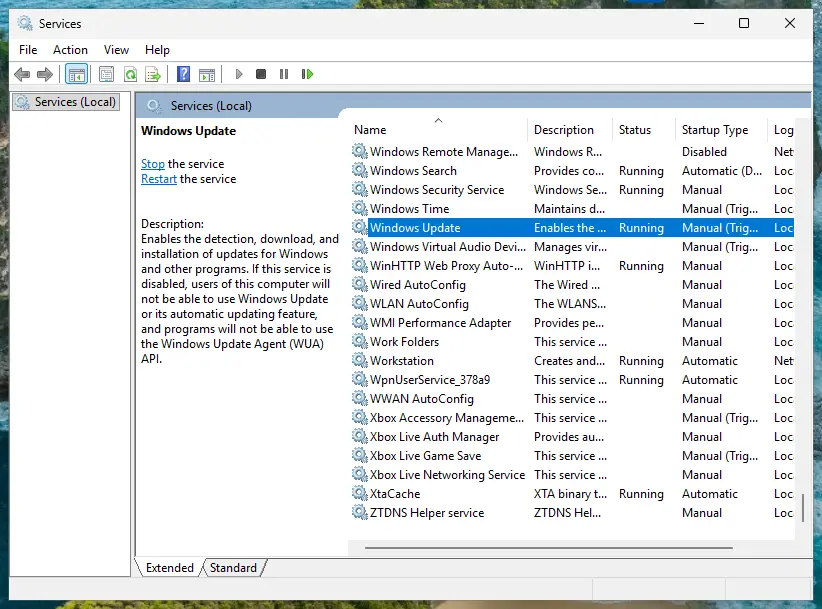
Microsoft's service reference gives Manual as the startup type of both services, so Automatic is not needed. The full procedure with every screen: Check and restart Windows services.
Microsoft's table explains the code, not which service is meant. We name these two because they are the documented sign-in services. On a work PC ask the administrator before you change them.
It worked if: Neither service shows Disabled, and after the restart the sign-in window reaches the password step.
If not: If both services were already on Manual and the code stays the same, repair the plug-ins with Fix 4 and give the code to the administrator or to Microsoft support.
Fix 7. Deal with a TPM code (2150105345 or 2150105250)
10 to 30 minutesRead the warningThe Code is 2150105345 or 2150105250, or the error began after a firmware update, a hardware repair or a BitLocker recovery screen.
Windows protects your work credentials with a key that the TPM chip guards. Microsoft explains that when the TPM falters, the device cannot prove possession of that key, cannot use its sign-in token, and Microsoft Entra ID invalidates the token. New keys, made by registering the account again, end the error.
- Open Command Prompt the normal way and run
dsregcmd /status. - Under Device Details read TpmProtected and DeviceAuthStatus. Under SSO State read AzureAdPrt.
- Open Event Viewer and go to Applications and Services Logs > Microsoft > Windows > AAD > Operational.
- Look for errors at the time of your sign-in whose code has the pattern
0x?028????,0x?029????or0x?009????. Microsoft names these patterns as the mark of a TPM problem.
| How the device is connected | Microsoft's recovery | Who does it |
|---|---|---|
| A work account added to your own PC (WorkplaceJoined : YES) | Remove the work account under Settings > Accounts > Access work or school and add it again. This is Fix 2. | You |
| Microsoft Entra hybrid joined | Run dsregcmd /leave in an elevated Command Prompt and restart the device. | The administrator |
| Microsoft Entra joined | Back up the data, create a new local administrator, disconnect the account, sign in as the local administrator and join again. | The administrator |
Microsoft adds two things. Since Windows 10 version 1709 the system detects a TPM failure and should start this recovery by itself. And to stop it from happening again, Microsoft recommends updating the TPM firmware, which arrives with the BIOS or UEFI update of your PC maker.
Microsoft warns that clearing the TPM destroys all keys created with it and the data those keys protect, such as a sign-in PIN or a virtual smart card. If the drive is encrypted with BitLocker, have its recovery key at hand before you start. Never clear it on a work or school PC without the administrator, and always clear it from Windows, not from the UEFI menu.
- Only if the re-registration above did not help, and the PC is yours: open Windows Security from the Start menu.
- Select Device security, then Security processor details.
- Select Security processor troubleshooting.
- Select Clear TPM and restart when asked. During the restart the PC may ask you to press a key to confirm.
- After the restart Windows prepares the TPM again by itself. Set up your PIN again, then run Fix 2 and sign in to Office.
It worked if: After the account is registered again, dsregcmd /status shows TpmProtected : YES, the TPM errors stop in the AAD log, and Office signs in.
If not: If the TPM errors return after a clear and a firmware update, the chip or the motherboard may be failing. That is hardware: contact the PC maker, and use the web apps meanwhile.
Fix 8. Rule out security software, VPN and proxy
10 minutesLow riskThe error began after you installed or updated an antivirus, a firewall or a VPN, or it comes and goes with the network you use.
Microsoft's activation articles state that some antivirus, proxy and firewall software blocks the process Microsoft.AAD.BrokerPlugin, and a second article describes security software that damages or removes the account plug-ins. One short test without that software shows whether it is the cause.
- Open Microsoft Edge and go to
https://login.microsoftonline.com. You should land on office.com or on your organisation's start page. - Repeat it in an InPrivate window and sign in. If either visit fails, Microsoft's verdict is the network, a local firewall or the antivirus.
- Disconnect the VPN, or switch to another network such as a phone hotspot, and try the Office sign-in again.
- Pause the antivirus for this one test and try the Office sign-in once more. Steps for Microsoft Defender: Turn off Microsoft Defender protection for a moment.
- Turn the protection back on straight after the test, whatever the result.
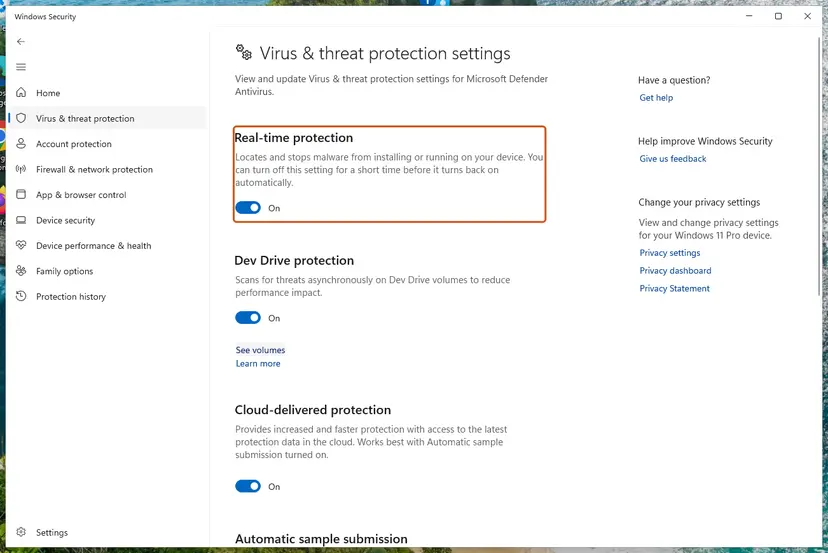
If the sign-in works with the software paused, do not leave it off. Ask its maker, or your administrator, to exclude the sign-in parts that Microsoft lists in Can't sign in to Microsoft 365 desktop applications.
- Packages:
Microsoft.AAD.BrokerPlugin_cw5n1h2txyewyandMicrosoft.Windows.CloudExperienceHost_cw5n1h2txyewy, with their folders under%windir%\SystemAppsand%localappdata%\Packages - Folders:
%localappdata%\Microsoft\TokenBroker,%localappdata%\Microsoft\OneAuthand%localappdata%\Microsoft\IdentityCache - Processes:
Microsoft.AAD.BrokerPlugin.exeand%windir%\System32\backgroundTaskHost.exe
Microsoft's list of addresses that Office sign-in must reach includes login.microsoftonline.com, login.microsoft.com, login.windows.net, aadcdn.msauth.net and enterpriseregistration.windows.net. Opening them is the network administrator's job.
It worked if: With the VPN off or the antivirus paused, the sign-in window reaches the password step. That names the blocker.
If not: If nothing changes with the protection paused, turn it back on and go to Fix 9.
Fix 9. Update Office, then repair it
15 to 40 minutesLow riskNothing above helped, Office was installed over a preinstalled trial, or colleagues on the same Office version got the error on the same day.
Microsoft has shipped fixes for failed sign-ins inside Office updates: its support page for the related 1001 error names version 2310 of the Current Channel. A repair replaces damaged program files. Neither touches the sign-in data in your profile, which is why this comes last.
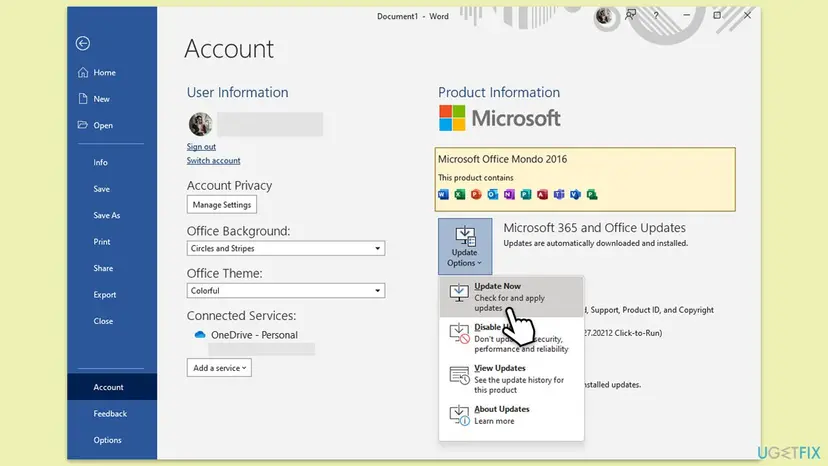
- Open Word and create a blank document.
- Go to File > Account (Office Account in classic Outlook).
- Under Product Information select Update Options > Update Now. If you only see Enable Updates, select that first.
- Wait for the message that updates were installed or that you are up to date, then close it.
- Restart the PC and try to sign in.
If only About is there and Update Options is missing, the company manages the updates. For the repair, Microsoft's page for Something went wrong at startup recommends Online Repair, which repairs the entire suite.
Start with Quick Repair, which only replaces damaged files and needs no internet. Run Online Repair if the tag is still there. Every screen of both: How to repair Microsoft 365 or Office.
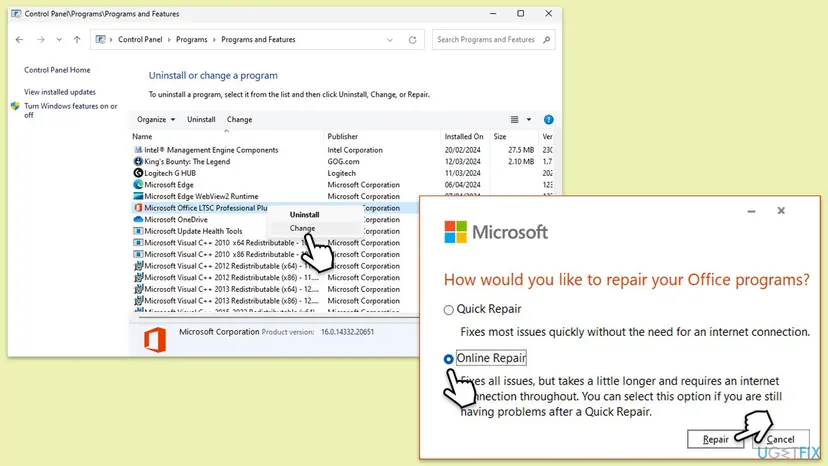
It worked if: Office reports that it is up to date or that the repair is done, and the sign-in window works after the restart.
If not: Do not reinstall Windows for this. Collect the details described in the next section and hand them to the administrator or to Microsoft support.
If 7q6ch is still there: where the real cause is written
When all fixes fail, stop changing things and collect evidence. The error window hides the reason, but Windows records it in three places that an administrator or Microsoft support can read. Send them together with the lines copied from the error window, as text.
| Where | How to open it | What to look for |
|---|---|---|
| Microsoft Entra log | Event Viewer: Applications and Services Logs > Microsoft > Windows > AAD > Operational | Errors at the time of the attempt. AADSTS135011 means the device is disabled. AADSTS50155 means the device is not authenticated, which Microsoft ties to a deleted device. |
| Application log | Event Viewer: Windows Logs > Application, source AppModel-State | "Failure to load the application settings for package" with Microsoft.AAD.BrokerPlugin and a code that starts with -2147. Microsoft reads this as broken or tampered plug-ins. |
| Device registration | dsregcmd /status in Command Prompt | DeviceAuthStatus (SUCCESS, or FAILED when the device is disabled or deleted), AzureAdPrt, TpmProtected, and the diagnostic lines with the last failed attempt. |
- Test with a second Windows account. The plug-ins and caches are per user. If Office signs in from a new account, your profile holds the fault and the PC does not. Steps: Create a new user account to test a problem.
- Start Office the normal way. Microsoft states that Run as administrator, Run as different user and elevation tools break the sign-in of Microsoft 365 apps and are not supported in most cases.
- For a support ticket, record the failure. Microsoft's tool MSOAID collects Office logs, the Windows sign-in logs and screenshots while you repeat the error. It is described in Use MSOAID for authentication issues.
- System files, as a last local check. One user reported that System File Checker found damaged files and ended his 7q6ch case. It is a single report, and the scan is harmless: Run DISM and SFC to repair Windows system files.
Three cases cannot be fixed from your chair. The account has no licence for the desktop apps, or was closed: test at office.com. The organisation disabled or deleted the device, or a sign-in policy rejects it: only the administrator can change that. TPM errors that return after a clear and a firmware update point to the chip or the motherboard.
For administrators: what to check when users report 7q6ch
A user who sends you Correlation Id, Timestamp and Code has given you enough to find the attempt. Microsoft's documentation offers these checks, in the order that costs the least time.
- In the Microsoft Entra admin center go to Entra ID > Monitoring & health > Sign-in logs and filter by Correlation ID. If no event matches, the attempt may have failed on the device before it reached the service.
- If an event exists, open its Conditional Access tab. It shows which policy interrupted the sign-in, for example a rule that requires a compliant or hybrid joined device.
- Check the device under Devices. A disabled device can be enabled again. A deleted device has to be registered again.
- On the device read
dsregcmd /status. For a hybrid joined device with a failed TPM key, Microsoft's recovery isdsregcmd /leavein an elevated prompt and a restart. - On virtual desktops and remote desktop servers, check what the profile tool roams. Microsoft does not support roaming any data under
%localappdata%.
- Never roam or migrate:
%localappdata%\Packages\Microsoft.AAD.BrokerPlugin_cw5n1h2txyewy,%localappdata%\Packages\Microsoft.Windows.CloudExperienceHost_cw5n1h2txyewy,%localappdata%\Microsoft\TokenBroker,%localappdata%\Microsoft\OneAuth,%localappdata%\Microsoft\IdentityCache. - Where several users share one computer and sign in with their own accounts, such as on Remote Desktop Services, Microsoft requires shared computer activation.
On Microsoft Q&A an administrator of a VDI farm with shared computer activation wrote that 7q6ch began with a monthly channel build of July 2024 and stopped after a move to another build. Microsoft has not confirmed this as a known issue.
Old forum answers suggest registry values that disable Web Account Manager or modern authentication. Microsoft's article on the subject says this is not supported, puts the Office client into a legacy state and can adversely affect your environment.
How to keep 7q6ch from coming back
The tag returns on PCs where the stored sign-in data and the real state of the account drift apart again. Most of the prevention is about not creating that gap.
- One licensed account per Office. Mixing a personal and a business subscription in the same Office appears in several reports. Sign in to Office with the account that holds the licence.
- On your own PC, think before you let the organisation manage it. When the sign-in asks about all apps on this device, choosing the app only keeps the work account out of Windows.
- After a password change, sign in to Windows and Office once while online. Microsoft notes that a changed password invalidates the old sign-in token, and the new one is issued at the next sign-in.
- Install BIOS and firmware updates from the PC maker. Microsoft recommends current TPM firmware to avoid lost device keys.
- Leave Windows services alone. Tools that disable services for speed can switch off Web Account Manager and Microsoft Account Sign-in Assistant.
- Keep Office and Windows updated. Windows 10 left support on 14 October 2025, and Microsoft's sign-in advice for Windows 10 assumes version 22H2.
Frequently asked questions
What does error tag 7q6ch mean?
It means that a Microsoft 365 desktop app on Windows could not finish signing you in, and it says no more than that. The tag marks the step where the sign-in stopped. Microsoft publishes no definition of it. The reason is in the Code line under the tag: for example 2150105345 is a TPM failure and -2147023838 is a disabled Windows service. With no useful code, the usual cause is stale sign-in data, which Fix 1 to Fix 3 replace.
Why do I get 7q6ch in Outlook when my e-mail works in the browser?
Because the two sign in by different routes. Outlook for Windows asks Web Account Manager, a part of Windows, for a token, and that route depends on cached accounts, two Windows plug-ins and sometimes the TPM chip. Outlook on the web signs in inside the browser and needs none of them. A mailbox that opens in the browser proves that your account and password are fine and that the fault is on this PC.
What is the Code under the tag, such as 2150105345 or -2147023838?
It is a Windows result code in decimal form, and it is the most useful line in the window. 2150105345 equals 0x80280101 and 2150105250 equals 0x802800A2: both are TPM errors in Microsoft's tables, so start with Fix 7. The code -2147023838 equals 0x80070422, a disabled service, which is Fix 6. The code 2147500037 equals 0x80004005 and only means an unspecified error. We could not find a Microsoft description for 3399745538.
Are 7q6cd, 7q6ck, 7q6cl and 7q6ca the same as 7q6ch?
No, they are separate tags from the same sign-in window, and Microsoft documents none of them. What is known comes from reports. The tag 7q6cd was posted by a OneDrive user together with the message "The operation attempted is invalid." 7q6cl appears in a developer discussion about Outlook add-ins that request a token, where missing consent for the add-in was the cause. We found nothing reliable about 7q6ck and 7q6ca. For all of them the Code line and Fix 1 to Fix 3 are a sensible start.
Should I disable WAM or modern authentication in the registry to get rid of 7q6ch?
No. Forum answers name registry values such as DisableADALatopWAMOverride and DisableAADWAM. Microsoft's article on the topic says that disabling ADAL or WAM is not supported as a solution for sign-in problems and can adversely affect your environment. It puts Office into a legacy state, and future sign-in features are built on WAM only. Users also report that these values no longer help. Repair WAM with Fix 4 and Fix 5.
Will reinstalling Office or resetting Windows fix 7q6ch?
Usually not, and it should not be an early step. The sign-in data that causes the tag lives in your Windows profile, in Windows services and in the device registration, not in the Office program files. Users on Microsoft's forums describe full reinstalls after which the tag was still there. Deleting Office registry keys by hand adds risk without touching the cause. Update and repair Office once (Fix 9), and spend the time on Fix 2 to Fix 5.
Is "Se ha producido un error. [7q6ch]" or "Microsoft Fehler 7q6ch" the same error?
Yes. Office translates the sentence and keeps the tag, so Spanish, German, Italian and French users see the same 7q6ch after their own wording. This page is in English, and the steps are identical in every language. Only the labels of menus and buttons differ. The paths, commands and codes are the same in every language.
I am a student or employee. What do I send to IT about 7q6ch?
Send the lines from the error window as text: Correlation Id, Timestamp, DPTI, Tag and Code. Add the app, when it started, whether office.com works in the browser, and whether the PC is your own. With the Correlation Id the administrator can find the attempt in the Microsoft Entra sign-in logs and see whether a policy or the device state stopped it. Keep in mind that a school or employer closes accounts when you leave, and then no fix on the PC helps.
Sources
- Microsoft Learn: Sign in issues when activating Microsoft 365 Apps (learn.microsoft.com)
- Microsoft Learn: Reset activation state for Microsoft 365 Apps for enterprise (learn.microsoft.com)
- Microsoft Learn: Fix authentication issues in Microsoft 365 apps (WAM plug-ins) (learn.microsoft.com)
Did this fix work?
One click, no account. It tells the next reader which guides are worth their time.
Questions and experiences: fix "Something went wrong" error tag 7q6ch in Microsoft Office
Still broken, or found a fix we did not cover? Ask here: members and our editors answer. Reading is open; writing needs a free account.
…