
How to fix sign in error CAA2000C in Windows?

Prefer to fix it yourself? The manual steps follow.
- 7methods
- 5 to 45 minutes
- Intermediate
Applies to Work and school accounts (Microsoft Entra ID) in Microsoft Teams, Outlook, the Microsoft 365 apps, the Microsoft Store and Windows setup on Windows 11 and Windows 10
7 methods in this guide
Hello. Whenever I attempt to log in to my work or school account, I keep receiving a CAA2000C error. Any clue why? I have no idea what changed because this started happening all of a sudden. I'm using Windows 10 version 22H2.
CAA2000C is a sign-in error of the Windows account broker: Teams, Outlook, the Microsoft Store or Windows setup could not get a token for your work or school account. The account itself often works in a browser. Empty the broker's token store and restart first, then reconnect the account under Access work or school.
CAA2000C means the Windows account broker could not finish the sign-in for a work or school account. It is tied to the account data stored on this PC or to the secure connection, rarely to the app. Quit the app, empty the TokenBroker Accounts folder and restart (Fix 1). If it returns, reconnect the account under Access work or school (Fix 2) and register the sign-in plug-in again (Fix 3).
| Error | Something went wrong with the text: We couldn't sign you in. If this error persists, contact your system administrator and provide the error code CAA2000C. |
|---|---|
| Where it appears | In the Microsoft sign-in window that Teams, Outlook, the Microsoft Store or Access work or school opens, and on the setup screen when a new PC joins Microsoft Entra ID. |
| Main cause | The broker's stored data for the work or school account no longer matches the account. An old TLS setting, a wrong clock and the organisation's device rules come next. |
| Fastest fix | Quit the app, empty %LOCALAPPDATA%\Packages\Microsoft.AAD.BrokerPlugin_cw5n1h2txyewy\AC\TokenBroker\Accounts and restart the PC (Fix 1). |
| Also written as | CAA2000C, caa2000c, 0xCAA2000C, decimal 3399614476, signed -895352820. The typo CAAA2000C means the same code. |
| Affects | Work and school accounts on Windows 11 and Windows 10 22H2. Personal Microsoft accounts are rarely named in the reports. |
| Microsoft's status | Not listed in Microsoft's table of Teams sign-in codes. A Microsoft Community moderator says it usually indicates an outdated TLS setting. No fix in an update is announced. |
| Time to fix | 5 minutes for Fix 1. Up to 45 minutes if you need Fix 2 to Fix 7. Nothing to download. |
Facts checked on 15 October 2026. Steps written for Microsoft Teams, Outlook, the Microsoft Store and the Access work or school settings on Windows 11 (25H2 and 26H2) and Windows 10 22H2, read against Microsoft's documentation and Microsoft Q&A reports.
What sign in error CAA2000C means
You type your work or school address and password in Teams, Outlook or the Microsoft Store. Instead of the app, a small window opens with the heading Something went wrong. Under Additional problem information it shows Error code: CAA2000C, a Correlation ID and a Timestamp.
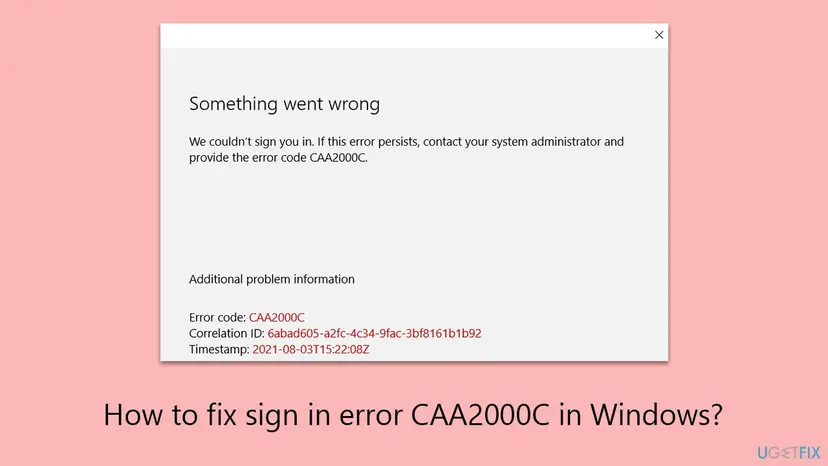
The window is not drawn by Teams or the Store. It comes from the Web Account Manager, the Windows broker that keeps work, school and personal accounts for apps. All codes that start with CAA come from it, which is why the same code shows up in several apps on one PC.
| Line in the window | What it tells you |
|---|---|
| Error code: CAA2000C | The broker's result. Hexadecimal 0xCAA2000C, decimal 3399614476. Sign-in logs can show it as -895352820. |
| Correlation ID and Timestamp | The two values an administrator needs to find the failed attempt in the organisation's sign-in logs. |
| contact your system administrator | A standard line of every broker error. On a personal PC with a school account, the administrator is the school's IT. |
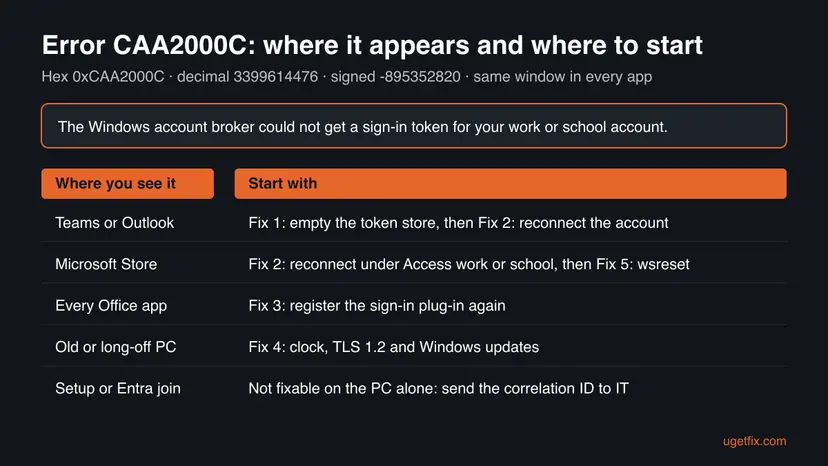
CAA2000B (signed -895352821) and CAA20003 sit in the same family and show the same window. Some fixes overlap, such as the clock and the stored accounts, but Microsoft has not published what each one means.
What causes error code CAA2000C, ranked
Microsoft has not published a cause for CAA2000C. The order below is our reading of the Microsoft Q&A reports and of what fixes this family of broker errors. It is not a statistic.
| How often | Cause | Typical sign | Fix |
|---|---|---|---|
| Most often | Stale or damaged account data in the broker's token store | Started suddenly, the account works in a browser. | Fix 1 |
| Often | The work or school connection in Windows is broken, or an old account is still listed | After a password change, a new school year or a move to another organisation. | Fix 2 |
| Less often | The broker plug-in package is missing or not registered | Teams, Outlook and Word all fail, Outlook asks for a password again and again. | Fix 3 |
| Less often | TLS 1.2 turned off, a wrong clock, or Windows far behind on updates | Old PC, PC that was off for weeks, or a security tool changed network settings. | Fix 4 |
| Store only | The Microsoft Store's own cache | Only the Store refuses the school login. | Fix 5 |
| Rarely | The app's own stored state, or a recent Windows update | Only one app fails, or the error began the day an update installed. | Fix 6, Fix 7 |
| On managed PCs | Conditional Access, device registration or Entra join rules | Error during setup of a new PC, or several colleagues at once. | IT, see below |
Many pages tell you to delete everything in C:\Users\<name>\AppData\Local\Packages. That folder holds the data of every Store app on the PC, including their settings and offline files. Fix 1 empties only the broker's account folder, which is all this error needs.
How to fix sign in error CAA2000C in Windows
Follow the fixes in order and try the sign-in after each one. Fix 1 takes five minutes and clears the most common cause. Success looks the same every time: the app asks for your work or school address, accepts it and opens.
| Your case | Start with | Then |
|---|---|---|
| Teams or Outlook shows CAA2000C | Fix 1 | Fix 2 |
| The Microsoft Store refuses your school or work login | Fix 2 | Fix 5 |
| Teams, Outlook and Word all fail or keep asking for a password | Fix 3 | Fix 1 |
| Old PC, PC that was off for weeks, or the time is wrong | Fix 4 | Fix 1 |
| It started the day a Windows update installed | Fix 7 | Fix 1 |
| A new PC fails to join your organisation during setup | IT | Send the correlation ID |
Fix 1. Empty the Windows token store for work and school accounts
5 minutesLow riskEveryone first, and especially when the error started suddenly and the account works in a browser.
CAA2000C comes from the broker that stores your account's tokens. Deleting its cached account files makes Windows fetch fresh ones at the next sign-in, which clears the same kind of failure in the sister code CAA90063.
- Right-click the Teams icon in the corner of the taskbar and select Quit. Close Outlook, Word, Excel, OneDrive and the Microsoft Store.
- Open File Explorer, paste this path into the address bar and press Enter:
%LOCALAPPDATA%\Packages\Microsoft.AAD.BrokerPlugin_cw5n1h2txyewy\AC\TokenBroker\Accounts - Press Ctrl + A to select all files, right-click the selection and select Delete.
- If Windows says a file is in use, restart the PC and delete the files before you open any app.
- Restart the PC.
- Open the app that showed CAA2000C and sign in with your work or school address.
The files hold the broker's cached account data, not your mail, chats or documents. Windows rebuilds them at the next sign-in, so every Microsoft 365 app asks for your account once. If the Accounts folder is empty or missing, nothing is cached there: go to Fix 2.
It worked if: After the restart the app asks for your account, accepts it and opens without the CAA2000C window.
If not: If the same window returns, reconnect the work or school account with Fix 2.
Fix 2. Disconnect and reconnect the work or school account
10 minutesRead the warningThe error began after a password change, a new school year or a move to another organisation, or the Microsoft Store refuses your school login.
On Microsoft Q&A, the answer offered to a student with CAA2000C in the Store was to reconnect the account under Access work or school. A fresh connection replaces the account data the broker can no longer use.
Disconnect can remove the organisation's settings, apps and access to company files from the PC. On a laptop from your employer or school, do only steps 1 to 3 and ask IT before you disconnect. On your own PC, note your work address and password first.
- Quit Teams from the taskbar corner and close Outlook, Word, Excel and the Microsoft Store.
- Select Start, type
credential managerand open Credential Manager. Select Windows Credentials. - For every entry that starts with MicrosoftOffice16, select the arrow next to it and select Remove.
- Press Win + I and open Accounts > Access work or school.
- Select your work or school account and select Disconnect. Confirm, then restart the PC.
- Go back to Access work or school, select Connect and sign in with your work or school address.
- Open the app that showed the error and sign in again.
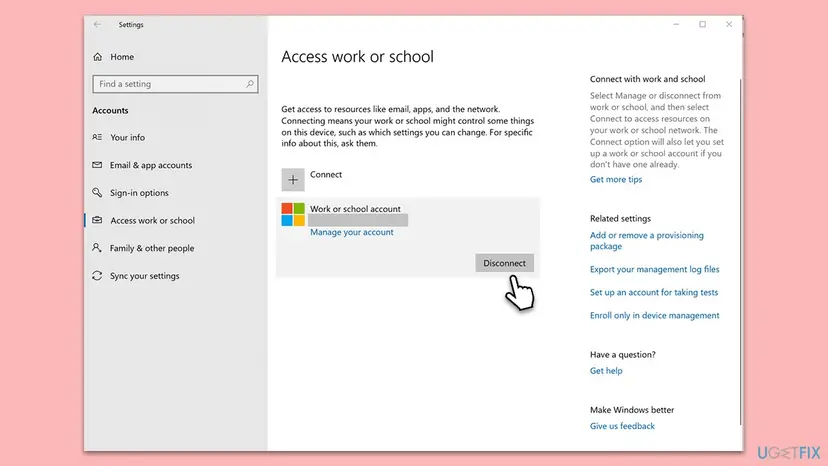
It worked if: Access work or school lists the account as connected, and the app signs in without asking twice.
If not: If several Microsoft 365 apps still fail, register the broker plug-in again with Fix 3.
Fix 3. Register the Windows sign-in plug-in again
5 minutesLow riskTeams, Outlook and Word all fail to sign in, or Outlook keeps asking for a password without a reason.
The broker for work and school accounts is a Windows package, Microsoft.AAD.BrokerPlugin. Microsoft's own command registers it again when it is missing, which restores the part of Windows that produces CAA2000C.
- Stay signed in to Windows as the person who gets the error.
- Right-click Start and open Terminal (Admin) or Windows PowerShell (Admin). Select Yes in the User Account Control prompt.
- Run this command for a work or school account:
if (-not (Get-AppxPackage Microsoft.AAD.BrokerPlugin)) { Add-AppxPackage -Register "$env:windir\SystemApps\Microsoft.AAD.BrokerPlugin_cw5n1h2txyewy\Appxmanifest.xml" -DisableDevelopmentMode -ForceApplicationShutdown } Get-AppxPackage Microsoft.AAD.BrokerPlugin - Check the result: a block of package details means the plug-in is present. Red text means it did not work; copy it for IT.
- Restart the PC and sign in again.
The command registers the package only when it is missing and then prints its details, so running it on a healthy PC changes nothing. The same check for the Teams sign-in is explained in our guide to Teams error CAA90063.
It worked if: PowerShell prints the package details without red text, and the app signs in after the restart.
If not: If the package is fine, check the clock, TLS 1.2 and Windows updates with Fix 4.
Fix 4. Check the clock, TLS 1.2 and Windows updates
15 to 30 minutesLow riskThe PC is old, was off for a long time, shows the wrong time, or a tweak tool or security program changed network settings.
A Microsoft Community moderator answered a CAA2000C report in Outlook with: the code usually indicates an outdated TLS. Microsoft's sign-in servers need TLS 1.2, and a clock that is far off breaks the secure exchange too.
- Check the date, time and time zone in the corner of the taskbar. If they are wrong, turn on automatic time: How to fix the date and time in Windows.
- Press Win + R, type
inetcpl.cpland press Enter. Open the Advanced tab. - Scroll to Security and make sure Use TLS 1.2 is ticked. Select OK.
- Select Start, type
check for updatesand open Check for updates. - Select Check for updates, install everything offered, including optional quality updates, and restart.
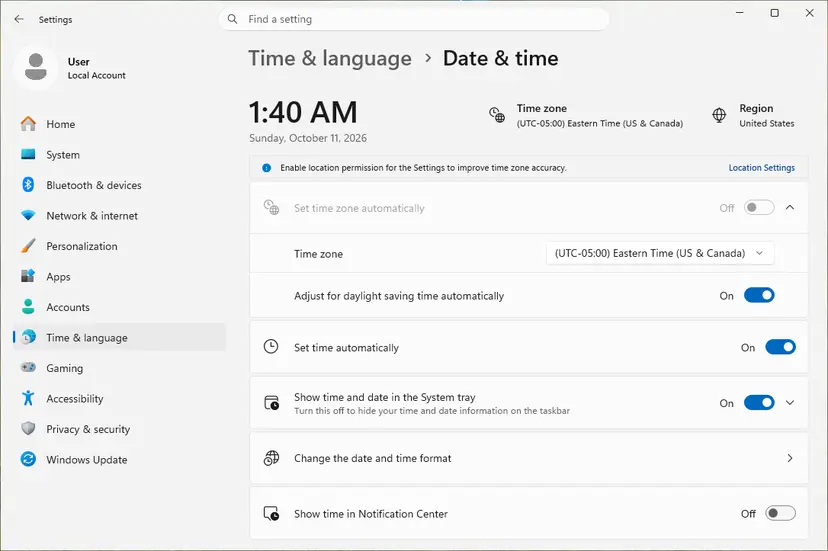
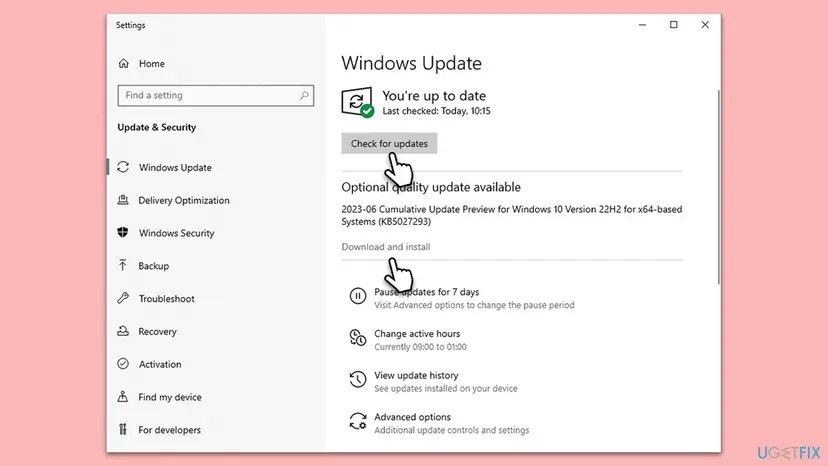
On Windows 10 and 11, TLS 1.2 is on by default, so this step matters mainly when a policy or a tool turned it off. Windows 10 left support on 14 October 2025: without Extended Security Updates, its sign-in parts get no more fixes.
It worked if: The clock is right, TLS 1.2 is ticked, Windows reports that it is up to date, and the sign-in finishes.
If not: If the error is only in the Microsoft Store, reset its cache with Fix 5. Otherwise reset the app with Fix 6.
Fix 5. Reset the Microsoft Store cache
5 minutesLow riskOnly the Microsoft Store shows CAA2000C when you sign in with a school or work account.
The Store keeps its own cached sign-in state. Microsoft Q&A answers suggest wsreset.exe for this case, though in the thread we read it did not help on its own, so do it after Fix 2.
- Close the Microsoft Store.
- Press Win + R, type
wsreset.exeand select OK. - Wait. A blank window opens and closes by itself, then the Store opens.
- Sign in with your school or work account again.

If the Store still fails, repair or reset the Store app itself: Reset the Microsoft Store.
It worked if: The Store opens, accepts the school or work account and lets you install apps.
If not: If it still fails, a school account may simply not be allowed in the Store by your school. Ask its IT, or reset the app with Fix 6.
Fix 6. Repair or reset the app that shows the error
5 minutesLow riskOnly one app, usually Teams, shows CAA2000C while the others sign in.
A reset clears the app's own stored sign-in state in one step. Microsoft's own steps for Teams sign-in errors end with a clean reinstall, and a reset does the same on the new Teams without a download.
- Quit the app. For Teams, right-click its icon in the taskbar corner and select Quit.
- Open Settings > Apps > Installed apps and find the app, for example Microsoft Teams.
- Select the three dots next to it and select Advanced options.
- Select Repair first and try the sign-in.
- If the error stays, go back and select Reset. Teams loses its local settings, while chats and files stay in the cloud.
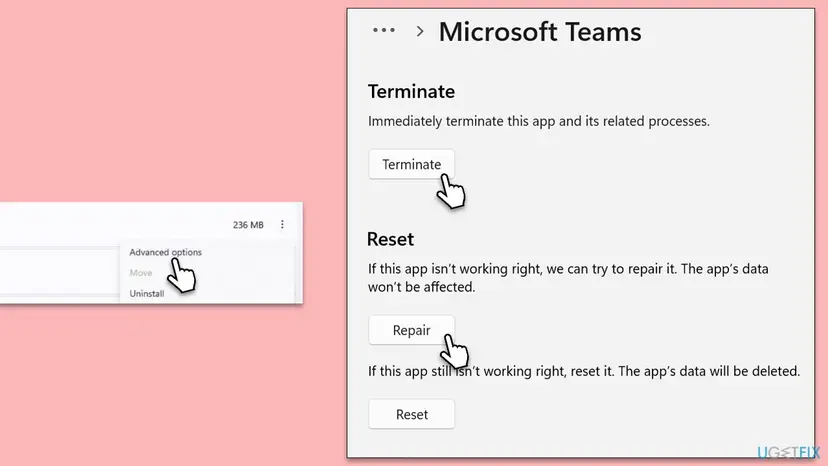
Every screen, with the Windows 10 path: How to repair or reset an app in Windows.
It worked if: The app starts like a fresh install, asks for your account and opens.
If not: If the error started with a recent Windows update, remove it with Fix 7. Otherwise collect the details in the next section.
Fix 7. Remove the Windows update that came before the error
15 minutesLow riskCAA2000C began on the day a Windows update installed, and Fix 1 to Fix 6 did not help.
If the sign-in broke the day an update arrived, removing that update is a quick test. We found no Microsoft report that ties CAA2000C to a specific update, so treat this as a test, not a known fix.
- Open Windows Update. Select Start > Settings > Windows Update.
- Open the update history. Under More options, select Update history. Note the KB number and the date of the update you suspect.
- Open the list of removable updates. Scroll down to Related settings and select Uninstall updates.
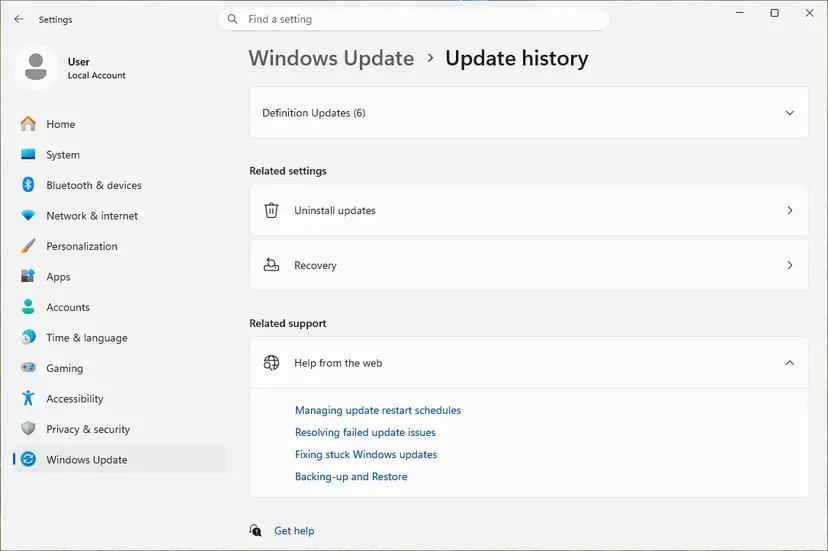
Uninstall updates is under Related settings. Screenshot: Windows 11 26H2. - Uninstall the update. Find the update in the list and select Uninstall next to it. If the update is not in the list, Windows does not allow it to be removed this way.
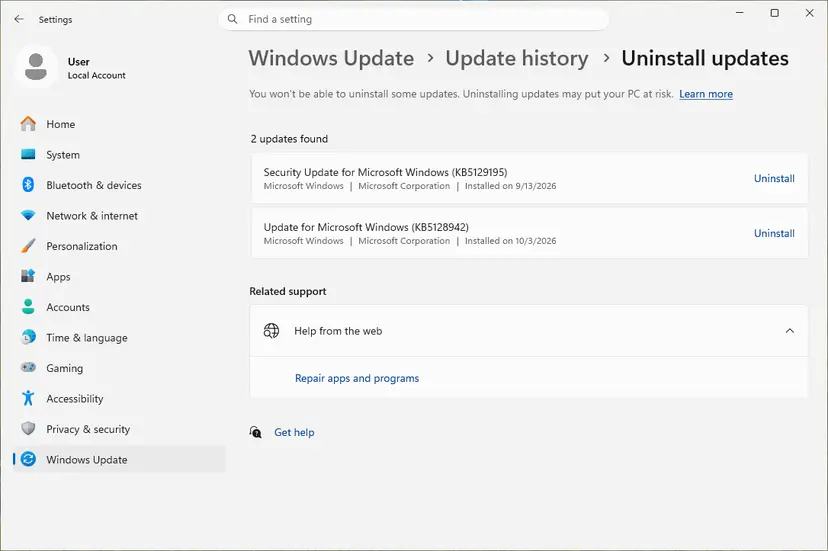
Each removable update has its own Uninstall link. Screenshot: Windows 11 26H2. - Pause updates. Go back to Settings > Windows Update and select Pick a date on the Pause updates control. If your PC shows a list there instead, select the pause length you prefer. Without a pause Windows downloads the same update again.
These steps were written for Windows 11 25H2 and 26H2. The full page with the other versions and what each result means: How to uninstall a Windows update
If the sign-in works without the update, keep updates paused for a week and check again later. If nothing changes, install the update again with Fix 4: an outdated Windows is a cause of its own.
It worked if: With the update removed, the app signs in. When it does not, you know the update was not the cause.
If not: Install the update again and collect the details in the next section for IT or Microsoft support.
If CAA2000C is still there: what to collect and who can fix it
When the PC side is clean and the error stays, the cause is usually in the organisation's settings for your account or device. Collect these details before you contact anyone.
- From the error window: the error code, the Correlation ID and the Timestamp.
- Windows' own log: right-click Start, open Event Viewer and go to Applications and Services Logs > Microsoft > Windows > AAD > Operational. Note the errors at the time of your sign-in.
- Microsoft's Teams sign-in test: open
https://testconnectivity.microsoft.com/tests/TeamsSignin/input, sign in with the affected account, enter the code and select Verify. It checks that the account meets the requirements to sign in to Teams. - Teams logs for a support request: Microsoft asks for debug logs and the error code shown on the sign-in screen.
| What you see | Likely reason | Who can fix it |
|---|---|---|
| The account works on the web and the phone, the desktop fails on every network | Device data or the device record of this PC | IT, with the correlation ID |
| A new PC fails to join Microsoft Entra ID during setup | Enrolment or join rules of the organisation | IT |
| Several colleagues get CAA2000C at the same time | A Conditional Access policy or a service problem | IT, in the Microsoft 365 admin center |
| The account fails in a browser too | The account itself, its licence or a Microsoft outage | IT |
Some guides suggest Clear TPM in Windows Security. Its own text says it resets the security processor to default settings and tells you to back up your data first. It also removes keys behind BitLocker and Windows Hello. Leave it to IT.
For administrators: what Microsoft lets you check
CAA2000C is not in Microsoft's table of Teams sign-in codes, so start with the tools Microsoft names for all Teams sign-in errors, then the user's attempt in the logs.
- Teams Sign-in diagnostic in the Microsoft 365 admin center (
https://aka.ms/TeamsSignInDiag): enter the user's address and select Run Tests. It needs an administrator account. - Sign-in logs in Microsoft Entra ID: search by the correlation ID and timestamp. The Teams desktop client appears there with the application ID
1fec8e78-bce4-4aaf-ab1b-5451cc387264. - Conditional Access: Microsoft ties the neighbour code 0xCAA20004 to Conditional Access. Check the policies that apply to the user and device.
- TLS 1.2: on older Windows builds, follow Microsoft's steps to enable TLS 1.2 for WinHTTP and .NET Framework.
How to keep CAA2000C from coming back
Once the broker has clean data for your account, the error does not return on its own. It comes back when that data and the account drift apart.
- After a password change, lock and unlock Windows with the new password while online, before you open Teams or Outlook.
- Remove accounts you no longer use under Access work or school, after asking IT on a managed PC.
- Keep automatic time on and leave Use TLS 1.2 ticked.
- Keep Windows updated. Fixes for the broker arrive through Windows updates.
- Do not use registry tweak tools that turn off protocols or Windows components to speed up the PC.
Frequently asked questions
What does error code CAA2000C mean?
It is a sign-in error of the Windows Web Account Manager, the broker that keeps work and school accounts for apps. The app asked it for a token, and the broker could not get or use one. The window says Something went wrong and We couldn't sign you in, and asks you to contact your administrator. Microsoft does not list the code in its public table of Teams sign-in errors. Clearing the broker's stored account data in Fix 1 is the first step.
Is CAA2000C a problem with my account or my PC?
Usually the PC. If you can sign in with the same account at office.com or teams.microsoft.com in a browser, the account and password are fine and the stored copy on Windows is the problem. Work through Fix 1 to Fix 4. If the browser fails too, or colleagues get the same code at the same time, the cause is the account, its licence or the organisation's rules, and only IT can change those.
Does CAA2000C mean my TLS is outdated?
Sometimes. A Microsoft Community moderator answered a CAA2000C report in Outlook by saying the code usually indicates an outdated TLS and pointed to Microsoft's steps to enable TLS 1.2. On Windows 10 22H2 and Windows 11, TLS 1.2 is on by default. Check the Use TLS 1.2 box in Internet Options and install updates (Fix 4). If it is already on, the stored account data in Fix 1 and Fix 2 is the likelier cause.
Why does the Microsoft Store show CAA2000C with my school account?
The Store signs in through the same broker as Teams and Outlook, so a broken school connection shows up there too. In the Microsoft Q&A thread, more than 200 people marked the same question. The answers suggested wsreset.exe and reconnecting the account under Access work or school. Do Fix 2 first, then Fix 5. Some schools do not allow their accounts in the Store at all; then only the school's IT can help.
Why do I get CAA2000C while setting up a new laptop for work?
On the setup screen, the work account is used to join the PC to Microsoft Entra ID and enrol it in the organisation's management. When that join fails, CAA2000C can appear before you reach the desktop, as administrators report on Microsoft Q&A and Reddit. Nothing on the new PC is broken yet. Write down the correlation ID and timestamp and send them to IT, who can see the reason in the sign-in logs.
Is it safe to delete the files in the TokenBroker folder?
Yes, for the Accounts folder that Fix 1 empties. It holds the broker's cached account data, not mail, chats or documents, and Windows builds it again at the next sign-in. The cost is that Teams, Outlook and the other Microsoft 365 apps ask for your account once more. Do not delete the whole Packages folder that some guides name: it holds the data of every Store app on the PC.
Will reinstalling Teams fix CAA2000C?
Rarely on its own. The error comes from the Windows broker, not from Teams, and the same code appears in Outlook and the Store. Microsoft's steps for Teams sign-in errors do end with a clean reinstall, which is why a reset of the app is part of this guide as Fix 6. Start with Fix 1 and Fix 2, which change the account data that the error is about.
What is 1fec8e78-bce4-4aaf-ab1b-5451cc387264?
It is the application ID of the Microsoft Teams client in Microsoft Entra ID. Administrators see it in sign-in logs and in error details next to CAA codes, because Teams asks for a token under that ID. It is not a virus, a licence key or a value you need to change. If you see it next to CAA2000C, the failed sign-in was a Teams sign-in, and Fix 1 and Fix 6 apply.
Should I clear the TPM to fix CAA2000C?
No. Clearing the TPM resets the security chip to its default settings, and Windows Security itself tells you to back up your data first. It removes the keys behind BitLocker, Windows Hello and device registration, so you may need a BitLocker recovery key afterwards. That is far more than this error needs. If IT decides the device registration is broken, they can re-register the PC in a controlled way.
Is this page available in Bengali?
No, this guide is in English only. Searches such as কিভাবে সমাধান করব (how do I solve it) land here because they include the code. The fixes do not depend on the language of Windows: the folder path in Fix 1, the command in Fix 3 and wsreset.exe in Fix 5 are the same on every language version. Only the names of menus and buttons are translated.
Sources
- Microsoft Learn: Resolve sign-in errors in Teams (error code table, diagnostics, Teams Sign-in test) (learn.microsoft.com)
- Microsoft Q&A: Error CAA2000C when trying to use Outlook (moderator answer on TLS 1.2) (learn.microsoft.com)
- Microsoft Q&A: Error CAA2000C when signing into Microsoft Store using school login (learn.microsoft.com)
Did this fix work?
One click, no account. It tells the next reader which guides are worth their time.
Questions and experiences: fix sign in error CAA2000C in Windows
Still broken, or found a fix we did not cover? Ask here: members and our editors answer. Reading is open; writing needs a free account.
…