
How to fix Microsoft Teams error tag 4vlpo (Something went wrong) on iPhone, iPad and Android?

Prefer to fix it yourself? The manual steps follow.
- 7methods
- 5 to 30 minutes
- Easy
Applies to Microsoft Teams, Outlook and the Microsoft 365 apps on iPhone, iPad and Android phones and tablets, with work, school or personal Microsoft accounts and Microsoft Authenticator installed
7 methods in this guide
I'm on Windows 11 and keep getting an "Error Tag: 4vlpo" message when signing into Microsoft Teams. It says "Something went wrong," and I can't log in. Restarting didn't work. How do I fix this?
Tag 4vlpo marks a Microsoft sign-in that failed on a phone or tablet: Teams or Outlook shows Something went wrong. [4vlpo] while it talks to Microsoft Authenticator. Every report we found came from an iPhone, an iPad or an Android device, not from a Windows PC. Update and unlock Authenticator, then sign in again, and reinstall the app if the tag stays.
4vlpo comes from the Microsoft sign-in on a phone or tablet, most often when Teams or Outlook hands the sign-in to Microsoft Authenticator and gets nothing usable back. Update Authenticator and the app, open Authenticator and unlock it, then sign in again (Fix 1). If the tag stays, delete and reinstall the app (Fix 2). If teams.microsoft.com also refuses you, the account or a company policy is the cause.
| Error | Something went wrong. [4vlpo] in a Microsoft sign-in window. The details read Correlation Id, Timestamp, DPTI, Tag: 4vlpo and a Code such as 3840, -42003 or -42104. |
|---|---|
| Where it appears | In Teams or Outlook on an iPhone or iPad, sometimes on Android: when you sign in, after the jump to Microsoft Authenticator, or at random when the app wants the account again. |
| Main cause | The sign-in data that the app and Microsoft Authenticator share on the device no longer match, often after a password change, a new phone or a second device with Authenticator. |
| Fastest fix | Update Authenticator and the app, open and unlock Authenticator, then sign in again (Fix 1). Next, delete and reinstall Teams or Outlook (Fix 2). |
| Also written as | 4vlpo error, error 4vlpo, [4vlpo], Error Tag: 4vlpo, 4VLPO, "Error something went wrong (4vlpo)", Microsoft error code 4vlpo. |
| Affects | Teams and Outlook for iOS and iPadOS in most reports, Teams for Android in some. Work and school accounts mostly, personal Outlook accounts too. No report from the Windows desktop app. |
| Microsoft's status | Undocumented: on 15 October 2026 Microsoft Learn and Microsoft Support had no page for 4vlpo. A Microsoft Q&A moderator called it a known issue that several users face. |
| Time to fix | 5 minutes for Fix 1, about 15 minutes for Fix 2 to Fix 5. Fix 6 and Fix 7 depend on your IT department. |
Facts checked on 15 October 2026. Steps written for Microsoft Teams and Outlook for iPhone, iPad and Android with Microsoft Authenticator, read against Microsoft's MSAL for iOS source, Microsoft Support, Microsoft Learn and the 4vlpo reports on Microsoft Q&A. We did not reproduce the error on a device, and Android menu names differ between phone makers.
What Something went wrong [4vlpo] means in Microsoft Teams
You open Teams or Outlook on your phone, type your address, and the app jumps to Microsoft Authenticator or opens a sign-in sheet. Then a white window with the Microsoft logo says Error and, in red, Something went wrong. [4vlpo], with Cancel at the top.
![Microsoft sign-in sheet with the title Error, a Cancel button at the top right, the Microsoft logo and the red line Something went wrong. [4vlpo]](/pic/w828q75/uploads/wp/articles/askit/how-to-fix-microsoft-teams-error-tag-4vlpo-in-windows-copy_en.jpg.webp)
The window comes from the Microsoft sign-in component that Teams, Outlook and the other Microsoft 365 apps share. The tag in brackets marks the place where that component stopped, and Microsoft publishes no list of tags. The details under the red line say more. One user posted them like this:
The details of a 4vlpo window in Teams, as posted on Microsoft Q&A in August 2025
Message: An unexpected error occurred.
Tag: 4vlpo
Code: 3840| App and device | What users report | Code under the tag |
|---|---|---|
| Teams on iPhone and iPad | The error appears at random when people open Teams, for many members of one organisation at once. | -42104 in one report |
| Teams on a phone after a password change | Sign-in fails with the new password, even after more than ten reinstalls. | 3840 |
| Outlook on a new iPhone | Outlook sends the user to Authenticator, and the tag appears on the way back. | -42003 |
| Teams on Android | Some users in the same organisation as the iOS reports. | Not posted |
| Teams on iPhone, then iPad | 4vlpo on the iPhone, and on the iPad the tag 49dvs with the same account. | Not posted |
Seeing 4vlpo on a Windows PC? Check which device shows it
This page's address says Windows, and the reader's question above says Windows 11. Every 4vlpo report we could read on 15 October 2026 came from an iPhone, an iPad or an Android device. We found no report of 4vlpo in the Teams or Outlook desktop app on Windows.
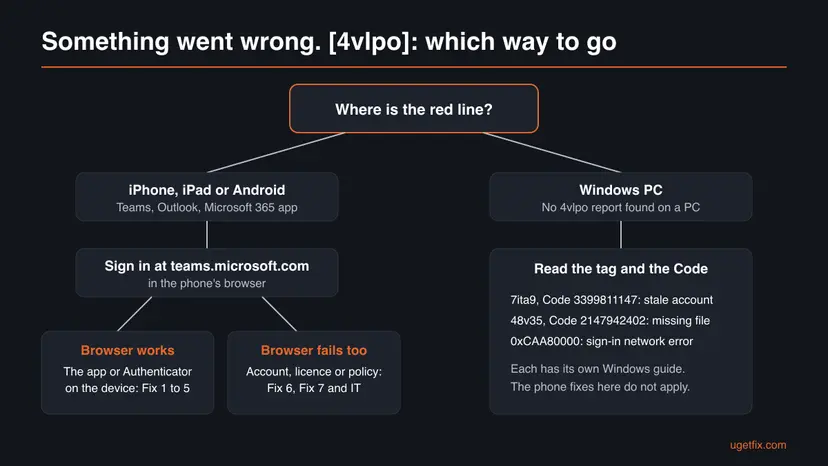
- If the window is on your phone, even while you set up Teams on a PC, the fixes below are for you. Approving a PC sign-in in Authenticator happens on the phone, and so does this error.
- If the window is really on a Windows PC, read the tag again and open the details. Windows sign-in errors in Teams carry other tags and codes, because the desktop app signs in through Windows itself.
- For the Windows side of the same window, our guide to Teams error tag 7ita9 on Windows covers the stored account fixes. Tag 48v35 and code 0xCAA80000 have their own guides.
The earlier version gave Windows steps: the network troubleshooter, classic Teams cache folders, Windows Update, proxy settings, SFC and DISM and a PowerShell reinstall. None of them touches the phone app or Authenticator, where 4vlpo happens, so they are gone.
Codes 3840, -42003 and -42104 under tag 4vlpo, decoded
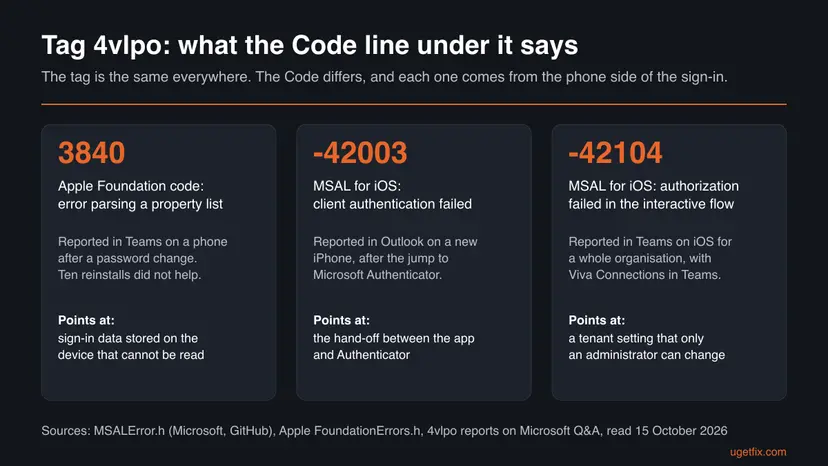
The tag is the same in every report, but the Code line differs. All three codes we found belong to the phone side of the sign-in: Apple's system libraries and the Microsoft Authentication Library for iOS (MSAL), which Teams and Outlook use to talk to Authenticator.
| Code | Name in the source | What it tells you |
|---|---|---|
3840 | Apple Foundation: NSPropertyListReadCorruptError, "Error parsing a property list" | Data stored on the device could not be read. Start with Fix 1 and Fix 2, then Fix 4. |
-42003 | MSAL for iOS: MSALInternalErrorInvalidClient, "Client authentication failed" | The app and Authenticator did not complete the hand-off. Start with Fix 1, then Fix 4. |
-42104 | MSAL for iOS: MSALInternalErrorAuthorizationFailed, "The user or application failed to authenticate in the interactive flow" | The service refused the request. With many users at once, go to Fix 7. |
Microsoft has not said what 4vlpo means. The codes show that the failure happens between the app, Authenticator and the device's stored data. We could not confirm from a Microsoft document which internal step the tag marks.
What causes error 4vlpo, ranked by how often it is reported
Microsoft has not named a cause. The order below is our reading of the 4vlpo reports and of Microsoft's documents on Authenticator and mobile sign-in. It is not a statistic.
| How often | Cause | Typical sign | Fix |
|---|---|---|---|
| Most often | An outdated or locked Microsoft Authenticator, or an old version of the app | The app jumps to Authenticator and comes back with the tag. | Fix 1 |
| Often | Stale sign-in data inside Teams or Outlook on the device | The tag appeared suddenly in an app that worked before. One iPhone user fixed it with a reinstall. | Fix 2, Fix 3 |
| Often | Authenticator holds an account whose data no longer match the app, or sits on a second device | The tag started after a password change or a new phone. Removing Authenticator from an iPad fixed it for several users. | Fix 4 |
| Less often | A VPN, a proxy, a wrong clock or a weak network during the sign-in | The sign-in works on another network or with the VPN off. | Fix 5 |
| Less often | A company rule: the phone is not enrolled or compliant, or the licence is missing | teams.microsoft.com refuses you too, or only managed phones work. | Fix 6 |
| Rarely | A tenant setting, such as Viva Connections in Teams without Microsoft 365 identity enforcement in Viva Engage | Many users of one organisation, iOS and Android, Code -42104. | Fix 7 |
How to fix error 4vlpo in Teams and Outlook on your phone
First sign in at teams.microsoft.com in the phone's browser. If that works, your account is fine and the fixes on the device apply: go through Fix 1 to Fix 5 in order and try the app after each one. If the browser fails too, start with Fix 6. Success looks the same each time: no red line, and the app loads your chats or mail.
| Your case | Start with | Then |
|---|---|---|
| The app jumps to Authenticator and comes back with 4vlpo | Fix 1 | Fix 4 |
| The tag appeared suddenly in an app that used to work | Fix 2 | Fix 3 on Android |
| Your password changed, or you moved to a new phone | Fix 1 | Fix 4 |
| Authenticator is also on an iPad or another phone | Fix 4 | Fix 2 |
| Works on Wi-Fi at home but not at work, or with a VPN on | Fix 5 | Fix 6 |
| teams.microsoft.com refuses you too, or the phone is company managed | Fix 6 | IT |
| Many colleagues get 4vlpo at once | Fix 7 | Microsoft support |
Fix 1. Update and unlock Microsoft Authenticator, then sign in again
5 minutesNo riskEveryone first, above all when the app jumps to Authenticator before the tag appears.
Teams and Outlook hand the work sign-in to Microsoft Authenticator. Microsoft's own Authenticator troubleshooting names an outdated app version, a locked app and silent notifications as reasons why that hand-off does not complete.
- Open the App Store (iPhone, iPad) or Google Play (Android) and install every update for Microsoft Authenticator, Microsoft Teams and Microsoft Outlook.
- Open Microsoft Authenticator and unlock it with your PIN, Face ID or fingerprint, so that it shows your accounts.
- Check that your work or school account is listed in Authenticator. Tap it once to see that it opens without an error.
- Make sure notifications for Authenticator are allowed in the phone's Settings.
- Close Teams or Outlook completely: swipe it away from the app switcher.
- Open the app again and sign in. When it jumps to Authenticator, approve and wait until the app returns by itself.
It worked if: The app returns from Authenticator, loads your chats or mail and shows no red line.
If not: If 4vlpo appears again, delete the app and install it fresh with Fix 2.
Fix 2. Delete Teams or Outlook from the phone and install it again
10 minutesLow riskThe tag appeared in an app that worked before, or Fix 1 changed nothing.
Deleting the app also deletes the sign-in data it kept on the device. An iPhone user reported that deleting Teams and installing the latest version ended 4vlpo, and a Microsoft moderator suggested the same for phone-only failures.
- On iPhone or iPad, touch and hold the Teams icon, tap Remove App, then Delete App and Delete.
- On Android, touch and hold the Teams icon, tap App info, then Uninstall and OK.
- Restart the phone.
- Install Microsoft Teams again from the App Store or Google Play.
- Open it, sign in with your work or school address and approve in Authenticator.
Chats, files and meetings stay in the cloud and come back after you sign in. Only the app's local settings, such as notification choices inside Teams, are lost. The same applies to Outlook: your mail stays on the server.
It worked if: The new app asks for your address as on a new phone and signs in after the approval.
If not: If the tag comes back on Android, clear the app's stored data with Fix 3. On iPhone, go to Fix 4.
Fix 3. On Android, clear the app's storage and cache
5 minutesLow riskAndroid phones and tablets, when a reinstall alone did not remove 4vlpo.
A Microsoft moderator on Q&A advised clearing the Teams app data and cache for a 4vlpo case, because it deletes the old sign-in information that can conflict with the new password. Android keeps some app data across quick reinstalls.
- Open the phone's Settings and select Apps.
- Select Teams (or Outlook) in the list.
- Select Storage or Storage & cache.
- Tap Clear cache, then Clear storage or Clear data and confirm with OK.
- Open the app and sign in with your current password.
Menu names differ between phone makers. On some phones the list is under Apps > See all apps, and the button reads Clear data instead of Clear storage.
It worked if: The app opens to its first sign-in screen and accepts your account without the tag.
If not: If 4vlpo returns, reset the account in Authenticator with Fix 4.
Fix 4. Reset the work account in Authenticator, or remove Authenticator from a second device
15 minutesRead the warningAfter a password change or a new phone, or when Authenticator is installed on an iPad as well as on the phone.
Users report two variants that worked: removing the account's cached data in Authenticator for all apps, and deleting Authenticator from an iPad so that the sign-in asked for a password instead. Both remove a stored account that the app could not use.
Microsoft warns that after you remove an account from Authenticator, that device can no longer verify your sign-ins. Before you start, make sure you have another way to sign in: a second phone, a text message code or your IT department's help. Do not remove the only device that approves your work sign-ins.
- If Authenticator is also on an iPad or an old phone that you do not use for approvals, delete it from that device first and try the sign-in there. Several users fixed 4vlpo this way.
- If the error is on your main phone, open Authenticator and select the work or school account.
- Tap the Settings gear and tap Remove account.
- Close Authenticator, open Teams or Outlook and sign in. Use another verification method if the app offers it.
- Add the account back to Authenticator from your organisation's Security info page at
mysignins.microsoft.com/security-info, or ask IT to do it.
It worked if: The sign-in asks for your password or another method, the app opens, and Authenticator approves new sign-ins once the account is added back.
If not: If 4vlpo stays even with a password, check the network and the clock with Fix 5.
Fix 5. Sign in without VPN or proxy, with the right date and time
5 minutesLow riskThe tag appears on one network and not on another, or a VPN or security app runs on the phone.
Microsoft's Authenticator help lists network problems and wrong date and time settings among the reasons a sign-in does not complete. A Microsoft moderator answering a 4vlpo case also asked users to sign in with no VPN or proxy turned on.
- Turn off any VPN app, or the VPN under Settings > VPN on iPhone, for one sign-in attempt.
- Switch from Wi-Fi to mobile data, or the other way round.
- On iPhone, open Settings > General > Date & Time and turn on Set Automatically.
- On Android, open Settings, search for Date & time and turn on the automatic setting.
- Try the sign-in, then turn the VPN back on, whatever the result.
It worked if: The sign-in works on the other network or with the correct clock, which names the cause.
If not: If nothing changes, check your account and the company rules with Fix 6.
Fix 6. Check the account in the browser and your phone's company status
10 minutesNo riskteams.microsoft.com refuses you too, or your phone is managed by an employer or school.
A Microsoft moderator wrote that these errors usually mean the service blocks the sign-in because of the account or a policy, not the device. A missing licence, a device that is not enrolled or not compliant, or a broken second factor all end the same way.
- Open
https://teams.microsoft.comin the phone's browser and sign in with the same address. - If the browser says the password is wrong or expired, reset it through your organisation's password page or ask IT.
- If your organisation uses Intune, open Company Portal and check that it shows this device as enrolled and without problems.
- Tap Cancel in the 4vlpo window, open the details and copy the Correlation Id and Timestamp.
- Send both to your IT department and tell them which app, which device and whether the browser works.
It worked if: Either the browser sign-in names the problem, or IT finds the refused attempt in the sign-in logs.
If not: If IT finds no policy block and many colleagues are affected, they can use Fix 7.
Fix 7. For administrators: find the refused sign-in and check Viva Engage identity
30 minutesRead the warningIT staff, when 4vlpo hits many users of one organisation, on iOS or Android.
An administrator reported that 4vlpo with Code -42104 stopped on iOS after the organisation turned on Microsoft 365 identity enforcement in Viva Engage, because Viva Connections in Teams was involved. Microsoft's moderator repeated this as the known workaround.
Microsoft says that enabling enforcement signs off all current Viva Engage sessions and locks out any user without a Microsoft 365 identity. It needs the Global administrator role. Check that every Viva Engage user has a Microsoft 365 account before you turn it on.
- In the Microsoft Entra admin center, open Monitoring & health > Sign-in logs and search for the user's Correlation Id and Timestamp.
- If a Conditional Access policy refused the sign-in, fix the device's enrolment or compliance, or the policy.
- Run the Teams Sign-in diagnostic for the user from Microsoft's article Resolve sign-in errors in Teams. It needs a Microsoft 365 administrator account.
- Run the Teams Sign in test in the Microsoft Remote Connectivity Analyzer with the user's account.
- If Viva Connections or Viva Engage is used in Teams, follow Microsoft's article on enforcing Microsoft 365 identity in Viva Engage.
It worked if: The sign-in logs show the reason, or the tag stops for users after identity enforcement.
If not: If no log entry exists and the tests pass, open a case with Microsoft support and attach the details.
If 4vlpo is still there: what to check and what to send
If the browser works but every fix on the phone failed, stop changing the device and collect what support needs. If the browser fails as well, the service refuses the account, and only a password reset or your IT department can change that.
| What you see | Likely reason | Who can fix it |
|---|---|---|
| The browser also refuses the password | The password is wrong, expired or not yet synchronised after a change. | You with a password reset, or IT. |
| The browser signs in but says you have no Teams | No Teams licence is assigned. | IT, in the Microsoft 365 admin center. |
| Only company-managed phones sign in | A Conditional Access rule requires an enrolled or compliant device. | You with Company Portal, then IT. |
| Another device shows a different tag, such as 49dvs | The same account problem reported through another device's sign-in. | IT, with both sets of details. |
| Many colleagues at once, Code -42104 | A tenant setting. | IT, with Fix 7. |
- For IT or Microsoft support: the Correlation Id, Timestamp, Tag and Code from the details, the app and its version, the phone model and system version, and whether the browser works.
- For a personal account in Outlook: sign in at outlook.com in the browser. If that works, reinstall Outlook and ask Microsoft's Outlook support with the same details.
- Do not post the DPTI line publicly. Moderators on Microsoft Q&A remove account details from public posts.
How to keep 4vlpo from coming back
Once the app and Authenticator hold matching sign-in data for your current password, the tag does not return on its own. These habits keep it that way.
- Keep Authenticator, Teams and Outlook updated together. Microsoft names an outdated Authenticator as a reason a sign-in does not complete.
- After a password change, open Authenticator first, unlock it, then open Teams and Outlook and sign in with the new password.
- Keep Authenticator on the devices that approve sign-ins, and remove it from tablets or old phones you no longer use for approvals.
- Move Authenticator to a new phone with Microsoft's transfer steps instead of restoring an old phone backup and hoping the accounts follow.
- Leave notifications for Authenticator on and do not let a battery saver close it.
- On a company phone, keep Company Portal signed in so that the device stays compliant.
Frequently asked questions
What does Something went wrong [4vlpo] mean?
It means the Microsoft sign-in inside Teams or Outlook on a phone or tablet could not finish. The tag marks where the sign-in stopped, and Microsoft publishes no definition of it. The reports point at the link between the app and Microsoft Authenticator: the Codes under the tag come from Microsoft's sign-in library for iOS and from Apple's system libraries. Update and unlock Authenticator, sign in again, and reinstall the app if the tag stays.
Is 4vlpo a Windows error?
We found no report of it on Windows. Every 4vlpo case we could read came from an iPhone, an iPad or an Android device, in Teams or Outlook. The Teams desktop app on Windows signs in through Windows and shows other tags, such as 7ita9 or 48v35, with other codes. If you see the window while setting up Teams on a PC, check whether it is really on the PC or on the phone where you approve the sign-in.
What is Microsoft error code 4vlpo with Code 3840?
3840 is a code from Apple's Foundation framework, named NSPropertyListReadCorruptError, "Error parsing a property list". Under 4vlpo it suggests that sign-in data stored on the device could not be read. The one report with this code came after a password change, and reinstalling Teams more than ten times did not help. Try Fix 1, then Fix 4: resetting the account in Authenticator replaces the stored data with new data.
Why do I get 4vlpo in Outlook on my iPhone?
Outlook for iPhone uses the same Microsoft sign-in as Teams and hands the work sign-in to Authenticator. In the most followed report, Outlook on a new iPhone jumped to Authenticator and returned with 4vlpo and Code -42003, which Microsoft's library calls client authentication failed. Several users fixed it by deleting Authenticator from an iPad they did not use for approvals, after which Outlook asked for the password. Fix 1 and Fix 4 cover both steps.
Why does Teams work in the browser but not in the phone app?
The browser keeps its own sign-in, separate from the data that the Teams app and Authenticator share on the phone. If teams.microsoft.com works, your account, password and licence are fine, and the stored data on the device is the problem. That is the most common 4vlpo situation. Work through Fix 1 to Fix 4: update and unlock Authenticator, reinstall the app, clear its data on Android and reset the account in Authenticator.
Will reinstalling Teams fix 4vlpo?
Often, but not always. One iPhone user deleted Teams, installed the latest version and the error was gone. Another user reinstalled Teams more than ten times after a password change and still saw 4vlpo with Code 3840. A reinstall removes the app's own data, but not the account stored in Authenticator. If a reinstall does not help, reset the account in Authenticator with Fix 4.
Can I delete Microsoft Authenticator to get rid of 4vlpo?
Only from a device that does not approve your sign-ins, such as a second iPad. Users report that this made Outlook and Teams ask for a password and sign in. On your main phone, removing Authenticator or its accounts means that phone can no longer verify your sign-ins, as Microsoft warns. Make sure you have another sign-in method first, then add the account back through your Security info page.
Is 4vlpo the same as 49dvs, 7ita9 or 5nlhg?
No, but they appear in the same Microsoft sign-in window. One user saw 4vlpo on an iPhone and 49dvs on an iPad with the same account. 7ita9 is a Windows desktop tag with Code 3399811147, linked to the account stored in Windows. 5nlhg is an Android tag linked to the broker app. The fixes overlap where Authenticator is involved, but the first step differs for each tag.
Does 4vlpo mean my account is blocked?
Not by itself. Test it at teams.microsoft.com in the phone's browser. If you can sign in there, the account is active and the problem is on the device. If the browser also refuses you, the reason may be a wrong or expired password, a missing licence or a company rule that requires an enrolled phone. A Microsoft moderator said these errors usually come from such account or policy checks. Your IT department can see the exact reason in the sign-in logs.
Many people in our company get 4vlpo on iOS. What should IT do?
Look up a failed attempt in the Microsoft Entra sign-in logs with the Correlation Id and Timestamp from a user's screen. Run the Teams Sign-in diagnostic and the Remote Connectivity Analyzer test for an affected user. One administrator reported that 4vlpo with Code -42104 stopped after the organisation enforced Microsoft 365 identity in Viva Engage, because Viva Connections in Teams was involved. Enforcement signs everyone out of Viva Engage, so plan it first.
Sources
- Microsoft Support: How to sign out from Authenticator (remove an account, reset on Android and iOS) (support.microsoft.com)
- Microsoft Support: Authentication did not complete (locked app, notifications, outdated version, network, date and time) (support.microsoft.com)
- Microsoft Learn: Fix Teams sign-in errors (Teams Sign-in diagnostic and Remote Connectivity Analyzer) (learn.microsoft.com)
Did this fix work?
One click, no account. It tells the next reader which guides are worth their time.
Questions and experiences: fix Microsoft Teams error tag 4vlpo (Something went wrong) on iPhone, iPad and Android
Still broken, or found a fix we did not cover? Ask here: members and our editors answer. Reading is open; writing needs a free account.
…