How to fix
Minecraft error “Failed to download file, the file contents differ from what was expected”
on Windows
Resolve the "Failed to download file" error in Minecraft on Windows 10 and 11 effortlessly. Expert-tested solutions are provided for quick fixes.

What causes How to fix Minecraft error “Failed to download file, the file contents differ from what was expected”?
- File corruption
- Missing files
- Issues caused by mods
- Registry issues
- System-related problems
Repairs Windows system files, removes malware, and restores a clean OS state — without reinstalling.
Hello. I recently got a new PC, and upon trying to launch Minecraft 1.6.6 I received an error saying "Failed to download file, the file contents differ from what was expected." What is this, and how do I fix it?
Minecraft is an open-world sandbox[ref en-1] computer game that was released in 2011. Since then, the game has taken over the gaming world and is particularly loved by the younger generation. In the game, you can build and demolish blocks of various materials, explore the environment, search for different resources, build any structure in the three-dimensional game space, and fight against various hostile creatures.
Minecraft has surpassed 140 million active players worldwide. As with everything, sometimes players experience issues while trying to launch the game or play it. Recently, a user posted on a forum about an error that he received after he tried to launch an older version of the game. The message that he received says:
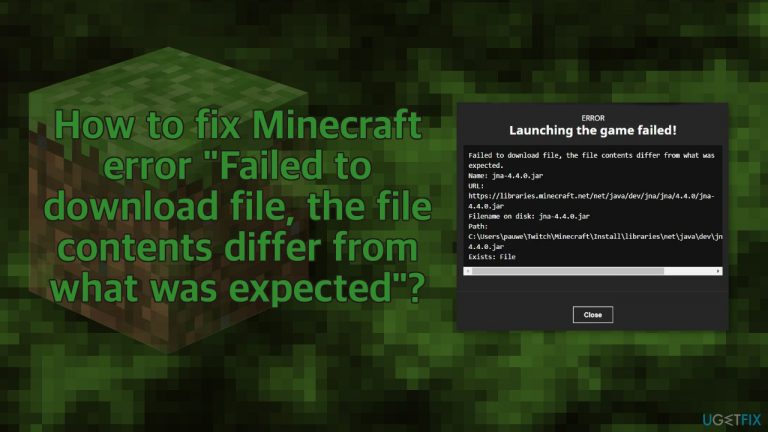
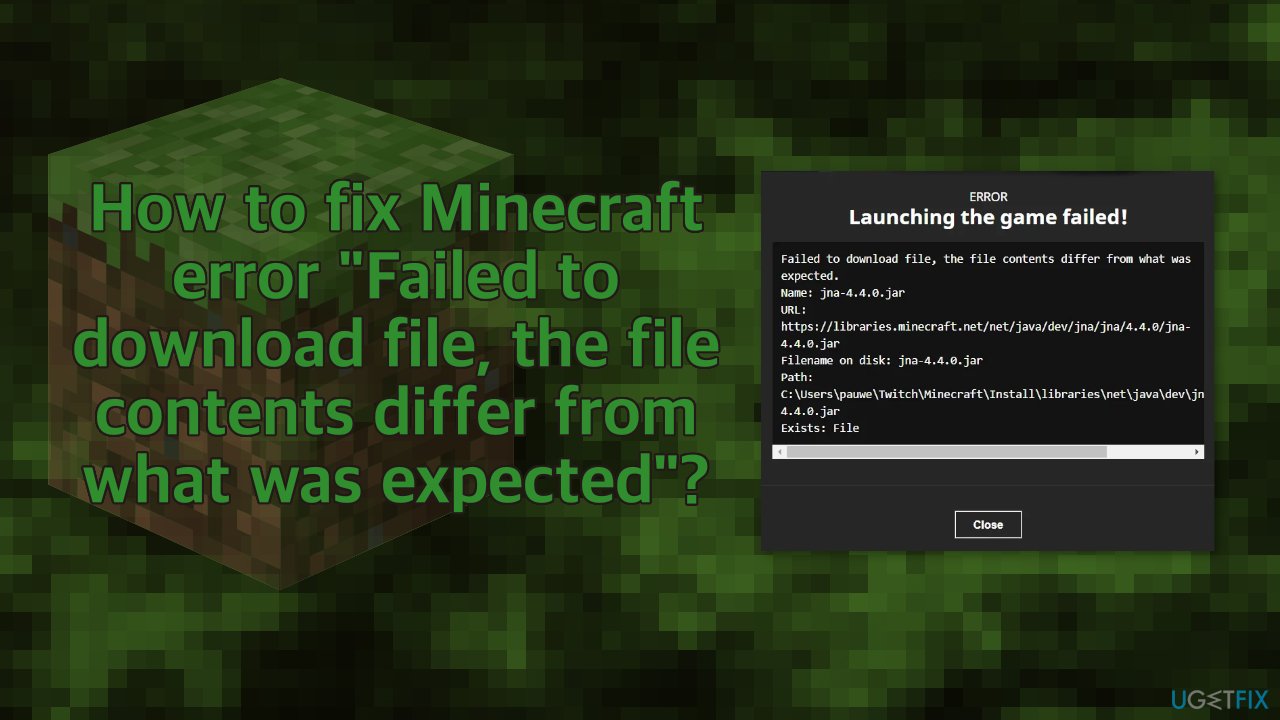
Failed to download file, the file contents differ from what was expected.
Name: jinput-platform-2.0.5-natives-windows.jar
URL: https://libraries.minecraft.net/net/java/jinput/jinput-platform/2.0.5/jinput-platform-2.0.5-natives-windows.jar Filename on disk: jinput-platform-2.0.5-natives-windows.jar
Path: C:\\Users\\name\\AppData\\Roaming\\.minecraft\\libraries\\net\\java\\jinput\\jinput-platform\\2.0.5\\jinput-platform-2.0.5-natives-windows.jar Exists: File
The error implies that there are files that might be missing or corrupted, that is why Minecraft cannot open. This issue can have a couple of possible fixes, that we provide in this article. The problem might be caused by the system, or by mods[ref en-2] that players download themselves.
The problem can be related to file corruption, so we strongly recommend you first try running a scan with repair software [d1], as it can help you fix underlying issues on Windows like registry issues, BSoDs[ref en-3] without you having to troubleshoot manually. Since there are several possible reasons for the "Failed to download file, the file contents differ from what was expected" error in Minecraft you must follow the steps below in order to fix it:
Solution 1. Update Minecraft
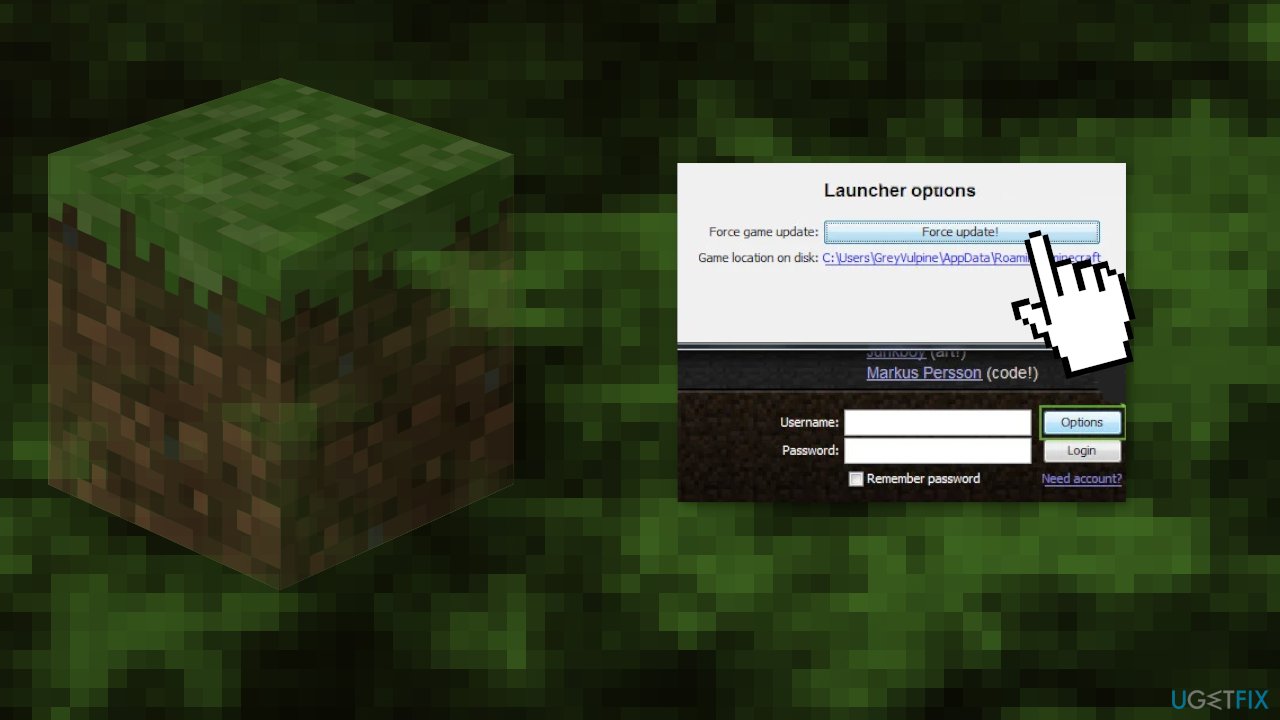
- Open the Minecraft Launcher and next to your username, click on Options
- Click on Force Update and once the Minecraft launcher is updated, check if the download file issue is resolved
Solution 2. Open the Vanilla Launcher
If the issue has started to occur after a mod was applied to a non-vanilla launcher, then opening Minecraft through the Vanilla Minecraft launcher may solve the problem:
- Close the non-Vanilla launcher
- Open the Minecraft native (i.e., Vanilla) launcher and hit Play
- Let it run until the Create Game Screen is shown and then close the vanilla launcher
- Open the other launcher you were using and check if the download file issue is clear
Solution 3. Set Java to Open .Jar Extension
- Right-click Windows and open Run
- Now navigate to the following:
%appdata%\\.minecraft\\assets\\indexes\\
- Right-click on a file with .Jar or .Java extension and select Properties
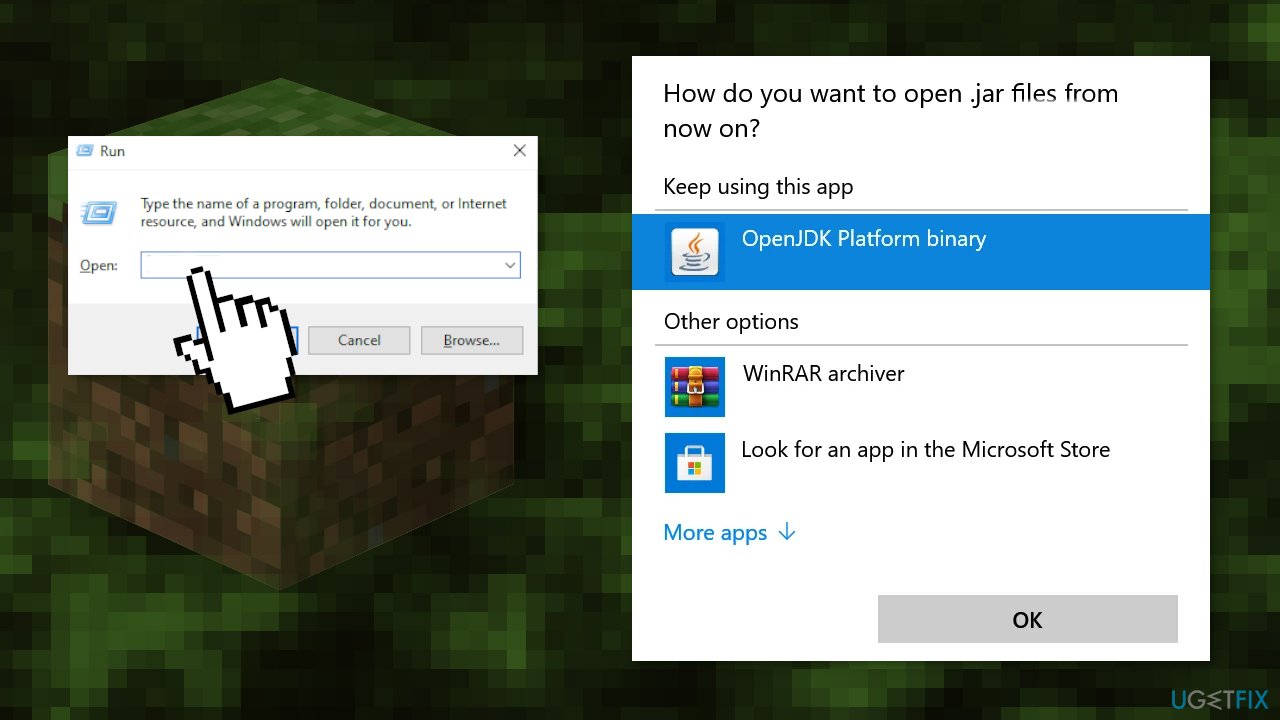
- Click on the Change button in front of Opens With and select Java or OpenJDK Platform Binary
- Apply your changes and open the launcher to check if the download file issue is resolved
Solution 4. Remove the Corrupt Mod
- Close the Minecraft Launcher and also exit
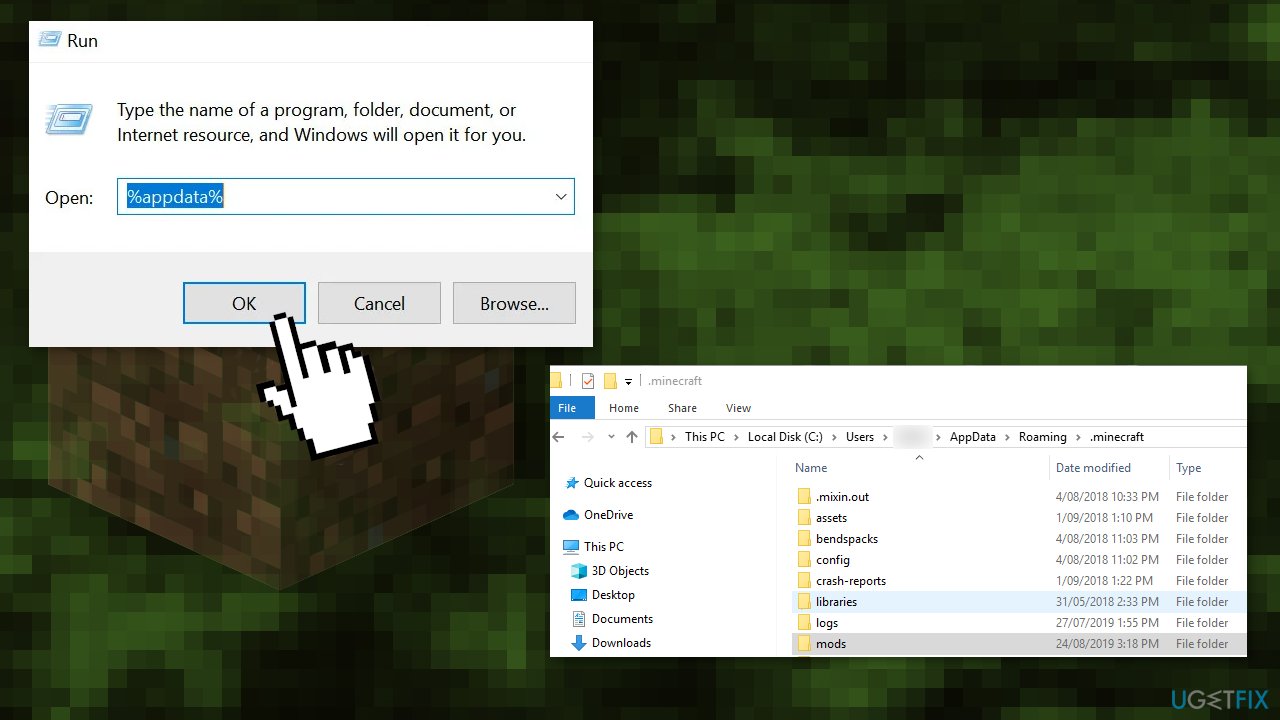
- Right-click on Windows and select Run then type in %appdata%
- Open the .Minecraft directory and double-click on the Mods folder
- Then copy the mods to another location and delete them from the Mods folder
- Open the Minecraft Launcher and check if it is working fine
- Then exit it and also close it from the system tray
- Copy one of the mods to the Mods folder and open the Minecraft launcher to check if it is working fine
- If so, then, one by one, copy the mods back to the Mods folder till you find the problematic mod. Once found, either update it (if possible) or contact the mod developer to solve the issue
Solution 5. Reinstall the Minecraft Launcher
- Right-click Windows and select Run and type %appdata%
- Open the .Minecraft directory and copy the Saves folder to a safe place (if you want to save the worlds you have been playing)
- Right-click Windows and in the menu shown, select Apps & Features
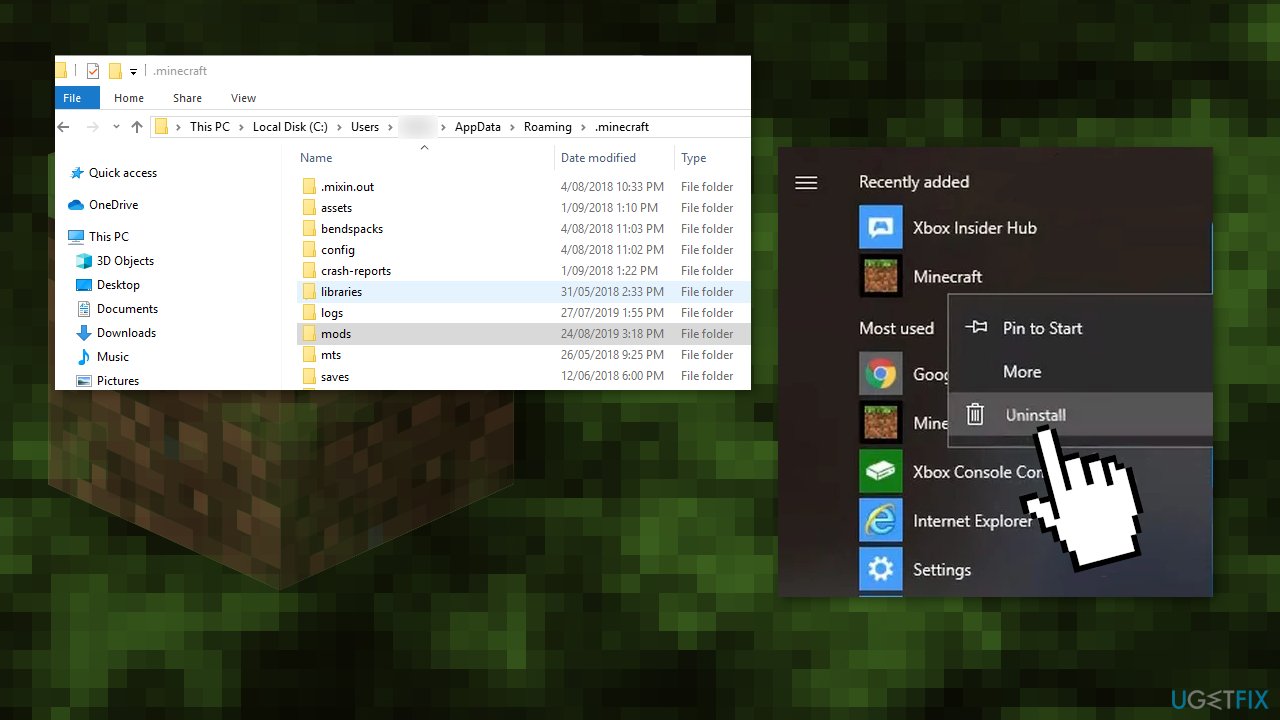
- Expand Minecraft and click on Uninstall
- Confirm to uninstall the Minecraft and follow the prompts to complete the uninstall process
- reboot your PC and upon reboot, navigate to the following path in Run - %appdata%
- Delete the .Minecraft folder and navigate to the following path in Run - AppData
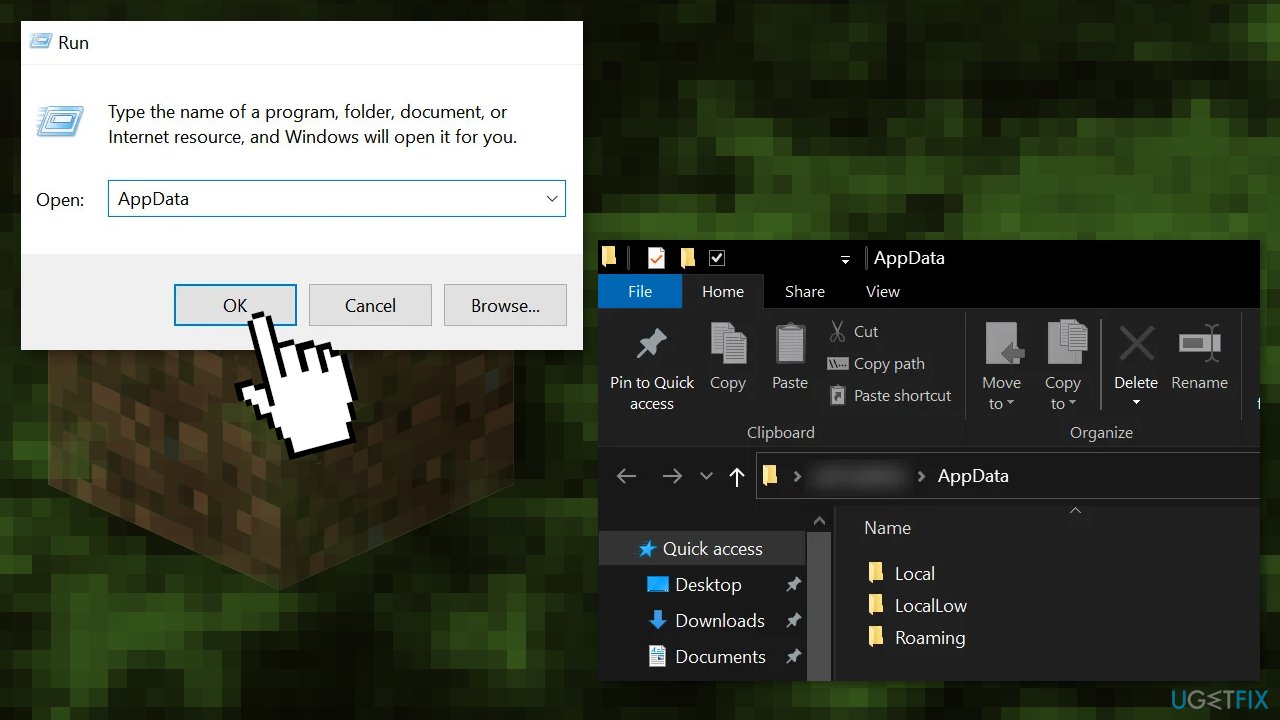
- Delete all the Minecraft folders from these folders:
Local
LocalLow
Roaming
- Reinstall Minecraft from the official Minecraft website and hopefully, the download file issue will be resolved
Solution 6. Download the File and Place it in the Minecraft Directory
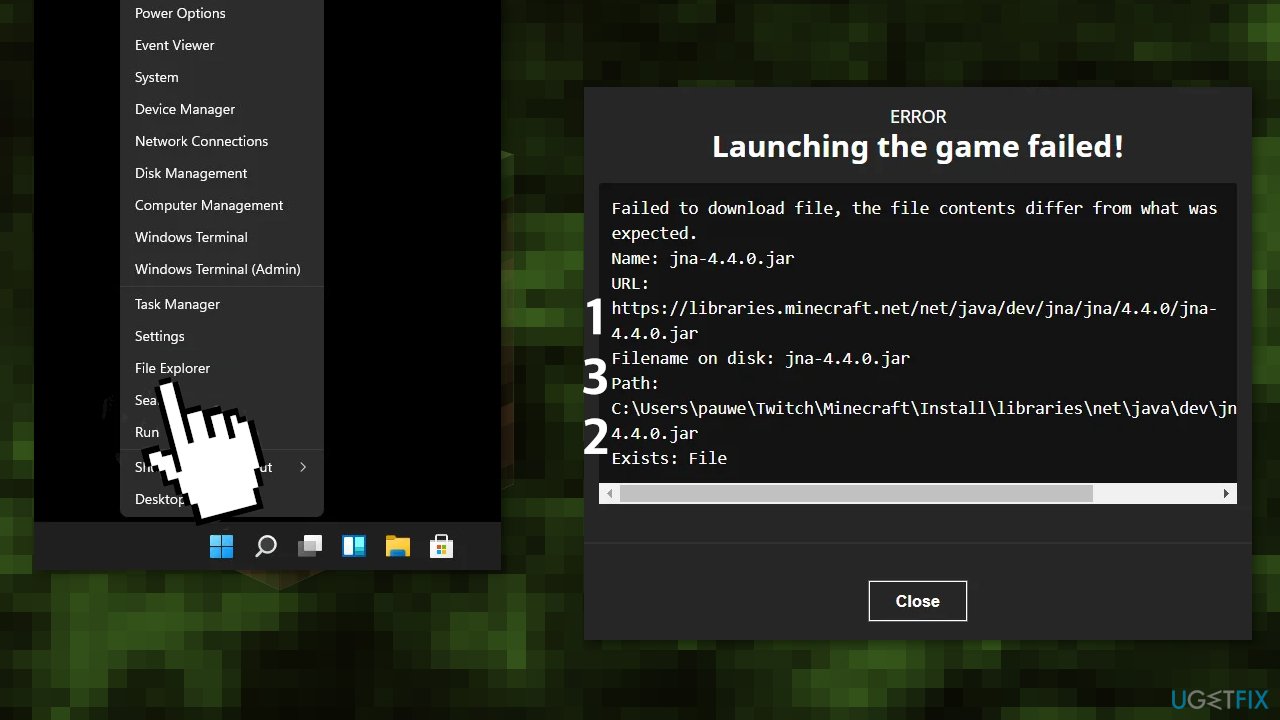
- Copy the URL given in the error message e.g., the following address:
https://libraries.minecraft.net/net/sf/jopt-simple/jopt-simple/4.5/jopt-simple-4.5.jar
- Launch a web browser (e.g., Chrome) and paste the copied address in the address bar of the browser.
- Let the file download and afterward copy it
- Right-click on the Windows button and select File Explorer
- Then steer to the address given in the error message (except the file name at the end of the address) e.g., the following address:
C:\\Users\\%username%\\AppData\\Roaming\\.minecraft\\libraries\\net\\sf\\jopt-simple\\jopt-simple\\4.5\\
- Delete the file (the file name written at the end of the address in the error message) like jopt-simple-4.5.jar.
- Confirm to delete the file and paste the file copied at step 3
- Open the Minecraft launcher and check if the download file issue is resolved
- If that did not work, then check if unzipping the downloaded file and placing it in the path mentioned in step 5 solves the issue
- If you are using a non-Vanilla launcher, then after placing the downloaded file, launch the Vanilla launcher and hit Play
- Once you are on the Create Game screen, exit the launcher and use the other launcher to check if the issue is resolved
- If you are using Twitch with the Vanilla launcher, then you may have to replace the file in the Documents directory as well
- Navigate to the following address:
C:\\Users\\%username\\Documents\\Curse\\Minecraft\\Install\\libraries\\net\\java\\dev\\jna\\jna\\
- Open the version number folder e.g., 4.5, and paste the file (copied at step 3) here. If asked to, select Replace. Open the Vanilla launcher and then repeat step 12 to check if the issue is resolved.
You might also be interested in these topics:
Bottom line
To fix the "Failed to download file, the file contents differ from what was expected" error, you can try updating Minecraft through the launcher and using the Vanilla Launcher if the issue arose after applying a mod. If these solutions do not resolve the problem, consider running repair software to address underlying Windows issues.
Frequently asked questions
This error typically occurs due to corrupted game files or issues with your internet connection while downloading updates. Ensuring a stable connection and verifying game files can help resolve this issue.
You can fix this error by restarting your PC, checking your firewall settings, or reinstalling the Minecraft launcher to ensure all files are correctly downloaded.
To prevent this error, regularly update both Minecraft and your Windows system, and consider using a wired internet connection for more stable downloads.




Report an issue
What's wrong with this guide? We review every report and update or remove content.
Report received — thank you. We'll review and fix it.
You need a free account to submit a report.
Be the first to comment