
How to fix PCASVC.dll (PcaWallpaperAppDetect) error in Windows?

Prefer to fix it yourself? The manual steps follow.
- 7methods
- 2 to 10 minutes
- Easy
Applies to Windows 11 24H2 and later, Windows 11 23H2 and Windows 10 22H2 PCs that show the RunDLL box from PcaSvc.dll
7 methods in this guide
- What the error means
- Causes, most common first
- PcaPatchSdbTask and others
- On Windows 10 and 23H2
- The fixes
- 1. Delete the task
- 2. Same fix with schtasks
- 3. Install the latest update
- 4. Check the PCA service
- 5. Repair files: DISM and SFC
- 6. Check the file, scan it
- 7. Repair install of Windows
- Still there: what to check
- Undo: restore the task
- Prevent it
- FAQ
For some reason, I keep getting a RunDLL error pop-up, which says "Error in C:\WINDOWS\system32\PcaSvc.dll. Missing entry: PcaWallpaperAppDetect." This happened after I updated Windows to 24H2. Any tips would be appreciated.
The RunDLL box that reports a missing entry PcaWallpaperAppDetect in C:\WINDOWS\system32\PcaSvc.dll is not about a broken or missing file. A scheduled task asks PcaSvc.dll for a function that your copy of the file does not contain, and Microsoft's own workaround is to delete that task in Task Scheduler, which takes two minutes.
Open Task Scheduler, go to Task Scheduler Library > Microsoft > Windows > Application Experience, right-click PcaWallpaperAppDetect and choose Delete (Fix 1). This is the workaround Microsoft published for the bug. Your PcaSvc.dll is fine: do not download a replacement. If the box names a different entry, such as PcaPatchSdbTask, or says the file is missing, start with Fix 4 or Fix 5 instead.
| Error | A RunDLL window: "Error in C:\WINDOWS\system32\PcaSvc.dll. Missing entry: PcaWallpaperAppDetect". |
|---|---|
| Where it appears | On the desktop, on its own, with no program open. Users report it at the same time of day every few days, because a scheduled task triggers it. |
| Main cause | The scheduled task \Microsoft\Windows\Application Experience\PcaWallpaperAppDetect calls a function that the installed PcaSvc.dll does not export. Microsoft confirmed it after upgrades to Windows 11 24H2 (build 26100.712). |
| Fastest fix | Delete the PcaWallpaperAppDetect task in Task Scheduler (Fix 1) or with one schtasks command (Fix 2). |
| Also written as | PCASVC.dll error, pcasvc dll, Missing entry PcaWallpaperAppDetect, PCA Wallpaper App Detect, "Error en C:\Windows\system32\PcaSvc.dll. Falta la entrada: PcaWallpaperAppDetect" on Spanish Windows. |
| The file | C:\Windows\System32\PcaSvc.dll, the Program Compatibility Assistant Service (service name PcaSvc), a signed part of Windows. |
| Affects | Windows 11 PCs upgraded to 24H2 or later, per Microsoft. Users also report it on Windows 11 23H2 and Windows 10 22H2. |
| Microsoft's status | Known issue added on 3 June 2024, later marked fixed in the Release Preview notes. The underlying cause was fixed in Canary build 26244 and Dev build 26120.1252. |
| Do not | Download PcaSvc.dll from a DLL site, copy one into System32, or run regsvr32 on it. |
| Time to fix | About 2 minutes for the task. Up to 30 minutes if DISM and SFC have to run. |
Facts checked on 14 October 2026. Steps written for Windows 11 (25H2 and 26H2) and Windows 10 22H2.
What "Error in C:\WINDOWS\system32\PcaSvc.dll. Missing entry: PcaWallpaperAppDetect" means
PcaSvc.dll is the Program Compatibility Assistant Service, a part of Windows that sits in C:\Windows\System32. Microsoft describes it this way: PCA "monitors programs installed and run by the user and detects known compatibility problems". It runs inside a shared svchost.exe process under the service name PcaSvc.
- Display name
- Program Compatibility Assistant Service
- Service name
PcaSvc- File
C:\Windows\System32\PcaSvc.dll- Default startup type
- Automatic, per Microsoft's service guidance for Windows Server 2016 with Desktop Experience and Windows IoT Enterprise
- Its scheduled tasks
\Microsoft\Windows\Application Experience\(PcaPatchDbTask, and on upgraded PCs PcaWallpaperAppDetect)
The pop-up is not written by PcaSvc.dll itself. It comes from rundll32.exe, the Windows tool that loads a DLL and calls one named function in it. A scheduled task starts rundll32.exe PcaSvc.dll,PcaWallpaperAppDetect. When rundll32 opens the file and finds no function called PcaWallpaperAppDetect, it shows "Missing entry" and stops.
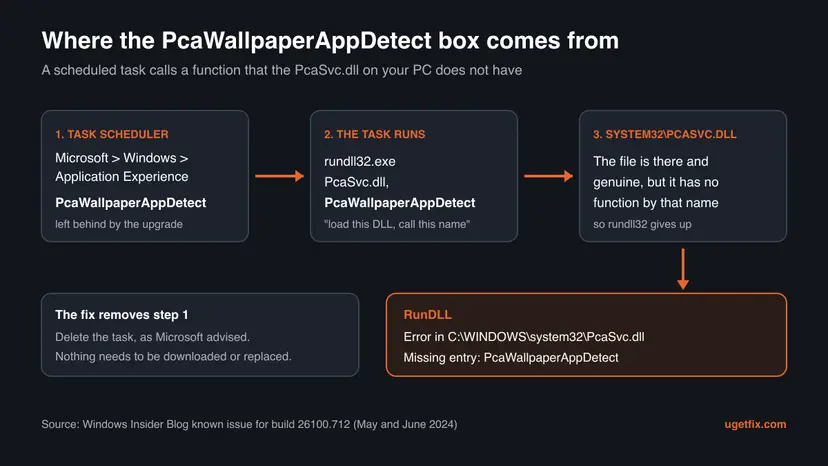
"Missing entry" is not "missing file". The file is present and Windows uses it every day. Replacing it with a downloaded copy would not add the function the task asks for, and it would put an unsigned file in System32. The fix is to remove the task that makes the bad call.
Why the PcaSvc.dll error appears: causes ranked
Most often, the PcaWallpaperAppDetect task was left behind by an upgrade. Microsoft listed the issue for PCs that updated to Windows 11 24H2 build 26100.712, and later for Insiders who upgraded from 22H2 or 23H2 to a 26xxx build. Deskmodder, a German Windows site, found that the task appears after an upgrade and not after a clean install.
| How common | Cause | Sign | Fix |
|---|---|---|---|
| Most often | Leftover PcaWallpaperAppDetect task after an upgrade | "Missing entry: PcaWallpaperAppDetect", every few days, no program open | Fix 1 or Fix 2 |
| Often | Windows not updated since 2024, so the fix for the cause is not installed | The box returns after a reinstall of the same old build | Fix 3 |
| Less often | The PCA service is disabled or broken, often by a debloat or tweak tool | Another PcaSvc.dll entry fails, or Event Viewer shows a crash in pcasvc.dll | Fix 4 |
| Less often | PcaSvc.dll or other system files are damaged | "PcaSvc.dll was not found" or a crash, not a missing entry | Fix 5 |
| Rarely | A fake PcaSvc.dll outside System32, or a task that points to a strange path | The task's action or the file's signature looks wrong | Fix 6 |
| Rarely | Windows itself is damaged beyond a file repair | DISM and SFC fail, other Windows parts misbehave too | Fix 7 |
The old version of this page blamed registry errors and conflicts with third-party software. We found no source that ties this message to either. The task and the DLL are both Microsoft's, and the mismatch between them is the documented cause.
PcaSvc.dll,PcaPatchSdbTask and other entries: which ones are normal
Many people search for pcasvc.dll,pcapatchsdbtask because they spot it in Task Manager, a firewall prompt, a security tool alert or a scan log. That line is the action of a different task, PcaPatchDbTask, in the same Application Experience folder. On a standard PC the action is %windir%\system32\rundll32.exe with the argument %windir%\system32\PcaSvc.dll,PcaPatchSdbTask.
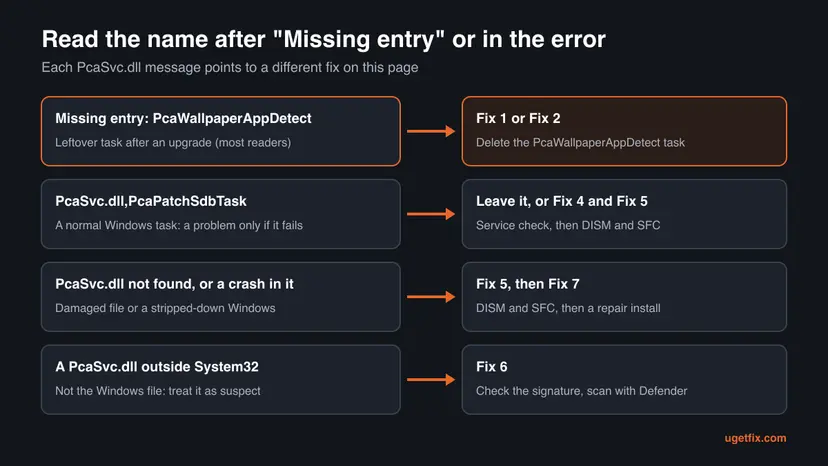
| What you see | What it is | Action |
|---|---|---|
rundll32.exe C:\WINDOWS\system32\PcaSvc.dll,PcaPatchSdbTask in a log or alert | The PcaPatchDbTask task of Windows, which updates compatibility data | Normal. Leave it unless it fails with an error. |
| "Missing entry: PcaPatchSdbTask" | The DLL cannot serve its own normal task, so the file or service is damaged | Fix 4, then Fix 5 |
| "Missing entry: PcaWallpaperAppDetect" | The leftover task described on this page | Fix 1 or Fix 2 |
| The same command pointing to a folder other than System32 | Not Windows' task | Fix 6 |
Users of endpoint security tools report alerts on the PcaPatchSdbTask command line as a suspicious rundll32 start. When the path is C:\Windows\System32\PcaSvc.dll and the file's signature is valid (Fix 6 shows how to check), such an alert is a false positive.
PcaWallpaperAppDetect error on Windows 10 and Windows 11 23H2
Microsoft only documented the error after upgrades to 24H2 and later builds. Still, users on Microsoft Q&A and Deskmodder report the same box on Windows 10 22H2 and on Windows 11 23H2. Microsoft has not explained those cases, and we could not confirm how the task reaches them.
- The fix is the same. If the PcaWallpaperAppDetect task exists on your PC, delete it with Fix 1 or Fix 2. If it does not exist, the box came from somewhere else: read the exact entry name and use the chart above.
- Windows 10 left support on 14 October 2025. Without the Extended Security Updates programme, a Windows 10 PC no longer gets fixes, so Fix 3 may not bring anything new. Deleting the task is the full answer there.
- On Windows 11 23H2, updating to a current Windows 11 version gets you the build where Microsoft fixed the cause (Fix 3), and Fix 1 removes a task that is already there.
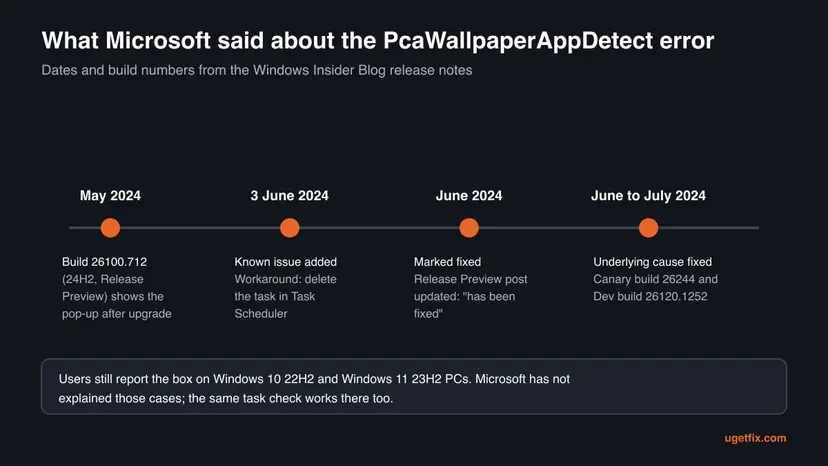
How to fix the PcaSvc.dll PcaWallpaperAppDetect error
Fix 1 is Microsoft's own workaround and ends the box for most readers. Fix 2 does the same from a command line and keeps a backup of the task. Fix 3 installs the build where Microsoft fixed the cause. Fixes 4 to 7 are for the rarer messages: another entry name, a missing or crashing DLL, a suspect file, or a damaged Windows.
| What you see or have | Start with |
|---|---|
| "Missing entry: PcaWallpaperAppDetect" after an update or upgrade | Fix 1 |
| You prefer commands, cannot find the task in the tree, or manage several PCs | Fix 2 |
| The box keeps coming back on a PC that has not been updated for months | Fix 3 |
| "Missing entry: PcaPatchSdbTask", or you once disabled services with a tweak tool | Fix 4 |
| "PcaSvc.dll was not found", or Event Viewer shows a crash in pcasvc.dll | Fix 5 |
The path in the box or the task is not C:\Windows\System32 | Fix 6 |
| DISM and SFC cannot repair Windows | Fix 7 |
Fix 1. Delete the PcaWallpaperAppDetect task in Task Scheduler
2 minutesLow riskEveryone who sees "Missing entry: PcaWallpaperAppDetect", on Windows 11 or Windows 10.
The box appears only when this task runs and calls a function the DLL does not have. Microsoft's known-issue note for build 26100.712 gives exactly these steps, and the PCA service keeps running its other tasks without it.
- Type Task Scheduler in the search box on the taskbar and open the app.
- In the left pane, click Task Scheduler Library to expand it.
- Expand Microsoft, then Windows, then click Application Experience.
- In the middle list, find the task named PcaWallpaperAppDetect. Click it once and open the Actions tab below: it should show
rundll32.exewithPcaSvc.dll,PcaWallpaperAppDetect. - Right-click PcaWallpaperAppDetect and select Delete.
- Click Yes when Windows asks "Do you want to delete this task?".
- Leave PcaPatchDbTask and the other tasks in the folder as they are, and close Task Scheduler.
Deleting is what Microsoft advised, and the task does nothing useful on a PC where it fails. If you still want a way back, export it with the command in Fix 2, step 3, before you delete it. The undo section below shows how to import it again.
Some readers prefer to right-click the task and choose Disable instead. That also stops the box, and Deskmodder suggested it before Microsoft published its note. Disabling leaves the task in place for a later update to clean up.
It worked if: PcaWallpaperAppDetect is gone from the Application Experience list and the RunDLL box does not come back on the next days.
If not: If you cannot find the task or Windows refuses to delete it, use Fix 2. If the box names another entry, go to Fix 4.
Fix 2. Check, back up and delete the task with schtasks
3 minutesLow riskReaders who cannot find or delete the task in the window, or who fix several PCs.
The schtasks tool shows exactly what the task runs, saves its definition to a file and deletes it by its full path. It also tells you plainly when the task is not on the PC, which rules this cause out.
- Press Win, type cmd, right-click Command Prompt and select Run as administrator. Click Yes in User Account Control.
- Show the task and its action. Look at Task To Run and Next Run Time in the output.
schtasks /query /tn "\Microsoft\Windows\Application Experience\PcaWallpaperAppDetect" /v /fo list - Save a copy of the task to your desktop (optional).
schtasks /query /tn "\Microsoft\Windows\Application Experience\PcaWallpaperAppDetect" /xml > "%USERPROFILE%\Desktop\PcaWallpaperAppDetect.xml" - Delete the task. The
/fswitch skips the confirmation question.schtasks /delete /tn "\Microsoft\Windows\Application Experience\PcaWallpaperAppDetect" /f - Run the command from step 2 again. This time schtasks reports an error that it cannot find the task, which means it is gone.
Then the task is not on this PC and something else shows the box. Note the exact entry name in the window and use the chart in the section on PcaPatchSdbTask and other entries. To see every task in the folder, run schtasks /query /fo list | findstr /i "Application Experience".
To disable the task instead of deleting it:
schtasks /change /tn "\Microsoft\Windows\Application Experience\PcaWallpaperAppDetect" /disableIt worked if: schtasks prints a SUCCESS line for the delete, and the query in step 5 no longer finds the task.
If not: If you see "Access is denied", the window is not elevated: repeat step 1. If the box returns with the same entry name, install the latest updates with Fix 3.
Fix 3. Install the latest Windows update that contains Microsoft's fix
15 to 45 minutesLow riskPCs that still run an early 24H2 build, or that have not installed updates for months.
Microsoft marked the issue fixed in its Release Preview notes and fixed the underlying cause in Insider builds 26244 and 26120.1252 in mid 2024. A current Windows 11 build includes that work, so an up-to-date PC should not recreate the task problem.
- Press Win + R, type
winverand press Enter. Note the version and OS build, for example 24H2 and 26100. - Press Win + I and open Windows Update (on Windows 10: Update & Security > Windows Update).
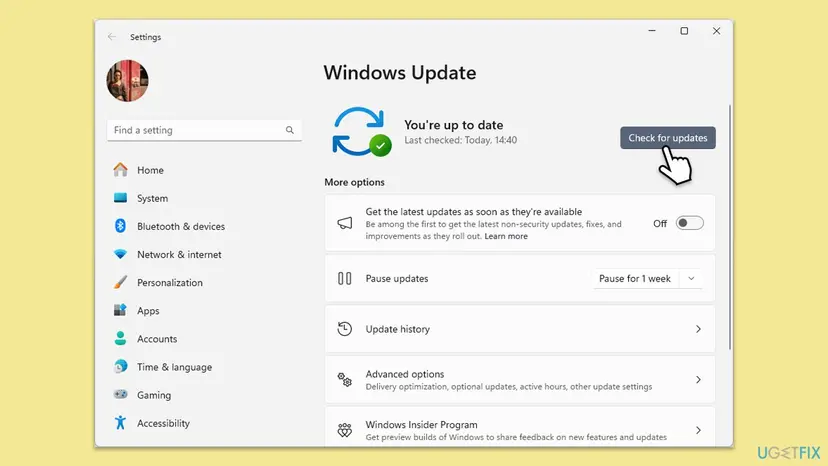
- Click Check for updates, then Install all if updates are waiting.
- Open Advanced options > Optional updates and install a pending feature update or cumulative update if one is offered.
- Restart the PC when Windows asks, and run Fix 1 again if the task is still in the list.
If updates fail to download or install, repair Windows Update first. Step by step: Run the Windows Update troubleshooter. Note that an update fixes the cause but does not always delete a task that is already on the PC, so Fix 1 may still be needed.
It worked if: Windows Update says "You're up to date", winver shows a newer build, and the box no longer appears.
If not: If the box returns on a current build, the task is still there: delete it with Fix 1 or Fix 2. If the entry name is not PcaWallpaperAppDetect, go to Fix 4.
Fix 4. Check that the Program Compatibility Assistant Service runs
3 minutesLow riskPCs that show "Missing entry: PcaPatchSdbTask", or where a debloat or tweak tool changed services.
PcaSvc.dll serves the PcaSvc service and its tasks. When the service is disabled or crashes, its other tasks fail too. On NTLite's forum, the tool's developer traced crashes in pcasvc.dll to a telemetry removal preset and released a corrected build.
- Press Win + R, type
services.mscand press Enter. - Find Program Compatibility Assistant Service in the list and look at Status and Startup Type.
- If the status is empty, right-click the service and select Start. If it is running, select Restart.
- If Startup Type is Disabled, double-click the service, set it to Automatic, click Apply, then Start and OK.
- Restart the PC and wait to see whether the box comes back.

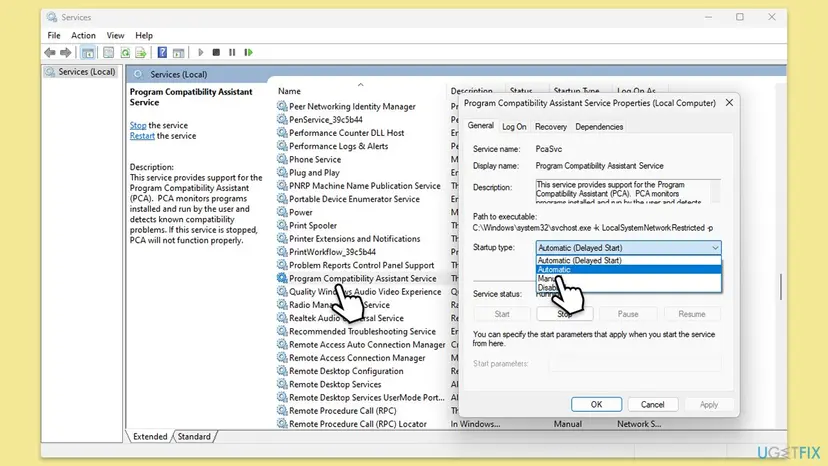
Restarting the service does not stop the PcaWallpaperAppDetect box on its own, because the missing function is still missing. It only helps when the service itself is broken. More on services: Check and restart Windows services.
It worked if: The service shows Running with an automatic startup type, and PcaPatchSdbTask or crash errors stop.
If not: If the service will not start or stops with error 1067, its files are damaged: run DISM and SFC in Fix 5.
Fix 5. Repair PcaSvc.dll and other system files with DISM and SFC
15 to 30 minutesLow riskPCs that report PcaSvc.dll as not found, or where the PCA service crashes in pcasvc.dll.
When the file itself is missing or damaged, DISM restores Windows' component store and SFC copies a clean PcaSvc.dll back from it. This is the only safe way to get a genuine copy of the file.
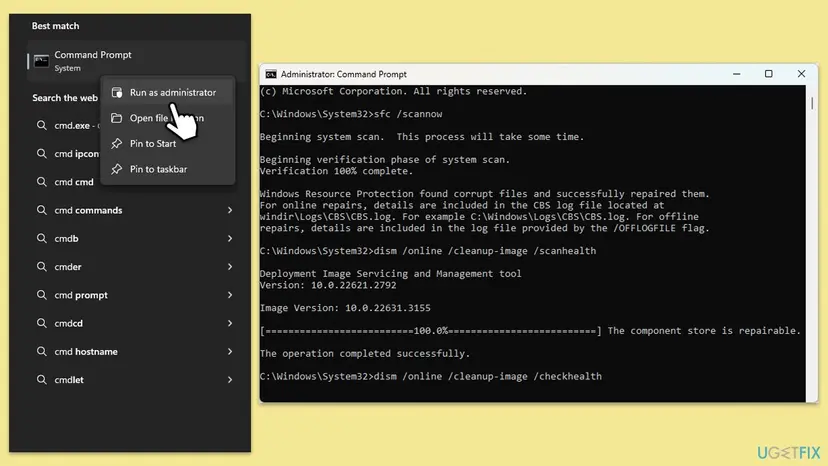
- Open an elevated command window. Right-click Start and select Terminal (Admin), or type cmd in the search box, right-click Command Prompt and select Run as administrator. Select Yes when Windows asks for permission.
- Run DISM first. Type the command below and press Enter. DISM downloads clean copies of damaged components from Windows Update, so it can take several minutes. Wait until it says The operation completed successfully.
DISM.exe /Online /Cleanup-Image /RestoreHealth - Run System File Checker. In the same window, type the command below and press Enter. Do not close the window until the verification reaches 100%.
sfc /scannow - Read the result and restart. Compare the last message with the table below this guide, then restart the PC so that repaired files are loaded.
These steps were written for Windows 11 24H2 and 25H2. The full page with the other versions and what each result means: Run DISM and SFC to repair Windows system files
- After SFC finishes, check whether it touched PcaSvc.dll. Run this in the same administrator window:
findstr /i pcasvc %windir%\Logs\CBS\CBS.log - Lines that mention PcaSvc.dll and "Repaired" mean SFC put back a clean copy. No lines mean the file was already fine.
- Restart the PC.
A healthy PcaSvc.dll still has no PcaWallpaperAppDetect function. DISM and SFC help only with a missing or damaged file. For the Missing entry box, delete the task (Fix 1).
It worked if: SFC reports that it found no integrity violations or that it repaired them, and the PcaSvc.dll error no longer appears.
If not: If SFC cannot repair files, check the file with Fix 6. If Windows is still damaged, use the repair install in Fix 7.
Fix 6. Check that PcaSvc.dll is the Microsoft file and scan for malware
10 minutes plus the scanLow riskThe box, the task or an alert points to a PcaSvc.dll outside C:\Windows\System32.
Malware sometimes hides behind the names of Windows files and runs through rundll32. The genuine PcaSvc.dll lives in System32 and carries a valid Microsoft signature, so a quick signature check separates the real file from an impostor.
- Right-click Start and open Terminal (Admin) (on Windows 10: Windows PowerShell (Admin)).
- Check the signature of the Windows copy. Status should read Valid and the signer should be Microsoft.
Get-AuthenticodeSignature C:\Windows\System32\PcaSvc.dll | Format-List Status, SignerCertificate - List every PcaSvc.dll on drive C. Copies under
C:\Windows\WinSxSbelong to Windows' component store and are normal.Get-ChildItem -Path C:\ -Filter PcaSvc.dll -Recurse -ErrorAction SilentlyContinue | Select-Object FullName - Check the signature of any copy outside
C:\Windowswith the command from step 2, using its path. - Open Windows Security > Virus & threat protection > Scan options, choose Microsoft Defender Antivirus (offline scan) and click Scan now.
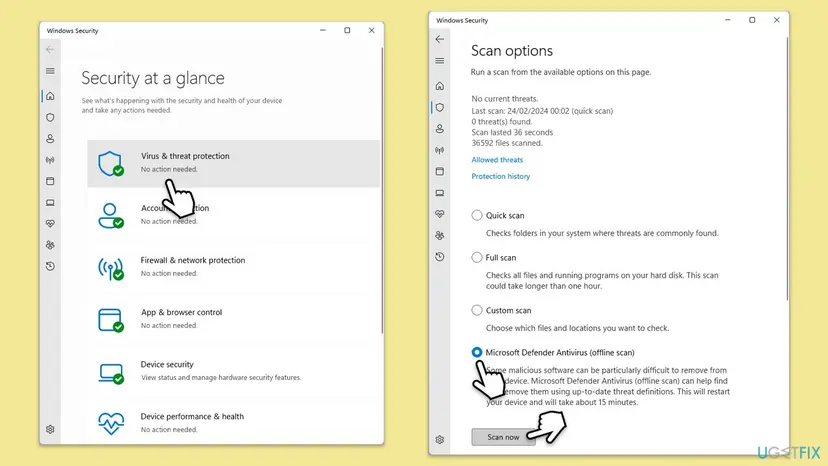
The offline scan restarts the PC and takes about 15 minutes, as the Windows Security page says. Full steps for every scan type: How to scan for malware with Microsoft Defender.
It worked if: The System32 copy shows Valid, no other copy turns up outside Windows folders, and Defender finds no threats.
If not: If a copy outside Windows is unsigned or Defender removes something, run Fix 5 afterwards to repair Windows files. If everything is clean, go back to Fix 1.
Fix 7. Repair Windows with an in-place reinstall that keeps your files
1 to 2 hoursRead the warningPCs where DISM and SFC fail and the PCA service or other parts of Windows stay broken.
A repair install replaces every Windows file, PcaSvc.dll included, with a fresh copy of the current version while keeping apps and files. It is the last step when the system files themselves cannot be repaired.
A repair install keeps files and most apps, but some settings and drivers can be reset. Copy your important files to an external drive or cloud storage before you start, and note any third-party tweaks you rely on. Step by step: Back up your files (Windows Backup, File History, Time Machine).
- On Windows 11, open Settings > System > Recovery and click Reinstall now next to Fix problems using Windows Update.
- Confirm, keep the PC plugged in, and let Windows download and reinstall the current version.
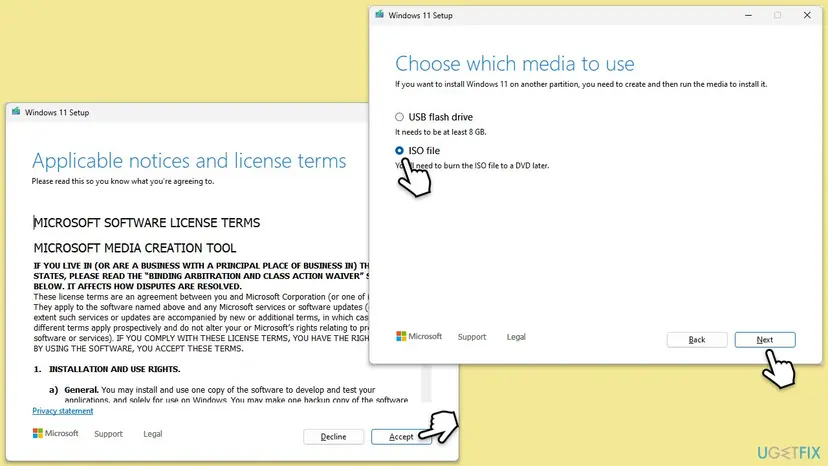
- If that option is missing or fails, download the Windows 11 installation media from Microsoft, mount the ISO and run setup.exe.
- In setup, keep Keep personal files and apps selected and click Install.
- After the reinstall, open Task Scheduler and check that PcaWallpaperAppDetect is not in the Application Experience folder.

Full steps, including Reset this PC with Keep my files: Reinstall Windows without losing files.
It worked if: Windows starts on the fresh build with your files in place, and no PcaSvc.dll box appears.
If not: If the box appears again on a fresh build, check the task with Fix 2 and read the logs in the next section.
If the PcaSvc.dll box still appears: where to look
When the box survives Fix 1, find out what starts it. The window itself does not say, but Windows records it. Three places hold the answer.
- Write down the exact text of the window, including the name after "Missing entry" and the time it appeared.
- In Task Scheduler, select Application Experience and compare the Last Run Time column of each task with the time of the box.
- Open Event Viewer and go to Applications and Services Logs > Microsoft > Windows > TaskScheduler > Operational. Entries at the same time name the task that started.
- In Windows Logs > Application, look for Application Error entries that name
pcasvc.dllorrundll32.exeas the faulting module. - Run Fix 2, step 2, again to confirm whether the PcaWallpaperAppDetect task still exists.
- The task is back after a big update: delete it again. Users report this after feature updates; we could not confirm it from Microsoft.
- A third-party task runs rundll32 with PcaSvc.dll: a tweak or cleanup tool may have created it. Remove that tool and its task, then run Fix 6.
- To ask Microsoft: use the Feedback Hub with the window text, your winver build and the Task Scheduler event. Attach a screenshot of the box.
This message comes from a task and a DLL, never from a failing disk or memory. If Windows also crashes or files keep getting damaged, test the hardware separately with Check a disk for errors (chkdsk) and the memory test.
How to restore the PcaWallpaperAppDetect task if you need it back
You will rarely need to undo the fix. The task only ever produced the error box on PCs where it failed. Still, if you saved the task in Fix 2, step 3, you can import it again with one command from an administrator Command Prompt.
Import the saved task:
schtasks /create /tn "\Microsoft\Windows\Application Experience\PcaWallpaperAppDetect" /xml "%USERPROFILE%\Desktop\PcaWallpaperAppDetect.xml"- If you disabled the task instead of deleting it, enable it again with
schtasks /change /tn "\Microsoft\Windows\Application Experience\PcaWallpaperAppDetect" /enable, or right-click it in Task Scheduler and choose Enable. - If you changed the startup type of the PCA service in Fix 4, setting it back to Automatic restores the default.
- A repair install (Fix 7) cannot be undone, but it keeps your files and apps.
How to keep the PcaSvc.dll error from coming back
- Install cumulative updates when Windows offers them, so you have Microsoft's fixed builds.
- After a feature update, open Application Experience in Task Scheduler once and check for PcaWallpaperAppDetect.
- Keep the Program Compatibility Assistant Service on its default, automatic startup type.
- Check the exact entry name in any RunDLL box before you change anything.
- Download PcaSvc.dll or any Windows DLL from a DLL download site.
- Copy a DLL into System32 by hand or register it with
regsvr32. - Run debloat presets that remove compatibility or telemetry parts without knowing what they touch.
- Delete PcaPatchDbTask or the other tasks in the folder: only PcaWallpaperAppDetect causes this box.
If you manage many PCs, the delete command from Fix 2 fits in a logon or deployment script. Deskmodder readers reported adding it to their post-install clean-up batch files.
Frequently asked questions
Is it safe to delete the PcaWallpaperAppDetect task?
Yes. Deleting it is the workaround Microsoft itself published in the Windows Insider Blog for build 26100.712. The task calls a function that does not exist in the PcaSvc.dll on your PC, so it never did any work there. It only produced the error box. The Program Compatibility Assistant Service keeps running and keeps its other tasks, such as PcaPatchDbTask. If you want a way back, save the task to a file first with the export command in Fix 2.
Is PcaSvc.dll a virus?
No. PcaSvc.dll is the Program Compatibility Assistant Service, a part of Windows that Microsoft documents in its service guidance. The genuine file lives in C:\Windows\System32 and has a valid Microsoft signature. The Missing entry box does not mean the file is infected; it means a task asked it for a function it lacks. Be careful only when a file named PcaSvc.dll sits in another folder, such as AppData or Temp. Fix 6 shows how to check the signature and scan.
Should I download pcasvc.dll to fix the error?
No. A downloaded copy would not fix this error, because the problem is a missing function inside the file, not a missing file. DLL download sites also offer files of unknown origin, which may be outdated, for the wrong Windows build, or modified. Windows only gets PcaSvc.dll from its own installation and updates. If the file is really missing or damaged, DISM and SFC in Fix 5 restore a signed copy from Windows' component store.
What is $$DeleteMe.PcaSvc.dll?
Files that start with $$DeleteMe are old copies of Windows files that the servicing system has replaced and marked for removal. They usually sit in C:\Windows\WinSxS\Temp\PendingDeletes. In a Microsoft Q&A thread about a similar file, the answer explains that Windows marked the old DLL for deletion and removes it during maintenance. Such a file is not malware and is not the cause of the PcaWallpaperAppDetect box. Leave it for Windows to clean up.
Can I disable the Program Compatibility Assistant Service?
You can, but it is not needed for this error. Microsoft's service guidance for Windows Server 2016 and Windows IoT Enterprise lists it as OK to disable, and says PCA stops working when the service stops. On a normal PC, PCA warns about known problems with older programs and can apply compatibility settings. Disabling the service does not remove the PcaWallpaperAppDetect task. Delete the task instead and leave the service on Automatic.
Why does the error appear at the same time every few days?
Because a schedule starts it. The PcaWallpaperAppDetect task runs on a trigger set in Task Scheduler, and each run produces one box. A user in Microsoft's Tech Community described it as appearing at noon every three days. The exact trigger can differ between PCs; Fix 2, step 2, shows the next run time on yours. The timing is a strong sign that the task, not a program you opened, causes the box.
What does PcaWallpaperAppDetect do?
Microsoft has not documented it. Deskmodder reported that the task's description refers to detecting third-party wallpaper apps, which fits its name. On PCs that show the error, the function is not in PcaSvc.dll, so the task cannot do anything there. Deleting it does not change your wallpaper, your themes or wallpaper apps you use. It only stops the failing call and its error box.
What does "Error en C:\Windows\system32\PcaSvc.dll. Falta la entrada: PcaWallpaperAppDetect" mean?
It is the same error on Spanish Windows: "Missing entry" reads "Falta la entrada". The cause and the fix are the same. The task keeps its English name, PcaWallpaperAppDetect, and its path is still \Microsoft\Windows\Application Experience. The schtasks command in Fix 2 works unchanged in every language, so it is the quickest route on a non-English PC.
Will the PcaWallpaperAppDetect error come back after a Windows update?
It should not on a current build, because Microsoft fixed the underlying cause in 2024. Some users report the task reappearing after a feature update, and we could not confirm that from Microsoft. If the box returns, check Application Experience in Task Scheduler and delete the task again. The check takes a minute, and the export file from Fix 2 lets you compare the old and new task if you want to report it.
Sources
- Microsoft Learn: Guidance on disabling system services on Windows Server 2016 with Desktop Experience (Program Compatibility Assistant Service, PcaSvc) (learn.microsoft.com)
- Microsoft Learn: schtasks query (learn.microsoft.com)
- Microsoft Learn: schtasks delete (learn.microsoft.com)
Did this fix work?
One click, no account. It tells the next reader which guides are worth their time.
Questions and experiences: fix PCASVC.dll (PcaWallpaperAppDetect) error in Windows
Still broken, or found a fix we did not cover? Ask here: members and our editors answer. Reading is open; writing needs a free account.
…