How to fix
NETwsw02.sys BSOD error
on Windows
Resolve the NETwsw02.sys BSOD error in Windows 10 and 11 quickly with our expert-tested solutions. Get back to seamless performance today! Fixed in minu…

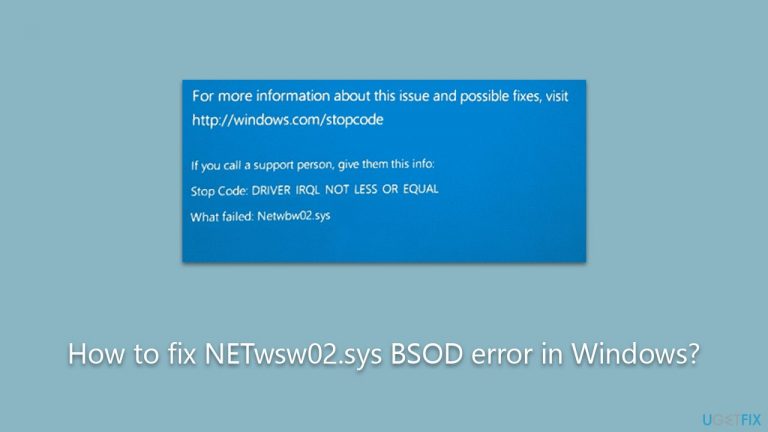
What causes How to fix NETwsw02.sys BSOD error in Windows?
- Conflict between the driver and the system
- Corrupted driver
- Outdated driver software
- Hardware issues
Repairs Windows system files, removes malware, and restores a clean OS state — without reinstalling.
Hi. I occasionally get NETwsw02.sys BSOD when using my Windows laptop, and I can't really point at what's causing it. Maybe you could provide some details and fixes? Thanks in advance.
Blue Screen of Death (BSOD), the formidable error screen often encountered by Windows users, is a warning of a severe system issue requiring immediate attention. Its nickname comes from its characteristic full-screen, blue backdrop, which displays cryptic error codes and messages.
Technically, a BSOD signifies a fatal system error in the operating system, where the system has reached a condition where it can no longer operate safely. This occurs when the operating system encounters a problem it's unable to recover from, and, to protect your data, it halts and displays the BSOD. Each error code signifies a different problem, aiding technicians in diagnosing and rectifying the issue.
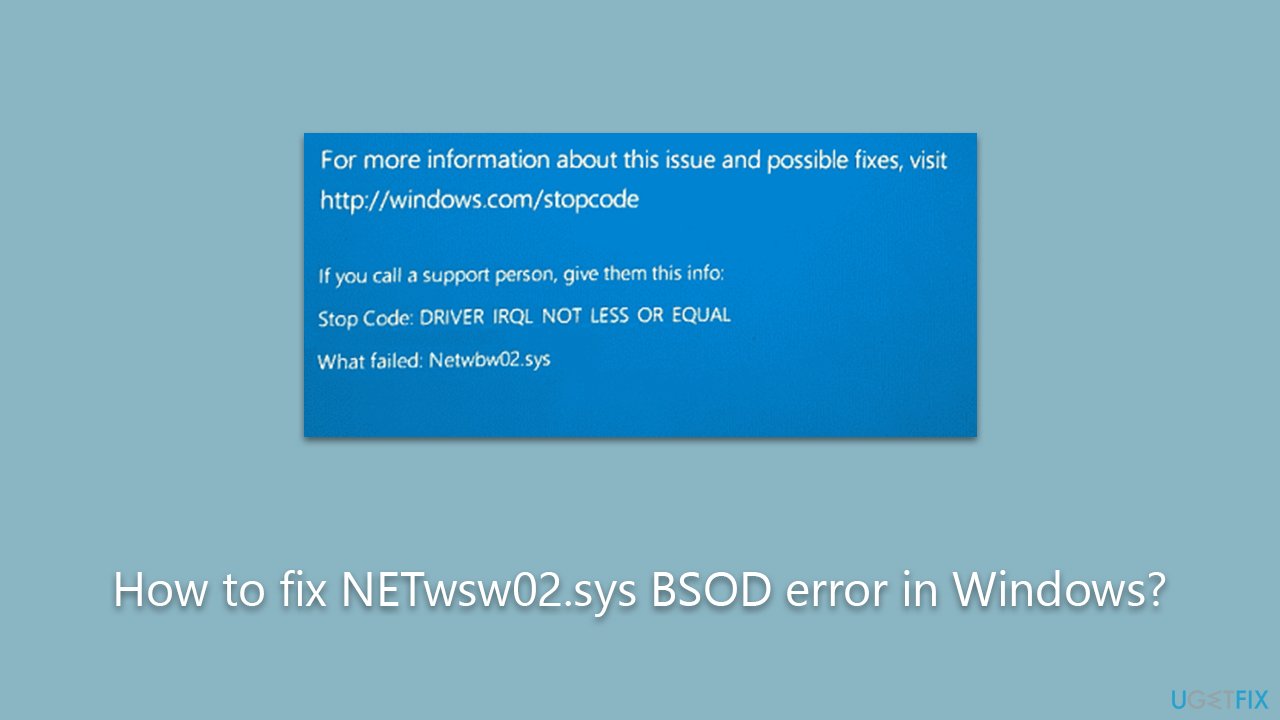
Among the various error messages, some Windows users report crashes linked to the NETwsw02.sys file. This file is a crucial component of the Intel Wireless WiFi Link Driver, which facilitates the communication between your operating system and the wireless network hardware. If an issue arises with NETwsw02.sys, your system might display a BSOD to prevent potential damage from escalating.
The exact cause of the NETwsw02.sys BSOD can vary widely. It might occur due to a conflict between the driver and the system, a corrupted driver, outdated driver software, or hardware issues. Therefore, a thorough investigation is often needed to isolate the root cause and apply the right fix.
Several solutions are available to address a BSOD caused by NETwsw02.sys, ranging from updating or reinstalling the driver to tweaking system settings. However, as the exact steps can vary based on the specific situation and version of Windows, detailed instructions are provided below the article for comprehensive guidance.
Finally, for those who want a comprehensive solution for such issues, the [d1] PC repair tool can come in handy. This all-in-one tool is designed to scan, diagnose, and rectify a wide array of system errors, including those related to the NETwsw02.sys BSOD, thereby enhancing system stability and performance. It simplifies the repair process and saves time and effort, which can be invaluable when dealing with these frustrating blue screen errors.
Solution 1. Reinstall the Intel Network driver
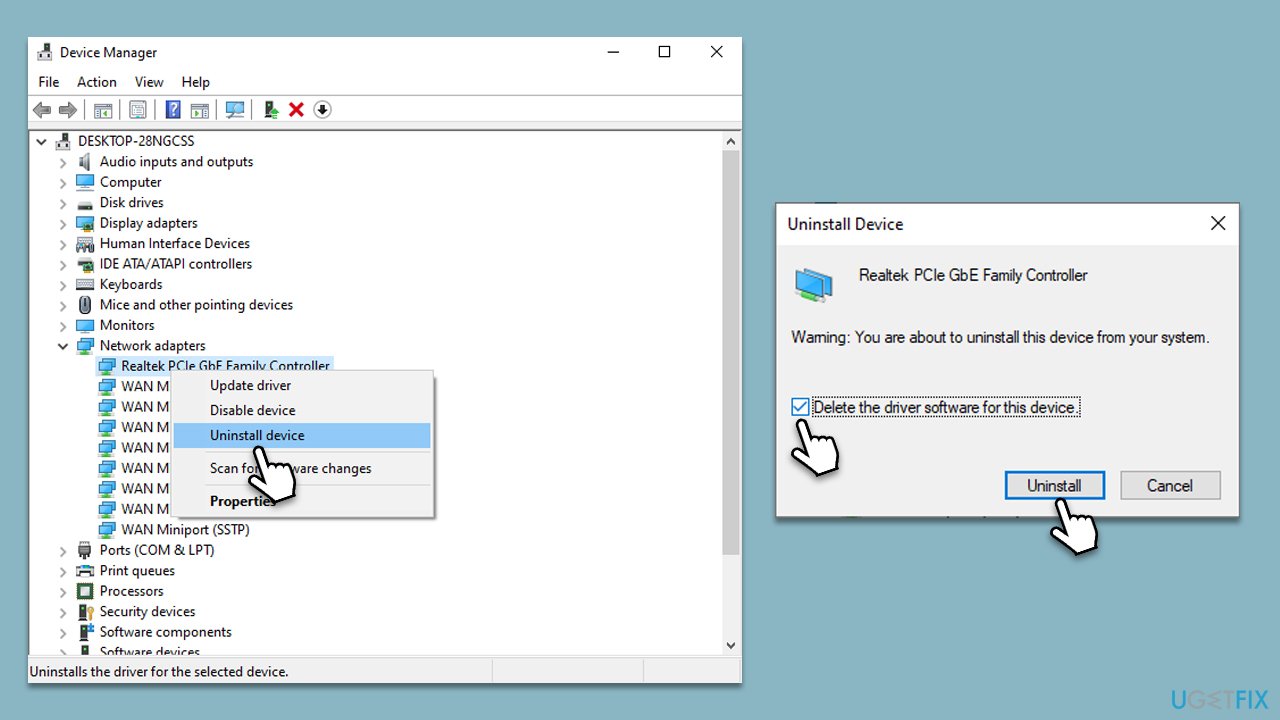
Since the message relates to the network driver, you should reinstall it. Follow these steps:
- Right-click on Start and pick Device Manager.
- Expand Network adapters.
- Right-click on the network adapter you are using and select Uninstall device.
- Mark the Delete the driver software for this device option.
- Click Uninstall once again and follow the on-screen instructions.
- Reboot your system.
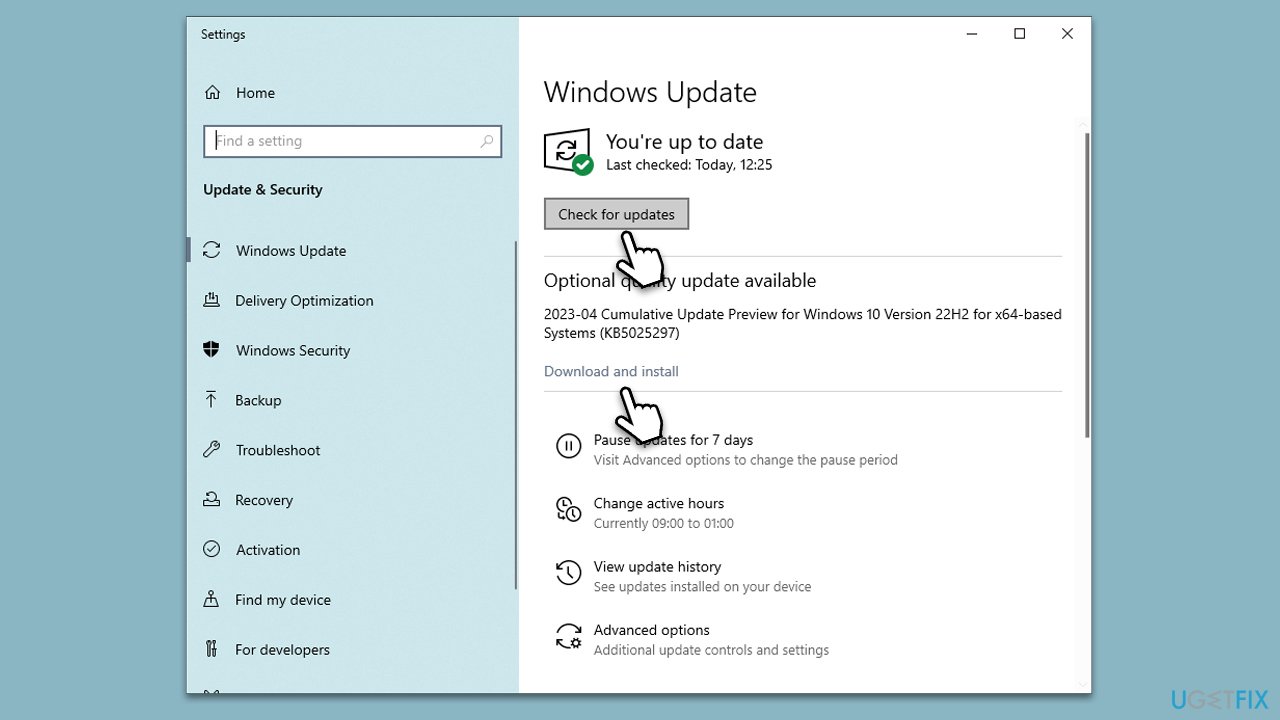
When done, you should reinstall the newest drivers. To do so, you can visit Intel's official website, install automatically using [rev id="DriverFix"] or employ the Windows update feature:
- Type Updates in Windows search and press Enter.
- Here, click Check for updates.
- Wait till Windows downloads and installs all the files.
- If optional updates are available, install them as well.
- Reboot your system.
Solution 2. Temporarily disable third-party security software
Third-party security software, while generally protective, can sometimes cause system conflicts leading to BSODs. It can mistakenly flag system files like NETwsw02.sys as threats or block crucial updates, causing instability. Disabling this software can prevent these issues, allowing the system and drivers to update without interference and potentially resolving the BSODs.
However, users should be careful not to expose their systems to other risks while the security software is disabled. In the meantime, either enable another anti-malware or employ the built-in Microsoft Defender.
Solution 3. Repair corrupted system files
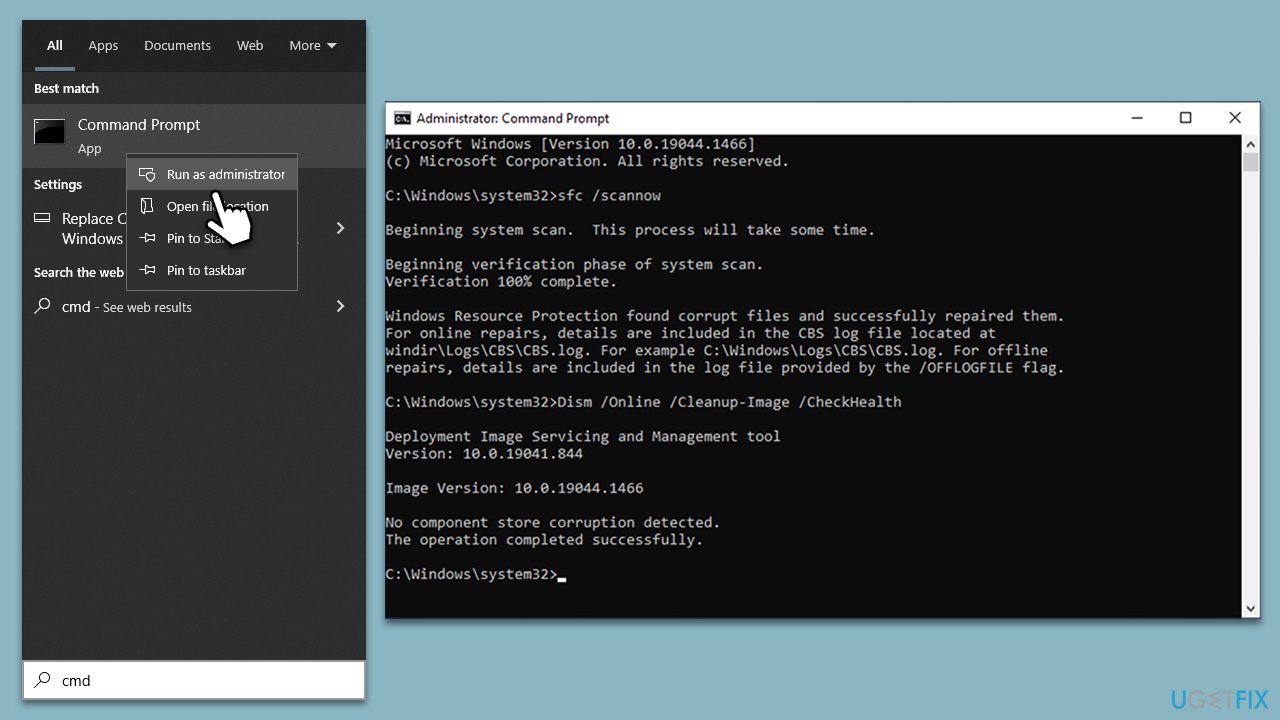
You can easily fix corrupted system files by running commands via Command Prompt. Follow these steps:
- Type cmd in Windows search.
- Right-click on the Command Prompt result and select Run as administrator.
- UAC (User Account Control) will ask whether you want to allow changes - click Yes.
- Next, type in the following command and press Enter:
sfc /scannow - When done, run the following commands as well:
dism /online /cleanup-image /scanhealth
dism /online /cleanup-image /checkhealth
dism /online /cleanup-image /restorehealth - Restart your computer.
Solution 4. Check your RAM
Hardware failures could be associated with BSODs. First, let's check your RAM:
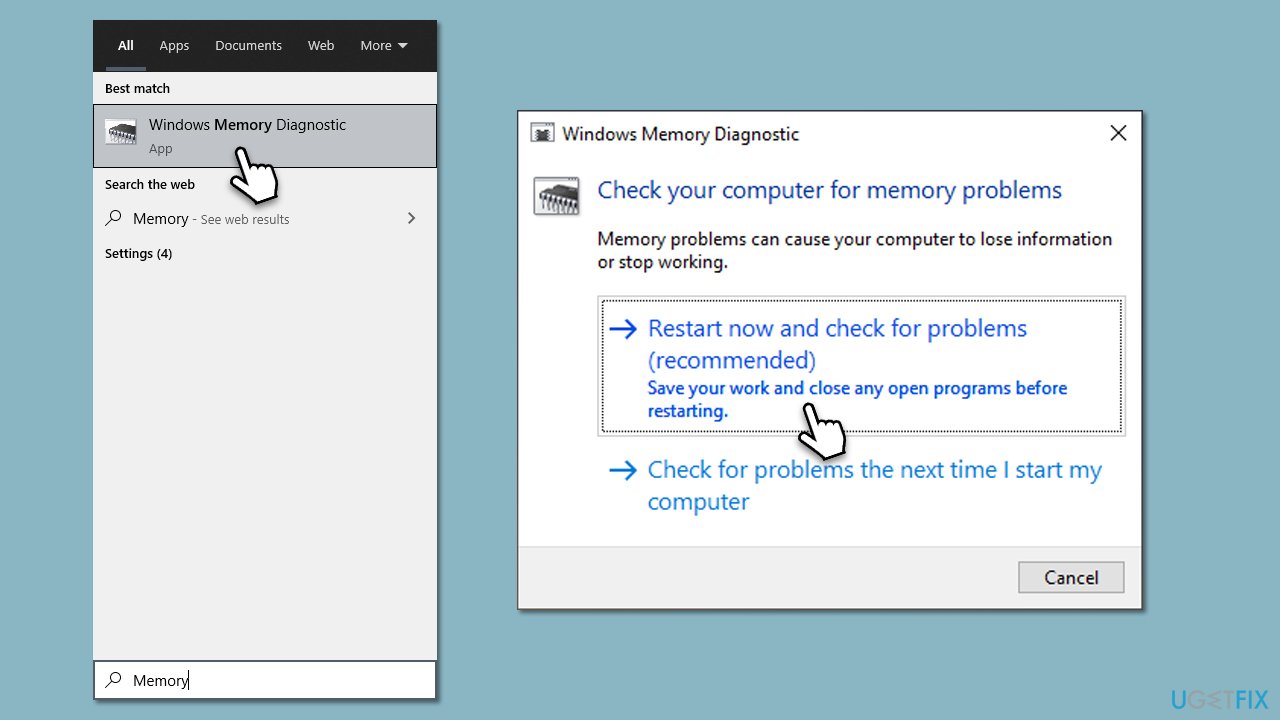
- Type Windows Memory Diagnostic into the Windows search bar and press Enter.
- Once the tool opens, you will see two options: Restart now and check for problems (recommended), or Check for problems the next time I start my computer.
- If you choose Restart now and check for problems, your computer will immediately reboot, and the Memory Diagnostic tool will start scanning your RAM for errors.
- If you choose Check for problems the next time I start my computer, the tool will run the next time your computer reboots.
- If errors are found, the tool will provide a report on the screen detailing the issues. If no errors are found, your computer will automatically restart, and you can use it as usual.
Solution 5. Check your disk for errors
Next, checking your disk could be beneficial as well:
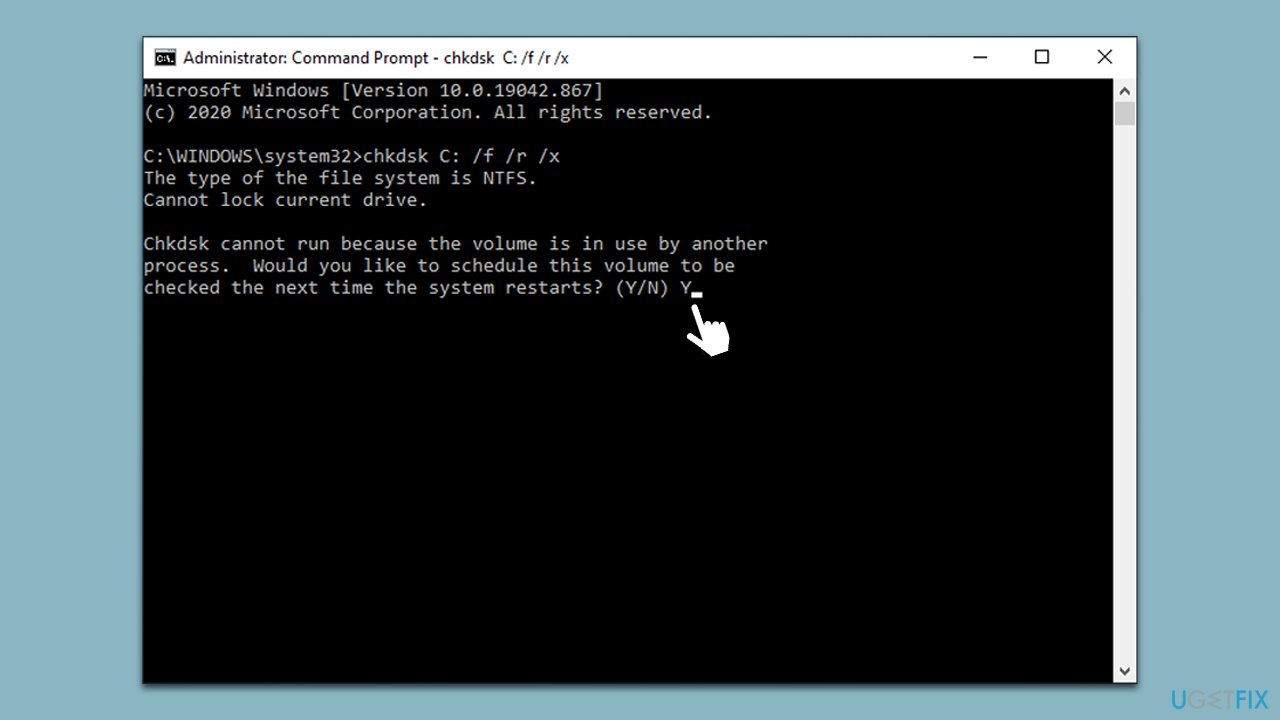
- Open Command Prompt as administrator, as explained previously.
- In the new window, type in the following command and press Enter after:
chkdsk c: /f
(Note: use chkdsk c: /f /r /x command if you are using SSD as your primary partition) - If you receive an error, type in Y, close down Command Prompt and restart your system.
- Wait until the scan is finished - you can find the results in the Event Viewer.
The error could show up with the following error codes:
Bottom line
To fix the NETwsw02.sys BSOD error, you can update or reinstall the Intel Wireless WiFi Link Driver, or tweak system settings. If these solutions do not resolve the issue, consider using a comprehensive PC repair tool to diagnose and rectify the problem.
Frequently asked questions
The NETwsw02.sys BSOD error is typically caused by issues with Intel wireless drivers or conflicts with software that affects network connectivity.
To update the Intel wireless drivers, go to Device Manager, locate your network adapter, right-click it, and select 'Update driver' to automatically search for the latest version.
Yes, in Device Manager, right-click the Intel wireless adapter, select 'Properties', go to the 'Driver' tab, and click 'Roll Back Driver' if the option is available.




Report an issue
What's wrong with this guide? We review every report and update or remove content.
Report received — thank you. We'll review and fix it.
You need a free account to submit a report.
Be the first to comment