How to fix
NVIDIA Web Helper.exe – Bad Image error
on Windows
Resolve the NVIDIA Web Helper.exe - Bad Image error on Windows 10 and 11 quickly and easily. Follow our expert-tested solutions for a seamless experience.

What causes How to fix NVIDIA Web Helper.exe – Bad Image error on Windows?
- Missing MSVCP140.dll file
- Missing MSVCR120.dll file
- Corrupted installation of NVIDIA software
- Recent Windows updates causing conflicts
- Incorrectly configured system settings
Repairs Windows system files, removes malware, and restores a clean OS state — without reinstalling.
Hi, every time I turn my PC on, I receive an NVIDIA Web Helper.exe - Bad Image error, which prevents me from doing pretty much everything. Is there anything that could be done to fix this?
Nvidia is pretty much the largest tech company that designs graphics processing units (GPUs), with its most known brand GeForce. Without a doubt, in order for the video cards to work correctly, a corresponding software must be installed, including drivers.[ref en-1] In this article, we will provide solutions on how to fix NVIDIA Web Helper.exe - Bad Image error, which users claimed to be encountered out of the blue.
NVIDIA Web Helper.exe system error commonly shows up when Windows is booted - on startup. While some people claim that this started happening right after their installed the latest Windows updates, others pointed out that the occurrence came out seemingly out of nowhere.
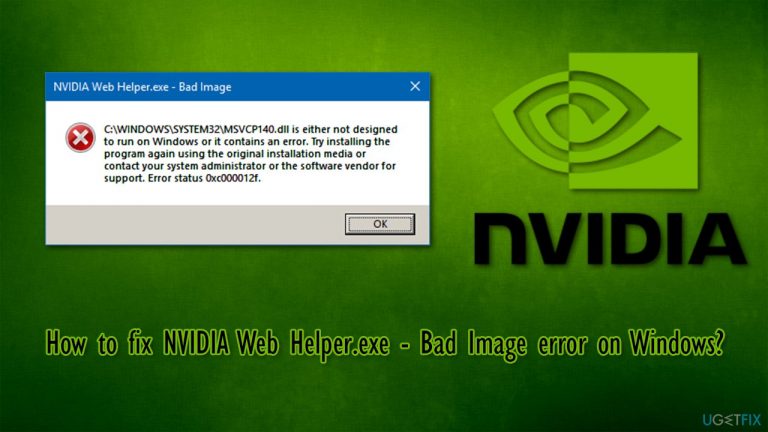
The error message text states the following:
NVIDIA Web Helper.exe - Bad Image
C:\\WINDOWS\\SYSTEM32\\MSVCP140.dll is either not designed to run on Windows or it contains an error. Try installing the program again using the original installation media or contact your system administrator or the software vendor for support. Error status 0x0000006.
So, the culprit of the error is NVIDIA Web Helper, which is a background process known to allow Nvidia's software to run JavaScript-based[ref en-2] tasks. The second part of the error, however, might differ from person to person - it is all based on what failed and why.
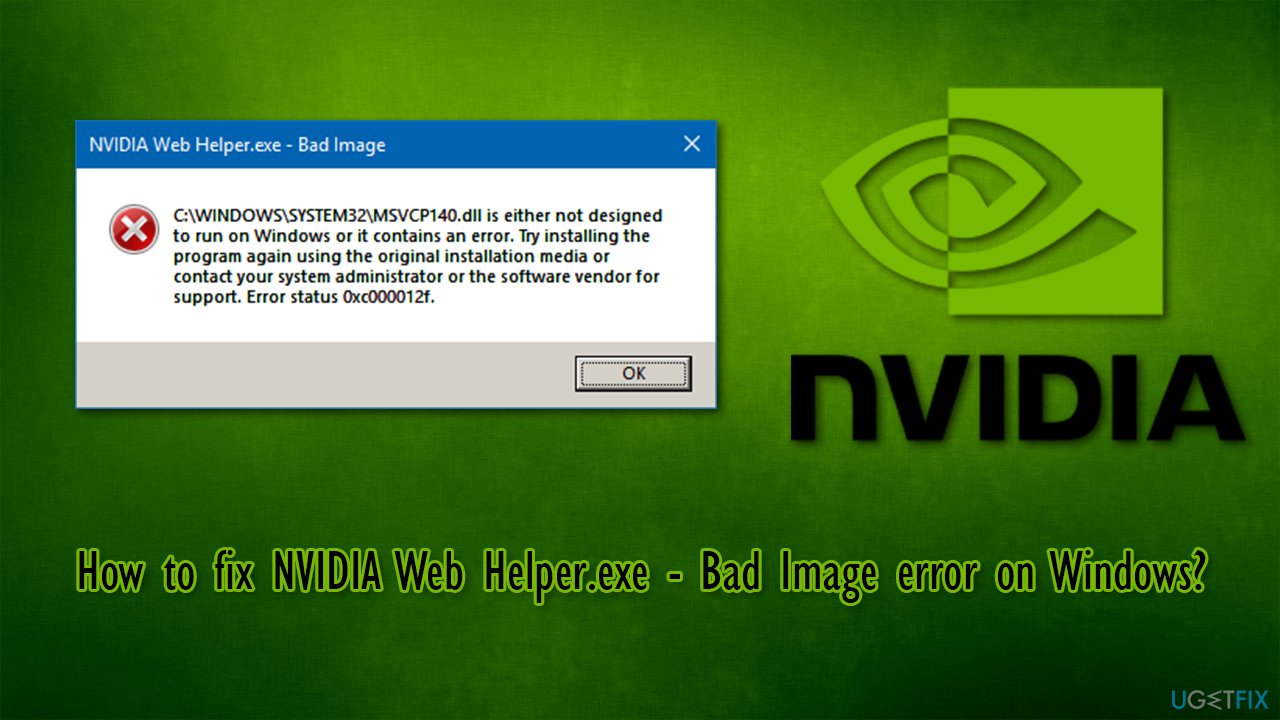
While MSVCP140.dll is the most common missing component, MSVCR120.dll, and a few others, along with different error codes (0xc000012F, for example), might also be mentioned. These DLL files are a part of the Visual C++ Redistributable for Visual Studio 2015 and are responsible for allowing run-time applications to run correctly.
The below solutions should help you fix NVIDIA Web Helper.exe - Bad Image error, but don't expect it to be a quick one. Since there are several reasons for the issue to arise, there is no solution that would work for everybody. Nonetheless, because the main reason for the error is missing DLL[ref en-3] files, we highly recommend you try to fix your Windows with an automatic repair tool [d1]. By using this app, you will save a lot of time and will have a backup plan for everything that goes wrong in your Windows PC.
Method 1. Update your operating system
Installing the latest Windows updates is an absolute must if you are having troubles with the OS.
- Type in Updates in Windows search and press Enter
- In the new window, click on Check for updates
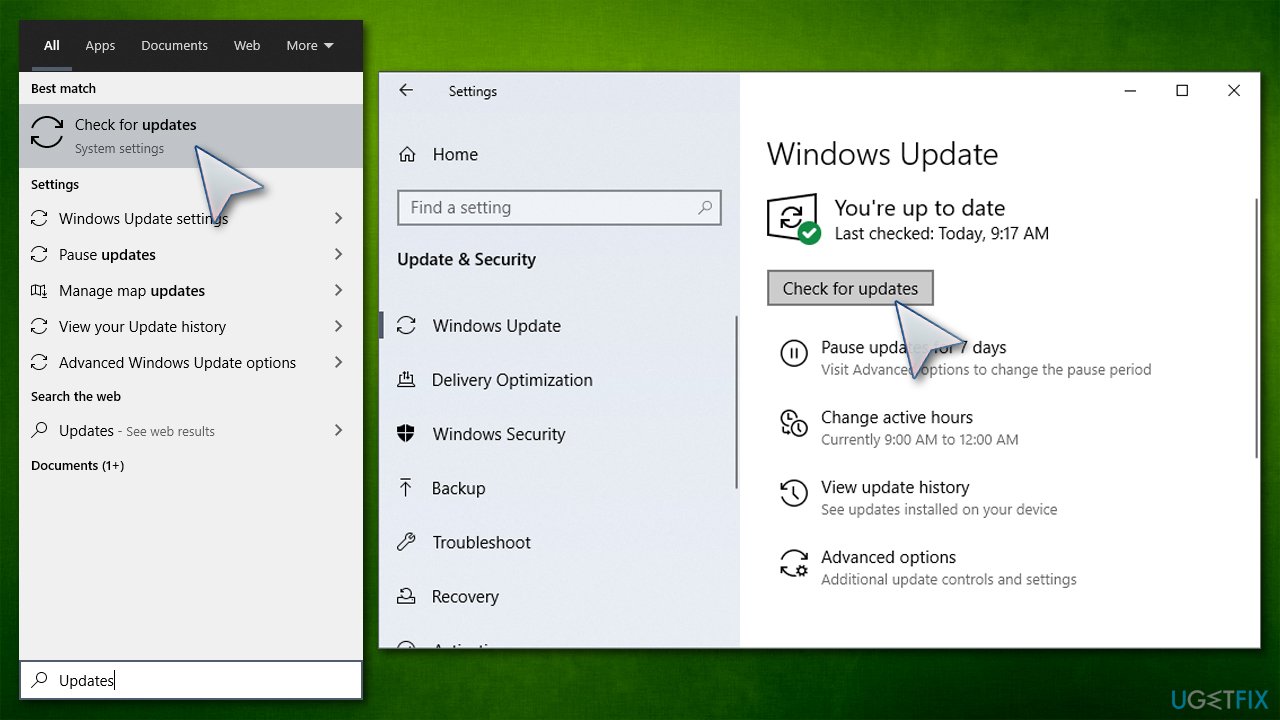
How to fix nvidia web helper exe bad image error on windows update windows - Wait till Windows installs the most recent updates
- Restart your computer and see if the problem persists.
Method 2. Reinstall Nvidia drivers
First of all, you should uninstall your current Nvidia drivers as explained below:
- Right-click on Start and pick Device Manager
- Expand Display adapters section
- Right-click on your GPU and select Uninstall Device
- In the warning pop-up, make sure your check the Delete the driver software for this device box and press Uninstall
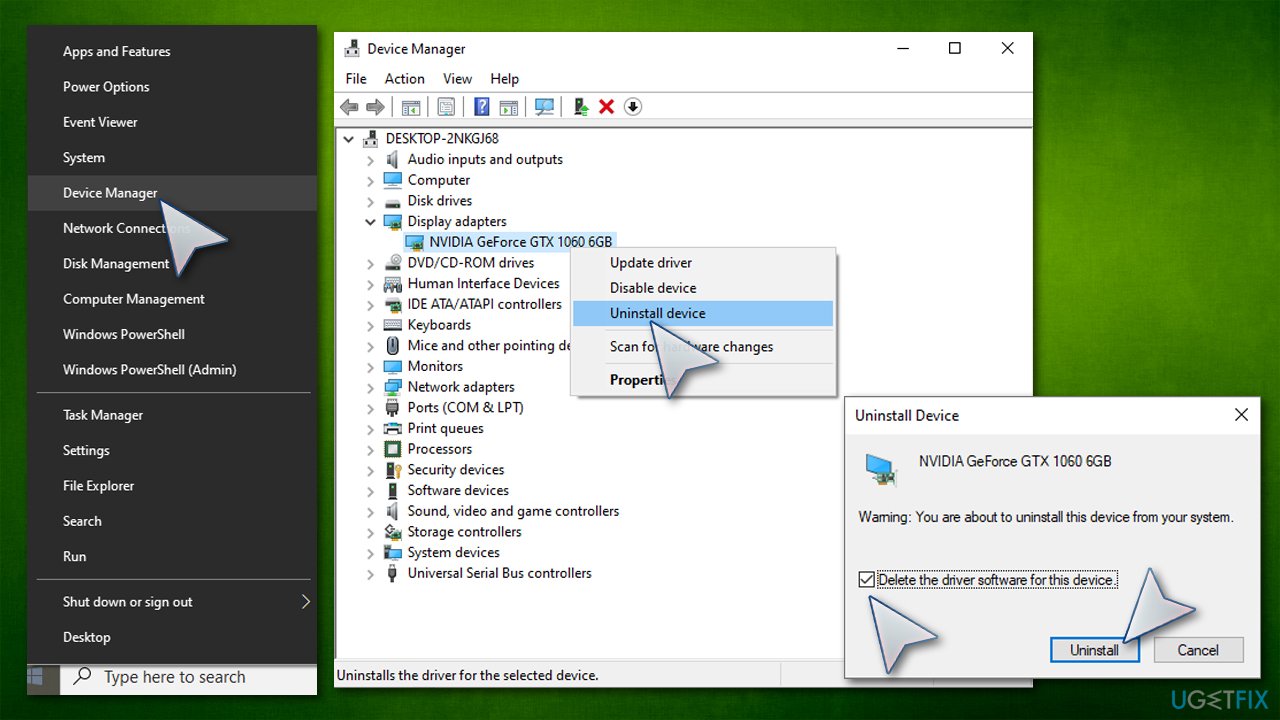
How to fix nvidia web helper exe bad image error on windows uninstall drivers - Reboot your PC
- This should completely remove Nvidia drivers from your device.
Now you need to download and install the most recent drivers for your GPU. While you can go browse the official Nvidia support website and do it manually, we highly recommend you try an axiomatic driver updated [rev id="DriverFix"]. By using the app, you will be able to update all drivers with just one click and ensure that the correct drivers are being implemented.
Method 3. Run System File Checker and DISM tools
In order to fix corrupted system files, run an SFC scan in an elevated Command Prompt:
- Type cmd in Windows search
- Right-click on Command Prompt result and pick Run as administrator
- Type in sfc /scannow in the new window and press Enter
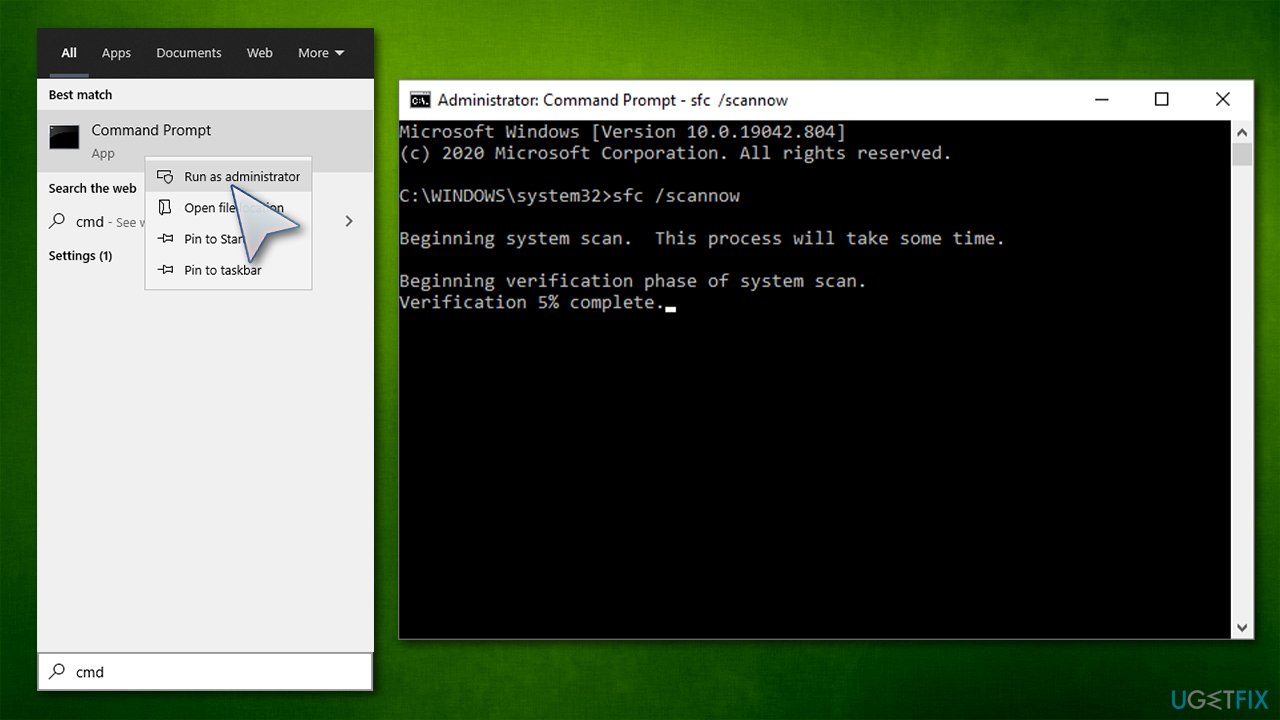
How to fix nvidia web helper exe bad image error on windows run sfc scan - Wait till scan finishes and then restart your PC.
If the scan returns with an error (for example, the message says that file integrity violation errors could not be fixed), you should try to repair the Windows image with the following commands (don't forget to press Enter after each):
- Dism /Online /Cleanup-Image /CheckHealth
- Dism /Online /Cleanup-Image /ScanHealth
- Dism /Online /Cleanup-Image /RestoreHealth
Method 4. Reinstall other Nvidia software
If reinstalling Nvidia drivers did not help you, you should try reinstalling other Nvidia components, such as GeForce Experience.
- Right-click on Start and select Apps & Features
- Scroll down until you see Nvidia GeForce Experience application
- Click on it once, the go for Uninstall
- Confirm with Uninstall and follow the on-screen instructions
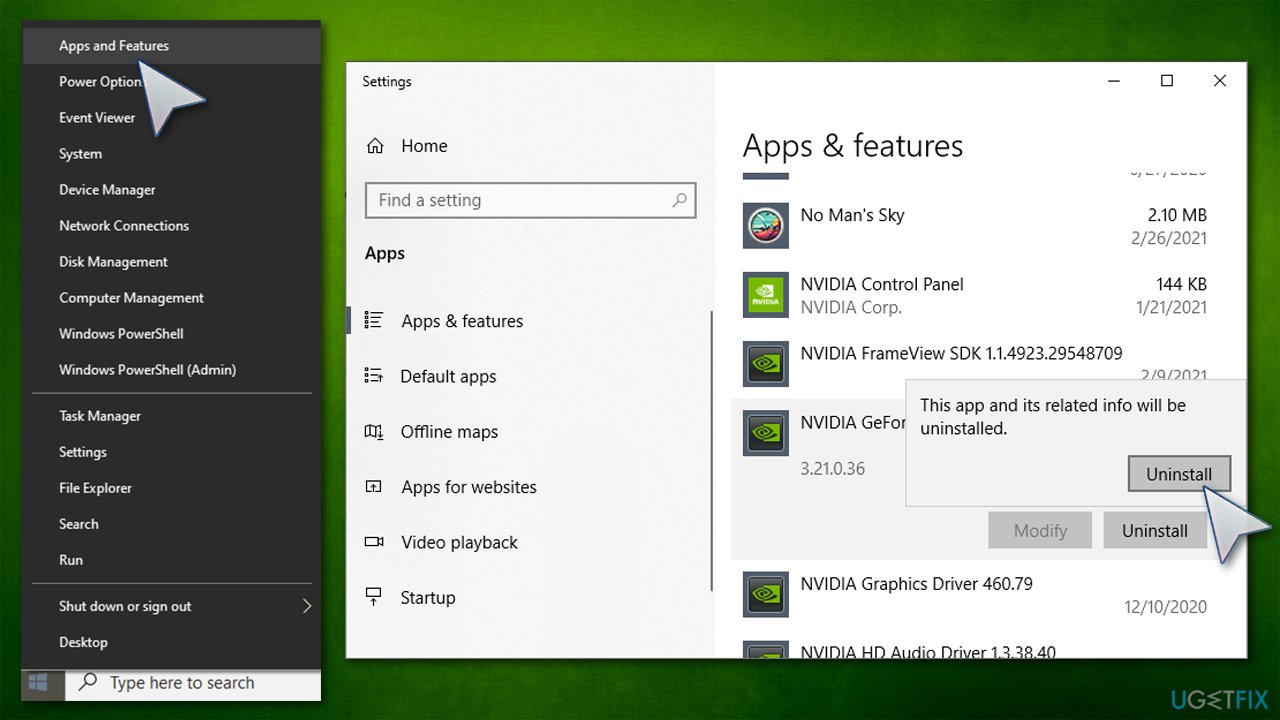
How to fix nvidia web helper exe bad image error on windows reinstall geforce experience - Once done, go to the official Nvidia site and re-download the software.
Note: you can try reinstalling other Nvidia components, such as Nvidia Physix System Software.
Method 5. Reinstall Microsoft Visual C++ 2015, 2017 and 2019 Redistributable
Since the missing DLL files are a part of the Microsoft Visual C++ 2015-2019 Redistributable, reinstalling the package should be able to help you fix NVIDIA Web Helper.exe Bad Image error. This package is typically installed with Windows updates, and if something goes wrong in this process, it might be the reason why you are getting this error. Thus, reinstall it as follows:
- Type in Control Panel in Windows search and hit Enter
- Go to Programs > Uninstall a program
- From the list, find all entries that belong to Microsoft Visual C++ 2015-2019, right-click and select Uninstall
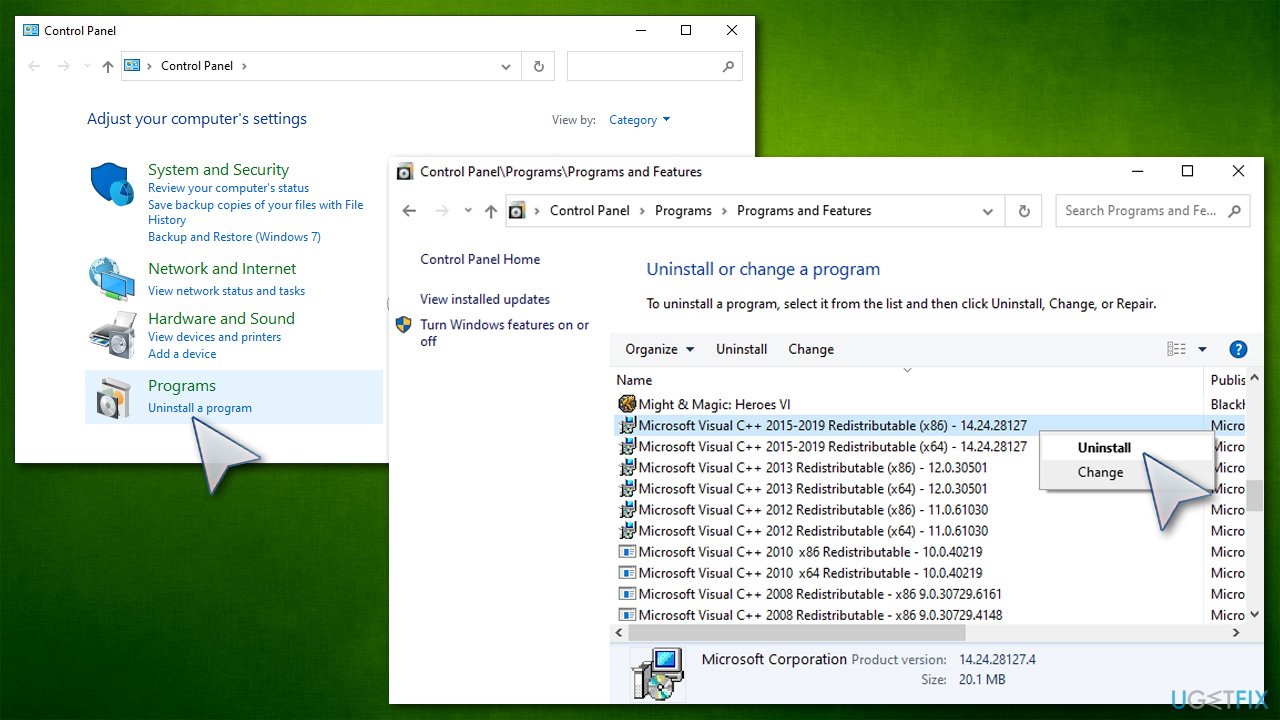
How to fix nvidia web helper exe bad image error on windows uninstall visual c redistributable - Proceed with on-screen instructions to finish the process
- Go to the official Microsoft website to download and install both, vc_redist.x86.exe (32-bit) and vc_redist.x64.exe (64-bit) versions of the package
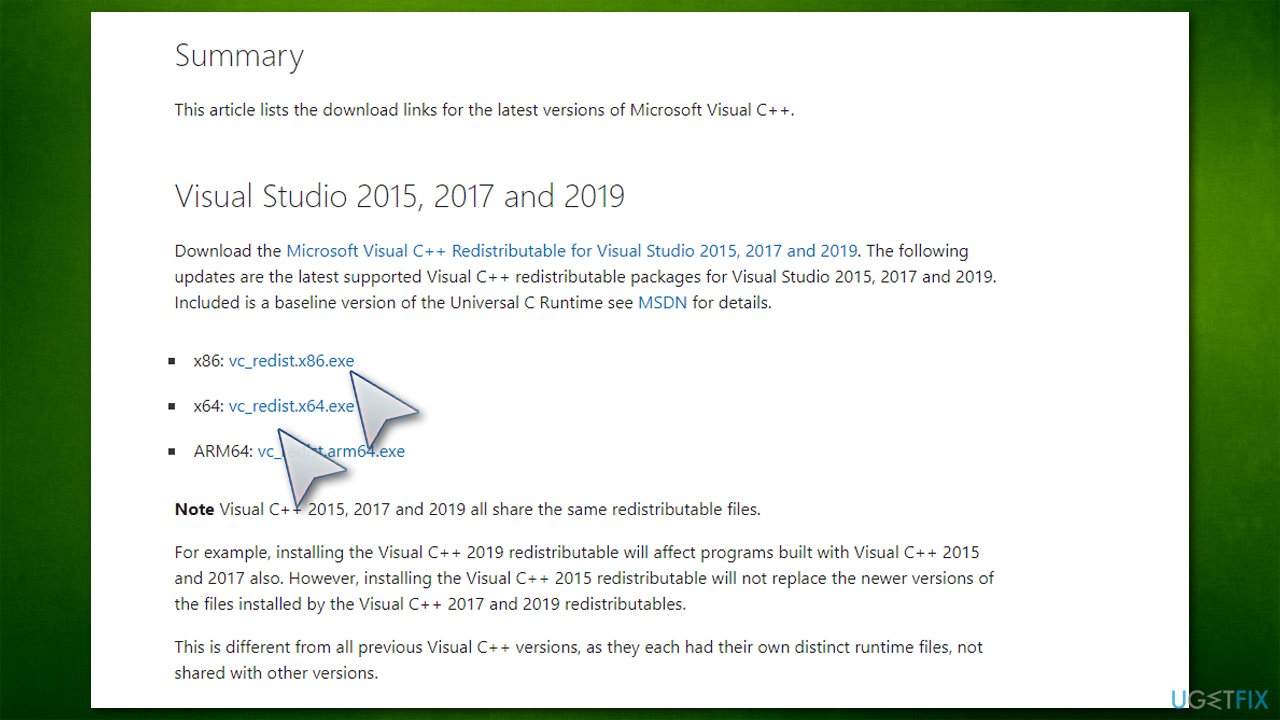
How to fix nvidia web helper exe bad image error on windows download visual c redistributable - Reboot your computer and check if the problem is fixed.
Method 6. Reset Windows
If none of the solutions above helped you to fix the issue, you could always try resetting your PC without losing your files. Here is the basic way to do it (you can check our more extensive guide):
- Right-click on Start and select Settings
- Choose Update & Security section and pick Recovery
- Under Reset this PC section, click Get Started
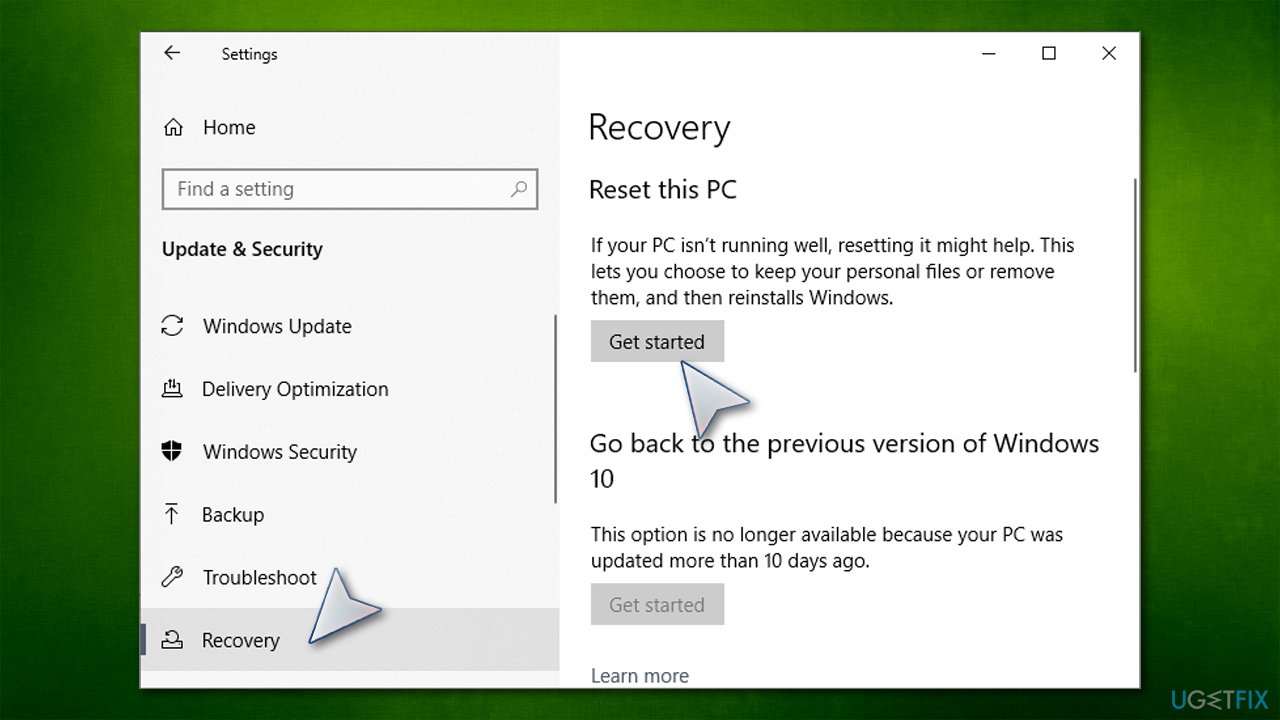
How to fix nvidia web helper exe bad image error on windows reset windows - Select Keep my files
- Pick Cloud download to finish the process.
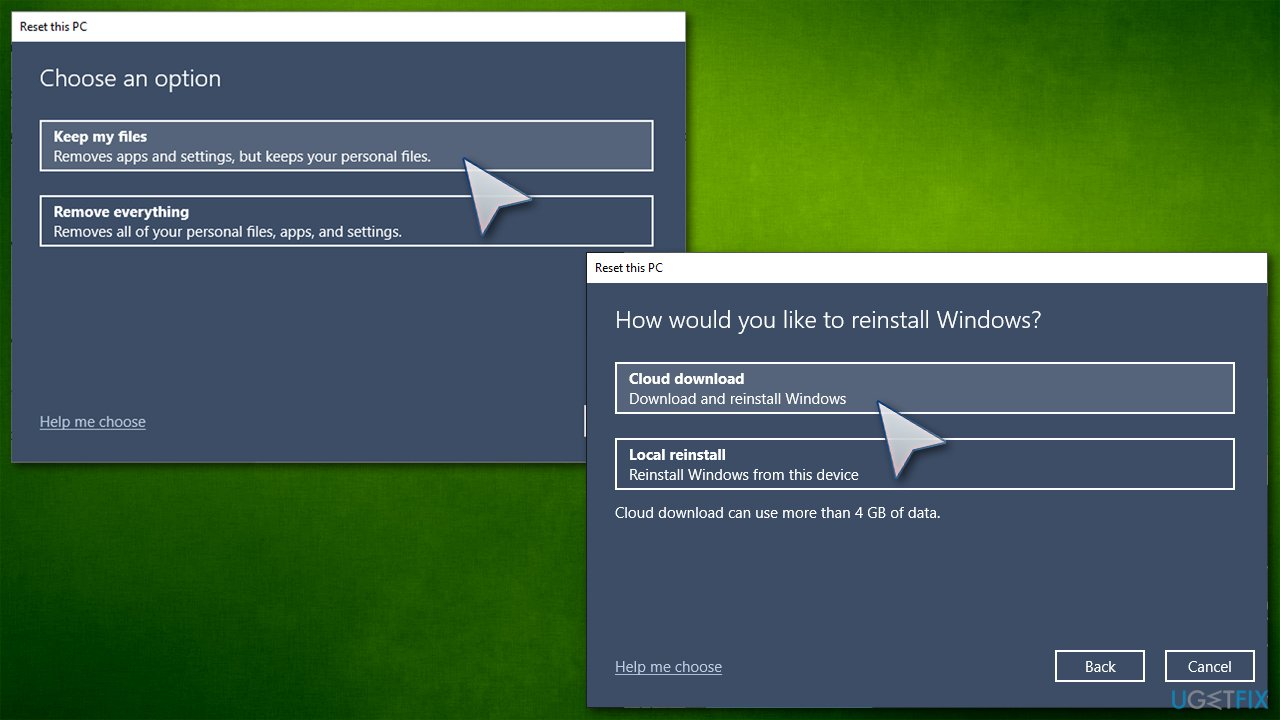
How to fix nvidia web helper exe bad image error on windows reset windows2
Bottom line
To fix the NVIDIA Web Helper.exe - Bad Image error, you can try reinstalling the NVIDIA software, repairing the Visual C++ Redistributable, or restoring system settings. If none of these solutions work, consider seeking further assistance from a system administrator or the software vendor.
Frequently asked questions
This error typically occurs due to corrupted files in the NVIDIA installation or conflicts with Windows system files. It can also arise from outdated drivers or improper software updates.
You can repair this error by reinstalling the NVIDIA graphics drivers or using the System File Checker tool to fix corrupted system files. Make sure to restart your computer after making these changes.
To prevent this error, regularly update your NVIDIA drivers and ensure that your Windows 10 system is up to date with the latest patches. Additionally, avoid using third-party software that may interfere with NVIDIA processes.




Report an issue
What's wrong with this guide? We review every report and update or remove content.
Report received — thank you. We'll review and fix it.
You need a free account to submit a report.
Be the first to comment