
How to fix OneDrive error code 0x8004de25 in Windows?

Prefer to fix it yourself? The manual steps follow.
- 6methods
- 5 to 30 minutes
- Intermediate
Applies to The OneDrive sync app on Windows 11 and Windows 10, with a personal Microsoft account or a work or school account
6 methods in this guide
I've been trying to sign in to OneDrive on my Windows 11 PC, but I keep getting error code 0x8004de25 with the message There was a problem signing you in. I can't sync my files, and sometimes OneDrive won't even open properly. I've tried restarting my computer and signing out, but the error keeps coming back. Any ideas?
OneDrive error code 0x8004de25 appears when the OneDrive app on your PC cannot finish signing you in, with the message There was a problem signing you in. The account is usually fine, because the same account often still works on another PC or on onedrive.com. Reset OneDrive first, then remove old sign-ins of other accounts if the error returns.
Sign in on onedrive.com in a browser first. If that works, the fault is on this PC. Reset the OneDrive app with Microsoft's /reset command, start it and sign in again (Fix 1). If OneDrive keeps trying an account you used before, remove the old OneDrive sign-ins and link the PC again (Fix 2). If only a second work account fails, go to Fix 3.
| Error | 0x8004de25 in a Microsoft OneDrive window: There was a problem signing you in and Login was either interrupted or unsuccessful. Please try logging in again. Some business setups show Try again later with the same code. |
|---|---|
| Where it appears | When the OneDrive sync app signs in on start, when you set it up the first time, or when you add a second account. The same account often still works on another PC. |
| Main cause | The sign-in state that OneDrive keeps on this PC, often mixed up with an account that was used on the same PC before. |
| Fastest fix | Reset OneDrive with %localappdata%\Microsoft\OneDrive\onedrive.exe /reset, start it from Start and sign in again (Fix 1). |
| Also written as | 8004de25, error code: 0x8004de25, ox8004de25, OneDrive login error code 0x8004de25, OneDrive Fehlercode 0x8004de25. |
| Affects | The OneDrive app on Windows 11 and Windows 10, and the Mac app too. Reports on Microsoft Q&A run from 2020 to 2025. |
| Vendor status | No Microsoft fix and no explanation of the code. A Microsoft support agent wrote in 2021 that they had limited information about this error code. |
| Your files | Safe. The error blocks the sign-in and the sync, not the files on the PC or in the cloud. |
| Time to fix | 5 minutes for Fix 1 and Fix 2, up to 30 minutes for a clean reinstall. |
Facts checked on 15 October 2026. Steps written for Windows 11 (25H2 and 26H2) and Windows 10 22H2 with the current OneDrive sync app.
What OneDrive error code 0x8004de25 means
Error code 0x8004de25 is a OneDrive sign-in error. The OneDrive desktop app started a sign-in for your account, the sign-in did not finish, and the app stopped with this code. The message says it plainly: the login was either interrupted or unsuccessful.
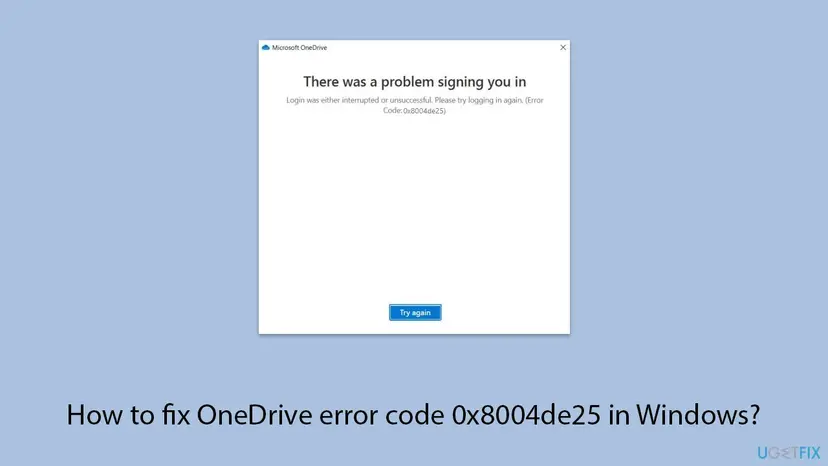
- The usual form: a Microsoft OneDrive window with There was a problem signing you in and the line Login was either interrupted or unsuccessful. Please try logging in again. (Error Code: 0x8004de25).
- On business terminal servers: administrators on Microsoft Q&A report Try again later with Errorcode: 0x8004de25 after a user logs on again, sometimes with many OneDrive icons in the taskbar tray.
- When adding a second account: the first account works, the second one fails with the same code, even though it works on onedrive.com.
- Spellings people search: 0x8004de25, 8004de25, error code: 0x8004de25 and, with typos, ox8004de25 or 2x8004de25. All of them are the same error.
The code says nothing more than that. Microsoft has not published what 0x8004de25 means, so what happened just before the error is your real clue: a new PC, a second account, an account you used before, or a shared terminal server.
Why OneDrive shows 0x8004de25: the causes, most common first
The order below follows what fixed the error in the reports on Microsoft Q&A. The answer that more than 100 people marked as helpful was a reset of the OneDrive app, so damaged sign-in state on the PC comes first.
| How often | Cause | Typical sign | Fix |
|---|---|---|---|
| Most often | OneDrive's own settings and sign-in state on this PC are damaged. | The same account works on another PC or on onedrive.com. | Fix 1 |
| Often | OneDrive keeps trying an account that was used on this PC before. | Several Microsoft accounts were used here; the error comes back after a reset. | Fix 2 |
| Sometimes | A second account from another organisation cannot be added. | The first account works, the second fails, a personal account still works. | Fix 3 |
| Rarely | A damaged OneDrive installation. | Reset does nothing, or OneDrive does not open properly. | Fix 4 |
| Rarely | The Windows user profile itself. | Everything above failed on one Windows user only. | Fix 5 |
| Business only | Non-persistent terminal servers with profile containers such as FSLogix. | Sign-in works once and fails after every new logon. | Fix 6 |
Open onedrive.com in a browser and sign in with the same account. If that fails too, the problem is the account or the service, not your PC: reset the password, or ask your IT admin for a work account. If the web sign-in works, every fix below applies.
How to fix OneDrive error code 0x8004de25
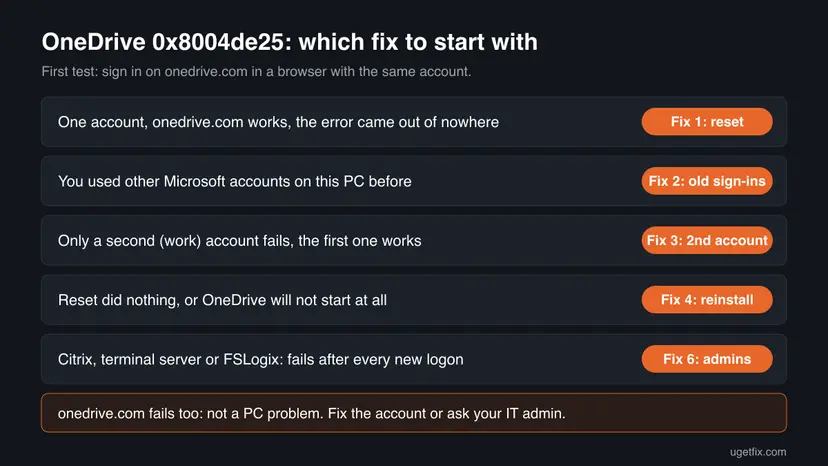
Fixes 1 and 2 work on any PC and solve most cases in a few minutes. Fix 3 is for a second account that will not add. Fixes 4 and 5 are the last steps on a home or office PC, and Fix 6 is for administrators of terminal servers.
| What you see or what happened | Start with |
|---|---|
| One account, onedrive.com works, the error came out of nowhere. | Fix 1 |
| Other Microsoft accounts were used on this PC, or the error returns after a reset. | Fix 2 |
| The first account works, only a second work or school account fails. | Fix 3 |
| Reset did nothing, or OneDrive will not open properly. | Fix 4 |
| Citrix, Remote Desktop host or FSLogix: it fails after every new logon. | Fix 6 |
| onedrive.com in a browser fails as well. | Not a PC problem: see the account check under the causes. |
Fix 1. Reset OneDrive and sign in again
5 minutes, then a full syncLow riskEveryone, and first of all when the same account works on another PC or on onedrive.com.
A reset clears OneDrive's settings on this PC, so the next start begins the sign-in from zero instead of reusing the broken state. On Microsoft Q&A this was the accepted answer for 0x8004de25, and more than 100 people marked it as helpful.
- Open the Run box. Press the Windows key and R at the same time.
- Reset the Microsoft Store cache. Type the command below and select OK. A blank Command Prompt window opens and closes, then the Microsoft Store opens. Close it. This is the first step in Microsoft's instructions. If OneDrive still does not sync, continue.
wsreset.exe - Run the OneDrive reset command. Press the Windows key and R again. Copy the command below, paste it into the box and select OK.
%localappdata%\Microsoft\OneDrive\onedrive.exe /reset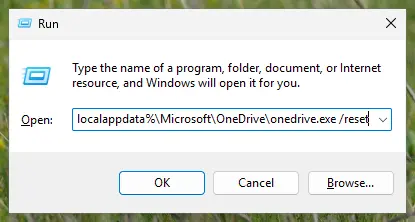
Type the reset command in the Run box and select OK. Screenshot: Windows 11 26H2. - If Windows cannot find it, try the second path. If you see a message that starts with Windows cannot find, open the Run box again and use this command instead.
C:\Program Files\Microsoft OneDrive\onedrive.exe /reset - If that fails too, try the third path. If you still see Windows cannot find, use this command. If none of the three works, the OneDrive sync app is not installed on this PC.
C:\Program Files (x86)\Microsoft OneDrive\onedrive.exe /reset - Start OneDrive again. Select Start, type OneDrive in the search box and select the OneDrive desktop app. OneDrive then starts a full sync.
These steps were written for Windows 11 25H2 and 26H2, Windows 10 22H2. The full page with the other versions and what each result means: How to reset OneDrive in Windows
If OneDrive does not open on its own after the reset, wait a few minutes and start it from Start. When the Set up OneDrive window asks for your email address, use the same account that works on onedrive.com.
Some users on Microsoft Q&A wrote that one reset was not enough. Restart the PC once after the reset and try the sign-in again before you move on to Fix 2.
It worked if: OneDrive accepts your email address and password, shows the OneDrive folder location and starts syncing without the 0x8004de25 window.
If not: If OneDrive tries a different account or the error comes back after a restart, go to Fix 2.
Fix 2. Remove old OneDrive sign-ins and link the PC again
10 minutesLow riskSeveral Microsoft accounts were used on this PC, or the error comes back after a reset.
A user on Microsoft Q&A who had worked with three Microsoft accounts on one computer found that OneDrive kept trying to sign in to one of the old accounts. Deleting the stored OneDrive sign-ins of those accounts ended 0x8004de25.
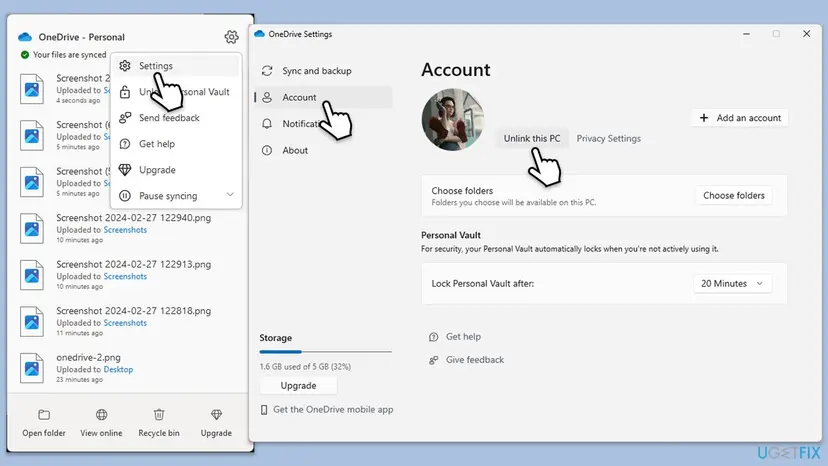
- If OneDrive opens at all, select the OneDrive cloud icon, the gear Help & Settings, then Settings. On the Account tab select Unlink this PC, then Unlink account.
- Quit OneDrive: gear Help & Settings > Pause syncing > Quit OneDrive.
- Select Start, type Credential Manager and open it. Select Windows Credentials.
- Under Generic Credentials, expand each entry whose name contains OneDrive and select Remove.
- Leave every other entry alone, unless you know it belongs to the old account that OneDrive keeps trying.
- Restart the PC, open OneDrive from Start and sign in with the account you want. When it asks for the folder location, choose your old OneDrive folder so unchanged files are not downloaded again.
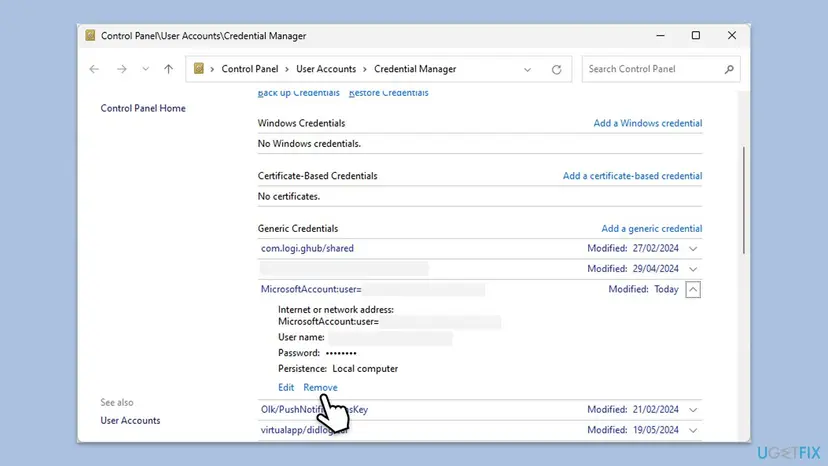
We could not find a Microsoft page that lists the exact names of OneDrive's entries in Credential Manager on Windows. Removing only entries that clearly belong to OneDrive, or to the old account, keeps the sign-ins of your other apps.
It worked if: OneDrive asks for the account you choose, signs in and is still signed in after the next restart.
If not: If only a second account fails, go to Fix 3. Otherwise go to Fix 4 for a clean reinstall.
Fix 3. Add a second work or school account the right way
10 minutesLow riskThe first account syncs, but adding a second account, often from another organisation, fails with 0x8004de25.
In a Microsoft Q&A thread the error appeared only for a second business account, while a personal account could still be added. The Microsoft support agent first had the user test the Sync button on the web, then sent the case to the organisation's admin.
- Open onedrive.com in a browser and sign in with the account that fails. If that sign-in fails, stop here: the account itself needs attention from your IT admin.
- In OneDrive on the web, open My files and select Sync. Let the browser open the OneDrive app.
- If the app shows 0x8004de25 again, open OneDrive Settings > Account and check that this account is not already listed. An account cannot be added twice.
- If the account was linked before, remove its OneDrive entries as in Fix 2 and try Add an account again.
- Test with a personal Microsoft account. If a personal account adds fine and only the work account fails, the block is on the organisation's side.
In the Q&A case the same error appeared in a new user account too, and Microsoft's answer was to ask the IT admin to open a ticket in the Microsoft 365 admin center. Only an administrator can open that ticket and check the account on Microsoft's side.
It worked if: The second account appears on the Account tab next to the first one and gets its own OneDrive folder.
If not: Send the details from the still-broken section below to your IT admin. A clean reinstall (Fix 4) can be tried meanwhile.
Fix 4. Uninstall OneDrive cleanly and install the current version
20 minutesLow riskFixes 1 and 2 did nothing, or OneDrive itself will not open properly.
A reset keeps the program files. A Microsoft support answer for 0x8004de25 suggested uninstalling and reinstalling OneDrive, because the app itself can be damaged. Moving its AppData folder aside makes sure no old setting is reused.
- Quit OneDrive: gear Help & Settings > Pause syncing > Quit OneDrive.
- Press Win + R, paste the path below and select OK. Go up one level to Microsoft, then move the OneDrive folder to your desktop instead of deleting it.
%localappdata%\Microsoft\OneDrive - Select Start > Settings > Apps > Installed apps (on Windows 10: Apps & features). Find Microsoft OneDrive, select the three dots and Uninstall.
- Restart the PC.
- Download the OneDrive app from Microsoft's OneDrive download page and run the file. Sign in when the setup asks.
- When OneDrive runs, open the gear Help & Settings > Settings > About and note the OneDrive version.
- When OneDrive syncs again, delete the old folder from your desktop.
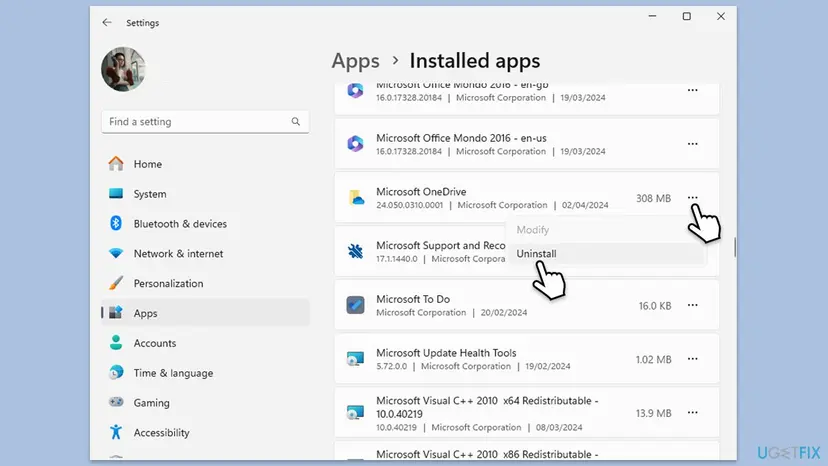
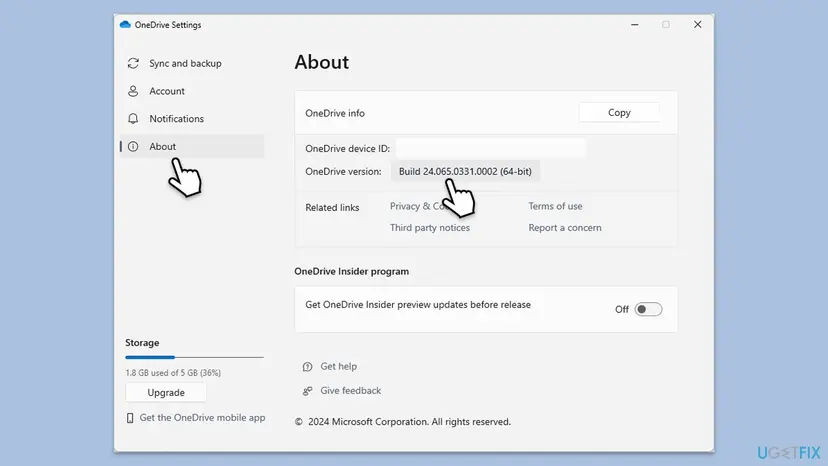
Other ways to uninstall, and what to do when the uninstaller fails: Uninstall a program or app in Windows
It worked if: The new OneDrive asks for your account, signs in and keeps the sign-in after a restart.
If not: Test a new Windows user with Fix 5.
Fix 5. Test OneDrive in a new Windows user account
15 minutesLow riskNothing above worked and you want to know whether the problem is in your Windows profile.
Every Windows user has its own OneDrive settings and stored sign-ins. If OneDrive signs in for a fresh user, the fault is in your old profile. If it fails there too, as in one business case on Microsoft Q&A, the cause is outside the profile.
- Open Other users. Open Settings > Accounts > Other users. You can also press Windows key + R and run the command below.
ms-settings:otherusers - Add an account. Next to Add other user, select Add account.
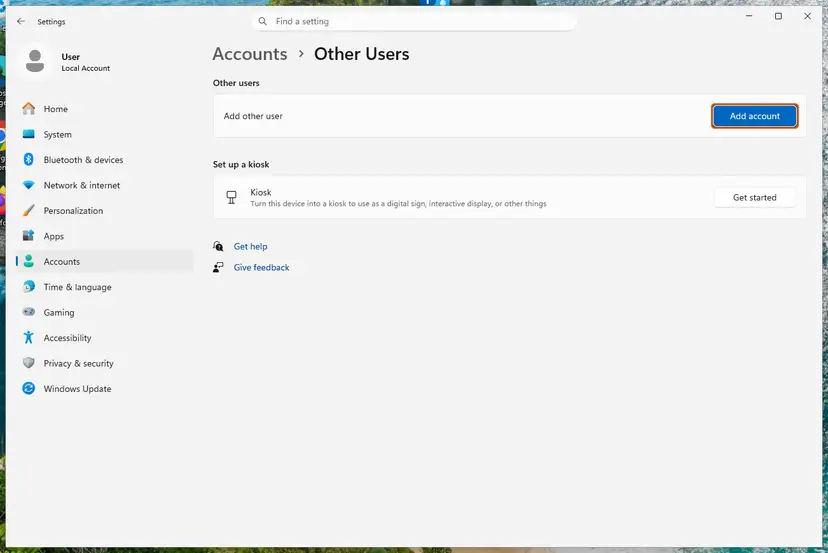
Add account is next to Add other user. Screenshot: Windows 11 26H2. - Skip the Microsoft account. Select I don't have this person's sign-in information.
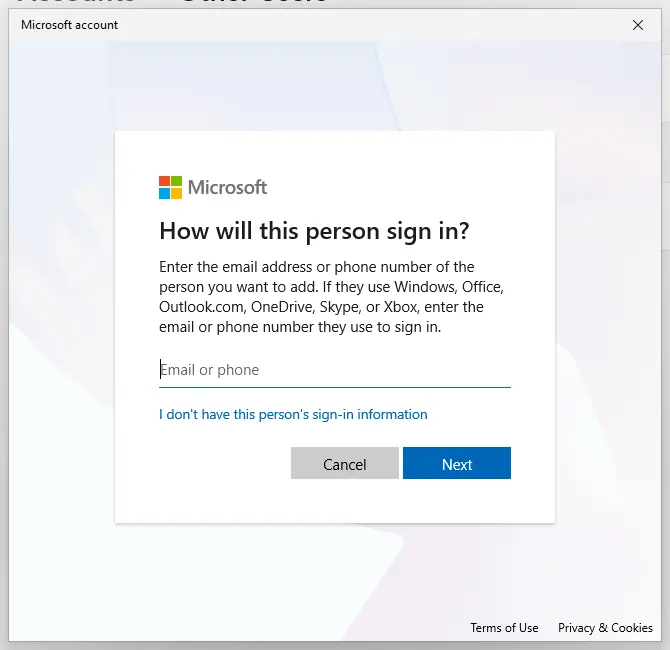
The link for a local account is under the email box. Screenshot: Windows 11 26H2. - Choose a local account. Select Add a user without a Microsoft account.
- Name the account. Type a user name and, if you want one, a password. If you set a password, Windows also asks for answers to security questions. Select Next.
- Make it an administrator (optional). Back in Other users, select the new account, then Change account type next to Account options. Choose Administrator and select OK. For testing a problem, a standard account is usually enough.
- Sign in to the new account. Open Start, select your account picture and choose the new account. The first sign-in takes a few minutes while Windows sets up the profile.
These steps were written for Windows 11 24H2, 25H2 and 26H2. The full page with the other versions and what each result means: Create a new user account to test a problem
In the new account, open OneDrive from Start and sign in with your usual Microsoft or work account. Do not move any files yet: this is only a test.
It worked if: OneDrive signs in without error in the new account. Your profile is the problem, and you can move your work to the new account.
If not: If it fails in the new account too, collect the details as described below and contact Microsoft or your IT admin.
Fix 6. For administrators: 0x8004de25 on Citrix, Remote Desktop hosts and FSLogix
1 hour or moreRead the warningOneDrive runs on non-persistent session hosts with a profile or Office container, and users get the error after every new logon.
An administrator on Microsoft Q&A saw 0x8004de25 on nightly rebuilt Citrix servers with FSLogix: the first sign-in worked, the next logon failed. The same OneDrive version worked on a normal laptop, which points to the session host setup.
Changing the OneDrive version or the profile container settings affects every user on the host. Test on one session host with a test user first, and keep the current image so you can roll back.
- Note the OneDrive version and the date the error started. In the Q&A case it began after an automatic OneDrive update.
- Log on with a test user, sign in to OneDrive, log off cleanly and log on again. If the error appears only on the second logon, the stored sign-in does not survive the profile container.
- Check that OneDrive data is included in the container you use. The administrator in that thread had OneDrive and SharePoint enabled in the Office container.
- Install an earlier OneDrive build from Microsoft's release notes on one test host. Microsoft's support answer suggested this test to rule out a problem with the newest version.
- Test the same user on that host with the profile container switched off. If OneDrive then keeps the sign-in, the container setup is the cause.
- If nothing helps, open a case through the Microsoft 365 admin center with the OneDrive logs and the times of the failed sign-ins.
It worked if: OneDrive keeps the sign-in from one logon to the next on the test host.
If not: In the Q&A thread, a reset, a reinstall and a new user did not help, and the administrator went to Microsoft support. Do the same, with the details from the next section.
If OneDrive still shows 0x8004de25: what to collect and who can help
Support cannot do much with 0x8004de25 alone, and Microsoft has said it has little information about the code. Collect the facts below before you ask, so you do not have to repeat every test.
- The account type: personal (outlook.com, hotmail.com, live.com) or work or school, and whether onedrive.com works in a browser.
- Other PCs: whether the same account signs in to OneDrive on another computer.
- Other accounts: which Microsoft accounts were used on this PC before, and whether a personal account can be added.
- The OneDrive version: gear Help & Settings > Settings > About, if OneDrive still opens.
- What you already tried: reset, removed sign-ins, reinstall, a new Windows user, and what happened each time.
- On terminal servers: the logon at which the error first appears, the profile container, and the OneDrive version that last worked.
With a work or school account, your IT admin is the right contact: only an administrator can open a Microsoft 365 support ticket. With a personal account, use Contact Microsoft Support at the bottom of Microsoft's OneDrive help pages.
Are your OneDrive files safe while 0x8004de25 blocks the sign-in?
Yes. The error stops the sign-in and the sync, not the storage. Everything you synced before is still in the OneDrive folder on the PC and in the cloud, and onedrive.com shows the cloud copy. A reset only disconnects the sync connections and makes OneDrive compare everything again.
- Changes you make while signed out stay on the PC and upload when OneDrive signs in again.
- Files that are online-only (the cloud icon in File Explorer) cannot open until OneDrive runs. Open them on onedrive.com meanwhile.
- After a reset or reinstall, point OneDrive at the same folder. Files that did not change are then not downloaded again.
How to keep 0x8004de25 from coming back
In the reports, the error came back when old accounts and old sign-ins stayed on the PC, or when a session host lost the sign-in between logons. Both can be planned for.
- Unlink an account in OneDrive before you stop using it on this PC.
- Keep OneDrive and Windows updated, and let OneDrive update itself.
- After a password change, sign in to OneDrive once when it asks, instead of closing the window.
- On terminal servers, test each new OneDrive build on one host before the farm.
- Do not delete random entries in Credential Manager.
- Do not delete the OneDrive folder in AppData: move it aside until OneDrive works.
- Do not add the same account twice in OneDrive.
- Do not turn off the firewall or the antivirus for good to fix a sign-in.
Frequently asked questions
What does error code 0x8004de25 mean?
It means the OneDrive app could not finish signing you in. The window says the login was either interrupted or unsuccessful. Microsoft has not published a fuller description, and its support agent wrote in 2021 that they had limited information about the code. In practice the account is usually fine, because it still signs in on onedrive.com or on another PC. The broken part is the sign-in state that OneDrive keeps on this PC. Start with a reset of OneDrive.
Why does OneDrive keep signing in to my old account?
OneDrive and Windows keep stored sign-ins of accounts that were used on the PC before. A user on Microsoft Q&A who had used three Microsoft accounts on one computer saw OneDrive try one of the old accounts again and again, with 0x8004de25 when the right account was forced. Removing the stored OneDrive sign-ins ended the problem. On Windows, unlink the PC in OneDrive, remove the OneDrive entries in Credential Manager and sign in again, as in Fix 2.
Will I lose my files if I reset or reinstall OneDrive?
No. A reset clears OneDrive's settings and makes it compare all files again, and an uninstall removes the program, not your files. The files stay in the OneDrive folder on the PC and in the cloud, where onedrive.com shows them. If you synced only some folders, choose them again after the reset. When OneDrive asks for a folder location, choose the old one so unchanged files are not downloaded again.
The reset command says Windows cannot find onedrive.exe. What now?
OneDrive can be installed in three places, and the first command only covers the per-user one. Try C:\Program Files\Microsoft OneDrive\onedrive.exe /reset next, then C:\Program Files (x86)\Microsoft OneDrive\onedrive.exe /reset. If none of the three paths works, the OneDrive sync app is not installed for this user. Install it from Microsoft's OneDrive download page, then sign in. Fix 1 lists all three commands in order.
Is 0x8004de25 a OneDrive outage on Microsoft's side?
Usually not. In the Microsoft Q&A reports the same account signed in on a second laptop or on onedrive.com while one PC failed. That points to the PC, not the service. To be sure, sign in to onedrive.com with the same account. If the web sign-in fails too, wait or fix the account first: reset the password, or ask your IT admin for a work account. If it works, follow the fixes on this page.
Why can I add my personal account but not a second work account?
In the Microsoft Q&A case, a personal account could be added while a second business account from another organisation failed with 8004de25. A new user account showed the same error. Microsoft's support answer was to have the IT admin open a ticket in the Microsoft 365 admin center, because the cause could not be seen from the PC. Test the account on onedrive.com and with the Sync button first, as in Fix 3, then hand it to IT.
Do I need to run SFC, DISM or turn off the firewall for this error?
Not as a first step. None of the reports and Microsoft answers we read for 0x8004de25 name damaged system files as the cause. One administrator turned off all firewall rules for a test, and the error stayed. So this page does not use those steps. If Windows itself shows other faults, a system file repair is a safe extra step: Run DISM and SFC to repair Windows system files. Never leave the firewall or the antivirus off.
How do I fix OneDrive error 0x8004de25 on a Mac?
This page covers Windows, but the Mac app shows the same code. Users on Microsoft Q&A fixed it with a reset: quit OneDrive, open Applications, right-click OneDrive, choose Show Package Contents, go to Contents > Resources and run ResetOneDriveAppStandalone.command. If OneDrive keeps trying an old account, delete the app, then delete every OneDrive entry in Keychain Access, restart and install OneDrive again. One user could remove the Keychain entries only after deleting the app.
Why does 0x8004de25 come back after every logon on our terminal server?
On non-persistent session hosts, the sign-in that OneDrive stores has to survive in the profile or Office container. An administrator on Microsoft Q&A saw the first sign-in work and every later logon fail on rebuilt Citrix servers with FSLogix, after an automatic OneDrive update. Microsoft suggested testing an earlier OneDrive build and the host without the container. Fix 6 lists those tests. If they do not help, open a case in the Microsoft 365 admin center.
Is this page available in German or other languages?
This page is in English, but the error and the fixes are the same in every language of Windows. People search for it as OneDrive Fehlercode 0x8004de25 in German. Menu names differ by language, so look for the same place: the OneDrive gear for Settings, Credential Manager in the Control Panel, and Installed apps in Settings. The reset commands and folder paths work unchanged in every language.
Sources
- Microsoft Q&A: One Drive Error Code Ox8004de25 (accepted reset answer and user reports, including Mac) (learn.microsoft.com)
- Microsoft Q&A: Getting error 8004de25 during add account (Microsoft support answers) (learn.microsoft.com)
- Microsoft Q&A: Onedrive 0x8004de25, unable to login after relogging a user (Citrix and FSLogix) (learn.microsoft.com)
Did this fix work?
One click, no account. It tells the next reader which guides are worth their time.
Questions and experiences: fix OneDrive error code 0x8004de25 in Windows
Still broken, or found a fix we did not cover? Ask here: members and our editors answer. Reading is open; writing needs a free account.
…