
How to fix OneDrive Sync error 0x8004deea in Windows?

Prefer to fix it yourself? The manual steps follow.
- 7methods
- 5 to 30 minutes
- Intermediate
Applies to The OneDrive sync app on Windows 11 and Windows 10, with a work or school account or a personal Microsoft account
7 methods in this guide
Hello. When I try to sync OneDrive on my Windows PC, I get the 0x8004deea error. How do I fix this?
OneDrive error code 0x8004deea means a policy on your PC blocks the account you are syncing, with the message Your IT department doesn't allow you to sync files from this location to your computer. The policy is the allow list or block list of organisations that OneDrive may sync. Check which list is set first, then ask IT or remove a leftover policy.
0x8004deea is not a damaged OneDrive: a policy on the PC lets OneDrive sync only accounts of allowed organisations, and yours is not on the list. Check for the AllowTenantList or BlockTenantList key first (Fix 1). On a company PC, ask IT to allow your organisation (Fix 2). On your own PC, back up the registry and remove the leftover policy (Fix 3).
| Error | 0x8004deea in a Microsoft OneDrive window: OneDrive can't sync and Your IT department doesn't allow you to sync files from this location to your computer. (Error Code: 0x8004deea) |
|---|---|
| Where it appears | When you add an account to the OneDrive sync app, or in an account that synced before and suddenly stops. |
| Main cause | The OneDrive policy Allow syncing OneDrive accounts for only specific organizations (registry key AllowTenantList) does not list your organisation's tenant ID. Less often, Block syncing OneDrive accounts for specific organizations (BlockTenantList) lists it. |
| Fastest fix | Find the policy key with Fix 1. Then IT adds your tenant ID (company PC) or you remove the old key after a registry backup (own PC). |
| Also written as | 8004deea, error code 0x8004deea, onedrive 0x8004deea, OneDrive can't sync 0x8004deea. |
| Affects | The OneDrive sync app on Windows 11 and Windows 10. Reports on Microsoft Q&A run from 2021 to 2025, on home Microsoft 365 setups and domain-joined work PCs. |
| Vendor status | Not a bug. Microsoft documents both policies: users get an error when they add an account from an organisation that is not allowed, and an account that was already added stops syncing. |
| Your files | Safe. The policy stops the sync, not the files in the cloud or in the OneDrive folder on the PC. |
| Time to fix | 5 minutes to find the key, 10 minutes to remove it, longer when you wait for IT. |
Facts checked on 15 October 2026. Steps written for Windows 11 (25H2 and 26H2) and Windows 10 22H2 with the current OneDrive sync app.
What OneDrive error code 0x8004deea means
Error code 0x8004deea is OneDrive's way of saying that a rule on this PC forbids syncing this account. The rule is one of two OneDrive policies that Microsoft documents for IT admins. They let a company decide which organisations' OneDrive accounts may sync on its computers, so staff cannot easily upload work files to another organisation.
- The message: OneDrive can't sync with the line Your IT department doesn't allow you to sync files from this location to your computer. (Error Code: 0x8004deea).
- When it shows: when you add an account, or later, when an account that already synced suddenly stops. Microsoft's policy page describes both cases.
- What it is not: a network fault, a full disk or a broken OneDrive install. Resetting OneDrive leaves the policy in place, which is why the error often returns after a reset.
- Spellings people search: 0x8004deea, 8004deea, error code 0x8004deea, onedrive error code 0x8004deea. All are the same error.
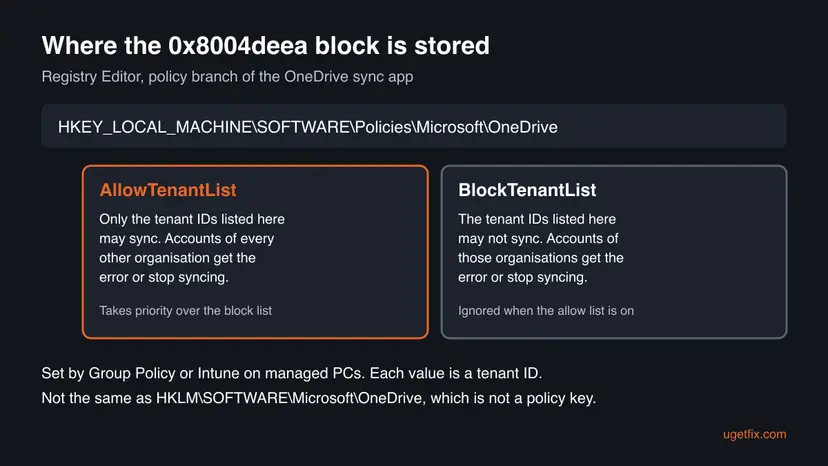
A tenant ID is the long identifier of a Microsoft 365 organisation, written like 1111-2222-3333-4444 in Microsoft's example. Every work or school account belongs to one tenant. If the allow list is on and your tenant is not in it, OneDrive refuses the account. Microsoft adds that the allow list takes priority over the block list and that both should not be on at the same time.
Why OneDrive shows 0x8004deea: the causes, most common first
The order below follows Microsoft's policy documentation and the reports and answers on the Microsoft Q&A thread for this code, which has been active since 2021.
| How often | Cause | Typical sign | Fix |
|---|---|---|---|
| Most often | Your company's allow list does not include the account's organisation. | A company PC; your work account syncs, a second account from another organisation does not. | Fix 1, then Fix 2 |
| Often | An old AllowTenantList or BlockTenantList key stayed on a PC nobody manages any more. | A home PC, a PC from a former employer, or a PC where someone once followed a registry guide. | Fix 1, then Fix 3 |
| Sometimes | You run your own small Microsoft 365 business tenant and the allow list does not contain it. | Home or family business setup; the admin settings show sync limited to allowed domains. | Fix 4 |
| Sometimes | The block list names your organisation. | Only accounts of one organisation fail. | Fix 2 or Fix 3 |
| Rarely | Old OneDrive settings or the wrong account after the policy was changed. | The policy check finds nothing, but the error stays. | Fixes 5 to 7 |
On a PC managed by Group Policy or Intune, a removed key is written again at the next policy refresh. A user on Microsoft Q&A wrote that the registry change worked for one day and then the error returned. On such a PC, only IT can change the list.
How to fix OneDrive error code 0x8004deea
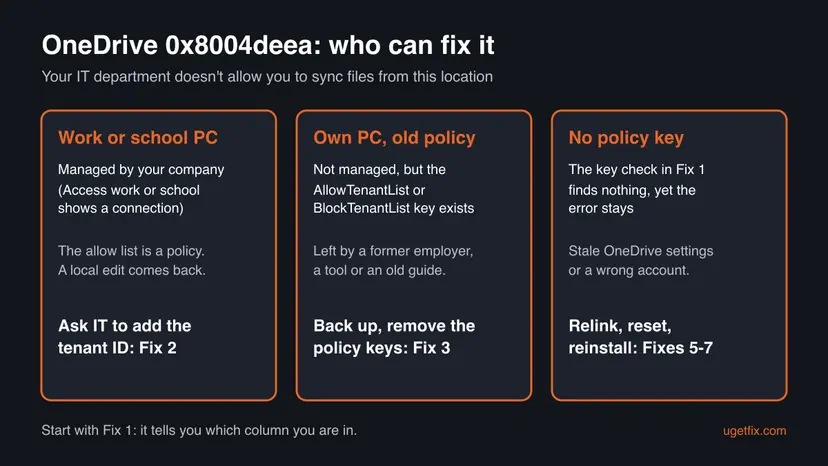
Fix 1 tells you which kind of 0x8004deea you have and takes two minutes. Fix 2 is for company PCs, Fixes 3 and 4 for PCs you manage yourself. Fixes 5 to 7 are general OneDrive repairs for the rare case where no policy is set.
| What you see or what your PC has | Start with |
|---|---|
| You do not know yet whether a policy is set. | Fix 1 |
| A company or school PC, connected under Access work or school. | Fix 2 |
| Your own PC, and Fix 1 found AllowTenantList or BlockTenantList. | Fix 3 |
| You are the admin of your own Microsoft 365 business tenant. | Fix 4 |
| Fix 1 found no policy key, but the error stays. | Fix 5 |
Fix 1. Check whether a OneDrive policy blocks your account
2 minutesLow riskEveryone, first. It tells you whether the block comes from your company or from an old setting.
Microsoft's policy page names the exact registry keys behind this error. Reading them changes nothing, and the result decides whether you need IT, a registry edit or a plain OneDrive repair.
- Press Win + R, type
cmdand press Enter. - Paste the command below and press Enter. It lists every OneDrive policy on the PC and does not change anything.
reg query "HKLM\SOFTWARE\Policies\Microsoft\OneDrive" /s - Look for AllowTenantList or BlockTenantList in the output. Each line under them is a tenant ID.
- If you see ERROR: The system was unable to find the specified registry key or value, no OneDrive policy is set: go to Fix 5.
- Press Win + I and open Accounts > Access work or school. Note whether a work or school connection is listed.
- A connection there, or a PC joined to a company domain, means the policy is managed: go to Fix 2. No connection on your own PC: go to Fix 3.
Note the value under AllowTenantList for your report to IT. The same key under HKLM\SOFTWARE\Microsoft\OneDrive, without Policies, is not the policy; some older guides show that path by mistake.
It worked if: You know whether AllowTenantList or BlockTenantList is set, and whether the PC is managed by an organisation.
If not: If reg reports access denied, open the Command Prompt again with Run as administrator and repeat step 2.
Fix 2. On a company or school PC: ask IT to allow your organisation
5 minutes to ask, then IT's timeLow riskThe PC is managed by your employer or school, and Fix 1 found an allow list or a block list.
On a managed PC the list is set through Group Policy or Intune, and a local edit is overwritten. An answer on the Microsoft Q&A thread says it directly: IT has to adjust the allow list in the policy Allow syncing OneDrive accounts for only specific organizations.
- Sign in to onedrive.com in a browser with the account that fails. If it opens there, the account works and only the sync on this PC is blocked.
- Write down the email address of the account and the organisation it belongs to.
- Copy the output of the
reg querycommand from Fix 1 into your message. - Send IT the full error text: Your IT department doesn't allow you to sync files from this location to your computer. (Error Code: 0x8004deea).
- Ask them to add the tenant ID of that organisation to Allow syncing OneDrive accounts for only specific organizations, or to remove it from Block syncing OneDrive accounts for specific organizations.
- When IT confirms the change, restart the PC so the new policy is applied, then add the account in OneDrive again.
The rule often exists on purpose, to keep company files from leaving for other organisations. If IT does not allow the account, use it in a browser on onedrive.com. Do not try to work around the policy on a company PC.
It worked if: After the restart, OneDrive adds the account and starts syncing without the 0x8004deea window.
If not: If IT changed the list and the error stays, unlink and link the account again (Fix 5).
Fix 3. On your own PC: back up the registry and remove the old policy keys
10 minutesRead the warningThe PC is yours, no organisation manages it, and Fix 1 found AllowTenantList or BlockTenantList.
A policy key that no one manages any more stays in force until it is deleted. On the Microsoft Q&A thread, deleting the entries under the OneDrive policy key was the answer most users marked as helpful, and several wrote that OneDrive synced again afterwards.
A wrong delete in the registry can break other programs. Export the OneDrive policy key before you delete anything, so one double-click puts it back. On a PC managed by a company, the key is written again and you may break its rules: use Fix 2 there.
A full registry backup with a restore point: Back up the registry before editing it
- Quit OneDrive: select the OneDrive icon, the gear Help & Settings, then Pause syncing > Quit OneDrive.
- Press Win + R, type
regeditand press Enter. Select Yes when Windows asks for permission. - Paste this path into the address bar of Registry Editor and press Enter:
HKEY_LOCAL_MACHINE\SOFTWARE\Policies\Microsoft\OneDrive - Right-click the OneDrive key, select Export and save the .reg file on your desktop.
- Right-click the AllowTenantList subkey and select Delete, then Yes. Do the same with BlockTenantList if it exists.
- Leave the other OneDrive policy values in place unless you know who set them and why.
- Close Registry Editor, restart the PC and open OneDrive from Start. Sign in and choose the same folders as before.
Users on Microsoft Q&A who deleted all entries under the OneDrive policy key said OneDrive started as if it had been reset, so they had to choose their folders again. Deleting only the two tenant lists is the smaller change and removes the rule behind 0x8004deea.
It worked if: OneDrive accepts the account and syncs. reg query from Fix 1 no longer shows AllowTenantList or BlockTenantList.
If not: If the keys come back after a restart or a day later, something manages the PC: check Access work or school again and go to Fix 2. If they stay gone and the error remains, go to Fix 5.
Fix 4. If you run your own Microsoft 365 business tenant: add its tenant ID to the allow list
10 minutesRead the warningYou are the admin of a small business or family Microsoft 365 tenant and want to keep the allow list, but let your own organisation sync.
In the original Microsoft Q&A case a home Office 365 Business Basic user had this error. The accepted Microsoft answer was to create AllowTenantList with the user's own tenant ID, and the user confirmed that OneDrive synced again.
Export HKEY_LOCAL_MACHINE\SOFTWARE\Policies\Microsoft\OneDrive before the change, as in Fix 3. A wrong tenant ID blocks every work account on the PC.
- Find your tenant ID. Microsoft's page Find your Microsoft 365 tenant ID shows where it is in the admin centers.
- Open Registry Editor and go to
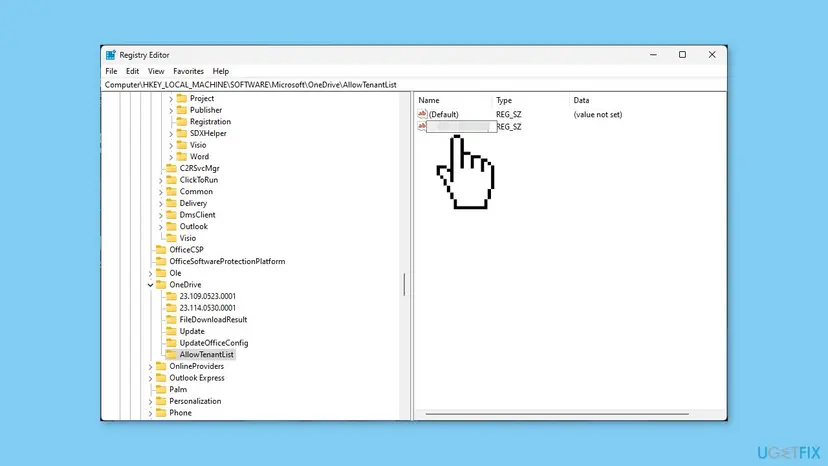
HKEY_LOCAL_MACHINE\SOFTWARE\Policies\Microsoft\OneDrive. If the OneDrive key is missing, right-click Microsoft, select New > Key and name it OneDrive. - Right-click OneDrive, select New > Key and name it AllowTenantList, if it does not exist yet.
- Select AllowTenantList, right-click the right pane and select New > String Value.
- Name the value with your tenant ID, double-click it and enter the same tenant ID as Value data.
- Restart the PC and open OneDrive from Start.
It worked if: Accounts of your own tenant sync again, and accounts of other organisations stay blocked as intended.
If not: If you do not need the allow list at all, remove it with Fix 3 instead.
Fix 5. Unlink this PC and sign in to OneDrive again
5 minutes, then a sync checkLow riskThe policy was changed or removed, or Fix 1 found no policy, and the error still shows.
OneDrive keeps the account it was linked to and the state it saw when the block started. Unlinking makes it check the account against the current policy from the start. It was one of the steps in Microsoft's accepted answer on Q&A.
- Select the OneDrive cloud icon in the taskbar, then the gear Help & Settings > Settings.
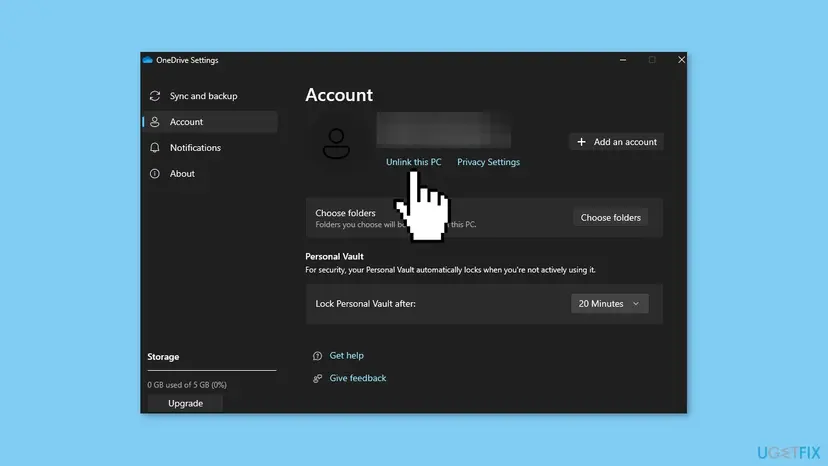
- Open the Account tab and check that the account shown is the one you want to sync.
- Select Unlink this PC, then Unlink account. Your files stay on the PC and in the cloud.
- When the Set up OneDrive window opens, sign in with the right account.
- When OneDrive asks for the folder location, choose the old OneDrive folder so unchanged files are not downloaded again.
It worked if: OneDrive signs in, shows the folder location and syncs without the error.
If not: If the error is still there, reset OneDrive with Fix 6.
Fix 6. Reset OneDrive
5 minutes, then a full syncLow riskNo policy key is set, or it was removed, and unlinking did not help.
A reset clears OneDrive's settings on this PC and makes it start fresh. It does not touch the policy keys, so it only helps after Fixes 1 to 4 have dealt with the policy. Microsoft's accepted Q&A answer lists it as the last step.
- Open the Run box. Press the Windows key and R at the same time.
- Reset the Microsoft Store cache. Type the command below and select OK. A blank Command Prompt window opens and closes, then the Microsoft Store opens. Close it. This is the first step in Microsoft's instructions. If OneDrive still does not sync, continue.
wsreset.exe - Run the OneDrive reset command. Press the Windows key and R again. Copy the command below, paste it into the box and select OK.
%localappdata%\Microsoft\OneDrive\onedrive.exe /reset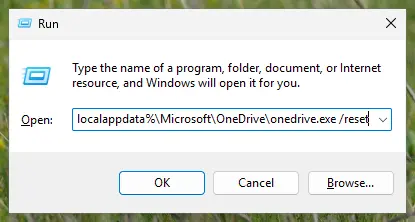
Type the reset command in the Run box and select OK. Screenshot: Windows 11 26H2. - If Windows cannot find it, try the second path. If you see a message that starts with Windows cannot find, open the Run box again and use this command instead.
C:\Program Files\Microsoft OneDrive\onedrive.exe /reset - If that fails too, try the third path. If you still see Windows cannot find, use this command. If none of the three works, the OneDrive sync app is not installed on this PC.
C:\Program Files (x86)\Microsoft OneDrive\onedrive.exe /reset - Start OneDrive again. Select Start, type OneDrive in the search box and select the OneDrive desktop app. OneDrive then starts a full sync.
These steps were written for Windows 11 25H2 and 26H2, Windows 10 22H2. The full page with the other versions and what each result means: How to reset OneDrive in Windows
- Restart the PC after the reset.
- Open OneDrive from Start and sign in with the account that showed 0x8004deea.
It worked if: OneDrive asks for your account, signs in and syncs.
If not: If OneDrive still refuses the account, reinstall it with Fix 7.
Fix 7. Uninstall and reinstall the OneDrive app
15 minutesLow riskEverything above failed and you want to rule out a damaged installation.
A reinstall replaces the program files but keeps the policy keys, which live outside OneDrive. One user on Microsoft Q&A deleted the tenant list entries and then reinstalled OneDrive before it synced again. Use it as the last step, not the first.
- Quit OneDrive: gear Help & Settings > Pause syncing > Quit OneDrive.
- Press Win + I and open Apps > Installed apps (on Windows 10: Apps & features).
- Find Microsoft OneDrive, select the three dots and Uninstall.
- Restart the PC.
- Download OneDrive from Microsoft's OneDrive download page, install it and sign in.
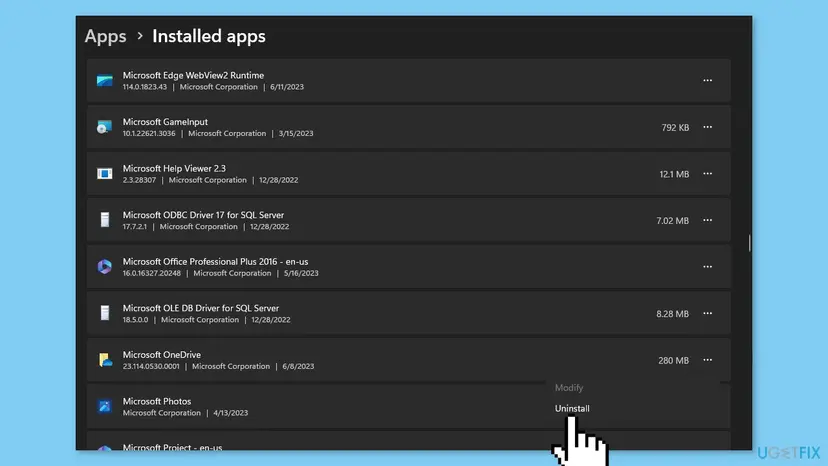
If the uninstaller fails, other ways to remove a program: Uninstall a program or app in Windows
It worked if: The new OneDrive signs in and syncs the account.
If not: Collect the details listed below and contact your IT admin or Microsoft support.
If OneDrive still shows 0x8004deea: what to collect and who can help
0x8004deea is decided by policy, so the person who can fix it is whoever controls the policy. Gather the facts below once, and IT or Microsoft support can see the cause without repeating your tests.
- The account: its email address, whether it is personal or work or school, and whether onedrive.com works with it.
- The policy: the output of
reg query "HKLM\SOFTWARE\Policies\Microsoft\OneDrive" /sfrom Fix 1. - The management: what Settings > Accounts > Access work or school lists, and whether the PC is in a company domain.
- The history: whether the keys came back after you removed them, and after how long.
- The OneDrive version: gear Help & Settings > Settings > About.
- The full message: OneDrive can't sync, with the line about your IT department and the error code.
If your company limits sync to its own organisation, a personal Microsoft account can be refused too. A user on Microsoft Q&A who works in IT saw exactly this on a domain PC with such a policy. Microsoft's page does not say how personal accounts are treated, so ask IT.
Are your files safe while 0x8004deea blocks the sync?
Yes. Microsoft describes the effect as files that stop syncing, not files that are removed. Your cloud copy stays on onedrive.com, and the OneDrive folder on the PC keeps what was synced before the block.
- Changes you make on the PC while the sync is blocked are not uploaded until the block is lifted.
- Files that are online-only (the cloud icon in File Explorer) cannot open while the account is blocked. Open them on onedrive.com meanwhile.
- After Fix 3, Fix 5 or Fix 6, point OneDrive at the same folder, so unchanged files are not downloaded again.
How to keep 0x8004deea from coming back
The error returns when a tenant list is set again: by a company policy refresh, by an old management tool, or by a registry tip copied from the web. Keep track of who sets OneDrive policies on the PC.
- Export the OneDrive policy key before any registry change.
- Remove a former employer's work account under Access work or school when you keep the PC.
- Ask IT before you add a second organisation's account to a work PC.
- Keep OneDrive updated so it shows the current error text.
- Do not create AllowTenantList on your own PC unless you mean to block other organisations.
- Do not edit OneDrive policy keys on a PC your company manages.
- Do not reinstall OneDrive again and again: it does not touch the policy.
- Do not turn off the firewall or the antivirus to fix a policy error.
Frequently asked questions
What does error code 0x8004deea mean?
It means a OneDrive policy on the PC does not allow the account you want to sync. The window says OneDrive can't sync and that your IT department doesn't allow you to sync files from this location to your computer. Behind it is the allow list or the block list of organisations that Microsoft documents for IT admins. Your account and your files are fine; the rule on this PC is the problem. Fix 1 shows which rule is set.
I have no IT department. Why does OneDrive say my IT department blocks it?
The message is the same whoever set the rule. On a home PC the AllowTenantList or BlockTenantList key can be left by a former employer's management, by a tool, or by someone who followed a registry tip. In the original Microsoft Q&A case a home Office 365 Business Basic user saw the error. Run Fix 1 to find the key. If the PC is yours and nobody manages it, back up the registry and remove the key with Fix 3.
What is AllowTenantList?
AllowTenantList is the registry key behind the OneDrive policy Allow syncing OneDrive accounts for only specific organizations. It sits under HKLM\SOFTWARE\Policies\Microsoft\OneDrive, and every value in it is the tenant ID of an organisation that may sync. Microsoft says users get an error when they add an account of any other organisation, and that an account already added stops syncing. The allow list takes priority over BlockTenantList, the opposite rule.
Why did the error come back a day after I fixed the registry?
Because the PC is managed. Group Policy and Intune write their settings again at the next refresh, so a removed or changed AllowTenantList returns. A user on Microsoft Q&A described exactly this: the registry fix worked for one day, then 0x8004deea was back. On a managed PC only the admin can change the policy, so send IT the details from the still-broken section and ask for your organisation to be added (Fix 2).
Will resetting or reinstalling OneDrive fix 0x8004deea?
Usually not on its own. The policy keys live in the Windows registry under the Policies branch, not in OneDrive's own settings, so a reset and a reinstall leave them in place. That is why many users report that the error stays after both. Deal with the policy first (Fixes 1 to 4). After that, a reset or a relink helps OneDrive pick up the change, which is why they are Fixes 5 to 7.
Can I sync a personal OneDrive account on my work computer?
Only if your company allows it. Microsoft's policy page talks about accounts from organisations that are not allowed and does not say how personal accounts are handled. A user on Microsoft Q&A who works in IT found his personal account refused on a domain PC with an allow list. If your work PC shows 0x8004deea for a personal account, ask IT, and use onedrive.com in the browser meanwhile.
Where do I find my tenant ID?
Your tenant ID belongs to your Microsoft 365 organisation, and an admin of that organisation can look it up. Microsoft's page Find your Microsoft 365 tenant ID shows where it appears in the admin centers. If you are not the admin, ask IT for it, or simply ask IT to allow your organisation. A personal Microsoft account does not have a tenant ID of its own, and a device ID is not the same thing.
Does 0x8004deea delete my files?
No. Microsoft describes the effect as files that stop syncing. The cloud copy stays on onedrive.com, and the OneDrive folder on the PC keeps what was synced before the block. New changes on the PC are uploaded once the block is lifted. Online-only files cannot open on the PC while the account is blocked, so open them in a browser until then.
Is there a fix for 0x8004deea on Mac?
This page covers Windows. The same organisation lists exist for the OneDrive app on Mac, but they are set through a different mechanism than the Windows registry, and we did not check the Mac steps for this guide. On a Mac, ask whoever manages it which OneDrive settings are set, and use onedrive.com in the browser meanwhile.
I searched in Portuguese, Spanish or German (como resolver, wie kann ich das umgehen, cuenta de trabajo). Does this page apply?
Yes, if you see 0x8004deea in OneDrive on Windows: the code is the same in every language, only the message is translated. In short, the error means your work account (cuenta de trabajo) or another account is blocked by a policy on the PC. Do not try to get around a company policy on a work PC; check the policy with Fix 1, then ask IT or remove an old policy on your own PC.
Sources
- Microsoft Learn: Use OneDrive policies to control sync settings (Allow syncing OneDrive accounts for only specific organizations, Block syncing OneDrive accounts for specific organizations) (learn.microsoft.com)
- Microsoft Q&A: OneDrive can't sync Error Code 0x8004deea (accepted Microsoft answer and user reports, 2021 to 2025) (learn.microsoft.com)
Did this fix work?
One click, no account. It tells the next reader which guides are worth their time.
Questions and experiences: fix OneDrive Sync error 0x8004deea in Windows
Still broken, or found a fix we did not cover? Ask here: members and our editors answer. Reading is open; writing needs a free account.
…