
How to fix OneNote sync error 0xE0000024 bdf5h in Windows?

Prefer to fix it yourself? The manual steps follow.
- 8methods
- 2 to 30 minutes
- Easy
Applies to OneNote for Microsoft 365, OneNote 2016 and 2021 on Windows 11 and Windows 10 22H2, with a Microsoft account or a work or school account; notebooks stored in OneDrive or SharePoint
8 methods in this guide
Hello. When I try to sync OneNote, I get the 0xE0000024 bdf5h error code. Is there a way to fix this?
OneNote sync error 0xE0000024, often shown with the tag bdf5h, means OneNote does not have valid sign-in details for the notebook. Microsoft lists it as an account authentication error, not a damaged notebook. Click the error and sign in with the account that owns the notebook first.
Error 0xE0000024 means OneNote cannot prove who you are to the server that holds the notebook. Your notes are not deleted. Click the sync error at the top of OneNote and sign in with the account the notebook belongs to (Fix 1). If it comes back, open the notebook in OneNote for the web (Fix 3), then clear the stored Office sign-in in Credential Manager (Fix 5).
| Error | "We need the password to sync this notebook. (Error code: 0xE0000024)", or in the sync status window "0xE0000024 bdf5h". |
|---|---|
| Where it appears | In a yellow bar above the notes, and in File > View Sync Status next to each notebook that does not sync. |
| Main cause | OneNote has wrong or expired account details for the notebook: a changed password, a different account, or lost access (Microsoft). |
| Fastest fix | Click the sync error and sign in with the account the notebook belongs to (Fix 1). |
| Also written as | 0xe0000024 bdf5h, e0000024 bdf5h, 0xE0000024. The five letters after the code are an internal tag that Microsoft does not explain. |
| Affects | OneNote on Windows, Mac and iPhone or iPad; Microsoft gives extra steps for Windows and for macOS and iOS. |
| Vendor status | Documented by Microsoft under "Resolve account authentication errors in OneNote" on its OneNote sync page (checked 15 October 2026). No bug or fix version is listed. |
| Your notes | Changes made while the error shows are kept on this PC and sync once you are signed in again. |
| Time to fix | 2 minutes for a new sign-in, 10 to 30 minutes when credentials or an old account must be removed. |
Facts checked on 15 October 2026. Steps written for Windows 11 (25H2 and 26H2) and Windows 10 22H2 with OneNote for Microsoft 365 and OneNote 2016.
What OneNote sync error 0xE0000024 bdf5h means
A OneNote notebook in the cloud lives in OneDrive or SharePoint. To sync, OneNote has to sign in to that storage with your account. Microsoft's description of 0xE0000024 is short: it "can occur when OneNote does not have the correct account information to open and sync a notebook, or if previously entered account information have expired."
| What you see | Where | What it tells you |
|---|---|---|
| We need the password to sync this notebook. (Error code: 0xE0000024) | A yellow bar above the page | OneNote asks you to sign in again for this notebook. |
0xE0000024 bdf5h | File > View Sync Status, next to the notebook | The same error with an internal tag; the notebook waits for a sign-in. |
| "We're having trouble syncing" with a Sign in again link | A bar above the notebook list | Users report this wording with bdf5h when an Office account is broken. |
| A warning sign next to your profile picture | Top right corner of OneNote | The account itself has a problem, often an old work or school account. |
The tag after the code, such as bdf5h, bjief or bhhdz, is a short internal marker that OneNote adds to many of its codes. Microsoft does not publish what the tags mean, and we could not confirm a meaning. The number in front decides the fix, so a guide for 0xE0000024 applies with or without the tag.
It is not a corrupted notebook, a full OneDrive or a broken internet connection. OneNote reaches the server but is refused because the sign-in is not valid for that notebook.
What causes OneNote error 0xE0000024, most common first
Microsoft names three causes: a recently changed password, being signed in with a different account than the one authorised for the notebook, and lost permission because the owner revoked access or server permissions changed. Users on Microsoft Q&A add two more: a stale Office sign-in kept by Windows, and an old work or school account that no longer exists.
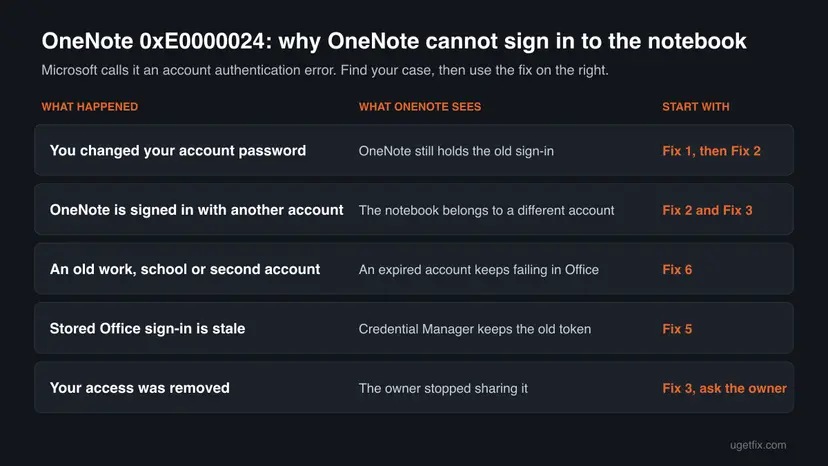
| How often | Cause | Signs | Fix |
|---|---|---|---|
| Most often | You changed the password of your Microsoft or work account | The error started on all your notebooks right after the change | Fixes 1 and 2 |
| Often | OneNote uses another account than the notebook's owner account | Only one notebook fails, often a shared or school notebook | Fixes 2 and 3 |
| Often | Windows keeps an old Office sign-in in Credential Manager | You sign in, the error goes, and it comes back after OneNote restarts | Fixes 4 and 5 |
| Less often | An old work, school or second account still sits in Office | A warning sign at your profile picture, other Office apps complain too | Fix 6 |
| Less often | The owner stopped sharing the notebook or permissions changed | The notebook is missing in OneNote for the web | Fix 3 and "still broken" |
| Rarely | An Office build with a sign-in bug | Account errors in every Office app, such as Error 29 | Fixes 7 and 8 |
How to fix OneNote sync error 0xE0000024 bdf5h
Fixes 1 to 4 are Microsoft's own steps for 0xE0000024, in Microsoft's order, and solve most cases. Fixes 5 and 6 remove the stored sign-ins that make the error come back. Fixes 7 and 8 repair Office itself. Use the table to start at the right place.
| What you see or have | Start with |
|---|---|
| You changed your password recently | Fix 1 |
| Only one notebook fails, or it is a shared or school notebook | Fix 2, then Fix 3 |
| The error goes after a sign-in but comes back next time | Fix 4, then Fix 5 |
| You left a school or job, or a warning sign sits at your profile picture | Fix 6 |
| Every Office app shows account errors or Error 29 | Fix 7, then Fix 8 |
| The notebook is not in OneNote for the web at all | Fix 3, then "If error 0xE0000024 is still there" |
Fix 1. Click the sync error and sign in again
2 minutesNo riskEveryone, first, and above all after a password change.
This is Microsoft's first step for 0xE0000024. Clicking the message makes OneNote try to refresh the session, and when that fails it asks for your account details, which replaces the expired sign-in.
- Open OneNote and find the yellow bar with We need the password to sync this notebook. (Error code: 0xE0000024), or the Sign in again link.
- Click the message or the link once and wait a few seconds; OneNote first tries to refresh the session by itself.
- If a sign-in window opens, enter the email and the current password of the account the notebook belongs to.
- Finish any second step, such as a code from the Authenticator app.
- Open File > View Sync Status and check the notebook. Select Sync Now next to it if it still shows a warning.
It worked if: The yellow bar disappears and View Sync Status shows the notebook with no error and a recent sync time.
If not: If no sign-in window appears, or the error comes back, check which account you use in Fix 2.
Fix 2. Sign in with the account the notebook belongs to
5 minutesNo riskOne notebook fails while others sync, or you use both a personal and a work or school account.
Microsoft lists "logged in with a different account than the one authorized to use the notebook" as a cause. OneNote keeps one account per notebook, so signing in with the wrong one repeats the error.
- Find out which account owns the failing notebook: a notebook you made at home is usually on your personal Microsoft account, a class or team notebook on a work or school account. If unsure, use Fix 3 to look for it online.
- Select File > Account and look at User Information: which email is signed in?
- If it is not the account from step 1, select Switch account and add or pick the right one.
- If you changed that account's password, use the new one. Microsoft stresses this point for 0xE0000024.
- Return to the notebook, right-click its name in the notebook list and select Sync This Notebook.
Microsoft notes that on a device where you have just started using OneNote, you may first have to add the account if it is not your default account. A shared notebook opened from a link often belongs to someone else's work account, not your personal one.
It worked if: The failing notebook syncs under the right account, and File > View Sync Status no longer lists 0xE0000024.
If not: If you are on the right account and it still fails, check the notebook online in Fix 3.
Fix 3. Open the notebook in OneNote for the web, then back in the app
5 minutesNo riskThe error stays after a sign-in, or you are not sure you still have access to the notebook.
Microsoft's third step for 0xE0000024. The browser test shows whether the account can reach the notebook at all, and opening it from OneDrive with Open in OneNote gives the app a fresh link with the right account.
- Close the OneNote app.
- In Edge, Chrome or Firefox, go to onenote.com, select Sign in and use the account the notebook belongs to.
- Check that the notebook is in the list and that its pages open.
- Go to onedrive.com with the same account, open the folder that holds the notebook and select the notebook name.
- When it opens in the browser, select Open in OneNote on the ribbon.
- If the OneNote app asks you to sign in, use the same account.
If the notebook is not there in OneNote for the web, this account has no access to it. Either it belongs to another account, or the owner removed your access. Go to "If error 0xE0000024 is still there" before you change anything else, because notes typed on this PC since the error began may exist only here.
It worked if: The notebook opens in the browser, then in the app, and syncs without the yellow bar.
If not: If the notebook opens online but the app still fails, sign out of every account in Fix 4.
Fix 4. Sign out of all accounts in OneNote, sign in again and sync by hand
5 minutesLow riskThe error returns every time OneNote starts, even though the notebook opens on the web.
Microsoft's extra step for Windows users with 0xE0000024. Signing out of every account throws away all of OneNote's current sign-in sessions, so the next sign-in builds them again from scratch.
- Check File > View Sync Status first. If any notebook shows unsynced changes, wait for it or copy those pages somewhere safe.
- Select File > Account and select Sign out under your name. Confirm.
- If you use more than one account in Office, sign out of each of them.
- Close OneNote and open it again.
- Select Sign in at the top right and sign in with the notebook's account.
- If the notebook does not sync on its own, select File > View Sync Status and Sync Now next to it, or right-click the notebook name and select Sync This Notebook.
It worked if: OneNote starts with no yellow bar, and the notebook stays synced after you close and reopen the app.
If not: If OneNote asks you to sign in again and again, or the error returns at the next start, clear the stored credentials in Fix 5.
Fix 5. Remove the stored MicrosoftAccount and MicrosoftOffice credentials
10 minutes and a restartLow riskOneNote keeps asking you to sign in, or the error comes back after every restart.
Windows stores Office sign-ins in Credential Manager. Microsoft's step for repeated sign-in prompts with 0xE0000024 is to remove the entries that begin with MicrosoftAccount and MicrosoftOffice, so Office cannot reuse an expired one.
- Close OneNote, all other Office apps and any open browser windows.
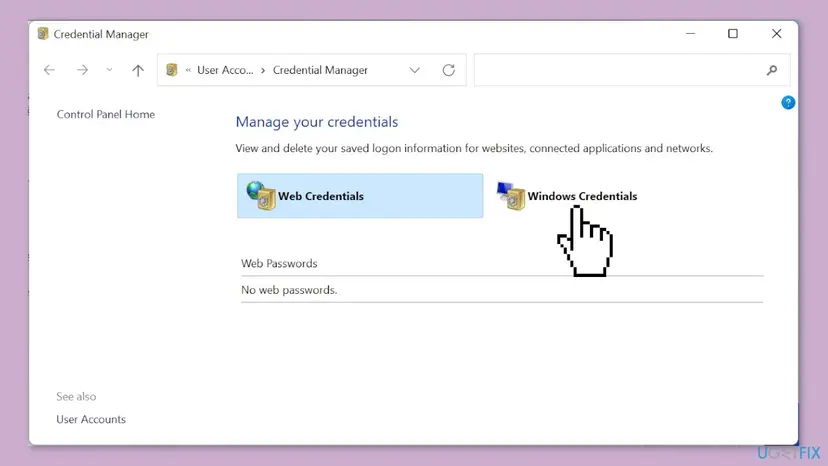
- Select Start, type Credential Manager and open it from the results.
- Select Windows Credentials.
- Scroll to Generic Credentials and look for entries whose names begin with
MicrosoftAccountandMicrosoftOffice, for exampleMicrosoftOffice16_Data:live:cid=followed by a number. - Select the arrow next to each such entry and select Remove, then Yes.
- Restart the PC, open OneNote and sign in with the notebook's account when asked.
Only saved sign-ins. Office, Outlook and Teams will ask for your password once more. Leave entries for other programs, network drives and remote desktops alone.
It worked if: After the restart OneNote asks for your sign-in once, then syncs, and the error stays away after you close and reopen it.
If not: If a warning sign stays next to your profile picture, an old account is still attached: go to Fix 6.
Fix 6. Remove an old work, school or second account from Office and Windows
10 minutesLow riskYou left a school or job, a work account was closed, or a warning sign sits next to your profile picture.
In a Microsoft Q&A thread on 0xE0000024 bdf5h, the error began after the reader graduated and the university account stopped working. A dead account that Office still tries to use keeps raising account errors in OneNote and other Office apps.
- Open OneNote in a browser with your personal account and check that your own notebooks are there. Notebooks on the old account's storage will not open once the account is gone.
- In OneNote, select File > Account, find the old account and select Sign out for it.
- Close every Office app.
- Open Settings > Accounts > Access work or school (Windows 10: Settings > Accounts > Access work or school too). Select the old account and Disconnect, if it is there.
- Open Settings > Accounts > Email & accounts (Windows 10: Email & app accounts) and remove the old account, if it is listed.
- Restart the PC, open OneNote and sign in only with the account you still use.
Do not disconnect the account on a device that the organisation manages. Disconnecting can remove its settings and access to company data. Ask the IT department instead.
It worked if: No warning sign next to your profile picture, File > Account shows only the account you use, and the notebooks sync.
If not: If every Office app still shows account errors, update Office in Fix 7.
Fix 7. Update OneNote and Microsoft 365
10 minutesLow riskThe account is right but account errors appear in every Office app, or Office has not been updated for months.
Microsoft's OneNote sync page starts with "check for and install any available Office updates". In 2024 a Microsoft support agent tied a wave of bdf5h and Error 29 reports to one Office build, so a newer build can carry the fix.
- In OneNote, select File > Account.
- Under Office Updates (or Microsoft 365 and Office Updates), select Update Options > Update Now.
- Wait until Office says You're up to date!, then close all Office apps.
- Open Settings > Windows Update (Windows 10: Settings > Update & Security > Windows Update) and install what is offered.
- Restart the PC, open OneNote and check File > View Sync Status.
Windows 10 reached the end of support on 14 October 2025. Windows 10 22H2 still runs Office, but install the updates it is offered, and keep in mind that an update alone rarely fixes a sign-in error.
It worked if: Office reports that it is up to date, and after a restart OneNote syncs without the yellow bar.
If not: If Office is current and the error stays, repair it in Fix 8.
Fix 8. Repair Microsoft 365 or Office
10 to 30 minutesLow riskEverything above is done, the notebook opens on the web, and only the app on this PC fails.
The sign-in parts of OneNote are shared with the rest of Office. A repair replaces damaged Office files, including those, without touching your notebooks. One reader on Microsoft Q&A tried it without success, so it comes last.
Start with Quick Repair. If the error is still there, run Online Repair, which reinstalls Office and takes longer. Step by step: How to repair Microsoft 365 or Office.
- Open Installed apps. Right-click the Start button and select Installed apps.
- Find Microsoft 365 or Office. Find your Microsoft 365 or Office product in the list. If you have a standalone app such as Visio or Project, search for it by its own name.
- Open the repair window. Select the three dots next to the product and select Modify.
- Start with Quick Repair. In the repair window, select Quick Repair, then Repair. It is the faster option: it finds damaged files and replaces them.
- Finish and test. Follow the instructions on the screen until the repair is done. Restart the PC if you are asked to, then open the app that had the problem.
These steps were written for Windows 11 25H2 and 26H2. The full page with the other versions and what each result means: How to repair Microsoft 365 or Office
It worked if: The repair finishes, and after a restart and one sign-in OneNote syncs the notebook.
If not: Read "If error 0xE0000024 is still there" for what to check and what to send to support.
If error 0xE0000024 is still there
When the notebook is missing in OneNote for the web, no setting on your PC can fix it: the account has no access. Save what is on this PC first, then sort out access.
- Save a copy: in the OneNote app, select File > Export, choose the notebook and save it as a package. Keep a second copy of important files too: Back up your files (Windows Backup, File History, Time Machine).
- Shared notebook: ask the owner to share it again with the email you sign in with.
- School or work notebook: ask the IT department whether your account or the site permissions changed. Microsoft names changed server permissions as a cause.
- Your own notebook: sign in to onedrive.com with each account you have and look for the notebook file. It belongs to the account where you find it.
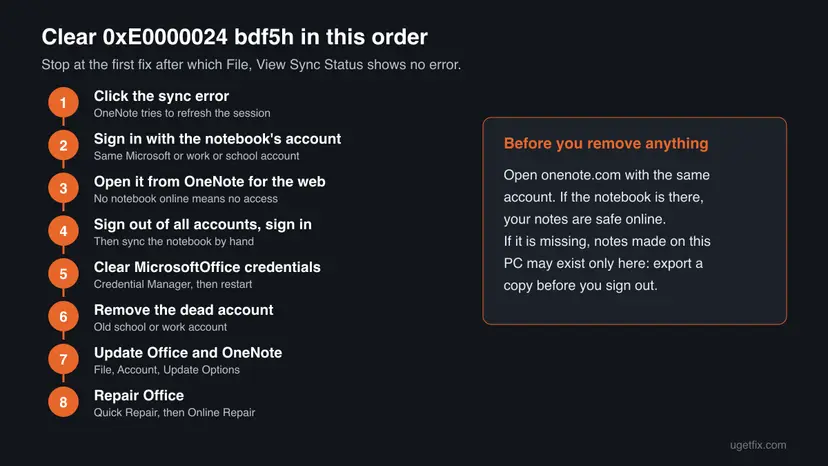
- For support, collect: the full code from File > View Sync Status, your OneNote version from File > Account > About OneNote, the account type, where the notebook is stored, and whether it opens on the web.
- Home users: contact Microsoft support from File > Account or the Microsoft support site, with those facts.
- Mac, iPhone and iPad: Microsoft's same article gives separate steps for macOS and iOS, such as force-syncing the notebook list; the Windows steps here do not apply.
How to keep OneNote sync error 0xE0000024 from coming back
Almost every case of this error starts with an account change. A few habits keep OneNote's stored sign-in in step with your real account.
- After you change your Microsoft or work password, open OneNote and sign in again at once.
- Keep notebooks in the account you will still have in a year, not in a school account.
- Before you leave a school or job, move your notebooks to your personal OneDrive.
- Install Office updates when they are offered.
- Glance at File > View Sync Status now and then.
- Do not ignore the yellow bar for days: changes pile up on one PC only.
- Do not delete a notebook that will not sync; save a copy first.
- Do not edit the registry to change how Office signs in.
- Do not turn off Office updates for good.
Frequently asked questions
What does 0xE0000024 bdf5h mean in OneNote?
It is an account authentication error. OneNote reached the server that stores the notebook but could not sign in, because the account details it holds are wrong, expired or belong to another account. Microsoft lists three causes: a changed password, the wrong account, and lost access to the notebook. The tag bdf5h is an internal marker that Microsoft does not explain, so treat it the same as plain 0xE0000024 and start with Fix 1.
Why does OneNote say "We need the password to sync this notebook"?
That is the text of error 0xE0000024. OneNote needs a valid sign-in for the account that owns the notebook, and the one it has is no longer accepted, most often after a password change. Click the message: OneNote first tries to refresh the session, and if that fails it shows a sign-in window. Some users report that no password box appears. In that case sign out of OneNote and clear the stored credentials as in Fixes 4 and 5.
Will I lose my notes because of error 0xE0000024?
Not because of the error itself. Notes you type while it shows stay in OneNote's local copy and sync once you sign in again. The risk comes from what you do next. Do not delete the notebook, close it while it has unsynced changes, or remove an account before you check onenote.com. If the notebook is missing there, export a copy with File > Export first.
Is 0xE0000024 the same as 0xE000002E bjief or 0xE0000057 bhhdz?
No. These are other OneNote sync codes with their own tags. Microsoft describes 0xE000002E as "Out of Sync with Store", a temporary issue that usually clears at the next full sync. We could not find a Microsoft description of 0xE0000057 or 0xE000283C. What this page says applies to 0xE0000024 only. For the others, start with File > View Sync Status and Sync Now, and update Office.
Why does the error come back every time I open OneNote?
Because a stored sign-in keeps winning. Windows keeps Office sign-ins in Credential Manager, and Office keeps every account you ever added. If one of them is expired, OneNote picks it up at every start. Sign out of all accounts (Fix 4), remove the MicrosoftAccount and MicrosoftOffice entries in Credential Manager (Fix 5), and remove any old work or school account (Fix 6).
Does the old SkyDriveAuthenticationProvider registry fix still help?
We do not recommend it. Some older guides add a registry value named SkyDriveAuthenticationProvider with the data idcrldisable under the Office Internet key. Microsoft's current article for 0xE0000024 does not mention it, and we could not confirm what it changes in current Microsoft 365 builds. Editing how Office signs in can break sign-in for other apps. The sign-in and credential steps on this page fix the causes Microsoft names.
Should I roll Office back to an older version to fix bdf5h?
Only if Microsoft support tells you to for your case. In September 2024 a Microsoft support agent suggested rolling Office back to an older build and turning off updates for readers who also saw Error 29. That advice was for one faulty build at that time. Turning off updates for good leaves Office without security fixes, so install the current build first (Fix 7) and keep updates on.
Does error 0xE0000024 appear on Mac and iPhone too?
Yes. Microsoft's article for 0xE0000024 has a section for macOS and iOS. There you sign out of all accounts, sign in again and force a sync: on a Mac Control-click the notebook name and sync it, on an iPhone or iPad pull down the notebooks list. Microsoft also says to use the latest OneNote from the App Store. The Credential Manager steps on this page are for Windows only.
This page is about a Windows PC (Windows パソコン). Do the steps work on Windows 10?
Yes. The steps work on Windows 11 and Windows 10 22H2 with OneNote for Microsoft 365 or OneNote 2016. Where menu names differ, both are given. Windows 10 reached the end of support on 14 October 2025, so a Windows 10 PC no longer gets security fixes. Office still runs there, and the sign-in fixes on this page do not depend on the Windows version.
Sources
- Microsoft Support: Fix issues when you can't sync OneNote (Resolve account authentication errors, 0xE0000024) (support.microsoft.com)
- Microsoft Q&A: OneNote keeps displaying a sync error. 0xE0000024 bdf5h (learn.microsoft.com)
- Microsoft Q&A: OneNote - We need the password to sync this notebook. (Error code: 0xE0000024) (learn.microsoft.com)
Did this fix work?
One click, no account. It tells the next reader which guides are worth their time.
Questions and experiences: fix OneNote sync error 0xE0000024 bdf5h in Windows
Still broken, or found a fix we did not cover? Ask here: members and our editors answer. Reading is open; writing needs a free account.
…