
How to fix OneNote sync error 0xE40200C4 in Windows?

Prefer to fix it yourself? The manual steps follow.
- 7methods
- 5 to 60 minutes, depending on the size of the section
- Easy
Applies to The OneNote desktop app (OneNote for Microsoft 365, OneNote 2024, 2021 and 2016) on Windows 11 and Windows 10 22H2, with notebooks stored in OneDrive or SharePoint
7 methods in this guide
I need to access one of the OneNote documents I created earlier, but I keep receiving this message: "This section was created in an older version of OneNote and is incompatible with your cloud notebook. (Error code: 0xE40200C4)". Could you help me here?
OneNote sync error 0xE40200C4 means one section was created by an older version of OneNote and cannot sync with a notebook stored in OneDrive or SharePoint. The rest of the notebook is usually fine. Copy the pages of that section into a new section in the same notebook first.
Error 0xE40200C4 is about one section, not your whole notebook or your account. That section still uses an old file format that the cloud notebook will not accept. Create a new section in the same notebook, copy (do not move) every page into it, press Shift + F9 and delete the old section once the new one syncs (Fix 1). If the section came from a separate .one file, use Fix 2.
| Error | "This section was created in an older version of OneNote and is incompatible with your cloud notebook. (Error code: 0xE40200C4)" |
|---|---|
| Where it appears | In a yellow bar above the section, and in File > Info > View Sync Status next to the notebook that holds it. |
| Main cause | One section was made by an older OneNote, or was opened as a standalone .one file, and is still in a format the cloud notebook does not sync. |
| Fastest fix | Copy the pages into a new section of the same notebook, sync with Shift + F9, then delete the old section (Fix 1). |
| Also written as | 0xe40200c4, E40200C4, "This section is incompatible with your cloud notebook", and in Microsoft's article "This section was originally created in an older version of OneNote". |
| Affects | The OneNote desktop app for Windows: OneNote for Microsoft 365, 2024, 2021 and 2016 (the versions Microsoft's article lists). |
| Vendor status | Known and documented by Microsoft (article updated September 2026): OneNote no longer supports standalone section files. No update makes the old section sync by itself. |
| Your notes | Not lost. The section stays readable on this PC; it just does not reach the cloud until its pages are in a new section. |
| Time to fix | 5 minutes for a small section, up to an hour when pages must be copied one by one. |
Facts checked on 15 October 2026. Steps written for Windows 11 (25H2 and 26H2) and Windows 10 22H2 with OneNote for Microsoft 365 and OneNote 2016, 2021 and 2024.
What OneNote error 0xE40200C4 means
A OneNote notebook in OneDrive or SharePoint is a folder of section files that sync one by one. Error 0xE40200C4 tells you that one of those sections was made by an older OneNote and that the cloud notebook refuses it. Microsoft explains that the related message "typically occurs with standalone section files", sections that are not stored in a notebook, and that "OneNote no longer supports standalone section files".
| What you see | Where | What it tells you |
|---|---|---|
| This section was created in an older version of OneNote and is incompatible with your cloud notebook. (Error code: 0xE40200C4) | A yellow bar above the section | This one section cannot sync; the others can. |
| A yellow warning triangle over the notebook icon | File > Info > View Sync Status | Select it to see the name of the section that fails. |
| This section was originally created in an older version of OneNote | When you open a .one file from File Explorer | A standalone section file that must be copied into a notebook. |
It is not a sign-in problem, a slow connection or a full OneDrive. Restarting the PC, running the network troubleshooter or signing in again does not change the format of the section, so those steps from older guides rarely help with this code.
What causes error 0xE40200C4, most common first
Every cause comes back to a section in an old format sitting in or next to a cloud notebook. What differs is where the section came from, and that decides the fix.
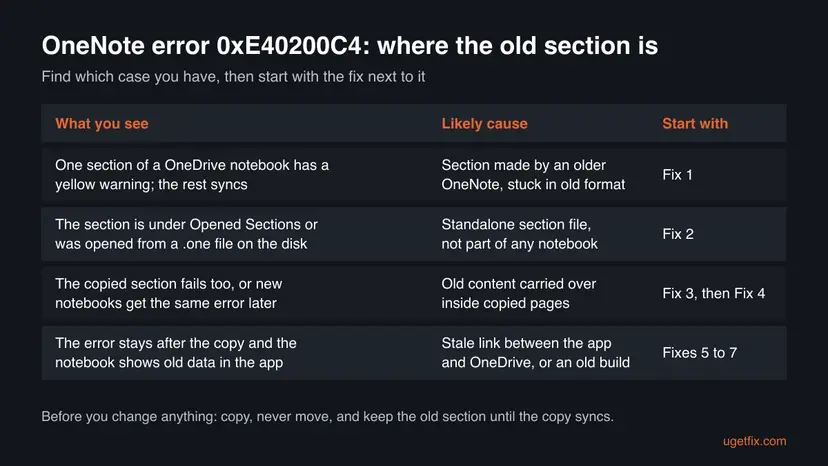
| How often | Cause | Signs | Fix |
|---|---|---|---|
| Most often | A section made years ago by an older OneNote is part of a notebook that now lives in OneDrive | One section shows the yellow bar, the rest of the notebook syncs | Fix 1 |
| Often | A standalone .one section file, opened from the disk or a mail attachment | The section sits under Opened Sections, not inside a notebook | Fix 2 |
| Less often | Old content was carried into the copy, so the new section fails too | Users report the copied section or even new notebooks showing 0xE40200C4 | Fixes 3 and 4 |
| Less often | A damaged copy of the old section is in the Notebook Recycle Bin | The error stays after you deleted the section | Fix 4 |
| Rarely | A stale link between the app and the notebook, or an old OneNote build | OneNote for the web shows the notebook fine, the app does not | Fixes 5 to 7 |
How to fix OneNote sync error 0xE40200C4
Fixes 1 and 2 are Microsoft's own steps and fix most cases: the first for an old section inside a notebook, the second for a standalone section file. Fixes 3 and 4 are for a copy that still fails. Fixes 5 to 7 refresh the notebook link and the app. Use the table to start at the right place.
| What you see or have | Start with |
|---|---|
| One section of a OneDrive or SharePoint notebook has the yellow bar | Fix 1 |
| The section is under Opened Sections, or you opened a .one file | Fix 2 |
| The new section you copied fails with the same error | Fix 3 |
| The error stays after you deleted the old section | Fix 4 |
| OneNote for the web shows the notebook fine, the app does not | Fix 5 |
| OneNote has not been updated for months, or you use OneNote for Windows 10 | Fix 6 |
Fix 1. Copy the pages of the old section into a new section and sync
5 to 20 minutesLow riskEveryone whose notebook syncs except for the one section with the yellow bar.
New pages and sections are created in the current format. Microsoft's workaround for one section that stops syncing in an otherwise up-to-date notebook is to copy its pages into a new section, which leaves the old file behind.
- In the OneNote desktop app, select File > Info > View Sync Status.
- In the Shared Notebook Synchronization dialog box, select the notebook icon with the yellow warning triangle to see the name of the section that fails.
- Close the dialog box, right-click any section tab of that notebook and select New Section. Give it a temporary name.
- Open the old section, right-click each page in the page list and select Move or Copy. Choose the new section and select Copy, not Move.
- When every page is copied, press Shift + F9 to sync the notebook and wait until any progress bar is gone.
- Open View Sync Status again. If the new section syncs with no error, right-click the old section tab and select Delete.
- Rename the new section to the old name if you want.
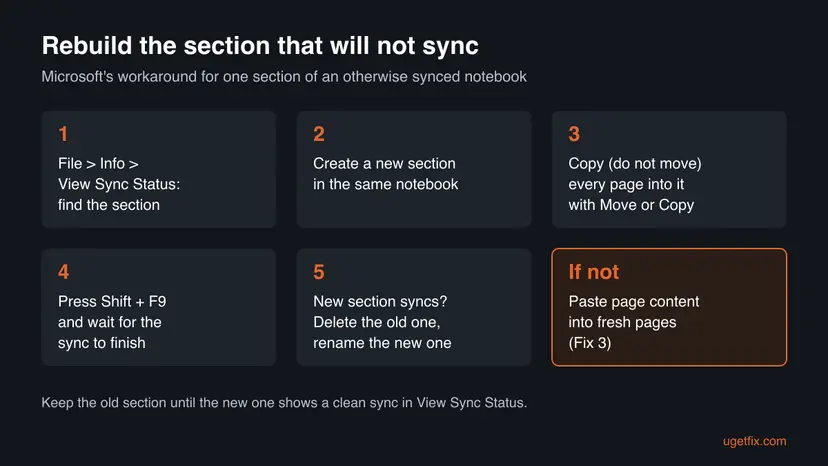
To copy several pages at once, select the first page in the page list, hold Shift, select the last one, then right-click the selection and choose Move or Copy.
It worked if: The yellow bar is gone, the new section shows a recent sync time in View Sync Status, and its pages appear in OneNote for the web.
If not: If the new section shows 0xE40200C4 too, rebuild the pages with fresh content in Fix 3.
Fix 2. Move a standalone .one section file into a OneDrive notebook
10 minutesLow riskThe section is listed under Opened Sections, or you opened a .one file from File Explorer, an old backup or an email.
Microsoft's article for this message says it "typically occurs with standalone section files" and that OneNote no longer supports them. Its fix is to copy each such file into a notebook made in OneDrive.
- In a browser, sign in at onedrive.com with the same account you use in OneNote.
- Select + New > OneNote notebook, type a name in the Enter your new name box and select Create.
- When the notebook opens in the browser, select Open in Desktop App on the ribbon.
- In File Explorer, find the standalone section file, right-click it and select Open with > OneNote. Pick the OneNote desktop app, not OneNote for Windows 10.
- In OneNote, the file opens under Opened Sections. Right-click its section tab and select Move or Copy.
- In the Move or Copy Section dialog box, select the new notebook and select Copy.
- When the copied section has synced, delete the original .one file in File Explorer. Repeat for each standalone file.
The .one file is the only copy of those notes. Delete it only after the copied section shows a clean sync in View Sync Status and opens in OneNote for the web.
It worked if: The section appears inside the new notebook in the app and in OneNote for the web, with no yellow bar.
If not: If the copied section fails too, copy its pages into fresh pages as in Fix 3.
Fix 3. Paste the content into fresh pages when copied pages still fail
20 to 60 minutesLow riskCopying the section or its pages carries the error with it, and the new section shows 0xE40200C4 as well.
A copied page can keep parts of the old page with it. A user on Microsoft Q&A reports that pages which failed after Move or Copy synced every time once he created new pages by hand and pasted only the content into them.
- Delete the copied section or page that still fails, and empty it from the Notebook Recycle Bin as in Fix 4.
- Create a new section by hand in the notebook.
- Create a new, empty page in that section with Add Page.
- Open the matching old page, press Ctrl + A and then Ctrl + C.
- Click inside the new page, press Ctrl + V, and give the page its old title.
- Press Shift + F9 and check View Sync Status after every few pages, so you find the page that fails early.
- When all pages are rebuilt and synced, delete the old section.
Text, pictures and tables usually paste fine. Check file attachments, audio recordings and page dates by eye before you delete the old page, and attach files again if they are missing.
It worked if: Each rebuilt page syncs, and View Sync Status shows the notebook with no warning.
If not: If even rebuilt pages fail, the old section may still be in the Notebook Recycle Bin: go to Fix 4.
Fix 4. Remove the old section from the Notebook Recycle Bin
5 minutesRead the warningYou deleted the old section, but the error or a sync warning stays.
A deleted section is not gone: it waits in the notebook's own recycle bin, which syncs with the notebook. Microsoft notes that a corrupted section in the Notebook Recycle Bin can keep causing section sync errors until it is removed.
Anything you delete from the Notebook Recycle Bin cannot be brought back from OneNote. Check first that every page of the old section exists in the new section and opens in OneNote for the web.
- Open the notebook that had the error.
- Select the History tab, then Notebook Recycle Bin.
- Find the old section. If you still need a page from it, right-click it and select Move or Copy to move it out first.
- Right-click the old section and select Delete.
- Press Shift + F9 and open File > Info > View Sync Status to check the notebook.
It worked if: The warning triangle disappears from the notebook in View Sync Status.
If not: If the error remains while the notebook looks fine on the web, reopen the notebook in Fix 5.
Fix 5. Close the notebook and reopen it from OneNote for the web
5 minutesLow riskThe notebook opens fine at onenote.com with your latest changes, but the app still shows the error.
Microsoft says closing and reopening the notebook usually clears and resets the connection when the web version is fine. It also gives the app a fresh copy of the notebook without the old section.
- Wait until View Sync Status shows no pending changes for the notebook, or copy recent pages somewhere safe.
- In the OneNote desktop app, select File. On the Info tab, right-click the address below the notebook name and select Copy.
- Next to the notebook name, select Settings and then Close.
- In your browser, click the address box, press Ctrl + V and Enter.
- When the notebook opens in OneNote for the web, select Open in Desktop App on the ribbon.
It worked if: The notebook loads again in the app, and View Sync Status shows it with no warning.
If not: If the notebook does not open on the web either, the problem is on the server side: read "If error 0xE40200C4 is still there".
Fix 6. Update OneNote and use the desktop app, not OneNote for Windows 10
10 minutesLow riskOneNote has not been updated for months, or you open notebooks in OneNote for Windows 10.
Microsoft asks you to install the latest OneNote desktop app before fixing this error, and to open old section files in it rather than in OneNote for Windows 10. An update does not convert the old section, but an old build can stop Fixes 1 and 2 from working.
- In OneNote, select File > Account.
- Under Office Updates (or Microsoft 365 and Office Updates), select Update Options > Update Now.
- Wait until Office says it is up to date, then close all Office apps.
- If File > Account is missing because you use OneNote for Windows 10, install the free OneNote desktop app from onenote.com/download and open your notebooks there.
- Open OneNote again and repeat Fix 1 or Fix 2.
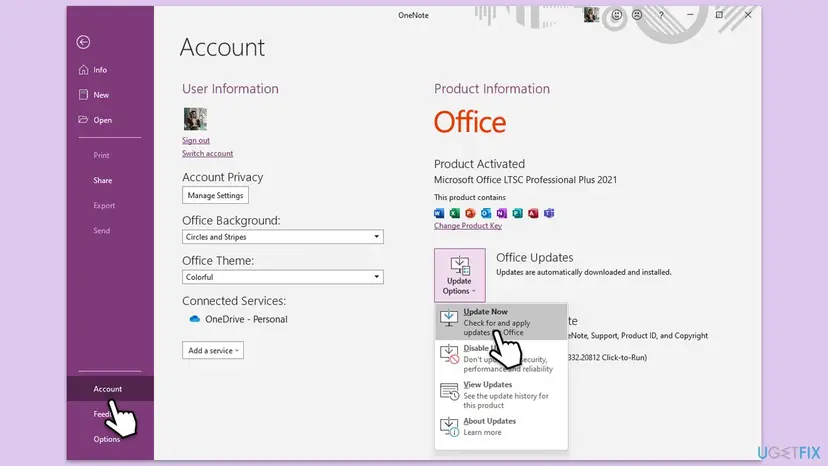
Windows 10 reached the end of support on 14 October 2025, and so did the OneNote for Windows 10 app. The OneNote desktop app still runs on Windows 10 22H2.
It worked if: Office reports that it is up to date, and the rebuilt section syncs after Shift + F9.
If not: If OneNote is current and still misbehaves, repair Office in Fix 7.
Fix 7. Repair Microsoft 365 or Office
10 to 30 minutesLow riskEverything above is done, the notebook is fine in OneNote for the web, and only the app on this PC fails.
OneNote's sync parts are installed with the rest of Office. A repair replaces damaged program files without touching your notebooks. It does not convert an old section, so it comes last.
Start with Quick Repair. If the error is still there, run Online Repair, which reinstalls Office and takes longer. Step by step: How to repair Microsoft 365 or Office.
- Open Installed apps. Right-click the Start button and select Installed apps.
- Find Microsoft 365 or Office. Find your Microsoft 365 or Office product in the list. If you have a standalone app such as Visio or Project, search for it by its own name.
- Open the repair window. Select the three dots next to the product and select Modify.
- Start with Quick Repair. In the repair window, select Quick Repair, then Repair. It is the faster option: it finds damaged files and replaces them.
- Finish and test. Follow the instructions on the screen until the repair is done. Restart the PC if you are asked to, then open the app that had the problem.
These steps were written for Windows 11 25H2 and 26H2. The full page with the other versions and what each result means: How to repair Microsoft 365 or Office
It worked if: The repair finishes, and after a restart the notebook syncs with no warning.
If not: Read "If error 0xE40200C4 is still there" for what to check and what to send to support.
If error 0xE40200C4 is still there
First make sure your notes are safe, then find out whether the problem is the section, the app or the server. OneNote for the web is the quickest test: if the notebook does not open there, no step on this PC can fix it.
- Save a copy: select File > Export, choose the section or the notebook and save it as a file. Keep a second copy of important files too: Back up your files (Windows Backup, File History, Time Machine).
- Notebook not on the web: if it is in OneDrive, check Microsoft's service status page for an outage. If it is in SharePoint, ask your administrator.
- Find the section: File > Info > View Sync Status, then select the notebook with the yellow triangle; it names the section that fails.
- Many notebooks fail at once: a user on Microsoft Q&A saw new notebooks get the same error after copying whole sections. Rebuild page by page (Fix 3) and sync after every few pages.
- For support, collect: the full message and code, the section name from View Sync Status, your OneNote version from File > Account > About OneNote, and where the notebook is stored.
- Diagnostics: Microsoft offers the OneNote Diagnostics Tool, which collects information about your OneNote and sends it to Microsoft. It is available in English only.
- Home users: contact Microsoft support from File > Account or the Microsoft support site, with those facts. Work or school: your IT department first.
How to keep OneNote error 0xE40200C4 from coming back
The error comes from old sections that end up in a cloud notebook. Keep old files out of your synced notebooks and give every old section a new home before you move it to the cloud.
- Before you move an old local notebook to OneDrive, copy its sections into a new OneDrive notebook as in Fix 2.
- Open .one files from backups or email in the OneNote desktop app and copy them into a notebook at once.
- Use one OneNote app, the desktop app, for all your notebooks on Windows.
- Install Office updates when they are offered.
- Glance at File > Info > View Sync Status now and then.
- Do not drag .one files into a OneDrive notebook folder in File Explorer.
- Do not use Move instead of Copy for a section that shows the error.
- Do not delete the old section before the new one shows a clean sync.
- Do not ignore the yellow bar for weeks: changes in that section stay on one PC only.
Frequently asked questions
What does "This section was created in an older version of OneNote and is incompatible with your cloud notebook" mean?
It means one section of your notebook uses an older OneNote file format that the cloud notebook in OneDrive or SharePoint will not sync. Microsoft ties this message to standalone section files, which OneNote no longer supports. Only that section is affected. Its pages still open on this PC, but changes to it do not reach your other devices. Copy its pages into a new section of the same notebook (Fix 1) or, for a standalone .one file, into a new OneDrive notebook (Fix 2).
Will I lose my notes if I fix error 0xE40200C4?
Not if you copy instead of moving and keep the old section until the copy syncs. The section with the error is still a working file on your PC. The only risky moment is deleting it, and Microsoft's own steps delete it only after the copied pages have synced. Check the new section in OneNote for the web before you delete anything, and export a copy with File > Export if the notes matter to you.
How do I find which section causes the error?
Select File > Info > View Sync Status in the OneNote desktop app. The Shared Notebook Synchronization dialog box shows a yellow warning triangle over the notebook that has the problem. Select that notebook icon to see the name of the section that is failing. The same section also shows the yellow bar with the 0xE40200C4 message when you open it. A section under Opened Sections is a standalone file and needs Fix 2.
Why did my copied section get the same error?
Because the copy can bring parts of the old section with it. A user on Microsoft Q&A reports exactly this: whole sections copied with Move or Copy failed again, single pages worked most of the time, and pages he created by hand and filled with pasted content never failed. Delete the failed copy, empty it from the Notebook Recycle Bin, and rebuild the pages one by one as in Fix 3.
Is 0xE40200B4 the same error as 0xE40200C4?
No, it is a different code that differs by one character, and people often mistype one for the other. We could not find a Microsoft description of 0xE40200B4. If your message says the section was created in an older version of OneNote, you have 0xE40200C4 and this page applies. If it shows a different message, read the exact text in File > Info > View Sync Status, update OneNote (Fix 6) and search for that message.
What does "OneNote can't sync your notes right now. We'll keep trying." mean?
It is a general sync message that OneNote shows with several codes, so the code in brackets matters more than the text. Microsoft documents it with error E000006C (cig68), where the fix is to update OneNote and then select Refresh now in the yellow bar. If the bracket shows 0xE40200C4 instead, the cause is an old section and this page applies. Read the code in File > Info > View Sync Status.
Does signing in again or restarting the PC fix 0xE40200C4?
Rarely. The error is about the file format of one section, and a restart or a new sign-in does not change that format. Older guides list a restart, the network troubleshooter and an account check first, and we dropped them as fixes for this code. Check that you are signed in with the account that owns the notebook only if the notebook itself is missing in OneNote for the web, which points to a different problem.
Does OneNote for the web fix the old section?
It shows you whether the rest of the notebook is safe in the cloud, and it is where you create the new notebook in Fix 2. It does not convert a section that never synced, because that section exists only on your PC. Use it as a test: if the notebook opens at onenote.com with your recent changes, the server is fine and only the old section needs rebuilding in the desktop app.
This page is about OneNote on Windows. Do the steps work on Windows 10?
Yes. The steps work with the OneNote desktop app (OneNote for Microsoft 365, 2024, 2021 and 2016) on Windows 11 and Windows 10 22H2. Windows 10 reached the end of support on 14 October 2025, so it no longer gets security fixes, but the OneNote desktop app still runs there. If you use the old OneNote for Windows 10 app, install the desktop app first (Fix 6).
Sources
- Microsoft Support: Resolve the "This section was originally created in an older version of OneNote" error (support.microsoft.com)
- Microsoft Support: Fix issues when you can't sync OneNote (sections or pages won't sync, close and reopen, Notebook Recycle Bin) (support.microsoft.com)
- Microsoft Q&A: One notebook was "incompatible with your cloud notebook" on Friday, now 4 more are (0xE40200C4) (learn.microsoft.com)
Did this fix work?
One click, no account. It tells the next reader which guides are worth their time.
Questions and experiences: fix OneNote sync error 0xE40200C4 in Windows
Still broken, or found a fix we did not cover? Ask here: members and our editors answer. Reading is open; writing needs a free account.
…