
How to fix "Our systems have detected unusual traffic from your computer network" error?

Prefer to fix it yourself? The manual steps follow.
- 8methods
- 1 to 60 minutes
- Easy
Applies to Google Search in Chrome, Edge, Firefox and other browsers on Windows 11 and Windows 10; the causes and the network tests also apply to phones, Macs and Chromebooks
8 methods in this guide
Hello, I have a problem with Google Chrome. I have recently started to get a very weird error when I try to reach various websites. It says "Our systems have detected unusual traffic from your computer network. Please try your request again later," preventing me from accessing those sites. Any advice?
"Our systems have detected unusual traffic from your computer network" is Google Search's robot check: too many automated requests came from your public IP address, and that address may be shared with a VPN, an office or your mobile provider. Solve the reCAPTCHA, stop searching for a few minutes and turn off any VPN or proxy first.
It is not a Chrome error and it rarely means you are hacked. Google saw automated searches from your IP address. Tick the reCAPTCHA box and search slowly for a while (Fix 1); Google says the block expires shortly after the requests stop. If it keeps coming back, turn off your VPN or proxy (Fix 2), then use the two tests in Fix 3 to see whether your PC or your network sends the traffic.
| Error | "Our systems have detected unusual traffic from your computer network. This page checks to see if it's really you sending the requests, and not a robot." A reCAPTCHA box and a Why did this happen? link follow. |
|---|---|
| Where it appears | On a Google page instead of your search results, in any browser: Chrome, Edge, Firefox, Safari, also in Incognito or private windows. It can appear on other Google pages that run searches, such as Google Scholar or YouTube. |
| Main cause | Google counted too many automated requests from your public IP address. The sender can be a VPN or proxy exit shared with strangers, another device on your network, a browser extension, a rank checker or script, or malware. |
| Fastest fix | Solve the reCAPTCHA and search slowly for a few minutes (Fix 1). If it returns, disconnect the VPN or proxy (Fix 2). |
| Also written as | "Unusual traffic from your computer network", "Our system has detected unusual traffic", "our systems have detected unusual traffic from your computer", and the variant that ends "Please try your request again later". |
| Affects | Google Search on every browser and operating system. The steps here are written for Windows 11 and Windows 10 with Chrome 155, Edge and Firefox, with notes for phones. |
| Google's status | Intended behaviour, documented in Google Search Help. A Firefox 147 problem in January 2026 that showed the check on every search was fixed on Google's side. |
| How long it lasts | Google gives no number. Its page says the block "will expire shortly after those requests stop". A VPN or office address can stay flagged as long as others keep sending traffic. |
| Time to fix | 1 minute for the reCAPTCHA. 5 to 10 minutes to test the VPN and the network. 30 to 60 minutes if a malware scan is needed. |
Facts checked on 14 October 2026. Steps written for Chrome 155 on Windows 11 (screenshots); Windows 11 and Windows 10 22H2 paths from Microsoft Support; Firefox 158 paths from Mozilla Support; Google's wording from Google Search Help.
What "Our systems have detected unusual traffic from your computer network" means
The message is Google's own page, not a browser error. Google Search puts it in front of your results when the requests reaching it from your public IP address look like they come from a robot, a program or a search scraper rather than a person. Google Search Help says plainly that this includes VPN networks. The page asks you to prove you are human with a reCAPTCHA; when you pass it, you can search again.
Note the word network. Google cannot see your computer. It sees the one address under which your home, your office, your VPN server or your mobile provider sends traffic to the internet. Every device behind that address shares the same reputation, so the page can appear on a PC that did nothing wrong.
- Headline
- "Our systems have detected unusual traffic from your computer network."
- Second line
- "This page checks to see if it's really you sending the requests, and not a robot."
- Under Why did this happen?
- "This page appears when Google automatically detects requests coming from your computer network which appear to be in violation of the Terms of Service. The block will expire shortly after those requests stop."
- What may send it
- "This traffic may have been sent by malicious software, a browser plug-in, or a script that sends automated requests."
- Shared networks
- "If you share your network connection, ask your administrator for help", because "a different computer using the same IP address may be responsible."
- Other triggers
- "Sometimes you may be asked to solve the CAPTCHA if you are using advanced terms that robots are known to use, or sending requests very quickly."
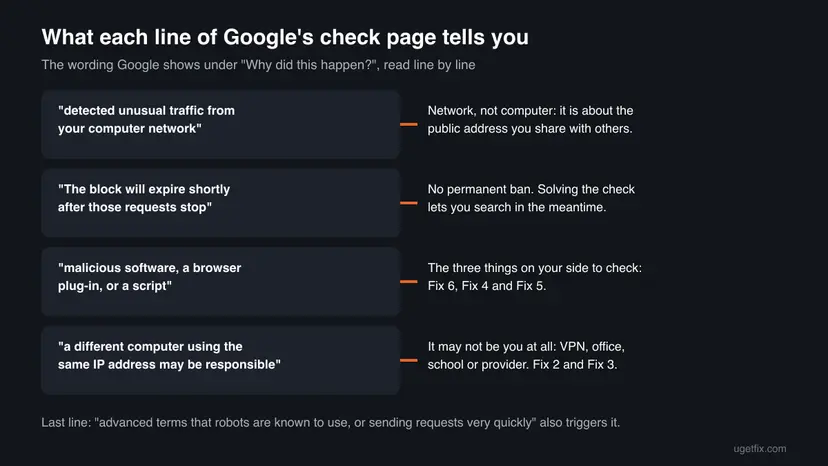
The wording you see may be shorter. Some readers get only "Our systems have detected unusual traffic from your computer network. Please try your request again later" with no box to tick. Google Search Help says that when no reCAPTCHA appears, you should check that your browser is supported by reCAPTCHA and that JavaScript is turned on. Similar messages on other sites, such as "We've detected unusual activity from your computer network", come from those sites' own systems; the FAQ covers them.
Why did this happen? The causes, from most to least common
Google lists what it treats as automated traffic: searches sent by robots, computer programs, automated services and search scrapers, and software that checks how a website ranks on Google. It names four places the traffic can come from: you, another user on your network, other users of your VPN or IPv6 tunnel, and other customers of your internet provider. Reports in Google's and Mozilla's forums show which of those readers meet most often.
| How often | Cause | Typical sign | Fix |
|---|---|---|---|
| Most often | A VPN, proxy, IPv6 tunnel or privacy relay. Its exit address is shared by many users, some of them running bots. | The check appears on every search while the VPN is on and stops when it is off. | Fix 2 |
| Often | Searching very fast: many queries in a row, opening dozens of results, long queries with search operators such as site: or inurl:. | The check appears once after a burst of searching, then goes away. | Fix 1 |
| Often | A shared public address: office, school, hotel, café, dormitory, or mobile data, where many customers leave through few addresses. | Other people on the same Wi-Fi or the same provider see it too. | Fix 3 |
| Less often | A browser extension that loads pages or queries Google in the background: SEO toolbars, auto-refresh tools, some ad or tracker blockers. | Only one browser or one browser profile is affected. | Fix 4 |
| Less often | Rank checkers, scrapers, price monitors, download tools or your own scripts running on the PC. | The check returns whenever that program runs. | Fix 5 |
| Rarely | Malware or unwanted software that sends requests in the background. | Other signs: new toolbars, changed search engine, unknown programs, high network use. | Fix 6 |
| Rarely | The browser loses Google's cookies on every start, or a browser version is flagged by mistake. | The check returns at every visit even on a clean network. | Fix 7 and Fix 8 |
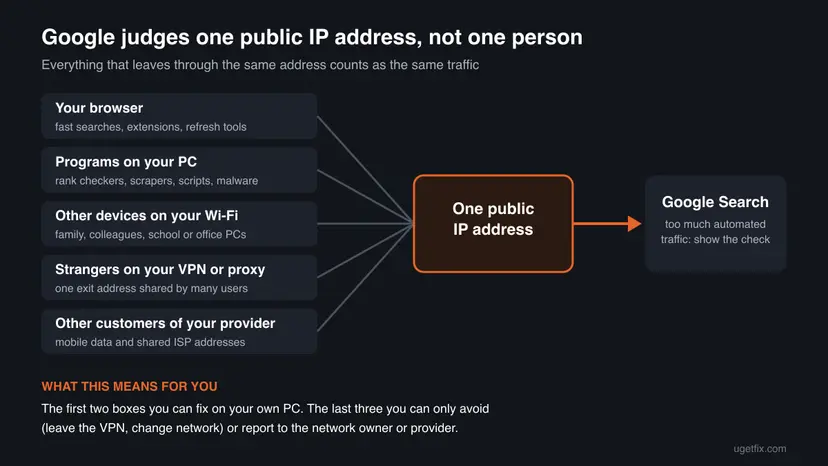
Usually not. Malware is one of the causes Google names, so a scan is worth doing when the check keeps returning on every network you use. But the common causes are a VPN, a shared address or fast searching, none of which involves your PC being compromised.
Why the unusual traffic check appears in Incognito mode more often
Many people notice the check appears in an Incognito or private window but not in a normal one. Chrome's help explains the part that matters: during an Incognito session Chrome keeps cookies only temporarily, and removes them when the session ends. Google's cookie policy says some of its cookies are used to detect spam, fraud and abuse. So every new Incognito window arrives at Google with no history of you, and Google has less to go on.
- A normal window usually carries Google cookies from earlier visits. After you pass the check once, you normally keep searching without it.
- An Incognito window starts empty each time. If your address is under suspicion, you can be asked again in every new Incognito session.
- Extensions are off in Incognito unless you turned on Allow in Incognito for them. If the check appears only in normal windows, an extension is a strong suspect (Fix 4).
- Firefox private windows and Edge InPrivate behave the same way. Firefox users also reported the check in private windows in March 2026, in a Mozilla support thread.
Incognito does not hide your IP address. If the address is flagged because of a VPN or a shared network, Incognito will not help, and the fixes are the same as for a normal window. We could not find a Google document that names the exact cookie which remembers a solved check, so we do not name one here.
How to fix "Our systems have detected unusual traffic from your computer network"
Start with Fix 1 and Fix 2: they solve most cases in minutes. Fix 3 tells you whether the cause is on your PC or on your network, so you know whether Fixes 4 to 8 are worth your time.
| What you see | Start with |
|---|---|
| The check appeared once after a lot of searching | Fix 1 |
| You use a VPN, proxy, Tor, iCloud Private Relay or a work network | Fix 2, then Fix 3 |
| Everyone on your Wi-Fi, office or school network gets it | Fix 3, then ask the network owner or provider |
| Only one browser gets it, or only normal windows and not Incognito | Fix 4, then Fix 7 |
| You run SEO tools, scrapers, monitors or your own scripts | Fix 5 |
| It follows this PC to every network, with other odd behaviour | Fix 6 |
| Firefox asks on every single visit, other browsers do not | Fix 7, then Fix 8 |
Fix 1. Solve the reCAPTCHA and slow down your searching
1 to 10 minutesNo riskAnyone who sees the check for the first time or only now and then.
Google's own instruction is to solve the reCAPTCHA: after you pass it, the message goes away and you can use Google again. The block itself is temporary and ends shortly after the automated requests stop.
- Select the I'm not a robot check box. If the box gets a tick, you are through.
- If Google shows a picture puzzle, follow the instruction on it. When a puzzle is too hard, select the reload button next to the picture to get another one.
- If you cannot see or solve pictures, select Get an audio challenge, press PLAY and type the numbers you hear. Select Verify or press Enter.
- If no check box appears at all, make sure JavaScript is on and that you use one of the two newest major versions of Chrome, Firefox, Safari or Edge. Those are the only browsers reCAPTCHA supports.
- After passing, search at a normal pace for 10 to 15 minutes. Avoid opening many results at once and avoid long chains of search operators.
- If the check returns within minutes on every search, stop solving puzzles and go to Fix 2. Repeated solving does not clear a flagged address.
If every answer is rejected, the puzzle is not the problem: your address or browser is scored as high risk. A rejected reCAPTCHA gives a new challenge; it does not lock you out. Leave it and try the next fixes.
It worked if: The box gets a tick, your results load, and the next searches go through without a new check.
If not: If the check returns on every search or never accepts an answer, turn off the VPN or proxy in Fix 2.
Fix 2. Turn off the VPN, proxy or privacy relay and test again
5 minutesLow riskYou use any VPN, proxy, Tor, a VPN extension, an IPv6 tunnel or iCloud Private Relay.
Google Search Help names VPNs and IPv6 tunnel services directly. Many strangers leave through the same VPN exit address, and Google says some VPNs make it impossible to tell abusive traffic from normal traffic, so all of it gets checked.
- Disconnect the VPN in its own app. Look in the taskbar corner next to the clock for its icon.
- Open Settings > Network & internet > VPN in Windows 11 or Windows 10. If a connection there shows Connected, select it and disconnect it.
- In Chrome, type
chrome://extensionsin the address bar and press Enter. Turn off any VPN or proxy extension with its switch. - Type
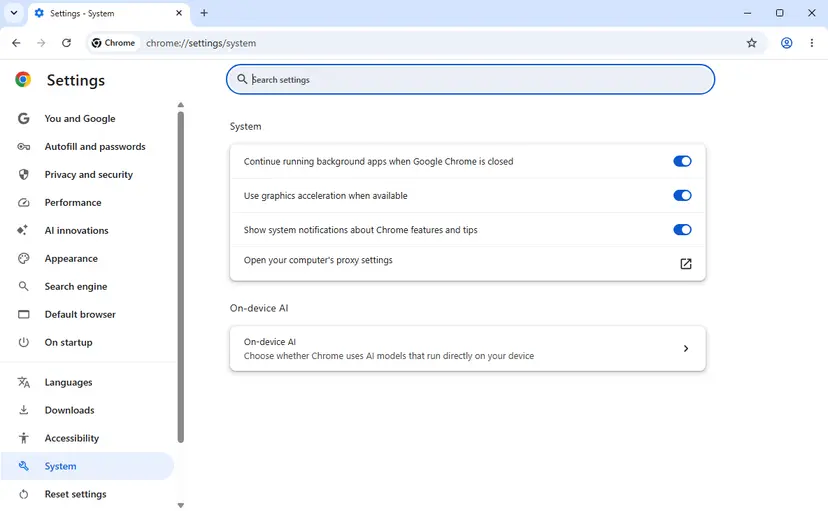
chrome://settings/systemand press Enter. Select Open your computer's proxy settings. In Settings > Network & internet > Proxy, make sure Use a proxy server is off unless your workplace set it. - Close the browser fully and open it again. Search on Google two or three times.
- If the check is gone, reconnect the VPN on a different server or country and test once more. Some exit addresses are flagged and others are not.
- If every server of your VPN is flagged, contact the VPN provider. Google's advice is to uninstall the VPN or ask its provider for help.
- iPhone, iPad or Mac with iCloud+: Apple says that without access to your IP address, some websites may require extra steps. If the check appears only in Safari, try once with iCloud Private Relay off for that network.
- Tor Browser: exit addresses are shared by everyone using Tor, so expect the check often. There is no fix on your side other than using a normal connection for Google.
- Work or school VPN: do not remove it. Tell the IT team the time you saw the check; they can find the device sending traffic.
It worked if: With the VPN or proxy off, Google searches load without the check, and they keep loading after you reopen the browser.
If not: If the check appears even with every VPN and proxy off, run the two tests in Fix 3 to find out whether the cause is this PC or the network.
Fix 3. Find out whether your PC or your network sends the traffic
10 minutesNo riskThe check keeps returning without a VPN and you do not know why.
Google checks an address, so the quickest way to the cause is to change one thing at a time: the same PC on a different address, then a different device on the same address. The result tells you which half of this guide applies.
- Test A. Turn on the mobile hotspot on your phone. Connect this PC to it, with the VPN still off, and search on Google a few times.
- Test B. Connect the PC back to your normal Wi-Fi. On your phone turn off mobile data so it uses the same Wi-Fi, then search on Google there.
- Compare the two results with the picture below.
- If only your home network is affected, restart the router: unplug it for one or two minutes. Some providers give a new public address after that, others keep the old one, so this may or may not help.
- On a shared network, write down the time you saw the check and tell the network owner: your IT team, school, landlord or hotel. Google says the administrator should find the source and stop it.
- If the whole home network is flagged and no device at home runs anything automated, call your internet provider. Google says other customers of the same provider can cause the message.
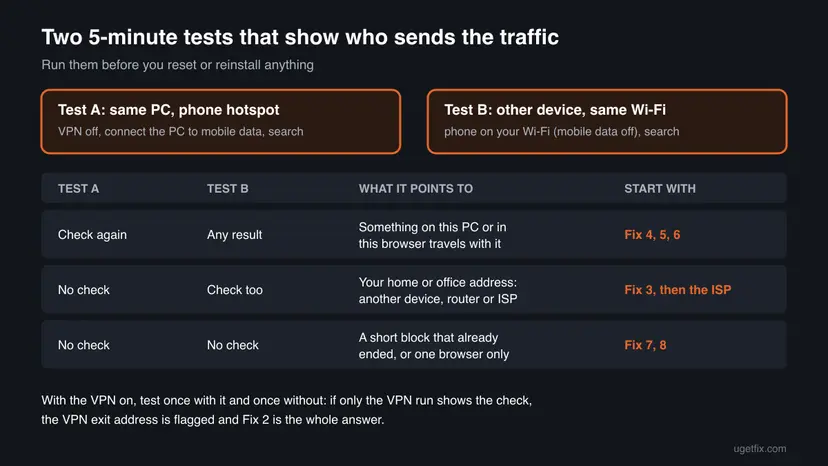
Mobile providers send many customers through a small number of public addresses. A volunteer Product Expert in Google's community explained that this alone can trigger the check. If Test A also shows the check, repeat it a few minutes later before blaming your PC.
It worked if: One test is clean and the other is not, so you know whether to continue on this PC (Fixes 4 to 8) or with the network owner.
If not: If both tests show the check, the cause travels with this PC: go to Fix 4 for extensions and Fix 5 for programs.
Fix 4. Turn off browser extensions that query Google in the background
5 minutesLow riskOnly one browser is affected, or the check appears in normal windows but not in Incognito.
Google's page names "a browser plug-in" as one source of the traffic. SEO toolbars, page monitors and auto-refresh tools send requests on their own, and a Mozilla moderator reported in January 2026 that turning off an ad-blocking extension stopped the check for him.
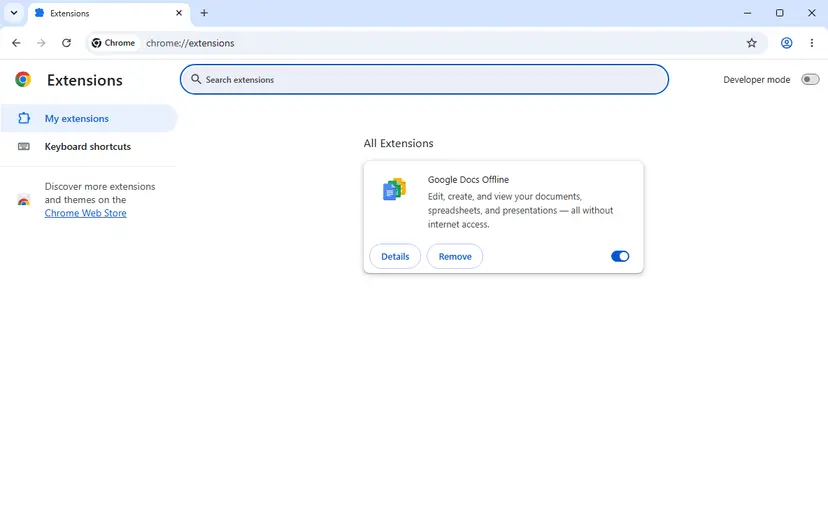
- Open a Chrome Incognito window with Ctrl + Shift + N and search on Google. Extensions do not run there unless you allowed them.
- If Incognito is clean, close it. In a normal window type
chrome://extensionsand press Enter. - Turn off every extension with its switch. Do not remove them yet.
- Search on Google a few times. If the check is gone, turn the extensions back on one at a time and search after each one.
- When the check returns, the last extension you turned on is the cause. Select Remove on its card, or keep it off.
- Look hard at extensions you do not remember installing, rank or keyword tools, "search helpers", and anything that changed your search engine.
- Edge: type
edge://extensionsand use the same switches. - Firefox: open the menu, select Help and Report, then Troubleshoot Mode… and Restart. Mozilla says this turns off add-ons for that session only. On Windows you can also hold Shift while starting Firefox.
It worked if: With the guilty extension off or removed, Google searches load without the check in normal windows too.
If not: If the check stays with all extensions off, look for programs that send searches (Fix 5).
Fix 5. Stop rank checkers, scrapers, monitors and scripts
5 to 15 minutesNo riskYou or someone on your network uses SEO software, price or stock monitors, scrapers, or your own scripts.
Google lists software that sends searches to find how a website ranks as automated traffic by name. Any program that queries Google without a person typing puts the whole address at risk, including browsers that a script drives.
- Press Ctrl + Shift + Esc to open Task Manager and look under Apps and Background processes for SEO, scraper, monitor or automation tools.
- Close or pause any rank tracker, keyword tool, scraper, price monitor or browser automation tool you find.
- Check the taskbar corner next to the clock for tools that keep running after you close their window, and exit them there.
- If you wrote a script that calls Google Search, stop it. Use an official Google API for automated work.
- Wait 15 to 30 minutes, then search on Google by hand. The block ends shortly after the requests stop.
- If a program keeps restarting on its own, turn it off in Task Manager > Startup apps, or uninstall it: Uninstall a program or app in Windows.
It worked if: After the tools stop and a short wait, Google searches load normally without the check.
If not: If you found no such tool and the check follows this PC to every network, scan it for malware with Fix 6.
Fix 6. Scan for malware with Microsoft Defender and remove unwanted programs
30 to 60 minutesLow riskThe check follows this PC to every network, or you also see pop-ups, a changed search engine or unknown programs.
Google Search Help says malware on your PC, or on another PC on your network, can cause the message. Some malware sends search requests or ad clicks in the background, which is exactly the traffic Google checks for.
Run a Full scan in Windows Security, not only a quick one. The full scan checks every file and program on the PC. Step by step: How to scan for malware with Microsoft Defender.
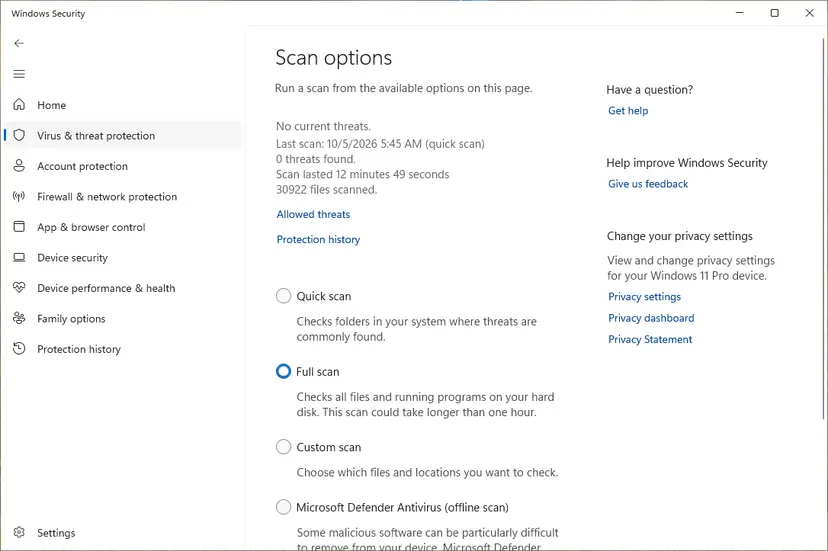
- When the full scan ends, open Protection history in Windows Security and remove anything it found.
- If you still suspect an infection, open Virus & threat protection > Scan options, choose Microsoft Defender Antivirus (offline scan) and select Scan now. Save your work first: the PC restarts.
- Open Settings > Apps > Installed apps and uninstall programs you do not recognise or did not mean to install, such as browser helpers or free tools bundled with a download.
- Run the same scan on other Windows PCs on your network if Fix 3 showed the whole network is flagged.
It worked if: Windows Security reports no current threats and, after an hour or so, Google stops showing the check on this PC.
If not: If the scans are clean and the check still appears in one browser, look at that browser's cookies (Fix 7) and then reset it (Fix 8).
Fix 7. Let Google keep its cookies and update the browser
5 minutesLow riskThe check appears at every visit, mostly in Firefox or a browser set to delete cookies when it closes.
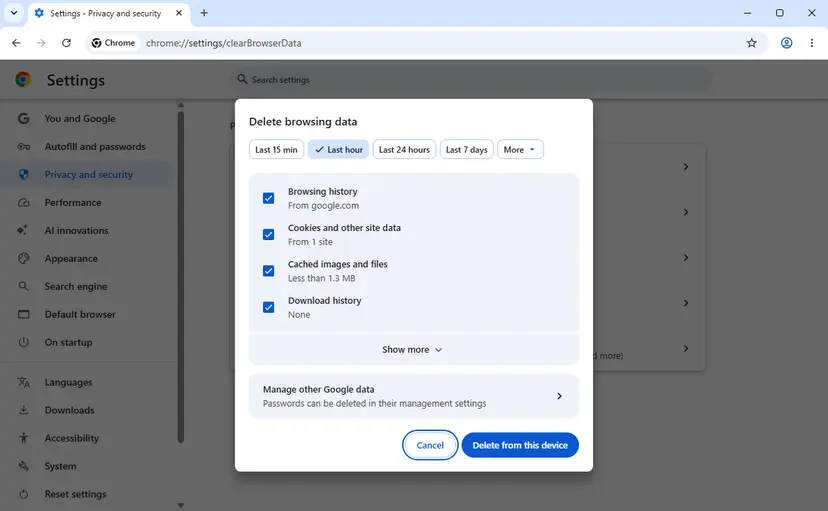
Google uses cookies to detect spam, fraud and abuse. A Firefox user reported in Mozilla's forum that allowing Google in the cookie exceptions stopped the check, and that it came back each time cookies were deleted. A browser that forgets Google at every start looks new every time.
- In Chrome, open More (the three dots) > Settings > Privacy and security and check whether a setting or a privacy extension deletes cookies each time Chrome closes. If so, add an exception for google.com or turn that off for a test.
- In Firefox, open Settings > Privacy & Security. Under Cookies and Site Data, open the exceptions window, type
https://www.google.comand select Allow. Then save the change. - Delete Google's old cookies once so you start clean: Clear the browser cache and cookies. Choose Cookies and other site data.
- Open the browser's About page to update it. In Chrome type
chrome://settings/help. In Firefox use Help and Report > About Firefox. - Close and reopen the browser, solve the reCAPTCHA once, and search a few times.
In January 2026 Firefox 147 users got the check on every Google search while Chrome and Edge on the same PC did not. Mozilla's bug 2010196 records that Google fixed it on its side and the bug was closed as verified. If the same pattern appears after a browser update, it is likely a site problem: report it and test another browser meanwhile.
It worked if: After one solved check, later visits to Google in the same browser no longer ask again.
If not: If the check still appears at every visit in this browser only, reset the browser in Fix 8.
Fix 8. Reset Chrome or refresh Firefox to their defaults
5 minutesRead the warningOnly one browser shows the check, and Fixes 4 and 7 did not help.
A reset removes what unwanted programs change in the browser: the search engine, startup pages, extensions and site data. Google's own help suggests resetting Chrome after removing unwanted software, and Firefox's Refresh does the same with a new profile.
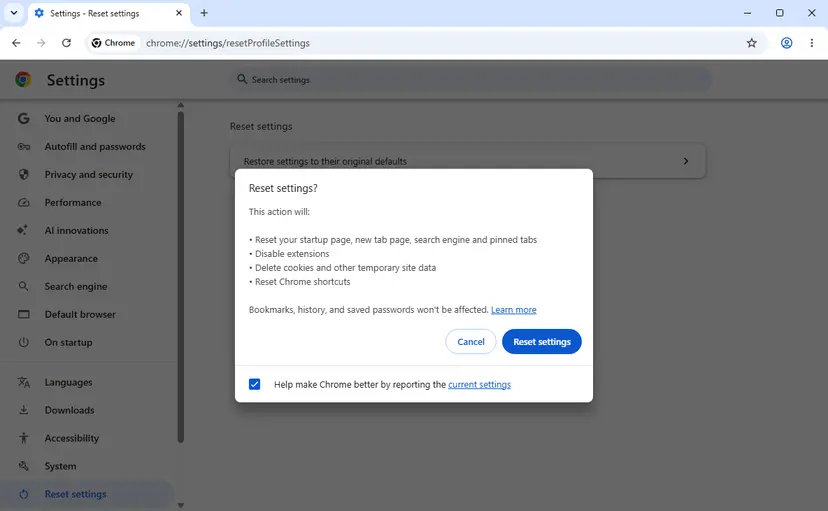
Chrome's reset turns off every extension, deletes cookies and site data, and resets the startup page, new tab page, search engine, pinned tabs and shortcuts. Bookmarks, history and saved passwords stay. Firefox's Refresh removes extensions and their data. Sign in to sync first so you can restore what you need.
- Chrome: select More (the three dots) > Settings > Reset settings.
- Select Restore settings to their original defaults, read the list in the Reset settings? dialog and select Reset settings.
- Firefox: open the menu, select Help and Report > More troubleshooting information and select Refresh Firefox…. Confirm with Refresh Firefox.
- When Firefox restarts, select Finish, choose whether to restore your windows and tabs, and select Let's go!
- Search on Google before you turn any extension back on. Then turn on only the extensions you trust.
It worked if: After the reset, Google searches in that browser load without the check.
If not: If even a reset browser shows the check, the cause is the address and not the browser: repeat Fix 3 and contact the network owner or provider.
Still getting the unusual traffic message? What to check and who to contact
There is no log on your PC that records Google's check. The evidence is the pattern: which devices, which networks and which browsers get it. Collect that before you ask anyone for help, because the person who can fix a flagged address is usually the network owner, the VPN provider or the internet provider, not you.
- Write down the date and time you saw the check and whether the VPN was on. An IT team or provider can match the time to traffic logs.
- Note your public IP address at that moment. Searching "what is my IP" on another search engine shows it. Tell the provider which address was flagged.
- Note who else is affected: every device at home, only this PC, or only one browser. That separates a network problem from a PC problem.
- For the network owner: Google asks administrators and providers to locate the sources of automated traffic and block them. Once the searches stop, users can search normally again.
- For a newly bought address range: Google warns network owners to test an IP range from a broker before buying it, because it may already be blocked.
Google has no form to unblock a single address. The Search Help community can answer questions, but volunteers cannot lift a block. If none of the tests show a cause and the check stays for days on one home address, the provider is the right contact.
How to keep the message from coming back
- Search at a human pace and open results one by one.
- Choose a VPN server that does not trigger the check, or turn the VPN off for Google.
- Keep only extensions you use and trust, and review
chrome://extensionsnow and then. - Run SEO and monitoring tools through official APIs, not by querying Google Search pages.
- Keep Windows Security turned on and the browser updated.
- Use free VPNs or proxies that share your connection with other users.
- Run scrapers or rank checkers from the same network your family or office uses.
- Install "search helper" toolbars or extensions bundled with free downloads.
- Set the browser to delete Google's cookies at every close if the check bothers you.
- Turn off your antivirus to get rid of the check: it is not the cause.
If you share a network you do not control, such as a dormitory, hotel or office, you cannot prevent other people's traffic. A phone hotspot or a different network is the practical way around a flagged address until its owner stops the source.
Frequently asked questions
Why did this happen when I only searched a few times?
Because Google judges the public IP address, not your few searches. Other people behind the same address can send the automated traffic: other users of your VPN server, other devices on your Wi-Fi, other students or colleagues on a shared network, or other customers of your mobile provider. Google's page says that a different computer using the same IP address may be responsible. Turn off the VPN first (Fix 2), then use the hotspot test in Fix 3 to see whether the problem moves with your PC or stays with the network.
Does "unusual traffic from your computer network" mean my computer is hacked?
Usually it does not. Google names malware as one possible source, but most readers who see the check are on a VPN, a shared network or mobile data, or searched very fast. Treat malware as likely only when the check follows your PC to every network, including a phone hotspot, with the VPN off. In that case run a full scan and, if needed, an offline scan with Microsoft Defender (Fix 6), and look for unknown programs and extensions.
Why does Google ask for a CAPTCHA every time in Incognito mode?
An Incognito window starts without Google's cookies and deletes them again when it closes, according to Chrome's help. Google uses cookies to help detect abuse, so each new Incognito session arrives with no history and is more likely to be checked when your address is already under suspicion. Incognito does not change your IP address. If the check appears in Incognito and in normal windows alike, the cause is the address: start with Fix 2 and Fix 3.
How long does the unusual traffic block last?
Google does not give a number. The text under Why did this happen? says the block will expire shortly after those requests stop, and solving the reCAPTCHA lets you continue in the meantime. If you caused it by searching fast, a short break is usually enough. If the traffic comes from a VPN exit or a shared office address, the block lasts as long as other users keep sending automated requests, which you cannot control from your PC.
Why do I get it in Firefox but not in Chrome?
When only one browser gets the check, the cause is inside that browser: an add-on, a setting that deletes cookies at every close, or a version that Google flags by mistake. In January 2026, Firefox 147 showed the check on every Google search; Mozilla's bug 2010196 records that Google fixed it on its side. Start Firefox in Troubleshoot Mode to test without add-ons (Fix 4), allow cookies for google.com (Fix 7), and refresh Firefox if nothing else helps (Fix 8).
What is "We've detected unusual activity from your computer network"?
That wording is not Google Search's page. Other sites and services, such as shops, AI chat services and sites behind security services, run their own bot checks and use similar sentences. The causes are the same in principle: a VPN or proxy, a shared address, fast repeated requests or an extension. The fixes in this guide for VPNs, networks and extensions apply, but the site's own help page decides how long its block lasts and how to appeal it.
Why does my iPhone say "Our systems have detected unusual traffic from your computer network"?
The phone gets the same check for the same reasons, mostly the network. Mobile providers send many customers through a few addresses, and iCloud Private Relay hides your IP address, which Apple says can make some sites ask for extra steps. Try the search once on Wi-Fi and once on mobile data. If only one of them shows the check, that network is flagged. If Safari alone is affected, test once with iCloud Private Relay turned off.
Can I just turn off reCAPTCHA or skip the check?
No. The check is on Google's side and no browser setting removes it. Tools that promise to solve or bypass CAPTCHAs automatically are themselves automated traffic, so they make the problem worse for your address. The only lasting way out is to stop what sends the traffic: leave the flagged VPN or network, remove the extension or program behind it, or ask the network owner to block the source. Then the check stops appearing on its own.
Will resetting my router fix it?
Sometimes. Restarting the router can give your home a new public address, and the new one may not be flagged. Many providers keep the same address for days or weeks, though, so a restart may change nothing. It also does not help if a device in your home keeps sending the traffic, because the new address will be flagged too. Run the two tests in Fix 3 first so you know whether the address or a device is the real cause.
Sources
- Google Search Help: Resolve Google Search's "Unusual traffic from your computer network" message (support.google.com)
- reCAPTCHA Help: Browser requirements for reCAPTCHA (support.google.com)
- reCAPTCHA Help: using reCAPTCHA and the audio challenge (support.google.com)
- Google Chrome Help: Remove unwanted ads, pop-ups and malware (support.google.com)
- Google Chrome Help: Browse in Incognito mode (support.google.com)
- Chrome Web Store Help: Install and manage extensions (support.google.com)
- Google Privacy and Terms: How Google uses cookies (policies.google.com)
- Google Search Central Community: the full text of the unusual traffic page (support.google.com)
- Microsoft Support: Virus and threat protection in the Windows Security app (support.microsoft.com)
- Microsoft Support: Connect to a VPN in Windows (support.microsoft.com)
- Mozilla Support: Refresh Firefox, reset add-ons and settings (support.mozilla.org)
- Mozilla Support: Use Troubleshoot Mode in Firefox (support.mozilla.org)
- Mozilla Bugzilla 2010196: Firefox 147.0, Google search constantly shows reCAPTCHA (bugzilla.mozilla.org)
- Mozilla Support forum: user reports of the check in Firefox (reports only) (support.mozilla.org)
- Apple Support: About iCloud Private Relay (support.apple.com)
Did this fix work?
One click, no account. It tells the next reader which guides are worth their time.
Questions and experiences: fix "Our systems have detected unusual traffic from your computer network" error
Still broken, or found a fix we did not cover? Ask here: members and our editors answer. Reading is open; writing needs a free account.
…