
How to fix Outlook error 0x800CCC17 in Windows?

Prefer to fix it yourself? The manual steps follow.
- 8methods
- 5 to 30 minutes
- Easy
Applies to Classic Outlook for Windows (Microsoft 365, Outlook 2024, 2021, 2019 and 2016) with POP3, IMAP or SMTP mail accounts; the same code appears in the old Windows Live Mail
8 methods in this guide
I got an error code 0x800CCC17 in Outlook and I am not sure how to proceed. Any tips? Possibly something that is not too difficult to understand, because I'm not very good with computers.
Error 0x800CCC17 means a send or receive task in Outlook was cancelled before it finished, so the message reads The operation was canceled by the user. Most often the cause is a password prompt that was closed or a password the server no longer accepts. Check that you can sign in to webmail, then clear the saved password in Outlook.
0x800CCC17 is the mail error IXP_E_USER_CANCEL: Outlook stopped a POP, IMAP or SMTP task before it finished. First sign in to the same mailbox in a web browser. If that works, remove the saved mail password from Credential Manager and type it again when Outlook asks (Fix 1). If it still fails, compare the server, port and encryption settings with your provider's page (Fix 2).
| Error | The operation was canceled by the user. with the code 0x800CCC17 in the Send/Receive progress window of classic Outlook. |
|---|---|
| Where it appears | When Outlook sends or receives mail through a POP3, IMAP or SMTP account, often right after a password prompt. |
| Main cause | The sign-in to the mail server did not finish: the password prompt was closed, or the server rejected the saved password and Outlook gave up. |
| Fastest fix | Remove the saved password in Credential Manager and enter the right one when Outlook asks (Fix 1). |
| Also written as | 0x800ccc17, 0x800CCC17, IXP_E_USER_CANCEL, Windows Live Mail Error ID: 0x800CCC17, outlook error 0x800ccc17. |
| Affects | Classic Outlook with POP3, IMAP or SMTP accounts on Windows 11 and Windows 10. Microsoft 365 and Exchange mailboxes use another connection and do not report this code. |
| Microsoft's status | No Microsoft article covers 0x800CCC17. Microsoft support answers name a wrong sign-in, wrong POP settings, a firewall blocking the mail ports or an account that no longer exists. |
| Time to fix | 5 minutes for a password or a port. Up to 30 minutes if the data file or the mail profile must be rebuilt. |
| This page | uGetFix guide to error 0x800CCC17, checked on 15 October 2026. |
Facts checked on 15 October 2026. Steps written for classic Outlook for Microsoft 365 and Outlook 2016 to 2024 with POP3, IMAP and SMTP accounts on Windows 11 (25H2 and 26H2) and Windows 10 22H2, read against Microsoft support answers.
What Outlook error 0x800CCC17 means
You press Send/Receive, or Outlook checks mail on its own, and the task stops with a short message. The code 0x800CCC17 belongs to the Internet mail transport that classic Outlook uses for POP3, IMAP and SMTP accounts. Its name is IXP_E_USER_CANCEL, and its text is The operation was canceled by the user.
The words are misleading. You usually did not cancel anything. The code only says that the mail task ended before it was done, and that the stop came from the PC side, not as a refusal message from the server. Something on your PC or in your account broke the task off, and the fixes below find what it was.
| What you see | Where | What it tells you |
|---|---|---|
The operation was canceled by the user. with 0x800CCC17 | Send/Receive progress window in classic Outlook | A POP, IMAP or SMTP task stopped early. The account name and server are in the same line. |
| Unable to send or receive messages for the ... account. The operation was canceled by the user. | Windows Live Mail | The same code from the same mail transport. Windows Live Mail Error ID: 0x800CCC17, with the protocol and port listed below it. |
IXP_E_USER_CANCEL | Logs and support answers | The symbolic name of 0x800CCC17. |
0x800CCC0E, 0x800CCC13, 0x800CCC67 | Other Outlook send and receive errors | Neighbours from the same family with other meanings. This page does not cover them. |
The code comes from classic Outlook when it talks to a mail server over POP3, IMAP or SMTP, such as a provider's mailbox or Gmail added by hand. A Microsoft 365 or Exchange mailbox and the new Outlook for Windows connect in other ways and show other messages.
What causes error 0x800CCC17 in Outlook, ranked
Microsoft support answers tie the code to a sign-in that failed, to wrong POP settings, to a firewall that blocks the mail ports and to an account that no longer exists. A typical report shows the old settings next to it: Protocol: POP3, Port: 110, Secure(SSL): No. The table ranks the causes and ties each one to a fix.
| How often | Cause | Typical sign | Fix |
|---|---|---|---|
| Most often | The sign-in did not finish: the password prompt was closed, or the saved password was changed or is no longer accepted | Outlook asks for the password again and again. Webmail with the same password may or may not work. | Fix 1 |
| Often | Wrong or old server settings: port 110 or 25 without encryption, a server name that changed | The account is years old, or the provider moved to new servers. | Fix 2 |
| Less often | The task runs out of time on a slow link or a large message | The error comes after a long pause, mostly with attachments. | Fix 3 |
| Less often | Security software that scans mail stops the connection | The error started after an antivirus or firewall install or update. | Fix 4 |
| Rarely | An add-in, a damaged .pst data file or a damaged mail profile | Only this PC or this Outlook profile fails; the phone works. | Fix 5, Fix 6, Fix 7 |
| Rarely | Outdated or damaged Office files | Other Office apps misbehave too, or nothing else helped. | Fix 8 |
Microsoft has not published an article for 0x800CCC17. The meaning comes from the IXP error list quoted in a Microsoft support answer, and the causes come from Microsoft support answers to users of Windows Live Mail and Outlook. We found no source that ties the code to the Windows network troubleshooter or to a Windows update.
Before you start: test the account in a web browser
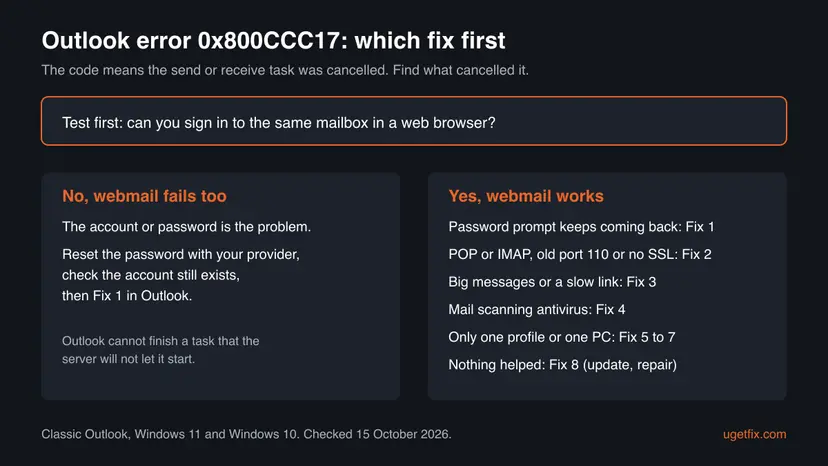
This one test splits the problem in two. It takes a minute and decides which branch of the chart you follow.
- Open your mail provider's website in a browser and sign in with the same address and password Outlook uses.
- If the sign-in fails, or the provider says the account is closed, fix that with the provider first. Outlook cannot finish a task that the server will not let it start.
- If the sign-in works, the account is fine and the problem is on this PC. Go to Fix 1.
- Write down the full error line from Outlook: the account name, the server, the protocol and the port. You need them in Fix 2.
How to fix Outlook error 0x800CCC17 on Windows
Close Outlook before each fix unless the step says otherwise, and press Send/Receive after each one to test. Keep your provider's mail server settings page open, because Fix 1 to Fix 3 use it. Your messages are not touched by Fix 1 to Fix 5.
| Your case | Start with | Then |
|---|---|---|
| Outlook keeps asking for the password, or you closed the prompt | Fix 1 | Fix 2 |
| The error line shows port 110, 143 or 25 and no SSL | Fix 2 | Fix 1 |
| The error comes after a long wait or with big attachments | Fix 3 | Fix 4 |
| It started after you installed or updated antivirus software | Fix 4 | Fix 5 |
| Only one Outlook profile or one PC fails, the phone works | Fix 6 | Fix 7, Fix 8 |
Fix 1. Remove the saved mail password and enter it again
5 minutesLow riskFirst, for everyone whose webmail works. Above all when Outlook keeps showing the password prompt or you closed it.
When the password prompt is closed, or the server rejects the saved password, Outlook stops the task and reports it as cancelled. Clearing the old password from Windows makes Outlook ask once more, and the right password lets the task finish.
- Close Outlook.
- Select Start, type
credential managerand open Credential Manager. - Select Windows Credentials.
- Find the entries that name your mail address or mail server, for example
MicrosoftOffice16_Dataentries or the server name from the error line. - Select each one and select Remove, then Yes.
- Open Outlook and press Send/Receive. When the password window opens, type the password, tick Remember password and select OK. Do not close this window.
Many providers no longer accept the normal account password from a desktop mail app. They ask for a browser sign-in or for an app password made on the account's security page. If the right password is refused, look up your provider's help page for Outlook and use what it says.
It worked if: The password window does not come back, and the task finishes without 0x800CCC17.
If not: If the prompt keeps returning with a correct password, check the server settings in Fix 2.
Fix 2. Check the server name, port and encryption
10 minutesLow riskAccounts set up years ago, error lines that show port 110, 143 or 25 without SSL, and anyone whose Fix 1 did not help.
A Microsoft support answer for 0x800CCC17 names incorrect POP settings first. Many providers closed the old unencrypted ports, so Outlook connects, cannot sign in safely and the task ends early.
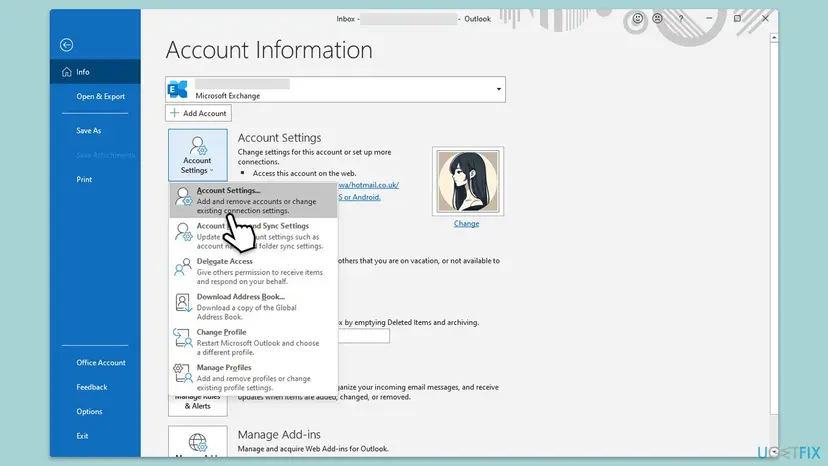
- Open Outlook and select File > Account Settings > Account Settings.
- On the Email tab, select the account from the error and select Change.
- Compare Incoming mail server and Outgoing mail server (SMTP) with your provider's settings page, letter by letter.
- Select More Settings and open the Advanced tab.
- Set the ports and the encryption type your provider gives. The common secure values are in the table below.
- On the Outgoing Server tab, tick My outgoing server (SMTP) requires authentication if your provider asks for it.
- Select OK, then Next and Done, and test with Send/Receive.
| Server | Common secure port | Encryption | Old port to replace |
|---|---|---|---|
| POP3 (incoming) | 995 | SSL/TLS | 110 |
| IMAP (incoming) | 993 | SSL/TLS | 143 |
| SMTP (outgoing) | 465 or 587 | SSL/TLS on 465, STARTTLS on 587 | 25 |
It worked if: Send/Receive finishes for this account, and the progress window shows no error.
If not: If the settings match and the error comes after a long wait, give the server more time in Fix 3.
Fix 3. Give the server more time with a longer server timeout
5 minutesLow riskThe error appears after a long pause, on a slow or mobile connection, or with large attachments.
When the server does not answer within the timeout, the task is stopped from the PC side. A longer timeout lets a slow server or a large message finish.
- Select File > Account Settings > Account Settings, pick the account and select Change.
- Select More Settings and open the Advanced tab.
- Drag the Server Timeouts slider towards Long.
- Select OK, then Next and Done.
- Test with Send/Receive. If one big message is stuck in the Outbox, move it to Drafts, test, then send it again with smaller attachments.
It worked if: The task waits longer and then finishes, or the stuck message goes out once it is smaller.
If not: If it still stops at once, check whether security software breaks the connection in Fix 4.
Fix 4. Test with mail scanning paused for one Send/Receive
5 minutesLow riskThe error started after an antivirus or firewall program was installed or updated, or the program scans email.
A Microsoft support answer for 0x800CCC17 names a firewall blocking the mail ports. Security software that scans mail sits between Outlook and the server, and if it drops the connection, Outlook reports the task as cancelled.
- Open your security program and pause its email scanning or protection for a few minutes. For Microsoft Defender, follow Turn off Microsoft Defender protection for a moment.
- Press Send/Receive in Outlook once.
- Turn the protection back on right after the test.
- If mail went through while it was paused, do not leave it off. Allow Outlook or the mail ports in the program's settings, or turn off only its email scanning, as the program's help describes.
- Update the security program, because a new version may fix the mail scanner.
Do not keep the antivirus or the firewall off as a fix. Turn protection on again right after the test, whatever the result.
It worked if: Mail goes through while scanning is paused, and keeps going through after you allow Outlook in the program.
If not: If nothing changes with protection paused, the security program is not the cause. Turn it on and go to Fix 5.
Fix 5. Start Outlook in safe mode and turn off add-ins
10 minutesLow riskWebmail works, the settings are right, and add-ins such as mail scanners, CRM or backup tools are installed in Outlook.
An add-in that hooks into sending or receiving can stop the task. Safe mode starts Outlook without add-ins, so it shows quickly whether one of them is the cause.
- Close Outlook.
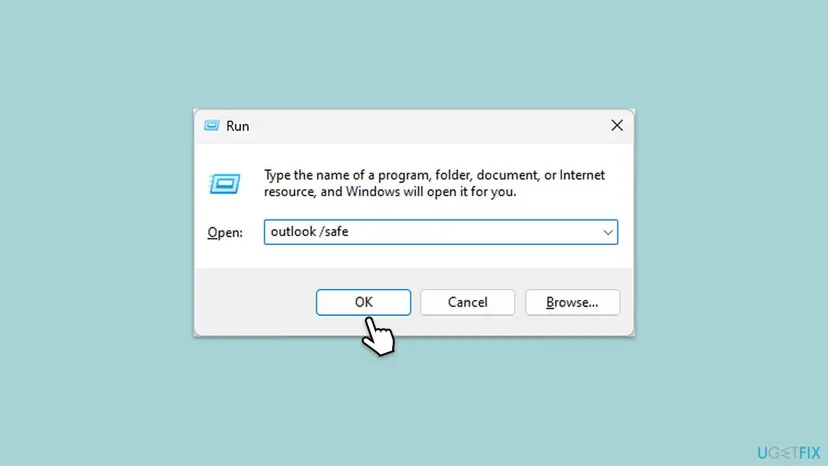
- Press Win + R, type this and select OK:
outlook /safe - Pick your profile if Outlook asks, and press Send/Receive.
- If it works in safe mode, close Outlook and open it normally.
- Select File > Options > Add-ins, choose COM Add-ins next to Manage and select Go.
- Clear the boxes of all add-ins, select OK and restart Outlook.
- Turn the add-ins back on one at a time, testing Send/Receive after each, to find the one that breaks it.
It worked if: Send/Receive works in safe mode, and keeps working when the faulty add-in stays off.
If not: If safe mode shows the same error, the add-ins are not the cause. Check the data file in Fix 6.
Fix 6. Repair the Outlook data file with the Inbox Repair Tool
15 to 30 minutesRead the warningPOP accounts, whose mail is kept in a .pst file, when Outlook is also slow, freezes or shows other data file errors.
A POP receive task writes the new messages into the .pst file. If the file is damaged, the task can stop before it finishes. The Inbox Repair Tool, SCANPST.EXE, checks and repairs it.
The repair can remove items it cannot fix. Copy the .pst file to another folder or drive before you start, so you can go back: Back up your files (Windows Backup, File History, Time Machine).
- In Outlook, select File > Account Settings > Account Settings and open the Data Files tab. Note the path of the .pst file, then close Outlook.
- Copy that .pst file to a safe place.
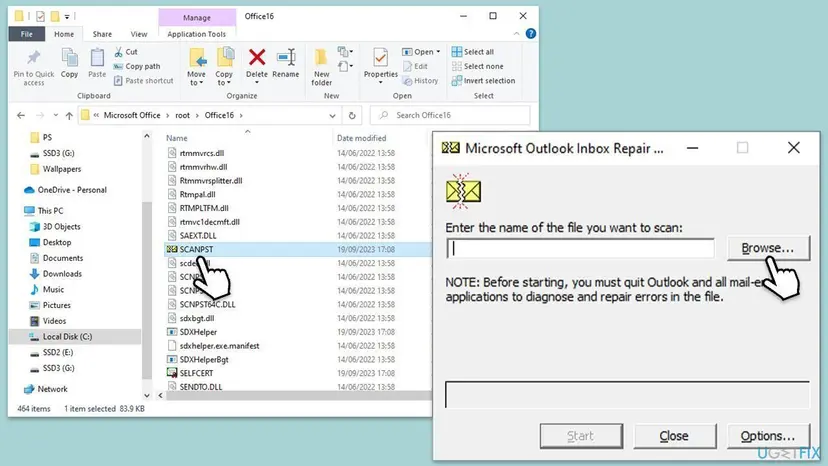
- Press Win + E and open the Office folder. For Microsoft 365, Outlook 2024, 2021, 2019 and 2016 it is usually:
C:\Program Files\Microsoft Office\root\Office16 - Double-click SCANPST. If it is not there, search the Microsoft Office folder for
SCANPST.EXE. - Select Browse, pick the .pst file and select Start.
- If errors are found, keep Make backup of scanned file before repairing ticked and select Repair.
- Open Outlook and test Send/Receive.
It worked if: The tool reports that the repair is complete, and Send/Receive finishes.
If not: If the file had no errors, or the error stays, build a new mail profile in Fix 7.
Fix 7. Create a new Outlook mail profile
15 minutesLow riskOnly this Outlook profile fails, while the same account works on a phone or another PC.
A damaged profile can keep wrong account data that no settings window shows. A new profile starts clean, and the old one stays in place until you remove it.
- Close Outlook.
- Select Start, type
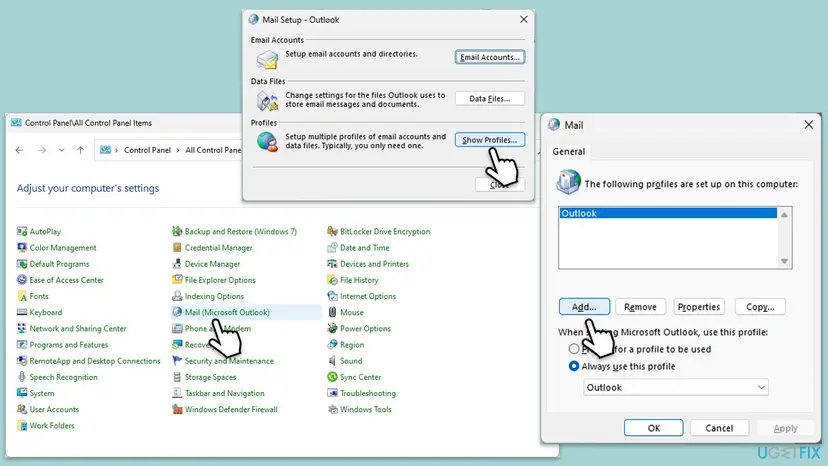
control paneland open Control Panel. Set View by to Small icons. - Select Mail (Microsoft Outlook) and then Show Profiles.
- Select Add, name the profile and add the mail account with the server settings from Fix 2.
- Select Prompt for a profile to be used and OK.
- Open Outlook, choose the new profile and test Send/Receive.
- If it works, set Always use this profile to the new profile. A POP account's old mail can be opened from the old .pst file with File > Open & Export > Open Outlook Data File.
It worked if: The new profile sends and receives without 0x800CCC17.
If not: If the new profile fails the same way, update and repair Office in Fix 8.
Fix 8. Update Outlook and repair Office
10 to 30 minutesLow riskLast, when nothing above helped, or when Word and Excel misbehave too.
An update or a repair replaces Office program files, including the mail transport that reports the code. It does not touch your mail, your accounts or your .pst files.
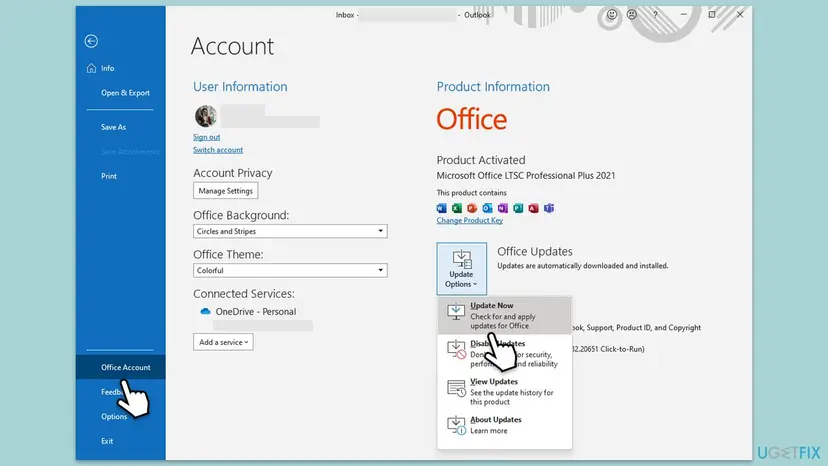
- Open Outlook and select File > Office Account.
- Select Update Options > Update Now and wait until Office says it is up to date.
- Restart Outlook and test Send/Receive.
- If the error stays, close all Office apps and run a Quick Repair, then an Online Repair: How to repair Microsoft 365 or Office.
It worked if: Office is up to date or repaired, and the account sends and receives.
If not: If the error survives a repair, read the section below and contact your mail provider.
If Outlook still shows error 0x800CCC17
When every fix failed, the cause is usually at the provider or in the account itself. The table sorts the common signs.
| What you see | Likely reason | What to do |
|---|---|---|
| Webmail fails too, or says the account is closed | The account no longer exists or is locked | Contact the provider. A Microsoft support answer for 0x800CCC17 names an account that no longer exists. |
| The password works in webmail but never in Outlook | The provider wants an app password or a browser sign-in | Follow the provider's Outlook help page and enter that password in Fix 1. |
| Only one account of several fails | Wrong settings for that account | Repeat Fix 2 with the settings from that provider. |
| Every account fails on this PC, the phone works | Security software or this PC's connection | Repeat Fix 4, and test on another network such as a phone hotspot. |
- Logging: in classic Outlook, File > Options > Advanced, tick Enable troubleshooting logging (requires restarting Outlook) and test once. Turn it off after the test, because it slows Outlook.
- For your provider or IT: the full error line (account, server, protocol, port, SSL), the time it happened, whether webmail works and which fixes you tried.
- Not hardware: the code is about a mail task, not about the disk or memory. A broken PC shows other errors first.
How to keep 0x800CCC17 from coming back
- When you change the mail password on the web or the phone, change it in Outlook the same day, before the next Send/Receive.
- Do not close the password window that Outlook shows. Type the password, or check webmail first if you are not sure.
- Use the encrypted ports from Fix 2. Providers keep closing the old ports 110, 143 and 25.
- Keep Office updated with File > Office Account > Update Options.
- If you still use Windows Live Mail, move to a supported mail app. Microsoft no longer supports it.
- Windows 10 left support on 14 October 2025. Outlook still runs there, but Windows 10 no longer gets security fixes.
Frequently asked questions
What is error 0x800CCC17?
It is the mail transport error IXP_E_USER_CANCEL, which means a POP3, IMAP or SMTP task stopped before it finished. Outlook and the old Windows Live Mail show it as The operation was canceled by the user. You usually did not cancel anything yourself. The task was broken off on the PC side, most often because the sign-in to the mail server did not finish. Fix 1 and Fix 2 cover the two most common reasons.
Why does Outlook say the operation was canceled by the user when I did nothing?
The message is the standard text of the code, not a report of a click. Outlook uses it whenever its own side stops the task: you closed or ignored the password prompt, the server refused the saved password, a timeout ran out or security software dropped the connection. Check webmail first, then clear the saved password with Fix 1 and type it again when Outlook asks.
How do I fix this problem quickly?
Sign in to the same mailbox in a web browser. If that works, close Outlook, open Credential Manager, remove the saved entries for this mail account under Windows Credentials, open Outlook and type the password when it asks. That clears the most common cause in about five minutes. If the error stays, compare the server, port and encryption with your provider's page, as Fix 2 shows.
Is 0x800CCC17 a virus or a hardware problem?
No. The code is about a mail task that was stopped, not about a virus, the disk or the memory. It does not damage your mail. If you worry about malware for other reasons, run a scan with Microsoft Defender, but do not expect it to fix this error. A hardware fault shows other signs first, such as freezes, blue screens or disk errors.
What is Outlook error 0x800CCC67, and is it the same?
It is not the same. 0x800CCC67 is another code from the same send and receive family, and it has its own meaning, which this page does not cover. The quick checks overlap: test webmail, check the outgoing server, port and encryption, and make sure the SMTP server requires authentication when your provider says so. If the code in your message is 0x800CCC67, look for a guide to that code.
Does error 0x800CCC17 happen in Windows Live Mail too?
Yes. Windows Live Mail used the same mail transport and reported the code as Windows Live Mail Error ID: 0x800CCC17, with the server, protocol and port under it. The causes are the same: a sign-in that did not finish, wrong POP settings or a blocked port. Microsoft no longer supports Windows Live Mail, so moving the account to classic Outlook or another current mail app is the lasting fix.
Can I lose emails because of 0x800CCC17?
Not because of the error itself. A receive task that stops leaves the mail on the server, and the next successful Send/Receive downloads it. An outgoing message stays in the Outbox until it is sent. Only Fix 6, the .pst repair, can remove damaged items, which is why the guide asks you to copy the .pst file before you run the Inbox Repair Tool.
Does 0x800CCC17 affect Windows 11 or only Windows 10?
Both. The code comes from classic Outlook, not from Windows, so the fixes are the same on Windows 11 25H2 and 26H2 and on Windows 10 22H2. Only some Control Panel and Settings screens look a little different. Windows 10 left support on 14 October 2025, which does not cause this error but means the PC no longer gets security fixes.
Ini kenapa ya, or why does this error happen?
This page is in English. In short: 0x800CCC17 means Outlook stopped a mail task before it finished, most often because the password prompt was closed or the server no longer accepts the saved password. Sign in to webmail to test the password, then remove the saved password in Credential Manager and type it again in Outlook. If it still fails, check the server ports with your provider's settings page.
Sources
- Microsoft Q&A: Windows Live Mail Error ID 0x800CCC17 (support answer: incorrect POP settings or a firewall blocking the mail ports; full error line with protocol and port) (learn.microsoft.com)
- Microsoft Q&A (Italian): errore 0x800CCC17 in Windows Live Mail (IXP error list: 0x800CCC17 = IXP_E_USER_CANCEL, operation cancelled by the user; support answer on accounts that no longer exist) (learn.microsoft.com)
- Spiceworks Community: Error code 0x800ccc17 login mail server (POP3 sign-in fails on one PC while webmail works) (community.spiceworks.com)
Did this fix work?
One click, no account. It tells the next reader which guides are worth their time.
Questions and experiences: fix Outlook error 0x800CCC17 in Windows
Still broken, or found a fix we did not cover? Ask here: members and our editors answer. Reading is open; writing needs a free account.
…