How to fix
Photos App doesn’t save crop changes
on Windows
Resolve the issue of the Photos app not saving crop changes in Windows 10 and 11 with our expert-tested solutions. Fixed in minutes!

What causes How to fix Photos App doesn’t save crop changes in Windows?
- App malfunction
- System file corruption
- User permissions issue
- Software conflicts
- Outdated application
Repairs Windows system files, removes malware, and restores a clean OS state — without reinstalling.
Hello, I have no idea what happened to my Photos app since a month ago or so, but it doesn't work properly. Every time I try to crop a photo, the Photos app doesn't save these changes. I can use other image modifications and it works fine, but the size simply stays the same no matter how many times I attempt to alter it. This is really broken.
Windows Photos App is a built-in tool designed to support image viewing, editing, organizing, photo sharing, and management. First introduced in Windows 8, the application was welcomed rather positively and since then became a rather mandatory part of any operating system version.
While there are plenty of third-party apps specifically designed for image editing and manipulation, they are also usually paid, and many people don't even want to bother with open-source[ref en-3] software such as Gimp. Besides, not everyone needs a comprehensive photo manipulator, so the Photos App is a perfect, free tool available at any time for Windows users.
It provides plenty of functionality to support regular users' needs, including fixing red-eye, changing colors, exposure, brightness, reducing image noise, and - something the app is most commonly used for - cropping pictures. This element of the app seems to malfunction sometimes, even though it looks like it works.
Users reported that Photos App doesn't save crop changes, and it seems like the issue is affecting quite many people. While the changes may seem like they are indeed made, the Photos app simply doesn't save them. On the other hand, users reported that other modifications, such as applying a vignette, work well.
It is not the first time users complained about the broken features of the Photos App. Luckily, there are several ways to fix crop changes not being saved in Photos App - running a troubleshooter, resetting the app, repairing system file corruption, and other methods should help.
If you think that manual troubleshooting is tedious or you are not comfortable performing changes to your system, we highly recommend running a PC repair tool [d1] - it can easily find and repair corrupted system files and replace them with brand new ones, fixing the most common Windows issues, including BSODs,[ref en-1] DLL errors, crashes, malware-caused[ref en-2] damage, and more.
Solution 1. Run the Windows Apps troubleshooter
We recommend starting with the built-in troubleshooter.
- Type troubleshoot in Windows search and press Enter
- On the right, choose Additional troubleshooters
- Find Windows Store Apps and click Run the troubleshooter
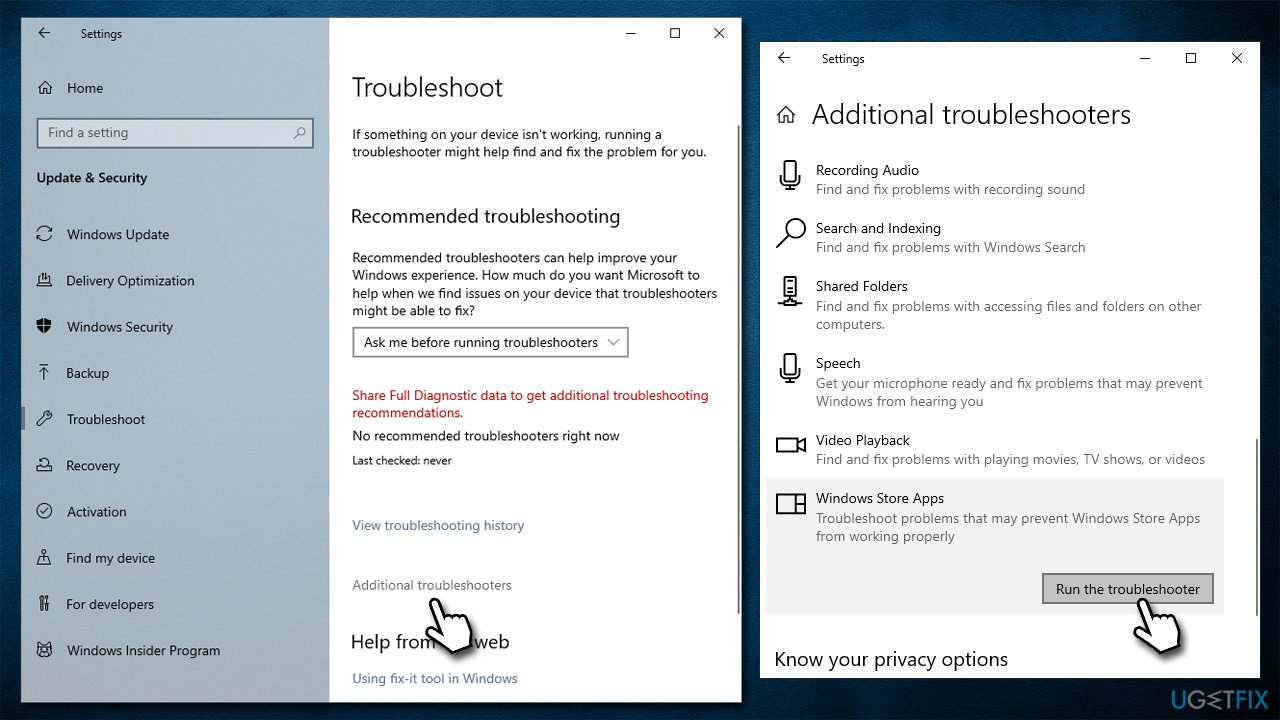
How to fix photos app doesnt save crop changes in windows run troubleshooter - Wait till the scan is finished and apply suggested fixes.
Solution 2. Uninstall the most recent Windows updates
If the problem started after you have updated Windows, uninstalling the most recent update might help:
- Type Control Panel in Windows search and hit Enter.
- Go to Programs > Uninstall a program.
- On the left side of the window, click View installed updates.
- Sort the entries by Installed On column.
- Find the Microsoft Windows section.
- Right-click on the most recent update and select Uninstall.
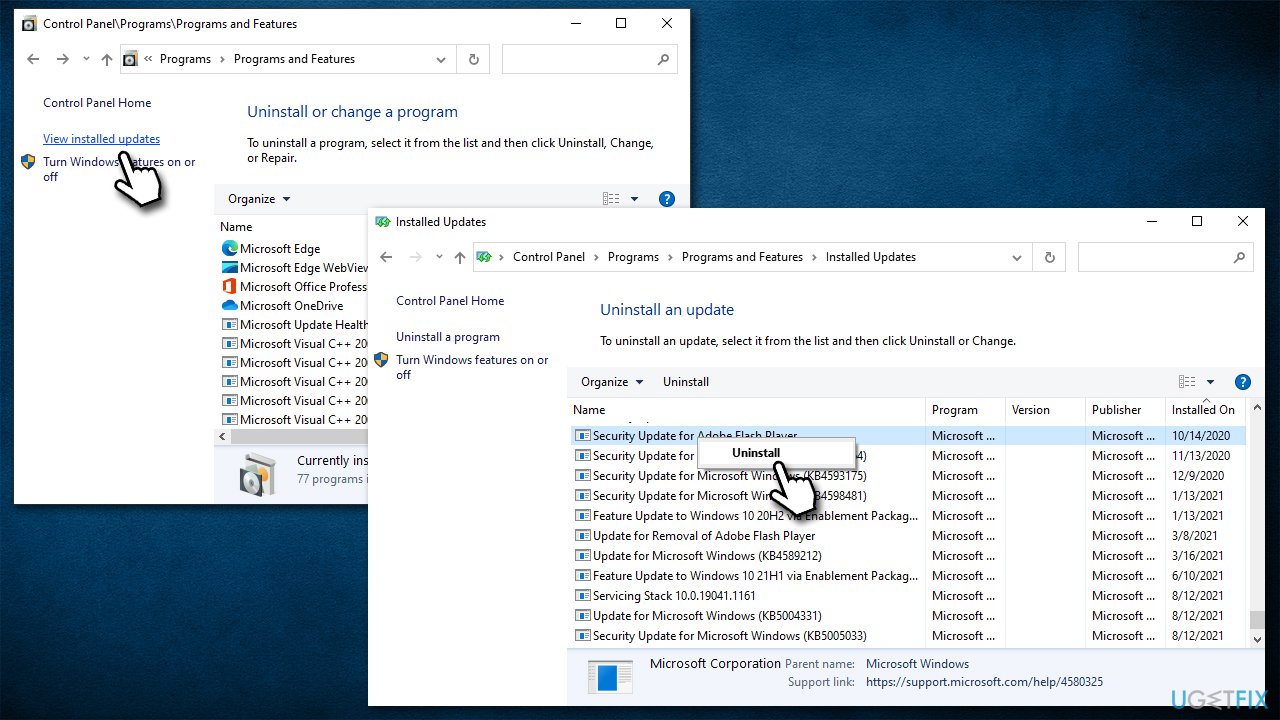
How to fix photos app doesnt save crop changes in windows uninstall updates
Solution 3. Repair or reset Photos App
If one of the Windows apps is not working properly, you could try repairing or resetting it via the advanced options:
- Right-click on Start and pick Apps and Features
- Find Microsoft Photos and click it
- Select Advanced options
- Scroll down and click Terminate
- Follow up with Repair
- See if the issues have been resolved
- Alternatively, you can use the Reset option.
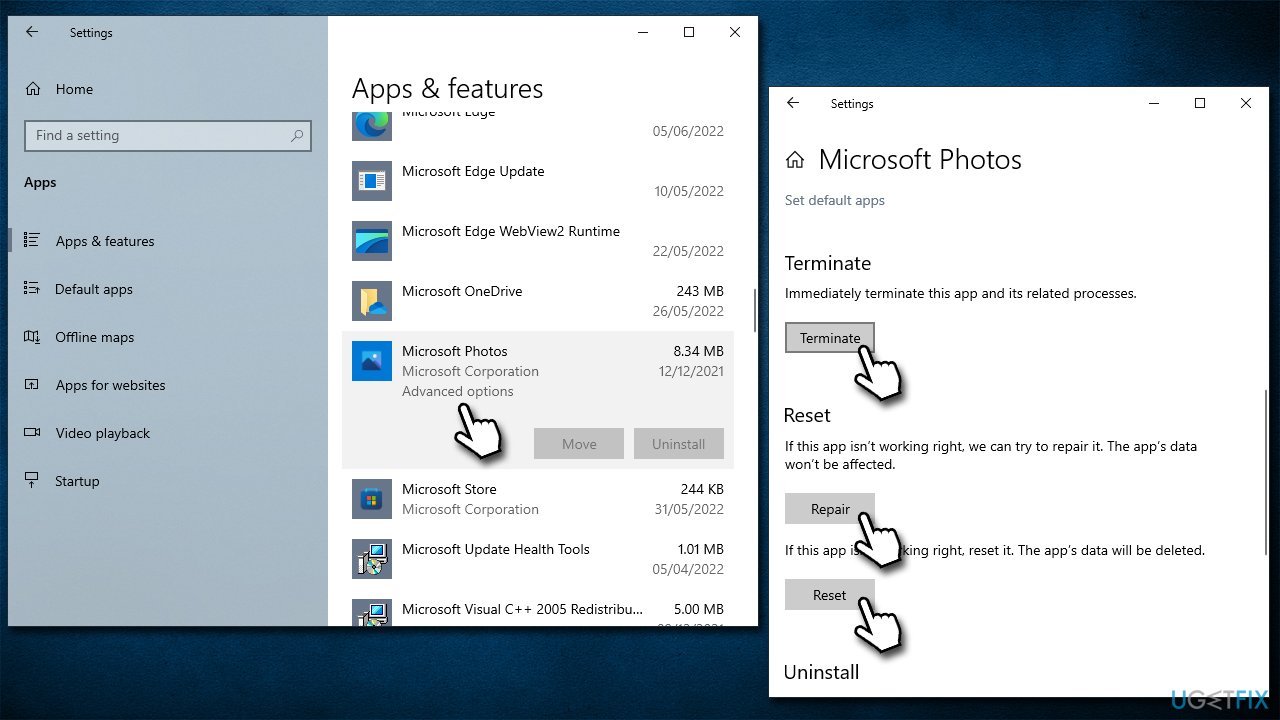
How to fix photos app doesnt save crop changes in windows repair reset app
Solution 4. Fix corrupted system files
- Type cmd in Windows search
- Right-click on Command Prompt and select Run as administrator
- Use the following command lines, pressing Enter each time:
sfc /scannow
DISM /Online /Cleanup-Image /CheckHealth
DISM /Online /Cleanup-Image /ScanHealth
DISM /Online /Cleanup-Image /RestoreHealth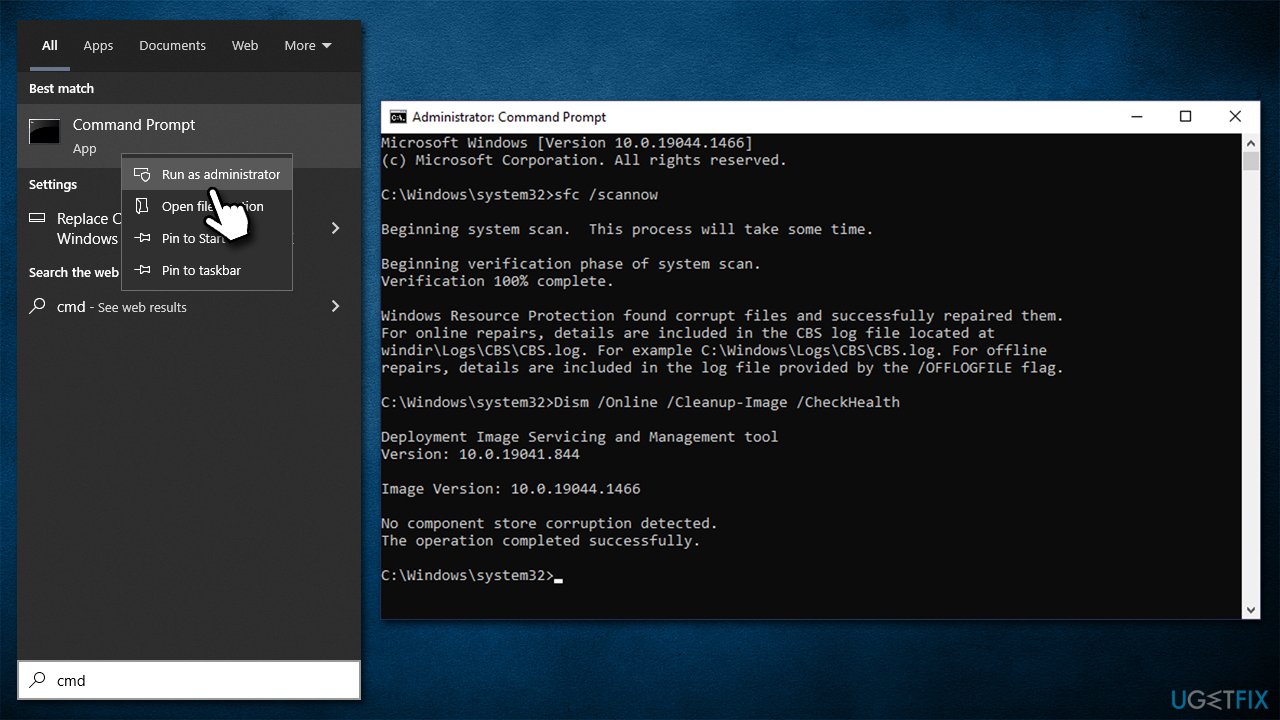
How to fix photos app doesnt save crop changes in windows run sfc dism - Restart your computer.
Solution 5. Try System Restore
If you are aware of when the issues started, you can put the state of your computer back to how it was some time ago. For that, you can use System Restore:
- Copy and paste the rstrui command into the Windows search box, press Enter
- If available, pick Choose a different restore point and click Next
- Mark Show more restore points checkbox
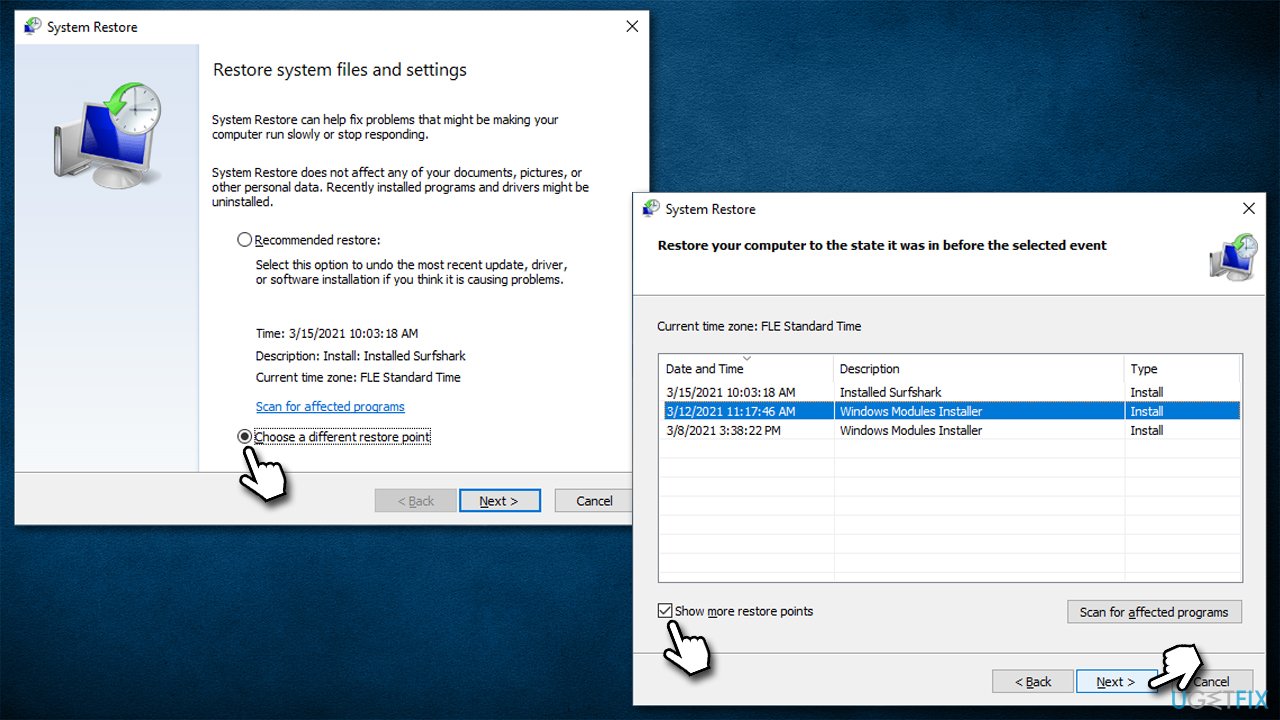
How to fix photos app doesnt save crop changes in windows use system restore - Select an appropriate point and click Next
- The changes should take effect after a restart.
Solution 6. Repair install Windows
If none of the solutions above helped, you can repair your Windows installation.
- Go to the official Microsoft website and download Media Creation Tool
- Launch the installer, agree to terms and click Next
- Select Upgrade this PC now, click Next
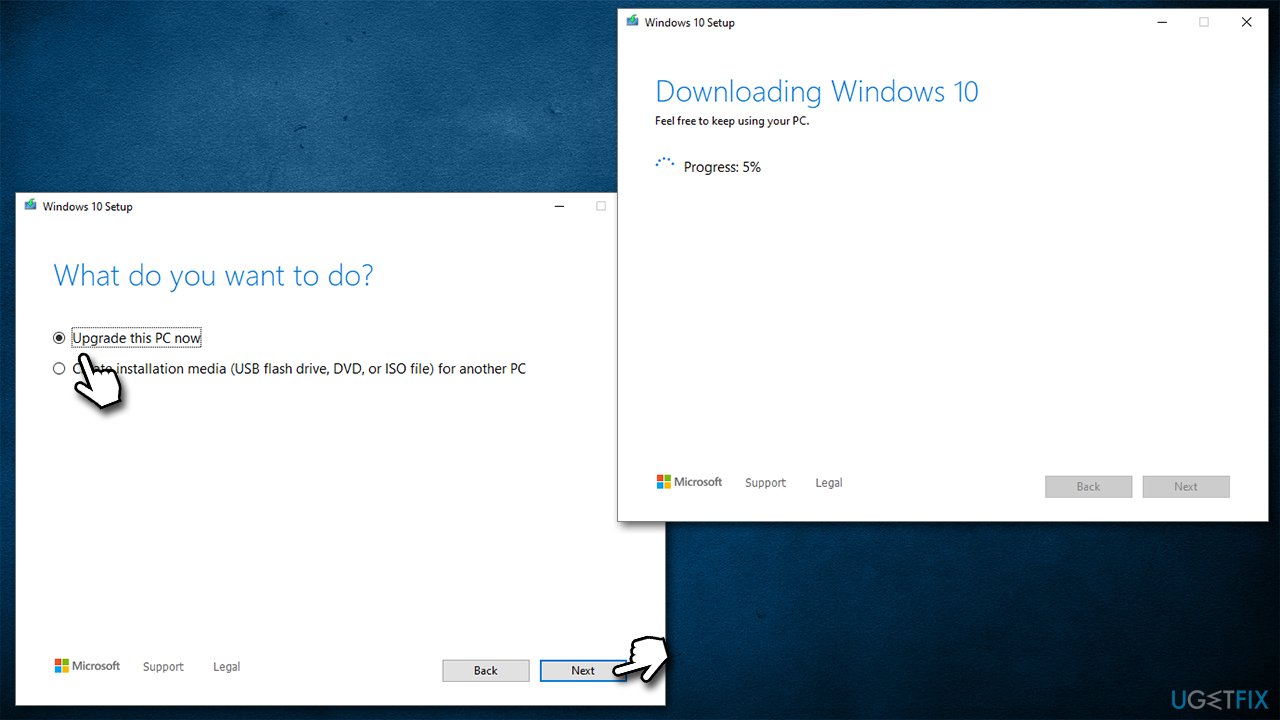
How to fix photos app doesnt save crop changes in windows use media creation tool - Once all the necessary files are downloaded, your PC will Restart.
Other issues about the Photos app you might find useful:
Bottom line
The Photos App may not save crop changes due to various issues such as app malfunction or system file corruption. To resolve this, you can try running a troubleshooter, resetting the app, or repairing system files. If these methods do not work, consider using a PC repair tool for further assistance.
Frequently asked questions
This issue may occur due to corrupted app files or insufficient permissions. Try resetting the Photos app through the Settings menu to resolve the problem.
Make sure your Photos app is updated to the latest version and check if your storage location has enough space to save changes.
If resetting doesn't help, consider reinstalling the Photos app via PowerShell to restore its functionality.




Report an issue
What's wrong with this guide? We review every report and update or remove content.
Report received — thank you. We'll review and fix it.
You need a free account to submit a report.
Be the first to comment