How to fix
Play/pause button on keyboard not working
on Windows
Fix the play/pause button on your Windows 10 or Windows 11 keyboard quickly and easily. Expert-tested solutions with screenshots help you troubleshoot e…


What causes How to fix play/pause button on keyboard not working?
- Software conflicts with media control buttons
- Specific applications taking control of media keys
- Extensions interfering with keyboard functionality
- Keyboard key wear due to age or damage
- Windows update causing issues
Repairs Windows system files, removes malware, and restores a clean OS state — without reinstalling.
Hi. I often listen to music on my Windows 10 PC while working, and recently, the play/pause button stopped working. All the other keys on the keyboard work perfectly fine, so I have no clue what is happening. Tips would be appreciated.
When you're listening to music and want to stop it, there's nothing more convenient than being able to do so from your keyboard. Media keys are useful buttons that allow you easy access and control of the media files playing. They synergize well with media players, YouTube, and other video streaming platforms, as well as third-party music-related apps like Spotify.
Users have been reporting that play/pause button has stopped working for years now. Play/pause buttons stop working randomly, although some users reported that it happened right after a Windows update.
While some experienced the malfunction across all apps, some said that the buttons did not work only when using particular ones. The issue affects all types of keyboards, so it is not unique to some particular brand.
In most cases, the issue does not lie within the technical side of the keyboard, as other keys work perfectly fine. Nonetheless, in rare cases, the key might wear out due to age or due to external damage (such as spilled liquid). If one or both of these criteria apply to you, you should try using a different keyboard and see if that would fix the matter for you.
That being said, the reason usually lies within the software. For example, some applications might take control over the play/pause and other media control buttons. Also, it was found that some extensions might interfere with the proper work of the keyboard keys.
In order to fix play/pause button, you should check the methods we provide below. If you want to speed up this process, [d1] might help you. The app is designed to deal with the most annoying and stubborn Windows errors, BSODs,[ref en-1] registry[ref en-2] problems, and other issues automatically.
Fix 1. Run keyboard troubleshooter
Let's start from running troubleshooters:
- Type Control Panel in Windows search and hit Enter
- Select Small icons from the sort by menu
- Go to Troubleshooting and then select Hardware and sound
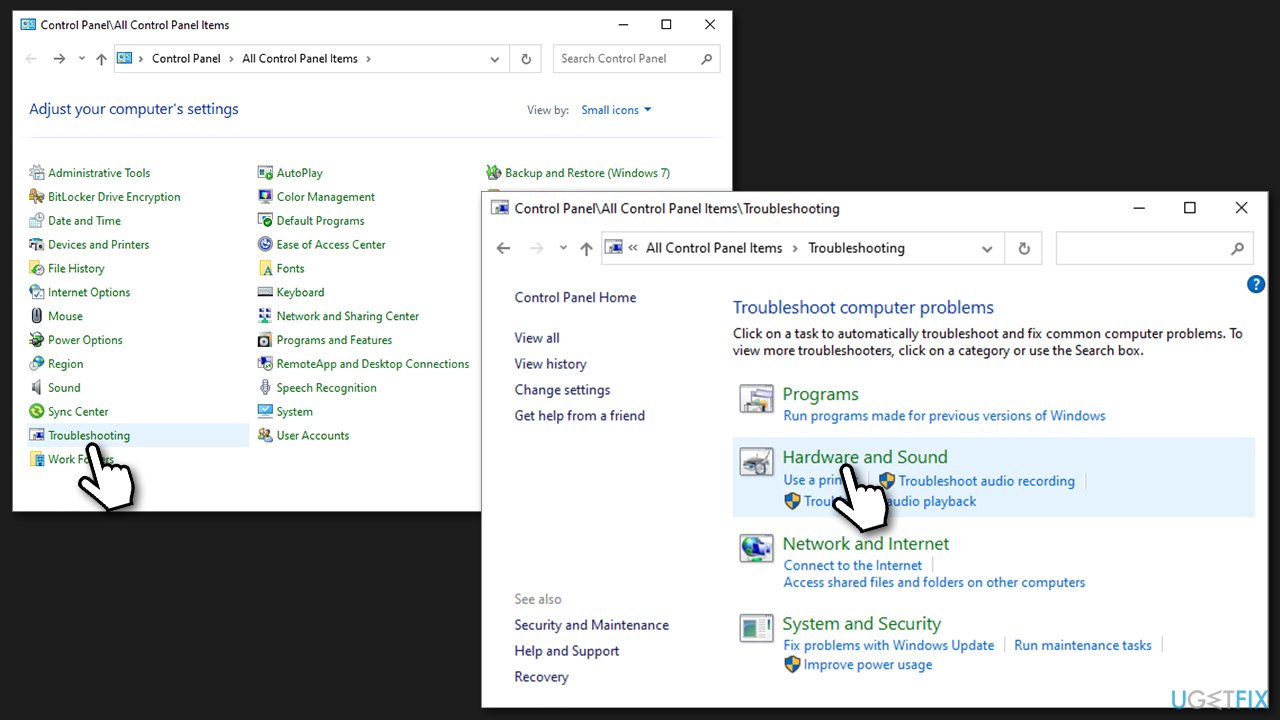
How to fix play pause button not working on keyboard run troubleshooter - Pick Keyboard from the list, click Next and let the troubleshooter run.
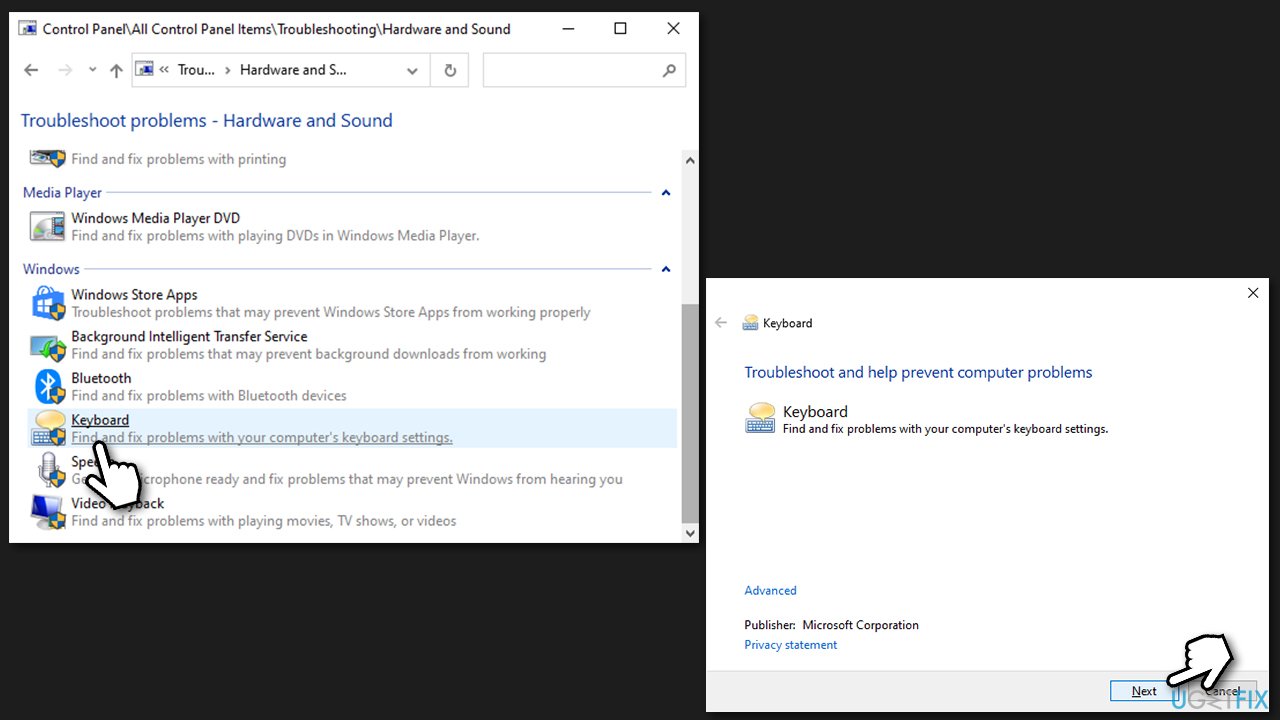
How to fix play pause button not working on keyboard run troubleshooter2
Fix 2. Disable Google Play Music (if applicable)
- Click three vertical dots at the top-right corner of Google Chrome window
- Go to More tools > Extensions
- Here, click on the switch to put it to the left to disable the extension.
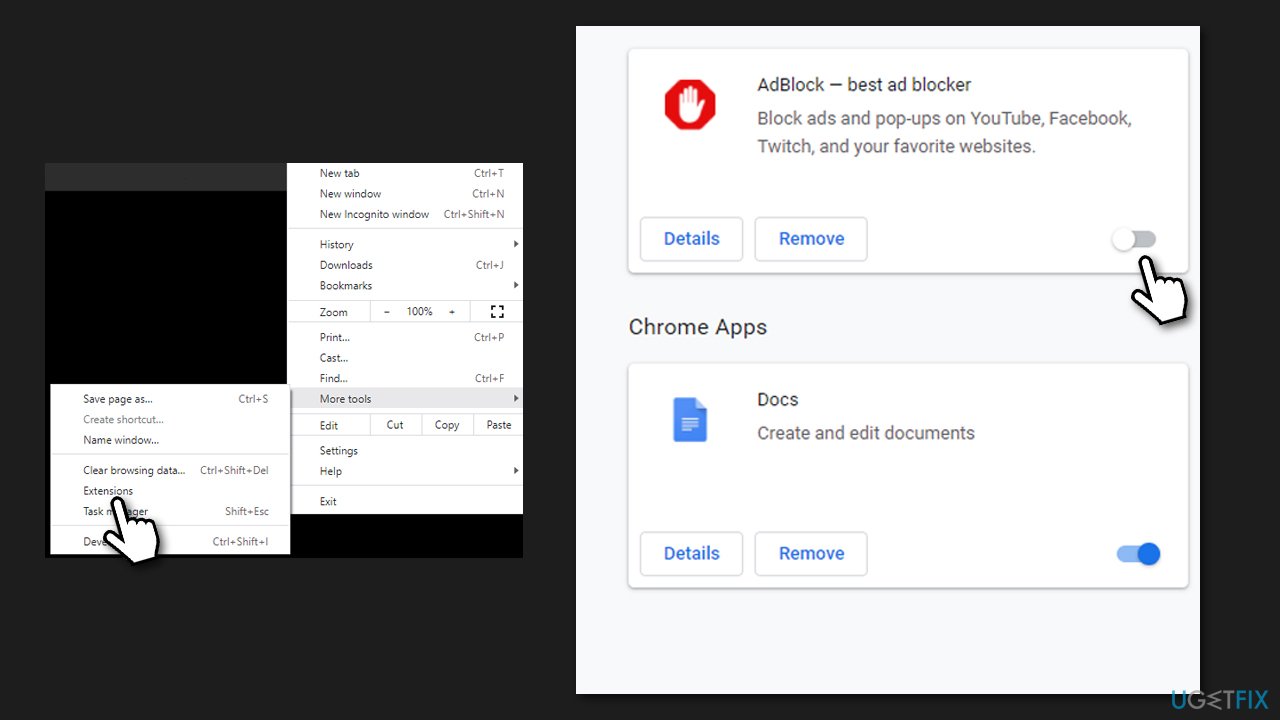
How to fix play pause button not working on keyboard disable extension
It has been noticed by users that other music-related browser extensions can cause the play/pause button to stop working as well. Thus, if you have any other similar extension, try disabling it as described above and see if that helped solve your problem.
Fix 3. Disable scroll lock/gaming mode
Media keys might not work because you have a scroll lock enabled. This might happen by you pressing it by accident. Thus, check the top section of your keyboard - The scroll lock is located near the Print Screen button. Press it once and see if that helped you fix the play/pause button not working issue.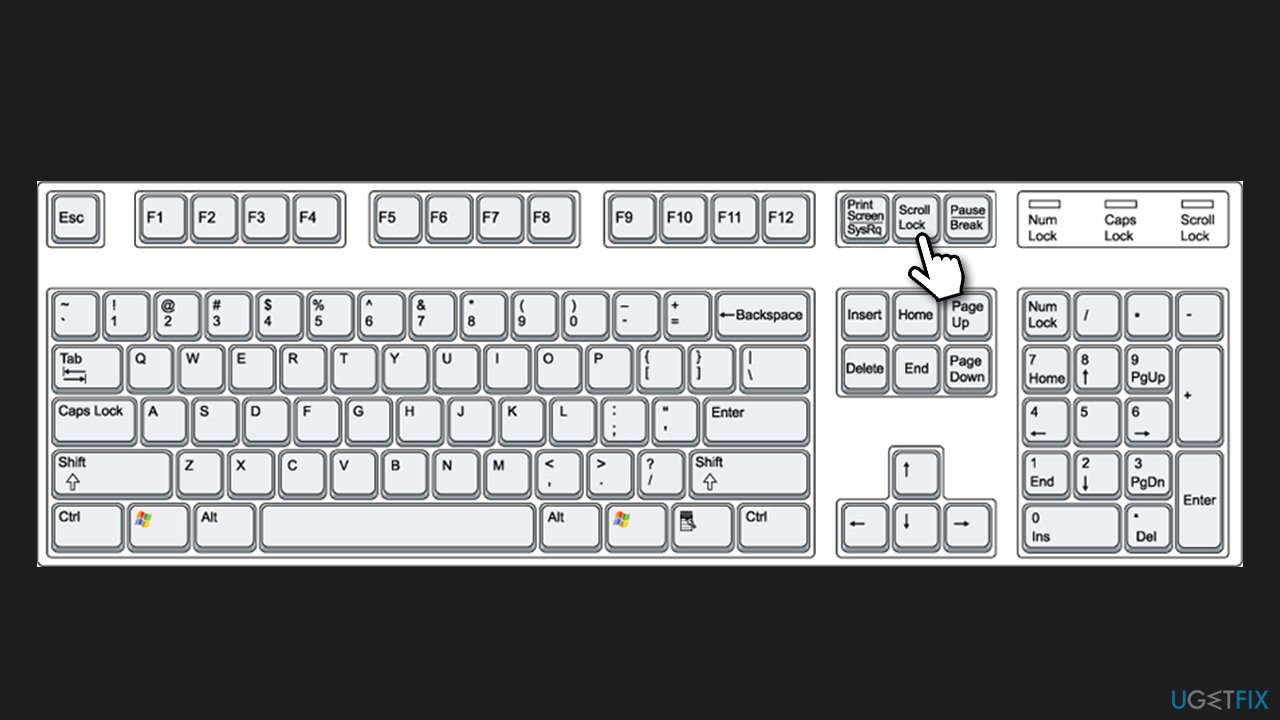
Additionally, if you are using a gaming keyboard, you should also disable the gaming mode button - these tend to disable play/pause functionality as well.
Fix 4. Check keyboard profile
If you are using a keyboard that is provided with the manufacturer's software, you should check its settings. Users reported that they changed a profile to a different one, and resetting it to default managed to fix the problem — obviously, the instructions on how to do this depend on which brand you are using.
Fix 5. Update drivers
Drivers are an integral part of any Windows operating system.[ref en-3] Make sure you have the latest version installed:
- Right-click on Start and pick Device Manager
- Expand Keyboards section
- Right-click on your keyboard and select Update driver
- Pick Search automatically for drivers
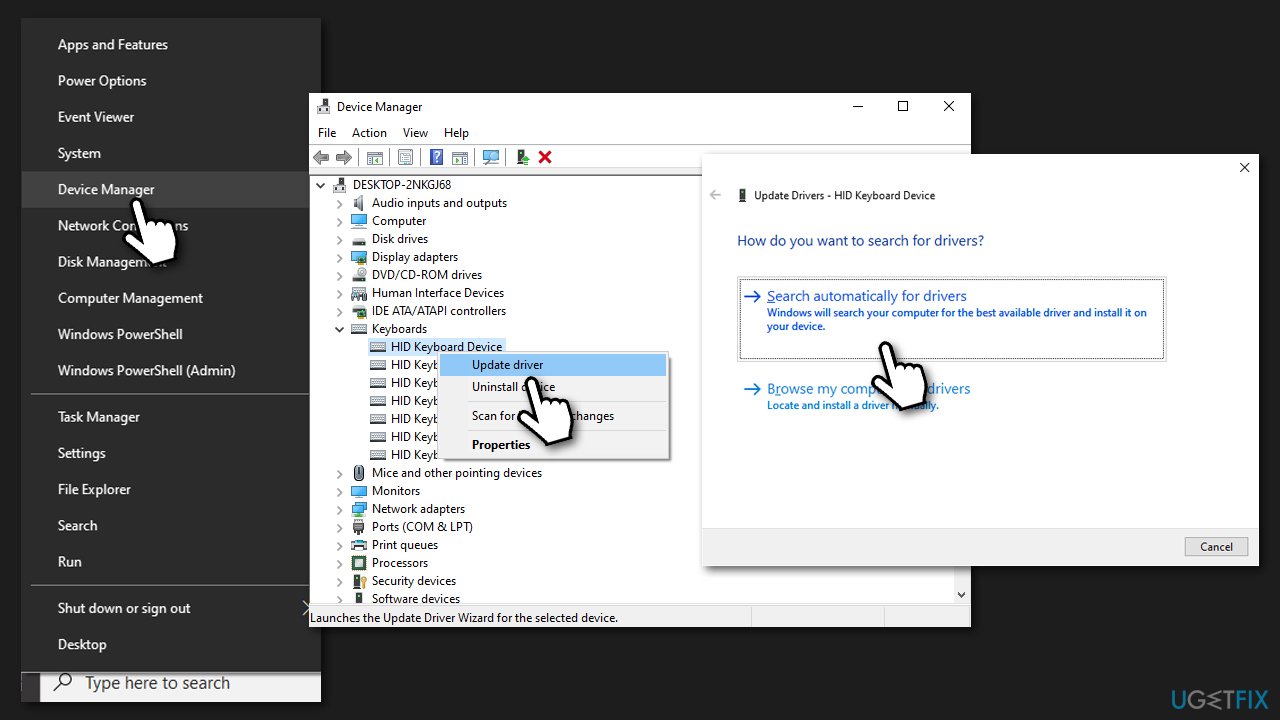
How to fix play pause button not working on keyboard update drivers - Restart your PC if new drivers are available.
Device Manager is by far an inferior tool to get your drivers from. It might work, while other times, it might fail to find the most recent drivers. Thus, you should either employ an automatic driver updater (we recommend [rev id="DriverFix"]) or kind out the brand and model of your keyboard and download the latest drivers from the manufacturer's website.
Fix 6. Change default program
If your buttons don't work only when using a particular program, this method should fix the issue.
- Right-click on Start and pick Apps and Features
- On the left side, select Default apps
- Find Music player section
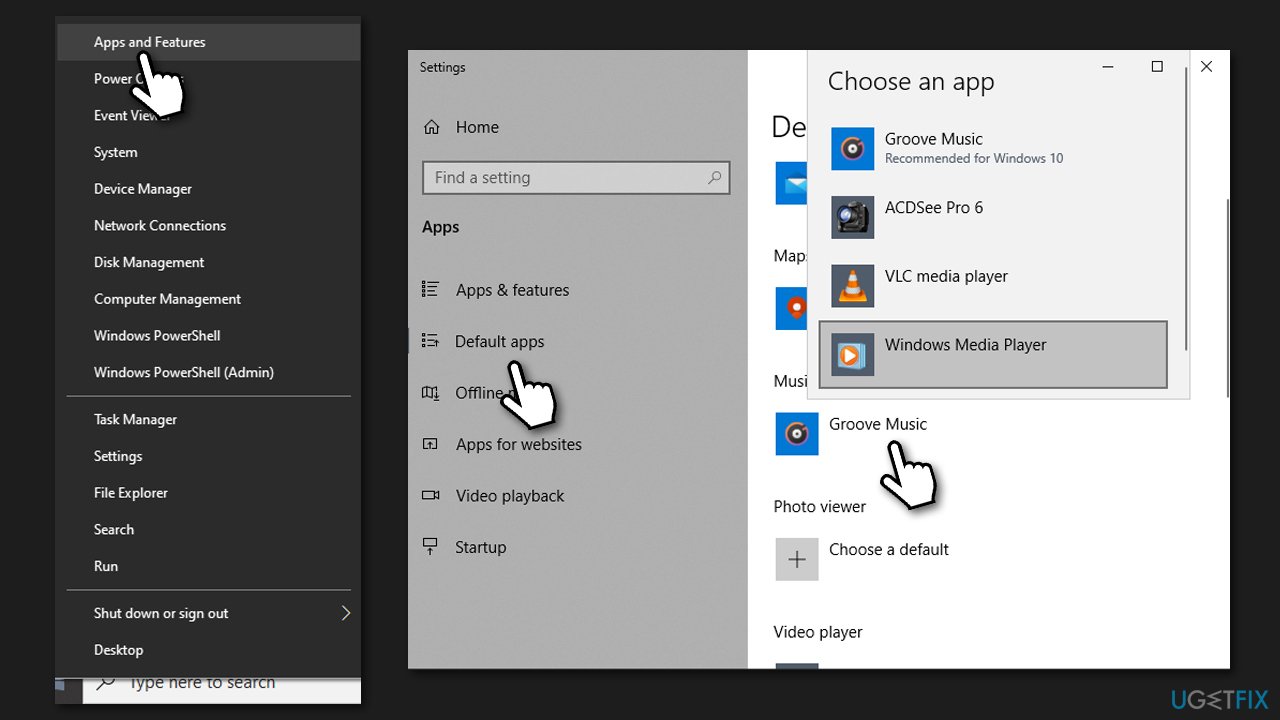
How to fix play pause button not working on keyboard change default app - Click on whatever is currently there and pick a program you are having trouble with from the list.
Other topics you might be interested in:
Bottom line
To fix the play/pause button issue, you can run the keyboard troubleshooter, check for software conflicts, and try using a different keyboard. If none of these solutions work, consider using a dedicated app designed to resolve Windows errors.
Frequently asked questions
Try updating your keyboard drivers through Device Manager, as outdated drivers can prevent the play/pause button from functioning properly.
Check your keyboard settings in Windows 11 to ensure the media keys are enabled and not conflicting with any other software.
You can reset keyboard shortcuts by going to Settings > Devices > Typing and checking the advanced keyboard settings for any custom shortcuts that might affect the media keys.




Report an issue
What's wrong with this guide? We review every report and update or remove content.
Report received — thank you. We'll review and fix it.
You need a free account to submit a report.
Be the first to comment