
How to fix printer error 0x00000520 in Windows?

Prefer to fix it yourself? The manual steps follow.
- 8methods
- 5 to 30 minutes
- Intermediate
Applies to Windows 11 and Windows 10 PCs that add or print to a printer shared by another PC or a Windows print server
8 methods in this guide
Hello. I've just got a new laptop with Windows 10 and wanted to connect to shared printers in my workplace. I am trying to select a printer by name, but it doesn't work. There is an error message "Windows cannot connect to the printer - error: 0x00000520". It worked well on my previous laptop with Windows 8. Any suggestions on how to fix this?
Error 0x00000520 is Windows error 1312, ERROR_NO_SUCH_LOGON_SESSION: your PC has no signed-in session on the PC that shares the printer. It is a sign-in problem, not a broken printer. Open \\HostName in File Explorer, sign in with that PC's user name and password, then add the printer again.
0x00000520 means "A specified logon session does not exist". Your PC tried to reach the sharing PC without a valid sign-in. Open \\HostName in File Explorer and sign in with an account of that PC, ticking Remember my credentials (Fix 1). If no prompt appears, save the account in Credential Manager (Fix 2). Then add the printer again by \\HostName\ShareName.
| Error | Windows cannot connect to the printer. Operation failed with error 0x00000520. The number is Windows system error 1312, ERROR_NO_SUCH_LOGON_SESSION: "A specified logon session does not exist. It may already have been terminated." |
|---|---|
| Where it appears | In the Add Printer wizard or the Connect to Printer box, when you add a printer that another PC or a print server shares, usually with Select a shared printer by name. |
| Main cause | Your PC holds no valid sign-in for the sharing PC: no saved credentials, an old password, a PIN-only or password-less account on the host, or a guest connection that Windows now refuses. |
| Fastest fix | Open \\HostName in File Explorer, sign in with the host's user name and password and keep them, then connect to the printer (Fix 1). |
| Also written as | 0x520, 0x000520, error 1312, ERROR_NO_SUCH_LOGON_SESSION, "error 0x00000520". Close but different: 0x0000052e (wrong user name or password) and 0x0000052f (account restriction). |
| Affects | Windows 11 and Windows 10 clients connecting to a printer shared by Windows 11, Windows 10, an older Windows PC or a Windows Server. Any printer brand. |
| Microsoft's status | Not a known issue of one update. Microsoft lists the code only as a system error. Windows 11 22H2 changed how PCs talk about printing, and Windows 11 24H2 refuses guest connections and requires SMB signing by default. |
| Time to fix | 5 minutes for Fix 1 or Fix 2, up to 30 minutes when the host account or the print RPC settings have to change. |
Facts checked on 15 October 2026. Steps written for Windows 11 (25H2 and 26H2) and Windows 10 22H2.
What "Windows cannot connect to the printer, error 0x00000520" means
The box reads "Windows cannot connect to the printer." with the detail "Operation failed with error 0x00000520." below it. It appears in the Add Printer wizard when you add a printer that another computer shares, by double-clicking it under Network or by typing \\HostName\ShareName.
0x00000520 is a hexadecimal number. In decimal it is 1312. Microsoft's list of system error codes names it ERROR_NO_SUCH_LOGON_SESSION with the text "A specified logon session does not exist. It may already have been terminated." For printing it means that your PC tried to open the share on the other PC, but there was no signed-in network session to use.
0x00000520 (1312): no sign-in session exists. 0x0000052e (1326): "The user name or password is incorrect." 0x0000052f (1327): an account restriction, for example a blank password that is not allowed. All three come from the sign-in step, so the first three fixes on this page help with all of them.
- Zeros do not matter. 0x520, 0x000520 and 0x00000520 are the same error 1312.
- It is not the printer. The code comes from Windows before any data reaches the printer. Ink, paper, cables and the printer's own firmware are not involved.
- File sharing can still work. On Microsoft Q&A, a user with a Windows 10 host and a Windows 11 client reports that shared folders kept working while every printer failed with 0x00000520 after an update. Fix 4 covers that case.
Why Windows cannot connect to the printer with 0x00000520: causes, ranked
Microsoft does not publish a printer article for this code. The ranking below follows from what the code means, from Microsoft's documents on shared printers, print RPC and SMB guest access, and from what users report on Microsoft Q&A.
| # | Cause | How to recognise it | Fix |
|---|---|---|---|
| 1 | Your PC has never signed in to the sharing PC | A new PC, a new user account, or \\HostName asks for a password or does not open | Fix 1 |
| 2 | Saved credentials are missing, old or for the wrong account | The host password changed, or you sign in to the host with a different account now | Fix 2 |
| 3 | The host account has no password, or signs in only with a PIN | The PC that shares the printer starts without a password, or uses Windows Hello only | Fix 3 |
| 4 | Windows 11 22H2 and later talk to shared printers over RPC over TCP | Shared folders open, only printers fail, often after an update on a Windows 11 client | Fix 4 |
| 5 | A stale printer connection or a spooler that lost the session | The printer worked before and stopped without any change | Fix 5 |
| 6 | Network sharing is off, or the network is set to Public | The host does not appear under Network at all | Fix 6 |
Microsoft says Windows 11 Pro no longer allows SMB guest connections or guest fallback by default, and Windows 11 24H2 requires SMB signing on all connections. A host shared without a password used to let anyone in as a guest. A current Windows 11 Pro client now refuses that and needs a real account.
How to fix error 0x00000520: eight fixes in order
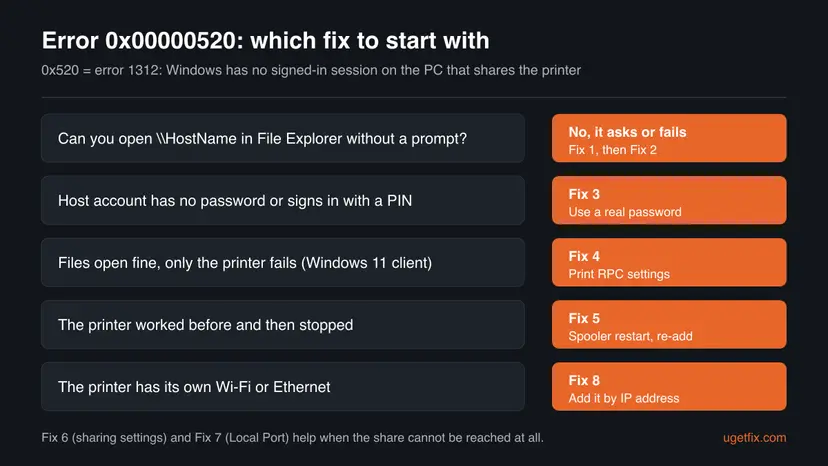
Fix 1 to Fix 3 solve the sign-in problem behind most cases. Fix 4 is for Windows 11 clients where files work but printers fail. Fix 5 and Fix 6 reset the connection and the sharing settings, and Fix 7 and Fix 8 avoid the failing route altogether.
| What you see or have | Start with |
|---|---|
\\HostName in File Explorer asks for a password or will not open | Fix 1 |
| The host's password changed, or the prompt never appears | Fix 2 |
| The PC that shares the printer has no password or uses only a PIN | Fix 3 |
| Shared folders open fine, only printers fail on a Windows 11 PC | Fix 4 |
| The printer worked before and stopped | Fix 5 |
| The host does not appear under Network | Fix 6 |
| The printer has its own Wi-Fi or Ethernet connection | Fix 8 |
Fix 1. Sign in to the sharing PC in File Explorer first, then add the printer
5 minutesLow riskFor everyone, and first for a new PC, a new user account or a PC that has never printed to this share.
Error 1312 says there is no signed-in session on the host. Opening the host in File Explorer creates exactly that session with a real user name and password, and Windows reuses it when the printer connects.
- On the PC that shares the printer, press Win + R, type
sysdm.cpland press Enter. Note the Computer name. - On your PC, open File Explorer, type
\\HostNamein the address bar and press Enter. Use the name you noted. - When Enter network credentials appears, type a user name of the host PC as
HostName\UserName, or the email address of its Microsoft account, and its password. - Tick Remember my credentials and select OK. The host's shared folders and printers appear.
- Double-click the printer in that window, or add it in Printers & scanners with Select a shared printer by name and
\\HostName\ShareName.
A network sign-in needs the account's password. A Windows Hello PIN or fingerprint works only on the PC itself. With a Microsoft account, type its email address and the Microsoft account password.
Microsoft's own advice for shared printers is the same: use the same Microsoft account or local account on both PCs, or enter the host's user name and password when asked.
It worked if: \\HostName opens without a new prompt, and the printer adds and prints a test page.
If not: If no prompt appears and the error stays, store the sign-in by hand in Fix 2. If \\HostName does not open at all, go to Fix 6.
Fix 2. Save or replace the host's sign-in in Credential Manager
5 minutesLow riskThe sign-in prompt never appears, the host's password changed, or you used another account on the host before.
Windows uses the credential saved for a host name without asking again. An old or wrong entry, or none at all, leaves the printer connection without a valid session, which is what 0x00000520 reports.
- Press Win + S, type
credential managerand open Credential Manager in Control Panel. - Select Windows Credentials.
- Under Windows Credentials, look for an entry with the host's name or IP address. Expand it and select Remove if it is old.
- Select Add a Windows credential.
- In Internet or network address, type the host name, for example
HostName. In User name typeHostName\UserNameor the Microsoft account email, then the Password, and select OK. - Restart your PC and add the printer again by
\\HostName\ShareName.
The same in Terminal: list saved entries, delete the old one, add a new one (you are asked for the password)
cmdkey /list
cmdkey /delete:HostName
cmdkey /add:HostName /user:HostName\UserName /passIf you connect by IP address, for example \\192.168.1.20\ShareName, save the credential for that IP address too. Windows matches the address exactly as you typed it.
It worked if: The entry is listed under Windows Credentials, and the printer connects without 0x00000520.
If not: If you typed the right password and get 0x0000052e or 0x0000052f instead, the host account is the problem: go to Fix 3.
Fix 3. Give the account on the sharing PC a real password
10 minutesLow riskThe PC that shares the printer starts without a password, uses only a PIN, or has password protected sharing turned off.
Windows does not allow network sign-in to a local account with a blank password, and current Windows 11 Pro clients refuse guest connections. Without a usable account on the host, no session can be created, so the printer connection fails.
- On the sharing PC, open Settings > Accounts > Sign-in options.
- Under Password, select Add (or Change) and set a password for the account you will use from other PCs.
- Or create a separate local account with a password only for printing: Create a new user account to test a problem.
- Open Settings > Network & internet > Advanced network settings > Advanced sharing settings and keep Password protected sharing turned on under All networks.
- On your PC, sign in to
\\HostNamewith that account as in Fix 1, or save it as in Fix 2.
Old posts suggest turning off password protected sharing or allowing insecure guest logons. Microsoft says it does not recommend enabling insecure guest logons, and Windows disables them by default. An account with a password works on every current Windows version.
It worked if: Your PC signs in to \\HostName with the new account and the printer adds without an error.
If not: If shared folders open with this account but the printer still fails, go to Fix 4.
Fix 4. Windows 11: match the print connection settings of both PCs
15 minutesRead the warningShared folders on the host open fine, only printers fail, and one side runs Windows 11 22H2 or later. Needs an administrator.
Since Windows 11 22H2, Microsoft says print connections between PCs use RPC over TCP by default and named pipes are off. If the host's firewall blocks those ports, or an older host expects named pipes, the printer fails while file sharing keeps working.
Step 3 adds a printer policy value. Back up HKEY_LOCAL_MACHINE\SOFTWARE\Policies\Microsoft\Windows NT\Printers first: Back up the registry before editing it. Microsoft recommends RPC over TCP and named pipes only when TCP is not an option.
- On the sharing PC, check that no third-party firewall blocks incoming TCP port 135 and ports 49152 to 65535 from your local network. Microsoft names a firewall as the most common cause.
- Try the printer again. If it works, stop here.
- If the host is older and cannot be changed, open Terminal (Admin) on your Windows 11 PC and run the command below.
- Restart your PC and add the printer again by
\\HostName\ShareName.
Client: connect to shared printers with RPC over named pipes (1 = named pipes, 0 or not set = RPC over TCP)
reg add "HKEY_LOCAL_MACHINE\SOFTWARE\Policies\Microsoft\Windows NT\Printers\RPC" /v RpcUseNamedPipeProtocol /t REG_DWORD /d 1 /fWhen the host is the Windows 11 PC and the client is older, the host must also listen on named pipes. Our guide to error 0x00000709 explains every combination of these settings.
It worked if: After the restart the printer adds and prints, while shared folders still open as before.
If not: Undo with reg delete "HKEY_LOCAL_MACHINE\SOFTWARE\Policies\Microsoft\Windows NT\Printers\RPC" /v RpcUseNamedPipeProtocol /f, restart, and go to Fix 5.
Fix 5. Restart Print Spooler on both PCs and add the printer again by its share name
10 minutesLow riskThe printer worked before and then stopped, or an old entry of the printer is still on your PC.
A spooler that holds an old connection keeps using a session that no longer exists, which is the literal meaning of 1312. A restart on both PCs and a fresh connection by the current share name make Windows open a new session.
- On your PC, remove the old printer in Settings > Bluetooth & devices > Printers & scanners. On Windows 10: Settings > Devices > Printers & scanners.
- On the sharing PC, press Win + R, type
services.mscand press Enter. - Right-click Print Spooler and select Restart. If it is stopped, double-click it, set Startup type to Automatic and select Start.
- Do the same on your PC.
- On the sharing PC, open the printer's Printer properties, then Sharing. Check Share this printer and note the Share name.
- On your PC, select Add device, then Add manually, choose Select a shared printer by name and type
\\HostName\ShareName. On Windows 10 select Add a printer or scanner, then The printer that I want isn't listed.
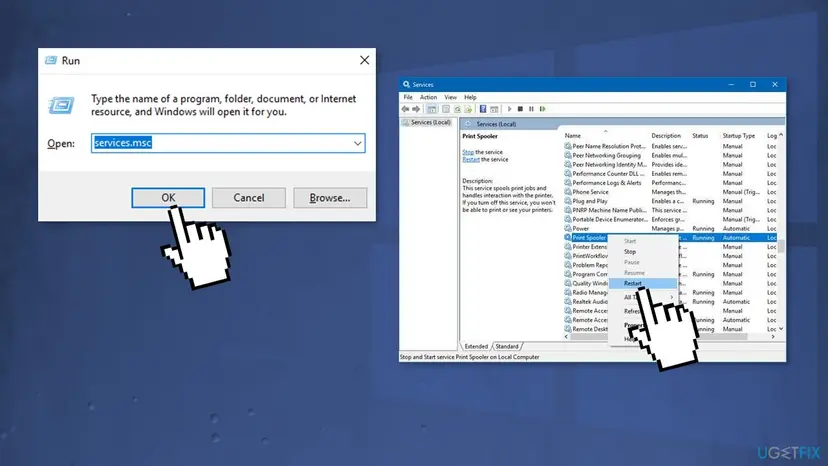
The same restart in Terminal (Admin): Restart-Service -Name Spooler. More on services: Check and restart Windows services.
It worked if: The printer adds by its share name and prints a test page.
If not: If the host does not appear or \\HostName does not open, go to Fix 6.
Fix 6. Set the network to Private and turn on sharing on both PCs
5 minutesLow riskThe sharing PC does not appear under Network, or \\HostName does not open from your PC.
On a Public network profile Windows hides the PC and blocks sharing. Without a reachable host, Windows cannot build the session the printer needs. Microsoft lists network discovery and file and printer sharing as required for shared printers.
- On both PCs, open Settings > Network & internet and select Wi-Fi or Ethernet, then the connected network.
- Under Network profile type, select Private network. Do this only on a home or work network you trust.
- Open Settings > Network & internet > Advanced network settings > Advanced sharing settings.
- Under Private networks, turn on Network discovery and File and printer sharing. On Windows 10: Network and Sharing Center > Change advanced sharing settings.
- Check that both PCs are on the same local network, then open
\\HostNameagain.
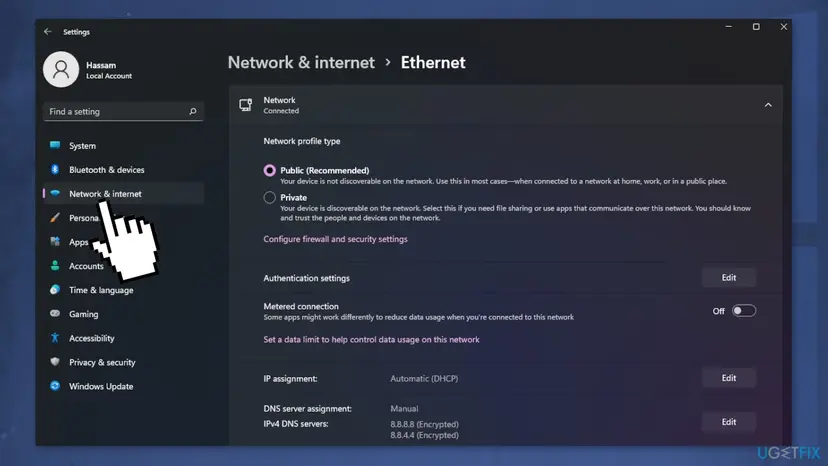
It worked if: The host appears under Network in File Explorer and \\HostName opens.
If not: If the host is visible but the printer connection keeps failing, try the Local Port route in Fix 7.
Fix 7. Connect through a Local Port with the printer's share path
10 minutesLow risk\\HostName\ShareName opens in File Explorer, but adding the printer keeps failing with 0x00000520.
A Local Port named \\HostName\ShareName turns the shared printer into a local printer that sends jobs to the share. Your PC uses its own driver and its file sharing session, so the shared printer connection that fails is skipped.
- Install the printer maker's driver on your PC first. General driver steps: Update, roll back or reinstall a driver.
- Open Control Panel > Hardware and Sound > Devices and Printers and select Add a printer, then The printer that I want isn't listed.
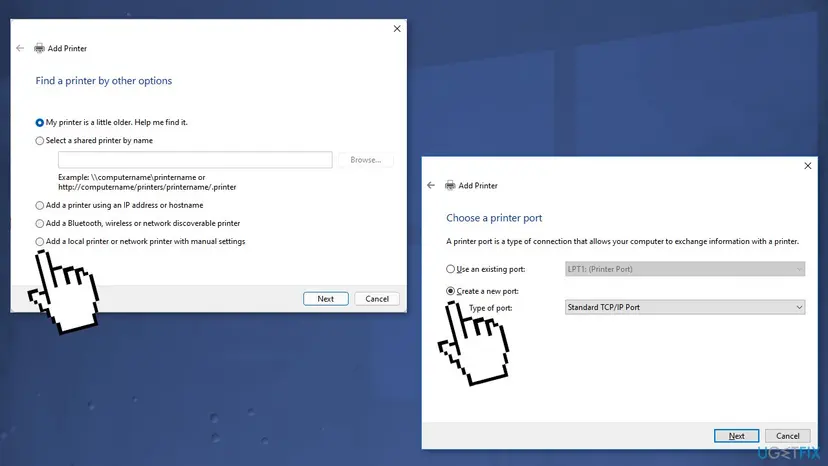
- Choose Add a local printer or network printer with manual settings and select Next.
- Select Create a new port, choose Local Port in the list and select Next.
- In Enter a port name, type
\\HostName\ShareNameand select OK. - Pick the driver you installed, give the printer a name and print a test page.
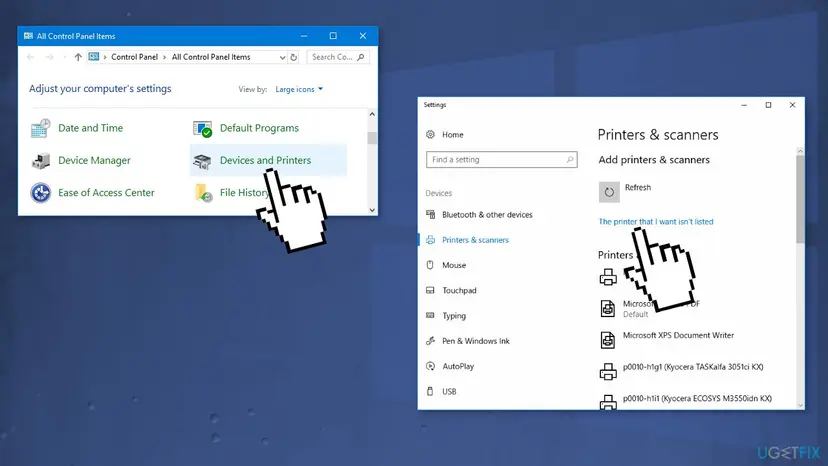
A \\HostName\ShareName path goes into a Local Port. Standard TCP/IP Port is for a printer's own IP address, which is Fix 8.
It worked if: The new printer appears in Printers & scanners and prints through the sharing PC.
If not: If jobs stay in the queue, sign in to \\HostName again as in Fix 1. If the printer has its own network port, use Fix 8.
Fix 8. Add a network printer by its IP address instead of through another PC
10 minutesLow riskThe printer has its own Wi-Fi or Ethernet connection, so it does not need a PC to share it.
A printer with its own network port can take jobs from every PC directly. No sign-in to another Windows PC is needed, so there is no session that can be missing and 0x00000520 cannot occur.
- Find the printer's IP address on its control panel or on a network settings page it prints.
- Open Printers & scanners, select Add device, then Add manually. On Windows 10 select Add a printer or scanner, then The printer that I want isn't listed.
- Choose Add a printer using an IP address or hostname and select Next.
- Type the address, let Windows find the driver or install the maker's driver, and print a test page.
- Remove the old shared printer entry so apps stop using it.
Reserve the printer's IP address in your router so the connection keeps working after the router restarts.
It worked if: The printer appears with its own port in Printers & scanners and prints a test page.
If not: Collect the facts in the next section and ask your IT team, the printer maker or Microsoft support.
Still getting 0x00000520? Where the real cause is written
The error box does not say which account or which PC failed. These checks show it, and they are what support will ask for.
| Check | Where | What it tells you |
|---|---|---|
| Can you reach the share | \\HostName in File Explorer, or net view \\HostName in Terminal | Whether a sign-in session to the host can be created at all |
| Saved sign-ins | cmdkey /list or Credential Manager > Windows Credentials | Which account Windows uses for the host |
| Print Service log | Event Viewer, Applications and Services Logs > Microsoft > Windows > PrintService > Admin | Connection errors at the time of the failure |
| Guest refusals | Event ID 31017 in the SMBClient logs of Event Viewer | "Rejected an insecure guest logon": the host has no usable account (Fix 3) |
| Windows versions | winver on both PCs | Whether one side is Windows 11 22H2 or later and the other is old (Fix 4) |
- What to send to support: both Windows versions and builds, the share path, the account you sign in with, the
cmdkey /listoutput without passwords and any PrintService errors with their time. - On a work PC: printers, accounts and print RPC settings are often set by Group Policy or a print server. Ask your administrator, because a change you make may be undone at the next sign-in.
- Is it hardware? No. If the printer prints a test page on the PC it is attached to, the printer is fine and the problem is the sign-in or the connection.
How to keep error 0x00000520 from coming back
The error returns when the host password changes, when a new PC or user joins without a saved sign-in, or when Windows 11 updates tighten network rules. A few habits keep it away.
- Use one account with a password on the sharing PC for everyone who prints.
- Update the saved credential on each PC when that password changes.
- Keep the share name the same when you reinstall the printer on the host.
- Add printers with their own network port by IP address.
- Keep both PCs updated; Windows 10 left support on 14 October 2025.
- Do not share a printer from an account with no password.
- Do not turn on insecure guest logons to get around the error.
- Do not edit printer registry keys without an export first.
- Do not keep old printer entries that point to a renamed host.
Frequently asked questions
What does error 0x00000520 mean?
It is Windows system error 1312, ERROR_NO_SUCH_LOGON_SESSION: "A specified logon session does not exist. It may already have been terminated." With printers it shows as "Windows cannot connect to the printer" when you add a printer that another PC shares. Your PC had no valid signed-in session on that PC. Sign in to \\HostName in File Explorer first (Fix 1), or save the host's account in Credential Manager (Fix 2).
Is 0x0000052e the same as 0x00000520?
No, but it is a close relative. 0x0000052e is error 1326, "The user name or password is incorrect." Windows reached the host and sent a sign-in, and the host refused it. Check the user name format: HostName\UserName or the Microsoft account email. Use the password rather than the PIN, and replace the saved entry in Credential Manager (Fix 2). 0x0000052f (1327) means an account restriction, such as a blank password; give the account a password (Fix 3).
Why did 0x00000520 start right after a Windows update?
Updates changed two things that affect shared printers. Windows 11 22H2 and later connect to shared printers with RPC over TCP by default, which a firewall or an older host can block while file sharing still works (Fix 4). Windows 11 Pro also refuses guest connections by default, and 24H2 requires SMB signing, so a host shared without a password stops working (Fix 3). Removing the update is not needed; adjust the setting instead.
How do I fix 0x00000520 on Windows 10?
The same way as on Windows 11. Sign in to the host in File Explorer (Fix 1), save its account in Credential Manager (Fix 2) and make sure the host account has a password (Fix 3). The menu paths differ slightly, and each fix gives both. Windows 10 left support on 14 October 2025, so it gets no new fixes. A Windows 10 PC that shares a printer to Windows 11 clients often needs Fix 4.
Can I fix 0x00000520 without an administrator account?
Often yes. Fix 1 and Fix 2 save a sign-in for your own user and need no administrator rights on your PC. You do need the user name and password of an account on the sharing PC. Fix 4 and installing a printer driver for Fix 7 need an administrator. On a work PC, printers and accounts are usually managed centrally, so ask IT before changing anything.
Is 0x00000520 a fault of my printer?
No. The code comes from the Windows sign-in step between two PCs, before any page reaches the printer. Ink, paper, cables and firmware are not involved. Print a test page on the PC the printer is attached to: if that works, the printer is fine and the problem is the account, the saved credential or the network settings. Updating the printer driver alone does not fix a missing sign-in.
What is "printer not activated error code 20"?
It is a different message, not a form of 0x00000520. It is not a Windows shared printer error and has no 0x code. This page covers only "Windows cannot connect to the printer" with error 0x00000520 when you connect to a printer shared by another PC. We could not confirm the cause of "error code 20" from a vendor source, so we do not give steps for it here.
I searched in Spanish, Indonesian, Vietnamese or Thai. Does this page apply?
Yes, if your screen shows 0x00000520. Searches such as "como soluciono este error", "error apa ini", "masih error", "masih kendala", "solusi terbaik", "kosong", "không được", "cách sửa lỗi này", "štampač" and "แก้ยังไง" lead here. The code is the same in every Windows language, and only the menu names are translated. Start with Fix 1. If it still fails, follow the chooser table above the fixes.
Should I turn off password protected sharing to get rid of the error?
No. Without password protected sharing, the host relies on guest access, and Microsoft says current Windows 11 Pro clients refuse guest connections by default. Microsoft also recommends against turning insecure guest logons back on. The lasting fix is an account with a password on the sharing PC (Fix 3), saved once on each client (Fix 2). It keeps the share protected and works on every current Windows version.
Nothing on this page worked. What else can I try?
Take the shared route out of the picture. If the printer has Wi-Fi or Ethernet, add it by its IP address on every PC (Fix 8). If it only has USB, connect it to your PC directly for a test. Then collect both Windows builds, the cmdkey /list output and the PrintService log as shown in the "still not fixed" section and send them to your IT team or Microsoft support.
Sources
- Microsoft Learn: System Error Codes (1300-1699) (learn.microsoft.com)
- Microsoft Support: Fix shared printer connection problems in Windows (support.microsoft.com)
- Microsoft Learn: RPC connection updates for print in Windows 11 (learn.microsoft.com)
Did this fix work?
One click, no account. It tells the next reader which guides are worth their time.
Questions and experiences: fix printer error 0x00000520 in Windows
Still broken, or found a fix we did not cover? Ask here: members and our editors answer. Reading is open; writing needs a free account.
…