How to fix
RTKVHD64.sys BSOD
on Windows
Resolve the RTKVHD64.sys BSOD issue in Windows 10 quickly and effectively. Follow our expert-tested solutions for a hassle-free fix!

What causes How to fix RTKVHD64.sys BSOD in Windows 10?
- Driver issues related to Realtek High Definition Audio
- Corrupted system files
- Incompatible software or hardware configurations
- Malfunctioning Windows updates
- Faulty hardware components
Repairs Windows system files, removes malware, and restores a clean OS state — without reinstalling.
Hello. My PC (using Windows 10) is constantly crashing. There is no pattern to it - it can happen at any time. It automatically restarts and shows Blue Screen error RTKVHD64.sys. Any tips on how to deal with this?
RTKVHD64.sys BSOD is a stop error[ref en-2] that users encounter on their computers relatively frequently. The system crashes with the Blue Screen and forces a restart immediately, interrupting all the user work. This phenomenon can be particularly frustrating and negatively impact the day-to-day usage of the device.
Despite these inconveniences, Blue Screen errors fulfill an important role within the Windows environment, as they help to prevent damage that would otherwise be caused to the system due to a malfunction. A restart is something that usually helps users to resolve the problem immediately, and they can continue working.
Unfortunately, this is not always the case. Some people experience frequent RTKVHD64.sys BSODs, which indicates that something is wrong with the system and it cannot operate optimally. Some other stop errors might not even allow users to reach the regular Windows UI[ref en-1] phase and would be started in a restart loop.
The crash of this particular .sys file indicates that the problem lies within a Windows driver. In this case, it is likely to be related to the Realtek High Definition Audio driver. Due to this, the audio might also stop working, or there could also be some difficulties with sound.
It is important to note that this driver can fail due to different reasons, hence the BSOD error you encounter code can differ (e.g., SYSTEM THREAD EXCEPTION, PAGE FAULT IN NONPAGED AREA, or DRIVER VERIFIER DETECTED VIOLATION). Therefore, there are several different ways to fix RTKVHD64.sys BSOD on Windows 10.
Below you will find methods that should help you resolve the situation.
Fix 1. Run a system repair tool
Windows is compiled from hundreds of thousands of different elements, and each configuration can differ (different hardware, installed software, settings, etc.). If something goes wrong between these elements, users typically are provided with an error; in more severe cases, a crash occurs.
There are hundreds of error codes out there, and it is not immediately clear what they represent. Even after finding out, users might struggle to find the root cause of the problem for a while before they manage to find the solution. In some cases, the solution might not be found until the device is presented to an IT technician.
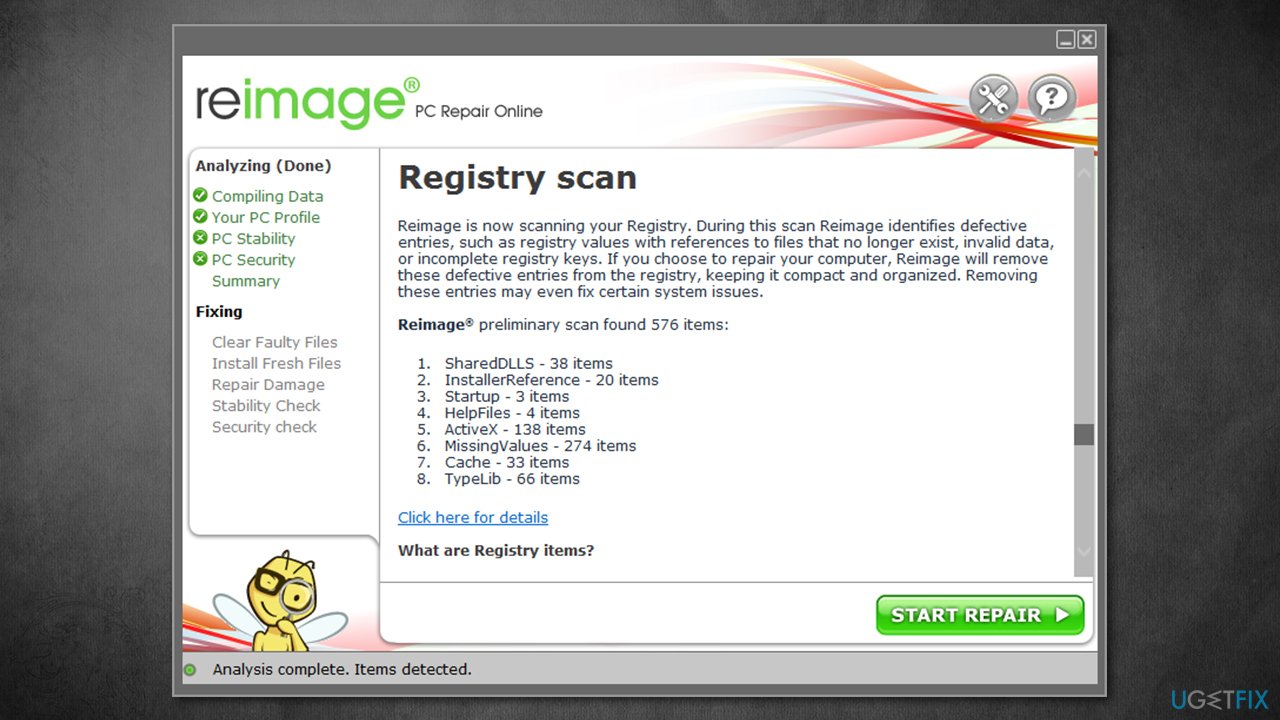
Therefore, if you want to save some time and find a much quicker and effective solution for Windows crashes, errors, registry[ref en-3] errors, and other common issues, we strongly recommend performing a scan with a PC repair tool [d1]. It can replace the damaged system files with brand new ones automatically without you having to reinstall Windows.
Fix 2. Check system files for corruption
- Type cmd in Windows search
- Right-click on Command Prompt result and pick Run as administrator
- Copy and paste the following command in the new window:
sfc /scannow
- Press Enter and wait for the results
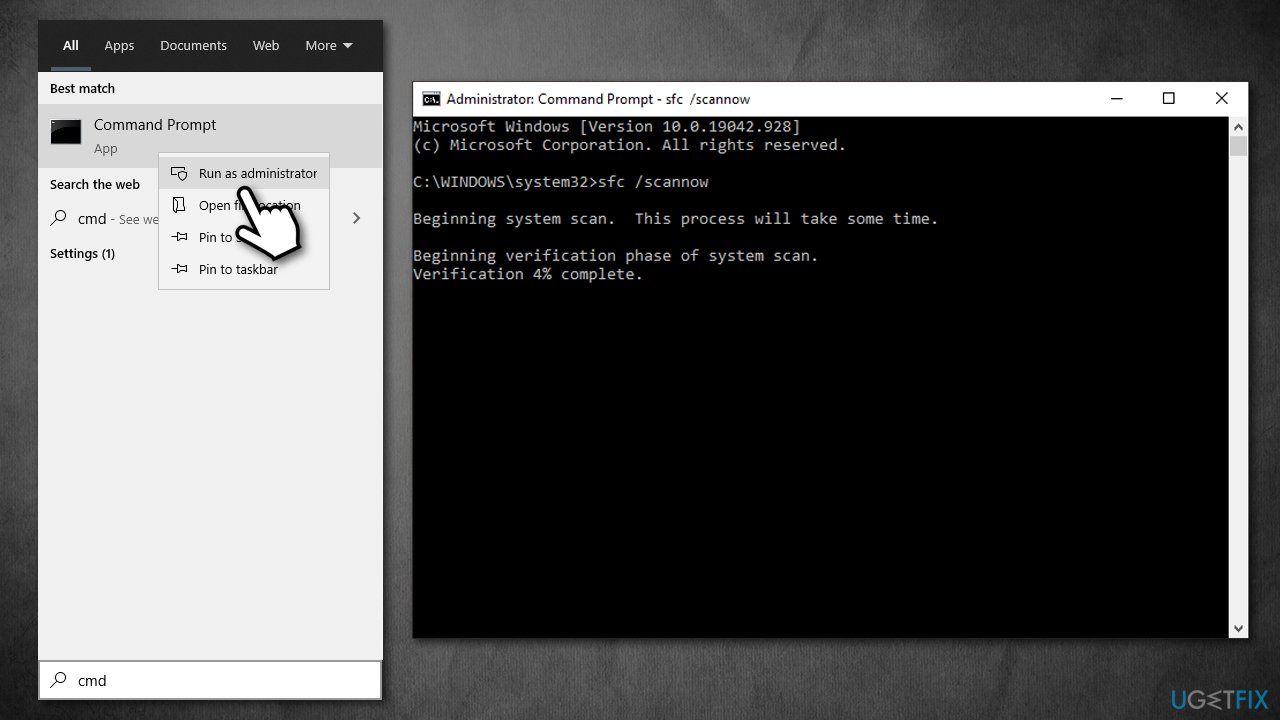
- Restart your computer once done.
Fix 3. Uninstall audio drivers
- Right-click on Start and pick Device Manager
- Here, expand the Sound, video and game controllers
- Right-click on Realtek HD Audio drivers and select Uninstall device
- Tick the Delete the driver software for this device and click Uninstall
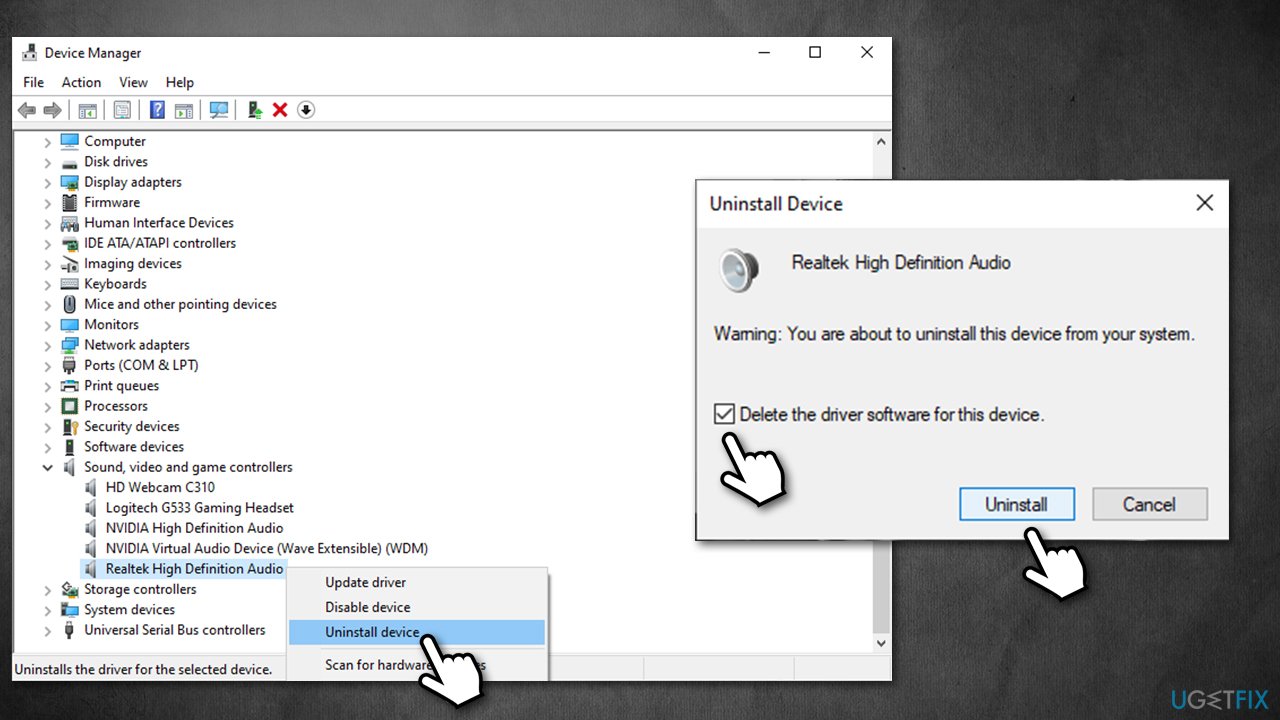
- Reboot your system.
Fix 4. Install new Realtek Drivers
With no audio drivers, your sound might not work. Therefore, you should install the newest Realtek audio drivers. While it is possible to do via the Device Manager, it is not recommended to do so when trying to fix serious computer issues, as you need to ensure that the most recent version of the software is installed (Device manager often fails to do that).
Thus, you have two options:
- Go to the official website of Realtek and download drivers from there
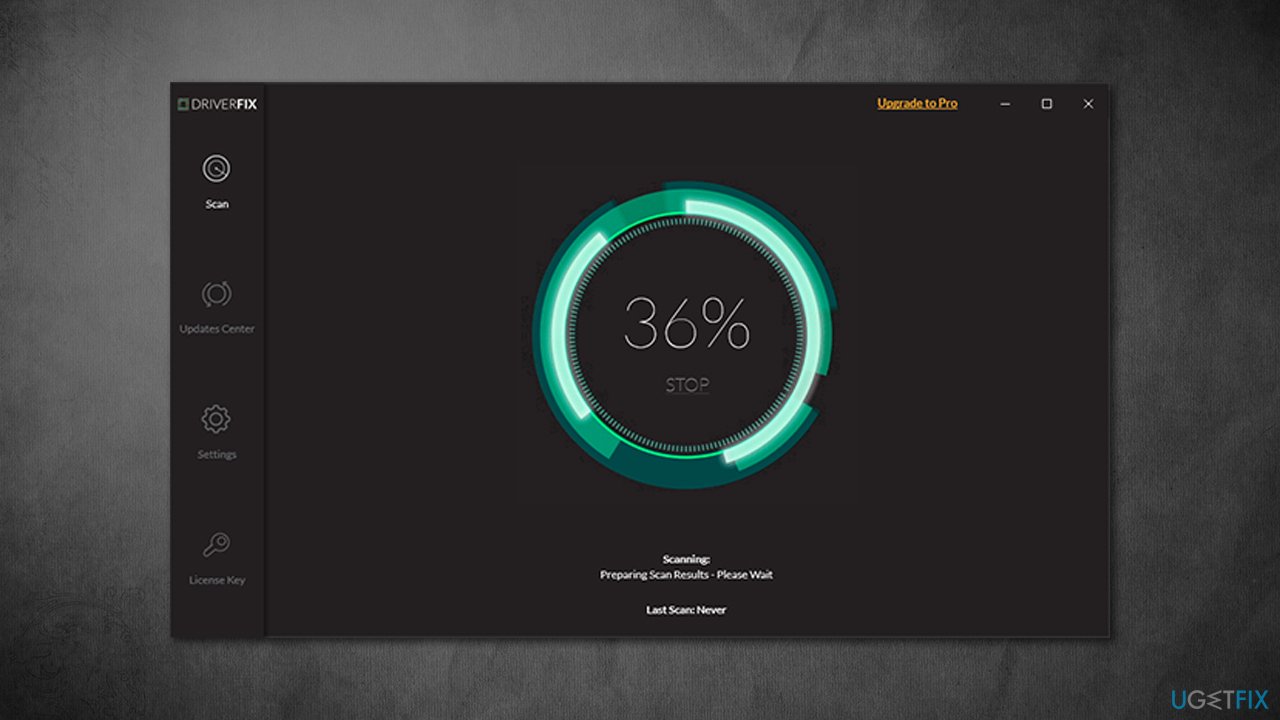
- Employ an automatic driver updater [rev id="DriverFix"] for a quick solution.
Fix 5. Disable third-party antivirus
If you are using a third-party antivirus, it could be causing the Blue Screen error. In order to check this theory, you should either disable or uninstall the program altogether. You can uninstall programs either via the Control Panel or the Apps and Features (Settings) section.
If this solution helps you, it means that security software is causing some type of conflict with your drivers. At this point, it would be better to consider using a different anti-malware program.
Fix 6. Update your BIOS
This step is relatively complex and can also cause serious problems if not performed correctly. Thus, if you don't know what you are doing, please skip this step entirely.
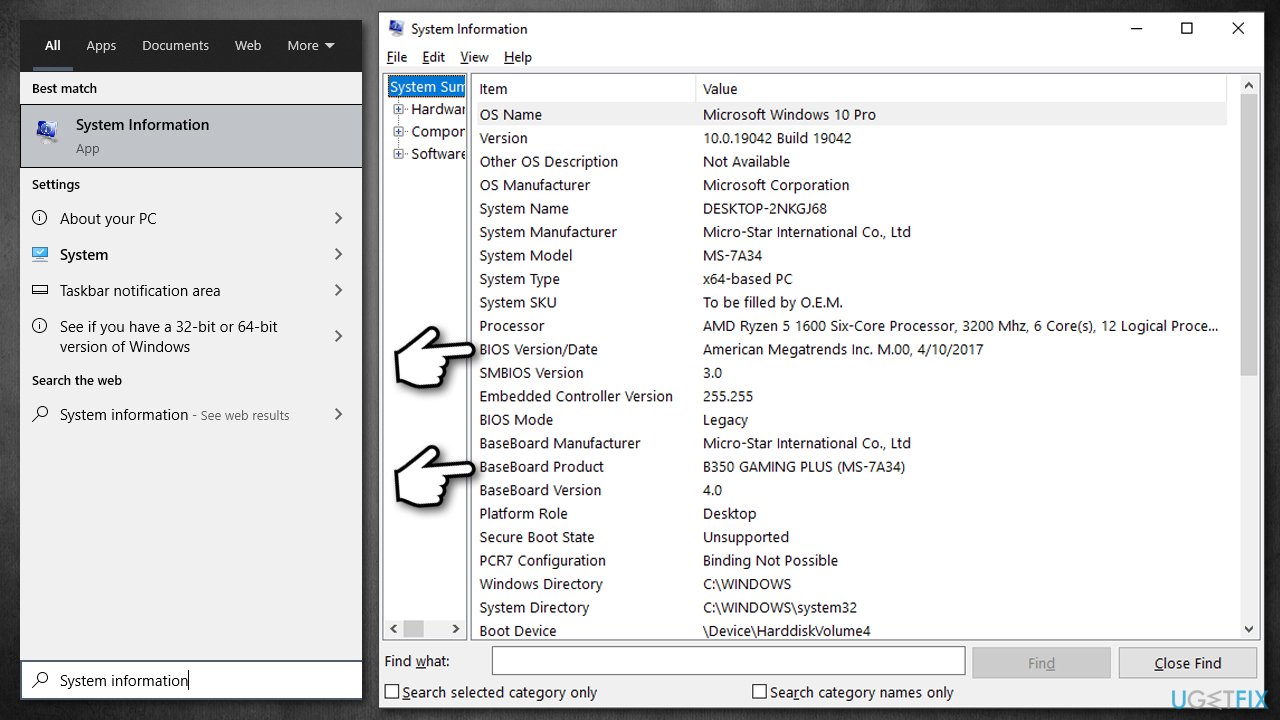
- Type System information in Windows search bar and press Enter
- Check BIOS Version/Date and BaseBoard Product sections - write down the relevant information
- Open your web browser and go to the official website of your motherboard manufacturer
- Head to the Downloads section and find the appropriate update for your BIOS
- Launch the installer and wait till the process is complete
- Once done, your computer will reboot.
Bottom line
To fix the RTKVHD64.sys BSOD, you can run a system repair tool, update your audio drivers, or check for corrupted files. If these methods do not resolve the issue, consider seeking professional assistance or further troubleshooting steps.
Frequently asked questions
RTKVHD64.sys is a driver related to Realtek High Definition Audio that can cause Blue Screen of Death (BSOD) errors due to incompatibility or corruption. Updating or reinstalling this driver often resolves the issue.
You can update the RTKVHD64.sys driver by going to Device Manager, finding the Realtek audio device, right-clicking it, and selecting 'Update driver'. Alternatively, you can download the latest drivers directly from the Realtek website.
If updating the driver does not resolve the BSOD, try rolling back the driver to a previous version or perform a system restore to revert your Windows 10 system to a state before the issue began.




Report an issue
What's wrong with this guide? We review every report and update or remove content.
Report received — thank you. We'll review and fix it.
You need a free account to submit a report.
Be the first to comment