How to fix
Search bar is crashing
on Windows
Resolve the crashing search bar issue in Windows 10 and Windows 11 effortlessly. Get expert-tested solutions for a smooth experience. Fixed in minutes!

What causes How to fix Search bar is crashing in Windows?
- Problems with Windows Explorer
- Issues with file indexing
- Corrupted system files
- Registry errors
- General instability of the search bar
Repairs Windows system files, removes malware, and restores a clean OS state — without reinstalling.
For a quite long time now, my Windows search bar has been crashing or bugging otherwise. Because of this, I need to look up files and other items on my PC using File Explorer, which is really slow and annoying.
Windows search bar is one of the tools that we often take lightly, and only when problems begin do we start to notice how important to our day-to-day operation it is. It streamlines the process of locating files, applications, and settings directly from the desktop. When functioning optimally, it helps users to quicken and enhance their workflow, whoever they might be doing at the time.
However, some users have run into an issue where the Windows search bar crashes or bugs. People describe a problem as very annoying because they have to use other channels, such as File Explorer, to find their files or open programs. To nobody's surprise, this can be particularly annoying and slow.
Windows search bar crashes can be attributed to various underlying issues. For instance, problems with Windows Explorer can affect the stability of the search bar - it is an integral component of the user interface and might affect various other components in Windows.
Additionally, file indexing is handled by the Windows Search service, which can also be one of the culprits for Windows search bar crashing issues. In more severe cases, corrupted system files or registry errors can also be the reason for all these problems.
To address Windows search bar crashes, you should start by restarting the Windows Explorer process - it can sometimes restore immediate functionality to the search bar. For more persistent problems, you might need to modify Windows Registry or repair system file corruption. If nothing helps, repair-installing Windows might be the only choice.
You will find the instructions for all these methods below, although using a specialized PC repair tool [d1] can be an effective approach for those seeking a straightforward solution without manual adjustments.
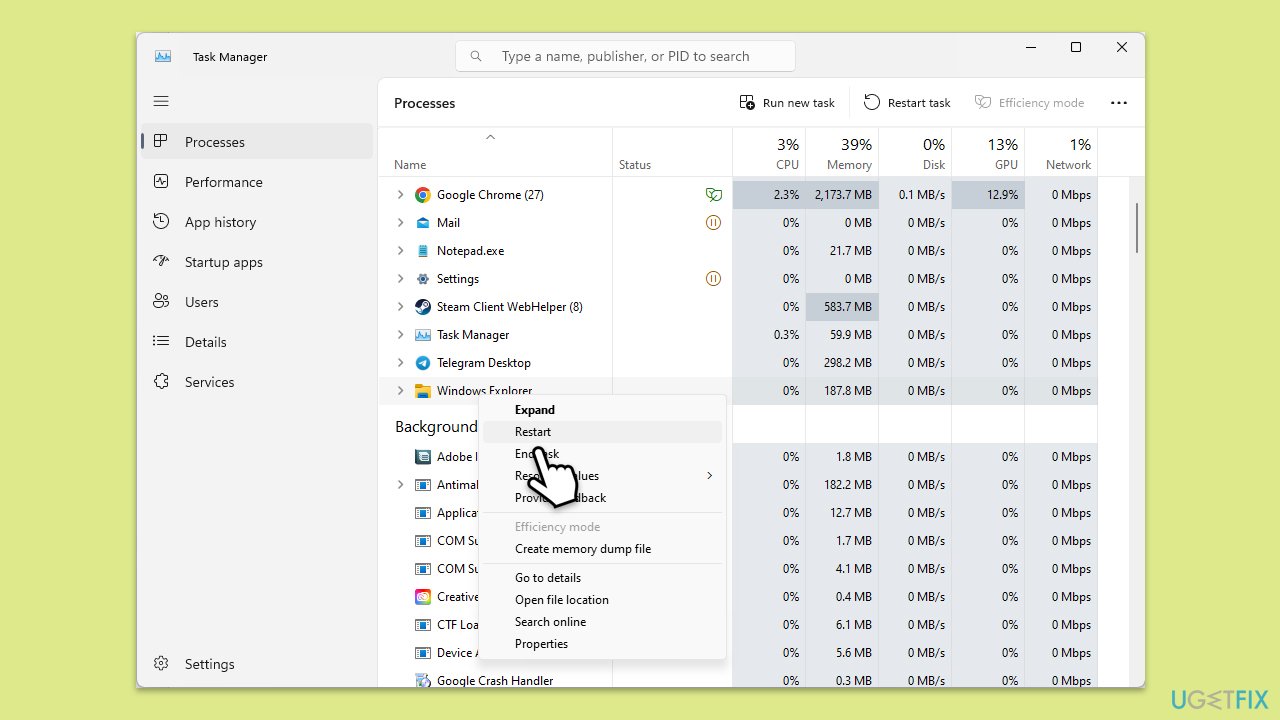
Fix 1. Restart File Explorer and SearchHost.exe
- Press Ctrl + Shift + Esc to open Task Manager.
- Scroll down to Windows Explorer.
- Right-click on it and select Restart.
- Once your UI is back, go to the Details tab in the Task Manager.
- Scroll down to find SearchHost.exe.
- Right-click and select End Task.
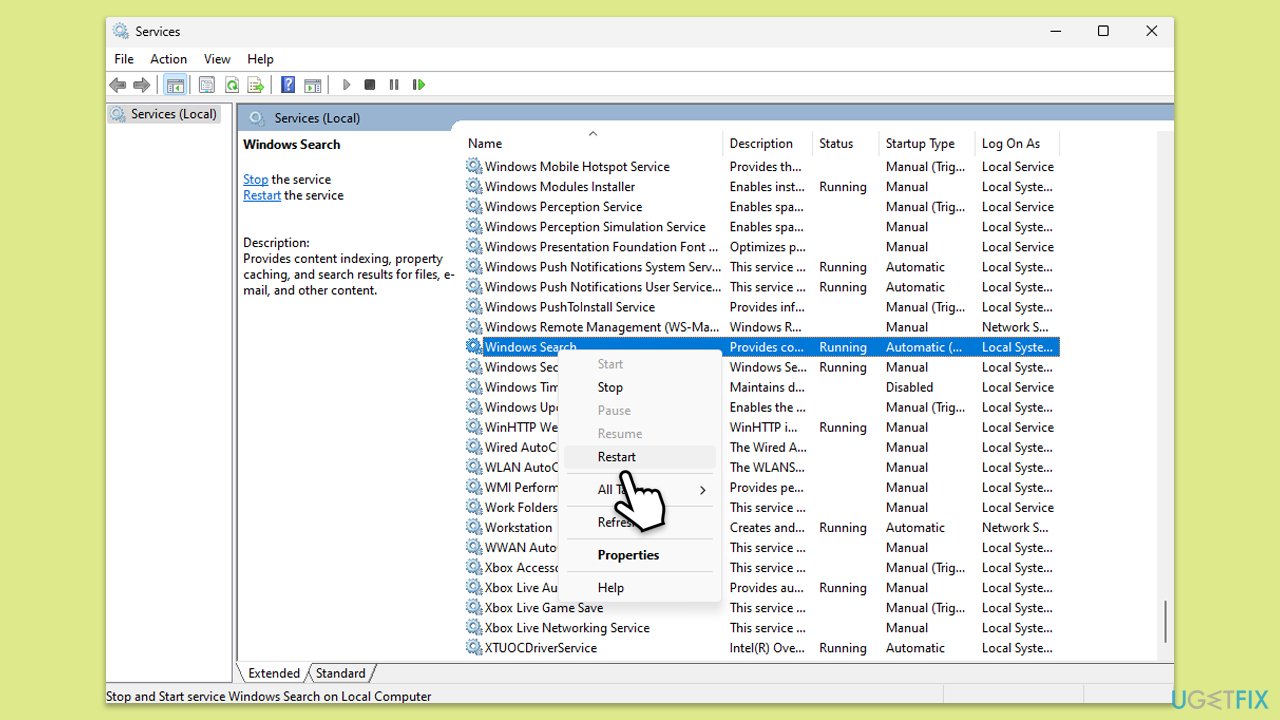
Fix 2. Restart or enable the Windows Search service
- Type Services in Windows search and press Enter.
- Locate Windows Search Service.
- If it is already running, right-click and select Restart.
- if the service is not running, double-click it, and pick Automatic under the Startup type from the drop-down menu.
- Click Start, Apply, and OK.
Fix 3. Repair corrupted system files
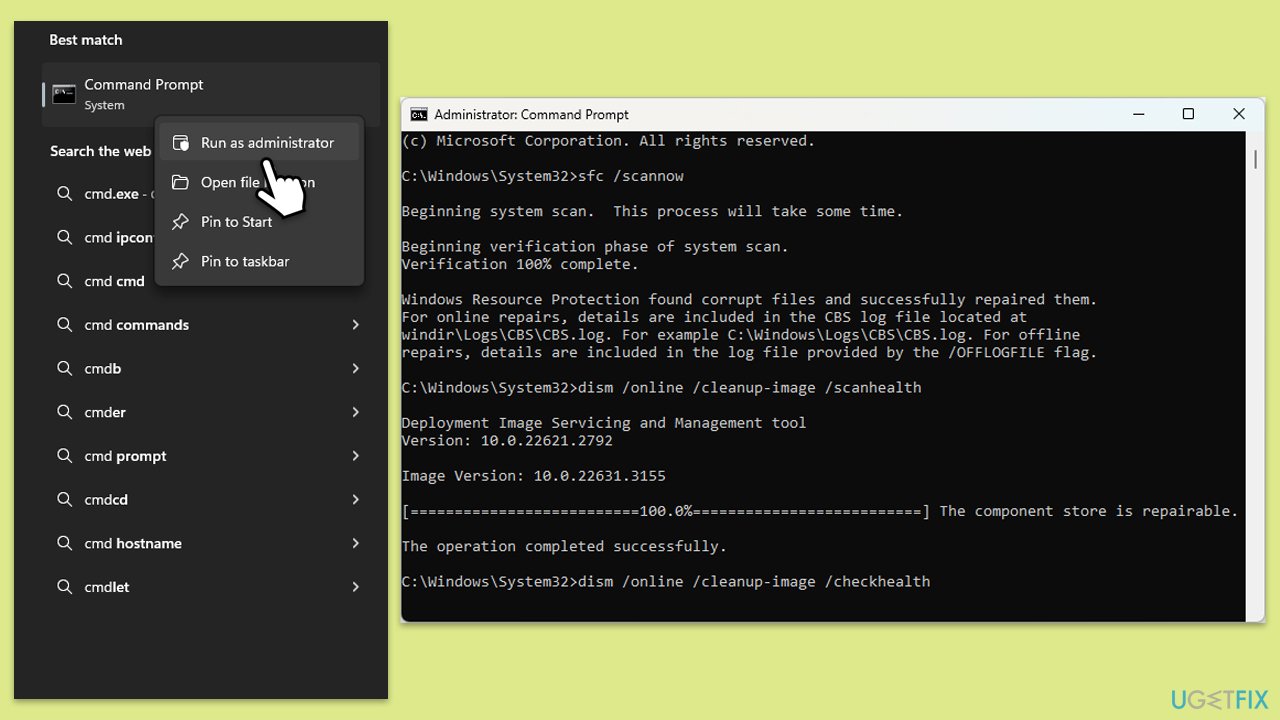
- Type in cmd in Windows search.
- Right-click the Command Prompt result and pick Run as administrator.
- User Account Control will ask whether you want to allow changes - click Yes.
- Type this command and press Enter:
sfc /scannow - Wait for the scan to finish.
- Then, use the following commands, pressing Enter after each:
Dism /Online /Cleanup-Image /CheckHealth
Dism /Online /Cleanup-Image /ScanHealth
Dism /Online /Cleanup-Image /RestoreHealth - Restart your computer.
Fix 4. Run Search and Indexing troubleshooter
- Click Start and select Settings.
- Go to the Update & Security (Win10) or System (Win11) section.
- Select Troubleshoot.
- Pick Additional troubleshooters/Other troubleshooters.
- Scroll down to find the Search and Indexing troubleshooter.
- Click on it and select Run the troubleshooter/Run.
Fix 5. Rebuild search index
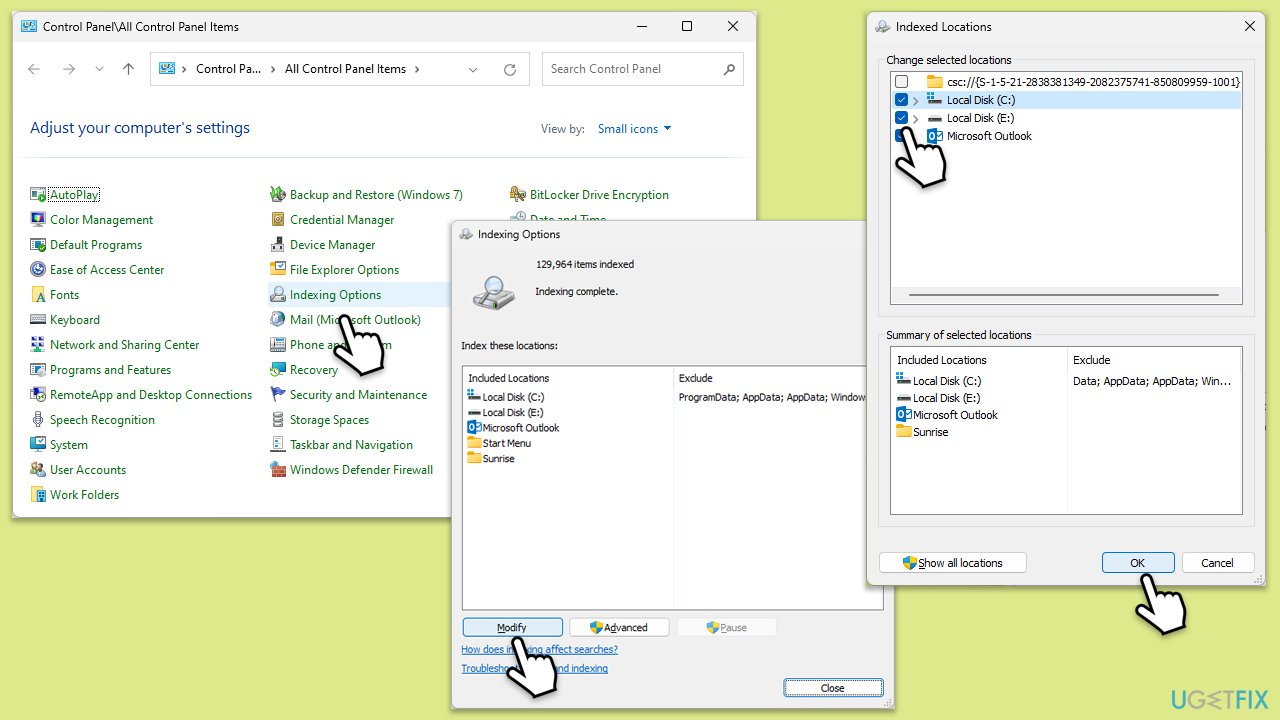
- Open Control Panel.
- On the top-right corner, click on View by option and select Small icons.
- Pick Indexing options.
- Click Modify.
- Mark the locations that you want to be indexed and click OK (you can also use Show all locations at the bottom-left of the window if you can't see the location you are looking for).
- In the Indexing Options window, click Advanced.
- Click Rebuild under Delete and rebuild index. This might take a while, depending on how large your drives are. During the rebuilding process, you might not be able to use the search bar or receive incomplete results.
- Click OK.
Fix 6. Install Windows updates
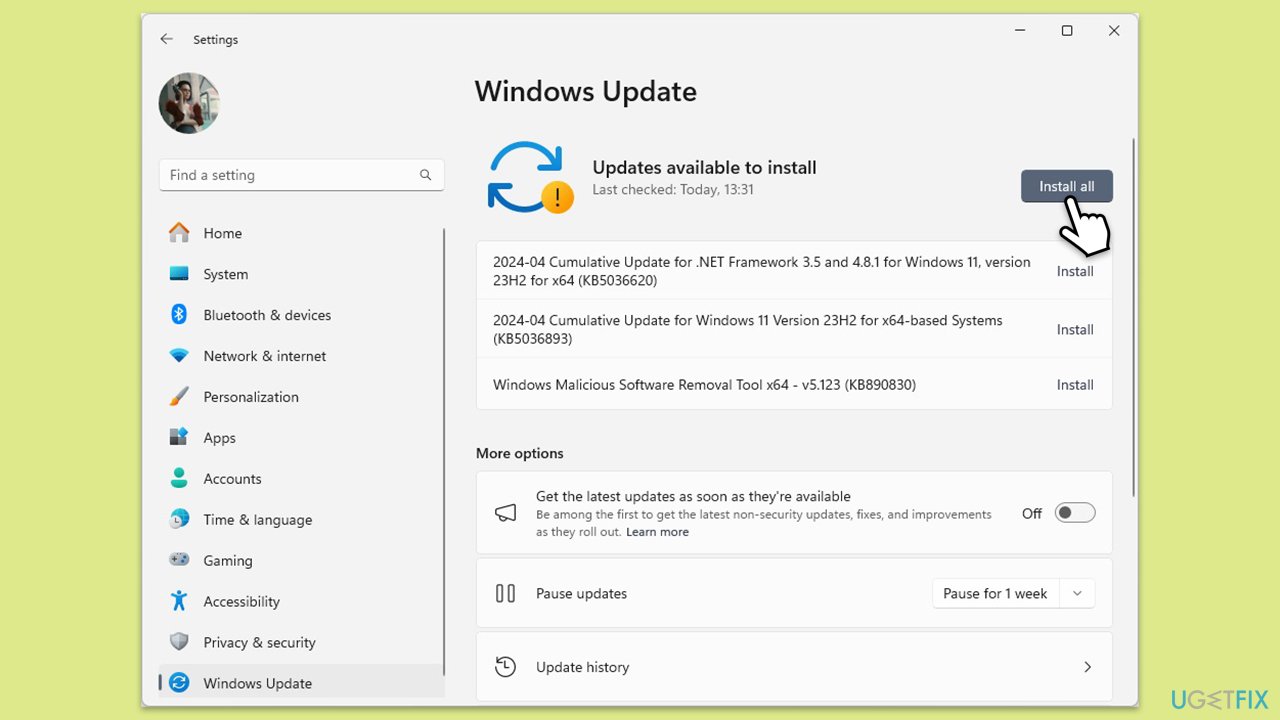
- Right-click on Start and select Settings.
- Go to Update & Security/Windows Update (depending on Windows version).
- If updates are pending, click Install updates.
- Otherwise, click Check for updates and wait.
- If there are optional updates available, install them as well.
- Restart your system to implement the changes.
Fix 7. Uninstall the most recent Windows update
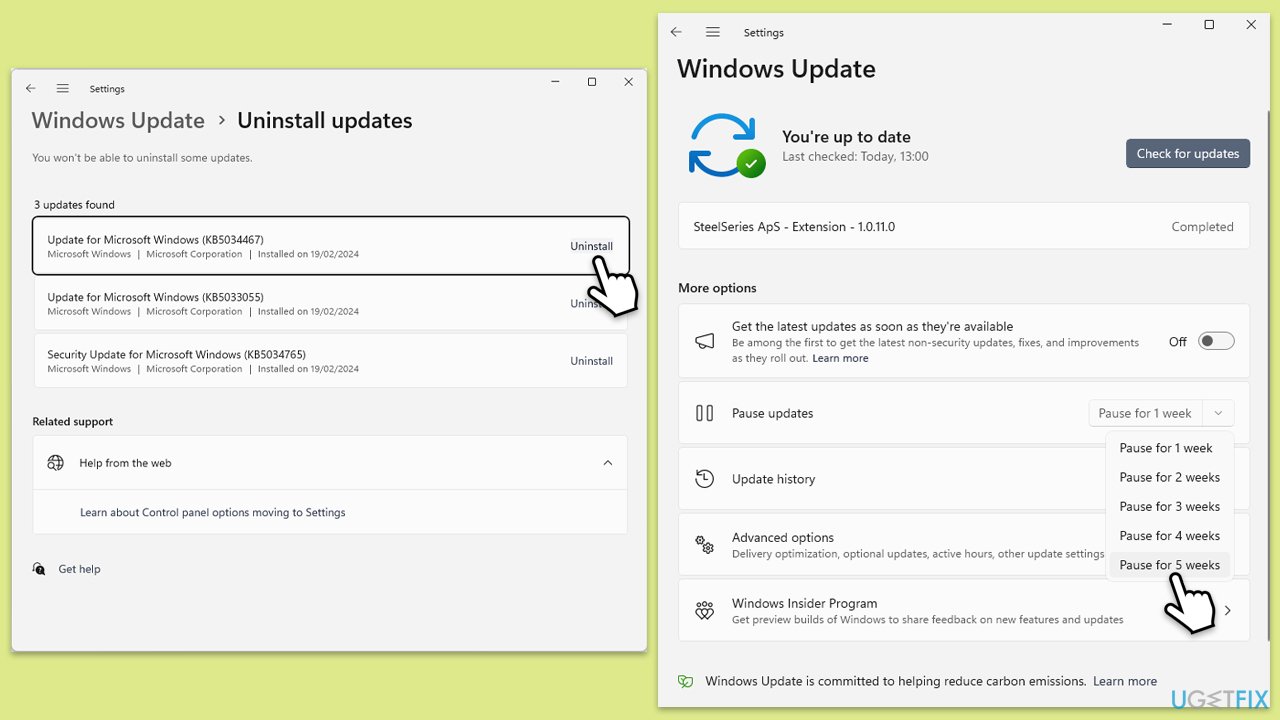
- Open Control Panel.
- Select Programs > Uninstall a program.
- Click on View installed updates on the left side of the window.
- Sort all the updates by date.
- Right-click on the most recent update and select Uninstall.
- Proceed with on-screen instructions.
- Then, type Updates in Windows search and press Enter.
- Click Pause the updates for 7 days (in Windows 11, you can pick a different time period).
- Install updates only once the issue is addressed by Microsoft.
Fix 8. Reregister Cortana via PowerShell
- Type PowerShell in Windows search.
- Right-click and select Run as administrator.
- When UAC shows up, click Yes.
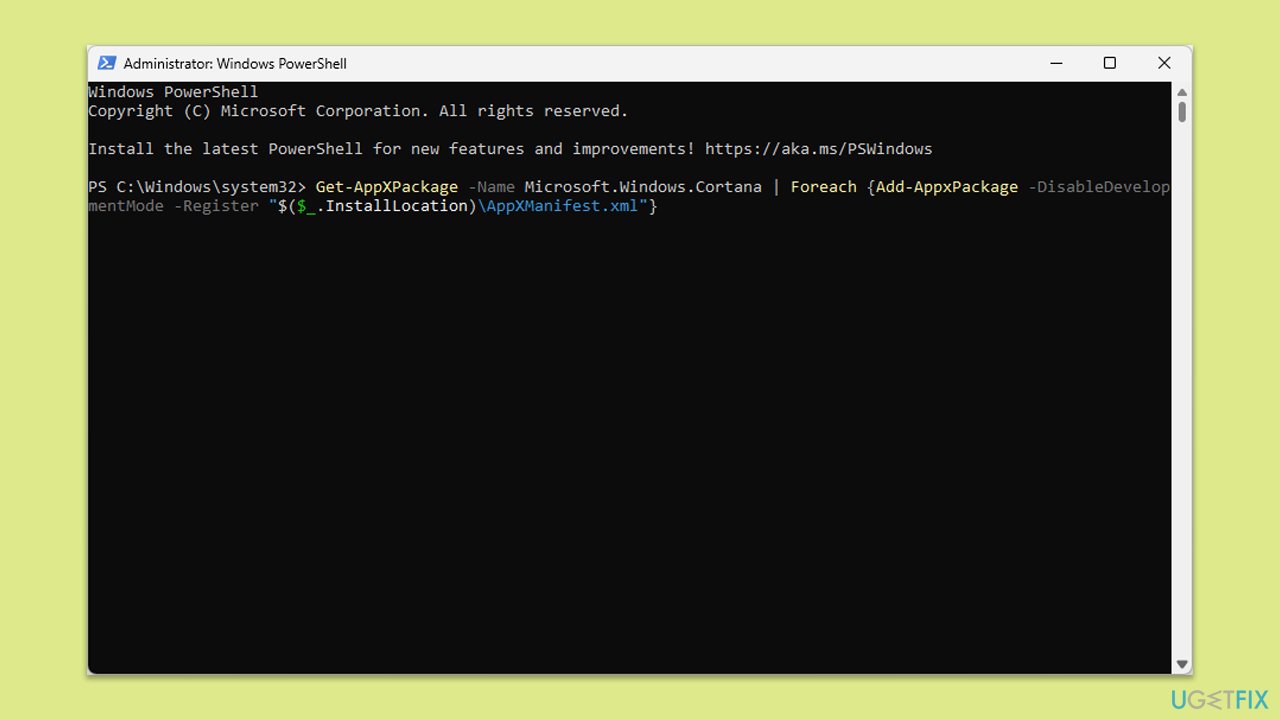
- Copy and paste the following command, pressing Enter after:
Get-AppXPackage -Name Microsoft.Windows.Cortana | Foreach {Add-AppxPackage -DisableDevelopmentMode -Register "$($_.InstallLocation)\AppXManifest.xml"} - Restart your device.
Fix 9. Modify Windows Registry
Before proceeding, make sure you back up your registry!
- Press Win + R and type in regedit, then press Enter.
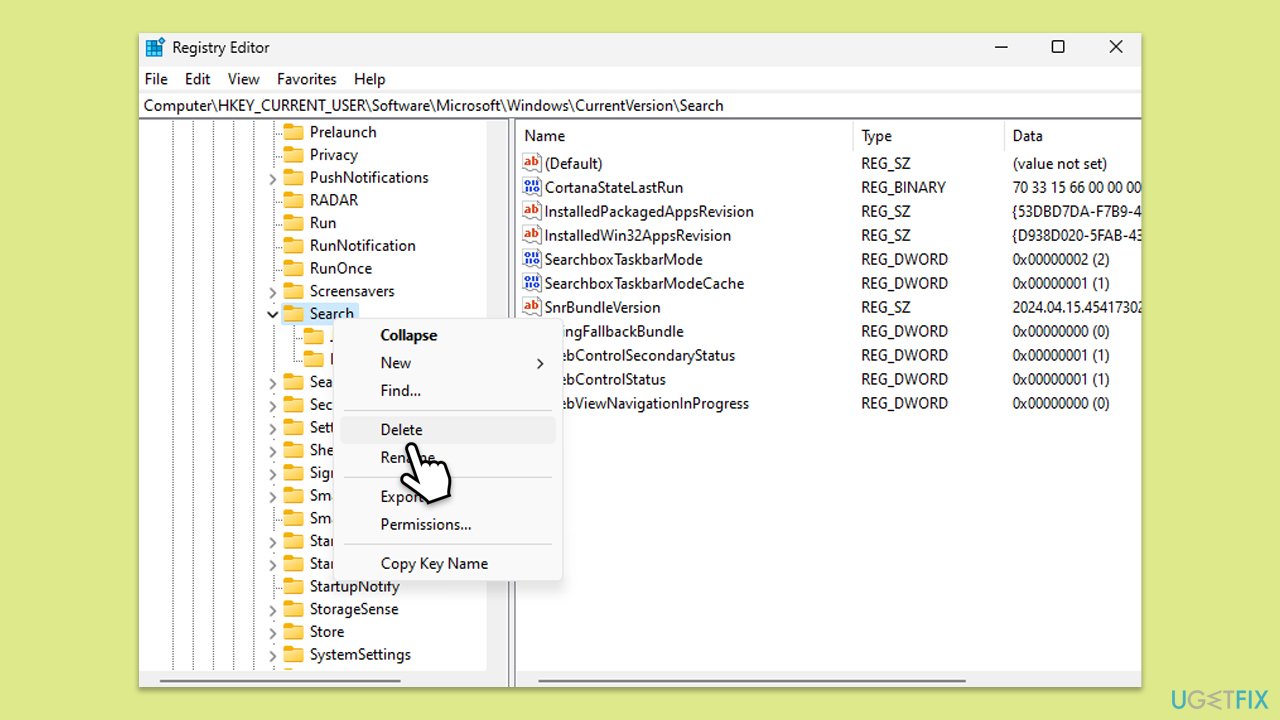
- Navigate to the following location:
HKEY_CURRENT_USER\Software\Microsoft\Windows\CurrentVersion\Search - Delete the Search folder from the left pane (right click > Delete).
- Restart your system.
Fix 10. Repair-install Windows
If none of the above methods help, you can always repair your Windows installation with the help of the Media Creation Tool. Don't worry about your files and apps - these will remain intact if you choose to.
- Visit the official Microsoft website and download Windows 10 installation media (Windows 11 version).
- Double-click the installer and select Yes when UAC shows up.
- Agree to terms.
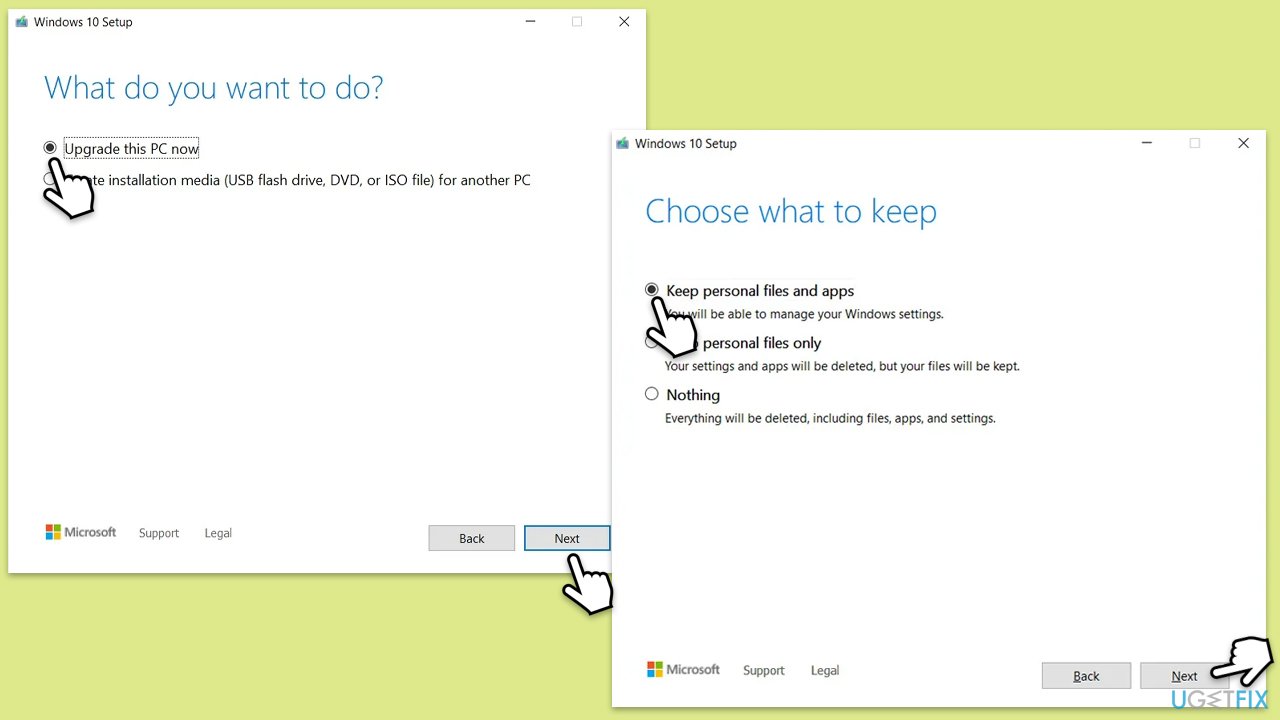
- Select Upgrade this PC now and select Next.
- Windows will now download all the necessary files – it might take a while.
- Agree to terms once again and click Next.
- Before installing, make sure that you are happy with your choices (otherwise, you can click Change what to keep option).
- Click Install to begin the upgrade process.
Related:
Bottom line
To fix the crashing search bar, you can start by restarting the Windows Explorer process. For more persistent issues, consider modifying the Windows Registry or repairing system file corruption. If none of these solutions work, a repair-install of Windows may be necessary.
Frequently asked questions
The search bar in Windows 10 can crash due to corrupted system files or issues with the search indexing service. You can troubleshoot this by running the System File Checker or rebuilding the search index.
In Windows 11, the search bar may crash due to outdated system components or conflicting software. Try updating your Windows or performing a clean boot to identify the conflicting applications.
If the search function continues to crash after a restart in Windows, consider resetting the Search app via the settings or using the PowerShell command to reinstall it.




Report an issue
What's wrong with this guide? We review every report and update or remove content.
Report received — thank you. We'll review and fix it.
You need a free account to submit a report.
Be the first to comment