
Error code 2148073520: how to fix sign in error 2148073520 (tag 657rx) in Windows?

Prefer to fix it yourself? The manual steps follow.
- 8methods
- 5 to 45 minutes
- Intermediate
Applies to Microsoft 365 apps for Windows (Outlook, Word, Excel, PowerPoint, Teams, OneDrive) on Windows 11 and Windows 10, with work, school and personal Microsoft accounts
8 methods in this guide
- What the error means
- Decode the code
- Outlook, Teams, OneDrive
- Causes, ranked
- The fixes
- 1. Reconnect the account
- 2. Reset the sign-in tokens
- 3. Check the TPM
- 4. Repair account plug-ins
- 5. Reset Office activation
- 6. Check device registration
- 7. Clear the TPM
- 8. Test a new Windows account
- Still there: get help
- Prevent it
- FAQ
Hi, I am using Windows 11 Home and Office 365. I can't sign into Outlook. The message says that something went wrong and the error code is 2148073520. Please help me, as I am not sure what I can do here to fix it.
Error code 2148073520 under Something went wrong. [657rx] means that Outlook, Teams, OneDrive or another Microsoft 365 app on Windows could not use the security key that protects your sign-in. The account itself is usually fine, so the fix is on this PC. Remove the saved Office credentials and reconnect your account first.
2148073520 is the Windows code 0x80090030: the security device that holds your sign-in key, normally the TPM chip, was not ready. Start with Fix 1: remove the MicrosoftOffice16 entries in Credential Manager, disconnect and reconnect your work or school account, and restart. If it stays, reset the sign-in tokens (Fix 2) and check the TPM (Fix 3).
| Error | Something went wrong. [657rx] with the lines Correlation Id, Timestamp, DPTI, Message: The credential is invalid. Unexpected sub status (6008)., Tag: 657rx and Code: 2148073520. Older windows say Error Tag and Error Code. |
|---|---|
| Where it appears | In the Microsoft sign-in window of Outlook, Word, Excel, Teams and OneDrive on Windows: when the app starts, when it asks for your password, or right after you type your address. |
| Main cause | Windows cannot use the device key that protects your sign-in tokens. Stale tokens and a broken work account registration come first, a TPM fault after a BIOS update or a hardware repair next. |
| Fastest fix | Remove the MicrosoftOffice16 credentials, disconnect and reconnect the account under Access work or school, restart (Fix 1). |
| Also written as | error code 2148073520, code: 2148073520, 0x80090030, 80090030, NTE_DEVICE_NOT_READY, tag 657rx, "Your computer's Trusted Platform Module has malfunctioned" with error code 80090030. |
| Neighbour code | 2148073494 (0x80090016, NTE_BAD_KEYSET, "Keyset does not exist") appears in the same 657rx window and takes the same fixes. |
| Affects | Microsoft 365 apps on Windows 11 and Windows 10. Most reports come from work and school accounts, some from personal accounts such as Outlook.com. |
| Microsoft's status | No Microsoft article defines tag 657rx or sub status 6008 (checked 15 October 2026). Microsoft documents the code and a Microsoft 365 troubleshooting page for the TPM malfunction message. |
| Time to fix | About 10 minutes for Fix 1 and Fix 2. Up to 45 minutes when the TPM, the BIOS or the device registration is involved. |
Facts checked on 15 October 2026. Steps written for Microsoft 365 apps on Windows 11 (25H2 and 26H2) and Windows 10 22H2, read against Microsoft's documentation and the 2148073520 reports on Microsoft Q&A.
What error code 2148073520 with tag 657rx means
You open Outlook or Teams, type your address, and a small Microsoft window answers with Something went wrong. [657rx]. Under Troubleshooting details it lists a Correlation Id, a Timestamp, a DPTI string, the line Message: The credential is invalid. Unexpected sub status (6008)., the tag 657rx and Code: 2148073520.
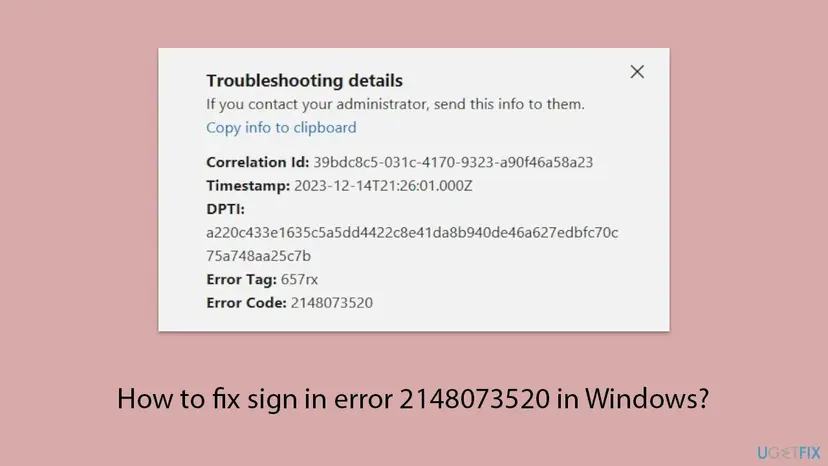
The message says the credential is invalid, but your password is usually not the problem. Users on Microsoft Q&A report that the same account works in a browser while the desktop apps fail, and one wrote that all his errors shared the same DPTI, which ties the fault to the device.
| Line in the window | What it is | What to do with it |
|---|---|---|
| Correlation Id and Timestamp | The identifier and UTC time of this sign-in attempt. | Copy both for support or IT. |
| DPTI | A long string. Microsoft does not document it. | Give it only to support. Moderators remove it from public posts as personal information. |
| Message | The credential is invalid. Unexpected sub status (6008). | Shows that the token check failed. It does not say why. |
| Tag: 657rx | Marks where the Office sign-in gave up. | Use it to recognise the error. |
| Code: 2148073520 | A Windows result code in decimal. | Decode it with the next section. This is the useful line. |
Select Copy info to clipboard before you close the window and paste the lines into a note. If you search for this page with site:ugetfix.com or site:learn.microsoft.com, the code line is the part worth searching for.
Decode Code: 2148073520 and the codes that come with tag 657rx
Converted to hexadecimal, 2148073520 is 0x80090030. Microsoft's table of COM error codes lists it as NTE_DEVICE_NOT_READY: "The device that is required by this cryptographic provider is not ready for use." The 0x8009 family belongs to Windows cryptography, where your sign-in keys live.
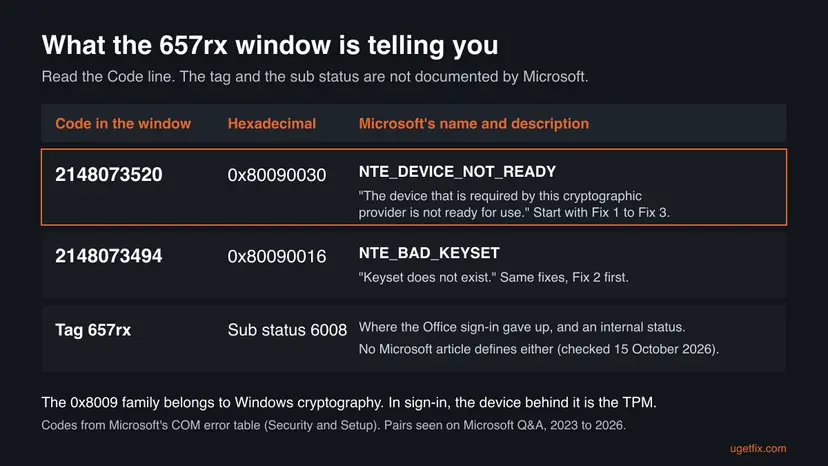
| Code in the window | Hexadecimal | Microsoft's description | Start with |
|---|---|---|---|
| 2148073520 | 0x80090030 | NTE_DEVICE_NOT_READY: "The device that is required by this cryptographic provider is not ready for use." | Fix 1, Fix 2, Fix 3 |
| 2148073494 | 0x80090016 | NTE_BAD_KEYSET: "Keyset does not exist" | Fix 2, Fix 1, Fix 6 |
| 80090030 in "Trusted Platform Module has malfunctioned" | 0x80090030 | The same code, shown by older Office builds as a TPM message | Fix 1, Fix 3 |
Microsoft's error table does not name the device. Office itself does: since 2019 users have posted the message "Your computer's Trusted Platform Module has malfunctioned" with error code 80090030. Microsoft also lists 0x?009???? among the code patterns that mark a TPM problem in the sign-in log.
Outlook error code 2148073520, Teams and OneDrive: one shared sign-in
Office for Windows does not sign in by itself. It asks Web Account Manager (WAM), a part of Windows, for a token. Microsoft names two packages behind it: Microsoft.AAD.BrokerPlugin for work and school accounts and Microsoft.Windows.CloudExperienceHost for personal accounts. Windows protects the keys behind these tokens with the TPM.
- Outlook: the 657rx window appears at start or when Outlook asks for the password, and mail stops syncing. Classic Outlook for business is the most common place in the reports.
- Teams and OneDrive: the same window. One user reported OneDrive and Outlook failing while Teams on the same PC signed in.
- Word, Excel, PowerPoint: the apps cannot activate with your subscription and may open in reduced mode.
- Browser: Outlook on the web and office.com usually work, because they do not use WAM or the TPM key.
Open outlook.office.com or office.com in a browser. If the browser also refuses your account, the problem is the account, its password or its subscription, not this PC. Then check the account first and come back later.
What causes error 2148073520, from the most common to the rare
Microsoft has not published a cause for tag 657rx. The ranking below comes from the code, from Microsoft's page on the TPM malfunction message in Microsoft 365 apps, and from the outcomes users posted on Microsoft Q&A. Treat it as our reading, not a statistic.
| How often | Cause | Typical sign | Fix |
|---|---|---|---|
| Most often | Stale Office credentials and a broken work or school account entry in Windows | It began after a password change, a new account on the PC or a policy change at work. | Fix 1 |
| Often | Old tokens in the account plug-in folders that point to a key the TPM no longer holds | Fix 1 changed nothing, or the code is 2148073494. | Fix 2 |
| Less often | The TPM is not ready: firmware fault, BIOS update, new system board, BitLocker recovery | tpm.msc does not say "The TPM is ready for use", or TPM events 14 or 17 sit in the System log. | Fix 3, Fix 7 |
| Less often | Missing or blocked account plug-ins, including security software, VPN or proxy | The window is blank or closes at once. | Fix 4 |
| Less often | A damaged Office activation state on a work PC | Office keeps an old account after the account was removed. | Fix 5 |
| Rarely | The device is disabled, deleted or duplicated in Microsoft Entra ID | The AAD log shows AADSTS135011 or AADSTS50155. | Fix 6 |
| Rarely | A damaged Windows user profile | Everything above failed, and a new Windows account signs in. | Fix 8 |
Some pages tie 2148073520 to Office DLL files or to the LAN Manager authentication policy. We found no Microsoft document that links either to this code, and none of the Q&A threads we read was solved that way.
How to fix error code 2148073520
The fixes are ordered by how often users report them to end the error and by how little they change. After each fix open Outlook or Word and sign in: when the password box or the approval request appears where 657rx was, you are done.
| What you see or have | Start with | Then |
|---|---|---|
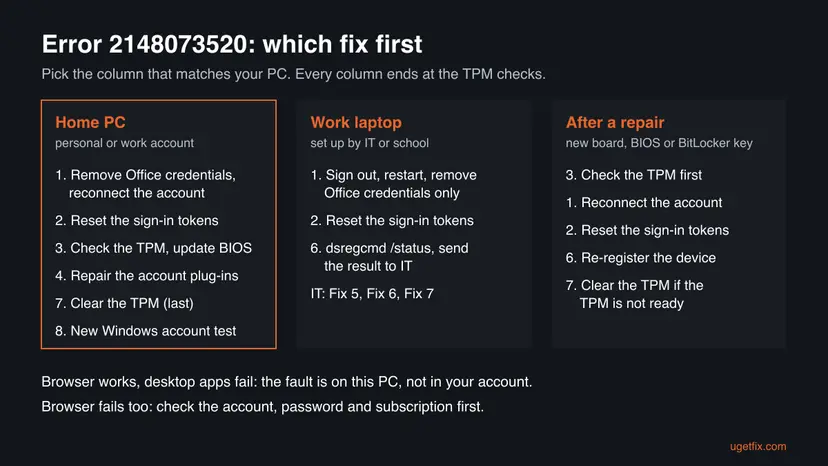
| Home PC, work or school account added to Windows | Fix 1 | Fix 2, Fix 3 |
| Home PC, personal Outlook.com or Microsoft 365 Family account | Fix 1 | Fix 2, Fix 4 |
| Code 2148073494 instead of 2148073520 | Fix 2 | Fix 1, Fix 6 |
| After a BIOS update, a new system board or a BitLocker recovery screen | Fix 3 | Fix 1, Fix 7 |
| The sign-in window is blank or closes at once | Fix 4 | Fix 2 |
| A laptop that your employer or school manages | Fix 1 (credentials only) | Fix 6 with IT |
| Nothing above helped | Fix 8 | Still there section |
Fix 1. Remove the Office credentials and reconnect your work or school account
10 minutesLow riskEveryone with the error on a PC they own. On a managed PC do only steps 1 to 4.
Windows keeps your Microsoft 365 sign-in in two places outside Office: Credential Manager and Access work or school. Microsoft's page on the TPM malfunction message clears both first, and the most helpful answer on the 2148073520 thread, marked helpful by more than 90 users, removes the work account.
- Save your work and close Outlook, Teams, OneDrive and the other Office apps.
- Select Start, type
credential managerand open Credential Manager, then select Windows Credentials. - Under Windows Credentials and Generic Credentials, expand each entry that starts with MicrosoftOffice16 and select Remove. Microsoft's forum staff also remove other Microsoft 365 entries of the same account.
- Open Settings > Accounts > Access work or school.
- If the account you use for Microsoft 365 is listed and it is not your Windows sign-in, select it and select Disconnect.
- Restart the PC.
- Go back to Access work or school, select Connect and sign in with the work or school address, including the second factor.
- Open Outlook and sign in.
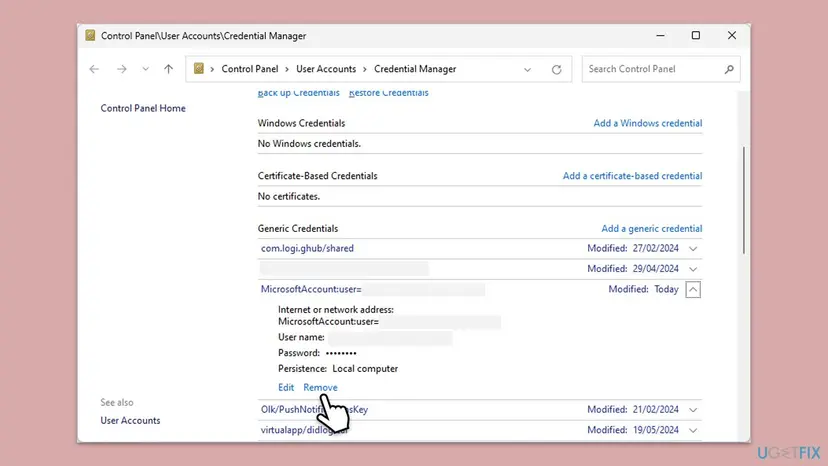
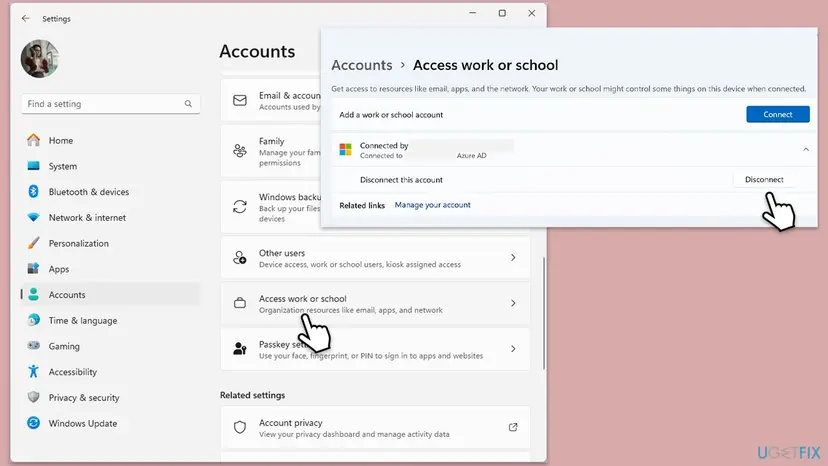
Disconnecting removes the organisation's registration of this PC and every app loses its single sign-on. On your own PC that is the point. On a laptop that IT set up, leave Access work or school alone and send the troubleshooting details to IT. Your mail stays in the cloud and syncs back after you sign in.
With a personal account and nothing under Access work or school, open Settings > Accounts > Email & accounts instead, remove old or extra Microsoft accounts under Accounts used by other apps, restart and add your account again.
It worked if: Outlook shows the normal Microsoft sign-in page, asks for your password or an approval, and opens your mailbox.
If not: If 657rx returns after the restart, or the account was not listed at all, reset the sign-in tokens with Fix 2.
Fix 2. Reset the Windows sign-in tokens and run Microsoft's sign-in troubleshooter
10 minutesLow riskFix 1 did not help, the code is 2148073494, or the error came after a password change.
The account plug-ins keep their own token files, apart from Credential Manager. When those tokens were sealed with a key the TPM can no longer use, every app fails the same way. Microsoft deletes them in its TPM troubleshooting page, and users on Q&A report that this step ended their 657rx error.
- Sign out of Office (File > Account > Sign out) and close all Office apps, Teams and OneDrive.
- Open File Explorer, paste this location in the address bar, press Ctrl + A and delete the files:
%LOCALAPPDATA%\Packages\Microsoft.AAD.BrokerPlugin_cw5n1h2txyewy\AC\TokenBroker\Accounts - Do the same in the folder of personal accounts:
%LOCALAPPDATA%\Packages\Microsoft.Windows.CloudExperienceHost_cw5n1h2txyewy\AC\TokenBroker\Accounts - Restart the PC.
- Run the Microsoft 365 Sign-in troubleshooter from Microsoft's page Fix authentication issues in Microsoft 365 apps, then sign in to Outlook.
If the token files come back and the error stays, Dell's support article renames the whole folder Microsoft.AAD.BrokerPlugin_cw5n1h2txyewy under %localappdata%\Packages to Microsoft.AAD.BrokerPlugin_cw5n1h2txyewy.old and restarts. Windows builds a new one, and you can rename the old one back. If Windows says the folder is in use, sign in once with another administrator account.
Microsoft's forum moderators go one step further for 2148073520 and empty the whole BrokerPlugin folder. Renaming does the same and keeps a copy, so prefer it.
It worked if: Office asks you to sign in from scratch, with your password and second factor, and stays signed in after the next restart.
If not: If 657rx comes back with the same code, check whether the TPM is ready with Fix 3.
Fix 3. Check that the TPM is ready, read its log and update the BIOS
15 minutesLow riskFix 1 and Fix 2 did not help, or the error began after a BIOS update, a repair or a BitLocker recovery screen.
The code says a cryptographic device was not ready. Microsoft explains that Windows uses the TPM to protect your credentials, that the chip can become corrupted or reset, and that a TPM fault breaks Modern Authentication. These checks show whether the chip is the cause before you change anything.
- Press Win + R, type
tpm.mscand press Enter. - Under Status read the line. The TPM is ready for use is the healthy state. Any other text, or Compatible TPM cannot be found, points to the chip or the BIOS.
- Press Win + R, type
eventvwr.mscand press Enter. Open Windows Logs > System and filter by the source TPM. - Look for Event ID 14 (the TPM driver met a non-recoverable error) or Event ID 17 (the TPM failed to run a command) around the time of your sign-in.
- Open Applications and Services Logs > Microsoft > Windows > AAD > Operational and look for error codes of the pattern
0x?028????,0x?029????or0x?009????. - If you found TPM errors, install the latest BIOS or UEFI firmware from your PC maker's support site, together with the newest Windows update.
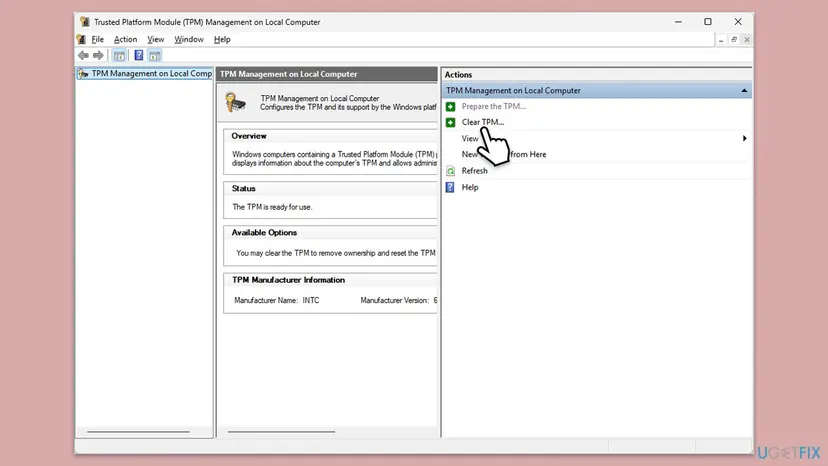
For TPM driver errors, Microsoft's workaround is the latest servicing stack and cumulative update plus any BIOS or TPM firmware update from the manufacturer. If the errors stay after that, Microsoft sends you to the PC maker to diagnose the TPM. Since Windows 10 version 1709, Windows should also start a sign-in recovery by itself after a TPM failure.
It worked if: tpm.msc says The TPM is ready for use, no new TPM events appear, and after the update and Fix 1 Office signs in.
If not: If the TPM is ready and the log is clean, the chip is not the cause: repair the account plug-ins with Fix 4. If the TPM stays not ready, see Fix 7.
Fix 4. Repair the account plug-ins and make sure nothing blocks them
15 minutesLow riskThe sign-in window is blank or closes at once, or you use a VPN, a proxy or a third-party antivirus.
Microsoft states that some antivirus, proxy or firewall software can block the Microsoft.AAD.BrokerPlugin process, and gives PowerShell commands that register both account plug-ins again when their package information is missing.
- Disconnect any VPN and test the sign-in once. Turn the VPN back on afterwards.
- Right-click Start and select Terminal on Windows 11 or Windows PowerShell on Windows 10, as the user who sees the error.
- For a work or school account, check and register the work account plug-in:
if (-not (Get-AppxPackage Microsoft.AAD.BrokerPlugin)) { Add-AppxPackage -Register "$env:windir\SystemApps\Microsoft.AAD.BrokerPlugin_cw5n1h2txyewy\Appxmanifest.xml" -DisableDevelopmentMode -ForceApplicationShutdown } Get-AppxPackage Microsoft.AAD.BrokerPlugin - For a personal account, do the same for the Live ID package:
if (-not (Get-AppxPackage Microsoft.Windows.CloudExperienceHost)) { Add-AppxPackage -Register "$env:windir\SystemApps\Microsoft.Windows.CloudExperienceHost_cw5n1h2txyewy\Appxmanifest.xml" -DisableDevelopmentMode -ForceApplicationShutdown } Get-AppxPackage Microsoft.Windows.CloudExperienceHost - Restart the PC and sign in to Outlook.
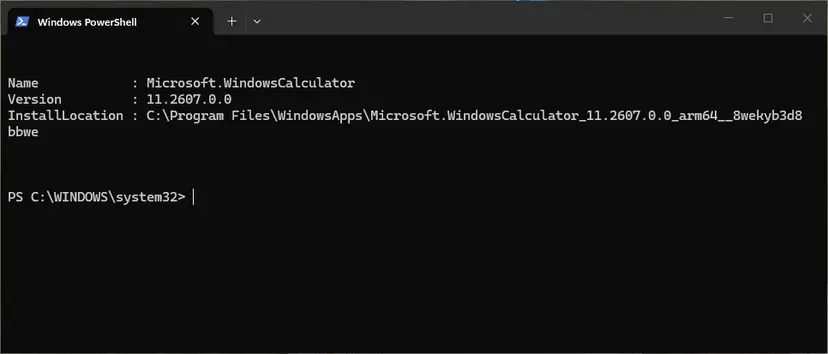
If the error ends only with your antivirus paused, update it and allow Microsoft.AAD.BrokerPlugin_cw5n1h2txyewy in its application or web control. Pause protection for one test only and turn it back on at once: Turn off Microsoft Defender protection for a moment. More on the commands: How to re-register Microsoft Store apps with PowerShell.
Old answers, and the earlier version of this page, set EnableADAL to 0 under the Office Identity key. Microsoft says disabling ADAL or WAM is not supported as a fix for sign-in problems, can adversely affect your setup and puts Office into a legacy state. If you set it before, delete that value.
It worked if: Get-AppxPackage shows the package with Status Ok and no red error, and the Office sign-in window shows a password box where 657rx was.
If not: On a work PC, reset the Office activation state with Fix 5. On a home PC, go to Fix 7 if the TPM was not ready, otherwise Fix 8.
Fix 5. Reset the Office activation state on a work or school PC
10 minutesLow riskWork or school accounts, when Office keeps returning to an old account after Fix 1 to Fix 4.
Office keeps licences and stored identities of its own. Microsoft's article for Microsoft 365 Apps for enterprise ships a script that clears them, and Microsoft's forum staff recommend it for the 657rx window with code 2148073520.
- Sign out of every Office app and close them all.
- Open Microsoft's article Reset activation state for Microsoft 365 Apps for enterprise and download OLicenseCleanup.zip from the section on scripts.
- Extract OLicenseCleanup.vbs and run it with administrator rights, as the article says.
- Restart the PC.
- Open Word, sign in with the work or school account and let Office activate.
Microsoft wrote this script for the enterprise edition. We could not confirm that it is meant for Microsoft 365 Personal or Family, so home users skip this fix. If your company manages the PC, IT may run it for you.
It worked if: Office opens without a licence, asks you to sign in, and activates with the work account without the 657rx window.
If not: If the error is still there, the device registration itself may be broken. Check it with Fix 6.
Fix 6. Check the device registration with dsregcmd and recover it
10 to 30 minutesLow riskWork and school accounts, above all on laptops that IT manages or that are joined to Microsoft Entra ID.
A work sign-in also proves the device, using a key held in the TPM. Microsoft's forum staff tie 2148073520 to a device that is wrongly registered, duplicated or restricted in Microsoft Entra ID, and Microsoft documents a recovery for each way a PC can be joined.
- Open Command Prompt and run
dsregcmd /status. - Under Device State read AzureAdJoined and DomainJoined. Under User State read WorkplaceJoined. Under SSO State read AzureAdPrt.
- AzureAdPrt : NO means Windows holds no Primary Refresh Token for you, which matches this error.
- Copy the output and pick your recovery from the table below.
| What dsregcmd shows | Microsoft's recovery | Who does it |
|---|---|---|
| WorkplaceJoined : YES (a work account added to your own PC) | Remove the work account under Access work or school and add it again. That is Fix 1. | You |
| AzureAdJoined : YES and DomainJoined : YES (hybrid joined) | Run dsregcmd /leave in an elevated Command Prompt and restart. | IT |
| AzureAdJoined : YES and DomainJoined : NO (Entra joined) | Back up data, create a local administrator, disconnect the account, sign in as that administrator and join again. | IT |
| AAD log shows AADSTS135011 or AADSTS50155 | The device is disabled or deleted in Entra ID. An administrator enables it or registers it again. | IT |
dsregcmd /leave and a new Entra join remove the organisation's setup and can lock you out of company resources until IT restores them. Send IT the dsregcmd output, the Correlation Id and the Timestamp instead of running them yourself.
It worked if: After the recovery dsregcmd /status shows AzureAdPrt : YES, and Outlook and OneDrive sign in like Teams and the browser.
If not: If the PRT stays NO and the TPM is not ready, clearing the TPM is the next step (Fix 7), on IT's instruction for a work PC.
Fix 7. Clear the TPM as the last step on your own PC
20 minutesRead the warningYour own PC, when Fix 3 showed that the TPM is not ready, or everything above failed after a hardware repair.
Microsoft lists Clear TPM in its troubleshooting page for the TPM malfunction message in Microsoft 365 apps. Clearing resets the chip to factory state and Windows prepares it again, so new keys replace the ones the sign-in could not use.
Microsoft warns that you lose every key created with the TPM and the data they protect, such as your Windows Hello PIN or a virtual smart card. If BitLocker or device encryption is on, save the recovery key from account.microsoft.com first. Never clear the TPM on a work or school PC without IT.
- Make sure you know your Microsoft account password, because the PIN will stop working.
- Open Windows Security from the Start menu and select Device security.
- Under Security processor select Security processor details, then Security processor troubleshooting.
- Select Clear TPM and restart when asked. The PC may ask you to press a key during the restart to confirm.
- Sign in with your password, set up a new PIN, then run Fix 1 and sign in to Outlook.
Microsoft says to clear the TPM from Windows, not from the UEFI menu. The earlier version of this page cleared it from tpm.msc without a warning; the Windows Security route above is the one Microsoft documents today.
It worked if: After the restart tpm.msc shows The TPM is ready for use, and Office signs in without 657rx once the account is added again.
If not: If the TPM errors return after a clear and a firmware update, the chip or the system board may be failing. That is hardware: contact the PC maker.
Fix 8. Test with a new Windows user account
15 minutesLow riskFix 1 to Fix 4 did not help on a home PC, or IT asks whether the fault follows your profile.
The token files, the stored accounts and the plug-in data belong to each Windows user. Microsoft's TPM troubleshooting page ends with a new Windows user account, and the Microsoft Q&A answer for 80090030 suggests the same test.
- Open Settings > Accounts > Other users and select Add account.
- Select I don't have this person's sign-in information, then Add a user without a Microsoft account, and give it a name and a password.
- Sign out, sign in to the new account and wait for the desktop.
- Open Outlook or Word and sign in with your Microsoft 365 address.
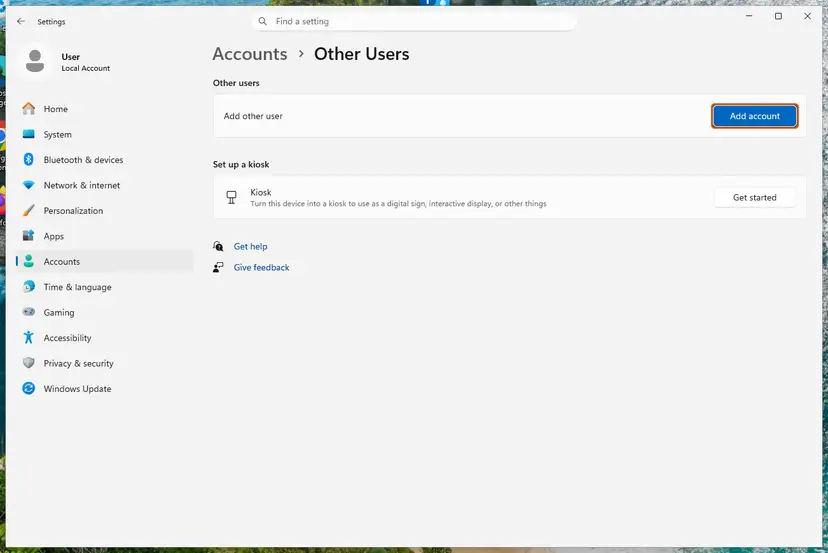
If Office signs in from the new account, your old profile holds the fault: move your files over or keep repairing the old profile. If it fails there too, the cause is the TPM or the device registration. Every screen of the procedure: Create a new user account to test a problem.
It worked if: In the new Windows account Outlook asks for your password and opens the mailbox without the 657rx window.
If not: If the error appears in the new account too, collect the details in the next section and contact Microsoft support or IT.
If error 2148073520 is still there: where the cause is written and who can help
When every fix has failed, stop changing things and collect evidence. The window hides the reason, but Windows logs it, and Microsoft support or IT can match the attempt with the details. Send everything as text, not as a photo.
| What to collect | Where | Why |
|---|---|---|
| Correlation Id, Timestamp, Tag, Code | Copy info to clipboard in the 657rx window | Support and IT find the exact attempt. Share the DPTI only with them. |
| TPM status and events | tpm.msc, and System log, source TPM, events 14 and 17 | Shows a hardware or firmware fault. |
| Sign-in errors | Applications and Services Logs > Microsoft > Windows > AAD > Operational | Error codes and AADSTS messages name the device or token fault. |
| Device state | dsregcmd /status output | AzureAdPrt, WorkplaceJoined and TpmProtected tell IT where to start. |
- Personal subscription: contact Microsoft support through support.microsoft.com, signed in with the account that pays for Microsoft 365.
- Work or school account: send the lines to IT. Microsoft's forum staff ask admins to open a support request in the Microsoft 365 admin center.
- After a repair or a new system board: tell the PC maker. Dell documents this exact failure, with the TPM error 80090016, after a board replacement.
If sign-in fails in the browser too, look at the account: an expired subscription, a locked account, a security hold after a change of security info, or a work account that was closed. Microsoft's staff for Outlook.com ask you to check View my sign-in activity at account.microsoft.com.
How to keep error 2148073520 from coming back
Most cases start with a change to the keys or accounts on the PC: a firmware update, a repair, a new account or a password change. A few habits keep Windows, the TPM and your account in step.
- Update the BIOS and TPM firmware from your PC maker. Microsoft recommends it to avoid TPM sign-in failures.
- Keep the BitLocker recovery key in your Microsoft account, so a TPM reset never locks you out.
- After a password change, sign out of Office and sign in once on each PC.
- After a repair or a new system board, run Fix 1 before you open Outlook, since the new TPM cannot read the old keys.
- Leave WAM and ADAL on and remove old
EnableADALvalues from forum fixes. - Keep Windows updated. Windows 10 support ended on 14 October 2025, so a Windows 10 PC no longer gets TPM and security fixes.
Frequently asked questions
What does error code 2148073520 mean?
It means a Microsoft 365 app on Windows could not finish your sign-in because a cryptographic device was not ready. In hexadecimal the code is 0x80090030, which Microsoft lists as NTE_DEVICE_NOT_READY. For sign-in that device is normally the TPM chip that guards your token keys. The account usually still works in a browser. Start with Fix 1: remove the Office credentials and reconnect the account.
What is "The credential is invalid. Unexpected sub status (6008)" with tag 657rx?
It is the Message line of the same window. Office checked the token it got from Windows and could not validate it. Microsoft has not published what sub status 6008 or tag 657rx mean, and we found no Microsoft article that defines them. The Code line under them is the useful part: 2148073520 points to a key device that is not ready, 2148073494 to a key set that is missing.
Is 2148073520 the same as error 80090030 "Trusted Platform Module has malfunctioned"?
Yes, it is the same Windows code written two ways. Older Office builds showed "Your computer's Trusted Platform Module has malfunctioned" with error code 80090030, and Microsoft Q&A has threads about it since 2019. Newer builds show the 657rx window with the decimal 2148073520. Microsoft's own page on the TPM malfunction message in Microsoft 365 apps uses the same fixes as this guide.
What is the difference between codes 2148073520 and 2148073494?
Both come from Windows cryptography and appear under tag 657rx. 2148073520 is 0x80090030, a device that is not ready. 2148073494 is 0x80090016, NTE_BAD_KEYSET, "Keyset does not exist": the key the token was sealed with is gone, as after a new system board. Microsoft's forum staff answer both with the same cache reset, so run Fix 2 and Fix 1 for 2148073494.
Should I set EnableADAL to 0 to fix error 2148073520?
No. That registry value comes from a 2019 forum answer and from the earlier version of this page. Microsoft now says that disabling ADAL or WAM is not supported as a fix for Microsoft 365 sign-in problems and can harm your setup. It puts Office into a legacy sign-in. If you added EnableADAL or DisableAADWAM before, delete those values and use Fix 2 and Fix 4 instead.
Is it safe to clear the TPM to fix this error?
It is safe for the PC but not for every key on it. Microsoft warns that clearing the TPM removes all keys made with it and the data they protect, such as your Windows Hello PIN. With BitLocker on you need the recovery key. That is why clearing is Fix 7, after the checks in Fix 3, and only on your own PC. On a work or school PC, leave it to IT.
Will I lose my emails if I disconnect my work account?
No. Mail, calendar and contacts of a Microsoft 365 account live on Microsoft's servers. Dell's support article for the related error 80090016 says the same: once you reconnect, Outlook syncs your data back. What you lose is the sign-in on this PC, so have your password and second factor ready. On a managed PC, ask IT before you disconnect, because it removes the device registration.
Why did error 2148073520 start after a motherboard repair or BIOS update?
Because the keys behind your tokens live in the TPM. Dell explains that a new system board brings a new TPM, and the tokens made with the old chip fail. A BIOS update can also reset or change the TPM. Microsoft adds that the chip can become corrupted or reset in some conditions. Reconnect the account with Fix 1 and reset the tokens with Fix 2.
The window says to contact my administrator, but this is my home PC. What now?
That sentence is standard text in the Microsoft sign-in window. On a home PC with your own Microsoft account, you are the administrator, so you can run every fix on this page. If the account is a work or school account that your employer gave you, the administrator is their IT team, and you should send them the Correlation Id, Timestamp and Code.
Sources
- Microsoft Learn: COM Error Codes (Security and Setup), NTE_DEVICE_NOT_READY 0x80090030 and NTE_BAD_KEYSET 0x80090016 (learn.microsoft.com)
- MicrosoftDocs on GitHub: source of the COM error code table (Security and Setup) (github.com)
- Microsoft Learn: Microsoft 365 Apps activation error Trusted Platform Module malfunctioned (learn.microsoft.com)
Did this fix work?
One click, no account. It tells the next reader which guides are worth their time.
Questions and experiences: Error code 2148073520: how to fix sign in error 2148073520 (tag 657rx) in Windows
Still broken, or found a fix we did not cover? Ask here: members and our editors answer. Reading is open; writing needs a free account.
…