
How to fix "Sorry, this content isn't available right now" error on Facebook?

Prefer to fix it yourself? The manual steps follow.
- 9methods
- 2 to 15 minutes
- Easy
Applies to Facebook on any computer browser, the Facebook app for Android and iPhone, Facebook Lite and the mobile website
9 methods in this guide
- What the message means
- The causes, ranked
- Whose side is it on
- The fixes
- 1. Two-minute test
- 2. Owner: restore or widen it
- 3. Groups and Page limits
- 4. Check for a block
- 5. Fix a broken or old link
- 6. Clear the cache
- 7. Update or reinstall the app
- 8. Check your Account Status
- 9. Outage check and report
- Still unavailable
- Prevent it
- FAQ
How do I fix, or even find, a post that Facebook removes and says "Sorry, this content isn't available at the moment. The link you followed may have expired, or the Page may only be visible to an audience that you aren't in"? It says that the link has expired or that it's not visible to the audience I'm in, although I am sure this is not the case.
"This content isn't available right now" is the page Facebook shows when your account cannot open a post, photo, video, profile or Page. Most often the owner deleted it or shared it with an audience you are not in, so there is nothing to repair. Run the two-minute test in Fix 1 first: it tells you whether the problem is yours to fix at all.
Usually nothing is broken. Facebook shows this message when the post was deleted, moved to Trash or Archive, or shared with an audience that does not include you. Open the same post in another browser or ask a friend to open it (Fix 1). If nobody can, only the owner can bring it back (Fix 2). If it opens everywhere except your account or app, check blocks, the link, the cache and your app (Fix 4 to Fix 7).
| Error | "This content isn't available right now", "This content isn't available at the moment", the older "Sorry, this content isn't available right now" and, in the phone app, "Couldn't Load Post". No error code. |
|---|---|
| Where it appears | On facebook.com and in the Facebook app for Android and iPhone, when you open a post, a shared post, a photo, a video, a profile, a Page, a group post or a story link. |
| Main cause | The owner deleted the content, moved it to Trash or Archive, or changed who can see it. Facebook's own text names these three reasons. |
| Fastest fix | Test the same link in another browser and from a friend's account (Fix 1). If it fails for everyone, ask the owner to restore it or widen the audience (Fix 2). |
| Also written as | Content isn't available Facebook, this content is not available right now, Couldn't Load Post, The link you followed may have expired, or the page may only be visible to an audience you're not in. |
| Affects | Every version of Facebook: the website on any computer, the Android and iPhone apps, Facebook Lite and the mobile website. It is a visibility message, not a crash. |
| Vendor status | Not a known bug. Meta's Help Center lists refreshing, clearing the cache, another browser, updating the app and restarting as the steps when content does not appear. |
| Can you open it anyway | No, if it was deleted or not shared with you. No setting, VPN or second account should be used to get around another person's privacy choice. |
| Time to fix | 2 minutes for the test. 5 to 15 minutes for the fixes on your side. Owner-side causes depend on the owner. |
Facts checked on 14 October 2026. Steps written for Facebook on the web (Chrome 155 on Windows 11) and the Facebook app for Android and iPhone, read against Meta's Help Center.
What "This content isn't available right now" means on Facebook
The message is Facebook's answer to one question: may this account see this item right now? When the answer is no, Facebook does not say why. It shows a grey page with a padlock or an empty-box picture, the headline, one line of explanation and buttons back to your Feed. On a phone the app may show a pop-up called Couldn't Load Post with an OK button instead.
The explanation line is the most useful part, and it has changed over the years. The newer wording is quoted by many users. It says the content is unavailable "usually because the owner only shared it with a small group of people, changed who can see it or it's been deleted". The older wording, still common in screenshots and in the queries people type, says "The link you followed may have expired, or the page may only be visible to an audience you're not in".
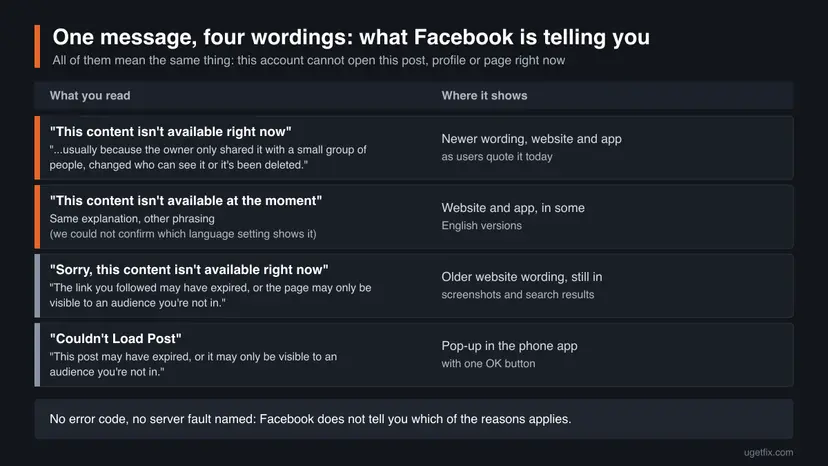
| Spelling you may see | Where | What it says about the cause |
|---|---|---|
| This content isn't available right now | Website and app | Owner shared it with a small group, changed who can see it, or deleted it |
| This content isn't available at the moment | Website and app, some English versions | Same reasons, other phrasing |
| Sorry, this content isn't available right now | Older website pages | The link may have expired, or you are not in the audience |
| Couldn't Load Post | Phone app pop-up | The post may have expired, or you are not in the audience |
| This content isn't available (on a profile) | Profile pages | Profile deactivated or deleted, or a block between you |
Facebook sends this page from its servers after it checks your account against the post's audience. Your phone, browser and internet connection received the answer correctly. That is why clearing the cache fixes it only in the rare case where the page you see is an old copy.
Why Facebook says the content isn't available: causes ranked
Most often the cause sits with the person who posted. Less often it sits between your two accounts, such as a block or a friend list. Rarely it is a fault on your device or a problem at Facebook. The ranking below follows Facebook's own wording of the message and the Help Center articles about audiences, blocking and removal.
| Cause | How often | Who can change it | Fix |
|---|---|---|---|
| Deleted, moved to Trash or moved to Archive by the owner | Most often | Owner only | Fix 1, Fix 2 |
| Audience changed or narrowed (Friends, Only Me, Custom, a friend list) | Most often | Owner only | Fix 2 |
| Shared from a Friends-only post: the share cannot be wider than the original | Often | Original poster | Fix 2 |
| Private group post, or a Page with age or country restrictions | Sometimes | Group admin, Page admin, you by joining | Fix 3 |
| Removed by Facebook for breaking the Community Standards, or restricted by local law | Sometimes | Owner can request a review | Fix 2 |
| A block or Restricted list between you and the owner | Sometimes | Whoever set it | Fix 4 |
| An expired story, a cut or copied-wrong link | Sometimes | You or the sender | Fix 5 |
| An old copy in the browser cache, an outdated or damaged app | Rarely | You | Fix 6, Fix 7 |
| Your own account has a restriction | Rarely | You, through Account Status | Fix 8 |
| Facebook outage or broken feature | Rarely | Fix 9 |
The old explanation that a post becomes unavailable because the servers are overloaded, or because your computer has malware, has no support in Meta's documentation. An overload shows as slow loading or a general error across Facebook, not as a single post that refuses to open while everything else works.
Is it you, the owner or Facebook? Read this before you change anything
Everything in this guide follows from two observations. First: does the rest of Facebook work for you? Second: does this one item open for someone else, or for you in another browser? The answers sort the problem into three boxes, and only one of them is yours to fix.
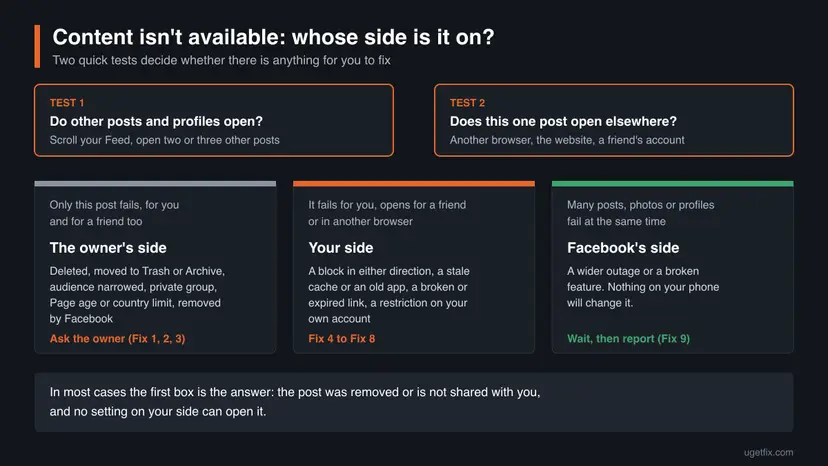
- Fails for everyone you ask: the item is gone or hidden from all of you. Only the owner, a group admin or a Page admin can change it.
- Fails only for you: either the owner chose an audience that leaves you out, there is a block, or something on your side is stale. Fix 4 to Fix 8 cover your side.
- Fails for many items at once: a broader outage or a broken feature. Wait, then report it (Fix 9).
Older advice suggested a VPN or a new account with a different age to reach restricted content. A second account with a false age breaks Facebook's terms and can get both accounts restricted. A VPN does not open a post whose owner deleted it or did not share it with you.
How to fix "This content isn't available right now" on Facebook
Start with Fix 1: it takes two minutes and tells you which fixes apply. Fix 2 and Fix 3 are for the owner of the content or for group and Page membership. Fix 4 to Fix 8 repair your side. Fix 9 is for outages.
| What you see | Start with |
|---|---|
| A friend's post or a shared post says the content isn't available, and you have tried nothing yet. | Fix 1 |
| Nobody can open it, or you are the person who posted it and friends tell you they see the message. | Fix 2 |
| The link is to a group post or a Page, and other people in the group or of the right age see it. | Fix 3 |
| A friend can open the post or profile, you cannot, from any device. | Fix 4 |
| The link came in a message, an email or from another website, or it was a story. | Fix 5 |
| It opens in another browser or on another phone but not in your usual one. | Fix 6, then Fix 7 |
| Many things fail, or you recently received a warning from Facebook. | Fix 8 |
| Posts, photos and profiles everywhere refuse to load at the same time. | Fix 9 |
Fix 1. Check whether the content still exists for anyone
2 minutesNo riskEveryone who sees the message should start here, before changing any setting.
Facebook gives the same message for a deleted post and for a post you are not allowed to see. A second viewer is the only way to tell these apart. If the item fails for everyone, no setting on your phone or computer can bring it back.
- Scroll your Feed and open two or three other posts and one profile. If they open, Facebook works for you and the problem is this one item.
- Copy the link of the failing post. On a computer, copy it from the address bar. In the app, tap Share on the post that contained it, if it is still there, and choose to copy the link.
- Open the link in a different browser on your computer, or in the phone's browser instead of the app, and sign in with your account.
- Send the link to a friend who also knows the owner and ask whether it opens for them.
- Open the owner's profile or Page directly by searching their name, and look for the post on their timeline.
- If the post was in a group, open the group and look for the post there.
| Result | What it means | Next |
|---|---|---|
| Fails for you and for your friend | Deleted, in Trash or Archive, removed, or hidden from both of you | Fix 2: only the owner can act |
| Opens for your friend, not for you anywhere | You are outside the audience, or there is a block | Fix 3 or Fix 4 |
| Opens for you in another browser or on the website | Your usual app or browser shows an old copy | Fix 6 and Fix 7 |
| The owner's profile also says the content isn't available | Profile deactivated or deleted, or a block | Fix 4 |
A profile that shows the message for everyone usually means the account was deactivated or deleted. Meta's Help Center says that while an account is deactivated, "no one else can see your profile". Messages that person sent you stay in your inbox.
It worked if: You know which of the three boxes your case is in, and you have not changed anything yet.
If not: If the results disagree, for example it opens for a friend on a phone but not on a computer, go to Fix 5 and check the link itself.
Fix 2. Ask the owner to restore the post or widen its audience
5 minutes for the ownerNo riskThe post fails for everyone, or you posted it and your friends tell you they see the message.
The audience of a post belongs to the person who posted it, and Facebook applies it everywhere the post is shared. A share can never reach people who were not in the original audience, so the original post is the only place to change it.
If you are a reader, send the owner a short message: "Your post shows as unavailable for me. Could you check its audience?" If you are the owner, check these in order.
- Click your profile picture in the top right of Facebook, then click your name and scroll to the post.
- If the post is not on your profile, click your profile picture again, click Settings & Privacy, then Activity Log.
- In the menu on the left, scroll down and click Trash. Hover over the post, click Options, then Restore to profile and Restore.
- If it is not in Trash, click Archive, then Post Archive, and restore it the same way. A restored post gets back the audience it had before.
- On the post, click the audience selector next to the date or time. The icon differs by audience.
- Choose Public if anyone should see it, or Friends if only friends should. Only Me and custom lists hide it from most people.
- Ask the person who reported the problem to reload the post.
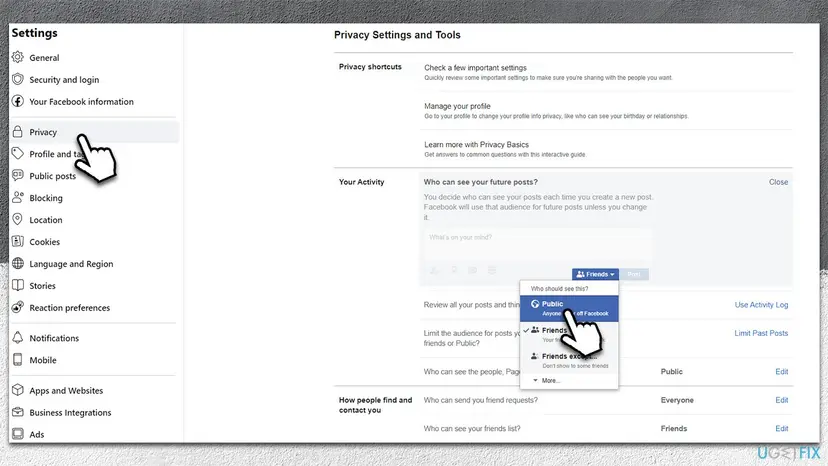
Older guides told owners to remove limits with Limit Past Posts. That button does the opposite: it changes every past post that was more open than Friends to Friends, and Meta says it cannot be reversed in one click. Do not press it to fix this message.
- Trash keeps a post for 30 days, visible only to the owner, then deletes it for good. After 30 days it cannot be restored. Meta notes that Archive and Trash are not yet available to everyone.
- Archive hides a post from everyone but the owner until the owner restores it.
- If the owner shared someone else's post, the original poster controls who sees it. Meta's Help Center says a post shared with Friends cannot be shared with Public.
- If Facebook removed the post, the owner gets a notice. Meta says the owner can usually request a review from Account Status if they think it was a mistake.
It worked if: The post opens for the person who reported the problem after a reload, or the owner tells you it was deleted on purpose.
If not: If the owner says the post is public and still there, but it fails only for you, go to Fix 3 and Fix 4.
Fix 3. Join the group or meet the Page's age and country limits
5 minutes, plus admin approvalNo riskThe link points to a group post or to a Page, and other people can open it.
Group and Page content has its own gate on top of the post's audience. In a private group, Meta says only current members can see what is shared. A Page with age or country restrictions is shown only to people who meet them.
- Open the group from the link or search for its name.
- If the group page shows a Join group button, it is private and you are not a member. Select Join group and answer the admin's questions if asked.
- Wait for approval, then open the post link again.
- For a Page, open it while signed in. A Page with restrictions cannot be seen by anyone who is logged out of Facebook.
- If the Page stays unavailable while others see it, the restriction is probably your country or the age on your account. Only the Page's admins can change it.
- Private groups
- Only current members can see posts and members. Content from the private period stays limited to the people who were members when a group turned public.
- Page country limits
- Admins can show or hide the Page in chosen countries, from Settings > Followers and public content > Country restrictions.
- Page age limits
- Admins can choose the age group that sees the Page under Age Restrictions, for example for alcohol.
- Legal limits
- Meta can make content unavailable in a country after a government order. Its Transparency Center publishes these restrictions.
If you run the Page and fans report this message, open your Page, then Settings & privacy > Settings > Followers and public content and review Country restrictions and Age Restrictions. Meta warns that adding restrictions removes current followers who do not meet them.
It worked if: After your join request is approved, the group post opens. For a Page, the admin's change makes it visible within a reload.
If not: If the group is public, or you are already a member and the post still fails, go to Fix 4.
Fix 4. Check for a block or a Restricted list between you and the owner
3 minutesLow riskA mutual friend can open the post or profile and you cannot, on any device.
A block works in both directions for posts: Meta says a blocked profile cannot see the blocker's posts. Being on someone's Restricted list hides their Friends-only posts from you. In both cases Facebook shows the same unavailable message, not a block notice.
First check that you did not block the person yourself, perhaps years ago. This is the only side of a block you can see.
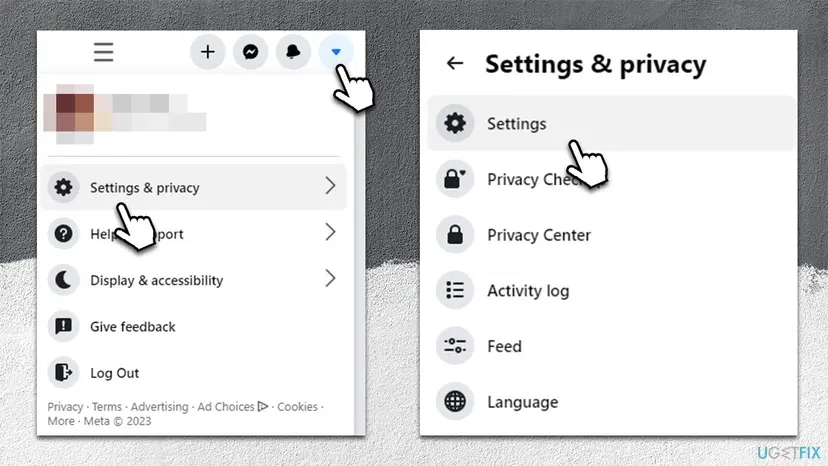
- On a computer, click your profile picture in the top right of Facebook.
- Select Settings & privacy, then click Settings.
- Under Audience and visibility, click Blocking.
- In the Block users section, click Edit, then See your blocked list.
- If the person is on the list, click Unblock next to their name and confirm.
- Open the post again. After an unblock you have to send a new friend request if you were friends.
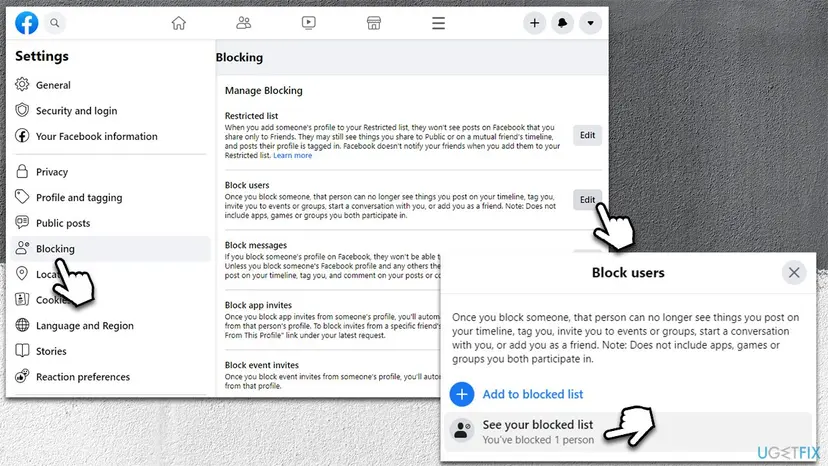
Meta says people are not notified when they are blocked, and there is no list of who blocked you. The usual sign is that the person's profile and posts show as unavailable for you while they open for a mutual friend. Unblocking is their choice, and asking them is the only route.
It worked if: After an unblock on your side, the post and profile open again. If nobody is on your list, you have ruled out your own block.
If not: If you blocked nobody and the post still opens only for others, the owner left you out of the audience or added you to Restricted. Ask them, or move on to Fix 5 if the item came from a link.
Fix 5. Open the post from its source instead of the link you got
3 minutesNo riskYou opened the item from a message, an email, a notification, another website or a story link.
The older version of the message names this cause directly: "The link you followed may have expired". Story links expire after 24 hours, and a link copied from a message can be cut off or point to a copy that no longer exists.
- Look at the link. If it was split over two lines in an email or a text, it may be incomplete. Ask the sender to copy it again.
- If it was a story, check the time. Meta says stories are visible for 24 hours. After that only the owner sees them, in their story archive.
- Search for the owner's name on Facebook and open their profile, Page or group instead of the link.
- Find the post on their timeline or in the group, and open it from there.
- If you need the link again, ask the sender to open the post and use Share to copy a fresh link.
- If the link came from outside Facebook and opens inside the Facebook app's built-in browser, open it in your normal browser instead.
Notifications behave like links. A notification about a comment or a tag still points to the post after the owner deleted it or changed its audience, and tapping it then shows the unavailable page.
It worked if: The post opens from the owner's profile or group, or you can see that it is no longer on their timeline.
If not: If the post is visible on the timeline but the link fails, the link is the problem: use the post itself. If the post is not on the timeline, go back to Fix 2.
Fix 6. Clear the cache in your browser or in the Facebook app
5 minutesLow riskThe post opens in another browser or on another device, but not in your usual one.
Meta's troubleshooting page names clearing the cache as a step when content does not appear. A cached page can keep showing the unavailable message after the owner has fixed the audience or restored the post.
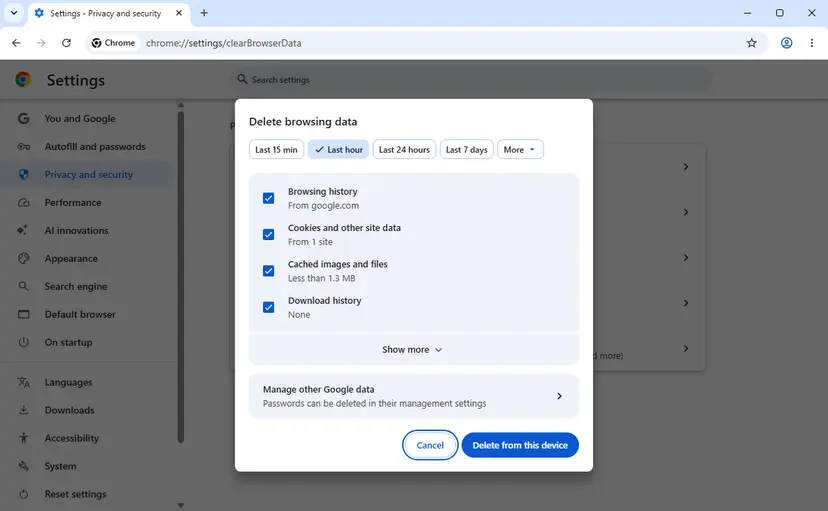
In Chrome on a computer (other browsers have the same three boxes under similar names):
- Press Ctrl + Shift + Delete on Windows or Cmd + Shift + Delete on a Mac. The Delete browsing data window opens.
- Choose a time range. Last 7 days is enough when the problem is recent.
- Tick Cached images and files. Tick Cookies and other site data only if the next steps fail, because it signs you out of websites.
- Select Delete from this device.
- Open facebook.com, sign in if asked, and open the post again.
In the Facebook app on Android, open the phone's Settings, tap Apps, then Facebook, then Storage and Clear cache. Google's help says this deletes temporary data and that the app may be slow the next time. Do not tap Clear storage: it deletes all app data and signs you out. Step by step with pictures: com.facebook.katana guide.
On iPhone there is no cache button for apps. Apple's help says the system removes cached and temporary files itself. Use Fix 7 instead. Links that open inside the app's built-in browser have their own data: open a link, tap Options, then Settings, and tap Clear next to Cookies and cache.
It worked if: The post opens in your usual browser or app after the cache is gone.
If not: If it still fails only in the app, go to Fix 7. If it fails in every browser too, the cause is not on your device: go back to Fix 1.
Fix 7. Update the Facebook app, or reinstall it
5 to 10 minutesLow riskThe post opens on the website but the app keeps showing the message or the Couldn't Load Post pop-up.
Meta's troubleshooting steps for both phone apps start with updating the app. An outdated app can fail to open newer post types and links, and a reinstall replaces a damaged copy.
- Close the Facebook app fully and open it again.
- On Android, open the Google Play Store, tap your profile icon, tap Manage apps & devices, and update Facebook if it is listed.
- On iPhone, open the App Store, tap your profile picture, and update Facebook if it is listed.
- Restart the phone and open the post again.
- If it still fails on iPhone, open Settings > General > iPhone Storage, tap Facebook and tap Offload App. Apple says this frees the app's space but keeps its documents and data. Then download Facebook again from the same screen or from the App Store.
- If it still fails, delete the app, install it again from the store and sign in.
Deleting and installing the app signs you out. Make sure you know your Facebook password and can receive your login code before step 6. Your posts, photos and messages are stored by Facebook and are not lost.
If the app gives no update and the problem stays, check that you are on a mobile network or Wi-Fi that works for other apps. Meta's own list includes a reliable data or Wi-Fi connection as a step.
It worked if: The post opens in the updated or reinstalled app, the same as on the website.
If not: If the app is current and only some content fails, the cause is not the app. Check your account in Fix 8.
Fix 8. Check Account Status for a restriction on your own account
3 minutesNo riskYou recently got a warning from Facebook, or several features behave oddly at once.
Meta's troubleshooting page says something may not load if you have been blocked from doing something. Account Status is where Facebook lists strikes and feature limits on your profile and on the Pages and groups you manage.
- Click or tap your profile picture in the top right of Facebook.
- Select Help & support.
- Select Account Status.
- Read the status of your profile and of the Pages and groups you manage.
- If a restriction is listed, open it to see what is limited and for how long.
- If you think the decision was wrong, request a review from the same screen where it is offered.
Meta says the length of a block depends on how serious the violation was and on your history. A feature limit usually blocks posting, commenting or sharing; we could not confirm from Meta that it hides other people's posts from you. Treat Account Status as a check, not as the most likely cause.
It worked if: Account Status shows no restrictions, or shows one with an end date that explains what you see.
If not: If your account is clear and many items fail at once, go to Fix 9.
Fix 9. Check whether Facebook has an outage, then report the problem
5 minutesNo riskMany posts, photos or profiles show the message or fail to load at the same time.
When a feature breaks on Facebook's side, every user sees it and no local fix helps. Reporting it from inside Facebook sends the details of your device and the screen to Meta's engineers.
- Ask someone else on another network whether Facebook works for them.
- Search the news or an outage tracker for a current Facebook problem. Meta's own status page at
metastatus.comcovers its business tools, such as Ads Manager and the Graph API, not the Feed you see. - Wait 30 to 60 minutes and try again.
- To report it on a phone, shake the phone while the Facebook app is open and follow the instructions on the screen.
- To report it on a computer, click your profile picture, select Help & support and select Report a Problem.
A report does not get a personal answer for most users, but it is the channel Meta's Help Center names for a bug or broken feature. Include the link that fails and the time you saw it.
It worked if: Content loads again once the wider problem is fixed, or your report is sent and you know the fault is not yours.
If not: If only one item still fails after an outage, go back to Fix 1: the item itself was changed or removed.
Still says the content isn't available: what is left to check
If you worked through the fixes and one post still refuses to open, the answer is almost always on the owner's side and was decided on purpose. Facebook does not keep a public log of why a post became unavailable, and Meta's support does not open other people's posts for you.
- You are the owner: open your Activity log and check Archive and Trash. Check the post's audience selector. Check Account Status for a removal notice.
- You manage a Page: review Country restrictions and Age Restrictions under Followers and public content.
- You run a group: remember that a private group's posts are visible only to members, and cannot be shared outside it unless group highlights are used.
- You are a reader: the only thing left is to ask the owner. If they deleted it, it is gone; after 30 days in Trash even they cannot restore it.
The failing link, whether it fails on the website and in the app, whether a friend can open it, and the time you tried. Without the second-viewer test, a report about one post usually describes a privacy setting rather than a bug.
How to avoid the message on posts you share
Most reports about this message come from people sharing posts that their friends then cannot open. A few habits stop that before it happens.
- Check the audience icon next to the date before you share someone else's post. If it shows Friends, your own friends outside that circle will see the message.
- Share public posts from Pages or public groups when you want everyone to see them.
- Copy a fresh link from Share instead of copying an old notification or a story link.
- If you are the owner, set the audience when you post and check it again before asking people to share.
- Do not press Limit Past Posts to make posts visible: it narrows them to Friends.
- Do not use a VPN or a second account to reach a post someone did not share with you.
- Do not install apps or browser add-ons that promise to unlock hidden or deleted posts.
- Do not clear app storage as a first step: it signs you out and does not change who can see a post.
Frequently asked questions
What does "This content isn't available right now" mean on Facebook?
It means your account cannot open that post, photo, video, profile or Page at this moment. Facebook's own explanation lists three reasons: the owner shared it with a small group of people, changed who can see it, or deleted it. A block, a private group, a Page restriction or a removal by Facebook give the same message. The message is not a crash and has no error code. Test the link from a friend's account to see whether it is unavailable to everyone or only to you.
Does "content isn't available" mean I am blocked?
Not necessarily. A block is one possible reason, but a deleted post or a narrowed audience shows the same page, and those are more common. Facebook does not notify people who are blocked. If the person's profile and all their posts are unavailable to you while they open for a mutual friend, a block is likely. If only one post fails and the profile opens, the post was probably deleted or shared with a smaller audience.
Why does a post show as unavailable for me but not for my friend?
Because Facebook checks each viewer against the post's audience. Your friend may be in the audience and you may not be, for example when the owner shared it with Friends and you are not their friend, or put you on their Restricted list. A block between you and the owner has the same effect. If you can open it in another browser with your own account, the cause is a cached page on your device instead: clear the cache (Fix 6).
Why can't my friends see a post I shared?
When you share someone else's post, the original poster's audience still applies. Meta's Help Center says a post shared with Friends cannot be shared with Public. So your friends who are not friends of the original poster see the unavailable message. Share the post only if its audience icon shows Public, or ask the original poster to make it public. If the post is your own, check its audience selector next to the date.
What does "This content isn't available" mean on a Facebook profile?
On a profile it usually means the account was deactivated or deleted, or that there is a block between you. Meta says no one else can see a deactivated profile, and a deleted profile cannot be visited at all. If the profile opens for a mutual friend but not for you, a block is the likely reason. Old conversations with that person stay in your Messenger inbox in both cases.
Can I see a Facebook post that says it isn't available?
Only if the reason changes. If the owner restores it from Trash within 30 days, takes it out of Archive or widens the audience, it opens again. If you are not a member of the private group it was posted in, joining the group can give you access. A deleted post cannot be viewed by anyone after the 30 days. Tools and sites that promise to show hidden Facebook posts do not have access to them and are not safe to use.
Is the message caused by a Facebook bug or outage?
Rarely. When Facebook itself has a problem, many posts, photos and profiles fail at once, often with slow loading or general errors. One post that fails while everything else works points to the post's owner or its audience, not to an outage. Meta's status page at metastatus.com covers business tools only. To report a real bug, shake your phone in the app, or use Help & support, then Report a Problem on a computer.
Why does a link sent in Messenger say the content isn't available?
A link in a chat points to the original post, and the original post's audience still decides who can open it. If the sender can see it because they are friends with the poster and you are not, it fails for you. It also fails when the post was deleted or the link was a story older than 24 hours. Ask the sender whether the post is public, or open the poster's profile and find it there.
Will clearing the cache or reinstalling Facebook fix it?
Only when the problem is on your device, which is the rare case. Clearing the cache helps when a post opens in another browser but not your usual one, because your browser shows an old copy. Updating or reinstalling the app helps when the website works but the app does not. Neither changes who can see a post, so they do not help with a deleted post, a narrowed audience or a block.
Does Instagram show the same message?
Instagram can show a similar "Sorry, this content isn't available right now" message. This page is about Facebook, and the menu paths and Help Center facts here are Facebook's, so we do not repeat them for Instagram. The first step works the same way on both apps: check whether the content opens for someone else, or in a browser, before you change anything on your phone or clear any data.
Sources
Did this fix work?
One click, no account. It tells the next reader which guides are worth their time.
Questions and experiences: fix "Sorry, this content isn't available right now" error on Facebook
Still broken, or found a fix we did not cover? Ask here: members and our editors answer. Reading is open; writing needs a free account.
…