
How to fix "Sorry, your PC doesn't meet the hardware requirements for captures" in Windows?

Prefer to fix it yourself? The manual steps follow.
- 6methods
- 10 to 30 minutes
- Easy
Applies to Windows 11 and Windows 10; Xbox Game Bar clip recording (Win + G, Win + Alt + R); desktops and laptops with Intel, NVIDIA or AMD graphics
6 methods in this guide
Hello. I have used the built-in recorder in the Xbox Game Bar to record my gameplay for the past 2 years. Now it says that my PC doesn't meet the hardware requirements for captures. No hardware changes were made to my computer. How do I fix this error?
Game Bar shows this message when it cannot reach a hardware video encoder on your graphics chip, so it refuses to record clips. Screenshots still work. On a PC that recorded before, the cause is almost always the graphics driver: install the latest one from Intel, NVIDIA or AMD first.
Game Bar records clips only through a hardware encoder on the graphics card: Intel Quick Sync H.264, NVIDIA NVENC or AMD VCE. When it cannot use one, it shows this message. Xbox Support's own fix is to update the graphics driver in Device Manager (Fix 1). On a laptop with two graphics chips, also check which chip runs the game (Fix 2).
| Error | "Sorry, your PC doesn't meet the hardware requirements for captures." Xbox Support quotes it as "Sorry, this PC doesn't meet the hardware requirements for recording clips." |
|---|---|
| Where it appears | In Xbox Game Bar (Win + G), in the Capture widget, when you press the record button or Win + Alt + R. Screenshots still work. |
| Main cause | Game Bar cannot use a hardware video encoder: the graphics driver is missing, generic or outdated, or the game runs on a chip without one. |
| Fastest fix | Update the graphics driver, or install the maker's driver if Device Manager shows Microsoft Basic Display Adapter (Fix 1). |
| Also written as | "your PC doesn't meet the hardware requirements for captures", "this PC doesn't meet the hardware requirements for recording clips", "doesn't meet the hardware requirements for recording". |
| Encoders Game Bar needs | Intel Quick Sync H.264 or later, NVIDIA NVENC or AMD VCE (newer AMD chips call it VCN). Screenshots need none of them. |
| Affects | Windows 11 and Windows 10. Often after a Windows reinstall, a big Windows update or a new driver; on laptops with two graphics chips; in virtual machines. |
| Microsoft's status | Documented on Xbox Support as a hardware requirement, not a bug. Microsoft asks for a driver update first and Feedback Hub if a supported card still fails. |
| Time to fix | About 10 minutes for a driver update. Up to 30 minutes with a driver download from the maker's site. |
Facts checked on 15 October 2026. Steps written for Windows 11 (25H2 and 26H2) and Windows 10 22H2.
What "Sorry, your PC doesn't meet the hardware requirements for captures" means
Xbox Game Bar does not compress video on the processor. It hands the frames to a video encoder built into the graphics chip. Xbox Support lists the three it accepts: Intel Quick Sync H.264 or later, NVIDIA NVENC and AMD VCE. If Game Bar cannot find and open one of them, it stops before the first frame and shows the message.
The word "hardware" makes the message sound final, but it is not about your processor, memory or disk. Xbox Support says every Windows 10 and Windows 11 PC should be able to take screenshots in games, whatever the card. Only clips need the encoder, and Windows can reach it only through a proper graphics driver.
- Text in Game Bar
- Sorry, your PC doesn't meet the hardware requirements for captures.
- Text on Xbox Support
- Sorry, this PC doesn't meet the hardware requirements for recording clips.
- What still works
- Screenshots with the camera button or Win + Alt + PrtScn.
- What is blocked
- Record button, Win + Alt + R and "Record what happened" (Win + Alt + G).
- Needed
- A graphics chip with Quick Sync, NVENC or AMD VCE, and its maker's driver.
A PC that recorded clips last month still has the same encoder. The message then means Windows lost the way to it, almost always through the driver. That is why the reader above, who changed no hardware, should start with Fix 1.
Does your PC have a video encoder? A two minute check
- Right-click Start and select Device Manager.
- Expand Display adapters and read every name listed.
- Press Win + R, type
dxdiagand press Enter. On the Display tab, read Driver Model under Drivers. - Optional: press Ctrl + Shift + Esc, open Performance and select your GPU. A graph called Video Encode shows the chip has an encoder that Windows can see.
| What you see | What it means | Go to |
|---|---|---|
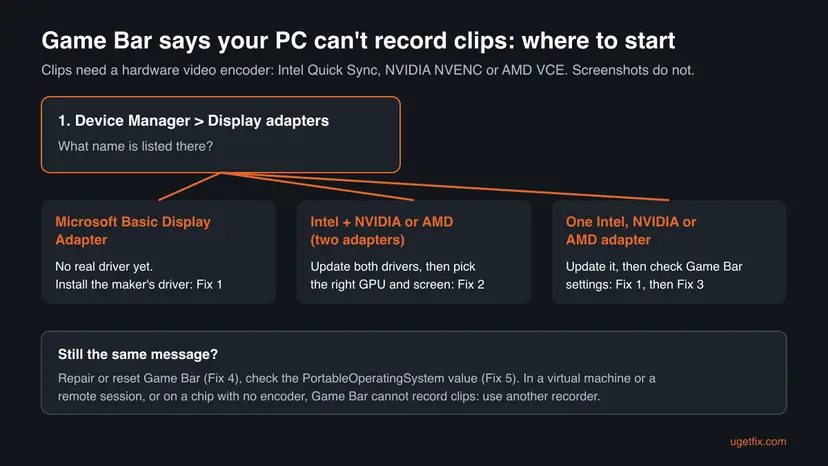
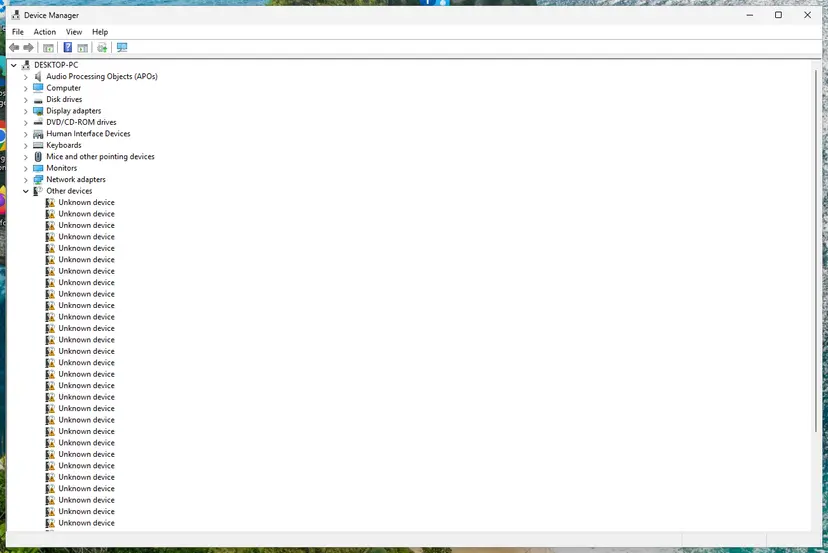
| Microsoft Basic Display Adapter | Windows runs on a generic driver with no access to the encoder. Common right after a Windows reinstall. | Fix 1 |
| An Intel chip and an NVIDIA or AMD card | A laptop or desktop with two graphics chips. Game Bar must record from one that has an encoder. | Fix 1, then Fix 2 |
| One Intel, NVIDIA or AMD adapter with a current driver | The encoder should be there. The problem is the driver state or Game Bar itself. | Fix 3 and Fix 4 |
| A virtual adapter, such as Hyper-V, VMware, VirtualBox or Remote Display | You are in a virtual machine or a remote session. These adapters do not pass the encoder to Game Bar. | See "If the message is still there" |
In the Microsoft Q&A thread on this message, a reply asks for WDDM 2.0 or higher in dxdiag. Treat that as a minimum, not as proof: the person in that thread had WDDM 2.7 and still saw the message until the driver question was solved.
Why Game Bar says your PC doesn't meet the hardware requirements: the causes, ranked
Most often the graphics driver is missing, generic or broken after Windows was reinstalled or upgraded. Less often the game runs on a second graphics chip or a monitor that has no encoder path. Rarely Game Bar itself, a registry value or a virtual machine is the reason.
| Cause | How often | How to tell | Fix |
|---|---|---|---|
| The graphics driver is generic, outdated or damaged. | Most often | Started after a Windows reinstall, a feature update or a driver update; Device Manager may show Microsoft Basic Display Adapter. | Fix 1 |
| The game or the monitor uses a graphics chip without a working encoder. | Often on laptops with two chips | Two adapters in Device Manager; an external monitor on the dedicated card. | Fix 2 |
| Game Bar is out of date or its capture setting is off. | Sometimes | Other Game Bar widgets misbehave too, or Captures settings look wrong. | Fix 3 |
| Game Bar's own files or data are damaged. | Sometimes | Everything above is fine and the message stays. | Fix 4 |
| Windows marks itself as a portable installation, or Game DVR is switched off in the registry. | Rarely, reported by users | Usually after a reinstall from an unusual image or a tweak tool. | Fix 5 |
| The chip really has no supported encoder, or Windows runs in a virtual machine. | Rarely on gaming PCs | Very old or basic graphics, a cloud PC, a VM or Remote Desktop. | Still broken section |
The column "How often" is our reading of Xbox Support's page and of the user reports we read. Microsoft publishes no numbers for this message.
How to fix "Sorry, your PC doesn't meet the hardware requirements for captures" in Windows 11 and 10
Fix 1 is Xbox Support's own fix and solves most cases. Fix 2 is for PCs with two graphics chips. Fixes 3 to 6 are for a PC whose driver is already right. Paths are given for Windows 11 and Windows 10 where they differ.
| What you see or have | Start with |
|---|---|
| Device Manager shows Microsoft Basic Display Adapter, or Windows was just reinstalled. | Fix 1 |
| It recorded before and stopped after a Windows or driver update. | Fix 1 |
| A laptop with Intel graphics plus an NVIDIA or AMD card, or an external monitor. | Fix 2 |
| The driver is current and the message stays. | Fix 3, then Fix 4 |
| Windows was installed from an unusual image or tuned with a tweak tool. | Fix 5 |
| You are in a virtual machine, a cloud PC or a Remote Desktop session. | "If the message is still there" |
Fix 1. Update the graphics driver, or install the maker's driver
10 to 20 minutesLow riskEveryone first, and above all when Windows was reinstalled or Device Manager shows Microsoft Basic Display Adapter.
Game Bar reaches the encoder only through the graphics driver. Xbox Support's answer to this exact message is a driver update for every display adapter, because a generic or broken driver hides Quick Sync, NVENC or VCE from Windows.
- Close the game or program you are trying to record.
- Right-click Start and select Device Manager.
- Expand Display adapters.
- Right-click the first adapter and select Update driver, then Search automatically for drivers.
- Repeat for every adapter in the list. Xbox Support asks for each one when a PC has more than one.
- Restart the PC and try Win + Alt + R in the game.
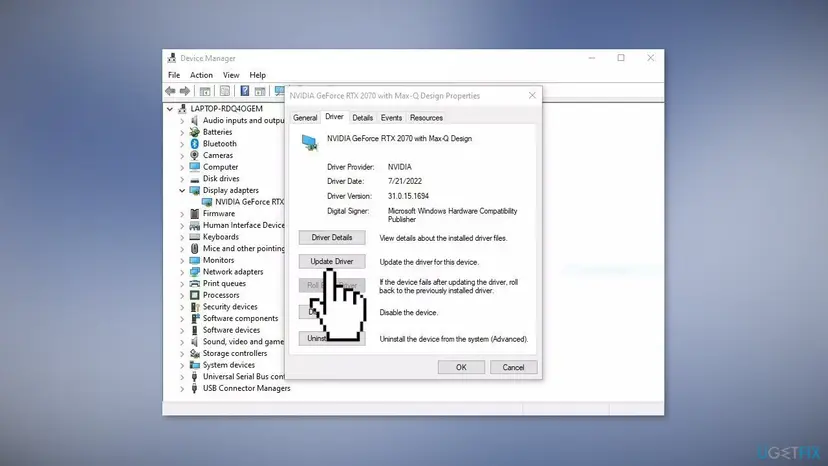
- "The best drivers are already installed" is not the end. Windows Update often has an older driver than the maker. Download the current one from Intel, NVIDIA or AMD, or from your laptop maker's support page, and install it.
- Microsoft Basic Display Adapter: the maker's driver is not installed at all. Install it from the maker's site; Windows Update may also offer it under Settings > Windows Update > Advanced options > Optional updates.
- It broke right after a new driver: roll back on the Driver tab with Roll Back Driver, then wait for the next release.
- Update, roll back and clean reinstall, with screenshots: Update, roll back or reinstall a driver
It worked if: Device Manager shows your Intel, NVIDIA or AMD chip by name, and the record button starts a timer instead of the message.
If not: If the PC has two graphics chips, go to Fix 2. If it has one, go to Fix 3.
Fix 2. On a PC with two graphics chips, record from the chip and monitor that have the encoder
5 minutesLow riskDevice Manager lists an Intel chip and an NVIDIA or AMD card, or the game runs on an external monitor.
Xbox Support notes that if only one of several cards supports clips, you must record on the monitor connected to that card. On laptops the game, Game Bar and the screen can sit on different chips, and Game Bar then finds no encoder where the picture is.
- Update both drivers as in Fix 1. The Intel driver matters even if you game on the NVIDIA or AMD card.
- Press Win + I and open System > Display > Graphics. On Windows 10 open System > Display and select Graphics settings.
- Find the game in the list, or add it with Browse, and open its Options.
- Select High performance to run it on the dedicated card, then Save.
- If you use an external monitor, record on that one with the game in focus. Unplug the second monitor for one test if it still fails.
- Restart the game and try Win + Alt + R again.
Some laptops have a switch in their own control software or in the BIOS called MUX, dGPU only or Ultimate mode. If it is on, the Intel chip is out of the picture and only the dedicated card's encoder counts. Try one test in the other mode.
It worked if: The game runs on the card you chose and Game Bar records on that monitor.
If not: If it still fails after a restart, go to Fix 3 and check Game Bar's own settings.
Fix 3. Update Xbox Game Bar and check its capture settings
5 minutesLow riskThe driver is current and the message still shows.
Game Bar is a Store app updated apart from Windows. An old copy after a reinstall, or capture switched off in Settings, can stop recording while the encoder is fine. A reply in the Microsoft Q&A thread suggests checking these settings first.
- Open Microsoft Store, select Library (Windows 10: Downloads and updates) and select Get updates. Let Xbox Game Bar update.
- Press Win + I and open Gaming > Captures.
- Read the page. If Windows already shows a hardware message there, the driver is still the issue: go back to Fix 1 or Fix 2.
- Open Gaming > Game Bar (Windows 10: Gaming > Xbox Game Bar) and make sure Game Bar can be opened with Win + G.
- Open a game, press Win + G and select the record button in the Capture widget.
"Record what happened" on the Captures page keeps a short buffer in the background. It is not required for the record button, but if you want it, switch it on here. It needs the same encoder.
It worked if: Game Bar is updated, Captures settings show no warning, and a clip starts.
If not: If Game Bar still shows the message, go to Fix 4 and repair it.
Fix 4. Repair or reset Xbox Game Bar
5 minutesLow riskThe driver and settings are right, and Game Bar still refuses to record.
Repair fixes Game Bar's own files without touching your settings. Reset also clears its saved data, which can hold a stale result of its hardware check. The Microsoft Q&A reply on this message names Reset.
- Close Game Bar and the game.
- Press Win + I and open Apps > Installed apps (Windows 10: Apps > Apps & features). On recent Windows 11 builds Game Bar may be under System > System components instead.
- Find Xbox Game Bar (on newer builds just Game Bar), select the three dots and Advanced options.
- Select Repair. Test recording.
- If it still fails, select Reset, restart the PC and test again.
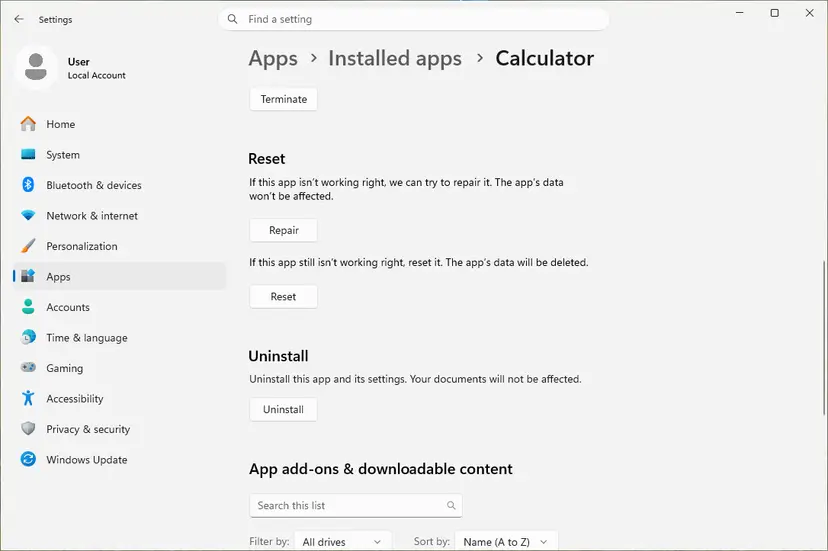
The same steps for any app, with screenshots: How to repair or reset an app in Windows
It worked if: Game Bar opens with default settings and the record button starts a clip.
If not: If the message is still there, go to Fix 5 and check the two registry values.
Fix 5. Check the PortableOperatingSystem and GameDVR_Enabled registry values
10 minutesRead the warningWindows was installed from an unusual image or tuned with a tweak tool, and Fixes 1 to 4 did not help.
Users report that Game Bar refuses clips when Windows marks itself as a portable installation, and that a tweak tool can switch Game DVR off in the registry. We could not confirm either value in Microsoft's documentation, so change them only after a backup and only if they hold the values below.
A wrong registry change can stop Windows features from working. Export each key before you change it, so a double-click on the .reg file puts the old value back: Back up the registry before editing it
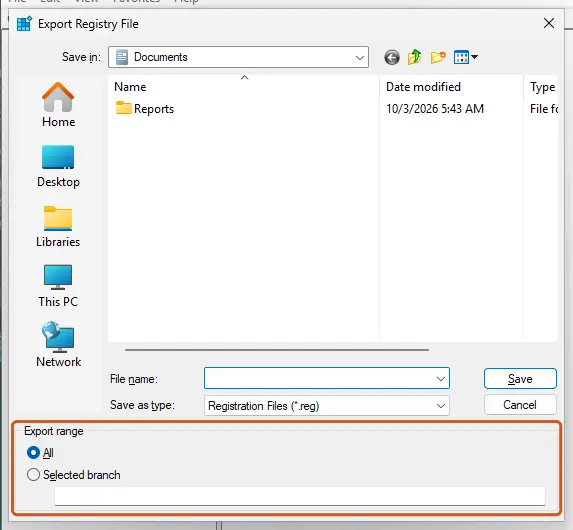
- Press Win + R, type
regeditand select OK. Select Yes. - Go to the first key below. If a value named PortableOperatingSystem exists and is 1, double-click it and set Value data to 0. If it does not exist, leave the key alone.
- Go to the second key below. If GameDVR_Enabled is 0, double-click it and set it to 1.
- Close Registry Editor and restart the PC.
- Test recording with Win + Alt + R.
The two keys
HKEY_LOCAL_MACHINE\SYSTEM\CurrentControlSet\Control
HKEY_CURRENT_USER\System\GameConfigStore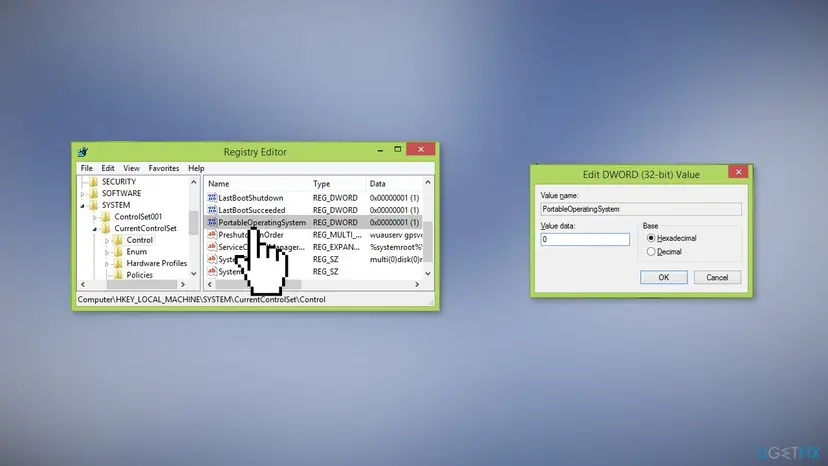
Do not create PortableOperatingSystem if it is missing. A missing value already means a normal installation, so a new value set to 0 changes nothing.
It worked if: After the restart Game Bar records, or both values were already normal and you can rule them out.
If not: If both values were already normal, go to Fix 6 and install pending updates.
Fix 6. Install pending Windows updates
10 to 30 minutesLow riskWindows has pending updates, or the message began after an update stopped half way.
Game Bar's capture pipeline and the graphics driver model are part of Windows. A finished update replaces damaged parts and often brings a newer graphics driver too.
- Press Win + I and open Windows Update. On Windows 10 open Update & Security > Windows Update.
- Select Check for updates and install everything offered, including driver updates under Advanced options > Optional updates.
- Restart the PC and test recording.
Windows 10 left support on 14 October 2025. Game Bar still works there, but a PC without updates keeps old drivers and an old Game Bar. When an update will not install: Install an update from the Microsoft Update Catalog
It worked if: Windows is up to date and Game Bar records.
If not: If it still fails, read "If the message is still there" below for virtual machines, missing encoders and Feedback Hub.
If the message is still there: virtual machines, missing encoders and what to send Microsoft
- Virtual machine, cloud PC or Remote Desktop: the adapter Windows sees is virtual and does not pass a hardware encoder to Game Bar. Record on the host PC instead.
- No supported encoder: Xbox Support says that if a driver update does not help, the only Game Bar fix is a video card that supports Quick Sync, NVENC or VCE. Very old or very basic graphics may lack one.
- Record anyway without new hardware: use a recorder that can encode on the processor (software x264 encoding). It costs more CPU, so games may run slower while you record.
- Supported card, current driver, still the message: Xbox Support asks you to report it in the Feedback Hub app. Include the adapter name and driver version from Device Manager, the Windows build from Settings > System > About, and the fixes you tried.
This is not a fault of your disk, memory or processor. The message is only about the video encoder and the driver that opens it.
How to keep Game Bar recording after updates
- After every Windows reinstall, install the graphics driver from Intel, NVIDIA, AMD or the laptop maker before you play.
- Keep both drivers current on a laptop with two graphics chips.
- Let Game Bar update from Microsoft Store along with Windows.
- Avoid tweak tools that switch off Game DVR or other Windows features in bulk.
- Before you install a new graphics driver, note the version on the Driver tab in Device Manager. If recording breaks right after, Roll Back Driver returns you to the version that worked.
Frequently asked questions
What does "Sorry, your PC doesn't meet the hardware requirements for captures" mean?
It means Xbox Game Bar cannot use a hardware video encoder on your graphics chip, so it will not record clips. Xbox Support says clips need Intel Quick Sync H.264 or later, NVIDIA NVENC or AMD VCE, while screenshots work on any Windows 10 or 11 PC. On a PC that recorded before, the encoder is still there and the graphics driver is the usual reason Windows cannot reach it. Update the driver first (Fix 1).
Why does it say "Sorry, this PC doesn't meet the hardware requirements for recording clips"?
That is the same message in other words. Xbox Support quotes it as "Sorry, this PC doesn't meet the hardware requirements for recording clips", while recent Game Bar versions say "captures". Both appear when you press record and Game Bar finds no usable encoder. The fixes are the same: update every display adapter's driver, make sure the game runs on the chip with the encoder, then repair Game Bar if needed.
My PC recorded clips before. Why does it suddenly not meet the requirements?
Because the hardware did not change, but the software that opens it did. The most common trigger is a Windows reinstall or a large update that left Windows on Microsoft Basic Display Adapter or an old driver. A new driver with a bug, a laptop switching graphics chips, or a reset of Game Bar settings can do it too. Check the name under Display adapters in Device Manager, then follow Fix 1.
Does my graphics card support Game Bar recording?
If it has Intel Quick Sync H.264 or later, NVIDIA NVENC or AMD VCE, it does. Most Intel, NVIDIA and AMD graphics of the last decade have one of these. A quick check is Task Manager: open Performance, select your GPU and look for a Video Encode graph. Very basic chips, some old cards and virtual adapters in a VM have none, and then Game Bar cannot record clips.
Will a new graphics driver fix the error?
In most cases, yes. Xbox Support's only listed fix for this message is a driver update for each video card in Device Manager. Search automatically first, and if Windows says the best driver is installed, download the current one from Intel, NVIDIA, AMD or your laptop maker. If the problem began after a new driver, roll back to the previous one instead and wait for the next release.
I have a laptop with Intel and NVIDIA graphics. Which one does Game Bar use?
It records through the chip that handles the game's picture on that screen. Xbox Support says that when only one card supports clips, you must record on the monitor connected to it. Set the game to High performance in Settings > System > Display > Graphics, keep both drivers current, and test on the built-in screen and on an external one if you use it. Fix 2 has the steps.
Can I record without a supported video card?
Not with Game Bar clips. Screenshots still work, and Xbox Support suggests a card with a supported encoder if driver updates fail. Without new hardware, a recorder that encodes on the processor can still capture gameplay. It uses more CPU, so the game may lose some frames while you record. In a virtual machine, record on the host PC instead.
Should I reinstall Gaming Services to fix this message?
No source we read ties this message to Gaming Services. Gaming Services installs and runs Xbox and Game Pass games; Game Bar's recording depends on the graphics driver and the encoder. Reinstalling Gaming Services does no harm, but start with the driver (Fix 1) and Game Bar itself (Fixes 3 and 4), which deal with the actual cause.
Is the PortableOperatingSystem registry fix safe?
It is safe only with a backup and only when the value exists and is set to 1. Users report that a value of 1 makes Windows treat itself as a portable installation and that Game Bar then refuses clips. We could not confirm this in Microsoft's documentation, so it is Fix 5, after the driver and Game Bar fixes. Export the key first and do not create the value if it is missing.
I searched in another language, or typed "now what" or "fix this issue". Is this the right page?
Yes, if Game Bar showed you this message. Searches such as "lỗi này là lỗi gì", "itu kenapa", "solusinya apa", "не помогло", "como soluciono esto" and "fix this issue" reach this page from people who see the same Game Bar text. The answer does not change with the language: the graphics driver cannot give Game Bar a video encoder. Start with Fix 1, then Fix 2 on a laptop with two graphics chips.
Sources
Did this fix work?
One click, no account. It tells the next reader which guides are worth their time.
Questions and experiences: fix "Sorry, your PC doesn't meet the hardware requirements for captures" in Windows
Still broken, or found a fix we did not cover? Ask here: members and our editors answer. Reading is open; writing needs a free account.
…