
How to fix "Source file could not be read" error on Firefox?

Prefer to fix it yourself? The manual steps follow.
- 9methods
- 1 to 15 minutes
- Easy
Applies to Mozilla Firefox on Windows 11, Windows 10 22H2, macOS and Linux
9 methods in this guide
- What the error means
- Why it appears
- The fixes
- 1. Fresh link and connection
- 2. Download without pausing
- 3. Check blocked downloads
- 4. Clear download history
- 5. Change the download folder
- 6. Turn off download extensions
- 7. Check profile files
- 8. Refresh Firefox
- 9. Test security software
- Still broken: what next
- Keep it from coming back
- FAQ
I cannot download needed files from the Internet using the Firefox browser. It gives me a message that the source file could not be read. I tried to download and save files using other browsers, so I think the problem is related to Firefox itself. How can I fix it?
"Could not be saved, because the source file could not be read" is a Firefox download error: the data stopped arriving before the file was complete. Most often the connection, a VPN or an expired link cut it off. Start a fresh download from the website in one go, without pausing, then check your security software and the download folder.
Firefox could not read the rest of the file from the server, so it stopped the download. Go back to the web page, click the download link again so you get a fresh link, and let it finish without pausing (Fix 1 and Fix 2). Turn off a VPN for that test. If other browsers download the same file fine, clear the download history and pick a different download folder in Firefox (Fix 4 and Fix 5).
| Error | <filename> could not be saved, because the source file could not be read. Try again later, or contact the server administrator. The file name is often the temporary one ending in .part. |
|---|---|
| Where it appears | In a Firefox message box, and as a failed entry in the Downloads panel, when you download or save a file. It can appear at the start or partway through, often after a pause. |
| Main cause | The connection to the server was interrupted during the download (MozillaZine). Next: a paused download whose temporary file security software locked, or a download extension. |
| Fastest fix | Click the link on the website again and download in one go without pausing, with any VPN off (Fix 1 and Fix 2). |
| Also written as | "source file could not be read", "file could not be saved because the source file could not be read", ".part could not be saved". "Can't read from the source file or disk" is a different, Windows copy error. |
| Affects | Firefox on Windows 11 (25H2, 26H2), Windows 10 22H2, macOS and Linux. Our screenshots show Firefox 157 on Windows 11. |
| Mozilla's status | Not a bug with a fix version. Mozilla's help page for downloads that fail lists the download folder, the download history, file type settings and security software as the things to check. |
| Time to fix | 1 to 5 minutes for Fixes 1 to 4, about 10 minutes for a Firefox refresh. |
Facts checked on 16 October 2026. Steps written for Firefox 157 on Windows 11 (screenshots from our procedure library); places.sqlite Properties picture from Windows 10, the same dialog in Windows 11; message text and causes read from MozillaZine and Mozilla Support.
What "could not be saved, because the source file could not be read" means
When you download a file, Firefox first writes the data into a temporary file next to the final one, with .part added to its name. "Source file" in the message means the file on the web server. Firefox reports that it could not read it, so the transfer stopped and nothing was saved.
- Full text
- <filename> could not be saved, because the source file could not be read. Try again later, or contact the server administrator.
- What it says
- The data stopped coming from the server before the download was complete.
- Most common cause
- "The connection to the server was interrupted during the download" (MozillaZine Knowledge Base).
- Temporary file
<filename>.partin the download folder, removed or renamed when the download completes.- Not the same as
- "could not be saved, because an unknown error occurred" and "you cannot change the contents of that folder", which point to the download folder.
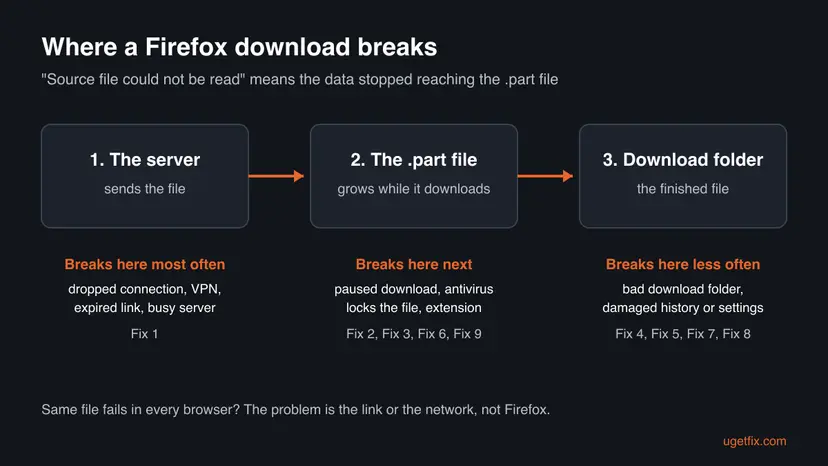
Open the same page in Edge or Chrome and download the same file. If it fails there too, the link, the server or your network is the problem, and Fix 1 is the one to follow. If only Firefox fails, as in the reader's question above, go through Fixes 2 to 8.
Why the source file could not be read, ranked by how often
The message itself never names the cause. MozillaZine, the old knowledge base that Mozilla's own help page is based on, puts the interrupted connection first and the paused download second. The rest come from Mozilla's checklist for downloads that fail.
| Cause | How common | Typical sign | Fix |
|---|---|---|---|
| The connection, a VPN or proxy dropped, or the download link expired or the server cut it off | Most often | The file fails in every browser, or fails partway at a different point each time | Fix 1 |
| The download was paused and resumed, and the temporary file was locked meanwhile | Often | It fails right after you click Resume, or after the PC went to sleep | Fix 2 |
| Security software scanned, blocked or quarantined the temporary file | Sometimes | Only some files fail, often programs or archives | Fix 3 and Fix 9 |
| A damaged download history | Sometimes | Every download in Firefox fails, other browsers work | Fix 4 |
| A download folder Firefox cannot write to, or changed download settings | Sometimes | The folder was on a removed drive, a network share or a synced folder | Fix 5 |
| A download manager extension | Sometimes | It works in Troubleshoot Mode | Fix 6 |
| A read-only or damaged profile file | Rarely | An old profile copied from another PC or a backup | Fix 7 and Fix 8 |
How to fix "could not be saved because the source file could not be read"
Fixes 1 and 2 solve most cases because the download was simply cut off. Fixes 3 to 6 are for the case where only Firefox fails. Fixes 7 and 8 repair the Firefox profile, and Fix 9 is a one-time test of your security software.
| What you see or have | Start with |
|---|---|
| The same file fails in Edge or Chrome too. | Fix 1 |
| You use a VPN, a proxy or an unstable Wi-Fi connection. | Fix 1 |
| It failed after you paused, resumed or the PC went to sleep. | Fix 2 |
| Only programs or archives fail, or your antivirus showed a notice. | Fix 3 |
| Every download in Firefox fails, other browsers work. | Fix 4 and Fix 5 |
| You use a download manager or video download extension. | Fix 6 |
| Your Firefox profile came from an old PC or a backup. | Fix 7 |
Fix 1. Get a fresh download link and check the connection
2 minutesLow riskThe file fails in every browser, fails at a different point each time, or you are on a VPN, proxy or weak Wi-Fi.
MozillaZine names an interrupted connection to the server as the cause of this message. Many download links also expire, so retrying an old failed entry can never work while a new click on the page gives a working link.
- Open a few other websites to make sure you are online. If pages load slowly or not at all, follow How to check your internet connection in Windows first.
- Turn off your VPN or proxy for this one download, if you use one.
- Go back to the web page the file came from. Do not use Retry in the Downloads panel, because the old link may have expired.
- Click the download link on the page again and let the file download to the end.
- If it still stops, try again later or from another network, such as a phone hotspot. A busy or broken server gives the same message, as the error text itself says.
If the site offers mirrors or a second download server, pick another one. If the file fails in every browser and on every network, the file on the server is the problem, and only the site owner can fix it.
It worked if: The file downloads completely, and the Downloads panel shows its size with no error.
If not: If the file works in other browsers but not in Firefox, go to Fix 2.
Fix 2. Download in one go without pausing, and remove the failed .part file
2 minutes plus the downloadLow riskThe download failed after you paused and resumed it, or after the PC went to sleep during a large download.
MozillaZine says this error can follow a pause and resume: while a download is paused, security software may scan and lock the temporary file. When Firefox cannot open it again, the resumed download fails.
- Click the Downloads button (the down arrow on the toolbar). Right-click the failed entry and choose Delete if it is offered, or Remove From History.
- Open your download folder in File Explorer and delete any file of the same name that ends in
.part. - Go back to the web page and start the download again from the link.
- Do not pause it. Keep the PC awake until it finishes: on a laptop, keep it on power and do not close the lid.
For very large files that keep failing at the same point, MozillaZine's advice is the same: download them in a single step, without pausing.
It worked if: The download completes without stopping, and no .part file is left in the folder.
If not: If it fails again even without pausing, go to Fix 3.
Fix 3. Check whether security software or Firefox blocked the file
3 minutesLow riskOnly some files fail, often installers or archives, or your antivirus showed a notice during the download.
Mozilla says firewalls, antivirus and anti-spyware programs can block certain file downloads. If they lock or remove the temporary file while Firefox writes it, Firefox can no longer read the data and stops.
- Click the Downloads button and look at the failed entry. If Firefox's own download protection blocked it, the panel shows a warning and options for that file.
- Open your security program's history or quarantine. In Windows Security, go to Virus & threat protection > Protection history.
- If the file is listed there, read why it was blocked before you do anything else. A file flagged as malware should stay blocked.
- If you trust the source and the program says it is safe, follow your security program's steps to allow it, then download again from the website.
Never allow a file just to make the error go away. Only allow it when it comes from the publisher's own site and the scan result is a false alarm you can confirm.
It worked if: No new entry appears in the protection history and the download completes.
If not: If nothing was blocked, and every download in Firefox fails, go to Fix 4.
Fix 4. Clear the Firefox download history
1 minuteLow riskEvery download in Firefox fails, while the same files download in other browsers.
Mozilla's help page says clearing the download history can fix some problems with downloading files. Firefox records each download in its history, and a damaged entry list can stop new downloads.
- Click the Downloads button on the toolbar, then Show all downloads. You can also press Ctrl + Shift + Y.
- In the Library window, click Clear Downloads.
- Close the Library window.
- Restart Firefox and download the file again from the web page.
This removes only the list of past downloads. The files you already downloaded stay on your disk.
It worked if: The Downloads list is empty and the new download completes.
If not: Go to Fix 5 and check the folder Firefox saves to.
Fix 5. Choose another download folder and reset the download settings
5 minutesLow riskEvery download fails, and your download folder is on another drive, a network share, a synced folder or a drive that is not always connected.
Mozilla says Firefox may not be able to download files if there is a problem with the folder it saves them to. If Firefox cannot write the temporary file there, the download stops before any data is saved.
- Click the menu button (three lines) and select Settings.
- In the General panel, find Downloads under Files and Applications.
- Next to Save files to, click Browse and choose a simple local folder, such as your Desktop.
- Close the Settings tab; changes are saved at once. Download the file again.
- If it still fails, type
about:configin the address bar, press Enter and accept the warning. - Search for
browser.download. Reset any of these that are shown in bold:browser.download.dir,browser.download.downloadDir,browser.download.folderList,browser.download.lastDir,browser.download.useDownloadDir. - Restart Firefox, then set your preferred folder again in Settings.
If only one kind of file fails (for example PDFs), look at Applications in the same Files and Applications section. Mozilla advises checking that this file type is not set to a different action from the others.
It worked if: The file downloads into the new folder.
If not: If it still fails, go to Fix 6 and test without extensions.
Fix 6. Test in Troubleshoot Mode and turn off download extensions
5 minutesLow riskYou use a download manager, video downloader or another extension that handles downloads.
MozillaZine recommends disabling a download manager extension when this error appears. Such an extension takes over the download, and if it fails to read the source, Firefox reports this error.
- Click the menu button, then Help > Troubleshoot Mode, and confirm with Restart. Firefox starts with all extensions off.
- Download the file again. If it works now, an extension or a setting is the cause.
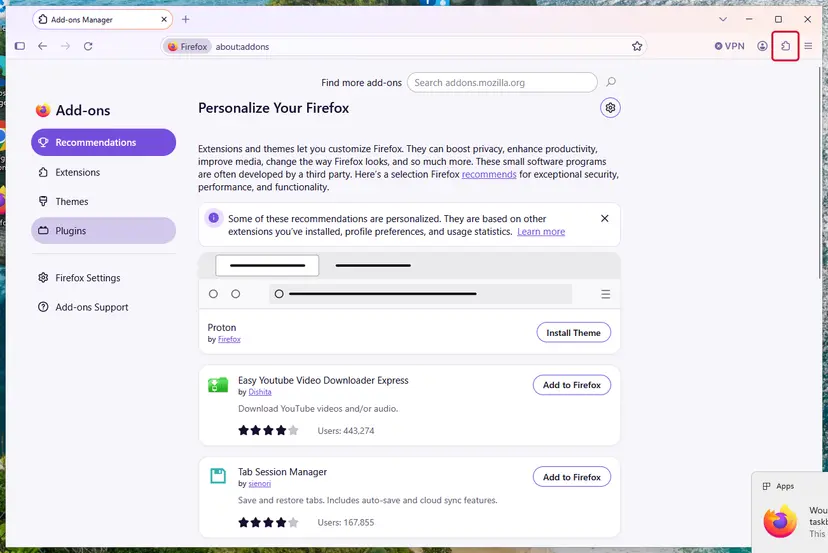
- Restart Firefox normally, open the menu and choose Add-ons and themes, or type
about:addonsin the address bar. - Select Extensions and switch off extensions that manage or change downloads, one at a time, testing a download after each.
- Remove the extension that breaks downloads, or check for an update to it.
It worked if: Downloads complete with the faulty extension turned off.
If not: If downloads also fail in Troubleshoot Mode, go to Fix 7.
Fix 7. Check that places.sqlite is not read-only and remove an old compreg.dat
5 minutesLow riskYour Firefox profile was copied from an old PC, a backup or another drive, and every download fails.
MozillaZine notes that in older Firefox versions this error appeared when the history file was set to read-only. Firefox has kept history and download history in places.sqlite since Firefox 3, and a copied profile can keep the read-only attribute.
- Type
about:supportin the address bar and press Enter. - Next to Profile Folder, click Open Folder. File Explorer opens your profile.
- Close Firefox completely.
- Right-click
places.sqliteand choose Properties. - If Read-only is ticked under Attributes, untick it, then click Apply and OK.
- If the folder holds a file named
compreg.dat, delete it. MozillaZine says Firefox regenerates it; current profiles usually do not have one. - Start Firefox and download the file again.
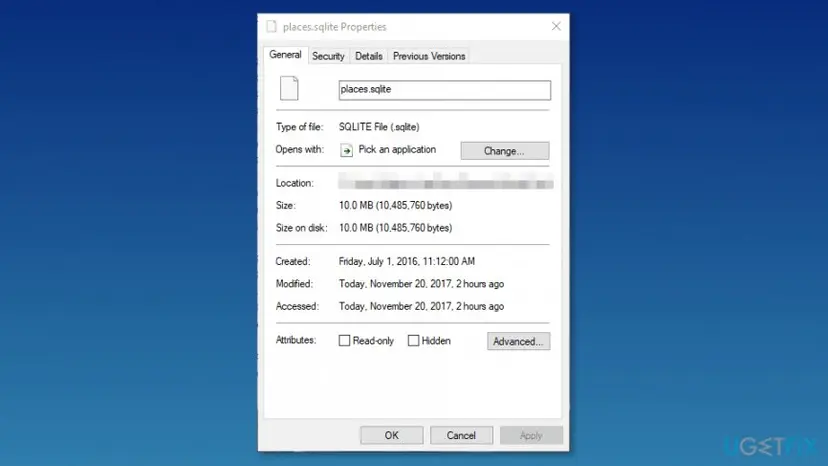
We could not confirm a current Mozilla statement that ties a read-only places.sqlite to this error by name. The history.dat case is documented by MozillaZine, and the check costs nothing.
It worked if: Read-only is off, and downloads finish.
If not: Go to Fix 8 and refresh Firefox.
Fix 8. Refresh Firefox
10 minutesRead the warningDownloads fail in Firefox only, Fixes 4 to 7 did not help, and you want a clean profile without losing bookmarks or passwords.
Mozilla's download help suggests a refresh before long troubleshooting. It builds a new profile folder, which replaces damaged settings, download actions and preferences that are hard to find one by one.
A refresh removes extensions and their data, themes, website permissions, changed preferences, added search engines, download actions and toolbar changes. It keeps bookmarks, browsing and download history, passwords, cookies, autofill data and the personal dictionary. Write down your extensions first. The old profile is saved on your desktop as Old Firefox Data.
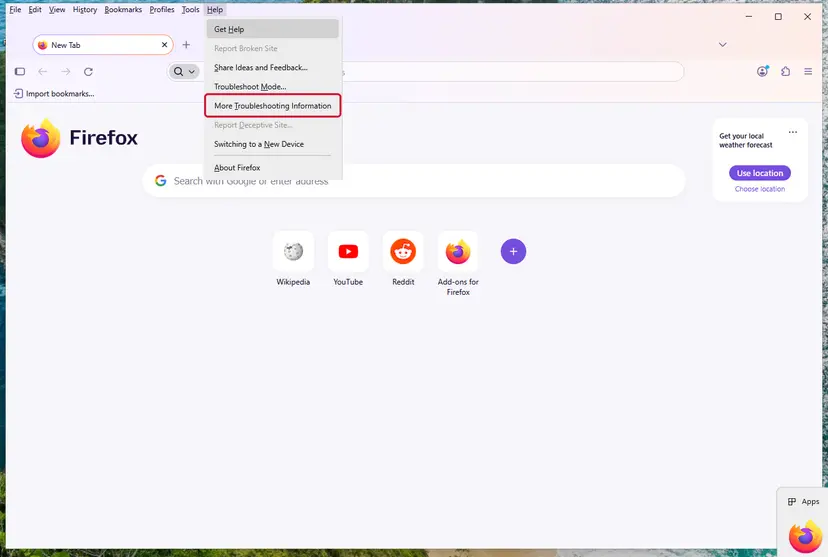
- Click the menu button and select Help > More Troubleshooting Information, or type
about:supportin the address bar. - Click Refresh Firefox... on the right side of the page.
- In the confirmation window, click Refresh Firefox.
- Firefox closes and restarts. Click Finish in the window that lists the imported data.
- Choose whether to restore your windows and tabs, then click Let's go! and download the file again.
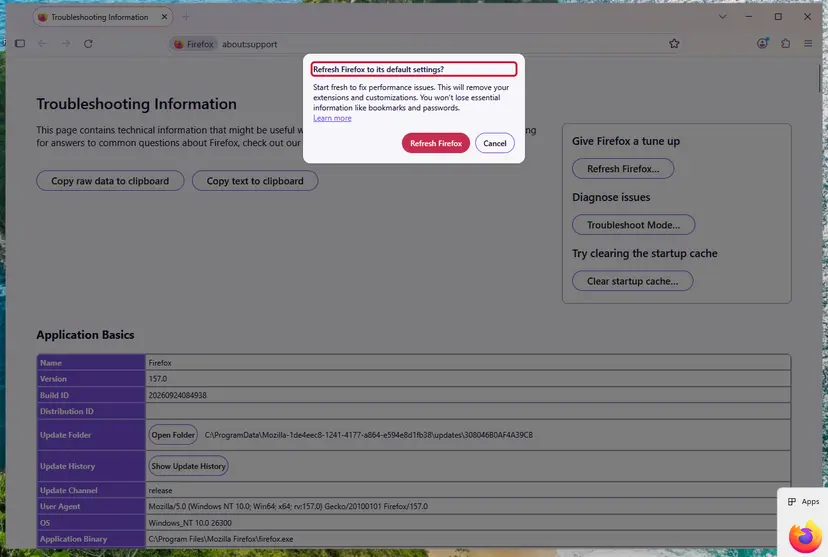
It worked if: Firefox opens with your bookmarks and passwords, without extensions, and the download completes.
If not: If even a fresh profile cannot download the file, test your security software once with Fix 9.
Fix 9. Pause security software for one test download
5 minutesLow riskNothing above helped, the file comes from a source you trust, and it still fails only in Firefox.
Mozilla's way to tell whether security software is the cause is to turn it off for a moment, test a download and turn it back on. MozillaZine adds that a scanner can lock the temporary file mid-download.
- Pause real-time protection for a few minutes only. Step by step for Microsoft Defender: Turn off Microsoft Defender protection for a moment
- Download the file again from the website.
- Turn protection back on right away, before you open the file.
- Scan the downloaded file with your security program.
If the download works only with protection paused, do not leave it off. Look in your security program's settings for a web or download scan option that blocks Firefox, and ask its maker how to allow Firefox downloads safely.
It worked if: You know whether the security program is the cause, and protection is on again.
If not: Read the Still broken section below.
Still broken: find out where the download stops
Firefox shows no log for this message, so compare instead. The answers to three questions point to the cause: does the file fail in another browser, on another network, and in a new Firefox profile?
- Fails in every browser and on every network: the file or the server is broken. Tell the site owner the file name, the time and the full message, as the message itself suggests.
- Fails only on your network: a router, a work proxy or a filter cuts the connection. Ask your network admin, or test with the router restarted.
- Fails only in Firefox, even after a refresh: reinstall Firefox. Remove it with Uninstall a program or app in Windows, then download the installer again from Mozilla's own site. Your profile with bookmarks stays.
- What to send Mozilla Support: your Firefox version (Help > About Firefox), Windows version, the file's site, the exact message and what you tried here.
- Not hardware: this message is about reading the server's data. A failing disk shows other errors first, also outside Firefox.
How to keep "source file could not be read" from coming back
- Download large files in one go, with the PC on power and awake.
- Start a new download from the web page instead of retrying an old entry.
- Keep the download folder on a local drive that is always connected.
- Keep Firefox updated, so download handling gets the newest fixes.
- Pause and resume big downloads on a slow or unstable connection.
- Leave security software turned off after a test.
- Install several download manager extensions at once.
- Copy an old Firefox profile to a new PC without checking file attributes.
If one site always fails, it is usually that site's server or its expiring links. Look for a mirror or an official download page from the file's publisher, and keep the original page open until the download completes.
Frequently asked questions
What does "could not be saved, because the source file could not be read" mean?
It means Firefox started to download a file but could not read the rest of it from the server, so it stopped and saved nothing. MozillaZine says the usual reason is that the connection to the server was interrupted during the download. The "source file" is the file on the web server, not a file on your PC. Start a new download from the web page, in one go, with a VPN off (Fix 1 and Fix 2).
Is it a Firefox problem or the website's problem?
Test the same file in another browser to find out. If Edge or Chrome also fails, the link, the server or your network is to blame, and changing Firefox settings will not help: get a fresh link or try later (Fix 1). If only Firefox fails, the cause is on your side in Firefox: download history, the download folder, an extension, security software or the profile. Work through Fixes 2 to 8 in order.
Why does the download fail after I pause and resume it?
While a download is paused, the temporary .part file sits in the download folder. MozillaZine says security software may scan and lock that file. If Firefox cannot access it when you click Resume, the download fails with this message. Many servers also do not allow a download to continue from the middle, or the link has expired by then. Delete the failed entry and the .part file, then download again without pausing (Fix 2).
What is the .part file, and can a read-only temporary file cause this?
The .part file is Firefox's temporary file for a download in progress. When the download completes, Firefox turns it into the real file. A failed download can leave it behind, and it is safe to delete. If the folder or the file is read-only, Firefox cannot write to it, and the download fails. Choose a local folder you own in Settings (Fix 5) and make sure places.sqlite in the profile is not read-only (Fix 7).
Is "source file could not be found" the same error?
No. "Source file not found" or "the source file could not be found" usually comes from a program that tries to open, copy or install a file that is not where it expects. Windows setup and DISM, for example, report that their source files could not be found. This page is about the Firefox download message "could not be saved, because the source file could not be read". If you see the other text in Firefox, the link most likely points to a file that was removed.
Is "Can't read from the source file or disk" the same problem?
No, that is a different message. "Can't read from the source file or disk" comes from File Explorer when Windows copies or moves a file from one place to another and cannot read it, often from a USB drive, a damaged disk or a network share. It has nothing to do with a browser. For that one, check the drive for errors with Check a disk for errors (chkdsk) and copy the file again. "Could not read" errors in other programs also have their own causes.
What does "Error: source file could not be loaded" mean?
That wording is not Firefox's download message. It usually comes from a program, an editor or a game that cannot load one of its own files. Its fix depends on that program, so check its help pages. If you see the text in a Firefox download, treat it like this error: the file did not arrive from the server. Get a fresh link and download it again (Fix 1). Searches for "source error" alone often mean such program errors too.
Can a VPN cause "source file could not be read"?
Yes, it can. A VPN or proxy adds another connection between you and the server, and if it drops or changes servers during a download, the transfer is interrupted. Some download sites also block or limit VPN addresses. Turn the VPN off for one download as Fix 1 shows. If the file downloads without it, change the VPN server or its settings for downloads. Turn it back on afterwards if you need it.
Does this error appear on Mac and Linux too?
Yes. The message comes from Firefox itself, so it looks the same on macOS and Linux, and the fixes are the same. Mozilla describes two Mac cases with other messages. "Could not be saved, because an unknown error occurred" can be fixed by choosing a valid folder in Safari's download settings. "You cannot change the contents of that folder" points to a corrupt com.apple.internetconfig.plist file in your Library Preferences folder.
Will reinstalling Firefox fix it?
Rarely on its own. Uninstalling Firefox keeps your profile, so the download history, settings and extensions that cause the problem stay. Refresh Firefox first (Fix 8): it creates a new profile and keeps bookmarks, history and passwords, which is what fixes profile problems. Reinstall only if a refresh did not help, and download the installer from Mozilla's own site. The Still broken section above shows when a reinstall makes sense.
Sources
- Mozilla Support: What to do if you can't download or save files (download history, download folder, about:config download settings, security software) (support.mozilla.org)
- MozillaZine Knowledge Base: Source file could not be read (interrupted connection, pause and resume, extensions, compreg.dat, read-only history file) (kb.mozillazine.org)
- Mozilla Support: Refresh Firefox, reset add-ons and settings (what a refresh keeps and removes) (support.mozilla.org)
Did this fix work?
One click, no account. It tells the next reader which guides are worth their time.
Questions and experiences: fix "Source file could not be read" error on Firefox
Still broken, or found a fix we did not cover? Ask here: members and our editors answer. Reading is open; writing needs a free account.
…