
How to fix Steam Login Error Code E87 in Windows?

Prefer to fix it yourself? The manual steps follow.
8 methods in this guide
Hi, I can't log in to Steam. I receive Error Code E87. I'm using the latest version of Windows 11.
Steam Login Error Code E87 is not a broken password and not a damaged Steam. In Valve's list of result codes, 87 is a login attempt that Steam throttles on purpose. Stop pressing Retry, wait, and check whether Steam itself is down.
E87 is Steam slowing your sign-in down on purpose. Valve's developer list describes result 87 as a failed login that is throttled in response to a possible attacker. Do not keep retrying, because each try can extend the wait. Wait, check that Steam is up (Fix 1 and Fix 2), then sign in once from another network or without a VPN (Fix 3). Fixes 4 to 8 are only for a client or a network that is really faulty.
| Error | Error Code: e87 under the text "Something went wrong while attempting to sign you in." Also searched as E87, error code E87, Steam e87. |
|---|---|
| Where it appears | In the Steam sign-in window on Windows, after you enter the password or confirm Steam Guard. |
| Main cause | Steam's servers refused the attempt to slow down guessing. Failed or repeated tries from your network address, a shared or VPN address, or a Steam outage are the usual triggers. |
| Fastest fix | Stop retrying, wait, check Steam's status, then try once more. Fix 1 and Fix 2. |
| Valve's description | Result 87, k_EResultAccountLoginDeniedThrottle: "Login attempt failed, try to throttle response to possible attacker." |
| Related code | e84 is result 84, a temporary rate limit. The cure is the same: wait. |
| Affects | Windows 11 and Windows 10, where the Steam client runs. Microsoft ended support for Windows 10 on 14 October 2025, which does not change this error. |
| Vendor status | No patch or known bug is announced. Steam Support says that if you keep failing to connect you "may need to wait a few hours and try again". |
| Time to fix | Mostly waiting. The network and client fixes take 5 to 20 minutes. |
Facts checked on 16 October 2026. Steps written for the Steam client on Windows 11 (25H2 and 26H2) and Windows 10 22H2, read against Valve's Steamworks and Steam Support pages.
What Steam Login Error Code E87 means
The sign-in window shows a grey line under its message, like this:
The sign-in window
Something went wrong while attempting to sign you in.
Error Code: e87
The line is the letter e and a result number from Steam's servers. Valve publishes the meaning of result numbers for game developers, in the Steamworks documentation. There, result 87 is named k_EResultAccountLoginDeniedThrottle and described as: "Login attempt failed, try to throttle response to possible attacker."
Put simply, Steam did not reject your password. It deliberately slowed the answer, the way a bank slows a card that keeps being declined. Valve does not publish a page that ties the on-screen e87 to this list, so the link between them is our reading, and it fits the facts: the number matches and the cure that Valve gives for such limits is to wait.
| Code | Valve's description | What it tells you |
|---|---|---|
e87 | Login attempt failed, try to throttle response to possible attacker. | Steam is deliberately slowing sign-in. Wait. |
e84 | Temporary rate limit exceeded, try again later. | Too many requests from your location. Wait. |
| A wrong password | Not an error code. The form says to check the password and account name. | Retype it, or use Help, I can't sign in. |
A throttle exists to punish quick repeated attempts. Every extra press on Retry looks like the thing it is meant to slow down, so the wait can grow. One calm attempt after a real pause beats ten fast ones.
What causes E87, from most to least likely
Valve publishes no statistics, so this order is ours. It follows the description of the code and what Steam Support says about people who cannot sign in to the client.
| Cause | How to tell | Fix |
|---|---|---|
| Your own repeated attempts. Retries, wrong passwords or wrong Steam Guard codes in a short time. | You pressed Retry many times or typed the password wrong first. | Fix 1 |
| A shared or VPN address. Other people's failures reach Steam from the same address. | A VPN is on, or you use a campus, office, hotel or mobile network. | Fix 3 |
| Steam is down or under maintenance. Steam Support says maintenance or a provider problem can need a few hours. | It began suddenly. Steam's sites are slow or time out. | Fix 2 |
| A broken connection on your side. Less likely, because the answer reached you, but a bad DNS or filter can cause repeated failures first. | Other sites or games also fail or are slow. | Fix 4 and Fix 5 |
| A firewall or security program. Steam Support says a firewall can start blocking Steam right after a client update. | It started after an update or a new security program. | Fix 6 |
| The Steam client itself. Rare for this code. | Steam signs in on another PC or on a phone hotspot but not here. | Fix 7 and Fix 8 |
Notice what is not on the list: a damaged Windows, outdated drivers or missing updates. The code is an answer from the server, so the computer reached Steam. That is why the first fixes below cost nothing and change nothing on the PC.
How to fix Steam Login Error Code E87
Fixes 1 to 3 cover most cases and change nothing on your PC. Fixes 4 to 6 repair the network path to Steam. Fixes 7 and 8 touch the client and are the last resort.
| What you see or have | Start with |
|---|---|
e87 appeared and you have retried several times. | Fix 1 |
| It began suddenly and Steam's pages are slow. | Fix 2 |
| A VPN or a shared network is in use. | Fix 3 |
| Other sites or games fail as well. | Fix 4, then Fix 5 |
| It started after a Steam update or a new security program. | Fix 6 |
| It works on a phone hotspot but not on your usual network. | Fix 3, then ask your provider |
| Nothing worked after a day and the code never changes. | The section after the fixes |
Fix 1. Stop retrying and wait
5 minutes, then waitingNo riskEveryone who sees E87 starts here, especially after several retries.
E87 is a throttle, and a throttle ends when you stop triggering it. Nothing on your PC can lift it.
- Stop selecting Retry and close the sign-in window.
- Write down the code, the time and whether a VPN is on.
- Do something else for at least 30 minutes. Valve names no length for this limit, so this number is our suggestion.
- Check the sign-in details in your password manager, so that the next try is typed correctly.
- Open Steam and sign in once, typing the account name and password by hand.
Valve does not say how long an E87 limit lasts, or how many failures start it. Steam Support's page for people who cannot sign in says you may need to wait a few hours.
It worked if: The next attempt takes your password and moves on to the Steam Guard step.
If not: If e87 returns after a long wait, check whether Steam is down with Fix 2.
Fix 2. Check whether Steam is down
3 minutesNo riskThe error started suddenly, or friends have it too.
An outage on Steam's side makes sign-in fail whatever you do on your PC. Knowing that saves you the other fixes.
- In a browser, open
https://store.steampowered.com/stats/. Steam Support calls it the Steam Server Status page. - Watch how it behaves. Steam Support says a timeout on Steam's sites means a system-wide issue is very likely.
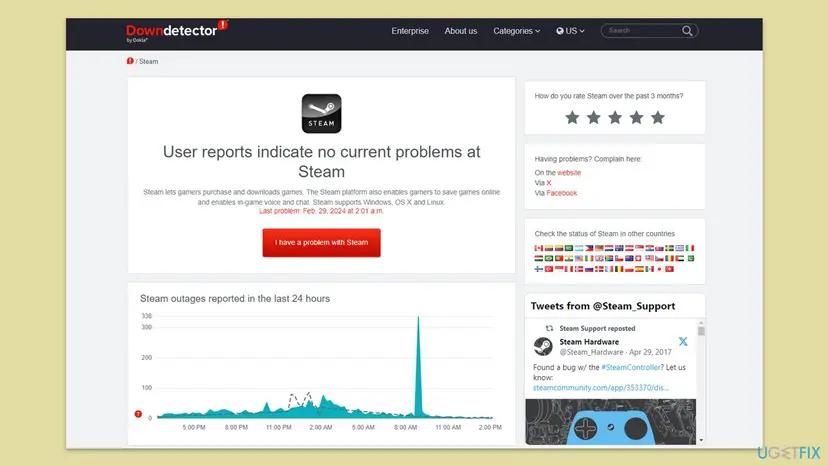
- Open a status tracker such as Downdetector and look at the reports for Steam in the last hour.
- Search for the official Steam account on X for announcements.
- If Steam is down, close the window and wait. Try again after the outage is announced as over.
The Steam stats address shows player charts, not green and red lights, and trackers are run by other people. A slow page and many fresh reports together are a good sign. One signal alone is not.
It worked if: Steam's pages open normally and no reports are rising, so the fault is closer to you.
If not: If Steam is up, change where you sign in from with Fix 3.
Fix 3. Sign in from another network or without the VPN
10 minutesLow riskA VPN is on, or you are on a campus, office, hotel or shared network.
A throttle is aimed at an address. On a VPN server or a shared network many people use the same address, so someone else's failures can land on you.
- Disconnect the VPN and quit its app, so that it does not reconnect by itself.
- Restart your modem and router.
- Start Steam and sign in once.
- If it still fails, turn on the hotspot of your phone, connect the PC to it and sign in once.
- Come back to your usual network after the sign-in works.
- It works on the hotspot. Your home address is the problem. Wait as in Fix 1 and test again later.
- It fails only in the evening. Steam Support says a provider may be blocking or shaping the connection at certain hours. Test at other hours and contact the provider.
- University or business network. Steam Support says many block the ports Steam needs, and the ports cannot be remapped. Only the network administrator can change that.
It worked if: The sign-in goes through and the code is gone.
If not: If every network fails the same way, the cause is the account or Steam. Go to the section after the fixes, or try Fix 4.
Fix 4. Run the Network and Internet troubleshooter
5 minutesNo riskOther sites or games are slow or fail as well.
E87 is a server answer, so a network fault is not the likely cause. This check rules it out in a few clicks.
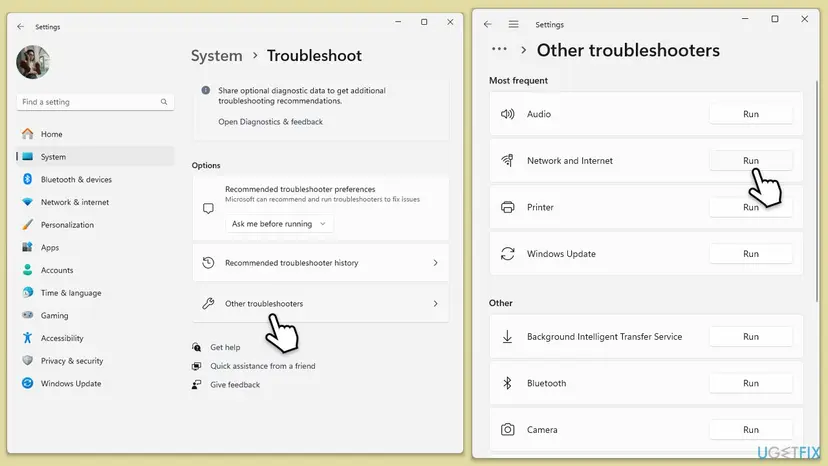
- Press Win + I and open System > Troubleshoot > Other troubleshooters.
- Next to Network and Internet, select Run.
- Apply the fixes it offers and wait for it to finish.
- Restart the PC and sign in once.
For more checks, such as router tests, see the full guide: How to check your internet connection in Windows
It worked if: The troubleshooter reports no problem or fixes one, and Steam signs you in.
If not: If it finds nothing, try another DNS in Fix 5.
Fix 5. Switch the DNS to Google's
5 minutesLow riskThe troubleshooter found nothing, but other sites are slow or fail to open.
Your provider's DNS can be slow or fail. A public DNS answers differently. It rarely matters for E87, so this comes after the free checks.
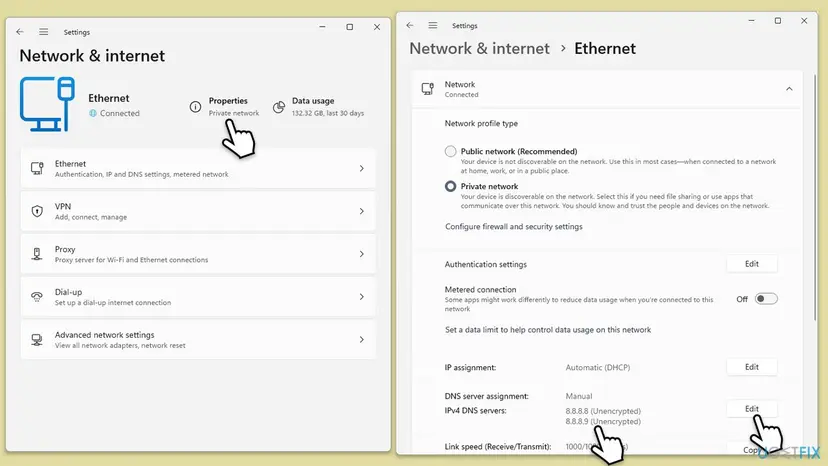
- Press Win + I and open Network & internet.
- Open Wi-Fi or Ethernet, then your connection's properties.
- Next to DNS server assignment, select Edit and choose Manual.
- Turn on IPv4 and enter
8.8.8.8as Preferred DNS and8.8.4.4as Alternate DNS. - Select Save, restart Steam and sign in once.
Open the same page, choose Automatic (DHCP) and save. You are back to your provider's DNS.
It worked if: Pages open faster, and Steam signs in without the code.
If not: If nothing changed, put DNS back to automatic and go to Fix 6.
Fix 6. Allow Steam through the firewall
10 minutesLow riskIt started after a Steam update or after you installed a security program.
Steam Support warns that a firewall can start blocking Steam after an update, even if Steam worked before.
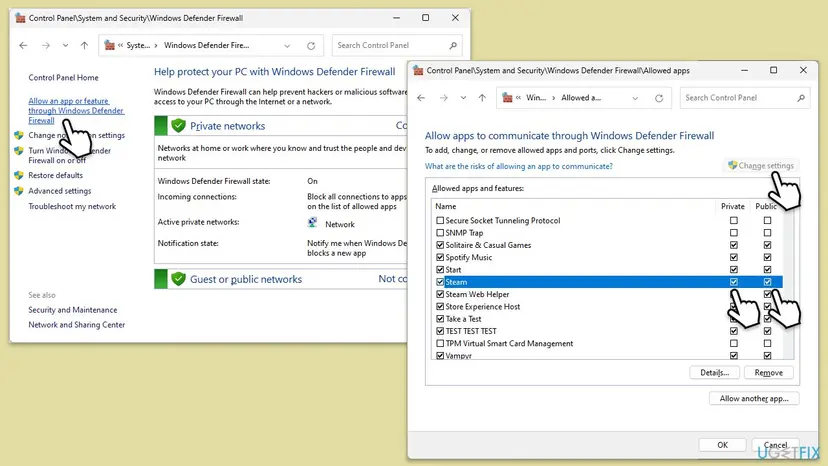
- Close Steam completely.
- Type Control Panel in Windows search and press Enter.
- Open System and Security > Windows Defender Firewall.
- Select Allow an app or feature through Windows Defender Firewall, then Change settings.
- For Steam and Steam Web Helper, tick Private and Public, and select OK.
- Restart the PC and sign in once.
If you use another security suite, add Steam to its allowed list the same way. Turning protection off is not the fix. A short pause for one test is allowed: Turn off Microsoft Defender protection for a moment
It worked if: Steam connects and signs you in with the firewall still on.
If not: If it still fails, test Steam with administrator rights in Fix 7.
Fix 7. Run Steam as administrator
5 minutesLow riskFixes 1 to 6 changed nothing.
We found no source that ties E87 to permissions, so this is a cheap test and not a likely cure. It rules out a profile or file permission problem.
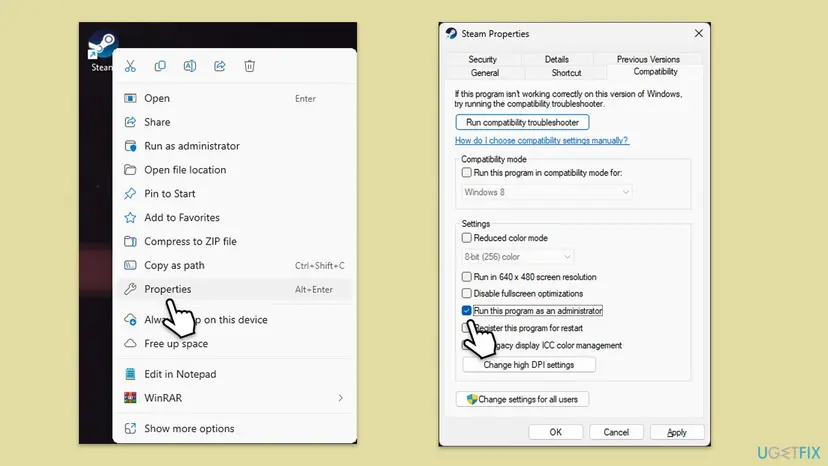
- Close Steam completely.
- Right-click the Steam shortcut and select Run as administrator.
- Sign in once and see whether the code returns.
- If it worked, right-click the shortcut, select Properties, open Compatibility and tick Run this program as an administrator.
- Select Apply and then OK.
It worked if: Steam signs in when it is started as administrator.
If not: If the code is the same, the client may be damaged. Go to Fix 8.
Fix 8. Reinstall Steam and keep your games
15 to 20 minutesRead the warningEverything else failed, and Steam signs in on another PC.
This replaces the client files. It is the last step because E87 rarely comes from damaged files.
The uninstaller can remove the whole Steam folder, games included. Before you start, copy the steamapps folder from C:\Program Files (x86)\Steam to another place, such as your desktop, so that a game download of many gigabytes is not lost.
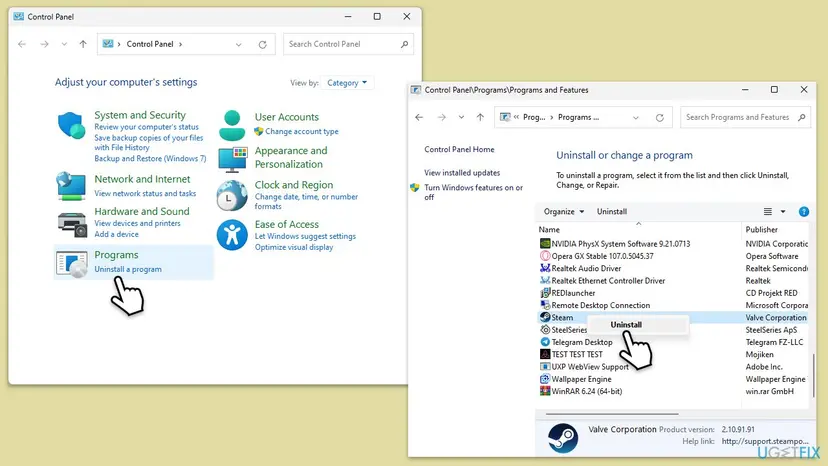
- Copy the
steamappsfolder out of the Steam folder, as the warning says. - Open Control Panel > Programs > Uninstall a program, select Steam and then Uninstall.
- Restart the PC.
- Download the Steam installer from the official Steam website and run it.
- Move the saved
steamappsfolder back into the new Steam folder. - Start Steam and sign in once.
General steps for removing programs: Uninstall a program or app in Windows
It worked if: Steam starts clean and finds your installed games.
If not: If the same code appears on a clean install, the cause is not the client. Read the next section.
If E87 stays: what to send to Steam Support
If the code stays after a day, the cause is on Steam's side or with your account. Steam Support wants a screenshot of the error, so the code must be visible.
- Take a screenshot of the window with the code visible.
- Note the time, your network and whether the sign-in worked on another network or device.
- Open
https://help.steampowered.comin a browser and choose Help, I can't sign in. - For a client that will not sign in, open Steam Support's page I can't sign in to the Steam Client and use its form.
- Attach the screenshot and say which fixes of this guide you tried.
- It fails everywhere. Other PCs and networks give the same code, so the PC is not the cause.
- It fails on one network only. Ask your internet provider. Steam Support lists providers that were found to block Steam traffic.
- Other apps also lose connection. Test with a wired cable. Steam Support says wireless and powerline links can cause intermittent failures.
The logs folder in the Steam folder exists, but Valve does not document which file records a sign-in failure, so send a log only if Support asks for one.
How to avoid Steam Login Error Code E87
- Type the password slowly and check it before you press Sign in.
- Use a password manager instead of guessing.
- Close the VPN before signing in on a shared server.
- Tick Remember me on your own PC, so sign-ins are rare.
- Keep the date and time of the PC automatic.
- Do not press Retry over and over.
- Do not try many accounts one after another from the same network.
- Do not paste passwords from old lists.
- Do not turn off the firewall for good as a fix.
Frequently asked questions
What does Steam error code E87 mean?
E87 shows that Steam deliberately slowed your sign-in. Valve's Steamworks documentation describes result 87 as a login attempt that failed so that the response is throttled against a possible attacker. It is not a damaged Windows or a broken Steam. The number matches the on-screen code, though Valve does not publish a page that ties them together. The cure is to stop retrying, wait, and sign in once.
How long does E87 last?
Valve does not say. Steam Support's page for people who cannot sign in says you may need to wait a few hours and try again. Our suggestion, not Valve's, is to leave it for at least 30 minutes, and longer after many retries. Each fresh attempt during the limit can count against you, so one patient try is worth more than many fast ones. If the code is still there the next day, send Steam Support a screenshot.
Is E87 a wrong password?
No. A wrong password gets its own message on the sign-in form, which asks you to check the password and account name. E87 can follow wrong tries, because repeated failures are what a throttle reacts to. If you mistyped the password several times in a row, stop, wait, and type it carefully when you try again.
Can a VPN cause error E87?
It can contribute. A throttle is aimed at the address your traffic comes from. On a VPN server or a shared network, other people's failed attempts come from the same address, so the limit can hit you even if you did nothing wrong. Turn the VPN off, restart your router and sign in once. If it works on your phone's hotspot, the address was the problem.
Do I need to reinstall Steam to fix E87?
Almost never. E87 is an answer from Steam's servers, so the client already reached them. Reinstalling is the last fix in this guide because it cannot lift a throttle. If you do it, copy the steamapps folder out first, so a large game download is not lost, and then put it back after the new install.
Does E87 mean my Steam account was hacked?
Not by itself. The description speaks of a possible attacker, but that is about how Steam protects the sign-in, not a sign that someone broke in. If you got a Steam Guard request you did not start, or the account changed without you, decline the request and use the stolen account option in Steam Support. Never share your password or Steam Guard code with anyone.
Is Steam down when I see E87?
Sometimes. An outage can cause failed attempts, and the failed attempts can then trigger the throttle. Open the Steam stats page and a status tracker. A timeout on Steam's sites is, according to Steam Support, a sign of a system-wide issue. If Steam is up and pages open normally, the limit is more likely aimed at your address or at repeated tries.
Does changing DNS or running as administrator fix E87?
Rarely. We found no source that ties E87 to DNS or permissions. Both are cheap to test, so they are in the guide, after the fixes that match the cause. If your other sites are slow, a DNS change can help the connection. Running as administrator only rules out a permission problem on your own profile.
I searched for Steam error code E87 in Polish, Turkish or French. Is this the same page?
Yes, the code is the same in every language: kod błędu E87, hata kodu E87 and code erreur E87 are all result 87, the throttled login. The Steam client may show its text in your language, but the line under it still reads Error Code: e87. The fixes here apply as written. The Steam menu names in the steps may be translated in your client.
Sources
- Steamworks Documentation: steam_api.h, EResult (partner.steamgames.com)
- Steam Support: I can't sign in to the Steam Client (help.steampowered.com)
- Steam Support: Troubleshooting Network Connectivity (help.steampowered.com)
Did this fix work?
One click, no account. It tells the next reader which guides are worth their time.
Questions and experiences: fix Steam Login Error Code E87 in Windows
Still broken, or found a fix we did not cover? Ask here: members and our editors answer. Reading is open; writing needs a free account.
…