How to fix
SYSTEM_SERVICE_EXCEPTION (portcls.sys) error
on Windows
Resolve the SYSTEM_SERVICE_EXCEPTION (portcls.sys) error in Windows 10 effortlessly with expert-tested solutions. Fixed in minutes, guaranteed!

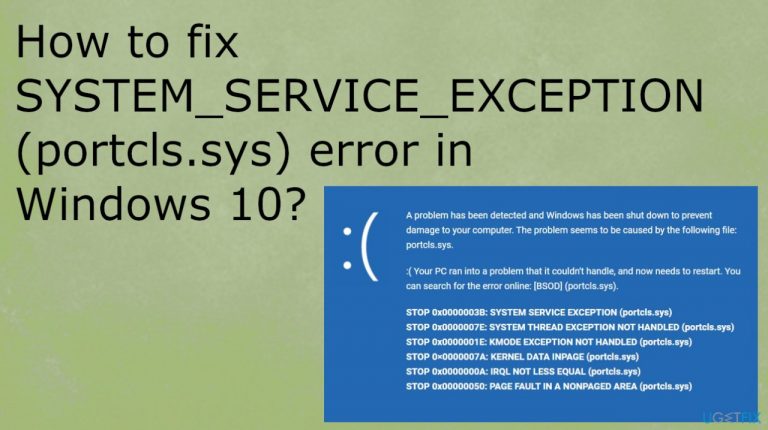
What causes How to fix SYSTEM_SERVICE_EXCEPTION (portcls.sys) error in Windows 10?
- Third-party application issue
- Driver problem
- Corrupted software
- Malware infection
- Faulty operating system
- Updates causing conflicts
Repairs Windows system files, removes malware, and restores a clean OS state — without reinstalling.
Hello. I receive this blue screen error with the SYSTEM_SERVICE_EXCEPTION code that also includes portcls.sys file issue. I receive this often and cannot solve the problem, nor do I know how to do that in the first place. Please, help me.
SYSTEM_SERVICE_EXCEPTION (portcls.sys) error in Windows 10 is the issue that is considered a stop error because it triggers the Blue Screen of Death and freezes the machine.[ref en-1] The computer restarts in most cases without warning and the error might occur again and again out of nowhere. Such behavior makes the PC unusable for the user.
The problem with the Blue Screen of Death SYSTEM_SERVICE_EXCEPTION (portcls.sys) error is a certain bug related to a third-party application or the driver piece. The error can also be triggered by corrupted software, malware[ref en-2] or system issues, faulty OS, and updates.[ref en-3]
The file that is indicated in this error - portcls.sys is the Microsoft Class Driver for the Port-Miniport device's system. It is the driver - one of many system pieces responsible for various applications' activities, processes, and launches. This file is considered a type of the DLL file that is needed for information storing and troubleshooting. Various SYS files can get damaged and trigger issues with the PC.
SYSTEM_SERVICE_EXCEPTION (portcls.sys) error include messages:
- portcls.sys could not be found.
- portcls.sys failed to load.
- The file portcls.sys is missing or corrupt.
- Windows failed to start - portcls.sys.
There are many errors with the system service exception code like SYSTEM_SERVICE_EXCEPTION (rtkvhd64.sys) BSOD, Blue Screen Error SYSTEM_SERVICE_EXCEPTION (ntfs.sys), SYSTEM_SERVICE_EXCEPTION (asmtxhci.sys) error, BSOD SYSTEM_SERVICE_EXCEPTION (KS.SYS), so it might be possible to fix these issues with simple methods below.
Before you try to fix SYSTEM_SERVICE_EXCEPTION (portcls.sys) error in Windows 10, you might want to run the quick check using [d1]. This tool can find altered or damaged files for you and help solve similar issues with the processes and activities.
1. Restore the PC
- Go to the search box, type System Restore and press ENTER.
- In the search results, find and click System Restore.
- Please enter the administrator password.
- Follow the steps in the wizard to choose a relevant restore point.
- Restore your computer to that backup image.
2. Run SFC scan to fix SYSTEM_SERVICE_EXCEPTION (portcls.sys) error in Windows 10
- Open Command Prompt with Administrative rights.
- Type sfc /scannow and hit Enter.
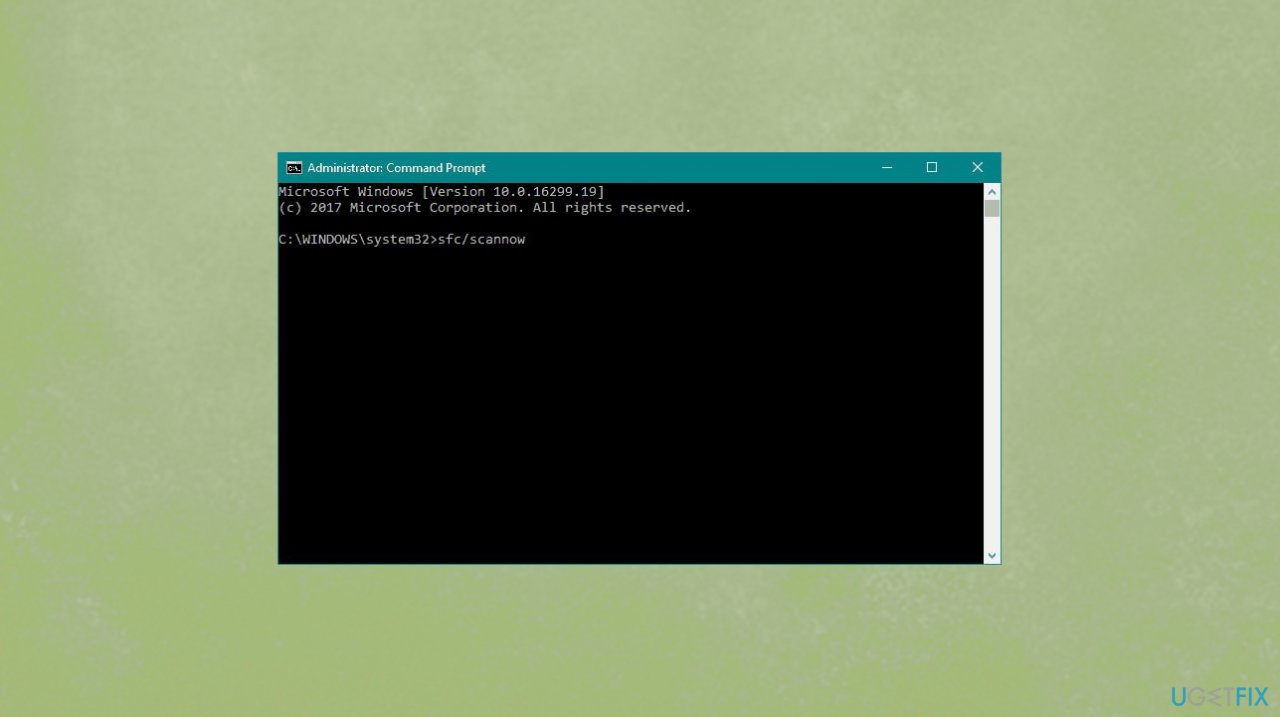
System service exception portcls sys error sfc - Allow the check to launch.
- Follow on-screen commands until the process is complete.
3. Update the OS
- Hit the Windows Start button
- In the search box, type Update and press ENTER.
- Or got to Update & security via Settings.
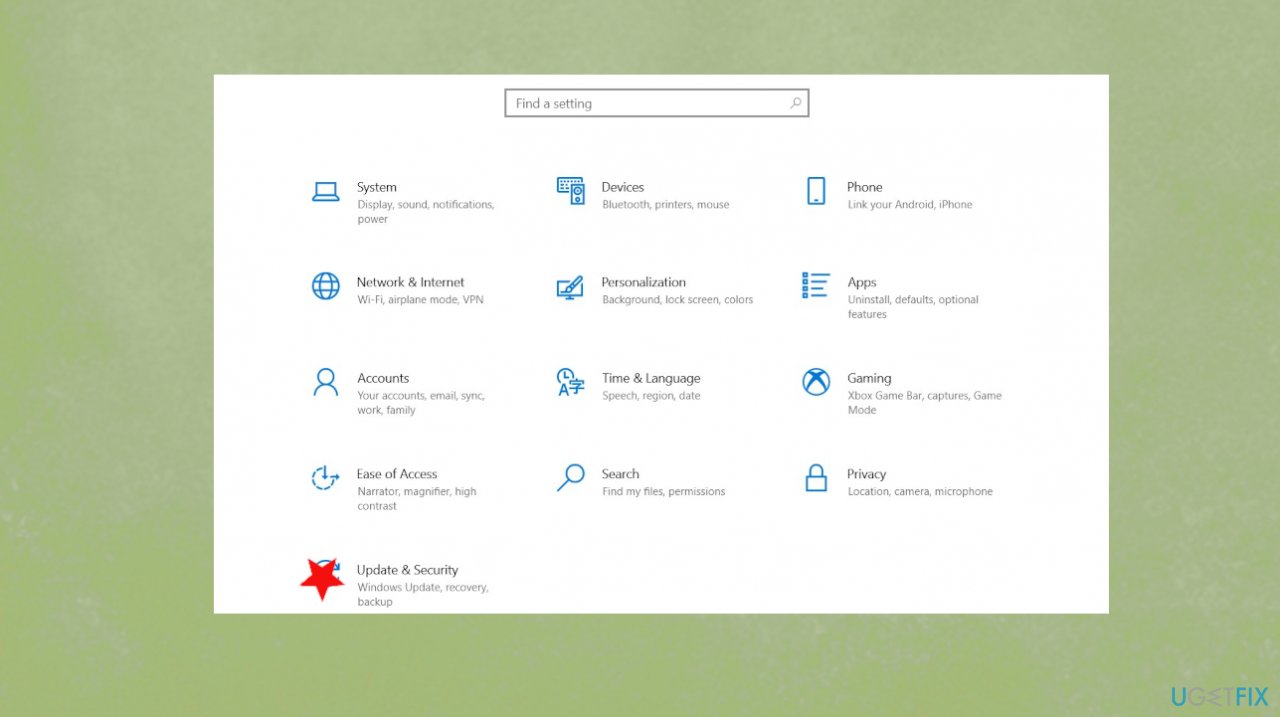
System service exception portcls sys error update security - In the Windows Update dialog box, click Check for Updates.
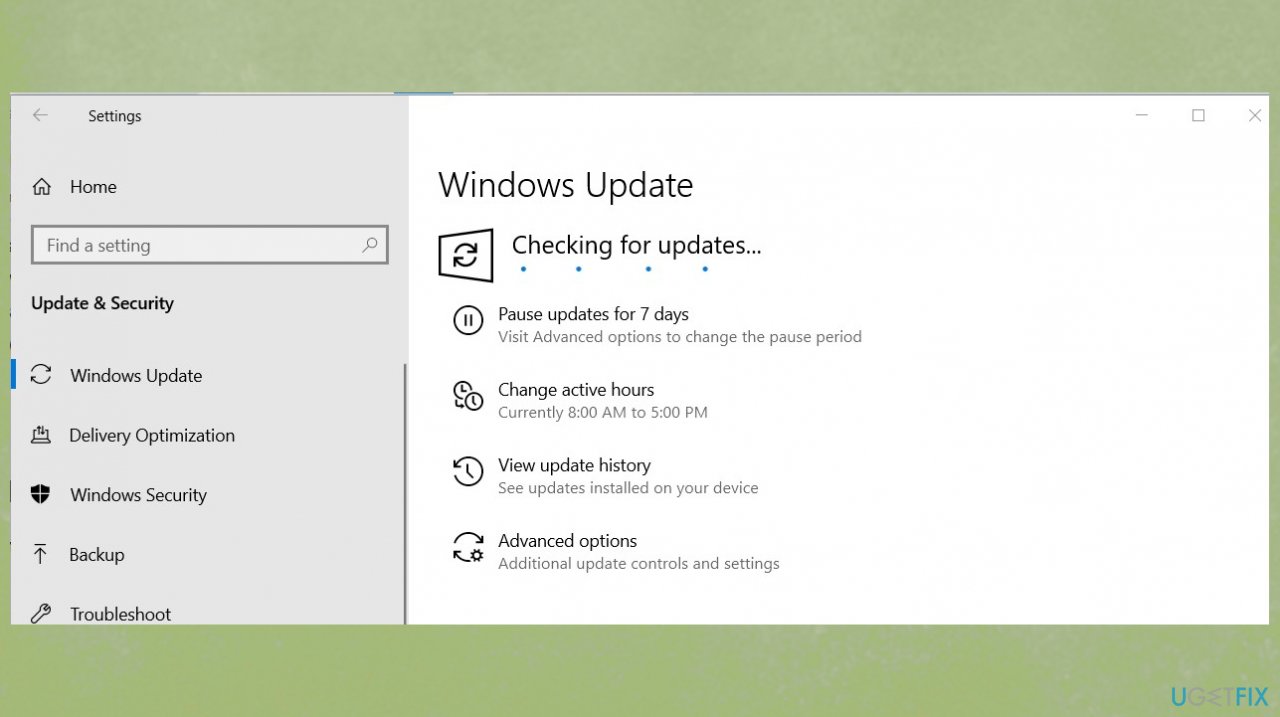
System service exception portcls sys error os update - If updates are available for download, click Install Updates.
- After the update is completed, restart your PC.
4. Update drivers to fix SYSTEM_SERVICE_EXCEPTION
- Press on the search and type Device Manager.
- Click on the Device Manager.
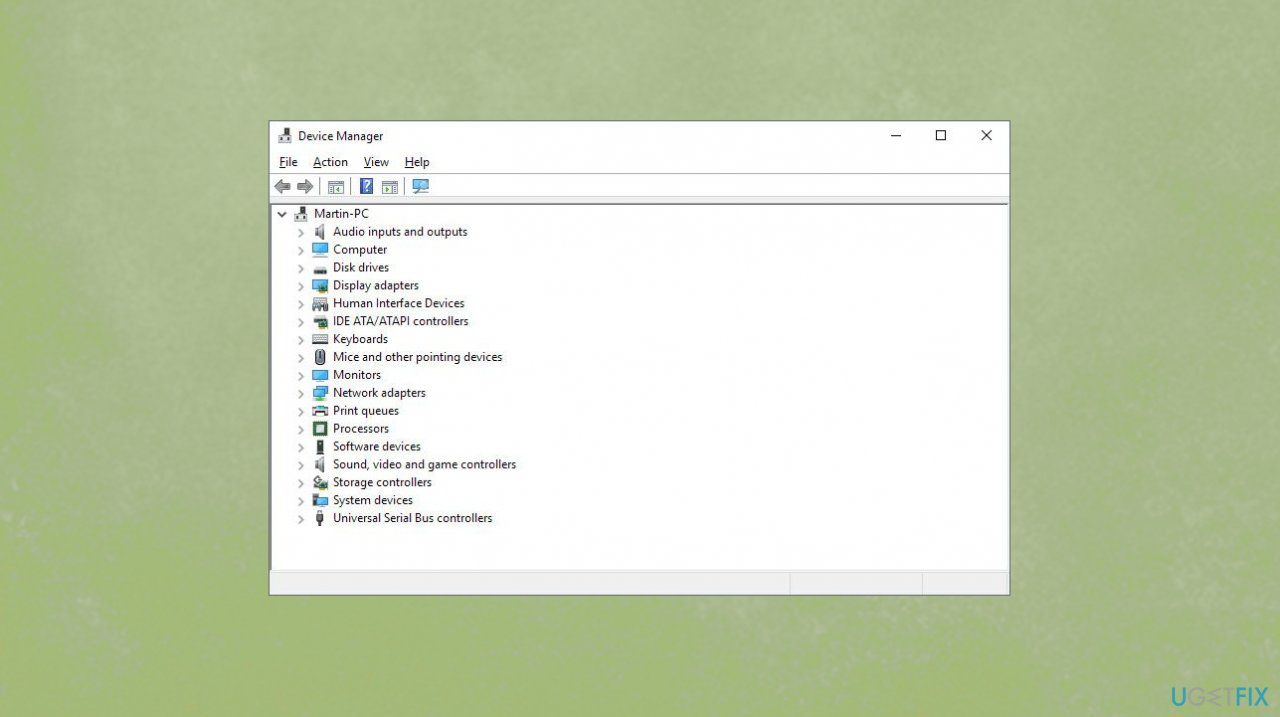
System service exception portcls sys error device manager - Here you should expand the chosen section and locate the piece with an exclamation point.
- In fact, check all drivers, and if you find any of them marked with an exclamation mark, right-click on each of them and select Properties.
- When a drop-down menu occurs, go to Drivers and opt for Update Drivers.
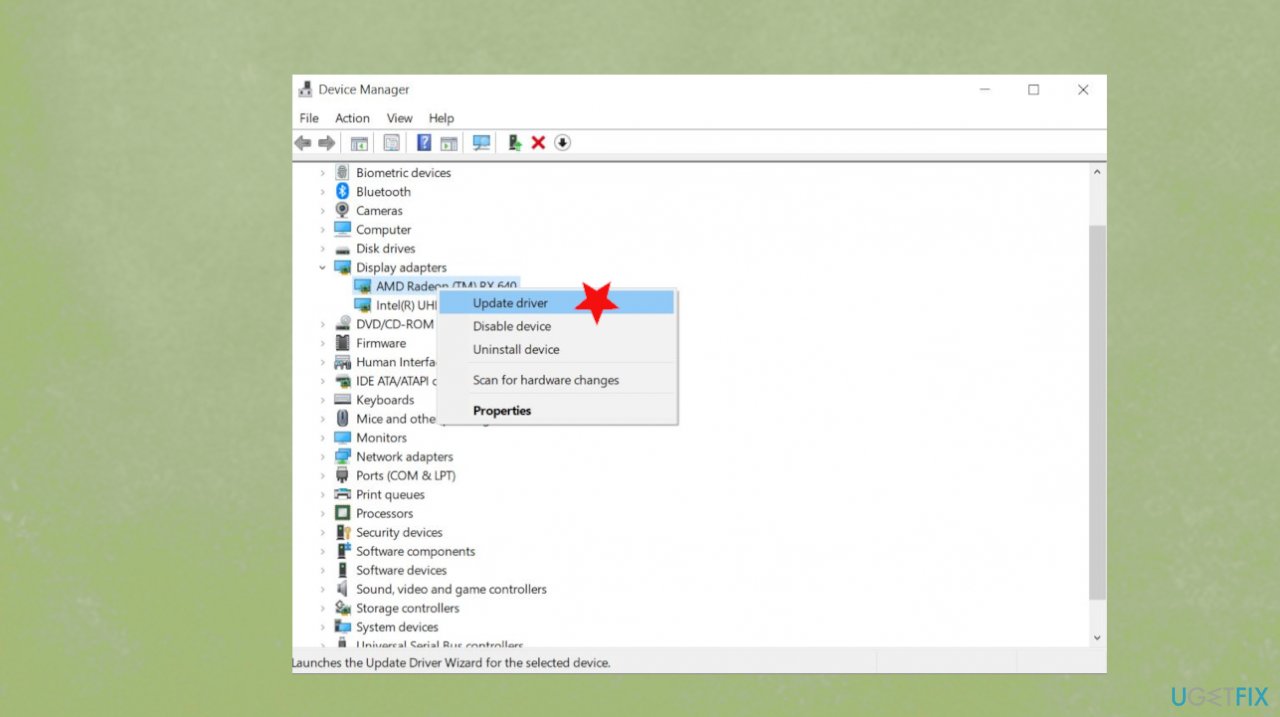
System service exception portcls sys error driver update - Reboot the system and check if the SYSTEM_SERVICE_EXCEPTIO error appears.
5. Remove any third-party apps
- Press the Win+S.
- Type appwiz.cpl.
- On the next window, find third-party software and right-click.
- Click Uninstall and follow the directions on the screen.
- Reboot the system.
- Repeat the same procedure if another software is here.
6. Scan for malware to fix SYSTEM_SERVICE_EXCEPTION (portcls.sys) error in Windows 10
- Hold down Windows logo key.
- Type security.
- Select Virus & threat protection.
- Click the link Scan options.
- Choose Full scan.
- Scan now.
Bottom line
To fix the SYSTEM_SERVICE_EXCEPTION (portcls.sys) error in Windows 10, you can try restoring your PC to a previous state using System Restore. Additionally, running a quick check tool can help identify and resolve damaged files. If these methods do not work, further troubleshooting may be necessary.
Frequently asked questions
The SYSTEM_SERVICE_EXCEPTION (portcls.sys) error in Windows 10 is a blue screen error that typically indicates issues with audio drivers or related system files. It can cause system instability and crashes.
You can update your audio drivers by going to Device Manager, expanding the 'Sound, video and game controllers' section, right-clicking your audio device, and selecting 'Update driver.' Follow the prompts to search automatically for updated driver software.
In Windows 11, you can run the Windows Memory Diagnostic tool and check for corrupted system files using the 'sfc /scannow' command in Command Prompt to help resolve the portcls.sys error.




Report an issue
What's wrong with this guide? We review every report and update or remove content.
Report received — thank you. We'll review and fix it.
You need a free account to submit a report.
Be the first to comment