
How to fix Teams error code 2147942402 in Windows?

Prefer to fix it yourself? The manual steps follow.
- 8methods
- 5 to 30 minutes
- Intermediate
Applies to Microsoft Teams (new Teams), Outlook and the Microsoft 365 apps for Windows, and scheduled tasks and scripts on Windows 11, Windows 10 and Windows Server
8 methods in this guide
Every time I try to open Microsoft Teams on my Windows 11 laptop, I get an error that says "Teams error code 2147942402" and it refuses to launch. I've already restarted my device and even reinstalled Teams, but nothing helps.
Error code 2147942402 is the decimal form of 0x80070002, the Windows error "The system cannot find the file specified". In Teams and Outlook it sits under Error Tag: 48v35 in a failed sign-in window; in Task Scheduler it reads Error Value: 2147942402 when a task cannot start. In Teams, sign out, quit, restart and sign in again first.
2147942402 means a file that Windows or an app looked for is missing. In Teams or Outlook it means the stored sign-in on this PC is incomplete: sign out of Teams and Office, quit Teams from the taskbar corner, restart and sign in again (Fix 1), then reset Teams (Fix 2). In Task Scheduler it means the program in the task's action cannot be found: correct the path and the arguments (Fix 5).
| Error | Error code 2147942402. In Teams and Office: Error Tag: 48v35 and Error Code: 2147942402 under Troubleshooting details. In Task Scheduler: Additional Data: Error Value: 2147942402. |
|---|---|
| Where it appears | The Microsoft sign-in window of Teams, Outlook, Word and Excel; the History tab and the event log of Task Scheduler; the return code of a script or installer. |
| Main cause | In Teams and Office: sign-in data on the PC that is missing or out of date. In Task Scheduler: a program path, command or argument that Windows cannot resolve to a file. |
| Fastest fix | Teams and Office: sign out, quit, restart, sign in (Fix 1). Task Scheduler: put only the program's full path in Program/script and the rest in Add arguments (Fix 5). |
| What the code means | 0x80070002: a failure (8), from the Windows error area (007), Windows error 2, ERROR_FILE_NOT_FOUND. |
| Also written as | 2147942402, code: 2147942402, error 2147942402, error value: 2147942402, return code 2147942402, 0x80070002, -2147024894. Task Scheduler's Last Run Result column shows the hexadecimal form. |
| Affects | New Teams, classic and new Outlook, Word and Excel on Windows 11 and Windows 10; scheduled tasks on every Windows version and on Windows Server. |
| Microsoft's status | Not a known bug with a patch. The number is documented as the plain Windows error "file not found". Microsoft has no page for tag 48v35. |
| Time to fix | About 5 minutes for Fix 1, Fix 2 or Fix 5. Longer on remote desktop servers, where the lasting fix belongs to the administrator. |
Facts checked on 15 October 2026. Steps written for the new Microsoft Teams, the Microsoft 365 apps and Task Scheduler on Windows 11 (25H2 and 26H2) and Windows 10 22H2, read against Microsoft's documentation.
What error code 2147942402 means
Windows reports problems as result codes. Most programs print them in hexadecimal, but the Microsoft sign-in window and Task Scheduler's event text print them as a plain decimal number. Converted, 2147942402 becomes 0x80070002. The front half says that this is a failure carrying an ordinary Windows error; the last part, 2, is ERROR_FILE_NOT_FOUND: "The system cannot find the file specified."
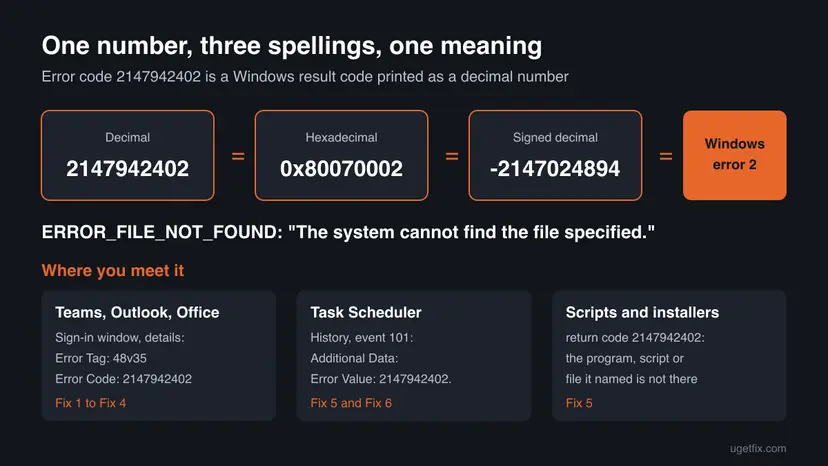
So the number tells you what went wrong, not where. A Server Fault answer with over 150,000 views makes the same point for scheduled tasks: convert the number and you have "file not found", and the task is pointing at something that does not exist. The same reading holds for the Teams and Office window: a part of the sign-in went to open something stored on the PC and found nothing.
| What you see | Where | What is missing | Start with |
|---|---|---|---|
| Something went wrong. [48v35], details with Error Code: 2147942402 | Teams, Outlook, Word or Excel sign-in window | Part of the sign-in data stored in your Windows profile | Fix 1 |
| Task Scheduler failed to start instance, then Additional Data: Error Value: 2147942402. | Task Scheduler History tab, Event Viewer | The program or command in the task's action | Fix 5 |
Last Run Result 0x80070002 | Task Scheduler task list | The same as above | Fix 5 |
| return code 2147942402 or -2147024894 | A script, a deployment tool or an installer log | A file, script or program path given to that tool | Fix 5 |
The old version of this page suggested running Teams as administrator. That answers a different code: "access denied" is Windows error 5, 0x80070005, or 2147942405. Error 2 is about a missing file, so more rights do not bring it back.
Code 2147942402 in Teams and Outlook: the 48v35 sign-in window
In Teams the number does not appear as a message of its own. A small Microsoft window opens where you would type your password, says Something went wrong. [48v35] in red, and the details below it end with the tag and the code. The same window, with the same two lines, is reported in classic Outlook, new Outlook, Word and Excel, because all of them ask the same Windows component for your account.
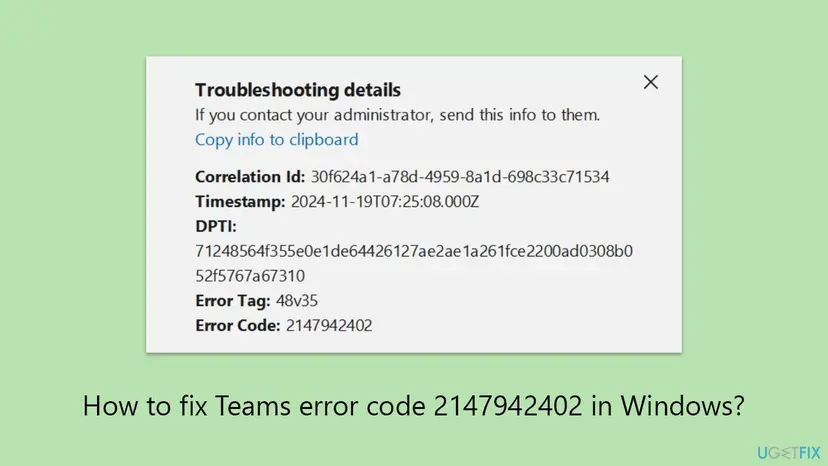
- Error Tag: 48v35: the step where the sign-in gave up. Some windows show [1001] in red and 48v35 only in the details.
- Error Code: 2147942402: the file not found result decoded above.
- Message: An unexpected error occurred.: in the copied text; it adds nothing.
- Copy info to clipboard: copies all lines. Keep them for your administrator before you try any fix.
Our full page on the tag, with the administrator's side for remote desktops, Azure Virtual Desktop, Citrix and FSLogix, is Teams error tag 48v35. The fixes below cover what a user can do on one PC.
What causes error 2147942402, ranked
Microsoft has not published a cause list for this number, because it is a generic Windows error. The order below is our reading of where the page's readers meet it and of the reports in the sources. It is not a statistic.
| How often | Cause | Typical sign | Fix |
|---|---|---|---|
| Most often | Stale or half-removed sign-in data for Teams and Office | The 48v35 window, after a password change, a long time offline, a reformat or a cleaning tool | Fix 1, Fix 2, Fix 3 |
| Often | A scheduled task whose action names a file Windows cannot find | The task worked from Command Prompt but not from Task Scheduler | Fix 5 |
| Often | Sign-in data that roams with the profile on remote desktop servers | The tag returns every few days for some users of a shared server | Fix 1 now, the administrator for good |
| Less often | A shortcut or startup entry left from classic Teams | Teams will not open from the taskbar or desktop icon, but opens from Start | Fix 4 |
| Less often | A task deleted by its own expiry setting at the moment it should run | Event 101 with this code on a one-time task | Fix 6 |
| Rarely | A damaged Windows profile or damaged system files | Every fix above fails, and another Windows account works | Fix 7, Fix 8 |
How to fix error code 2147942402 in Teams, Office and Task Scheduler
Fix 1 to Fix 4 are for the Teams and Office sign-in window. Fix 5 and Fix 6 are for Task Scheduler and scripts. Fix 7 and Fix 8 are for both, when nothing specific helped. Test after each fix.
| Your case | Start with | Then |
|---|---|---|
| Teams or Outlook shows Error Tag 48v35 and Error Code 2147942402 | Fix 1 | Fix 2, Fix 3 |
| Office shows a Product Deactivated banner around the same time | Fix 1 (select Reactivate) | Fix 3 |
| Teams does not open at all from its icon | Fix 4 | Fix 2, Fix 8 |
| Task Scheduler: Error Value: 2147942402 or Last Run Result 0x80070002 | Fix 5 | Fix 6 |
| A script or installer gives return code 2147942402 | Fix 5 | Check the path in the script |
| Remote desktop, Azure Virtual Desktop or Citrix | Fix 1 | The administrator (see the 48v35 guide) |
| Nothing above helped | Fix 7 | Fix 8 |
Fix 1. Sign out of Teams and Office, quit Teams and restart Windows
5 minutesNo riskEveryone who sees the code in the Teams, Outlook or Office sign-in window.
A full sign-out makes the apps drop the stored account, and the next sign-in writes it again. Microsoft's workaround for a related Microsoft 365 licensing error is the same: sign out, close every app including Outlook, restart the app and sign back in.
- Select Copy info to clipboard in the error window and paste the text into a note.
- If Teams opens, select your profile picture at the top and select Sign out.
- Open Word or Excel, go to File > Account and select Sign out. In classic Outlook it is File > Office Account.
- Close every Microsoft 365 app, Outlook included.
- Right-click the Teams icon in the corner of the taskbar and select Quit. Closing the window leaves Teams running.
- Restart the PC. On a remote desktop, sign out of the Windows session instead of closing the remote window.
- Start Teams, sign in with your work or school address, then sign in to one Office app.
Select Reactivate in the banner and sign in. Microsoft lists this as the first workaround for its known issue in which licence changes by the administrator deactivate the Microsoft 365 apps, and marks the service side as fixed. If it keeps coming back, ask the administrator whether your licence or subscription changed.
It worked if: Teams asks for your password or a phone approval and loads your chats; the Error Code line does not return.
If not: If the window is back at once, reset Teams with Fix 2.
Fix 2. Repair or reset the Teams app
5 minutesLow riskTeams alone shows the code, or Fix 1 helped only for a day.
New Teams keeps its settings and caches in one folder of your profile, and Windows can repair or empty it. Repair keeps the app's data; Reset deletes it, so Teams starts as on a new PC.
- Quit Teams from the taskbar corner.
- Open Settings > Apps > Installed apps and type
Microsoft Teamsin the search box. - Select the three dots next to Microsoft Teams and select Advanced options.
- Select Terminate to stop any Teams process.
- Select Repair and start Teams. If the error stays, come back and select Reset.
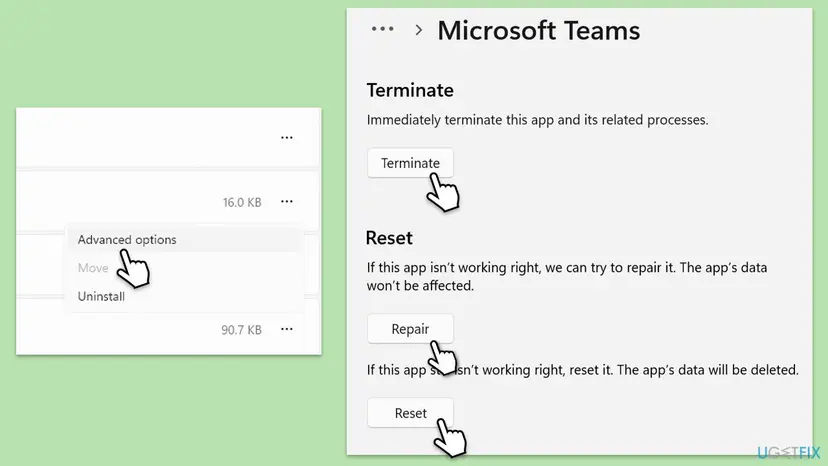
Every screen, with the Windows 10 path: How to repair or reset an app in Windows. If Advanced options is missing, quit Teams and delete the contents of %userprofile%\appdata\local\Packages\MSTeams_8wekyb3d8bbwe\LocalCache\Microsoft\MSTeams instead. The eight folders under %appdata%\Microsoft\Teams that the old version of this page listed belong to classic Teams.
It worked if: Teams opens slower than usual once, asks for your address and password and signs in.
If not: If the code comes back, the missing piece is outside the Teams folder: go to Fix 3.
Fix 3. Clear the shared Office sign-in data and saved credentials
10 minutesLow riskYour own PC, when Teams and Outlook both fail, or the code survived Fix 1 and Fix 2.
Teams and the Office apps share their accounts and tokens in two folders and in Credential Manager. When a piece of that store is missing, every app that reads it fails the same way. Deleting it makes Windows build it again at the next sign-in.
- Close Outlook, Word, Excel and OneDrive, and quit Teams.
- Press Win + R, paste this and press Enter:
%localappdata%\Microsoft - Delete the folders OneAuth and IdentityCache if they are there.
- Select Start, type
credential managerand open Credential Manager > Windows Credentials. - Remove every entry that begins with MicrosoftOffice16.
- Restart the PC and sign in to Teams, then to Office.
There, stop after Fix 2 and send the copied error details to IT. Removing work accounts or sign-in data on a managed device can affect other apps and the organisation's setup. Re-registering the Windows account plug-ins, the next step on a private PC, is described in Fix 5 of our 48v35 guide.
It worked if: Teams and Office ask for your account as on a new PC and accept it at the first try.
If not: If the sign-in window is now blank or hangs, follow the plug-in step in the 48v35 guide. If the code is unchanged, test a new Windows account with Fix 7.
Fix 4. Start Teams from the Start menu and replace old shortcuts
3 minutesNo riskTeams does not open at all from its taskbar or desktop icon, as in the question at the top of this page.
A shortcut that points to a program which is no longer there produces exactly this "file not found" result. Classic Teams has been replaced by new Teams, and pins or startup entries made for the old client can outlive it. This is our reading of the code; Microsoft has not documented it for Teams.
- Select Start, type
Teamsand open Microsoft Teams from the results. - If it opens, right-click the old taskbar icon and select Unpin from taskbar. Delete any old Teams icon on the desktop.
- Right-click Microsoft Teams in the Start results and select Pin to taskbar.
- If the Start search shows no Teams, or two entries, note which ones and go to Fix 8 to install the current Teams.
It worked if: Teams opens from the new pin and from Start, and no error appears.
If not: If Teams fails from Start too, reset it with Fix 2, then reinstall it with Fix 8.
Fix 5. Correct the program and arguments of the scheduled task
5 minutesLow riskTask Scheduler shows Error Value: 2147942402, Last Run Result 0x80070002, or a script returns this code.
Task Scheduler starts exactly the file named in Program/script. The accepted Server Fault answer shows the classic case: move was put there, but move is a command inside cmd, not a program file. Other answers there report arguments typed into the program box and a powershell.exe that was not found without its full path.
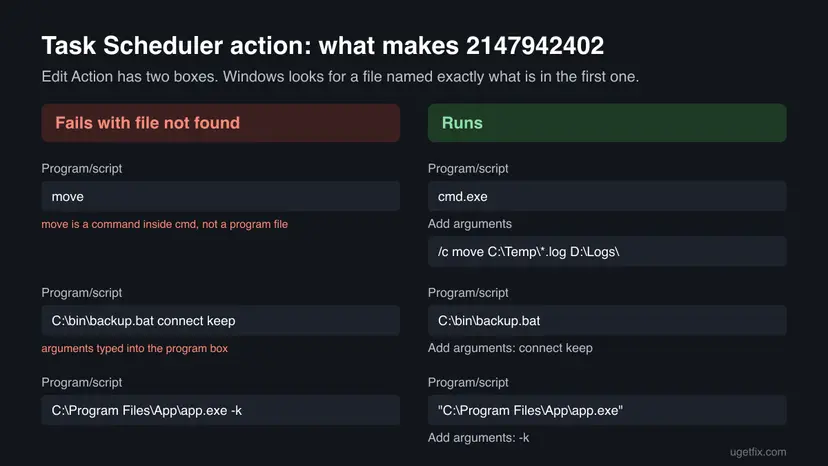
- Press Win + R, type
taskschd.mscand press Enter. - Find the task in Task Scheduler Library, right-click it and select Properties.
- Open the Actions tab, select the action and select Edit.
- In Program/script, leave only the full path of the program or script. Put quotes around a path that contains spaces.
- Move everything else into Add arguments (optional).
- For a built-in command such as
move,copyordel, usecmd.exeas the program and/cplus the command as the argument. - For PowerShell scripts, use the full path of PowerShell as the program:
C:\Windows\System32\WindowsPowerShell\v1.0\powershell.exe - Select OK, right-click the task and select Run.
Copy the exact text of Program/script, press Win + R, paste it and press Enter. If Windows says it cannot find it, the task cannot either. This is the test the accepted Server Fault answer suggests.
It worked if: Last Run Result reads The operation completed successfully. (0x0) after the manual run.
If not: If the program box is right and the task still fails with the same code, check the trigger with Fix 6. A different result such as 0x1 or 0x2 is the exit code of your own script: run the script by hand to see its error.
Fix 6. Stop the task from deleting itself before it runs
3 minutesLow riskA one-time task fails with event 101 and this code, or disappears after it was due.
A Server Fault answer describes a timing trap: when If the task is not scheduled to run again, delete it after is set and the trigger expires at the same moment it starts, the task can be deleted seconds before it fires. The start then fails with 2147942402, because the task's own file is gone.
- Open the task's Properties and the Triggers tab, select the trigger and select Edit.
- If Expire is ticked with the same date and time as the start, set it at least one minute later, or clear the tick.
- On the Settings tab, clear If the task is not scheduled to run again, delete it after while you test.
- Select OK and wait for the next run, or right-click the task and select Run.
This is one reporter's diagnosis, and it explains only one-time tasks. For a task that ran for days and then stopped, the History tab and the account the task runs as are the next places to look, as described after the fixes.
It worked if: The task runs at its time, and History shows an action started and completed.
If not: Read the task's events as described in the section after the fixes.
Fix 7. Test a second Windows account
15 minutesLow riskYour own PC, when Fix 1 to Fix 4 did not stop the sign-in error.
The sign-in data and the Teams folder live in your Windows profile. A new profile has none of the old files, so if Teams signs in there, the fault is in your old profile and not in Windows or the account.
- Open Settings > Accounts > Other users and select Add account.
- Select I don't have this person's sign-in information, then Add a user without a Microsoft account.
- Give the account a name and password, sign out and sign in to it.
- Start Teams there and sign in with your work or school address.
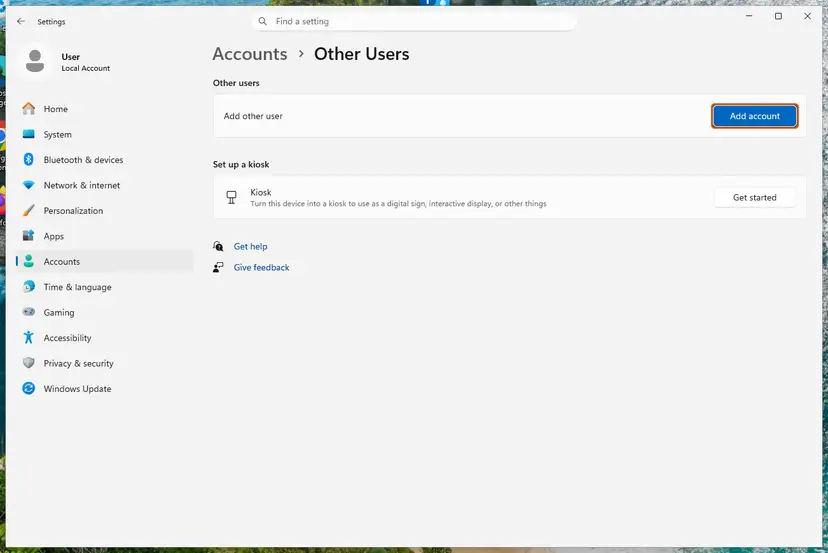
Every screen and the Windows 10 path: Create a new user account to test a problem.
It worked if: Teams signs in from the new account, which shows that Windows and your work account are fine.
If not: If the new account shows the same code, the cause is not your profile: go to Fix 8.
Fix 8. Repair Windows files, update and reinstall Teams
20 to 30 minutesLow riskNothing above helped, or Teams and Windows have not been updated for months.
When the missing file is part of Windows or of the Teams installation itself, only a repair or a fresh install puts it back. This is the generic last step, so it comes last.
- Run the system file check and DISM: Run DISM and SFC to repair Windows system files.
- Open Settings > Windows Update, select Check for updates, install and restart.
- Uninstall Teams under Settings > Apps > Installed apps: Uninstall a program or app in Windows.
- Install Teams again from Microsoft's Teams download page and sign in.
The old version of this page said to delete the Teams folder in C:\Program Files\WindowsApps. Do not: that folder belongs to Windows' app installer, and a half-deleted package is a fresh source of "file not found" errors. Uninstall through Settings only.
It worked if: Teams runs as a new installation and signs in.
If not: Stop changing the PC and collect the logs described in the next section.
If 2147942402 is still there: where the real cause is written
The code says that something is missing, and the logs say what. Collect them before you ask anyone for help.
| Case | Where | What to look for |
|---|---|---|
| Teams sign-in | In Teams press Ctrl + Alt + Shift + 1, or right-click the Teams icon in the taskbar corner and select Collect support files. | The files land in Downloads. Times are in UTC, as in the error window. |
| Office sign-in and licence | Microsoft's Office Licensing Diagnostic Tool, then the logs in %temp%\diagnostics. | Microsoft asks for both in support cases about deactivated Microsoft 365 apps. |
| Windows sign-in plug-in | Event Viewer: Windows Logs > Application, source AppModel-State. | Errors that name Microsoft.AAD.BrokerPlugin. |
| Scheduled task | The task's History tab, or Event Viewer: Applications and Services Logs > Microsoft > Windows > TaskScheduler > Operational. | Event 101 with Error Value: 2147942402 and the user the task ran as. |
Open teams.microsoft.com in a browser. If that refuses you too, the cause is the account or the licence, not a file on the PC, and only the administrator can change it. On remote desktop servers the profile setup decides, which is also the administrator's job.
How to keep error 2147942402 from coming back
- Sign in to Teams on a PC that sat unused before the day you need it, so the stored sign-in is renewed while you are online.
- Do not copy AppData from an old PC or a backup into a new profile. The sign-in data under
%localappdata%\Microsoftbelongs to one device. - Keep cleaning tools away from
%localappdata%\Microsoftand from built-in app packages. - Write scheduled tasks with full paths, quotes around paths with spaces, and arguments in their own box. Test the action with Run once before you rely on it.
- Let Teams and Windows update. Windows 10 left support on 14 October 2025, so a Windows 10 PC no longer gets fixes for the parts Teams depends on.
Frequently asked questions
What is error code 2147942402?
It is the Windows result 0x80070002 written as a decimal number. The 8 marks a failure, 007 says that it carries an ordinary Windows error, and 0002 is error 2, ERROR_FILE_NOT_FOUND: "The system cannot find the file specified." The number says what happened, not which file. In Teams and Office it appears under Error Tag 48v35 when the stored sign-in is incomplete. In Task Scheduler it appears when the program in a task's action cannot be found.
What does "Additional Data: Error Value: 2147942402" mean in Task Scheduler?
It means Task Scheduler could not find the file it was asked to start. The full event reads Task Scheduler failed to start instance, followed by the task and user names and this Error Value. Most often the Program/script box holds a built-in command such as move, a path with arguments typed into it, a path with spaces and no quotes, or a program such as powershell.exe without its full path. Fix 5 corrects each of these.
What does "Message: An unexpected error occurred. Tag: 48v35 Code: 2147942402" mean?
It is the text you get from Copy info to clipboard in the Microsoft sign-in window of Teams, Outlook or Office. The message line is generic. The tag marks the step where the sign-in stopped, and the code says a file was not found. In practice the sign-in data that Windows keeps for your account on this PC is missing or out of date. Sign out, quit, restart and sign in (Fix 1), then reset Teams (Fix 2).
I get Outlook error code 2147942402. Is that the same problem?
Yes. Outlook, Teams, Word and Excel ask the same Windows component for your account, so the same window with Error Tag 48v35 and Error Code 2147942402 can appear in each of them, sometimes on the same morning. Outlook on the web does not use that component, so if webmail works, your account is fine and the fault is on the PC. Fix 1 and Fix 3 apply to Outlook as they do to Teams.
What is return code 2147942402?
A tool that starts another program, such as Task Scheduler, a deployment tool or an installer wrapper, reports this number when the program, script or file it was given does not exist at that path. Check the exact path in the tool's command line, put quotes around paths with spaces, and confirm the file is there on the computer where it runs, not only on yours. The same number can appear as -2147024894 when a tool prints it as a signed number.
Is -2147024894 the same as 2147942402?
Yes. Both are 0x80070002. A result code is 32 bits long, and some programs print it as an unsigned number, 2147942402, while others print it as a signed one, -2147024894. PowerShell, .NET and many installer logs use the signed form. Both mean Windows error 2, file not found, and the fixes on this page apply to both.
Will running Teams as administrator fix error 2147942402?
No. Running as administrator helps with "access denied", which is Windows error 5 (0x80070005, 2147942405). Error 2 means the file is missing, and more rights do not create it. Running Teams elevated also starts it under a different security context than your normal sign-in, which can cause new sign-in problems. Use Fix 1 to Fix 3 instead.
My scheduled task worked for days and then failed with 2147942402. Why?
Something the task points to changed: a program was updated to a new folder, a drive letter or network share was not available when the task ran, or the task deleted itself after an expiry date. Check the action path with the Win + R test in Fix 5 and the trigger with Fix 6. Older reports on Microsoft's forum from Windows Vista and 7 tie the error to Task Scheduler losing the stored password after a restart; retype the password in the task's properties if it runs whether the user is signed in or not.
Sources
- Microsoft Support: Users might receive a Product Deactivated error in Microsoft 365 Office apps (workaround: sign out, close all apps, sign in; diagnostics) (support.microsoft.com)
- Microsoft Q&A: Scheduled Task does not start: Error Value: 2147942402 (learn.microsoft.com)
- Server Fault: What causes Scheduled Task error 2147942402? (decoding, action field and expiry answers) (serverfault.com)
Did this fix work?
One click, no account. It tells the next reader which guides are worth their time.
Questions and experiences: fix Teams error code 2147942402 in Windows
Still broken, or found a fix we did not cover? Ask here: members and our editors answer. Reading is open; writing needs a free account.
…