
How to fix "The specified user does not have a valid profile" error in Windows?

Prefer to fix it yourself? The manual steps follow.
- 8methods
- 2 to 30 minutes
- Easy to intermediate
Applies to Windows 11, Windows 10; apps installed from Microsoft Store or as app packages under C:\Program Files\WindowsApps, such as WhatsApp, Microsoft Teams, Snipping Tool, Photos, Spotify, Minecraft and Office from the Store
8 methods in this guide
Hi, I was trying to launch some apps like I usually do, and instead, I received "The specified user does not have a valid profile" error. Please advise. I can't use most of my apps because of this.
"The specified user does not have a valid profile" is Windows error 1253, ERROR_BAD_USER_PROFILE. It appears when you open an app installed from Microsoft Store, and Windows cannot start it under your account. Restart the PC first, and if an app streaming client such as Cloudpaging Player runs on the PC, close it.
The message is Windows error 1253: Windows could not start a Store app for your user account. Restart the PC first (Fix 1), because reports on Microsoft's forums say a restart clears it. If it returns, look for an app streaming client such as Cloudpaging Player, which comes with AppsAnywhere and the PTC Creo trial, and exit or update it (Fix 2 and Fix 3). Do not take ownership of the WindowsApps folder.
| Error | "The specified user does not have a valid profile." Windows system error 1253 (0x4E5), name ERROR_BAD_USER_PROFILE. |
|---|---|
| Where it appears | In a small error window when you open an app, with the path of the app's .exe file under C:\Program Files\WindowsApps as the window title. Microsoft Store apps are affected, desktop programs almost never. |
| Main cause | Windows cannot match the app to a valid profile of the signed-in user. In the reports we read, the trigger is most often an app streaming client (Cloudpaging Player) running in the background. |
| Fastest fix | Restart the PC (Fix 1). Then exit Cloudpaging Player, AppsAnywhere or a PTC Creo trial if you have one (Fix 2). |
| Also written as | "The specified user doesn't have a valid profile", "specified user does not have a valid profile", HRESULT 0x800704E5. Spanish: "El usuario especificado no tiene un perfil válido". French: "L'utilisateur spécifié ne possède pas un profil valide". |
| Affects | Windows 10 since version 1709 and Windows 11, including 25H2 and 26H2. The first forum reports are from 2018. |
| Microsoft's status | A documented system error with one line of text. Microsoft publishes no help page and no patch for this message. Workarounds come from forum threads. |
| Apps reported | WhatsApp, Microsoft Teams, Snipping Tool, Photos, Spotify, Skype, Minecraft, Evernote, iTunes, Ubuntu, Word and Outlook from the Store, Acer NitroSense. |
| Time to fix | 2 minutes for a restart. Up to 30 minutes when the app has to be repaired, registered again or tested in a new account. |
Facts checked on 15 October 2026. Steps written for Windows 11 (25H2 and 26H2) and Windows 10 22H2.
What "The specified user does not have a valid profile" means
The sentence is the text of Windows system error 1253, which Microsoft's error code table names ERROR_BAD_USER_PROFILE. In hexadecimal it is 0x4E5, and a program that reports it as an HRESULT shows 0x800704E5. The table gives only the text: "The specified user does not have a valid profile."
Apps from Microsoft Store are app packages. Their files sit in the hidden folder C:\Program Files\WindowsApps, and each package is registered for every user account that uses it. When you open the app, Windows starts it in the context of your account and your profile. If that step fails, the app does not open and you see this message instead, with the app's .exe path in the title bar.
- Number
- 1253, in hexadecimal 0x4E5
- HRESULT
- 0x800704E5
- Name
ERROR_BAD_USER_PROFILE- Text
- The specified user does not have a valid profile.
- Window title
- The full path of the app, for example
C:\Program Files\WindowsApps\<package name>\<app>.exe
The word "profile" makes the message sound worse than it is. You are still signed in, your files are where they were, and desktop programs keep working. In the reports we read, the profile itself was almost never damaged. Something blocked app packages from starting under it.
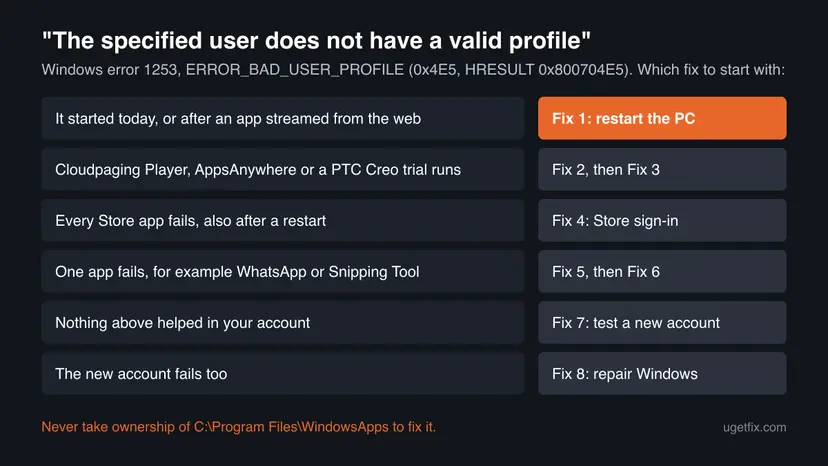
Why Windows says the user does not have a valid profile: causes, ranked
Most often the cause is a program that changes how apps start for the session, above all Cloudpaging Player by Numecent. Less often the app's own data or registration is damaged. Rarely the user profile is damaged, and then many apps fail in that one account only.
| Cause | How often | How to tell | Fix |
|---|---|---|---|
| A temporary state of the session, often after an app streaming client ran. | Most often | A restart makes the error go away for a while. | Fix 1 |
| Cloudpaging Player is running. It is part of AppsAnywhere, used by universities, and of the PTC Creo trial. | Most often in the reports | The error starts after you open a streamed app, and every Store app fails until you exit the player. | Fix 2, Fix 3 |
| The Store sign-in for your account is out of step. | Sometimes | Several Store apps fail and the Store asks you to sign in again. | Fix 4 |
| The data or the registration of one app is damaged. | Sometimes | Only one app shows the message, for example WhatsApp or Snipping Tool. | Fix 5, Fix 6 |
| The user profile is damaged. | Rarely | The apps work in a new user account. | Fix 7 |
| Windows system files are damaged. | Rarely | The apps fail in every account. | Fix 8 |
The column "How often" is our reading of the threads on Microsoft Q&A and the Microsoft Tech Community. Microsoft publishes no list of causes for error 1253.
Which apps show the error: WhatsApp, Teams, Snipping Tool and others
People search for the message together with the app that showed it. The cause is the same for all of them, because they are all app packages under C:\Program Files\WindowsApps. What changes is how much an app's own data matters.
| App | What users report | Start with |
|---|---|---|
| The desktop app from the Store does not open and shows the message. | Fix 1, then Fix 5 | |
| Snipping Tool | The built-in tool fails with the message, often together with other built-in apps. | Fix 1, then Fix 6 |
| Microsoft Teams | The new Teams is a Store package and fails the same way. | Fix 1, then Fix 5 |
| Word, Excel, Outlook | Office installed from Microsoft Store fails. Office installed with the setup from your Microsoft account does not use WindowsApps. | Fix 1, then Fix 4 |
| Photos, Spotify, Skype, Evernote, Minecraft | Reported in the same threads, often all at once after Cloudpaging Player started. | Fix 2 |
| Acer NitroSense and other vendor tools | Tools of the PC maker that come as Store packages fail too. | Fix 1, then Fix 6 |
Some users also report that Command Prompt, Task Manager or Windows Terminal stopped opening with this message. Windows Terminal is a Store package on Windows 11, so the same fixes apply. If a classic system tool like Task Manager fails too, go straight to Fix 7 and Fix 8.
How to fix "The specified user does not have a valid profile" in Windows 11 and Windows 10
The fixes are written for Windows 11 and Windows 10, with both paths where the menus differ. Fix 1 is for everyone. Fixes 2 and 3 are for PCs with an app streaming client. Fixes 4 to 6 are for Store apps that keep failing, and Fixes 7 and 8 find out whether the account or Windows is the problem.
| What you see or have | Start with |
|---|---|
| The message appeared for the first time today. | Fix 1 |
| You use AppsAnywhere, Cloudpaging Player or a PTC Creo trial, for example for university. | Fix 2, then Fix 3 |
| Every Store app fails, also after a restart, and you have no streaming client. | Fix 4 |
| One app fails, for example WhatsApp, Teams or Snipping Tool. | Fix 5, then Fix 6 |
| Nothing above helped. | Fix 7 |
| The apps fail in a new user account as well. | Fix 8 |
Fix 1. Restart the PC and open the app again
2 minutesNo riskThe message appeared today, or right after you used a streamed app.
The error comes from the state of your session, not from damaged files, in most reports. A user on Microsoft Q&A who could recreate the error wrote that restarting fixes the problem, and the answers in that thread confirm it for their PCs.
- Save your work and close open apps.
- Select Start > Power > Restart. Do not use Shut down, because with fast startup Windows does not start a fresh session after it.
- Sign in and open the app that showed the message, before you start any other program.
- If the app opens, note which program you start next. If the message returns after that program, it is the trigger (Fix 2).
If you want shutdown to clear the session in the future too, see Turn off Fast Startup.
It worked if: The app opens normally. If it fails again later, the restart was a workaround and the trigger is still on the PC.
If not: If the message is there right after the restart, check Fix 2 for a streaming client that starts with Windows, then go to Fix 4.
Fix 2. Exit Cloudpaging Player and stop it from starting with Windows
5 minutesLow riskYou use AppsAnywhere, Cloudpaging Player by Numecent or a PTC Creo trial, often for university courses.
Cloudpaging Player runs programs streamed over the internet without a normal install. In the main Microsoft Q&A thread, several users traced the error to it: Store apps failed while the player ran and worked as soon as it was closed. A university IT team called it a known issue of that player version.
- Select the arrow at the right end of the taskbar to show hidden icons.
- Right-click the Cloudpaging Player icon and select Exit.
- Open the app that showed the message. It should open now.
- To keep the player from starting by itself, open its options and clear the boxes that start it with Windows.
- Or select Start > Settings > Apps > Startup and set Cloudpaging Player to Off.
- Restart the PC and test the app once more.
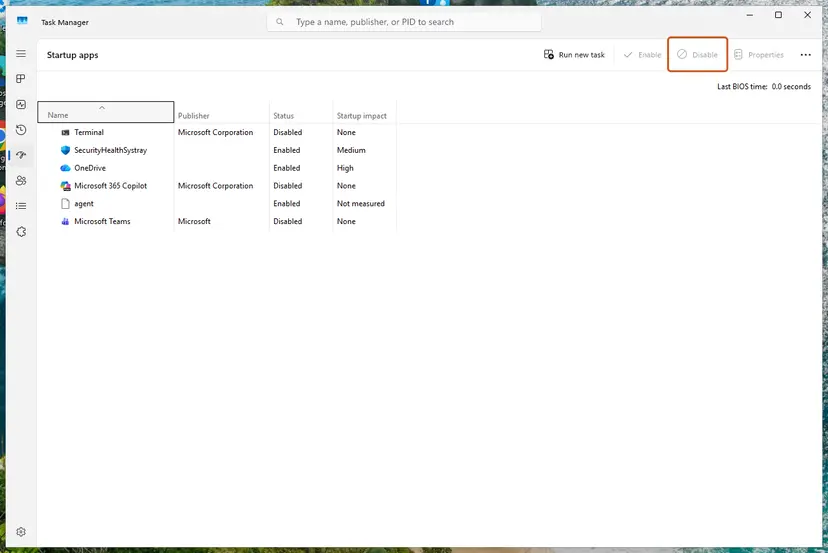
- You need the streamed program: start Cloudpaging Player only when you need it, and exit it when you are done. Users report that the error is back for as long as the player runs.
- Windows 10: the switch is under Settings > Apps > Startup too, or in Task Manager on the Startup tab.
- Not a streaming client user: look in the same Startup list for other tools that run programs in a virtual layer and test with them off.
It worked if: The Store apps open while the player is closed, and keep working after a restart with the player off.
If not: If you need the player every day, update it (Fix 3). If you have no such program, go to Fix 4.
Fix 3. Update or remove Cloudpaging Player and the PTC Creo trial
10 minutesLow riskExiting the player helped, but you want the error gone for good, or the player starts again by itself.
A university IT team told a user on Microsoft Q&A that the error came from the version of Cloudpaging Player in use and that a new version from the supplier resolved it. Another user removed PTC Creo, which bundles the player, and the apps worked again after a few restarts.
- If the player came from your university or employer, ask its IT team for the current AppsAnywhere or Cloudpaging Player version and install it.
- If you do not need it, select Start > Settings > Apps > Installed apps.
- Find Cloudpaging Player (publisher Numecent), select the three dots and Uninstall.
- Uninstall PTC Creo and its trial components the same way if you have them.
- Restart the PC, and restart once more if an app still fails.

On Windows 10 the list is under Settings > Apps > Apps & features. All the ways to remove a program: Uninstall a program or app in Windows
It worked if: After the restart no app shows the message, also when you have used the PC for a while.
If not: Go to Fix 4 and sign in to Microsoft Store again.
Fix 4. Sign out of Microsoft Store and sign in again
5 minutesLow riskSeveral Store apps fail, also after a restart, and no streaming client is on the PC.
Store apps get their licence through the Microsoft account that is signed in to the Store. Signing out and in again renews that link for your user account. It is the first fix of the old version of this guide, and it costs nothing to try.
- Open Microsoft Store.
- Select your profile picture at the top right and select Sign out.
- Close the Store and restart the PC.
- Open Microsoft Store again, select the profile icon and Sign in with the same Microsoft account.
- Select Library and then Get updates, and let every update finish.
- Open the app that showed the message.
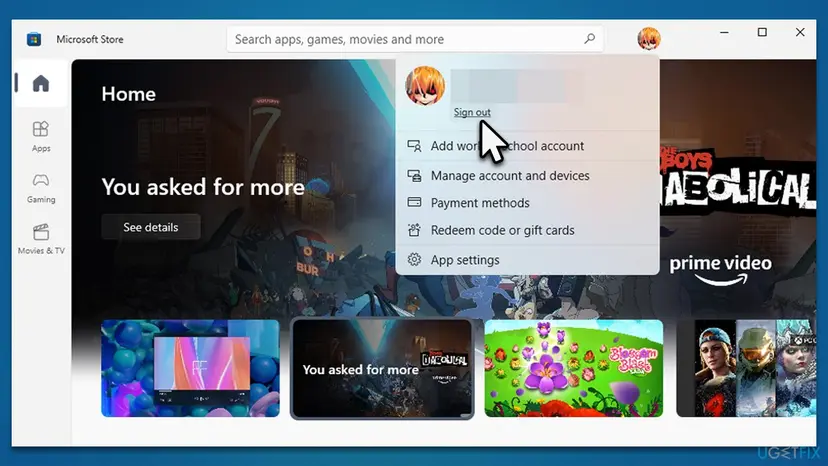
On Windows 10 the Store menu looks the same. Library is under See more > Downloads and updates in older Store versions.
It worked if: The Store shows your account again, and the apps open without the message.
If not: If only one app still fails, go to Fix 5. If all of them fail, go to Fix 7.
Fix 5. Repair or reset the app that shows the message
5 minutesRead the warningOne app fails, for example WhatsApp, Teams or Snipping Tool, and the others open.
When only one package fails, its own data is the most likely problem. Repair fixes the app and keeps its data. Reset removes the app's data on this PC, so the app starts as on the first day.
Reset deletes the app's data on this PC: sign-in, settings and anything stored only locally. Chats in WhatsApp come back from your phone when you link it again. Try Repair first.
- Open Installed apps. Select Start > Settings > Apps > Installed apps.
- Open the app's advanced options. Find the app in the list, select the three dots next to it and select Advanced options. Some apps do not have this option: for those, see the section about desktop programs below.
- Repair first. On the page that opens, select Repair if it is there. The app's data stays. Open the app and check whether it works.
- Reset if Repair did not help. Select Reset. This deletes the app's data on this PC, including sign-in details and settings. Open the app and set it up again.
These steps were written for Windows 11 25H2 and 26H2. The full page with the other versions and what each result means: How to repair or reset an app in Windows
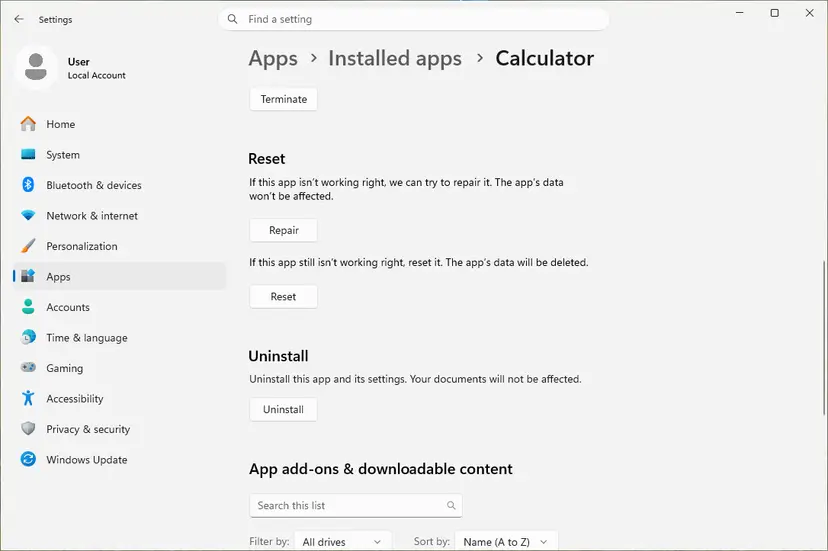
Some built-in apps have no Repair button. For those, Fix 6 is the next step. Users also report that uninstalling the app and installing it again from Microsoft Store helped.
It worked if: The app opens. After Reset it asks you to sign in or set it up again.
If not: Go to Fix 6 and register the app again with PowerShell.
Fix 6. Register the app again with PowerShell
10 minutesLow riskOne app or several built-in apps still fail, and Repair was not there or did not help.
Every Store app is registered per user. Registering the package again from its own manifest renews the link between the app and your account without downloading anything. A volunteer on Microsoft Q&A gave the same command for this error.
- Open PowerShell. Select Start, type PowerShell and select Windows PowerShell. Open it the normal way, not as administrator: in an administrator window the app is registered to the administrator account instead of yours.
- Find the app's package. Type the command below with a part of the app's name between the asterisks and press Enter. If the app is installed, PowerShell prints its details, including Name and InstallLocation. If nothing is printed, the app is not installed for your account: see the section below.
Get-AppxPackage -Name '*WindowsCalculator*' - Re-register the app. Paste the three commands below, with the same name between the asterisks, and press Enter. They read the folder the app is installed in and register its manifest again. If no red text appears, it worked.
$InstallLocation = Get-AppxPackage -Name '*WindowsCalculator*' | Select-Object -ExpandProperty InstallLocation $ManifestPath = $InstallLocation + '\Appxmanifest.xml' Add-AppxPackage -Path $ManifestPath -Register -DisableDevelopmentMode - Open the app. Close PowerShell and start the app from Start. If it still fails, restart the PC and try once more.
These steps were written for Windows 11 25H2 and 26H2, Windows 10 22H2. The full page with the other versions and what each result means: How to re-register Microsoft Store apps with PowerShell
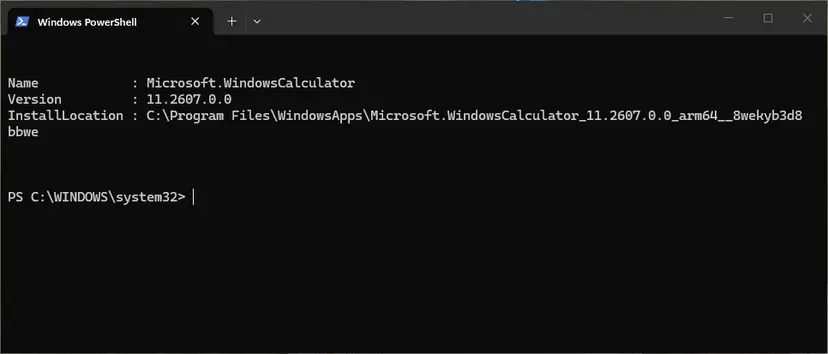
Some answers start with Set-ExecutionPolicy Unrestricted. The commands here are typed, not run from a script file, so they do not need it. Do not lower that setting for this fix.
It worked if: PowerShell returns without red text, and the app opens from Start.
If not: Go to Fix 7 and test the apps in a new user account.
Fix 7. Test the apps in a new user account
15 minutesLow riskThe message comes back after Fixes 1 to 6, for many apps.
The error is about the profile of the user who starts the app. A new account gets a new profile and its own registrations. If the apps open there, your old profile holds the cause and you know where to work. If they fail there too, the cause is Windows (Fix 8).
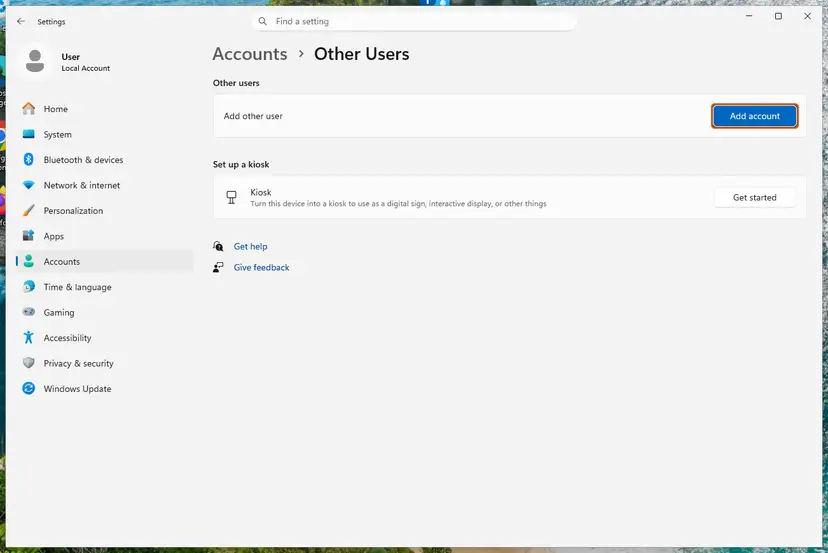
- Open Other users. Open Settings > Accounts > Other users. You can also press Windows key + R and run the command below.
ms-settings:otherusers - Add an account. Next to Add other user, select Add account.
- Skip the Microsoft account. Select I don't have this person's sign-in information.
- Choose a local account. Select Add a user without a Microsoft account.
- Name the account. Type a user name and, if you want one, a password. If you set a password, Windows also asks for answers to security questions. Select Next.
These steps were written for Windows 11 24H2, 25H2 and 26H2. The full page with the other versions and what each result means: Create a new user account to test a problem
| Result in the new account | What it means | Next |
|---|---|---|
| The apps open. | Your old profile holds the cause. | Sign in to the old account and run Fix 4 and Fix 6 once more. If they fail, move your files to the new account and use it. |
| The apps fail too. | Windows or a program for all users is the cause. | Check Fix 2 for a streaming client, then Fix 8. |
Copy your files only from C:\Users\<old name> to the new account, not the hidden AppData folder, because that folder holds the settings that may be damaged. A copy first: Back up your files (Windows Backup, File History, Time Machine)
It worked if: You know whether the cause is your profile or Windows, and in the first case you have a working account.
If not: Go to Fix 8 and repair Windows itself.
Fix 8. Repair Windows system files, then repair Windows with Windows Update
30 to 90 minutesLow riskThe apps fail in every account, or classic tools like Task Manager fail with the message too.
When a new account shows the same error, the cause is shared by all users. SFC and DISM repair damaged system files. The repair install through Windows Update replaces Windows itself and keeps your apps and files.
- Run SFC and DISM as described in Run DISM and SFC to repair Windows system files, then restart.
- Test the app. If it still fails, select Start > Settings > System > Recovery.
- Under Fix problems using Windows Update, select Reinstall now, and let Windows reinstall the current version.
- Test the app again after the last restart.
- Windows 10: the repair install is not in Settings. Use the media creation tool from Microsoft and choose to keep files and apps: Reinstall Windows without losing files
- Windows 10 support: Microsoft ended support for Windows 10 on 14 October 2025. Store apps still run, but new app versions may ask for Windows 11.
It worked if: After the repair the apps open in your account.
If not: Read the section below on what to send to support.
If the error is still there: what to check and what to send
Microsoft has no log entry that is specific to this message. The title bar of the error window is your best clue: it names the exact .exe file and the package folder of the app that failed.
- Write down the full path in the title bar of the error window.
- Open Task Manager with Ctrl + Shift + Esc and look on the Processes tab for a streaming or virtualization client that you did not think of.
- Open Event Viewer with
eventvwr.msc, expand Windows Logs > Application and look for an Error entry at the time the app failed. - Note the Windows edition and OS build from Settings > System > About.
- What to send to the app's support or your IT team: the path from the title bar, the Event Viewer entry, the build number, the result of the new account test (Fix 7) and the list of programs that start with Windows.
- Work or school PC: profiles and app packages may be managed by the organization. Ask the IT team before you remove anything.
- Not hardware: we found no report where this message pointed to a disk or memory fault.
How to keep the error from coming back
- Start an app streaming client only when you need it, and exit it from the taskbar when you are done.
- Keep AppsAnywhere or Cloudpaging Player at the version your university or employer gives you.
- Restart the PC, rather than shut it down, once a few days, so the session starts fresh.
- Keep Microsoft Store updates on: Microsoft Store > profile picture > Settings > App updates.
- Do not change the owner or the permissions of
C:\Program Files\WindowsApps. Changed permissions are a cause of app errors, not a cure.
Frequently asked questions
What does "The specified user does not have a valid profile" mean?
It means Windows could not start an app under the profile of the user who is signed in. The text belongs to Windows system error 1253, which Microsoft names ERROR_BAD_USER_PROFILE, 0x4E5 in hexadecimal. You see it when you open an app that is installed as an app package, which covers almost every app from Microsoft Store. Your account and your files are fine. Something stops the app from starting for your session, most often another program running in the background. A restart is the first test.
Why do I get the error on Windows 11?
For the same reasons as on Windows 10. Both versions keep Store apps in C:\Program Files\WindowsApps and register them per user, so the error and the fixes are the same. On Windows 11 more of the built-in tools are Store packages, among them Snipping Tool, Windows Terminal, Photos and Notepad, so the message can appear in places where Windows 10 users never saw it. Start with a restart, then check for Cloudpaging Player, then repair the one app that fails.
Why does WhatsApp say the specified user does not have a valid profile?
WhatsApp for Windows is an app package from Microsoft Store, so it can fail to start like any other Store app. If WhatsApp is the only app with the message, repair it under Settings > Apps > Installed apps > WhatsApp > Advanced options. If that does not help, use Reset or uninstall it and install it again from the Store. Your chats are kept on your phone and appear again when you link the PC. If other apps fail as well, start with Fix 1 and Fix 2 instead.
How do I fix the error in Snipping Tool?
Snipping Tool is a built-in app package on Windows 11. Restart the PC first. If the message returns, open Settings > Apps > Installed apps, find Snipping Tool and use Repair or Reset under Advanced options. If the Advanced options page is missing or nothing changes, register the package again with PowerShell as described in Fix 6. When Snipping Tool fails together with other built-in apps, the cause is not the tool itself: check for an app streaming client and test a new user account.
Is it safe to take ownership of the WindowsApps folder?
No. The old advice to make yourself the owner of C:\Program Files\WindowsApps, or to copy an app's folder out of it and start the .exe from Documents, is still on many pages. The copied app is no longer the package Windows registered, so the Store cannot update it and it can break at any time. Changing the owner of WindowsApps removes a protection Windows puts on every app package, and the user who tried it on Microsoft Q&A still could not move files there. Use Fixes 1 to 8 instead.
What is Cloudpaging Player and why does it cause the error?
Cloudpaging Player by Numecent runs programs streamed over the internet without a normal install. Universities deliver it with AppsAnywhere, and the PTC Creo trial installs it too. Several users on Microsoft Q&A found that Store apps failed with this message while the player ran, and opened as soon as they exited it from the taskbar. A university IT team said the cause was the player version and that a newer release from the supplier fixed it. Exit it, stop it at startup, or update it.
Does antivirus or a VPN cause the error?
We found no source that ties this message to antivirus software or a VPN. The old version of this page advised turning them off, and we removed that advice. A security tool is not a fix to switch off for good. If you still want to test it, pause the protection for one try and turn it back on right after, as described in Turn off Microsoft Defender protection for a moment. Start with the restart and the streaming client check, because those match the reports.
What about "The specified profile could not be found"?
That is a different message, and this page does not cover it. "The specified profile could not be found" is not error 1253 and has nothing to do with Microsoft Store apps in the reports we read. Search for it together with the program that shows it, because each program uses the word profile for its own settings. If your message says "does not have a valid profile", the fixes on this page apply.
What is "El usuario especificado no tiene un perfil válido"?
It is the Spanish text of the same error, Windows error 1253. In French Windows shows "L'utilisateur spécifié ne possède pas un profil valide". The meaning and the fixes are the same as on this page: restart the PC, exit Cloudpaging Player or a similar streaming client, sign in to Microsoft Store again, then repair the app that fails. The menu names in Settings follow the language of your Windows.
Does the message mean my user account has no permission?
Not in the usual sense. "User does not have the right permissions" is a different message from a different program. Error 1253 says Windows could not start the app for your profile. You do not need to make your account an administrator, and you should not change permissions on system folders to get rid of it. If the apps open in a new account, as tested in Fix 7, your old profile has a problem, which you can solve by moving to the new account.
Sources
- Microsoft Learn: System Error Codes (1000-1299), ERROR_BAD_USER_PROFILE 1253 (0x4E5) (learn.microsoft.com)
- Microsoft Q&A: "The specified user does not have a valid profile" after opening specific program (Cloudpaging Player, PTC Creo, AppsAnywhere) (learn.microsoft.com)
- Microsoft Tech Community: "The specified user does not have a valid profile" error on apps downloaded from Microsoft Store (techcommunity.microsoft.com)
Did this fix work?
One click, no account. It tells the next reader which guides are worth their time.
Questions and experiences: fix "The specified user does not have a valid profile" error in Windows
Still broken, or found a fix we did not cover? Ask here: members and our editors answer. Reading is open; writing needs a free account.
…