
How to fix Time synchronization failed with time.windows.com?

Prefer to fix it yourself? The manual steps follow.
- 7methods
- 5 to 20 minutes
- Easy
Applies to Windows 11 and Windows 10 home and office PCs that set their clock from time.windows.com
7 methods in this guide
Hello. I have problems with time sync on my Windows 10 laptop. Whenever I try to synchronize my time and time zone, I receive an error that states: "An error occurred while Windows was synchronizing with time.windows.com." Could you please provide some solutions to this annoying problem?
Time synchronization failed means Windows asked time.windows.com for the time and got no usable answer. Most often the clock is too far off, the Windows Time service is stopped, or the network blocks UDP port 123. Set the clock roughly by hand and select Sync now first (Fix 1).
The time server did not answer, or Windows would not accept its answer. Set the date and time roughly by hand, because a standalone PC does not correct a clock that is more than 15 hours off, then select Sync now (Fix 1). If it still fails, start the Windows Time service (Fix 2) and test whether UDP port 123 gets through (Fix 3). If the port is blocked, switch to another server or network (Fix 4 and 5).
| Error | Time synchronization failed, or in Control Panel: An error occurred while Windows was synchronizing with time.windows.com. |
|---|---|
| Where it appears | Settings > Time & language > Date & time after Sync now, or the Internet Time tab of the old Date and Time dialog after Update now. |
| Main cause | No reply from the time server: UDP port 123 is blocked by the router, a VPN or a firewall, or the Windows Time service is not running. |
| Fastest fix | Set the clock close to the right time by hand, then select Sync now (Fix 1). |
| Also written as | time sync failed, time synchronisation failed, time.windows.com not working, time.windows.com not syncing, and with another server name such as time.nist.gov. |
| Service behind it | Windows Time, service name W32Time, command line tool w32tm. It uses NTP over UDP port 123. |
| Default server | time.windows.com,0x9 on PCs that are not in a company domain, according to Microsoft. |
| 15 hour limit | On a standalone PC Windows does not make a correction larger than 54,000 seconds (15 hours). It logs an event instead. |
| Affects | Windows 11 and Windows 10. Windows 10 left support on 14 October 2025, but its time service works the same way. |
| Time to fix | 2 minutes for the clock, 5 to 15 minutes for the service, server or network checks. |
Facts checked on 16 October 2026. Steps written for Windows 11 (25H2 and 26H2) and Windows 10 22H2.
What Time synchronization failed with time.windows.com means
Windows keeps its clock right with the Windows Time service (W32Time). Every so often, and whenever you select Sync now, the service sends a small NTP request to a time server. On a home PC that server is time.windows.com. When no reply arrives in time, or the reply is refused, you get the error.
Where you see it, and how it is worded, depends on the window you used. The meaning is the same in each: the clock was not set from the internet this time.
| What you see | Where | What it tells you |
|---|---|---|
| Time synchronization failed, which readers also search as "Time synchronization failed, please check network connectivity and retry" | Settings > Time & language > Date & time, after Sync now | The request to the server got no answer or was refused. |
| An error occurred while Windows was synchronizing with time.windows.com. This operation returned because the timeout period expired. | Control Panel > Date and Time > Internet Time, after Update now | The request left the PC, but no reply came back in time. Think network or server first. |
| The computer did not resync because no time data was available. | Command Prompt, after w32tm /resync | The service is running but has no reachable time source. |
| The service has not been started. | Command Prompt, after w32tm /resync | The Windows Time service is stopped. Go to Fix 2. |
The same message with another server name, for example "while Windows was synchronizing with time.nist.gov", is the same error. Everything on this page applies to it.
Why time sync with time.windows.com fails
The request has to pass four stops: the clock itself, the service, your network and the server. The first stop that fails is the one to fix, and it is rarely the server.
| Cause | How often | How to tell | Fix |
|---|---|---|---|
| UDP port 123 is blocked: by the router, a mobile or hotel network, a VPN or a third-party firewall. | Most often | Fix 3 shows a timeout. The error disappears on a phone hotspot. | Fix 3, 4, 5 |
| The Windows Time service is stopped or disabled. | Often | w32tm /resync answers that the service has not been started. | Fix 2 |
| The clock is more than 15 hours wrong, so Windows will not jump it. | Often after a flat battery or a BIOS reset | The taskbar shows a wrong day or year. | Fix 1 |
| time.windows.com is slow or unreachable from your network. | Sometimes | Fix 3 fails for time.windows.com but works for time.nist.gov. | Fix 4 |
| The service registration or its settings are damaged. | Rarely | Fix 1 to 5 do not help and the service misbehaves. | Fix 6, 7 |
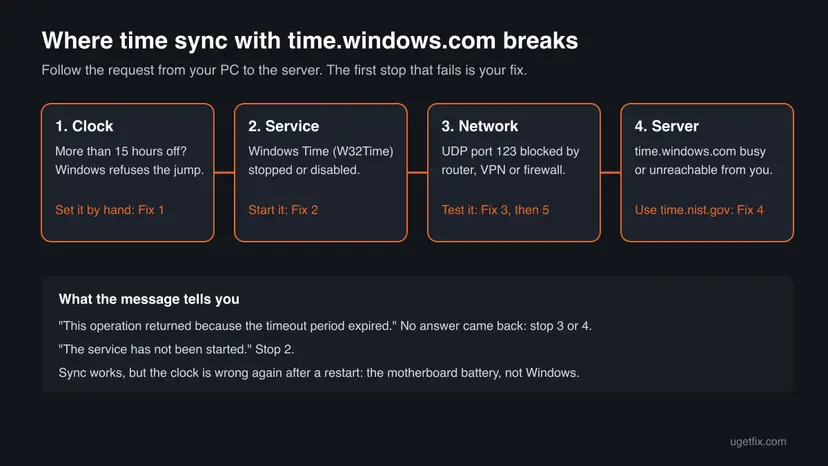
Microsoft documents that on stand-alone clients the largest correction the service makes is 54,000 seconds, which is 15 hours, in either direction. If the clock is off by more, the service logs an event instead of fixing the time. That is why a clock reset to an old year often refuses to sync until you set it close by hand.
How to fix time synchronization failed with time.windows.com
Fix 1 and Fix 2 solve most cases in a few minutes. Fix 3 tells you in one command whether the network lets the time request through, and Fix 4 and 5 work around a blocked port or server. Fix 6 and 7 repair the service itself.
| What you see or have | Start with |
|---|---|
| The clock shows a wrong day, month or year. | Fix 1 |
w32tm /resync says the service has not been started. | Fix 2 |
| "This operation returned because the timeout period expired." | Fix 3 |
| You use a VPN, a work network, a hotel or a mobile network. | Fix 5 |
| time.windows.com fails but other sites load fine. | Fix 4 |
| The service starts, then stops, or the commands give strange errors. | Fix 6 |
| A work or school PC. | Ask IT: the time comes from the company network |
Fix 1. Set the clock close to the right time, then select Sync now
2 minutesNo riskAlways first, and especially when the date or year in the taskbar is wrong.
A standalone PC does not accept a correction of more than 15 hours. With the clock set roughly right by hand, the server's answer falls inside that limit and Sync now can finish the job.
- Select Start > Settings > Time & language > Date & time.
- If the date or the hour is clearly wrong, turn Set time automatically Off, select Change next to Set the date and time, enter the time from your phone and select Change.
- Check the Time zone. A clock that is wrong by whole hours usually has the wrong zone.
- Turn Set time automatically back On.
- Under Additional settings, select Sync now. On Windows 10 the button is under Synchronize your clock.
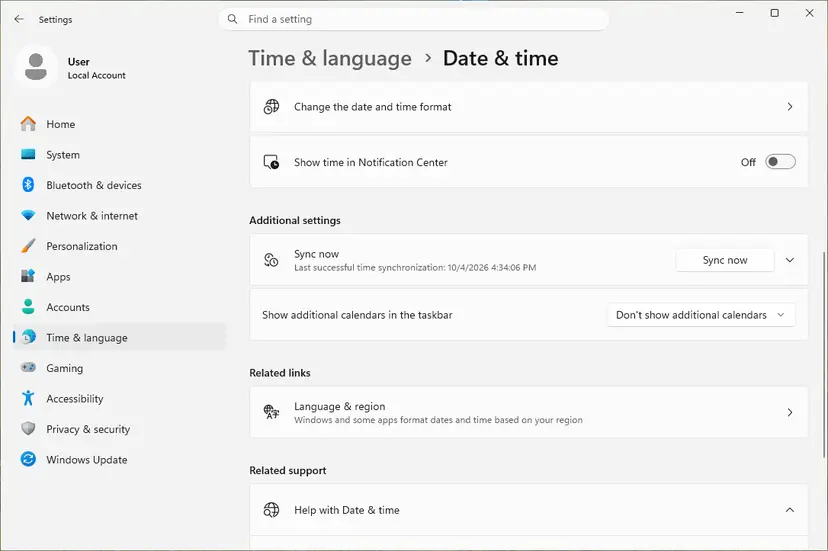
The library page has the same steps with Windows 10 screens: How to fix the date and time in Windows
It worked if: A green check appears next to Sync now and the page shows a new Last successful time synchronization.
If not: If the clock was wrong again after a restart, the motherboard battery is flat (see the last section). If Sync now still fails, go to Fix 2.
Fix 2. Start the Windows Time service and set it to start automatically
3 minutesLow riskw32tm /resync says the service has not been started, or Sync now fails at once without waiting.
Every sync goes through the Windows Time service. If it is stopped or set to Disabled, for example by a tweak tool, nothing is sent to time.windows.com at all.
- Press Win + R, type
services.mscand press Enter. - Find Windows Time in the list and double-click it.
- If Startup type is Disabled, set it to Automatic. On our Windows 10 test PC it was Manual, which also works, because Windows starts the service when it is needed.
- Select Start if Service status is Stopped, then Apply and OK.
- Go back to Date & time and select Sync now.
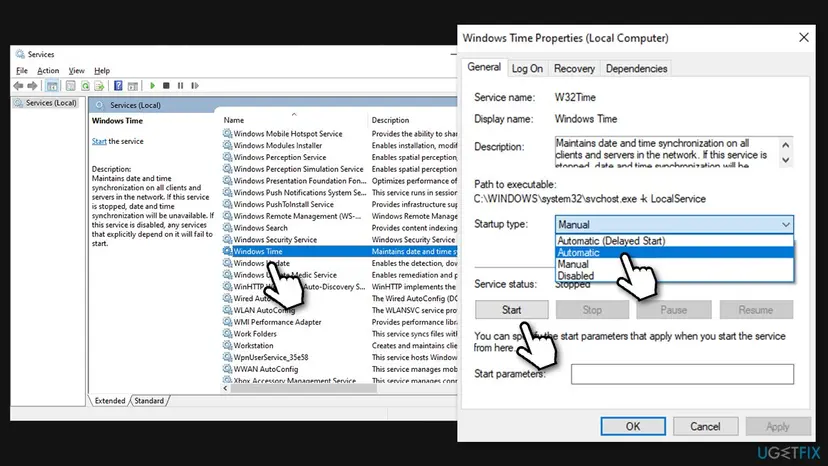
More about starting and restarting services: Check and restart Windows services
It worked if: Service status shows Running and Sync now succeeds.
If not: If the service refuses to start, go to Fix 6. If it runs but sync still fails, go to Fix 3.
Fix 3. Test whether the time server answers on UDP port 123
3 minutesNo riskThe message ends with "the timeout period expired", or Fix 1 and 2 did not help.
Microsoft's w32tm /stripchart command asks a server for the time and prints the difference. A timeout here proves the problem is the network or the server, not your Windows settings, and it tells you which fix to use next.
- Select Start, type
cmd, select Run as administrator, then Yes. - Run the first command below. It asks time.windows.com for the time five times.
- Lines with a time and an offset such as
+00.0123456smean the server answers. A line with an error means no reply came back. - Run the second command to test a different server, the NIST address
time.nist.gov.
w32tm /stripchart /computer:time.windows.com /dataonly /samples:5
w32tm /stripchart /computer:time.nist.gov /dataonly /samples:5| Result | What it means | Next |
|---|---|---|
| Both servers answer | The network is fine. The service or its settings are the problem. | Fix 6 |
| Only time.nist.gov answers | time.windows.com is unreachable from your network. | Fix 4 |
| Neither answers | UDP port 123 is blocked on this network or by a program on the PC. | Fix 5 |
It worked if: You know whether the network, the server or your PC is to blame.
If not: If the commands themselves fail with an error about the service, go back to Fix 2.
Fix 4. Switch Windows to another time server
5 minutesLow riskFix 3 showed that time.nist.gov answers but time.windows.com does not.
Windows can sync from any public NTP server. NIST's address time.nist.gov is shared in turn by all of its servers, so one busy machine does not stop you.
- Press Win + R, type
timedate.cpland press Enter to open the Date and Time dialog. - Open the Internet Time tab and select Change settings.
- Keep Synchronize with an Internet time server ticked. In Server, replace
time.windows.comwithtime.nist.gov. - Select Update now. Wait for the answer instead of clicking again: NIST refuses clients that ask more often than once every 4 seconds.
- Select OK twice.
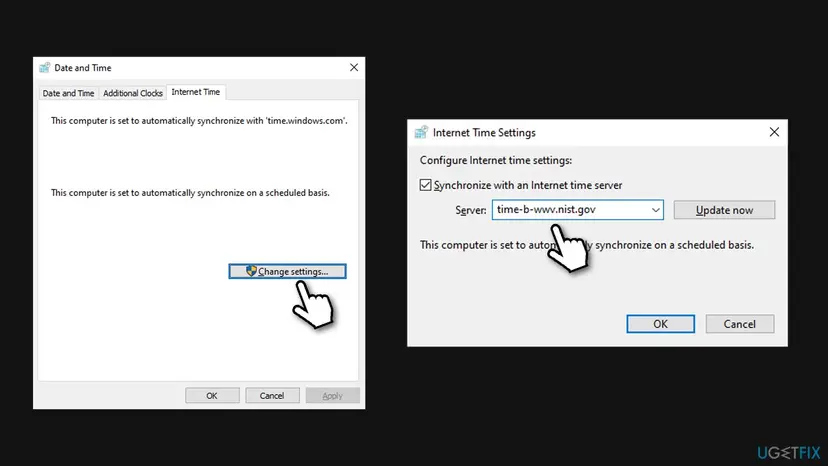
The same change from the admin Command Prompt, with time.windows.com kept as the second choice:
w32tm /config /manualpeerlist:"time.nist.gov time.windows.com" /syncfromflags:manual /update
w32tm /resync /rediscoverSome old lists, including the first version of this guide, name utcnist.colorado.edu, ntp-b.nist.gov and ntp-d.nist.gov. NIST's current server list no longer includes them. Use time.nist.gov or a name from that list, such as time-a-g.nist.gov.
It worked if: The dialog says the clock was successfully synchronized with time.nist.gov.
If not: If no server answers, the port is blocked: go to Fix 5.
Fix 5. Let UDP port 123 through: test another network and check VPN and firewall
10 minutesLow riskFix 3 showed that no server answers.
Microsoft states that Windows Time uses UDP port 123 for all synchronization. Web pages use other ports, so a network can load every site and still drop every time request.
- Turn on the hotspot on your phone, connect the PC to it and select Sync now. If it works there, your usual network blocks the port.
- Disconnect a VPN, then select Sync now again. Some VPNs do not pass UDP port 123.
- In a third-party firewall, add an allow rule for outgoing UDP port 123, or for the Windows Time service. Keep the firewall itself on.
- On a home router, look for a setting that filters NTP or UDP 123 and allow it. Restarting the router is a quick first test.
- On a work, school, hotel or mobile network you do not run, ask the network owner. These networks often allow time only from their own server.
Turn a firewall off only for one quick test and on again right away: Turn off Microsoft Defender protection for a moment. The lasting fix is a rule that allows UDP port 123, not an unprotected PC.
It worked if: Sync now succeeds on your usual network, or you know the network owner has to allow UDP port 123.
If not: If sync fails on every network, including the hotspot, the problem is on the PC: go to Fix 6.
Fix 6. Register the Windows Time service again
5 minutesLow riskThe service will not start, stops by itself, or Fix 3 worked but sync still fails.
Microsoft documents that w32tm /unregister removes the service and all its settings from the registry, and w32tm /register adds it back with its default settings. That clears a wrong server name, a disabled setting or damaged values in one step.
- Open Command Prompt as administrator.
- Run the commands below one at a time, pressing Enter after each. A message that the service is not started after the first line is fine.
- Restart the PC.
- Open Date & time and select Sync now.
net stop w32time
w32tm /unregister
w32tm /register
net start w32time
w32tm /resync /rediscover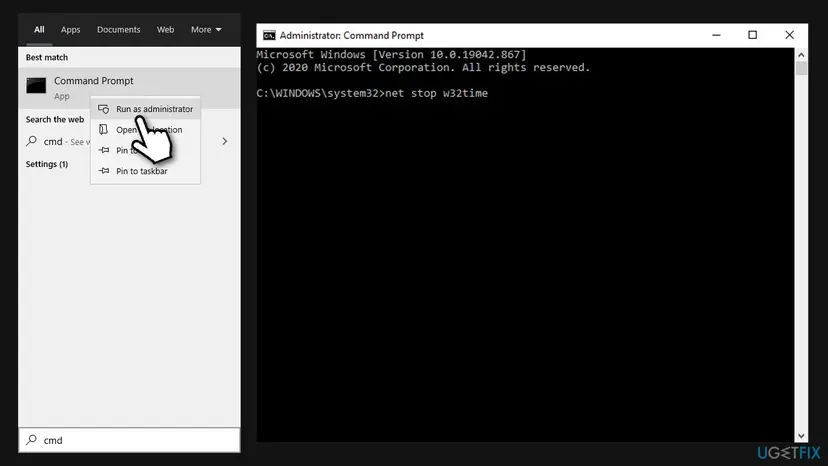
Re-registering also removes a server you set in Fix 4. Windows goes back to time.windows.com, so repeat Fix 4 if you need another server.
It worked if: w32tm /query /source shows time.windows.com,0x9 instead of Local CMOS Clock, and Sync now succeeds.
If not: If w32tm /register fails or the service still will not start, repair system files with Fix 7.
Fix 7. Repair Windows system files
20 minutesLow riskThe service cannot be registered or started, even after Fix 6.
The Windows Time service lives in a system file. If that file or its component store is damaged, the commands in Fix 6 cannot work, and SFC and DISM restore it from a clean copy.
- Open an elevated command window. Right-click Start and select Terminal (Admin), or type cmd in the search box, right-click Command Prompt and select Run as administrator. Select Yes when Windows asks for permission.
- Run DISM first. Type the command below and press Enter. DISM downloads clean copies of damaged components from Windows Update, so it can take several minutes. Wait until it says The operation completed successfully.
DISM.exe /Online /Cleanup-Image /RestoreHealth - Run System File Checker. In the same window, type the command below and press Enter. Do not close the window until the verification reaches 100%.
sfc /scannow - Read the result and restart. Compare the last message with the table below this guide, then restart the PC so that repaired files are loaded.
These steps were written for Windows 11 24H2 and 25H2. The full page with the other versions and what each result means: Run DISM and SFC to repair Windows system files
It worked if: SFC reports that it found and repaired files, or found none. Then Fix 6 works.
If not: Read the next section to find the exact reason in the logs.
If time synchronization still fails
Ask the service what it is doing. Run the commands below in an admin Command Prompt. /status shows the last successful sync and the source, and /peers lists the servers it tries and their state.
w32tm /query /status
w32tm /query /peers
w32tm /query /configuration| What you find | What it means |
|---|---|
| Source: Local CMOS Clock or Free-running System Clock | The PC has never reached a server. Go back to Fix 3 and 5. |
| A server name you do not recognise | Someone or some tool changed the server. Set it again with Fix 4, or reset it with Fix 6. |
| Type: NT5DS | The PC takes its time from a company domain. Only IT can fix it. |
| Warnings from Time-Service in Event Viewer > Windows Logs > System | They name the server and the reason, such as a name that could not be resolved or a correction that was too large. |
For support, send the full message, your Windows version from Settings > System > About, the output of the three commands above and the result of Fix 3. This error is not a licence problem.
If sync works but the clock jumps back to an old date every time the PC is switched off, the small CMOS battery on the motherboard is flat. Windows cannot fix that. Replace the battery, or have a repair shop do it on a laptop.
How to keep time sync working
- Keep Set time automatically on, so Windows corrects small drift before it grows past 15 hours.
- After you install a VPN or a firewall, select Sync now once to check that UDP port 123 still gets through.
- Replace the CMOS battery on an old PC as soon as the date starts to reset.
- Do not set the Windows Time service to Disabled with tweak or debloat tools.
- Do not click Update now many times in a row: public servers such as NIST refuse clients that ask too often.
- Do not change the time settings on a work PC. They come from the company domain.
Frequently asked questions
What does Time synchronization failed mean?
It means Windows asked a time server, normally time.windows.com, for the current time and did not get a usable answer. The request may have been blocked on the way, the Windows Time service may not be running, or your clock may be so far off that Windows will not accept the correction. Your internet can work perfectly at the same time, because time requests use their own port, UDP 123. Start with Fix 1 and Fix 2 on this page.
Why is time.windows.com not working?
Usually time.windows.com itself is fine and the request never reaches it. Most often a router, a VPN, a firewall or a work or mobile network blocks UDP port 123, which Windows Time uses for every sync. Run the stripchart test in Fix 3: if time.nist.gov answers and time.windows.com does not, switch servers with Fix 4. If neither answers, the port is blocked, and Fix 5 shows how to confirm and fix that.
Why is my Windows 10 or Windows 11 PC not syncing the time with time.windows.com?
The causes are the same on both versions: a stopped Windows Time service, a clock more than 15 hours off, or a blocked UDP port 123. The only difference is the Settings layout. On Windows 11 Sync now is under Additional settings, and on Windows 10 under Synchronize your clock. Windows 10 left support on 14 October 2025, but its time service works exactly as before.
What does "This operation returned because the timeout period expired" mean?
It means the time request left your PC, but no reply came back in time. That points at the network or the server, not at your clock settings. Test with the w32tm stripchart command in Fix 3. If another server such as time.nist.gov answers, use it (Fix 4). If no server answers, something on the network or a program on the PC is dropping UDP port 123 (Fix 5).
What does "Time synchronization failed, please check network connectivity and retry" mean?
It is the same failure seen from the Settings app. Windows could not reach the time server, so it asks you to check the network. Being online for web pages is not enough, because time requests use UDP port 123, which some networks block. If the PC is online, work through Fix 1 to Fix 5 in order. A quick test is to connect to a phone hotspot and select Sync now there.
How do I force Windows to sync the time?
Open Command Prompt as administrator and run w32tm /resync. Microsoft describes it as telling the computer to resynchronize its clock as soon as possible, throwing out the error statistics it has collected. Add /rediscover to make Windows look for its time sources again first. If the command says the service has not been started, start Windows Time with Fix 2. If it says no time data was available, the server is not reachable: see Fix 3.
Which time server should I use instead of time.windows.com?
time.nist.gov is a reliable public choice: NIST spreads requests for that address across all of its servers in turn. You can also pick one server from NIST's list, such as time-a-g.nist.gov. Set it in the Internet Time tab or with w32tm /config, as in Fix 4. Keep time.windows.com as the second server, and do not query any NIST server more often than once every 4 seconds.
Why is my clock wrong again after every restart?
Then sync is not the real problem. The small CMOS battery on the motherboard keeps the clock running while the PC is off. When it is flat, the date falls back at each start, sometimes by more than 15 hours, which Windows will not correct on its own. Set the time by hand as in Fix 1 for now, and replace the battery for a lasting fix.
Why does my HP laptop say time synchronization failed?
HP laptops use the same Windows Time service as every other Windows PC, so the causes and fixes on this page apply unchanged. On a laptop, check the network first: home routers, VPNs and public Wi-Fi often block UDP port 123. If the date also resets after the laptop has been off, the CMOS battery is likely flat, which HP service or a repair shop can replace.
Sources
Did this fix work?
One click, no account. It tells the next reader which guides are worth their time.
Questions and experiences: fix Time synchronization failed with time.windows.com
Still broken, or found a fix we did not cover? Ask here: members and our editors answer. Reading is open; writing needs a free account.
…