
How to fix "Try connecting your device again" Bluetooth error in Windows 11 and 10

Prefer to fix it yourself? The manual steps follow.
- 8methods
- 5 to 40 minutes
- Easy
Applies to Windows 11 and Windows 10 PCs with built-in or USB Bluetooth, and Bluetooth mice, keyboards, headsets and game controllers
8 methods in this guide
Hi, I have recently purchased a new computer with Windows 11 pre-installed on it. Unfortunately, it has some issues. Whenever I attempt to connect any of the Bluetooth devices, such as a wireless headset or mouse, I receive the "Try connecting your device again" error, which repeats if I try connecting again.
"Try connecting your device again" means Windows started to pair a Bluetooth device and the connection broke before it finished. When one device fails, remove it and pair it fresh. When every device fails, as on many new desktop PCs, the PC's adapter, antenna or driver is the cause.
First find out which side fails. If only one device shows "Try connecting your device again", remove it in Settings > Bluetooth & devices, restart the PC and pair it again in pairing mode (Fix 1). If every device fails, the PC is at fault: on a desktop, connect the Wi-Fi and Bluetooth antennas (Fix 3), then restart Bluetooth and install the PC maker's Bluetooth driver (Fixes 4 to 6).
| Error | "Try connecting your device again." |
|---|---|
| Where it appears | The Add a device window in Windows 11 and Windows 10, after you select a Bluetooth device to pair it. |
| Main cause | One device: a stale pairing or a missed extra step (PIN, channel). Every device: the PC's Bluetooth antenna, adapter driver or service. |
| Fastest fix | Remove the device, restart, pair again in pairing mode (Fix 1). On a new desktop, attach the antennas first (Fix 3). |
| Also written as | "Try to connect your device again", "Bluetooth says try connecting your device again", and in nearby searches "Couldn't connect". |
| Affects | Windows 11 and Windows 10; mice, keyboards (including Logitech MX models), headsets, speakers and Xbox Wireless Controllers. |
| Vendor status | Microsoft has no update that targets this message. Its pairing page asks for a discoverable device and a PC with working Bluetooth, or a USB Bluetooth adapter. |
| Time to fix | 5 minutes for one device; up to 40 minutes when the adapter driver or antennas must be sorted out. |
Facts checked on 15 October 2026. Steps written for Windows 11 25H2 and 26H2 and Windows 10 22H2, Settings > Bluetooth & devices.
What "Try connecting your device again" means
Windows shows Try connecting your device again. in the Add a device window after you select a Bluetooth device in the list. By then Windows has already found the device by name, so the PC's radio can see it. The pairing or the first connection that follows did not finish, and Windows asks you to start over.
Trying again with nothing changed rarely helps, which is why readers see the message over and over. Something on one side must change first: the device must be in pairing mode with no old record in the way, or the PC's Bluetooth hardware must be able to hold the link.
- Spellings people search: "try connecting your device again", "try to connect your device again bluetooth", "try connecting device again bluetooth", and the same with "Windows 11" or "Windows 10" added.
- The device does not answer at all? When Windows says "We didn't get any response from the device", the device stayed silent. That case has its own page: the "We didn't get any response from the device" guide.
- Not this error: Bluetooth missing from Settings, or a device that connects but has no sound. The fixes below may help, but the causes differ.
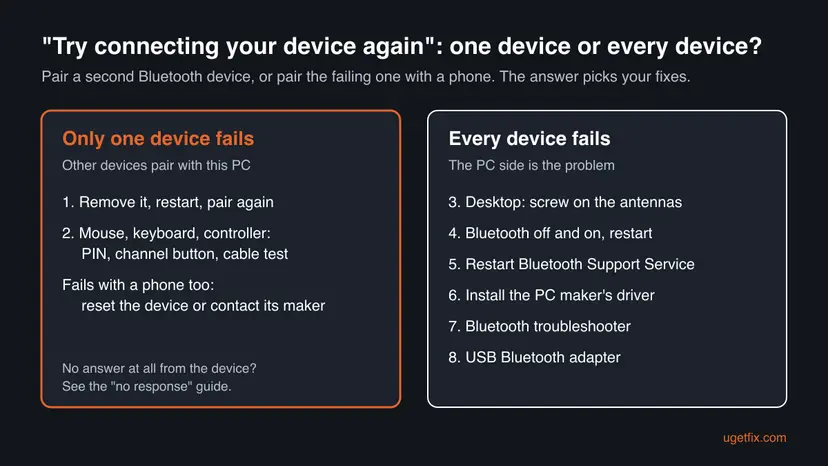
Why Windows asks you to try connecting again: causes from most to least common
Most often a single device fails because Windows or the device still holds an old pairing, or the device left pairing mode too early. Less often the device needs one more step that the reader did not see, such as a code typed on a keyboard. When every Bluetooth device fails, as in the reader's question above, the cause is on the PC: a desktop with no antennas fitted, an adapter driver that is missing or wrong, or a stuck Bluetooth service.
| How often | Cause | Sign | Fix |
|---|---|---|---|
| Most often | Stale pairing record, or pairing mode ended too soon. | Only this device fails; it may already be in the list. | Fix 1 |
| Often | Mouse, keyboard or controller needs an extra step. | A code appears, or the device has a channel button. | Fix 2 |
| Often on new desktops | Wi-Fi and Bluetooth antennas not attached to the PC. | Every device fails; Wi-Fi is weak too. | Fix 3 |
| Less often | Bluetooth radio or service hung after sleep or an update. | Pairing worked before; now nothing pairs. | Fixes 4 and 5 |
| Less often | Generic, old or wrong adapter driver. | New PC or fresh Windows install; adapter shows a plain name or a warning. | Fix 6 |
| Rarely | Adapter fault or a radio too weak for the room. | Nothing helps; a USB adapter works. | Fixes 7 and 8 |
Pair a second Bluetooth device with this PC, or pair the failing device with a phone. If the second device pairs, stay with Fixes 1 and 2. If nothing pairs with this PC but the device pairs with the phone, go straight to Fix 3.
How to fix "Try connecting your device again" in Windows, from the most common cause
Fixes 1 and 2 are for one failing device. Fixes 3 to 8 are for a PC where no Bluetooth device will pair. Try to pair after each fix. Paths are given for Windows 11 and for Windows 10 22H2, which left support on 14 October 2025.
| What you see | Start with |
|---|---|
| One headset, speaker or mouse fails; other devices pair. | Fix 1. |
| A keyboard, a Logitech MX device or an Xbox controller fails. | Fix 2. |
| New desktop PC, nothing pairs, Wi-Fi is also weak. | Fix 3. |
| Everything paired before; it stopped after sleep or an update. | Fixes 4 and 5. |
| New PC or clean Windows install, nothing pairs. | Fix 6. |
| The device also fails with a phone. | If it still fails, below. |
Fix 1. Remove the device, restart the PC and pair it again
5 minutesLow riskOnly one device fails, or the device is already listed in Bluetooth & devices.
When the connection step fails, a half-made pairing record is often left behind. Removing it and restarting lets Windows and the device exchange new keys instead of retrying the broken ones.
- Open Settings > Bluetooth & devices > Devices. On Windows 10 open Settings > Devices > Bluetooth & other devices.
- Find the device. On Windows 11 select More options (...) next to it, choose Remove device and confirm with Yes. On Windows 10 select it and choose Remove device.
- Restart the PC.
- Turn the device on and make it discoverable. Microsoft notes that the way to do this depends on the device, so check its manual. Usually you hold the power or Bluetooth button until a light flashes.
- On Windows 11 select the Network, Sound or Battery icon on the taskbar, select the Manage Bluetooth devices arrow on the Bluetooth tile and pick the device under New devices.
- On Windows 10 select Add Bluetooth or other device, choose Bluetooth in the Add a device window and select the device.
- Follow any extra prompt, then select Done.
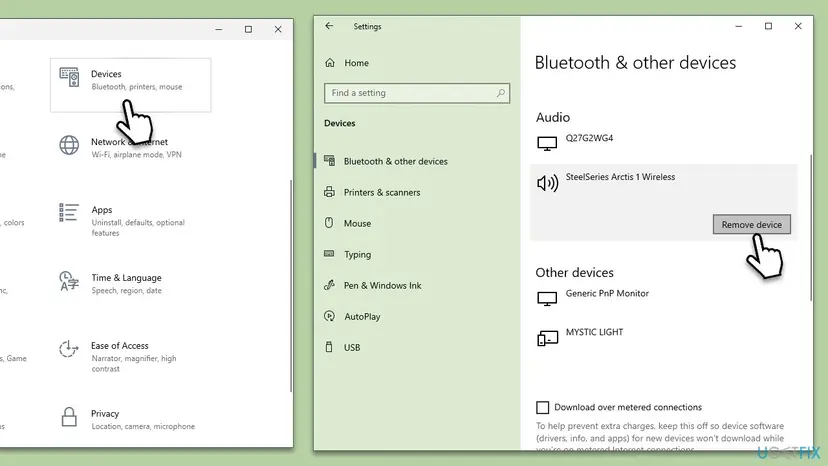
Microsoft's pairing page says a missing device may need Bluetooth devices discovery set to Advanced. On Windows 11 you find it under Device settings on the Bluetooth & devices > Devices page.
It worked if: The device shows Connected or Paired under its real name, and the message does not come back.
If not: If it is a mouse, keyboard or controller, go to Fix 2. If other devices fail too, go to Fix 3.
Fix 2. Mouse, keyboard or controller: do the extra pairing step
5 minutesNo riskThe failing device is a Bluetooth keyboard, a mouse with several channels (such as Logitech MX models) or an Xbox Wireless Controller.
Input devices often need more than a click in Windows. A keyboard may have to confirm a code, and a multi-device mouse or keyboard answers only on the channel that is in pairing mode, so the connect step times out.
- Keyboard: if Windows shows a code during pairing, type it on the Bluetooth keyboard itself and press Enter on that keyboard, quickly. If you wait, the pairing ends and the message appears.
- Device that asks for a PIN: use the PIN from the device's manual. Do not guess; a wrong PIN ends the pairing.
- Multi-device mouse or keyboard: press the channel button (on Logitech models often called Easy-Switch) to pick a free channel, then hold it until the light blinks fast. Pair that channel. A channel already used by another PC will not pair again until you put it in pairing mode.
- Xbox Wireless Controller: as a test, connect it with a USB cable. An advisor in the Microsoft Q&A thread on this exact message suggested this. If it works by cable, the controller and the game are fine and the fault is on the Bluetooth side, so continue with Fix 3.
Microsoft says that a device which supports Swift Pair shows a notification when it is nearby and in pairing mode. Select Connect in that notification instead of using the list. The first time, Windows asks whether to allow Swift Pair; select Yes.
It worked if: The keyboard types, the mouse moves or the controller's button stays lit after pairing.
If not: If no input device pairs with this PC at all, the PC side is the problem: Fix 3.
Fix 3. Desktop PC: attach the Wi-Fi and Bluetooth antennas
5 minutesNo riskA new or self-built desktop PC where no Bluetooth device will pair, often with weak Wi-Fi too. Laptops have built-in antennas, so skip this fix on a laptop.
A desktop wireless card sends Bluetooth through an antenna screwed onto the back of the PC. Intel states that on the Wireless-AC 9260 and Dual Band Wireless-AC 8265, antenna 1 (Aux) is shared by Wi-Fi and Bluetooth. With no antenna fitted, the Bluetooth signal has almost nothing to travel through, so pairing can fail even with the device next to the PC.
- Shut the PC down.
- Look at the back of the PC, near the motherboard's ports or on a wireless card in a lower slot. Find the small screw-on antenna connectors, usually two.
- Find the antenna that came in the PC's or motherboard's box. It is often a small stand with two cables, or two short sticks.
- Screw the antenna onto both connectors, hand tight. Intel notes that its 2x2 cards need both antennas for full Wi-Fi speed, and one of them carries Bluetooth.
- Place the antenna stand on top of the desk, not behind the case.
- Start the PC and pair the device again as in Fix 1.
| Adapter | Antenna 1 (Aux) | Antenna 2 (Main) |
|---|---|---|
| Intel Wireless-AC 9260 | Wi-Fi and Bluetooth | Wi-Fi |
| Intel Dual Band Wireless-AC 8265 | Wi-Fi and Bluetooth | Wi-Fi |
| Intel Dual Band Wireless-AC 8265 Desktop Kit | Wi-Fi and Bluetooth | Wi-Fi |
Intel published this layout for these three adapters. Newer cards from Intel and other makers also use screw-on antennas on desktops, but we could not confirm which connector carries Bluetooth on each of them, so attach both.
It worked if: Devices pair and stay connected, and the Wi-Fi signal gets stronger too.
If not: If the antennas were already on, or this is a laptop, go to Fix 4.
Fix 4. Turn Bluetooth off and on, check Airplane mode and restart
3 minutesNo riskPairing worked on this PC before and stopped after sleep, hibernation or an update.
The Bluetooth radio can stay half awake after sleep. It still lists devices but fails the connect step. Switching it off and on and restarting the PC resets the radio.
- Select the Network, Sound or Battery icon on the taskbar and check that Airplane mode is off.
- On Windows 11 open Settings > Bluetooth & devices; on Windows 10 open Settings > Devices > Bluetooth & other devices.
- Turn Bluetooth off, wait 10 seconds and turn it on again.
- Select Start > Power > Restart.
- Pair the device again as in Fix 1.
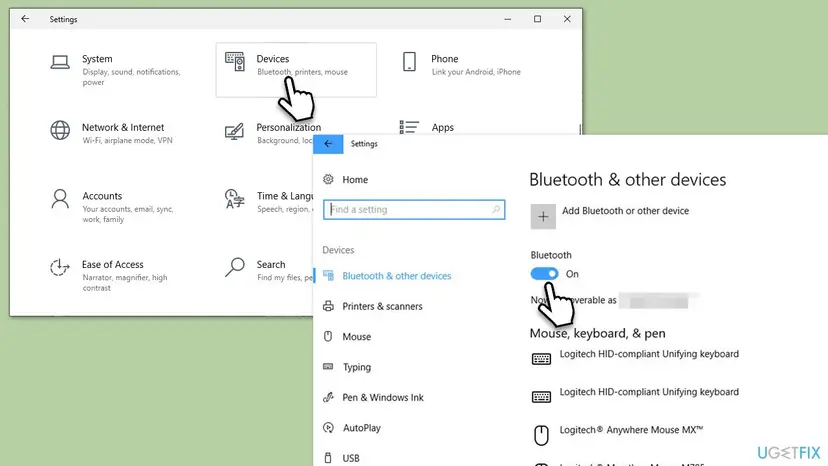
It worked if: The switch turns on at once and the device pairs.
If not: If the Bluetooth switch is missing, greyed out or does nothing, go to Fix 5.
Fix 5. Restart the Bluetooth Support Service
3 minutesLow riskBluetooth is on, but no device completes pairing, even after a restart of the PC.
Pairing runs through the Bluetooth Support Service (bthserv). Its description in Services says it supports discovery and association of remote Bluetooth devices, so a stuck service breaks the connect step for every device.
- Press Win + R, type
services.mscand press Enter. - Find Bluetooth Support Service in the list.
- Right-click it and select Restart. If it is not running, select Start.
- Leave Startup type as it is. The old advice to set it to Automatic is not needed for this error.
- Pair the device again.
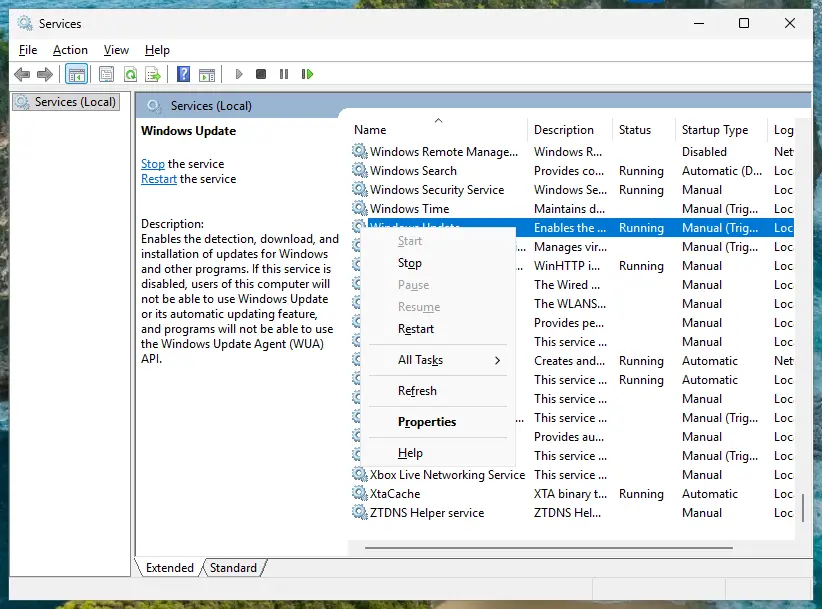
Opening Services and restarting a service, step by step with screenshots: Check and restart Windows services.
The service's own description warns that stopping or disabling it may cause installed Bluetooth devices to fail and stops new devices from being found.
It worked if: The service shows Running, and the device pairs on the next try.
If not: If the service will not start or nothing changes, the adapter driver is next: Fix 6.
Fix 6. Install the PC maker's Bluetooth driver
15 minutesLow riskA new PC, a clean Windows install or a major Windows upgrade, and no device pairs.
Windows may install a generic driver for the Bluetooth adapter. It can find devices but fail the connection. The driver from the PC or motherboard maker, or from the chip maker, matches the exact adapter.
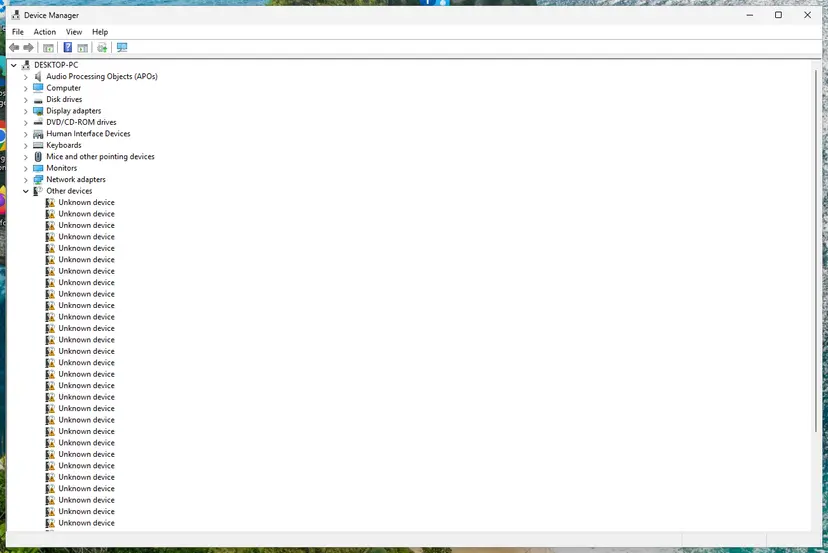
- Right-click Start and select Device Manager.
- Expand Bluetooth and find the adapter itself. Its name usually names the chip maker (Intel, Realtek, MediaTek, Qualcomm) or contains "Wireless Bluetooth". The other entries are profiles, not the adapter.
- Right-click the adapter and select Update driver, then Search automatically for drivers.
- If nothing newer is found, download the Bluetooth driver for your exact PC or motherboard model from its maker's support page and install it.
- Still failing: right-click the adapter, select Uninstall device, confirm and restart. Windows installs the driver again.
- Pair the device again.
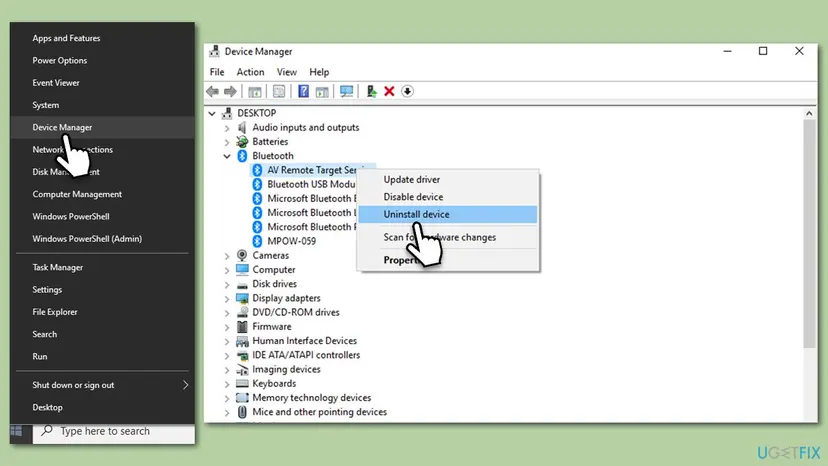
Update, roll back and reinstall in detail: Update, roll back or reinstall a driver.
It worked if: The adapter shows its maker's name with no warning sign, and devices pair.
If not: If the adapter shows a yellow warning or disappears, let Windows check it with the troubleshooter in Fix 7.
Fix 7. Run the Bluetooth troubleshooter
5 minutesNo riskYou have tried the fixes above and want Windows to check the adapter, the service and the settings for you.
The troubleshooter checks that the radio is on, the adapter works and the Bluetooth services run, and it repairs what it can. It may catch a setting the earlier fixes missed.
- Windows 11: open Settings > System > Troubleshoot > Other troubleshooters and select Run next to Bluetooth. The Get Help app opens and runs its checks.
- Windows 10: open Settings > Update & Security > Troubleshoot > Additional troubleshooters, select Bluetooth and select Run the troubleshooter.
- Accept the fixes it offers.
- Pair the device again.
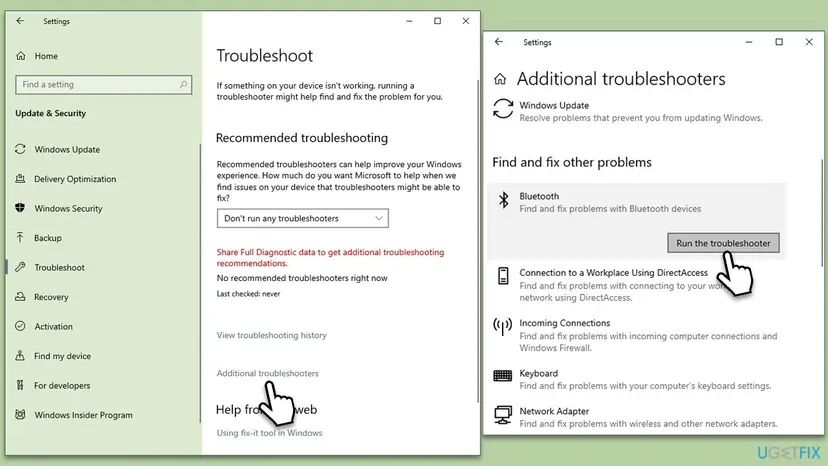
It worked if: Get Help or the troubleshooter reports a fixed problem, and the device pairs.
If not: If it finds nothing and every device still fails, try a USB adapter in Fix 8.
Fix 8. Use a USB Bluetooth adapter
10 minutesLow riskNo fix helped, the PC has no Bluetooth, or the built-in radio is too weak for where the PC stands.
Microsoft says a PC without working Bluetooth can get it from a USB Bluetooth adapter. It also proves whether the built-in adapter is at fault: if devices pair through the USB adapter, the built-in one is broken or badly placed.
- Plug the USB Bluetooth adapter into a front USB port, or into a short USB extension cable placed on the desk.
- If it comes with a driver, install it from the adapter maker's site.
- In Device Manager, right-click the built-in Bluetooth adapter and select Disable device, so Windows uses only one radio.
- Pair the device again as in Fix 1.
It worked if: Devices pair through the USB adapter without the message.
If not: If they fail even then, the devices themselves are the next suspect: read the section below.
If Windows still says "Try connecting your device again"
When all eight fixes fail, the test from the top of this page tells you where to look. Pair the device with a phone, and pair another Bluetooth device with this PC.
| Result | What it means | Next step |
|---|---|---|
| Device pairs with a phone, nothing pairs with this PC. | The PC's Bluetooth hardware is at fault. | Contact the PC maker; meanwhile use a USB adapter. |
| Other devices pair with this PC, this one pairs with nothing. | The device is at fault. | Reset it with the maker's button combination, then contact its maker or seller. |
| Pairs with this PC only next to it. | Weak signal. | Antennas on top of the desk, or a USB adapter on an extension cable. |
| Adapter shows an error code in Device Manager. | Driver or hardware fault on the adapter. | Install the maker's driver; if the code stays, contact the PC maker. |
- Where Windows logs it: right after a failed try, open Event Viewer (
eventvwr.msc) > Windows Logs > System and look for Bluetooth entries at that time. We could not confirm that every failed pairing writes an entry. - What to send to support: the device model, the exact message, your Windows version (Win + R,
winver), the adapter name from Device Manager, and whether the device pairs with a phone.
How to stop the error from coming back
- On a desktop, keep the antennas attached and on top of the desk, not behind a metal case.
- Pair while the device is in pairing mode, and select it in Windows before the light stops flashing.
- On multi-device mice and keyboards, give each PC its own channel and leave it there.
- When you switch a device between a phone and the PC, connect it from Settings > Bluetooth & devices instead of removing and pairing it each time.
- After a clean Windows install or a major upgrade, install the Bluetooth driver from the PC or motherboard maker.
- Never set Bluetooth Support Service to Disabled.
Frequently asked questions
What does "Try connecting your device again" mean?
It means Windows found your Bluetooth device and started to pair it, but the pairing or the first connection did not finish. Windows asks you to start over. Trying again without a change rarely works. Remove the old entry and put the device in pairing mode (Fix 1), or, if no device pairs with the PC, check the antennas, service and driver (Fixes 3 to 6). People also search for the meaning in other languages, such as Indonesian "artinya"; the answer is the same.
How do I fix "Try connecting your device again" in Windows 11?
Open Settings > Bluetooth & devices > Devices, select More options next to the device and choose Remove device. Restart, put the device in pairing mode and pick it under New devices from the Bluetooth tile in quick settings. If every device fails, attach the desktop antennas, turn Bluetooth off and on, restart the Bluetooth Support Service and install the PC maker's Bluetooth driver. The steps on Windows 10 are the same under Settings > Devices.
Why does my Bluetooth mouse say "Try connecting your device again"?
Most often the mouse left pairing mode, or it is on a channel already paired with another computer. Multi-device mice, such as Logitech MX models, answer only on the channel that is in pairing mode. Pick a free channel with the channel button, hold it until the light blinks fast, and pair at once. Remove any old entry for the mouse in Windows first. If no mouse or keyboard pairs, the PC's adapter is the cause.
Why can no Bluetooth device connect to my new PC?
On a new desktop, a frequent reason, and the easiest to check, is that the Wi-Fi and Bluetooth antennas from the box are not screwed onto the back of the PC. Intel says that on cards such as the Wireless-AC 9260, one antenna is shared by Wi-Fi and Bluetooth. Without it, the Bluetooth signal is very weak and pairing can fail. On a laptop, or when the antennas are on, install the PC maker's Bluetooth driver and restart the Bluetooth Support Service.
How do I reset Bluetooth settings in Windows 11?
Windows 11 has no single reset button for Bluetooth. You get the same result in three steps. Remove the device in Settings > Bluetooth & devices > Devices, then turn Bluetooth off and on. Next restart the Bluetooth Support Service in services.msc. If that is not enough, uninstall the Bluetooth adapter in Device Manager and restart, so Windows sets it up again. Pair your devices again after that.
My Xbox controller says "Try connecting your device again". What should I do?
Connect it with a USB cable first. If it works by cable, the controller and the game are fine, and only the Bluetooth link fails. Then remove the controller in Bluetooth & devices, restart the PC and pair it again in pairing mode, as its manual describes. If no other Bluetooth device pairs either, work through Fixes 3 to 6. We could not confirm a controller-specific Microsoft fix for this message.
Is this the same as "We didn't get any response from the device"?
They are close, but not the same. "We didn't get any response from the device" means the device never answered Windows, so the fix is almost always on the device: pairing mode, battery and the phone it is busy with. "Try connecting your device again" means the pairing started but did not finish, and it often affects every device on a PC. That other message has its own guide, linked at the top of this page.
Why does my Bluetooth keyboard fail when Windows shows a code?
Windows sometimes asks you to type a code on a Bluetooth keyboard to prove it is the right one. The code must be typed on that keyboard, not on the laptop's own keys, followed by Enter on the same keyboard. If you take too long, the pairing ends and Windows says "Try connecting your device again". Start pairing again and type the code at once.
I searched for "bnls has not been updated yet or you experienced an error try connecting again". Is it this error?
No. That message comes from a game login or launcher, not from Windows Bluetooth. It only shares the words "try connecting again". This page is about the Bluetooth pairing message in the Windows Add a device window. For the game message, check the game's own support pages or forum, since it depends on the game's server, not on your PC's Bluetooth.
Sources
- Microsoft Support: Pair a Bluetooth device in Windows (support.microsoft.com)
- Intel Support: What Is the Antenna Connector Functionality for Intel Wireless Adapters? (intel.com)
- Microsoft Q&A: Try connecting your device again (learn.microsoft.com)
Did this fix work?
One click, no account. It tells the next reader which guides are worth their time.
Questions and experiences: fix "Try connecting your device again" Bluetooth error in Windows 11 and 10
Still broken, or found a fix we did not cover? Ask here: members and our editors answer. Reading is open; writing needs a free account.
…