
How to fix "Unable to read from disk - Error Code 1117" error on Windows?

Prefer to fix it yourself? The manual steps follow.
- 6methods
- 10 minutes to several hours
- Medium
Applies to Windows 11 and Windows 10 with internal or external hard disks and SSDs; Macrium Reflect backups, images, clones and restores; other programs that report Win32 error 1117
6 methods in this guide
I have attempted to perform a backup on Windows, but the following message appears: "Backup aborted! - Unable to read from disk - Error Code 1117 - The request could not be performed because of an I/O device error." Any ideas how to fix it?
Error code 1117 is the Windows error ERROR_IO_DEVICE: "The request could not be performed because of an I/O device error." A disk did not return the data Windows asked for, so the backup, copy or restore stopped. Check the disk's cable and port first, then find out whether the disk itself is failing before you run long repairs.
Error 1117 means a disk did not answer a read request, so this is a hardware or connection problem, not a broken program. Reseat the disk's cable or plug an external disk straight into a rear port (Fix 1). Then check the disk's health and the System log (Fix 2) and run chkdsk on the disk that fails (Fix 3). Copy files you cannot lose first.
| Error | Unable to read from disk - Error Code 1117: "The request could not be performed because of an I/O device error." |
|---|---|
| Where it appears | Most often in the Macrium Reflect log when a backup, disk image, clone or restore stops. The same code appears in Windows tools as 0x8007045D and in scripts as [WinError 1117]. |
| Main cause | The source or target disk did not return data in time: a poor cable or port, bad sectors, or a disk that is starting to fail. |
| Fastest fix | Reseat or replace the data cable, connect an external disk directly to the PC, and run the backup again (Fix 1). |
| Also written as | error 1117, error code 1117, Win32 error 1117 (0x0000045d), 0x45D, 0x8007045D, ERROR_IO_DEVICE, WinError 1117, "I/O device error". |
| Affects | Any Windows version and any disk type: hard disks, SATA and NVMe SSDs, USB drives and memory cards. |
| Vendor status | Not a bug with a patch. Microsoft lists 1117 as a standard system error. Macrium treats a disk that cannot be read during imaging as a fatal condition that aborts the image. |
| Time to fix | 5 minutes for a cable. 30 minutes to several hours when chkdsk /r scans a large hard disk. |
| Where the cause is logged | Event Viewer, Windows Logs > System: events 153 (I/O retried), 129 (reset to device), 157 (surprise removed), 55 and 98 (file system needs chkdsk). |
Facts checked on 15 October 2026. Steps written for Windows 11 (25H2 and 26H2) and Windows 10 22H2.
What "Unable to read from disk - Error Code 1117" (I/O device error) means
In Macrium Reflect the message reads "Backup aborted! - Unable to read from disk - Error Code 1117", followed by the sentence "The request could not be performed because of an I/O device error." The first part is Macrium's own text. The number and the sentence come from Windows.
Microsoft's list of system error codes names 1117 ERROR_IO_DEVICE. In hexadecimal it is 0x45D, written by some tools as 0x0000045d, and programs that use HRESULT codes show it as 0x8007045D. All of these are the same error. It means Windows sent a read or write request to a storage device and the device failed it.
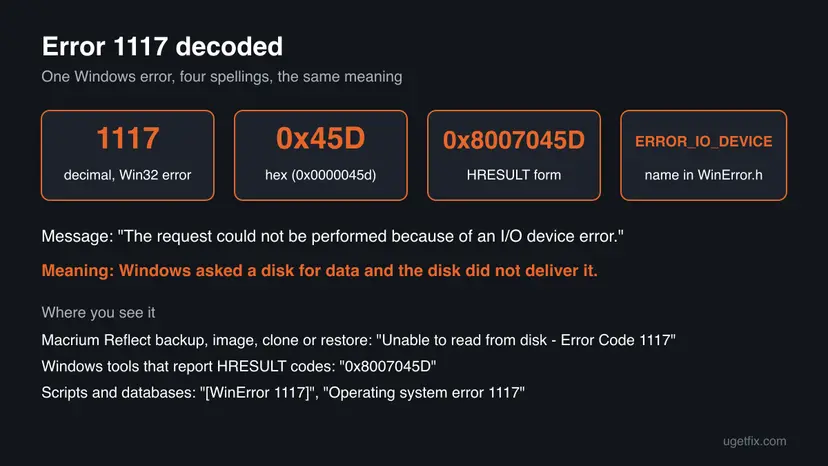
Macrium Reflect, a Python script or SQL Server reports error 1117 because Windows passed it on. Reinstalling the program that shows it does not change how the disk answers. Look at the disk, its cable and its file system.
| Code and text | System error | What it tells you |
|---|---|---|
| 1117, "The request could not be performed because of an I/O device error." | ERROR_IO_DEVICE (0x45D) | The disk failed a read or write request. |
| 1111, "The I/O bus was reset." | ERROR_BUS_RESET (0x457) | The disk's controller or connection was reset. |
| 23, "Data error (cyclic redundancy check)." | ERROR_CRC | Macrium shows this when it hits a bad sector. |
Why error 1117 appears: causes in order
Most often the connection to the disk breaks for a moment: a loose SATA cable, a worn USB cable, a hub or a front panel port. Less often the disk has bad sectors or file system damage in the area being read. Rarely the cause is an old storage driver or firmware, or a disk that is close to the end of its life.
| Cause | How often | How to tell | Fix |
|---|---|---|---|
| Loose or poor cable, USB hub, front port, weak power | Most often | External disk, or the PC was moved or opened recently. Event 157 or 129 in the System log. | Fix 1 |
| Bad sectors in the part of the disk being read | Often | The backup stops at the same point every time. Many event 153 entries for one disk. | Fix 2, Fix 3, Fix 4 |
| File system errors on the volume | Sometimes | Events 55 or 98 ask you to run chkdsk. | Fix 3 |
| Old storage controller driver or disk firmware | Rarely | Event 129 resets, or it fails on one PC only. | Fix 5 |
| The disk is failing | Rarely, but serious | Health shows Warning or Unhealthy, clicking sounds, errors on every PC and cable. | Fix 6 |
Macrium says a disk with bad sectors is permanently damaged and that data in a damaged area is likely unrecoverable. A long repair scan puts strain on a weak disk. If files on it exist nowhere else, copy them to another disk before Fix 3.
How to fix error code 1117 on Windows
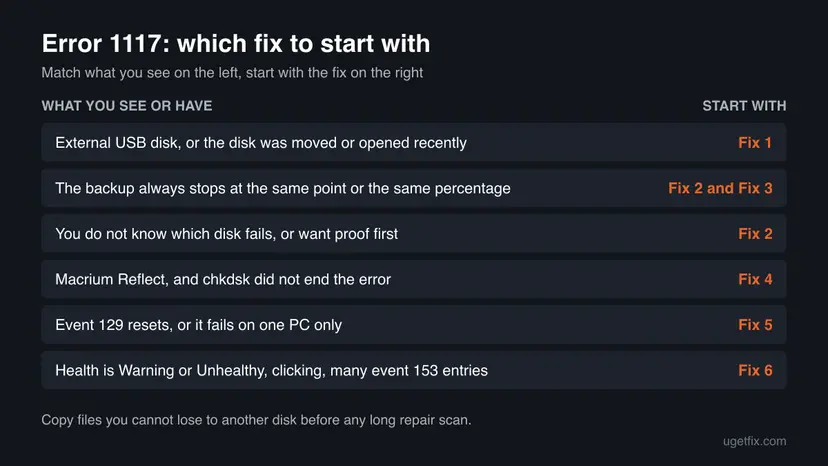
Fix 1 takes a few minutes and solves the connection problems behind many 1117 errors. Fix 2 shows which disk fails and how healthy it is. Fixes 3 and 4 deal with bad sectors, Fix 5 with drivers and firmware, and Fix 6 with a disk that is failing.
| What you see or have | Start with |
|---|---|
| An external USB disk, or the PC was moved or opened recently. | Fix 1 |
| You do not know which disk fails, or you want proof first. | Fix 2 |
| The backup always stops at the same point or percentage. | Fix 2, then Fix 3 |
| Macrium Reflect, and chkdsk did not end the error. | Fix 4 |
| Event 129 resets, or the error appears on one PC only. | Fix 5 |
| Health shows Warning or Unhealthy, or the disk clicks. | Fix 6 |
Fix 1. Reseat the disk's cable and connect external disks directly to the PC
5 to 15 minutesNo riskEveryone, first of all with external USB disks or a PC that was moved or opened.
Error 1117 says the device failed the request. A data cable that is loose or worn, an unpowered hub or a weak front port can break the link for a moment, which looks the same to Windows as a bad disk.
- Close the backup program and shut down the PC with Start > Power > Shut down.
- External disk: unplug any hub, dock or extension cable and connect the disk with another cable to a rear USB port of the desktop.
- If the external disk has its own power adapter, plug it in. A 2.5-inch disk on a laptop port may need a powered hub.
- Internal disk on a desktop: unplug the power cord, open the case, and unplug and firmly reconnect the SATA data and power cables at both ends. Try another SATA cable and port on the motherboard if you have one.
- NVMe SSD: check that it sits fully in its slot and that the screw holds it down.
- Start the PC and run the same backup, copy or restore again.
If you are not comfortable opening a desktop PC, skip the internal steps and continue with Fix 2. Do not open a laptop that is under warranty.
It worked if: The backup or copy finishes and the log shows no Error Code 1117.
If not: If the error comes back at the same point, the disk itself is the likely cause. Go to Fix 2.
Fix 2. Find the failing disk in the System log and check its health
10 minutesNo riskYou want to know which disk fails and whether it is safe to keep using it.
Microsoft names the System log events that point to disk errors and file system damage. They show which disk failed at the time of your backup, and whether it was removed, reset or slow to read.
- Note the time the backup stopped. In Macrium Reflect the log of the failed job shows it.
- Right-click Start, open Event Viewer and go to Windows Logs > System.
- Select Filter Current Log in the right pane and type
55,98,129,153,157in the event ID box. Select OK. - Look for events at the time of the failure and note the disk number or volume they name.
- Right-click Start, open Terminal (Admin) or Windows PowerShell (Admin), and run the command below.
- Read the HealthStatus column for the disk that the events named.
List the disks and their health (PowerShell)
Get-PhysicalDisk | Format-Table DeviceId, FriendlyName, MediaType, HealthStatus, OperationalStatus| Event ID | Microsoft's text | What it means for error 1117 |
|---|---|---|
| 153 | "The IO operation at logical block address 123456 for Disk 2 was retried." | The disk was slow to read. Many of these for one disk point to bad sectors or a failing disk (Fix 3, Fix 6). |
| 129 | "Reset to device, \Device\RaidPort1, was issued." | Windows reset the controller after a timeout: cable, driver or firmware (Fix 1, Fix 5). |
| 157 | "Disk 2 has been surprise removed." | The disk dropped off: cable, port or power (Fix 1). |
| 55 and 98 | "The file system structure on the disk is corrupt and unusable." | The volume needs chkdsk (Fix 3). |
It worked if: You know which disk fails, and its health is Healthy or tells you it is not.
If not: If health shows Warning or Unhealthy, copy your files off now with Fix 6. Otherwise go to Fix 3.
Fix 3. Check the failing disk with chkdsk and repair bad sectors
5 minutes to several hoursRead the warningThe backup stops at the same point, or the log shows events 55, 98 or 153.
Macrium's advice for a disk that cannot be read during imaging is chkdsk with /r. It moves file system clusters away from bad sectors, so the next backup no longer tries to read them.
Data in clusters that sit on bad sectors cannot be read and is lost when chkdsk moves them. A long /r scan also strains a weak hard disk. Copy files you cannot lose to another disk first, and stop if health showed Unhealthy in Fix 2.
- Open Command Prompt as administrator.
- Run
chkdsk C: /scanwith the letter of the disk that fails. Microsoft recommends this mode first because it changes nothing. - If it reports problems, or the backup stops at the same point, run
chkdsk C: /rwith the same letter. On the Windows drive, type Y to schedule it and restart. - Let it finish. On a large hard disk this can take hours. Do not turn the PC off.
- Run the backup again right after chkdsk, as Macrium advises, so the image is made while the clusters are on good sectors.
- Scan the drive without changing anything. Type the command below and press Enter. Replace C: with another drive letter to check that drive. This scan only reports; it does not fix anything.
chkdsk C: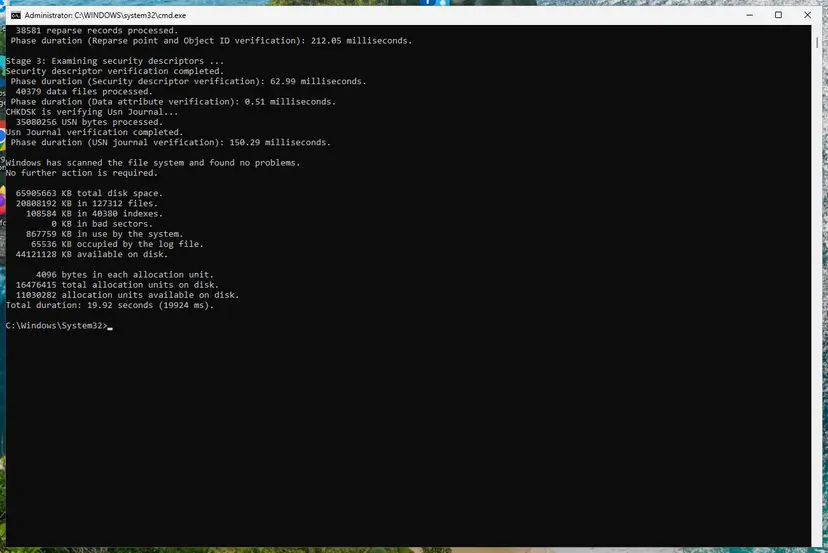
A clean result: no problems found and 0 KB in bad sectors. Screenshot: Windows 11 26H2. - If errors were found, run the repair. Run chkdsk with /f to fix file system errors. On the Windows drive (C:) chkdsk cannot lock the drive while Windows is running, so it offers to check it at the next restart.
chkdsk C: /f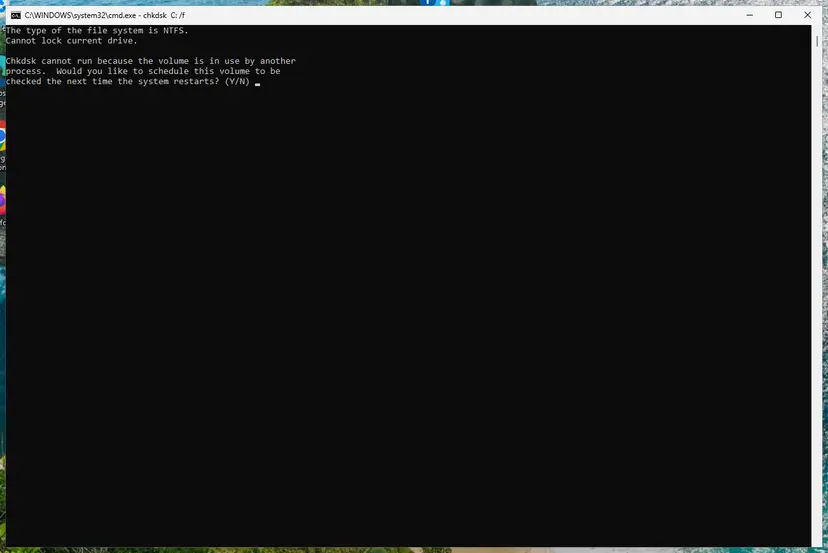
On the system drive chkdsk /f asks to run at the next restart. Screenshot: Windows 11 26H2.
These steps were written for Windows 11 and Windows 10 (the steps are the same). The full page with the other versions and what each result means: Check a disk for errors (chkdsk)
Macrium adds that you may need to run chkdsk more than once until an image is made without errors. Full steps and where to read the result: Check a disk for errors (chkdsk).
It worked if: Chkdsk reports that it found no problems or fixed them, and the backup now finishes.
If not: If the backup still stops at the same point, use Fix 4 to let Macrium Reflect skip the unreadable sectors.
Fix 4. Let Macrium Reflect continue past bad sectors
5 minutes plus the backupRead the warningYou back up with Macrium Reflect and chkdsk did not end the error.
Macrium treats an unreadable sector as fatal and aborts the image. Its Ignore bad sectors option lets the image continue and lists the clusters it could not read, so you get a backup of everything else.
The clusters Macrium could not read are not in the image, so files that used them are damaged in the backup too. Use this to save what you can from a weak disk, not as a long term setting. Plan to replace the disk (Fix 6).
- Open Macrium Reflect and select Other Tasks > Edit Defaults.
- Select Advanced.
- Select Ignore bad sectors. Optionally also select Log each bad cluster detail to list every bad cluster in the log.
- Select OK and run the backup again.
- Open the log when it finishes and look for lines such as Bad Sectors: 112 Clusters located in bad sectors. Data may be lost.
Macrium documents this option for its Error Code 23 (a bad sector, cyclic redundancy check). We could not confirm a Macrium page that ties it to Error Code 1117 as well. If the image still aborts with 1117, the disk is not answering at all, which points to Fix 1, Fix 5 or Fix 6.
It worked if: The image completes, and the log lists how many clusters could not be read.
If not: If it still aborts with 1117, update the storage drivers and firmware with Fix 5 or move to Fix 6.
Fix 5. Update storage controller drivers and the disk firmware
15 to 30 minutesLow riskEvent 129 resets appear, or the error appears on one PC only.
Microsoft's first step for disk errors is up to date storage drivers and firmware from the hardware vendor. An old controller driver or SSD firmware can time out on reads, which Windows reports as an I/O device error.
- Right-click Start and open Device Manager.
- Expand Storage controllers and IDE ATA/ATAPI controllers and note the controller names.
- Install the chipset and storage drivers from your PC or motherboard maker's support page, or from Windows Update > Advanced options > Optional updates.
- On the disk maker's website, look up your model (the FriendlyName from Fix 2) and install any firmware update its own tool offers.
- Restart and run the backup again.
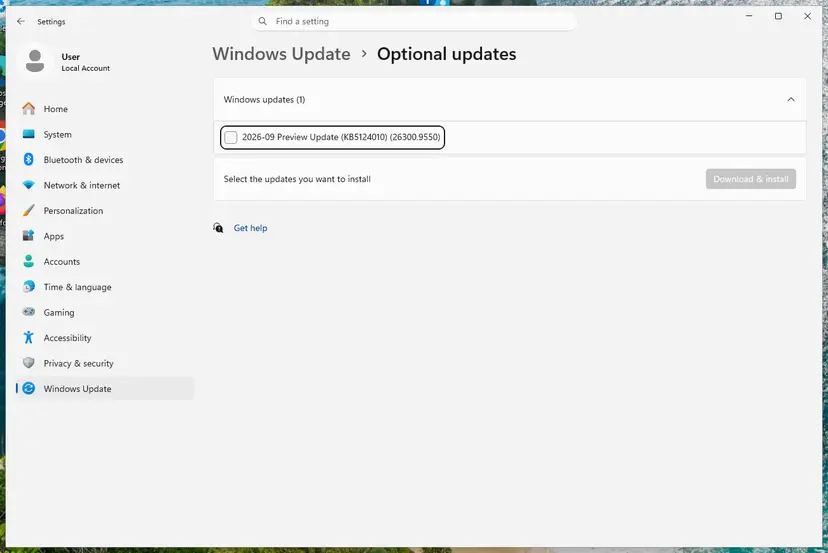
Step by step for any driver: Update, roll back or reinstall a driver. Back up before a firmware update, because a failed firmware update can make a disk unreadable.
It worked if: No new event 129 entries during the next backup, and the backup completes.
If not: If new drivers do not help and event 153 keeps appearing for the same disk, treat the disk as failing (Fix 6).
Fix 6. Copy what you can off a failing disk and replace it
30 minutes or moreNo riskHealth shows Warning or Unhealthy, the disk clicks, or the error appears on every PC and cable.
When the disk fails reads everywhere, the fault is inside it. Macrium notes that bad sectors can mean the disk is near the end of its life, and each new attempt puts more strain on it.
- Connect a healthy disk with enough free space.
- Copy your most important folders first, one at a time, with the robocopy command below. It retries a file a few times instead of stopping the whole copy.
- Read the summary at the end. Files listed as FAILED sit on unreadable areas.
- Replace the failing disk, then restore your data or a Macrium image to the new one.
- Check whether the old disk is under warranty on the maker's website.
Copy a folder with few retries (Command Prompt)
robocopy "C:\Users\You\Documents" "E:\Rescue\Documents" /E /R:2 /W:5After the copy, set up a regular backup on the new disk: Back up your files (Windows Backup, File History, Time Machine). If the disk is no longer detected at all, a data recovery service is the safe choice for files you cannot lose.
It worked if: Your files are on another disk, and the new disk backs up without error 1117.
If not: If robocopy fails on most files, stop using the disk and contact a data recovery service.
If error code 1117 is still there
Collect these facts before you contact Macrium support, the disk maker or a technician. They show whether the cable, the driver or the disk failed.
- The full error line from the program's log, with the time it appeared.
- The disk's make and model and its HealthStatus from Fix 2.
- Event Viewer, Windows Logs > System: the events 55, 98, 129, 153 and 157 at that time.
- The result of
chkdsk /scanand, if you ran it,chkdsk /r(Fix 3). - Which cables, ports and PCs you tried (Fix 1).
- Your Windows version: press Win + R and type
winver. - When it is hardware: health shows Warning or Unhealthy, the disk clicks or gets hot, or it fails on every PC. No Windows setting fixes those.
How to stop error 1117 from coming back
- Run
chkdsk /scanon backup disks now and then, before a backup fails. - Check the System log for event 153 after a slow or failed backup.
- Keep storage drivers and SSD firmware up to date from the maker.
- Use the cable that came with an external disk and a rear port.
- Keep at least two backups on different disks.
- Ignore repeated event 153 or 129 entries for the same disk.
- Leave Ignore bad sectors on for good and trust every image.
- Move or bump an external hard disk during a backup.
- Keep the only copy of your files on a disk that showed error 1117.
Frequently asked questions
What does error 1117 mean?
It is the Windows system error ERROR_IO_DEVICE, 0x45D in hexadecimal, with the text "The request could not be performed because of an I/O device error." A disk did not complete a read or write request that Windows sent to it. The program that shows the error, such as Macrium Reflect, only passes the code on. The cause sits in the disk, its cable or its connection. Start with Fix 1 and Fix 2 on this page.
What is WinError 1117 or Win32 error 1117 (0x0000045d)?
The same error in other spellings. Python shows Windows errors as [WinError 1117], and other tools write the code as Win32 error 1117 or in hexadecimal as 0x0000045d. Programs that use HRESULT codes show 0x8007045D. In each case a script or program asked Windows to read or write a file, and the disk failed the request. Check the disk that holds the file with Fix 2 and Fix 3 instead of changing your code.
Is my hard drive or SSD failing?
Not always. A loose or poor cable gives the same error, so try Fix 1 first. The disk is likely failing when the error comes back at the same point, the System log shows many event 153 entries for that disk, health shows Warning or Unhealthy, or the disk clicks. Macrium notes that bad sectors can signal that a hard drive is coming to the end of its life. In that case copy your files off it now (Fix 6).
Will reinstalling Macrium Reflect fix error code 1117?
Very unlikely. The old advice was to reinstall the program first, but the code comes from Windows and reports that the disk failed a request. A new install of Macrium Reflect reads the same disk in the same way. Reinstall only if other parts of the program are broken too. Fix the connection and the disk first with Fix 1 to Fix 3, and use Fix 4 to let an image continue past bad sectors.
Can SFC fix the I/O device error?
No. The System File Checker repairs damaged Windows system files, while error 1117 reports that a disk failed to read or write. The old version of this page suggested sfc /scannow, but it does not check the disk surface or the file system of a data disk. Chkdsk is the right tool for that (Fix 3). Run SFC and DISM only if Windows itself also misbehaves. Step by step: Run DISM and SFC to repair Windows system files.
Can malware cause error 1117?
We found no source that ties this code to malware. The error reports that a storage device failed a request, which is a hardware or connection matter. A malware scan does no harm if the PC behaves strangely in other ways too, but do not expect it to end error 1117. Fixes 1 to 3 on this page deal with the real causes.
Does error 1117 appear during System Restore or a restore of a backup?
Yes. Users report error 1117 when System Restore or a Macrium restore fails. During a restore the program reads the backup and writes to the target disk, so either disk can be the one that fails. Use Fix 2 to see which disk the System log names at the time of the failure. Then check that disk with Fix 3. If the backup disk fails, copy the image to another disk before you try again.
What is ERKR-1117?
Most likely a typo of ERR-1117 or error 1117, since R and K sit next to each other on the keyboard. We found no Windows or Macrium code spelled ERKR-1117. If your screen shows "Unable to read from disk" or "I/O device error" next to 1117, this page is for you. If the code comes from another program, read that program's message for words such as disk, read or device.
Is code 1117 on a truck or engine the same error?
No. Search results for code 1117 also show an engine fault code used on Cummins engines and Freightliner trucks. That code has nothing to do with Windows or your PC. This page is about the Windows error 1117, the I/O device error that stops backups, copies and restores. For an engine fault code, use the engine maker's service information or a qualified mechanic.
What did Enable file write caching in Macrium Reflect do for this error?
The old version of this page told readers to turn on a write caching option in Macrium Reflect's defaults. We could not confirm that option or any link between it and error 1117 in Macrium's current documentation, so it is no longer a fix here. Error 1117 is about a disk that failed a request. The Macrium setting that does help with unreadable sectors is Ignore bad sectors under Other Tasks > Edit Defaults > Advanced (Fix 4).
Sources
- Microsoft Learn: System Error Codes (1000-1299) (learn.microsoft.com)
- Microsoft Learn: Guidance for troubleshooting data corruption and disk errors (learn.microsoft.com)
- Macrium Software: Imaging Disks With Bad Sectors (macrium.com)
Did this fix work?
One click, no account. It tells the next reader which guides are worth their time.
Questions and experiences: fix "Unable to read from disk - Error Code 1117" error on Windows
Still broken, or found a fix we did not cover? Ask here: members and our editors answer. Reading is open; writing needs a free account.
…