How to fix
Unable to Start: LogTransport2.exe – Application error
on Windows
Resolve the LogTransport2.exe application error on Windows 10 or 11 with our expert-tested solutions. Get back to smooth operation in minutes!

What causes How to fix Unable to Start: LogTransport2.exe – Application error in Windows?
- Data corruption within the app
- Data corruption within the system
- Issues with the data exchange process between Adobe's servers and the application
- Problems occurring during Windows startup or wake-up from sleep
- Incompatibility with recent updates or changes in system settings
Repairs Windows system files, removes malware, and restores a clean OS state — without reinstalling.
Hello. I never had some serious problems with my PC, but recently I've encountered a weird error: "LogTransport2.exe - Application error - The application was unable to start correctly." It shows up every time I boot Windows. It doesn't really do anything else. Any advice on this would be appreciated.
LogTransport2.exe Application error has been a problem for users for several years now. It usually occurs as soon as Windows starts, wakes up from sleep, or before it shuts down, and is also commonly accompanied by the 0xc0000142 error code. Users also reported that the error is associated with the computer not being able to go to sleep, which can be quite a problem.
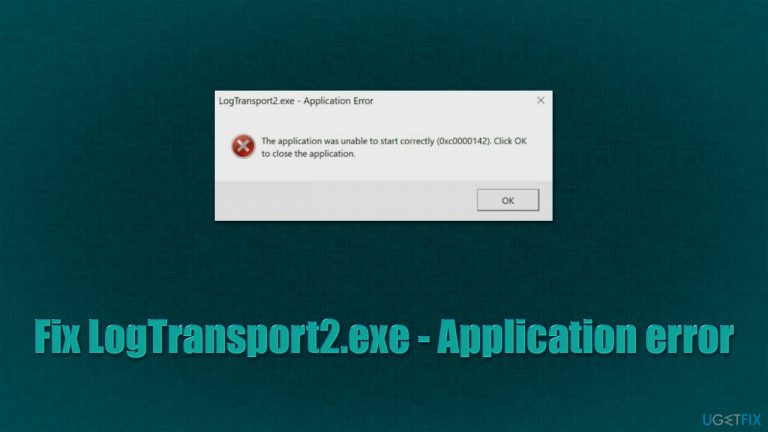
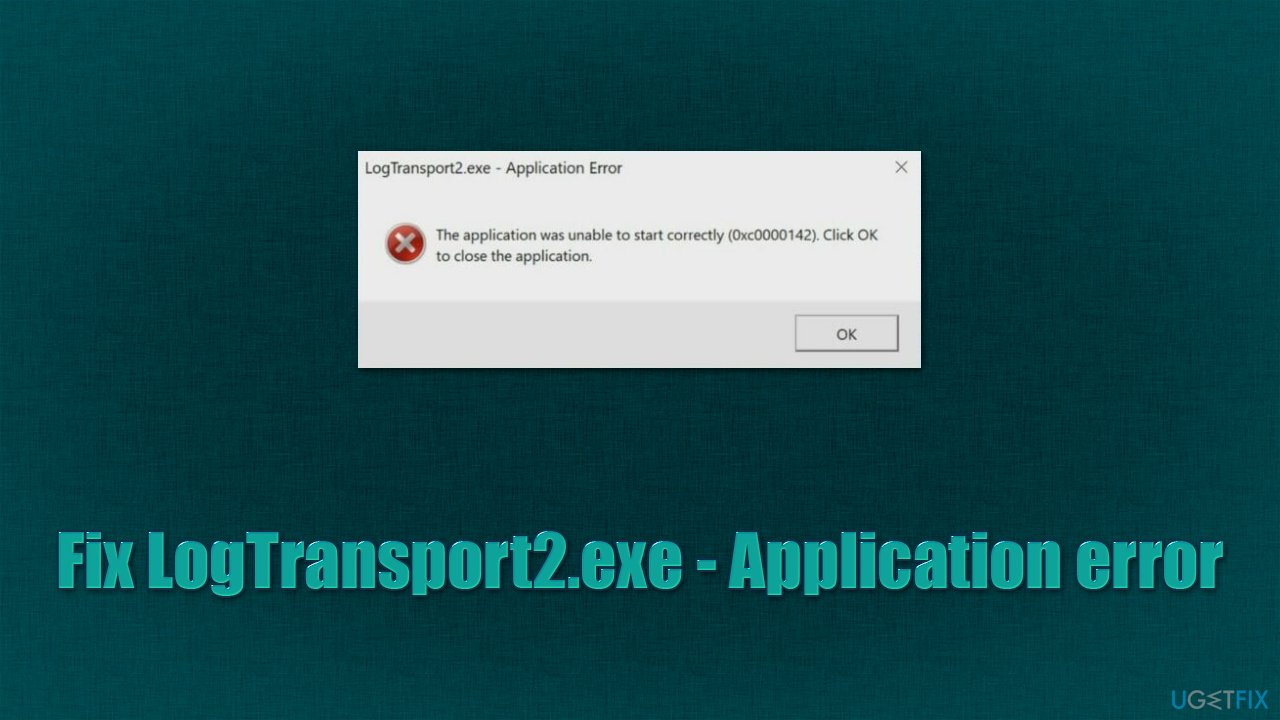
Here's the full message that users get upon encountering it - it shows up in the pop-up window just like any other error on Windows:
LogTransport2.exe - Application error
The application was unable to start correctly (0xc0000142). Click OK to close the application.
This phenomenon is usually puzzling to users because it can start seemingly out of nowhere. The message claims that by pressing OK, the application will be closed, although it does not even explain which exactly app the error is related to.
In reality, LogTransport2.exe is an executable file that is related to Adobe Acrobat applications, usually Reader. The app is used for simple tasks such as displaying PDF[ref en-3] and other formats. Since the base application version is free for everyone, many users opt to have it installed and use it for school, work, or other purposes.
It was confirmed by many people that removing Acrobat would fix the error, which is not a real solution, as they require the app to be installed. That being said, reinstalling it helped some people to solve the issue permanently, so we recommend doing that when troubleshooting.
There could be many reasons for the error to show up, one of the main ones being data corruption, be it within the app or the system. It could also be related to the data exchange process between Adobe's servers and the application, so changing some settings can remove the error.
All in all, we provide several solutions below, although we strongly recommend running a scan with a PC repair software [d1] before you proceed, as it could find and fix the underlying issues on the operating system. It is also very useful when dealing with BSODs,[ref en-1] crashes, DLL errors, registry[ref en-2] issues, and many other common Windows problems.
Application errors are relatively common and can be associated with a variety of applications and their components - Werfault.exe, HPSAAppLauncher.exe, Ucrtbase.dll, and many others. In this article, we tackle the problem with Adobe Acrobat products that the LogTransport2.exe is related to.
1. Repair Adobe Reader or another related app
Before reinstalling the application, you should first try repairing it as follows:
- Type in Control Panel in Windows search and hit Enter
- Go to Programs > Uninstall a program
- Right-click the Adobe Acrobat DC and select Change
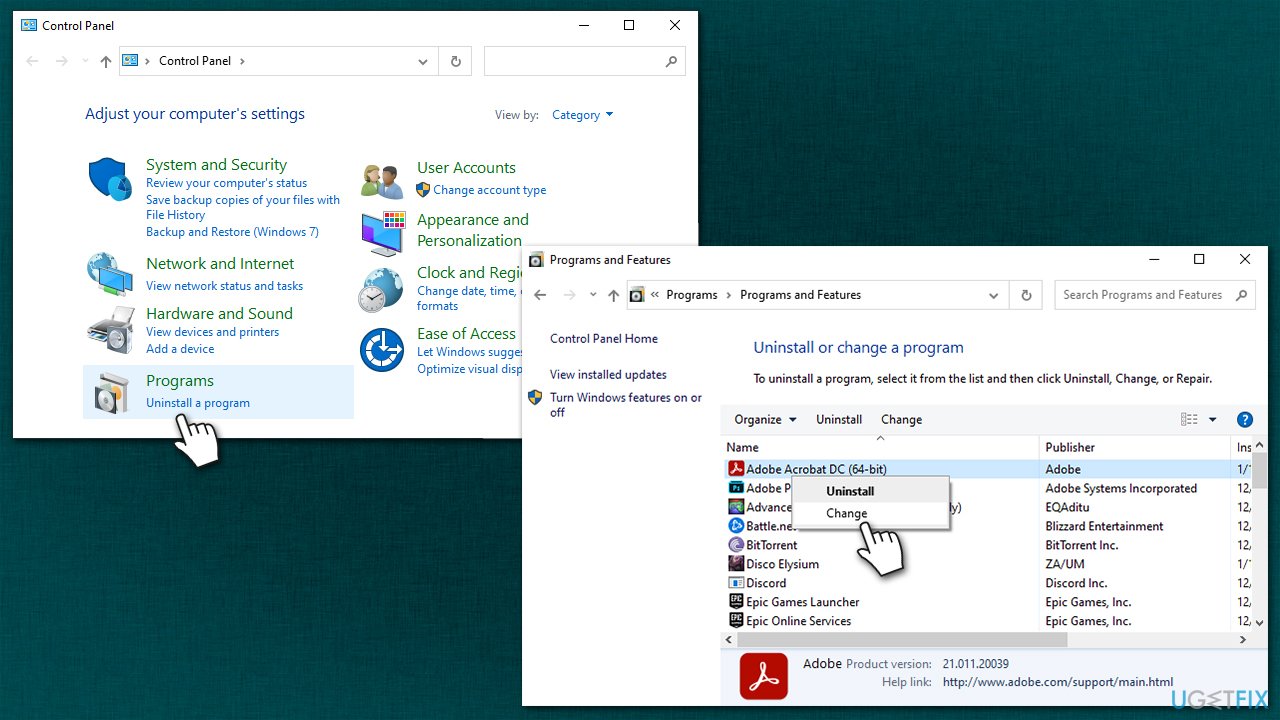
How to fix unable to start logtransport2 exe application error in windows go to control panel - Click Next, select Repair, and click Next again
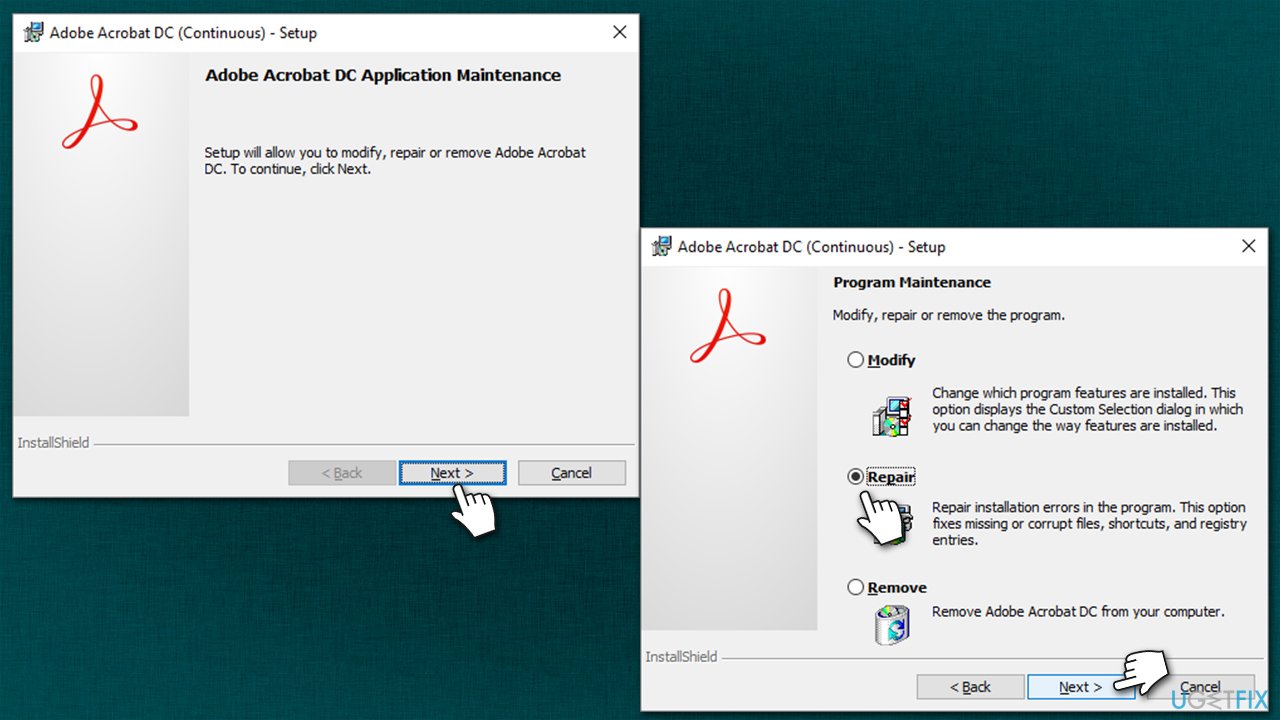
How to fix unable to start logtransport2 exe application error in windows repair installation - Restart your computer and see if the problem is gone.
2. Reinstall the related app
If the above method did not help, you could try reinstalling the app instead:
- Open Control Panel and go to Programs and Features section again
- Find Adobe Acrobat DC, right-click and select Uninstall
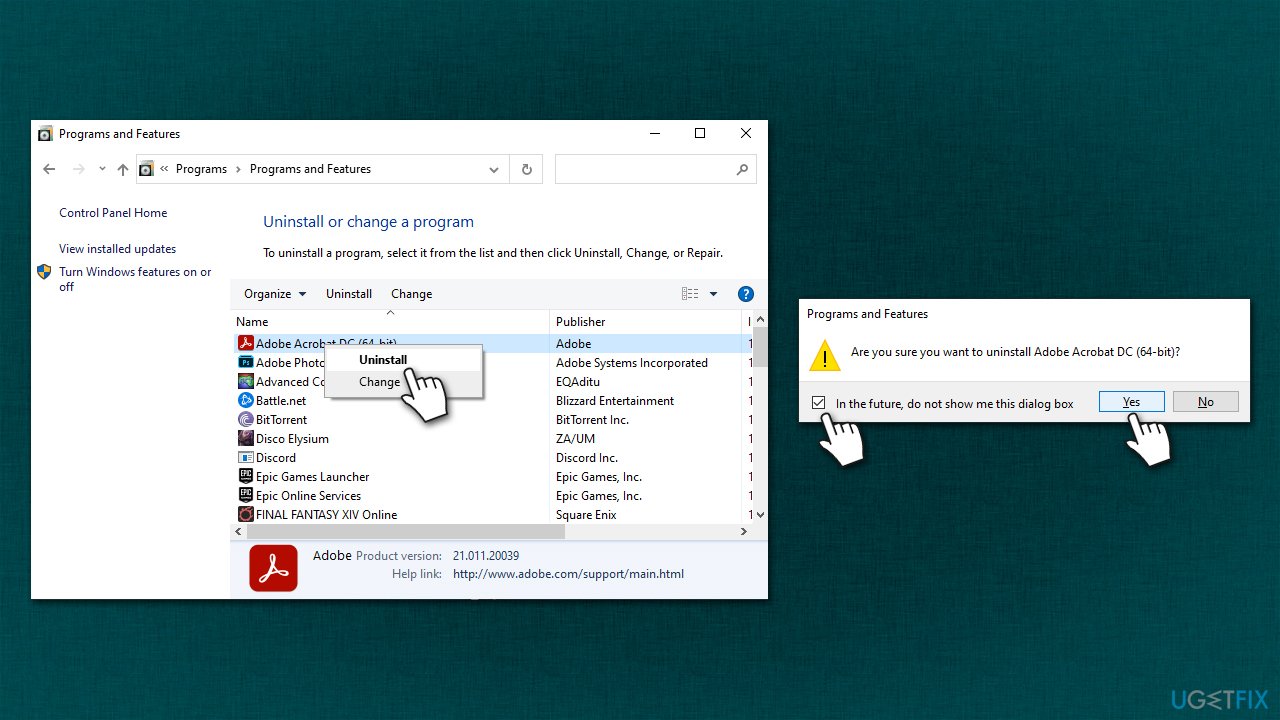
How to fix unable to start logtransport2 exe application error in windows reinstall acrobat - Proceed with on-screen instructions to remove the program
- Go to the official website of Adobe and download/install it anew.
3. Prevent the app from sharing data
In order to do this, you would have to go to your account via the browser.
- Go to the official Adobe Login page and login with your credentials, Google, Facebook, or Apple ID
- Select Profile > Privacy
- Under the Desktop and app usage, remove the tick from "Yes, I'd like to share information on how I use Adobe desktop apps"
- Under Machine learning, untick the "Yes, allow my content to be analyzed by Adobe using machine learning techniques" option
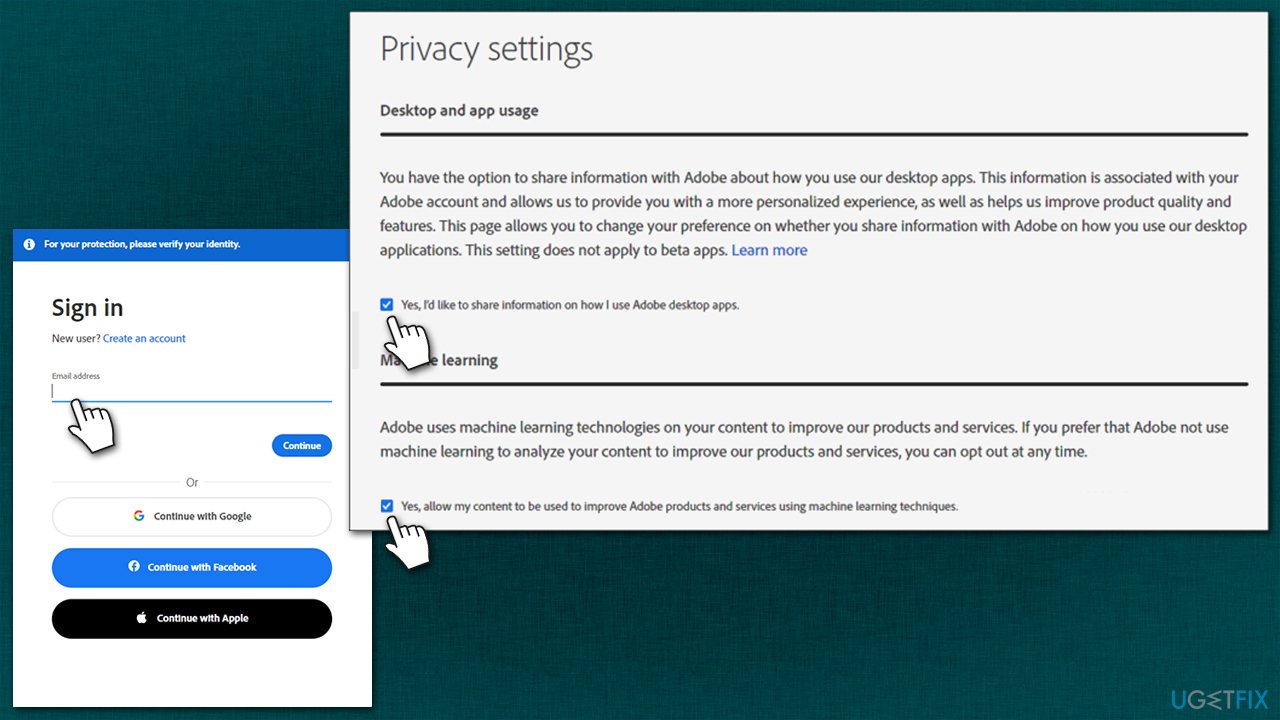
How to fix unable to start logtransport2 exe application error in windows prevent app from sharing data - Restart your PC after this and check if the problem is gone.
4. Use Windows registry
You can repair the registry key that is related to the permissions settings of the app. Before you proceed with this step, make sure you back up the registry database, as modifying it incorrectly might cause serious issues.
- Type regedit in Windows search and press Enter
- When the User Account Control window shows up, click Yes
- In the Registry Editor, go to the following location:
HKEY_CURRENT_USER\\SOFTWARE\\Adobe\\CommonFiles\\UsageCC - Here, right-click the UsageCC entry and select Permissions
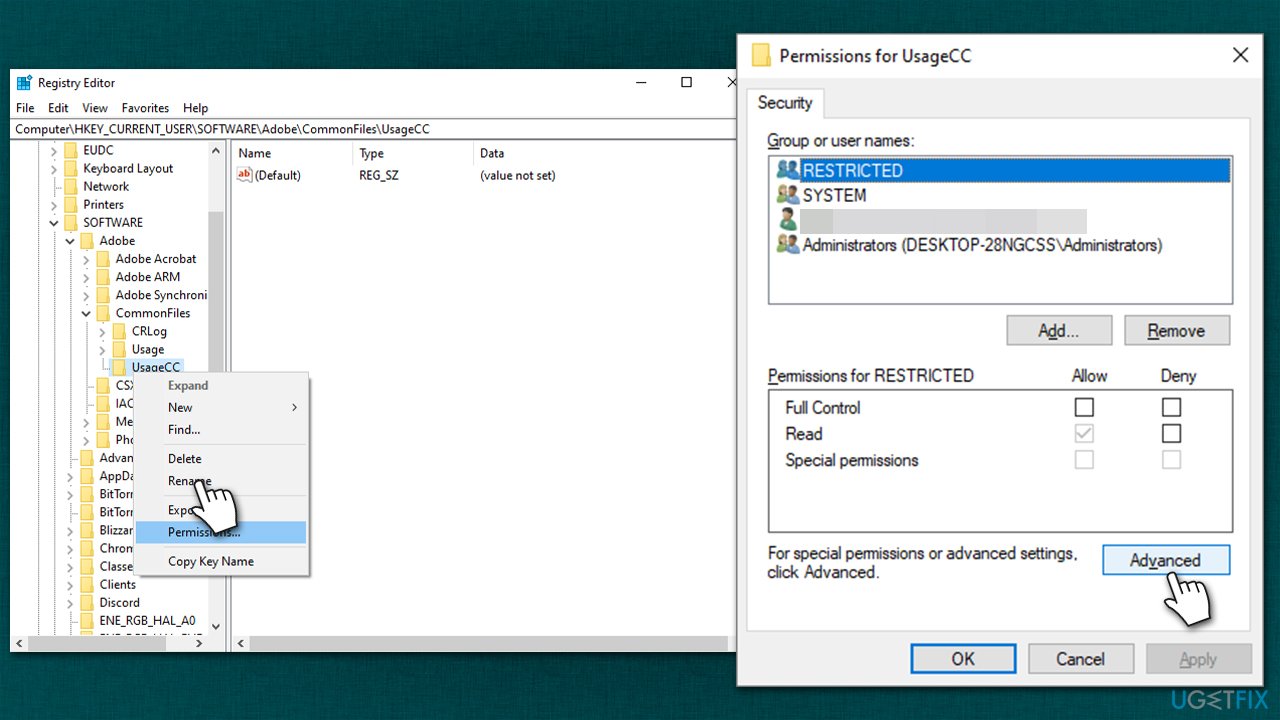
How to fix unable to start logtransport2 exe application error in windows change registry settings - In the new window, click Advanced
- Click the Disable inheritance button and then click OK
- In the Permissions for UsageCC window, select SYSTEM entry by clicking it once and then clicking Remove
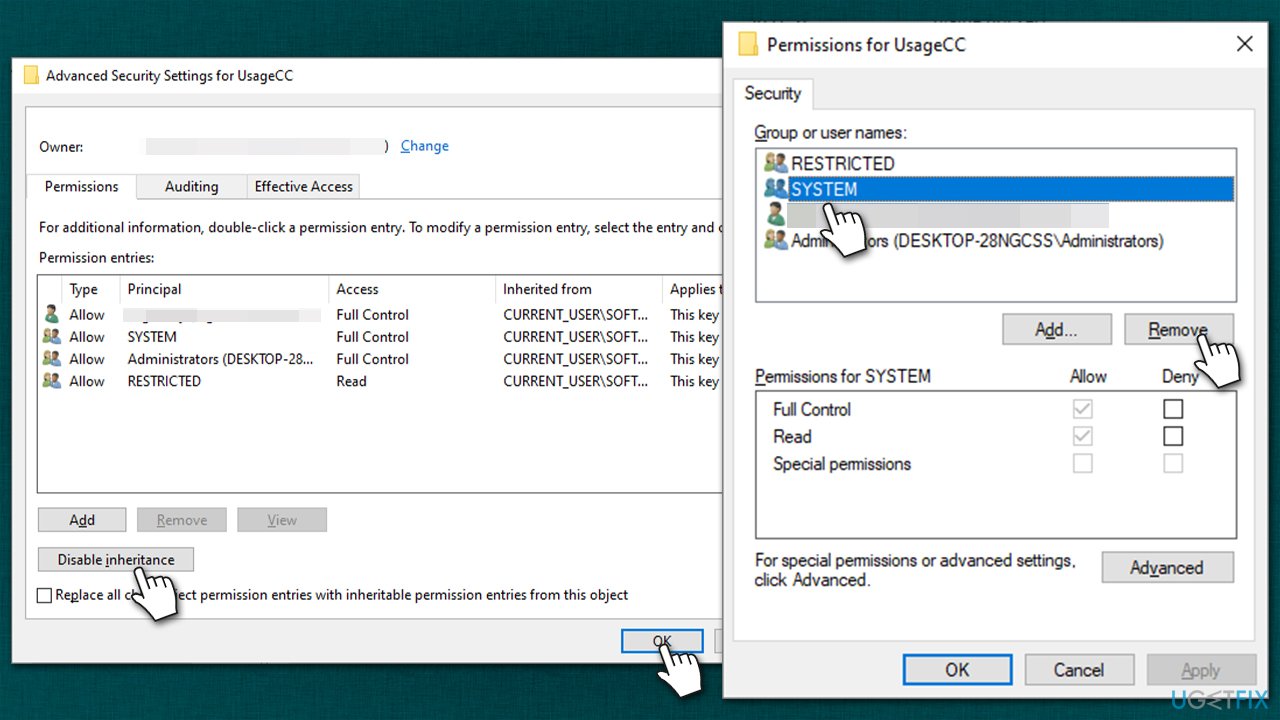
How to fix unable to start logtransport2 exe application error in windows change registry settings2 - Click OK, close down everything and restart your PC.
Bottom line
To resolve the LogTransport2.exe application error, users can try reinstalling Adobe Acrobat, as this has helped some people permanently fix the issue. If the problem persists, consider checking for data corruption or adjusting settings related to the application. If none of these solutions work, further investigation into system settings or seeking professional help may be necessary.
Frequently asked questions
This error is often caused by corrupted files or issues with the Windows update process that interferes with the LogTransport2.exe application. Additionally, conflicting software or incomplete installations can also trigger this error.
You can resolve this error by running the Windows Update Troubleshooter, repairing the Microsoft Store apps, or reinstalling the problematic application that uses LogTransport2.exe. Alternatively, performing a system file check can also help fix corrupted files.
Disabling LogTransport2.exe is generally safe, as it is part of the Windows error reporting system, but it may prevent important logs from being sent to Microsoft. If you are consistently experiencing issues, it may be better to troubleshoot the root cause instead.




Report an issue
What's wrong with this guide? We review every report and update or remove content.
Report received — thank you. We'll review and fix it.
You need a free account to submit a report.
Be the first to comment