
How to fix "Unsupported 16-bit application" error in Windows?

Prefer to fix it yourself? The manual steps follow.
- 8methods
- 5 to 30 minutes
- Easy
Applies to Windows 11, 64-bit Windows 10; new programs with a damaged .exe and old 16-bit programs and installers
8 methods in this guide
Hello. When I try to launch Minecraft on my Windows PC I get the "Unsupported 16-bit application" error. How do I fix it?
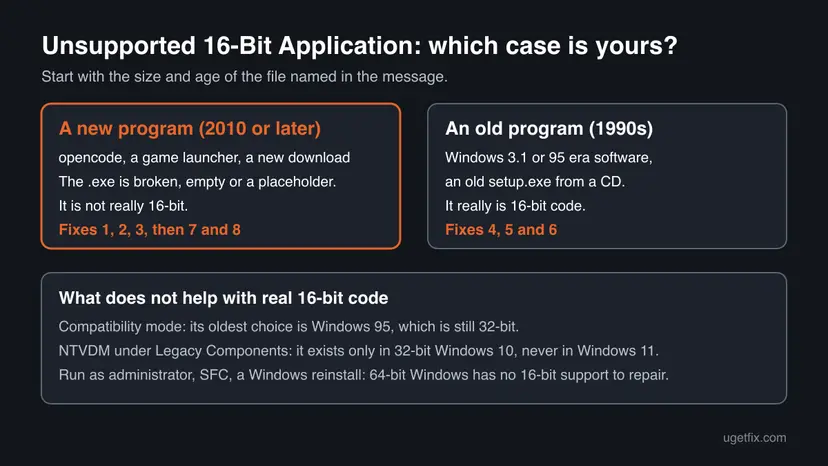
The Unsupported 16-Bit Application message means Windows could not read the .exe file as a 32-bit or 64-bit program. On a new program such as opencode or a game launcher the file is almost always broken, empty or a placeholder, and a clean reinstall fixes it. On a real 1990s program it is final: 64-bit Windows, and so every Windows 11 PC, cannot run 16-bit code.
Right-click the .exe named in the message, select Properties and read its size (Fix 1). A few hundred bytes or 0 bytes means the file is broken, not 16-bit: delete it and download or install the program again. For opencode installed with npm, reinstall with --allow-scripts=opencode-ai (Fix 2). Only a program from the 1990s is truly 16-bit; it needs a newer version or a 32-bit Windows (Fixes 4 to 6).
| Error | Unsupported 16-Bit Application: "The program or feature [path of the .exe] cannot start or run due to incompatibility with 64-bit versions of Windows." |
|---|---|
| Where it appears | In a small Windows dialog right after you start an .exe, or when a terminal command such as opencode starts one. The program itself never opens. |
| Main cause | New programs: the .exe is damaged, empty or a placeholder, so Windows cannot read its header. Old programs: the file really is 16-bit code. |
| Fastest fix | Check the file size in Properties and install the program again from its maker (Fix 1). For opencode from npm, Fix 2. |
| Also written as | Unsupported 16 bit application, unsupported 16bit application, 16 bit windows subsystem error, "This 16-bit installer cannot be run by Windows". |
| Affects | Every 64-bit Windows: Windows 11 (64-bit only) and 64-bit Windows 10. 32-bit Windows 10 can still run 16-bit programs. |
| Microsoft's status | By design, not a bug. Microsoft article 896458 (updated 12 February 2026): x64 Windows does not support 16-bit programs, processes or components. |
| Time to fix | 5 to 15 minutes for a broken new program. A real 16-bit program needs a replacement or a 32-bit Windows, which takes longer. |
Facts checked on 15 October 2026. Steps written for Windows 11 (25H2 and 26H2) and Windows 10 22H2.
What the Unsupported 16-Bit Application error means in Windows 11 and 10
The dialog is titled Unsupported 16-Bit Application and names the full path of the file Windows tried to start. The text reads like this, here with the path from an opencode install:
The message as Windows shows it
Unsupported 16-Bit Application

The program or feature "...\opencode.exe" cannot start or run due to incompatibility with 64-bit versions of Windows.
Please contact the software vendor to ask if a 64-bit Windows compatible version is available.
16-bit programs were written for MS-DOS and Windows 3.1, before Windows 95. Microsoft states that x64-based versions of Windows do not support 16-bit programs, 16-bit processes or 16-bit components. Windows 11 exists only in 64-bit editions, so on Windows 11 this is never something you can switch on.
Windows shows the same dialog when an .exe has no valid 32-bit or 64-bit header at all. A file that is empty, cut off during download or left as a placeholder by an installer looks like old code to Windows. That is why a 2026 program such as opencode can trigger a 16-bit error.
Why Windows says unsupported 16-bit application on Windows 11
Most often the .exe is broken: a placeholder that an installer never replaced, or a download that stopped early. Less often the program really is 16-bit, or a 32-bit program uses a 16-bit setup. Rarely the file is something you did not install at all.
| Cause | How often | How to tell | Fix |
|---|---|---|---|
opencode installed with npm, and npm blocked its postinstall script, so the 479-byte placeholder opencode.exe stayed in place. | Most often in our query data | The error appears when you type opencode. The npm install printed an install-scripts warning. | Fix 2 |
| A damaged or incomplete .exe of a new program or game launcher. | Often | The file is 0 bytes or far smaller than the download should be. | Fix 1, Fix 3 |
| An old setup.exe that uses a 16-bit InstallShield stub to install a 32-bit program. | Sometimes | The program is from the late 1990s and the error comes from setup, not from the program. | Fix 4 |
| A real 16-bit program from the MS-DOS or Windows 3.1 era. | Sometimes | Old disks, old business or school software, games from before 1995. | Fix 5, Fix 6 |
An unknown .exe in C:\Windows or System32, or a damaged Windows file. | Rarely | You do not recognise the name, or a Windows tool shows the error. | Fix 7, Fix 8 |
Users on Minecraft help forums report the same message from the Minecraft Launcher. Mojang has not published an explanation that we could find, so treat the launcher case like any other new program: its file is not 16-bit, it is broken.
How to fix the Unsupported 16-Bit Application error
Fixes 1 to 3 repair a new program whose file is broken, and they solve most cases. Fixes 4 to 6 are for real old software. Fixes 7 and 8 check the rare case of a strange file or damaged Windows files.
| What you see or have | Start with |
|---|---|
| Any new program, and you are not sure why it fails. | Fix 1 |
The error appears when you run opencode after npm install -g opencode-ai, or after an opencode update. | Fix 2 |
| Minecraft Launcher, another game launcher or an app that worked before. | Fix 1, then Fix 3 |
| An old CD setup that stops with "This 16-bit installer cannot be run by Windows" or this dialog. | Fix 4 |
| A real program from the MS-DOS or Windows 3.1 era. | Fix 5, then Fix 6 |
The path points into C:\Windows or System32, or you never installed the file. | Fix 7, then Fix 8 |
Fix 1. Check the size of the .exe and download the program again
5 minutesNo riskEveryone with a program made in the last 15 years, before anything else.
Windows says 16-bit when it cannot read the file's header. A file of 0 bytes, a few hundred bytes or far below the normal size has no valid header, so the fix is a complete copy of the file, not a Windows setting.
- Read the path in the error message and open that folder in File Explorer.
- Right-click the .exe and select Properties.
- On the General tab, read Size. Write it down.
- Compare it with the size the maker gives on its download page, or with the same file on another PC.
- If the file is tiny or 0 bytes, delete it and download the installer again from the maker's own site.
- Run the new installer and start the program again.
In PowerShell you can read the size directly. The command below is the one an opencode user used to find the broken file; change the path to yours.
Get-Item "$env:APPDATA\npm\node_modules\opencode-ai\bin\opencode.exe" | Select Name,LengthIt worked if: The new file has a normal size, often many megabytes, and the program opens without the dialog.
If not: If the program was installed with npm, go to Fix 2. If the file size looks normal, go to Fix 3.
Fix 2. Reinstall opencode with npm scripts allowed
5 minutesNo riskYou installed or updated opencode with npm install -g opencode-ai on Windows.
The opencode npm package ships a 479-byte placeholder opencode.exe. Its postinstall script replaces it with the real Windows binary of about 184 MB. Newer npm versions can block that script, and the placeholder then triggers the 16-bit dialog.
- Open Terminal or PowerShell.
- Run
npm config get ignore-scripts. If it printstrue, runnpm config set ignore-scripts false. - Install again with scripts allowed for this one package, using the command below.
- Run
opencode --version. A version number means the real binary is in place.
Reinstall with the postinstall script allowed
npm install -g --allow-scripts=opencode-ai opencode-aiWithout a reinstall, you can run the package's own script once. It swaps the placeholder for the real file that npm already downloaded into node_modules\opencode-windows-x64:
Run the skipped postinstall step by hand
node "$env:APPDATA\npm\node_modules\opencode-ai\postinstall.mjs"The opencode issue that documents this (number 36737, version 1.17.19) was closed as not planned in September 2026, and a newer report from August 2026 is still open. Users report the same error after the built-in self-update. If it comes back after an update, run the command again.
It worked if: opencode --version prints a version and the opencode screen opens in the terminal.
If not: Run npm root -g to see where npm keeps global packages and check the opencode.exe size there with Fix 1. Then read the npm log described under "Still not working".
Fix 3. Uninstall the launcher or app and install a fresh copy
15 minutesLow riskMinecraft Launcher, another game launcher or an app that worked before shows the error.
A launcher updates its own files. When an update stops halfway, the main .exe can stay damaged, and repeated starts do not repair it. Removing the program and installing the current version from its maker replaces every file.
- Select Start > Settings > Apps > Installed apps.
- Find the program, select the three dots next to it and select Uninstall.
- Restart the PC.
- Download the installer again from the maker's own site or from the Microsoft Store. For Minecraft that is minecraft.net.
- Install it and sign in again if the program asks.

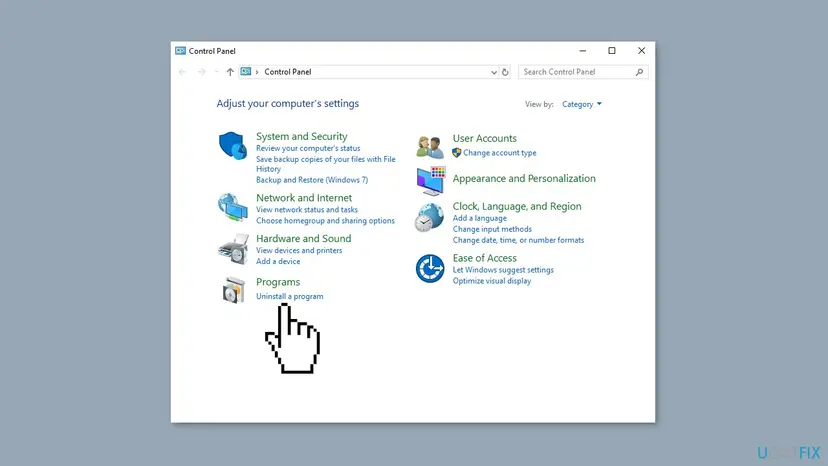
Both ways, on Windows 11 and Windows 10: Uninstall a program or app in Windows Your game worlds and settings are usually stored outside the program folder, but check the maker's help before you delete any folder by hand.
It worked if: The fresh launcher opens normally and the 16-bit dialog does not come back.
If not: If the new download fails the same way, the file may be blocked or removed while it downloads: go to Fix 7.
Fix 4. Install Microsoft's 16-bit InstallShield support package for old setups
10 minutesLow riskAn old CD or download installs a 32-bit program, but its setup.exe stops with this error.
Many late 1990s programs are 32-bit, but their setup starts from a 16-bit InstallShield stub. Microsoft says 64-bit Windows can convert some of these installers to 32-bit, and publishes a support package for the 16-bit InstallShield case.
- Open Microsoft's article 896458 on Microsoft Learn.
- Under Use 16-bit InstallShield installers to install 32-bit applications, select the 16-bit InstallShield Support package link.
- Run the downloaded
16BitInstallShieldSupport.msiand finish the setup. - Start the old program's setup.exe again.
This helps only when the program itself is 32-bit. If the setup now runs but the installed program shows the same dialog, the program is 16-bit too: go to Fix 5.
It worked if: The old setup starts, copies its files and the installed program opens.
If not: The program is real 16-bit code. Look for a newer version (Fix 5) or use a 32-bit Windows (Fix 6).
Fix 5. Get a 32-bit or 64-bit version of the program
15 minutesNo riskThe program really is from the MS-DOS or Windows 3.1 era, and you need it on this PC.
The message itself asks you to contact the software vendor for a 64-bit compatible version. Microsoft also advises upgrading critical programs to 64-bit versions. A current version removes the problem for good on Windows 11.
- Note the program's name and version from its box, disk label or the folder name.
- Search the maker's site for a current version, an upgrade or a Windows 10 or 11 edition.
- If the maker is gone, look for a program that opens the same file types, and test it on a copy of your data.
- Keep the original disks and your data files until the new program reads them correctly.
It worked if: A current version installs and opens your old files.
If not: If no newer version exists, run the old program in a 32-bit Windows, as in Fix 6.
Fix 6. Run the old program in a 32-bit Windows
1 hour or moreLow riskA real 16-bit program has no replacement and you must keep using it.
Microsoft's only supported way to run 16-bit code is to install the program on a 32-bit Windows. In 32-bit Windows 10 the 16-bit support is the NTVDM feature under Legacy Components. It does not exist in 64-bit Windows or in Windows 11.
- Choose where the 32-bit Windows will run. Microsoft describes a dual boot on a separate disk volume or a separate hard disk; a virtual machine keeps it apart from your main Windows.
- Install a 32-bit Windows 10 there with a licence you own.
- Press Win + R, type
optionalfeatures.exeand select OK. - Expand Legacy Components, select NTVDM and select OK.
- Install the old program inside that Windows and start it.
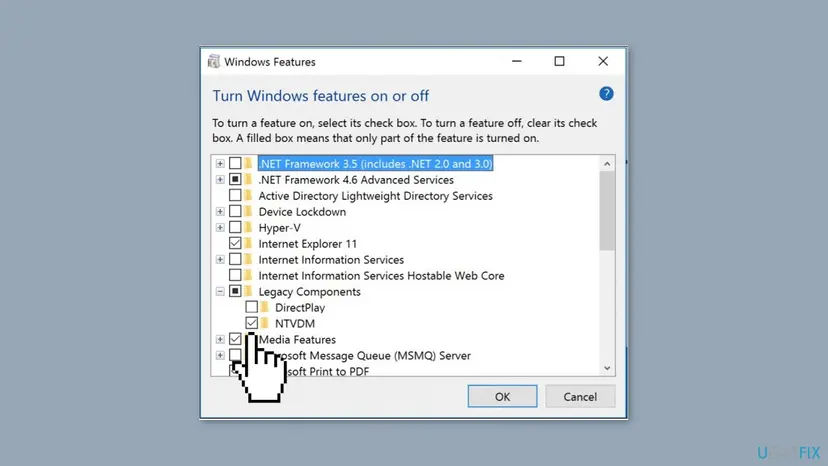
Microsoft ended support for Windows 10 on 14 October 2025, so a 32-bit Windows 10 gets no security fixes. Do not install it on the same volume as your main Windows: Microsoft warns the computer may stop responding. Keep it off the internet.
It worked if: The old program starts inside the 32-bit Windows without the dialog.
If not: If NTVDM is not listed, that Windows is 64-bit. Check Settings > System > About > System type.
Fix 7. Scan the file with Microsoft Defender
10 minutesNo riskThe path points to a file you never installed, or to C:\Windows or System32.
A normal program never needs to start an unknown .exe from the Windows folder. A strange file there, or a download that security software removes or cuts off, can produce this dialog, and a scan tells you which it is.
- Open Windows Security from Start.
- Select Virus & threat protection, then Quick scan.
- If nothing is found, open Scan options, select Custom scan and scan the folder from the error message.
- Open Protection history and check whether the program's file was quarantined.
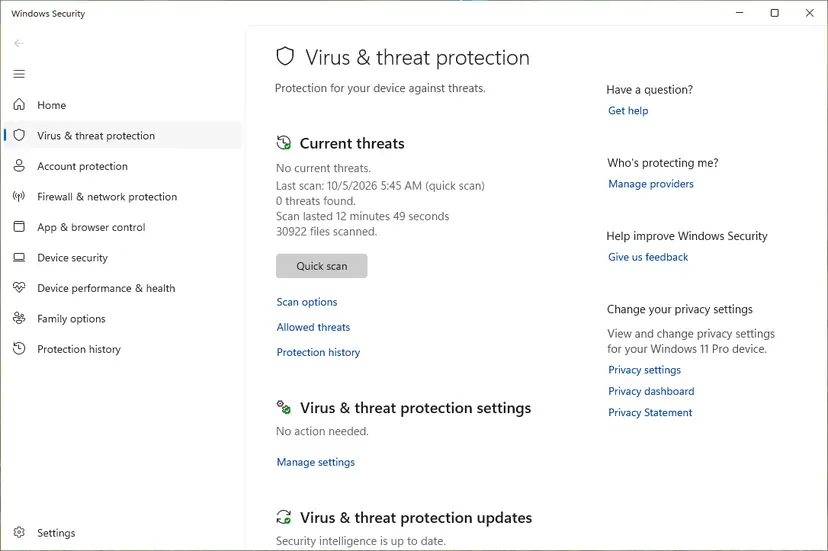
Full steps for every scan type: How to scan for malware with Microsoft Defender
It worked if: The scan finds nothing, or removes a threat and the dialog stops appearing at sign-in.
If not: If the file is a real Windows file, repair Windows files with Fix 8.
Fix 8. Repair Windows system files
20 minutesNo riskA Windows tool, not a program you installed, shows the 16-bit dialog.
This is the rare case where the broken .exe belongs to Windows itself. SFC and DISM replace damaged Windows files with good copies. They cannot add 16-bit support to 64-bit Windows, so skip this fix for an old program.
- Open a command window as administrator.
- Run
sfc /scannowand wait until it reaches 100 %. - If it reports files it could not repair, run the DISM command from the procedure below, then SFC again.
- Restart the PC.

Full procedure: Run DISM and SFC to repair Windows system files
It worked if: SFC reports that it found no problems or that it repaired files, and the Windows tool starts.
If not: Collect the details listed under "Still not working" and ask the program's maker for help.
Unsupported 16-Bit Application still there: what to check and send
Windows does not write a detailed reason for this dialog, so the evidence comes from the file and from the installer that put it there.
- npm programs: npm keeps a log of every install in
%LOCALAPPDATA%\npm-cache\_logs. Open the newestdebug-0.logand search forinstall-scripts. A line saying scripts were blocked is the cause of Fix 2. - The file itself: the exact path from the dialog, the size from Properties and the size the maker says it should have.
- Your Windows: Settings > System > About shows the edition and System type. 64-bit can never run 16-bit code.
- Not a hardware fault: this message comes from how Windows reads a file. It is not a sign of a failing disk or memory, unless many unrelated files are damaged at once.
Send the full text of the dialog, the file path and size, how you installed the program (installer, npm, Store) and your Windows version from winver. For opencode, add the install-scripts lines from the npm log.
Avoid the 16-bit error the next time you install a program
- Download installers only from the maker's own site or the Microsoft Store, and let the download finish before you open it.
- Read the warnings npm prints during a global install; an
install-scriptswarning means a package is not finished. - Check the file size after a download that took suspiciously little time.
- Keep a list of the old programs you rely on and look for their current versions before you move to a new PC.
- Try to switch on NTVDM in 64-bit Windows: it is not there to switch on.
- Expect compatibility mode to run 16-bit code: its oldest choice is Windows 95, a 32-bit system.
- Run fixes for a 16-bit program from video descriptions or file-sharing links.
- Install an unsupported 32-bit Windows next to your main Windows on the same volume.
Compatibility mode still has its use for programs that are 32-bit but expect an older Windows: How to run a program as administrator or in compatibility mode
Frequently asked questions
Can Windows 11 run 16-bit applications?
No. Windows 11 is only made in 64-bit editions, and Microsoft states that x64 versions of Windows do not support 16-bit programs, processes or components. No setting, update or feature adds it. A program that is truly 16-bit runs only in a 32-bit Windows, for example in a virtual machine, as Fix 6 describes. Most new programs that show this message on Windows 11 are not 16-bit at all: their .exe is broken, and a reinstall fixes it.
How do I fix unsupported 16 bit application in Windows 10?
First check which Windows 10 you have under Settings > System > About > System type. On 64-bit Windows 10 the steps are the same as on Windows 11: check the file size (Fix 1), reinstall the program (Fix 3) or, for a real old program, find a newer version. On 32-bit Windows 10 you can turn on NTVDM under Legacy Components to run 16-bit programs. Windows 10 lost support on 14 October 2025, so do this only on an offline PC.
Why does Minecraft say unsupported 16 bit application?
Minecraft and its launcher are not 16-bit programs, so the message points to a damaged launcher file. Users on Minecraft help forums report it after an interrupted download or update. Check the size of the launcher .exe named in the dialog (Fix 1), then uninstall the launcher, restart and install a fresh copy from minecraft.net or the Microsoft Store (Fix 3). Your worlds are usually kept outside the launcher's program folder, but back them up before deleting folders.
Why does opencode show unsupported 16 bit application?
The opencode npm package installs a 479-byte placeholder opencode.exe and replaces it in a postinstall script. When npm blocks that script, the placeholder stays, and Windows reads it as 16-bit code. Reinstall with npm install -g --allow-scripts=opencode-ai opencode-ai, or run the package's postinstall.mjs with node, as in Fix 2. Users report the same after opencode updates itself.
Is the Claude Code unsupported 16 bit application error the same problem?
We found no published report for Claude Code that we could check, so we cannot confirm its cause. The same test applies to any command-line tool: find the .exe in the dialog, read its size in Properties and compare it with a normal install. A tiny or empty file means the install did not finish. Reinstall the tool with its official command and read the warnings the installer prints.
What does "This 16-bit installer cannot be run by Windows" mean?
It is a related message from an old setup program. Many 32-bit programs from the late 1990s start their installation with a 16-bit InstallShield stub. Microsoft publishes a 16-bit InstallShield Support package for this case in its article 896458, as Fix 4 describes. If the program itself is 16-bit too, the support package will not help and you need a newer version or a 32-bit Windows.
Does compatibility mode fix the 16-bit error?
Not for real 16-bit programs. Compatibility mode changes how Windows presents itself to a 32-bit or 64-bit program; it cannot run code that 64-bit Windows does not support. Its oldest option is Windows 95, which is itself 32-bit. For a new program with a broken .exe, compatibility mode does nothing either, because the file still cannot be read. Use it only for 32-bit programs that expect an older Windows.
Can I enable NTVDM in Windows 11?
No. NTVDM, the NT Virtual DOS Machine that ran 16-bit programs, ships only with 32-bit Windows. Windows 11 has no 32-bit edition, so Legacy Components in Windows Features does not list it, and commands that try to enable it fail. Old guides that tell you to tick NTVDM were written for 32-bit Windows 10. On Windows 11 the options are a newer program or a 32-bit Windows in a virtual machine.
Is the Unsupported 16-Bit Application message a virus?
The message itself is a normal Windows dialog. It can point to a problem only when the path names a file you never installed, especially in C:\Windows or System32, or when it appears at every sign-in. Then scan that folder with Microsoft Defender (Fix 7). When it names a program you just installed, such as a game launcher or a developer tool, the cause is a broken file, not malware.
Does this page cover the error in other languages?
Yes. Windows shows the same dialog in your display language, for example "aplicación de 16 bits no compatible" in Spanish or "desteklenmeyen 16 bit uygulama" in Turkish. The cause and the fixes do not change with the language. Read the path in the dialog, check the file size and follow the chooser table above to find your fix.
Sources
- Microsoft Learn: 64-bit versions of Windows don't support 16-bit components, 16-bit processes, or 16-bit applications (KB 896458) (learn.microsoft.com)
- opencode on GitHub: global npm install leaves 479-byte placeholder opencode.exe when postinstall is blocked (issue 36737) (github.com)
- opencode on GitHub: opencode.exe fails with Unsupported 16-Bit Application error on Windows 10/11 (issue 40097) (github.com)
Did this fix work?
One click, no account. It tells the next reader which guides are worth their time.
Questions and experiences: fix "Unsupported 16-bit application" error in Windows
Still broken, or found a fix we did not cover? Ask here: members and our editors answer. Reading is open; writing needs a free account.
…