How to fix
VAN 9003 error in Valorant
on Windows
Resolve the VAN 9003 error in Valorant on Windows 10 and 11 with expert-tested solutions, ensuring a seamless gaming experience in minutes.

What causes How to fix VAN 9003 error in Valorant?
- Secure Boot requirement not met
- TPM (Trusted Platform Module) not enabled
- System does not meet security requirements
- Riot Games' implementation of stricter security features
Repairs Windows system files, removes malware, and restores a clean OS state — without reinstalling.
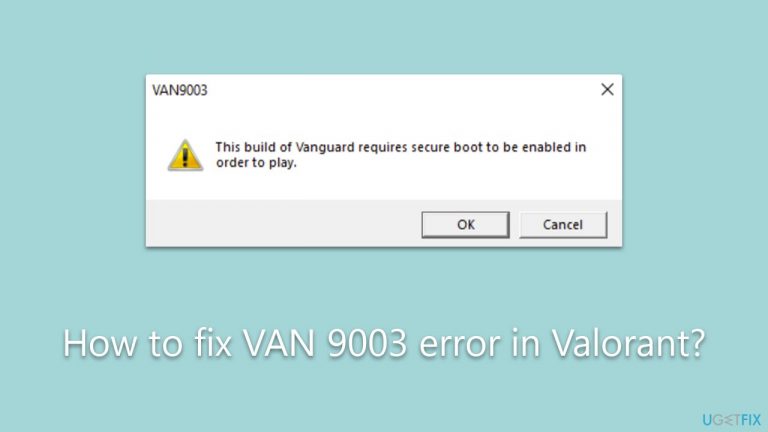
Hi, I attempted to launch Valorant after not playing it for a while and I keep getting VAN 9003 error which says "Initial Attestation failure: Secure Boot requirement not met." What does this mean and how can I fix it?
Valorant, developed by Riot Games, is a high-octane free-to-play multiplayer first-person shooter that has taken the gaming community by storm since its release. As with any sophisticated software, it's not unusual for users to encounter certain glitches or error messages during gameplay.
A common example of such an issue is the VAN 9003 error, which displays the message "Initial Attestation failure: Secure Boot requirement not met." This error message can create confusion and frustration among gamers who simply wish to engage in the action-packed environment Valorant has to offer.
The VAN 9003 error is a consequence of Riot Games' decision to ensure the security and integrity of its games. Recently, Riot has implemented stricter security features to maintain fair and safe gameplay. These features include Secure Boot and TPM (Trusted Platform Module), which are now required to be enabled for the game to run.
The VAN 9003 error essentially communicates to the user that their system does not meet these newly instituted security requirements, preventing them from launching Valorant.
The introduction of these requirements aligns with the current trend toward increasing security standards in the digital landscape. The primary aim of this move is to deter any potential cheating or malicious software that could disrupt the gaming experience for all Valorant players. Secure Boot and TPM are hardware-related security features that ensure the authenticity and integrity of the software running on a system, providing a necessary line of defense against potential threats.
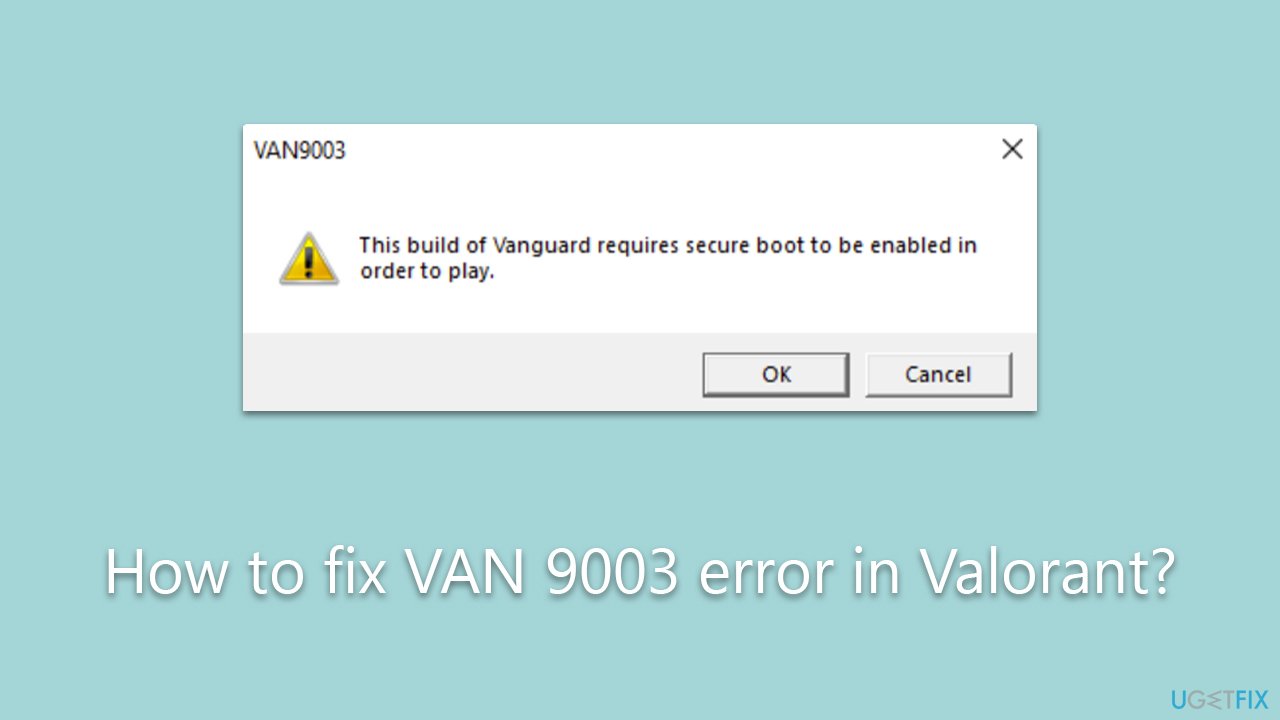
To fix the VAN 9003 error in Valorant, users will need to activate the Secure Boot and TPM features on their devices. Detailed instructions on how to do this can be found below this article, providing a step-by-step guide to help players get back to enjoying the game as quickly as possible.
While Riot Games is making efforts to safeguard its games, users should also ensure their operating systems are protected against any general issues that could disrupt their gaming experience. For Windows users, [d1] PC repair is an excellent tool that can automatically detect and fix a broad range of system issues.
Fix 1. Enable TPM
Trusted Platform Module (TPM) is a security feature built into your computer's motherboard that stores encryption keys and ensures the integrity of your system. Valorant's new security standards require it to be active. To enable TPM:
- Open your system BIOS. You can usually do this by restarting your computer and pressing a specific key (like F2, F10, or Del - it depends on your motherboard or laptop manufacturer) as it boots up.
- Look for an option related to TPM, likely found under a Security or Advanced tab.
- Enable the TPM option.
- Save and exit BIOS, usually by pressing F10.
- Your computer will restart with TPM enabled.
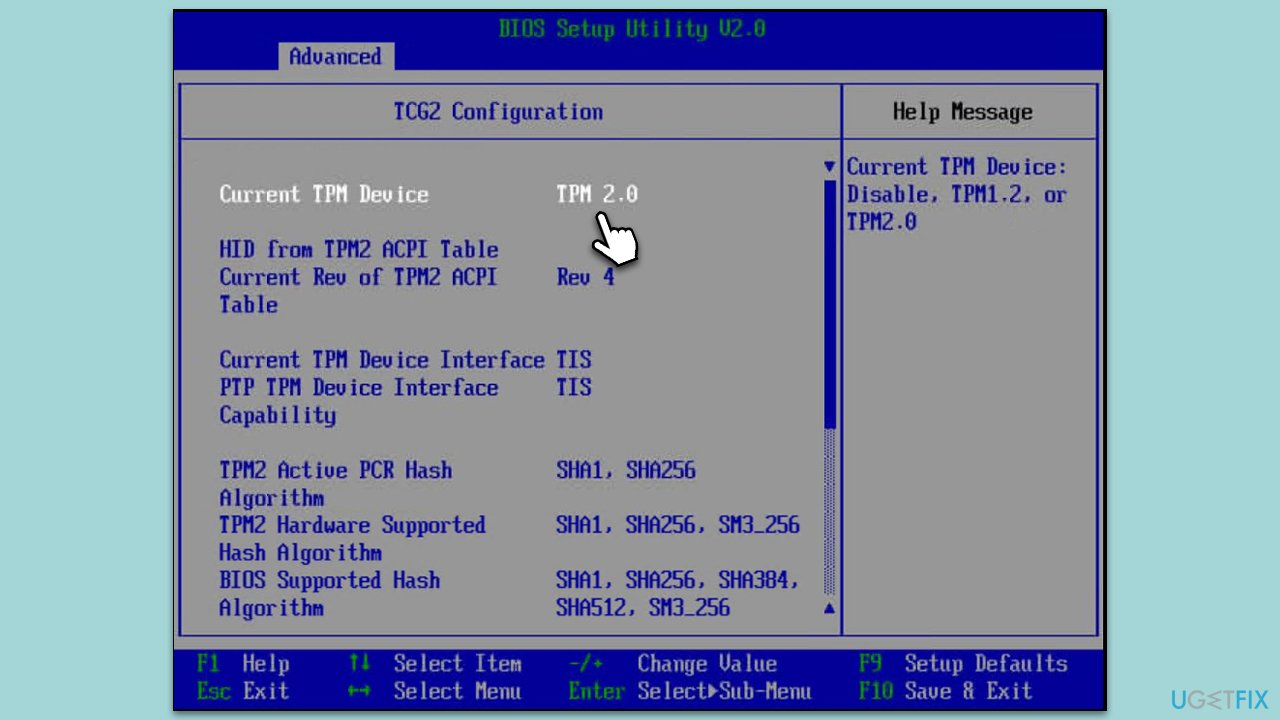
Now, you should check whether the TPM feature is enabled as follows:
- Press Win + R on your keyboard to open the Run dialog.
- Type tpm.msc in the box and hit Enter or click OK.
- If you see the "Compatible TPM cannot be found" message, TPM does not exist on your system.
- Otherwise, if the message says, "The TPM is ready to use," you are good to go.
Fix 2. Enable Secure Boot
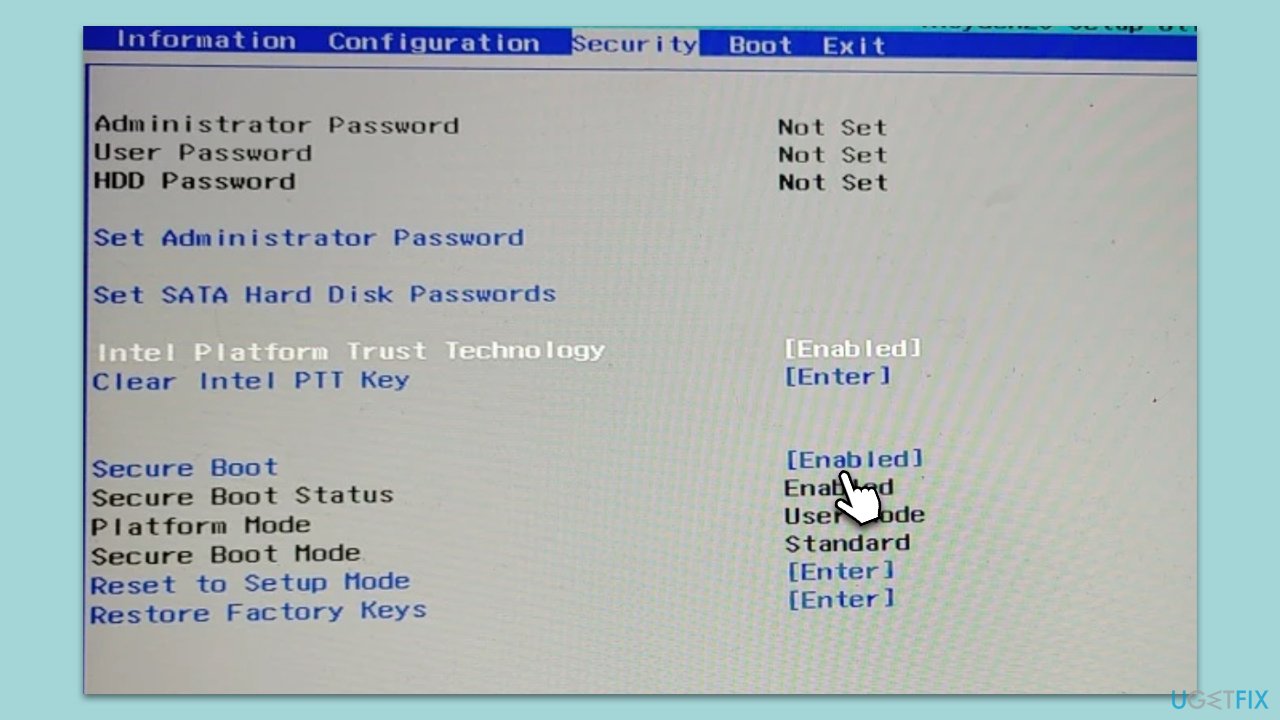
Secure Boot is a security standard developed by members of the PC industry to help ensure that your PC boots only trusted software. This is another requirement for playing Valorant. To enable Secure Boot:
- Restart your computer and enter BIOS, as described in the TPM section.
- Select the Boot, Advanced, Security, or similar.
- Look for an option related to Secure Boot and enable it.
- Save and exit BIOS.
- Your computer will restart with Secure Boot enabled.
Fix 3. Run Valorant in compatibility mode
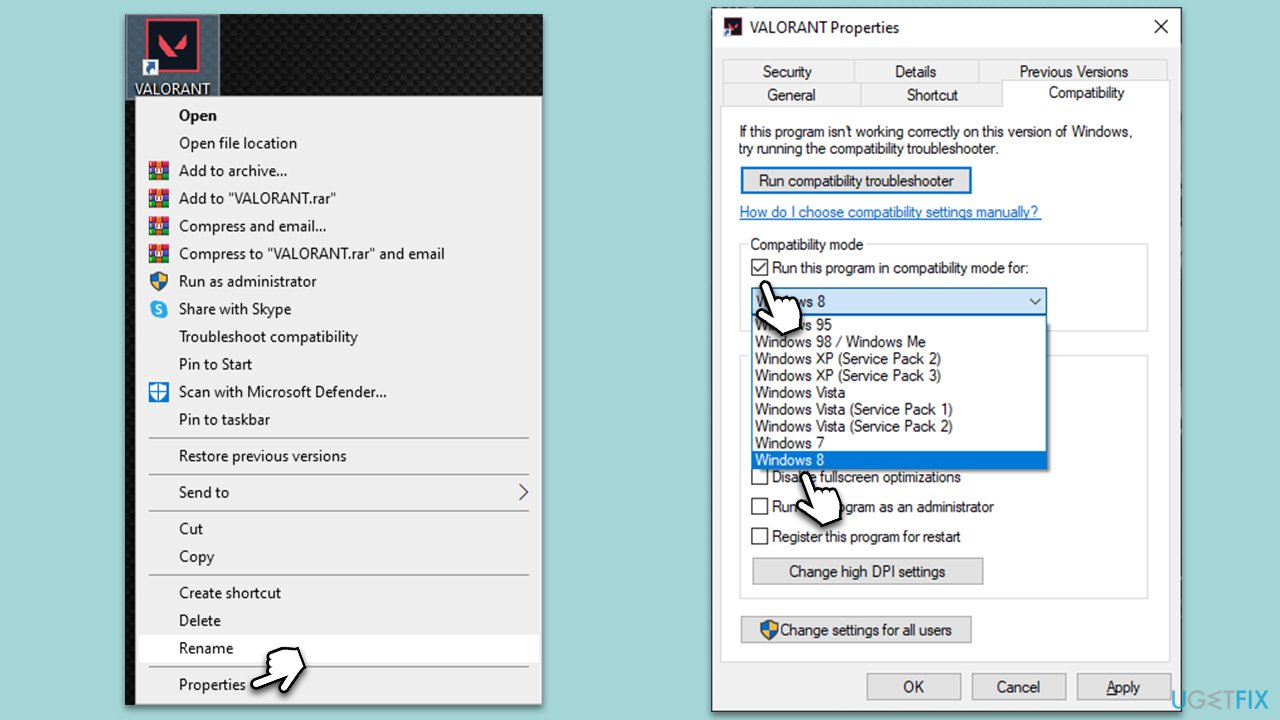
Sometimes, running software in compatibility mode can resolve issues related to system requirements or compatibility. Here is how to run Valorant in compatibility mode:
- Right-click on the Valorant shortcut or executable file and select Properties.
- Go to the Compatibility tab.
- Check the box that says, Run this program in compatibility mode for.
- Select the appropriate version of Windows from the drop-down menu.
- Click Apply and then OK.
Fix 4. Update your GPU drivers
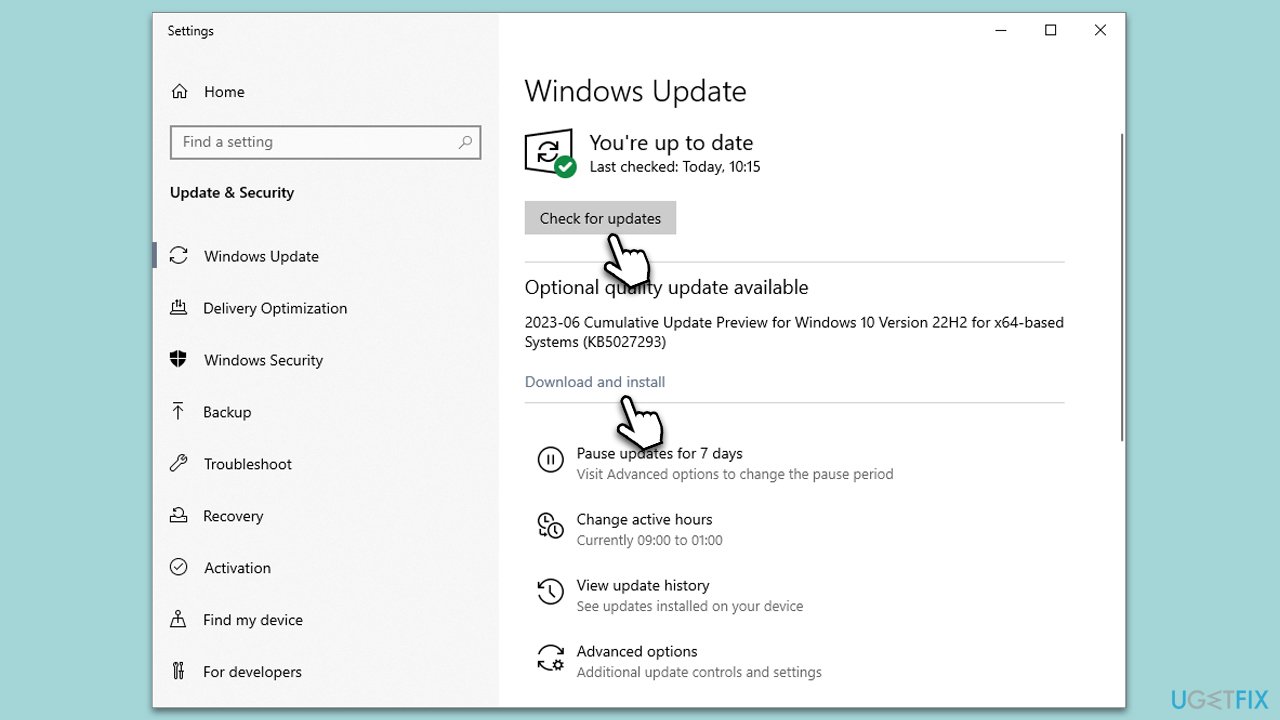
Keeping your GPU drivers up-to-date ensures that your hardware can fully support the game. Outdated drivers can lead to performance issues or even prevent the game from running entirely. There are several ways you can do this - updating through your GPU manufacturer's website, employing an automatic driver updater such as "[rev id="DriverFix"] or using the Windows update feature:
- Type Updates in Windows search and press Enter.
- In the new window, click Check for Updates and wait.
- If optional updates are available, install them as well.
- When all the files are installed and ready, restart your PC to implement the changes.
Related:
Bottom line
To fix the VAN 9003 error in Valorant, users need to activate the Secure Boot and TPM features on their devices. Detailed instructions are provided in the article to guide players through the process. If these fixes do not resolve the issue, further troubleshooting may be necessary.
Frequently asked questions
The VAN 9003 error is typically caused by connectivity issues, corrupted game files, or problems with the Riot Vanguard anti-cheat system on your Windows PC.
To fix the VAN 9003 error, try restarting your PC, ensuring your internet connection is stable, and reinstalling the Riot Vanguard anti-cheat software.
Yes, you can use the built-in Windows file checker tool by running 'sfc /scannow' in the Command Prompt to detect and repair corrupted system files that may affect Valorant.




Report an issue
What's wrong with this guide? We review every report and update or remove content.
Report received — thank you. We'll review and fix it.
You need a free account to submit a report.
Be the first to comment